Release notes 26.2
HIGHLIGHTS
- Processes view in Portal's Lineage — dedicated process views with full editing support, column mapping, and script attachment
- Metadata Sync — two-way synchronization of Data Classification tags between your sources and Dataedo, with conflict resolution and a Dry Run mode
- New ERD Diagrams — redesigned diagrams with faster loading, grouping by schema or domain, no object limit, and new Data Quality and Classification badges on nodes
- New Descriptions — flexible block-based editor with headings, tables, code snippets with syntax highlighting, banners, and diagrams
- Manual Databases and Objects in Portal — create user-defined databases, reportings, and objects directly from Portal
- Connectors coming to Portal — 18 new connectors brought over to Portal
- Export to Excel — export your documentation to .xlsx directly from Portal, with configurable scope, sheets, and reusable configurations
- Foreign Key Tester in Portal — test key relationships individually or in bulk, also available in Steward Hub
- Scheduler — add data sources to existing connections, merge duplicate connections, download execution logs, run individual rule instances, and view import summaries
- Browser Extension — extended support for Reporting software using URL matching
- UI changes — reworked loaders, unified object navigation with column-level search, redesigned column and table grids, and a new tile-based login options page
- Other changes — we added new notification types and made it possible to remove badges added by other users
Processes view in Portal's Lineage
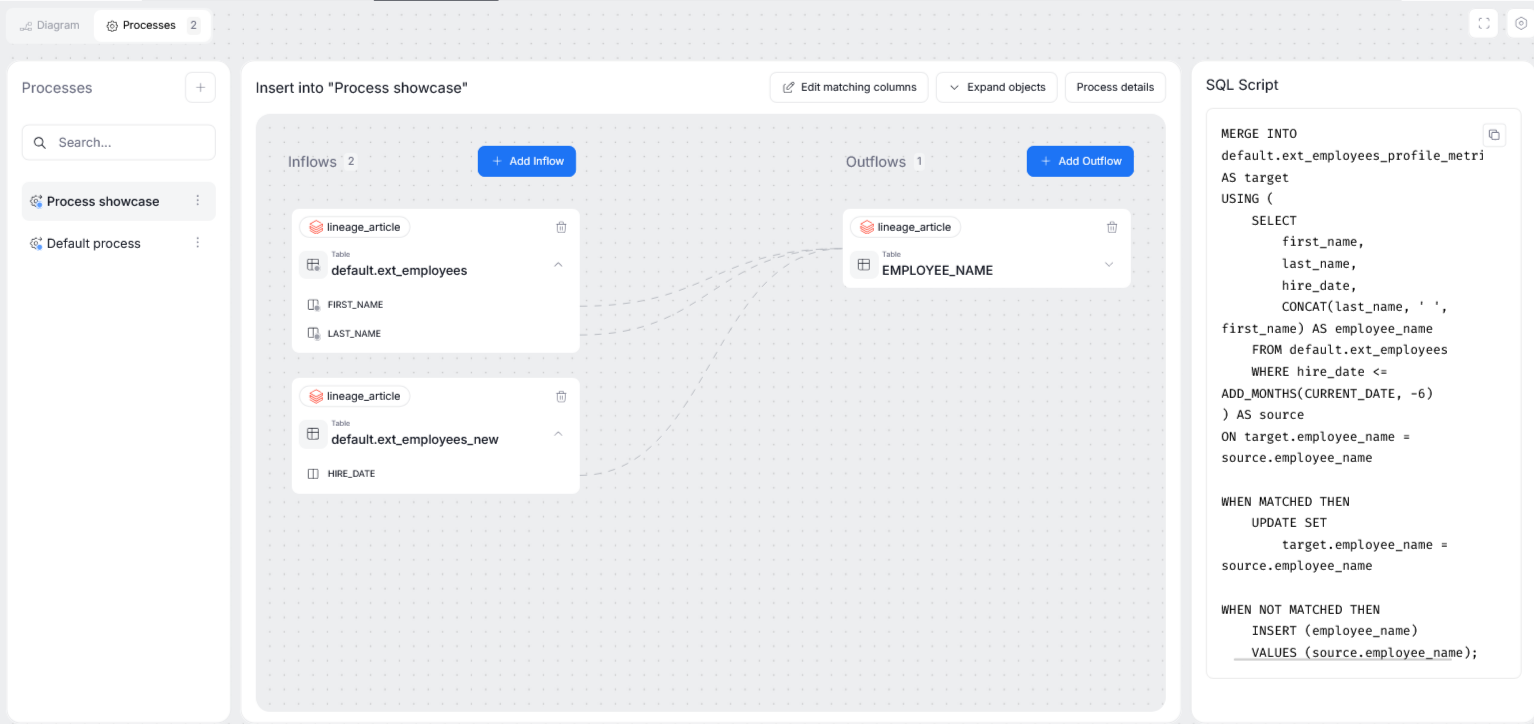
Dataedo 26.2 adds a dedicated Process view in an asset's Data Lineage section.
The new Processes tab shows all processes where your assets act as a processor. All advanced dependencies are also available, including data flow mapping, column transformations, and the ability to view and edit a processor's (optional) script.
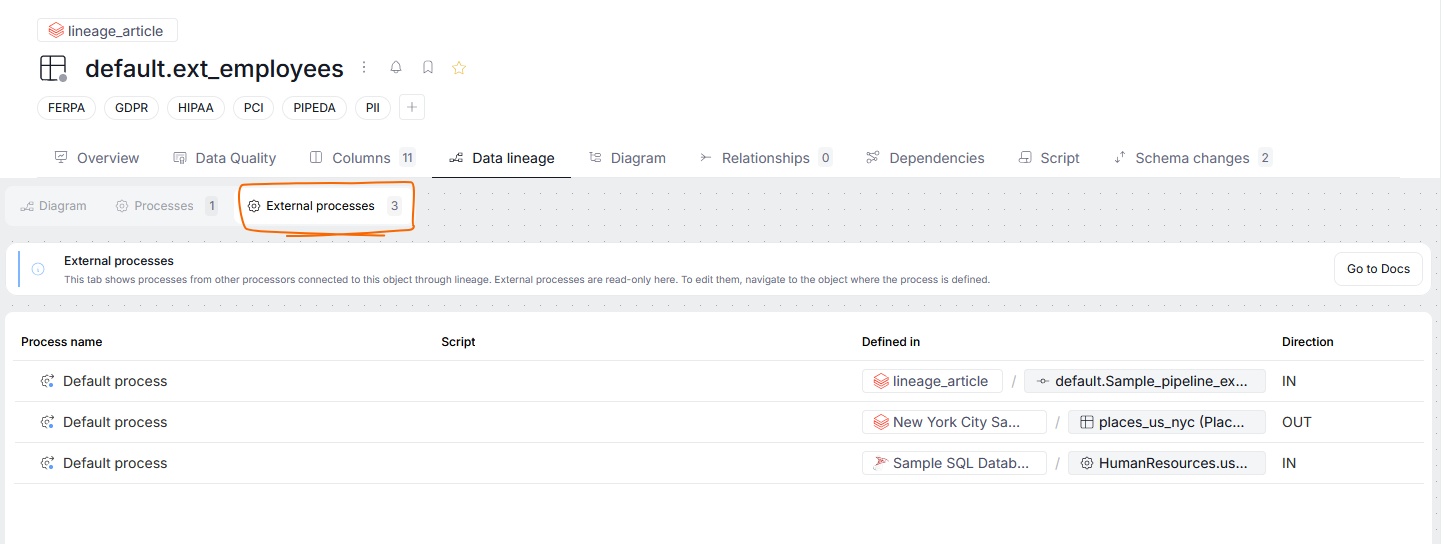
You will also see an External Processes tab for some assets. This tab stores a list of all processes your object participates in, either as an inflow or an outflow, but not as the processor itself.
Editing Processes
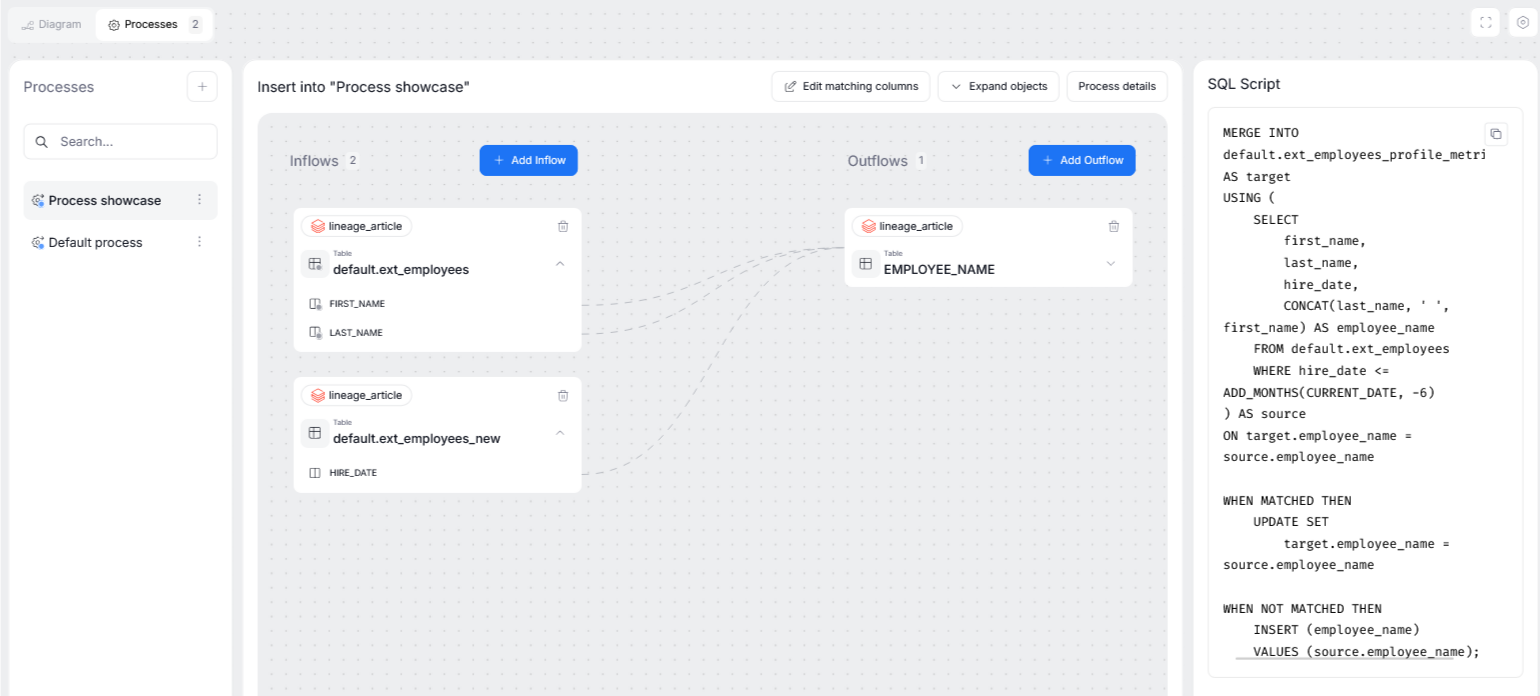
It is also now possible to manually edit processors and processes in your repository using Dataedo Portal. Enabling the Edit Mode within Processes allows you to:
- define inflows and outflows of a process
- map column mapping for data transformation
- edit and attach SQL scripts
Learn more in the dedicated article.
Browser Extension
Alongside release 26.2, we are adjusting how our web extension works. Now, the external asset pages are matched by their URL, which is extracted during Metadata Imports. This means that from now on, the Dataedo web extension will work for all assets stored in your repository, so long as their URL can be extracted.
Metadata Sync
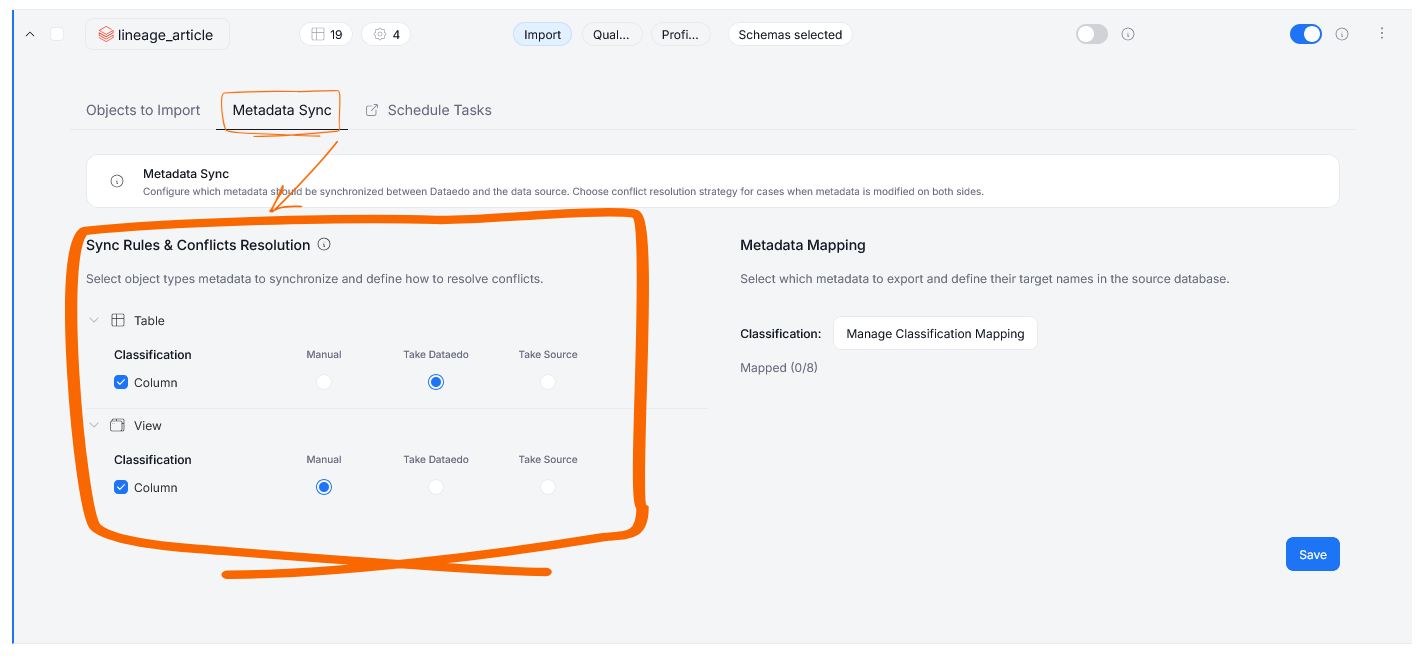
Dataedo 26.2 introduces Metadata Sync — a two-way synchronization of Data Classification tags between your data sources and your Dataedo repository. With Metadata Sync, Dataedo becomes a single source of truth for your classification data: changes you make in Dataedo are pushed back to your sources, while incoming changes from your sources are tracked and reconciled in one place.
You can configure how conflicts are handled per object type, opting for automatic resolution or manual review via Steward Hub. A Dry Run mode is also available, letting you preview all pending changes before committing them to your source.
Learn more in our documentation.
New ERD Diagrams
ERD diagrams in Portal have a new look, load faster, and are no longer capped at 500 objects.
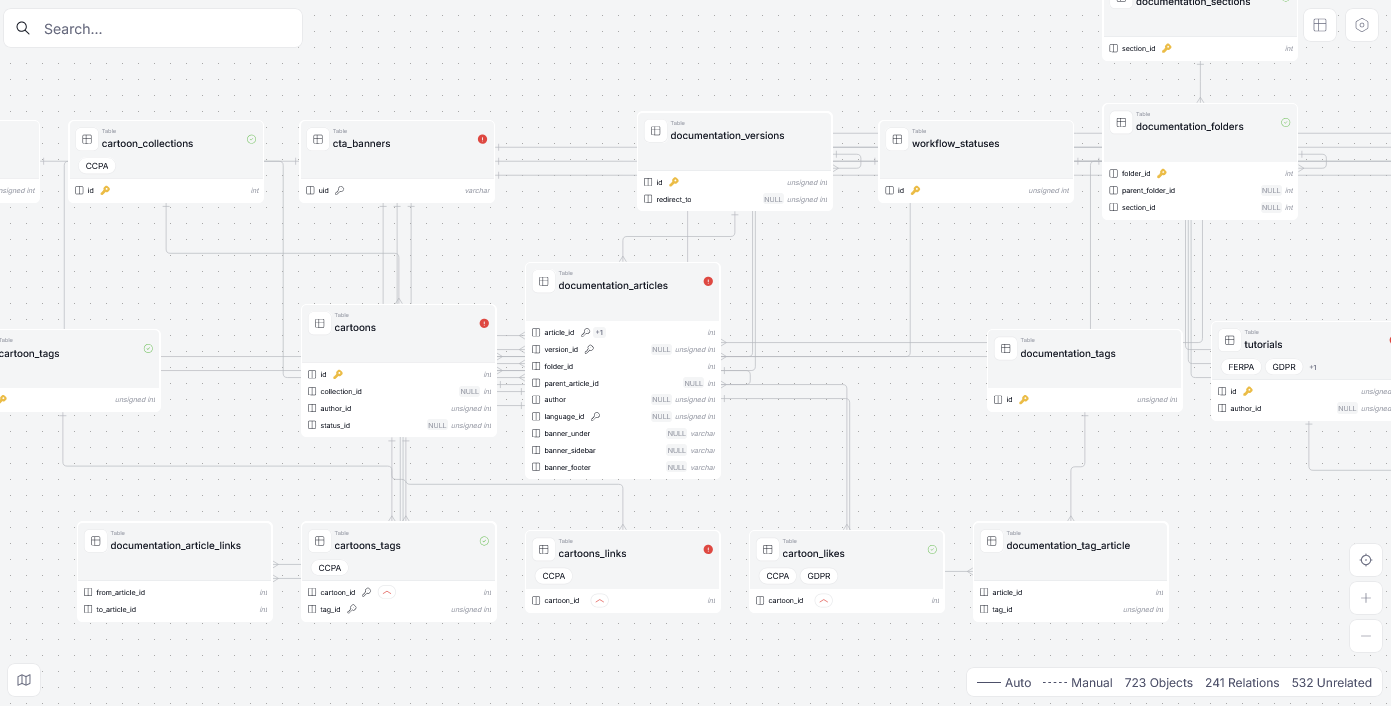
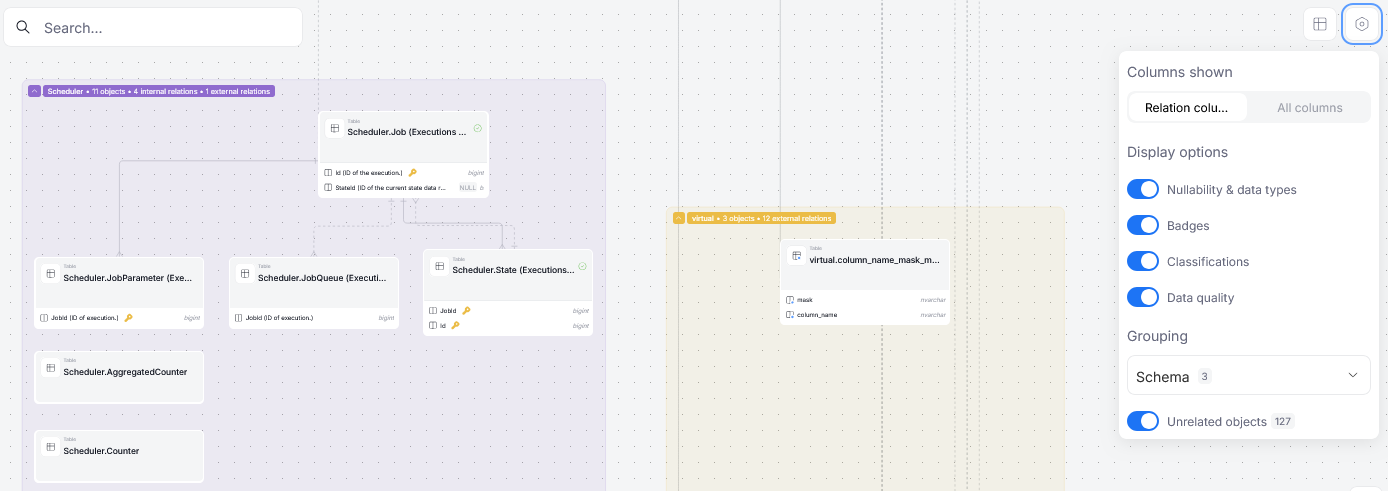
You can also now group the assets in your diagram depending on their schema or inclusion in Domains, Areas and Data Products.
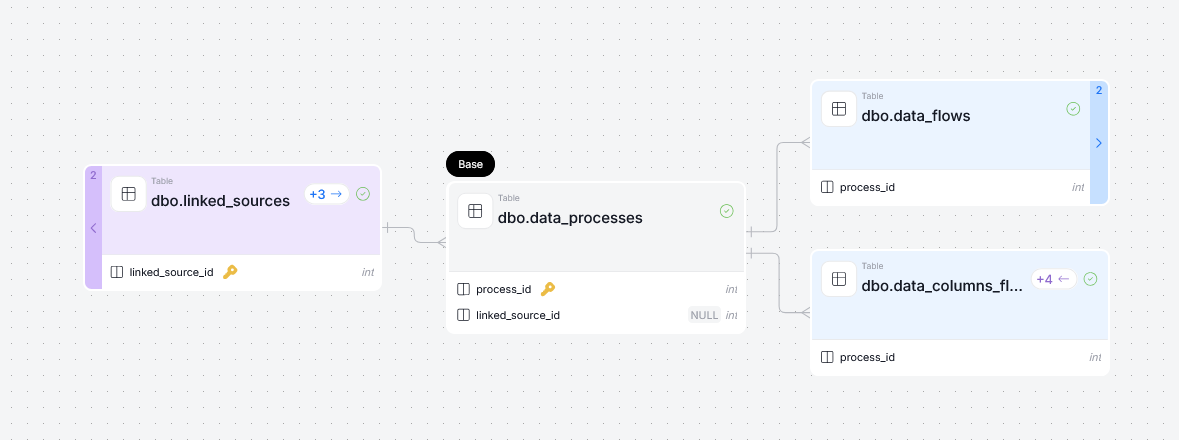
Diagrams for assets
The ERD diagrams redesign also applies to individual assets. Referenced sources are marked in purple and referencing sources in light blue — the same color scheme as before.
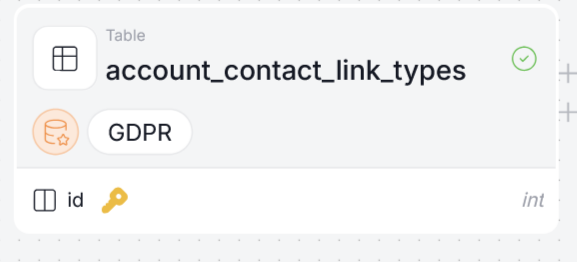
Indicators on diagram nodes
Diagram nodes now display additional information as badges, including Data Quality check results and Data Classification assignments. User-assigned badges are visible on nodes as well.
Manual Databases, Reportings, and Objects in Portal
Dataedo 26.2 brings manual databases and objects to Portal. This feature, previously available only in Dataedo Desktop, allows you to create user-defined databases and objects that exist solely within your Dataedo repository.
Manual databases and reportings can be added from the relevant views (data sources and report catalog respectively), while manual objects such as tables, columns, views, and procedures can be created directly within any data source.
Learn more in the dedicated article.
New Descriptions
Descriptions in Dataedo have been rebuilt around a flexible, block-based editor. You can now structure content using headings, tables, code snippets with syntax highlighting, banners, diagrams, and interactive checklists — all from a single slash-command menu. Learn more in the dedicated article.
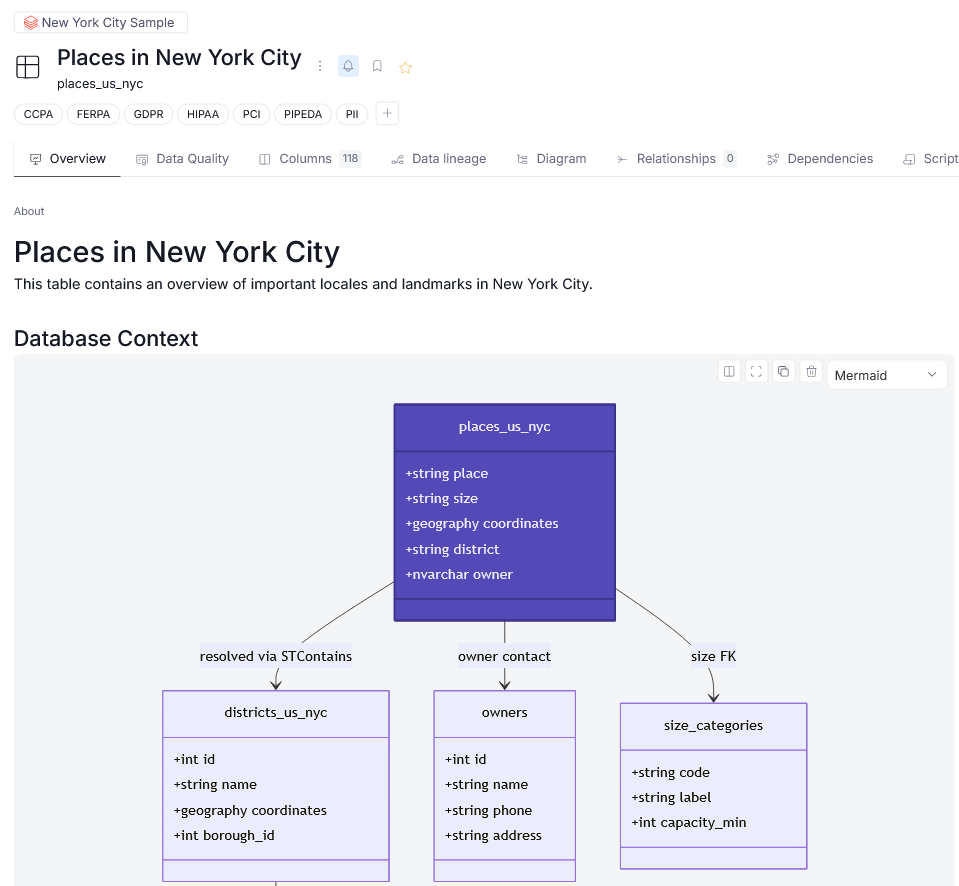
The switch to this new descriptions system also means that, sadly, editing descriptions is no longer possible in Dataedo Desktop.
Note that columns, parameters, keys, relations, and triggers continue to use plain text descriptions.
Connectors coming to Portal
With version 26.2, we focused on bringing the connectors you already know from Desktop over to Portal, allowing you to perform all data actions in one place.
The connectors added to Portal are:
- Amazon Aurora
- Amazon DynamoDB
- Amazon Keyspaces
- Amazon QuickSight
- Azure Cosmos DB
- Azure SQL Edge
- Cassandra
- MariaDB
- Microsoft Fabric Power BI
- Neo4j
- MySQL Core
- Percona MySQL
- Power BI Report Server
- Fivetran
- OpenLineage
- Oracle PeopleSoft
- Oracle EBS
- SAP HANA
- Redash
- Interface Tables and Report Interface Tables — While not connectors themselves, Metadata Import via Interface Tables and Report Interface Tables is now possible in Portal. Interface Tables allow you to import metadata from sources not officially supported by Dataedo.
Export to Excel
In 26.2 we are bringing Excel export to Portal! This feature, previously limited to Dataedo Desktop, allows you to quickly and efficiently export your documentation to xlsx format.
You can access the export menu by navigating to https://your-dataedo-address/export:

Or via the Export to Excel button on any asset listing page.
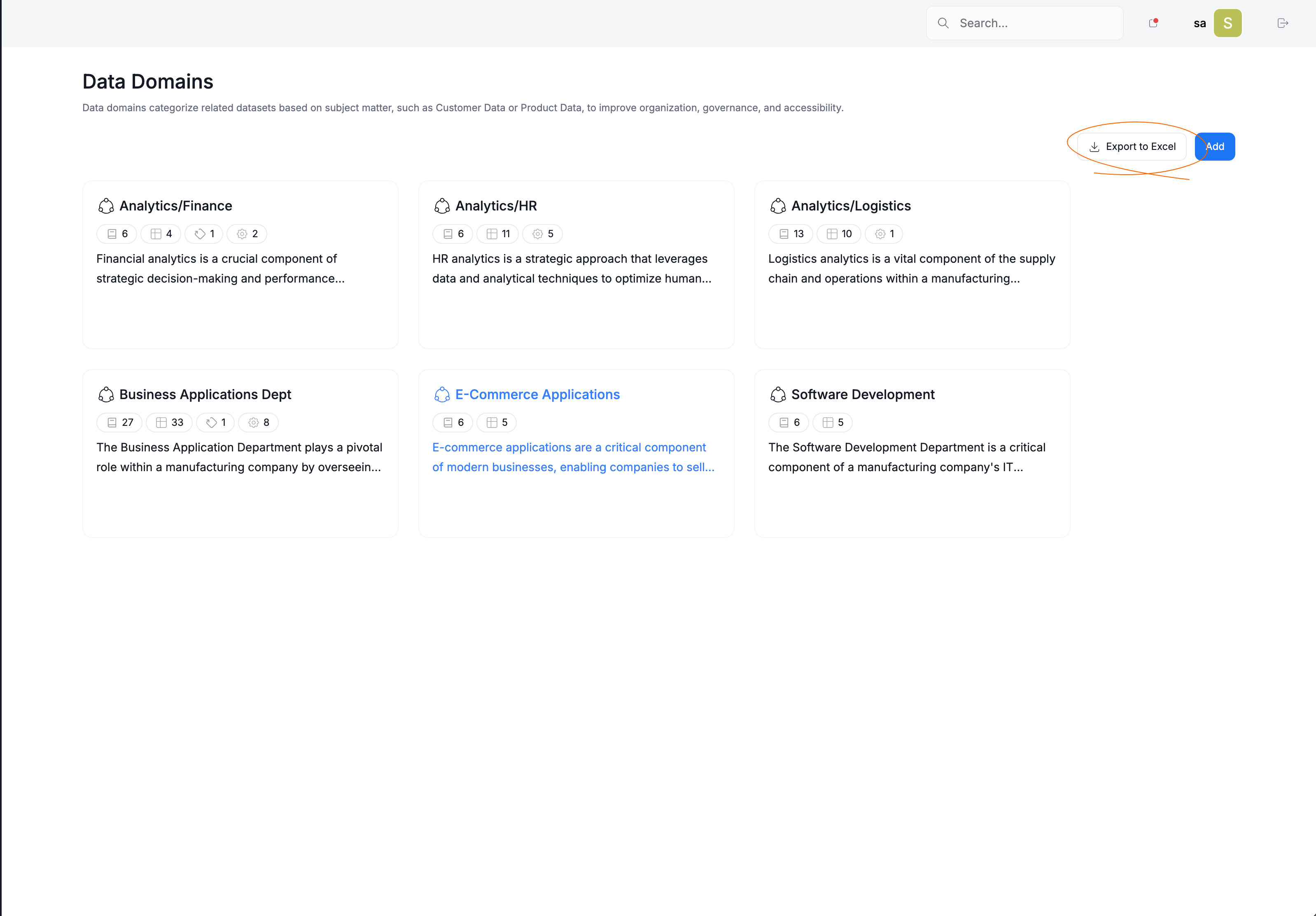
The export is configured across three areas: Scope, Sheets, and Configurations. Scope lets you decide which asset groupings to include, while Sheets lets you fine-tune exactly which object types and their properties get exported. Past configurations can be saved and reused, and previous exports can be revisited to copy their settings.
The resulting .xlsx file includes a summary spreadsheet alongside up to 36 object-specific sheets, complete with cross-references and interactive filters.
Scheduler
Adding a new data source to an existing connection
From this version onwards, you can add new data sources to an already established connection. This helps you keep all of your sources in one place.
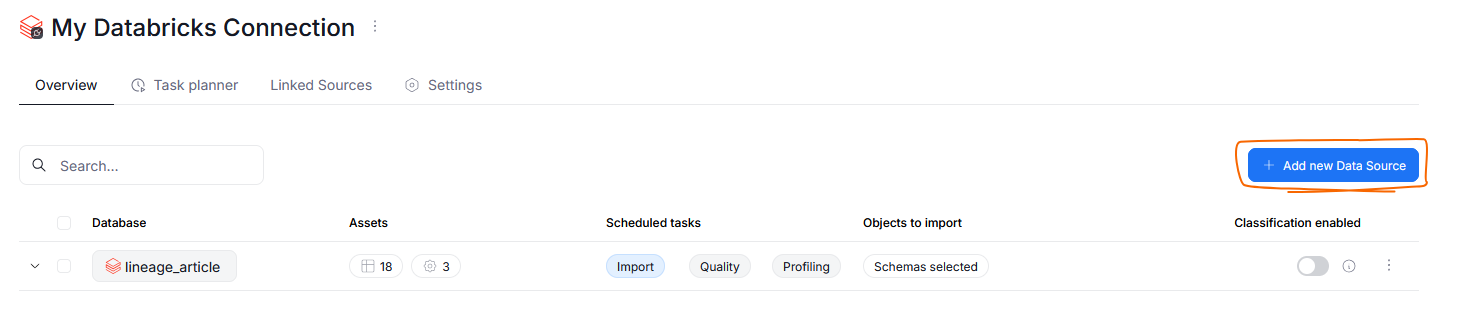
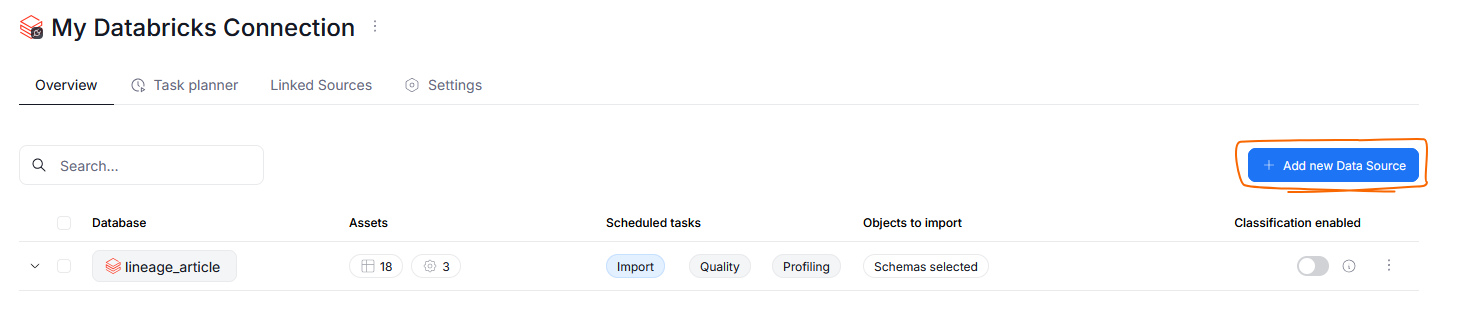
If the host your connection points to, has some sources which are not yet imported, an Add new data source button will appear. You can use it to add missing data sources to an existing connection.
Merging sources into connections
Dataedo 26.2 introduces the ability to merge multiple connections pointing to the same host into one complete connection. This feature helps to reduce redundancy in your repository, and allows for a cleaner organization of data.
If Dataedo detects any data sources under the connected host which have not yet been added to your repository, you will see the button that allows you to add them to your existing connection.
It is also possible to merge sources retroactively. If Dataedo detects multiple connections to the same host, you will see an interactive banner in the connections tab that allows you to safely merge them.

Learn more in our documentation.
Download execution logs
You can now download execution logs directly to your device. This option is available from the executed task's menu in the calendar tab.

Run individual rule instances
From version 26.2 on, you can run individual Rule Instance checks outside of their scheduled executions. This can be done manually from the Rule Instances tab in the Data Quality section. Simply open an instance's menu and select run immediately.
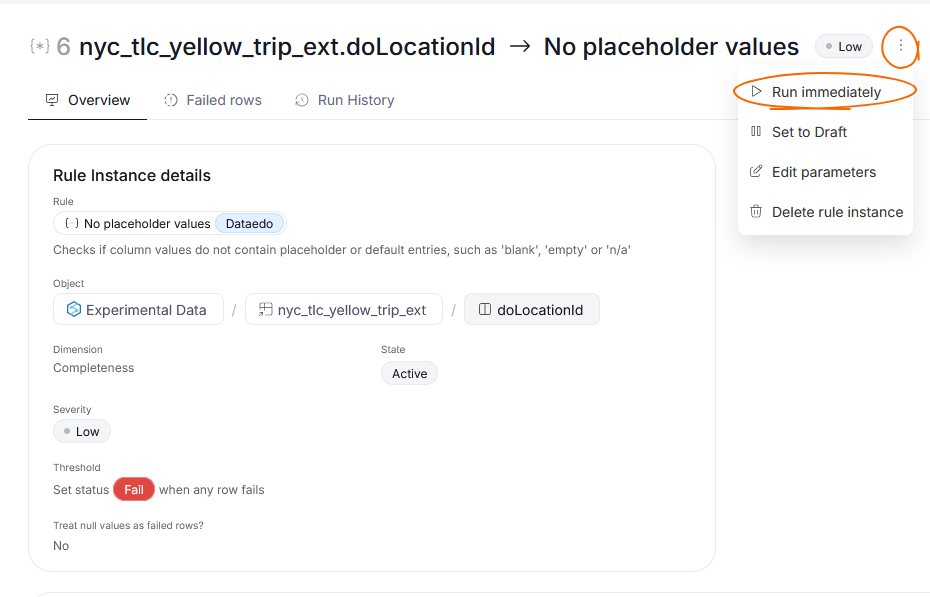
Tasks run this way will still be visible in your execution history.
Import summary
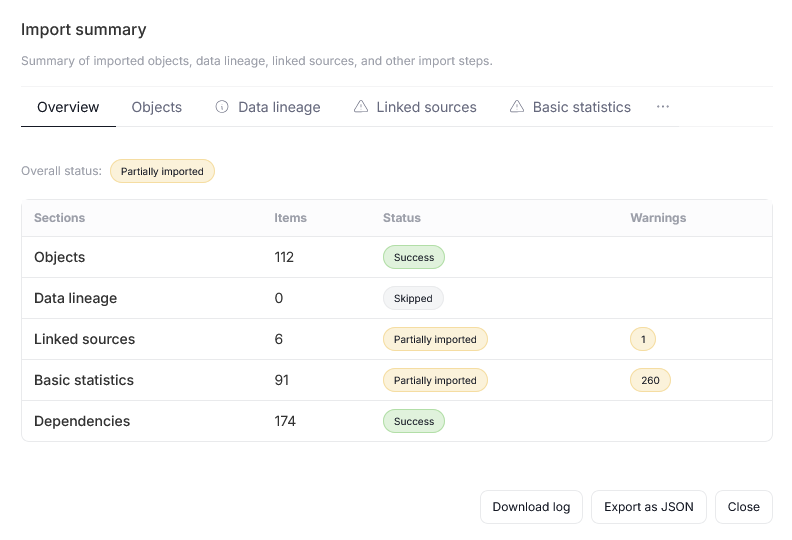
We added a new scheduler feature that allows you to view a numeric summary of objects imported during your Metadata Imports. This summary can also show suggestions for resolving any ongoing import issues, and suggestions regarding linked sources.
Foreign Key Tester in Portal
Dataedo 26.2 sees the addition of a Foreign Key Tester to Portal. This feature, previously available only in Desktop, lets you test key relationships before documenting them in your catalog.
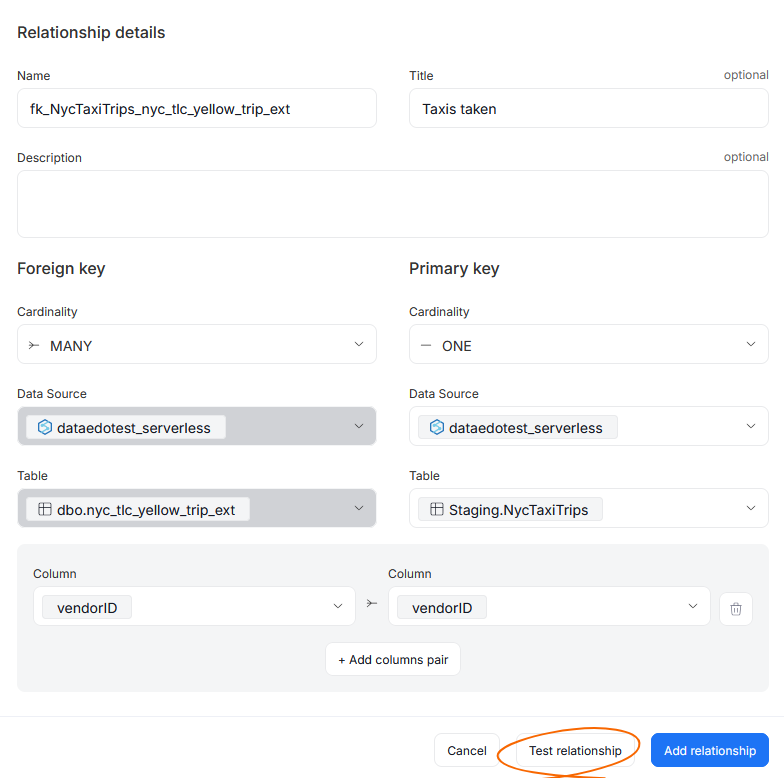
The Foreign Key Tester is able to perform tests on single relationships as well as in bulk. It can also be used in the Steward Hub to test any potential Foreign Keys before approving them.
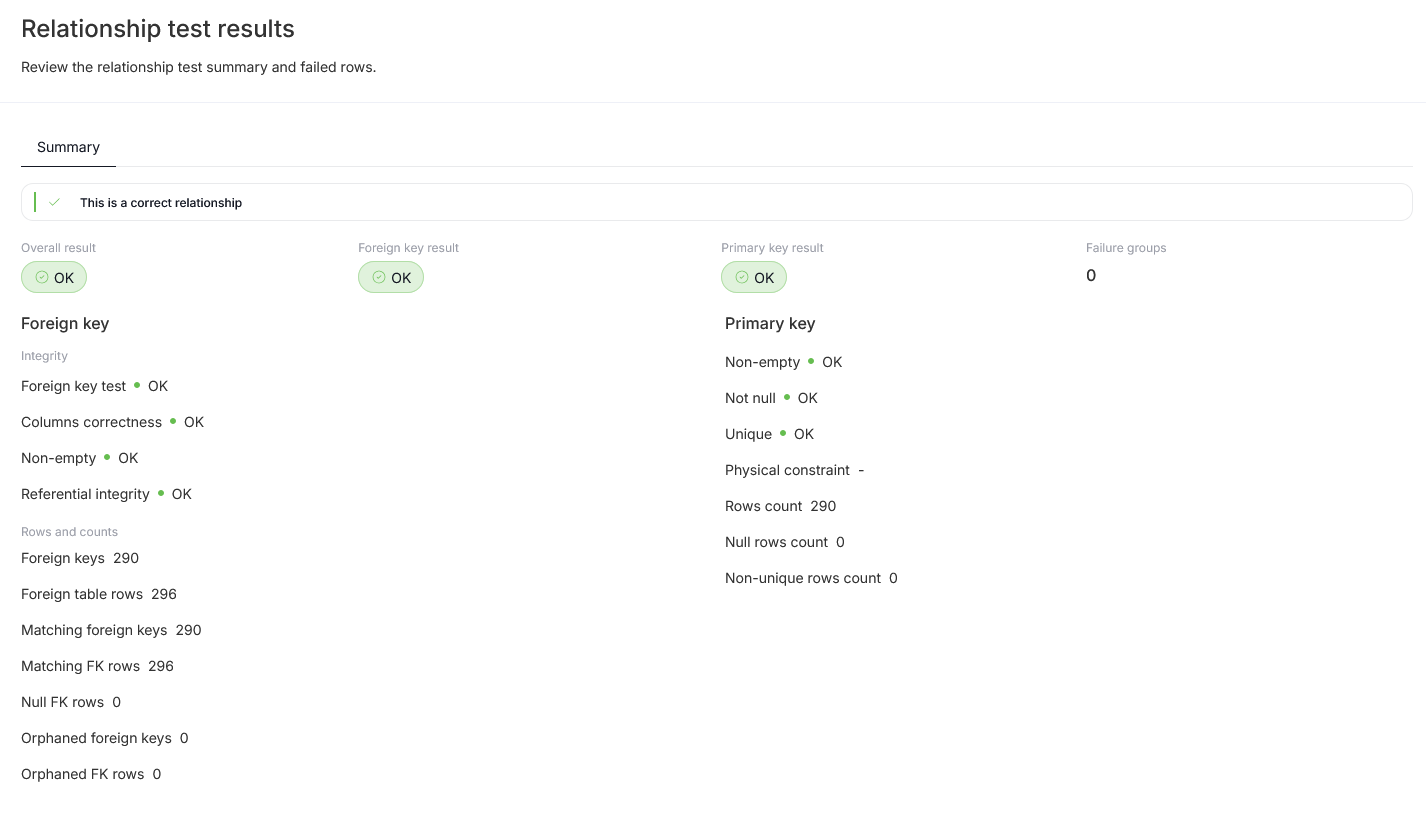
The test consists of multiple checks ensuring that primary/foreign key constraints are fulfilled. You can view its results immediately after the test finishes. Learn more here.
Agent configuration
We added two new options to agent configuration, which you can edit in your system settings. You can decide the agent's behavior regarding handling tasks missed when offline, and repeated executions of the same task in a short period of time. Learn more in the dedicated article.
UI changes
Reworked Loaders
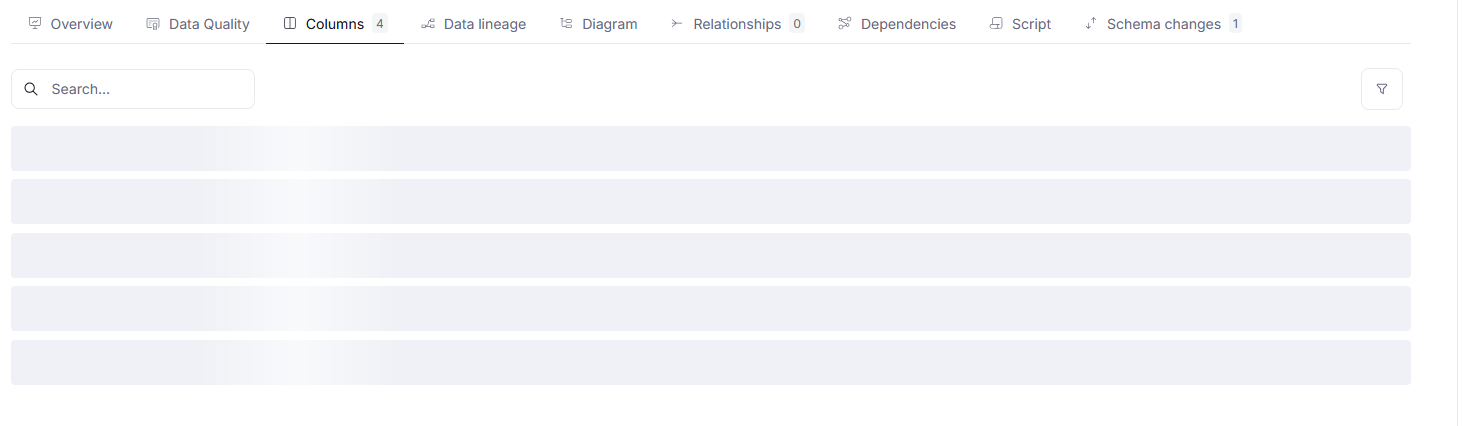
In 26.2 we aimed to standardize the behavior and look of loaders across Dataedo. Now, when waiting for data to load you will either see an empty mockup of what the page with structured data should look like once it is loaded, or a three-dots animation when waiting for unstructured data to appear.
Example loader patterns
Extended object navigation
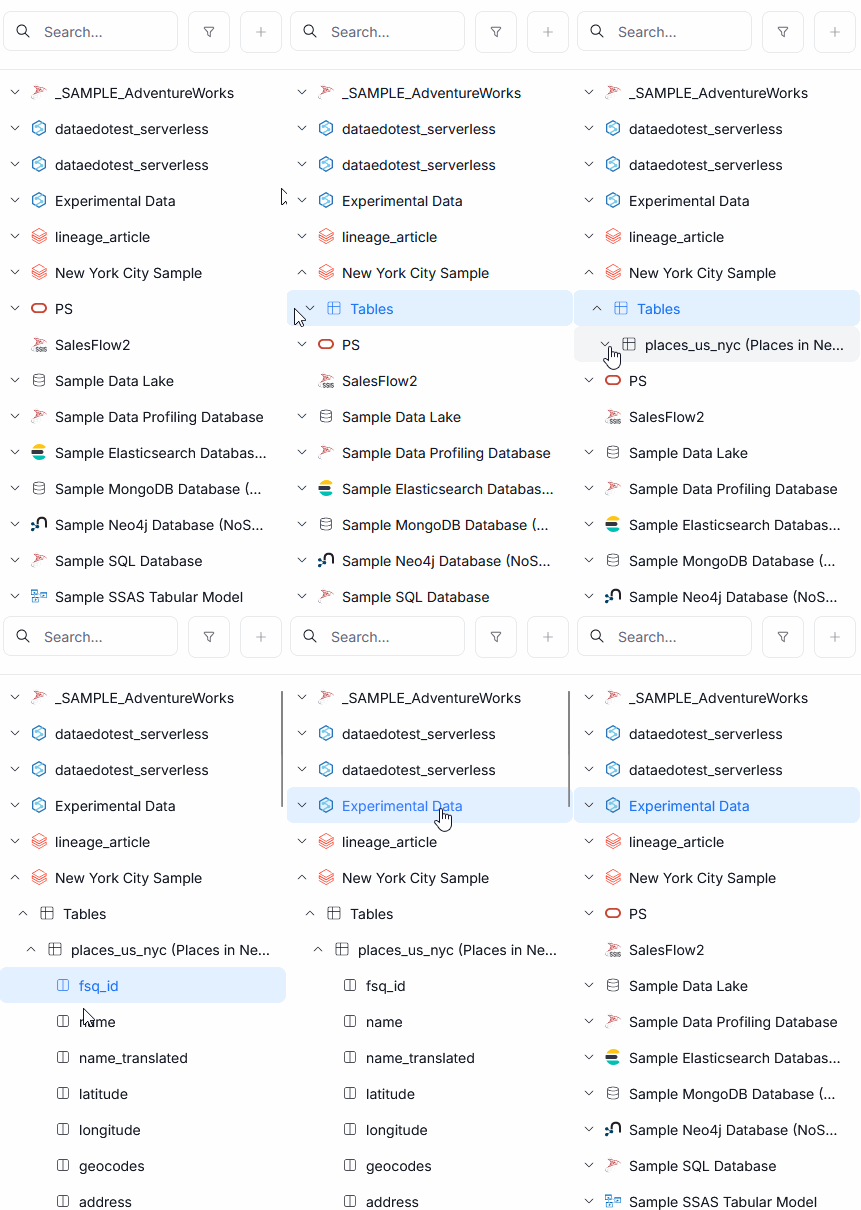
We unified navigation across all object trees. They now display all parent objects at once, and each object can be expanded to show its children, including objects previously not accessible from the tree structure — like columns and nested columns. Additionally, for consistency and ease of use, switching between objects from different databases no longer collapses other expanded sections.
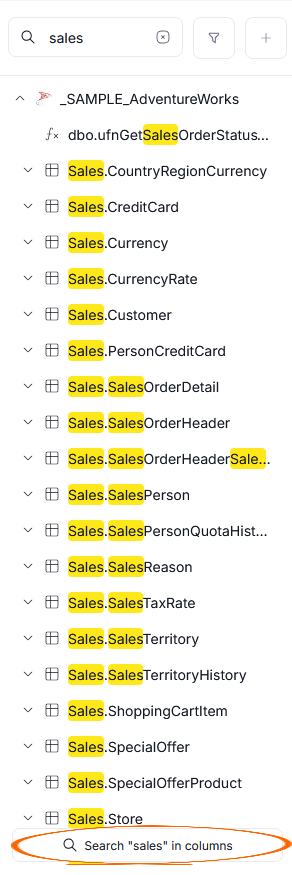
This change in navigation also brings in changes to the sidebar's search mechanism. The search behavior still defaults to searching through table names, but we added a "Search for columns" button to trigger a more thorough, column-level search. Column-search takes significantly longer, so we advise using it only when necessary.
New Column & Table Grids
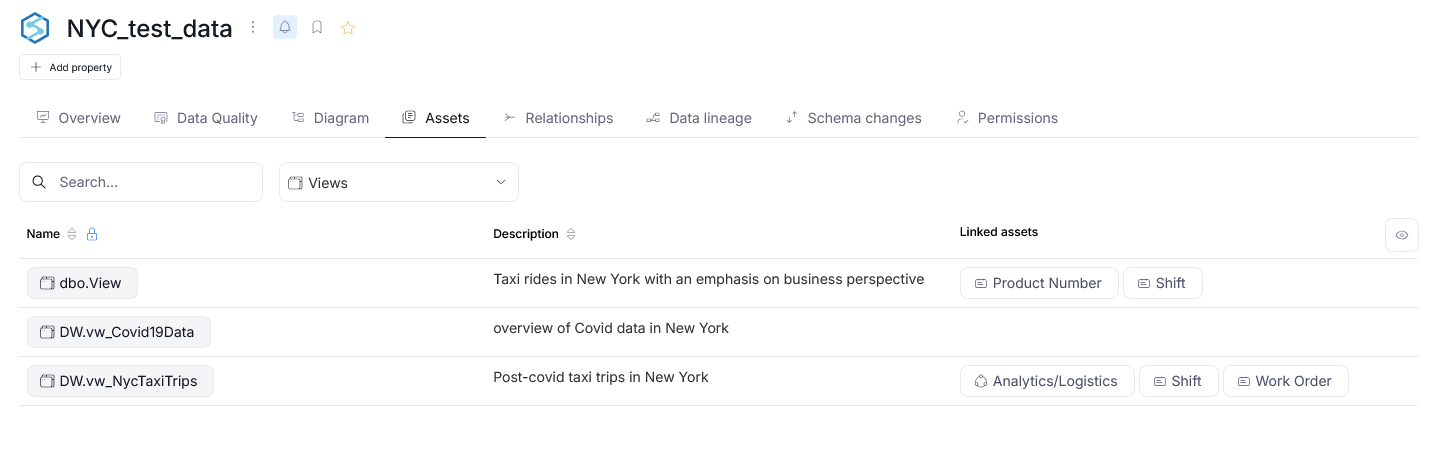
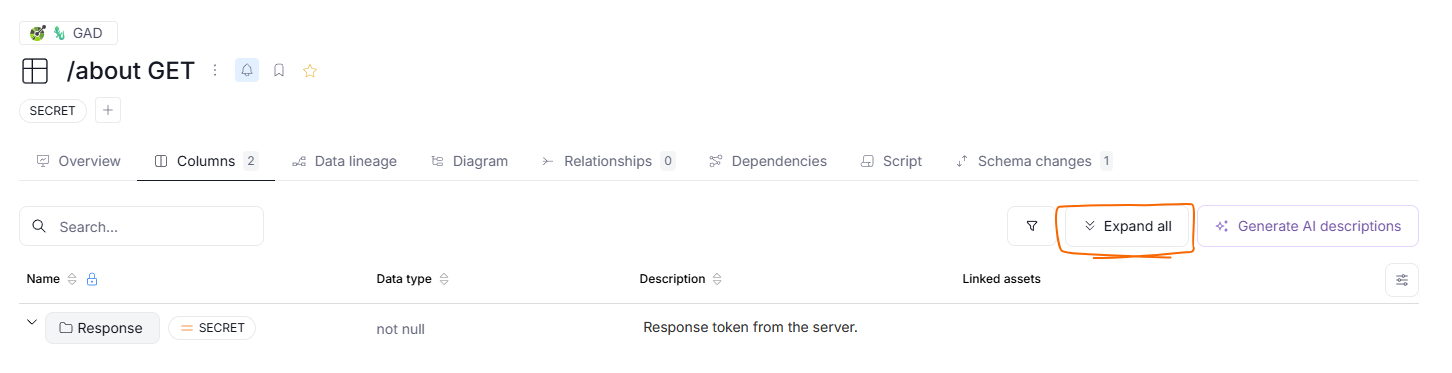
We redesigned the Column and Table grids to reduce visual clutter. This new approach shows only four columns by default: Name (with any special badges and PK FK constraints additionally marked), Data Type (for Columns only), Description, and Linked Assets. All Custom Field columns are hidden, but can be made visible using the column selector.
If your table has nested columns, they will be hidden by default, but can be made visible using a new Expand all button. Up to 500 nested columns can be displayed.
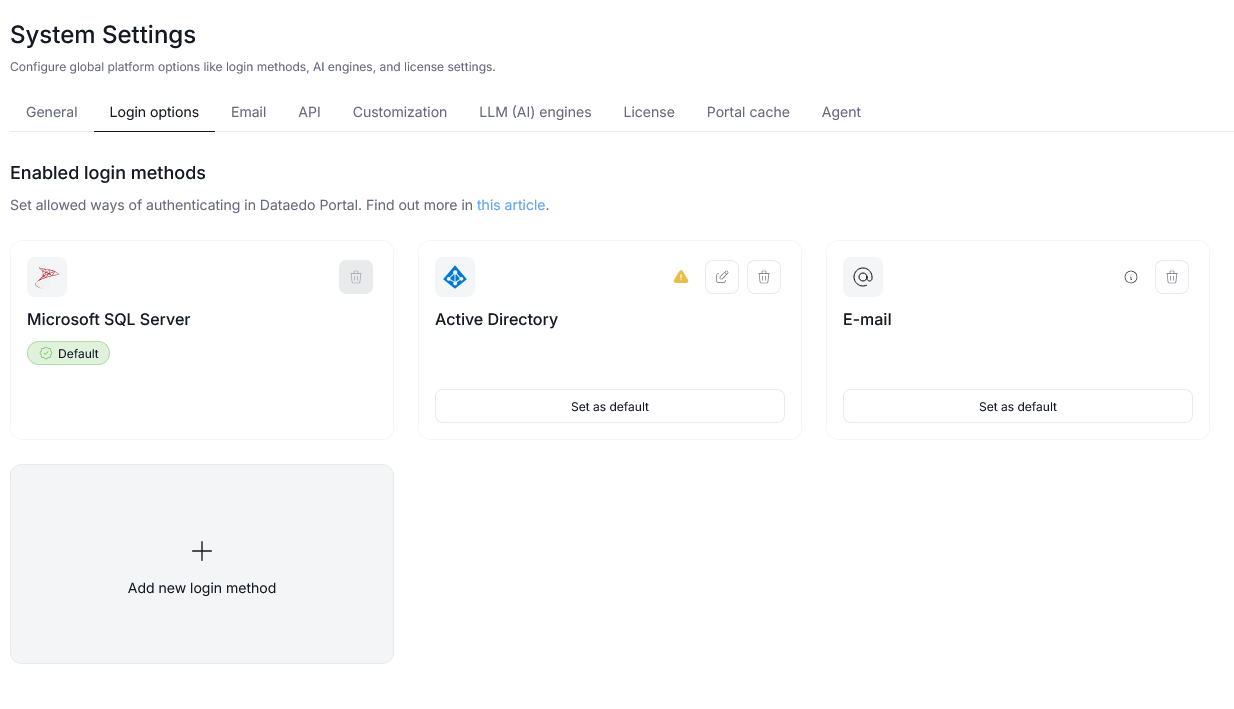
Login options
The Login Options page in System Settings received a new, tile-based design. Now, every enabled login method is displayed as a separate tile.
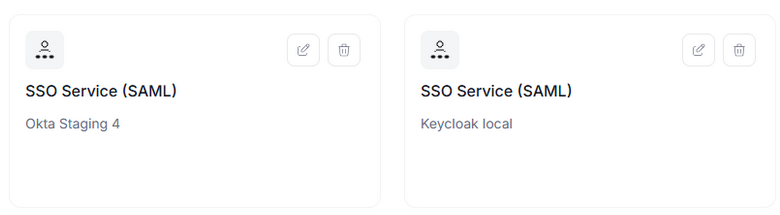
If you have multiple SAML providers configured, each one will be displayed in its own tile.
Other
Deleting other users' badges
In this version, we made it possible for Power Data Stewards and Data Stewards to remove badges assigned by other users. This option is useful when you need to delete a badge added by a user who is no longer part of your organization.
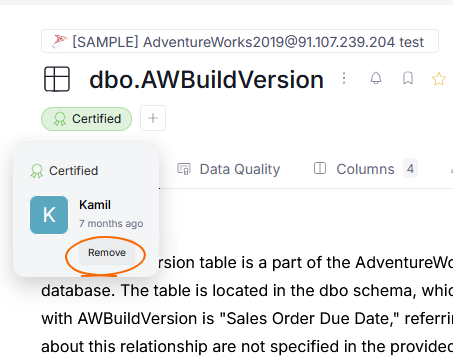
The content of a badge (e.g., a description) can still be edited only by the user who added it, however.
New notifications added
We added notifications about Classification task failures. They can be managed and configured like all the other Dataedo notifications.