Release notes 26.1
HIGHLIGHTS
- Data Classification — Classification moved to Portal, with a new, data-sensitive approach
- Data Lineage — Added the ability to manually add and edit new Data Lineage nodes in Portal
- Data Quality — Changes to UI and the ability to store more failing rows
- New connector — MS Fabric Lakehouse, MS Fabric Data Factory
- Import Metadata in Portal — Azure Synapse Analytics, MS Data Warehouse, MS Fabric Lakehouse, MS Fabric Data Factory
- Connectors — Power BI, Snowflake, SSIS, Redshift, Strategy One, Interface Tables
- Scheduler — Bulk tasks addition, changes to credential permissions
- Other improvements — Support for one-time API executions, ability to remove Glossaries, user information extraction from SAML, and many more
- UX and UI improvements — new icons, flexible pagination, and expandable side panels
Data-aware Classification in Portal
We are taking a new, more exhaustive and reliable approach to Data Classification. The new Data Classification relies on Semantic Types — an automated way to categorize your data into larger, abstract categories. Those Types are then used to Classify Data. Learn more here
We updated all existing Data Classification functions to work with the new approach.
This also means that we are removing Data Classification from Desktop, making it a Portal-exclusive feature.
Catalog settings
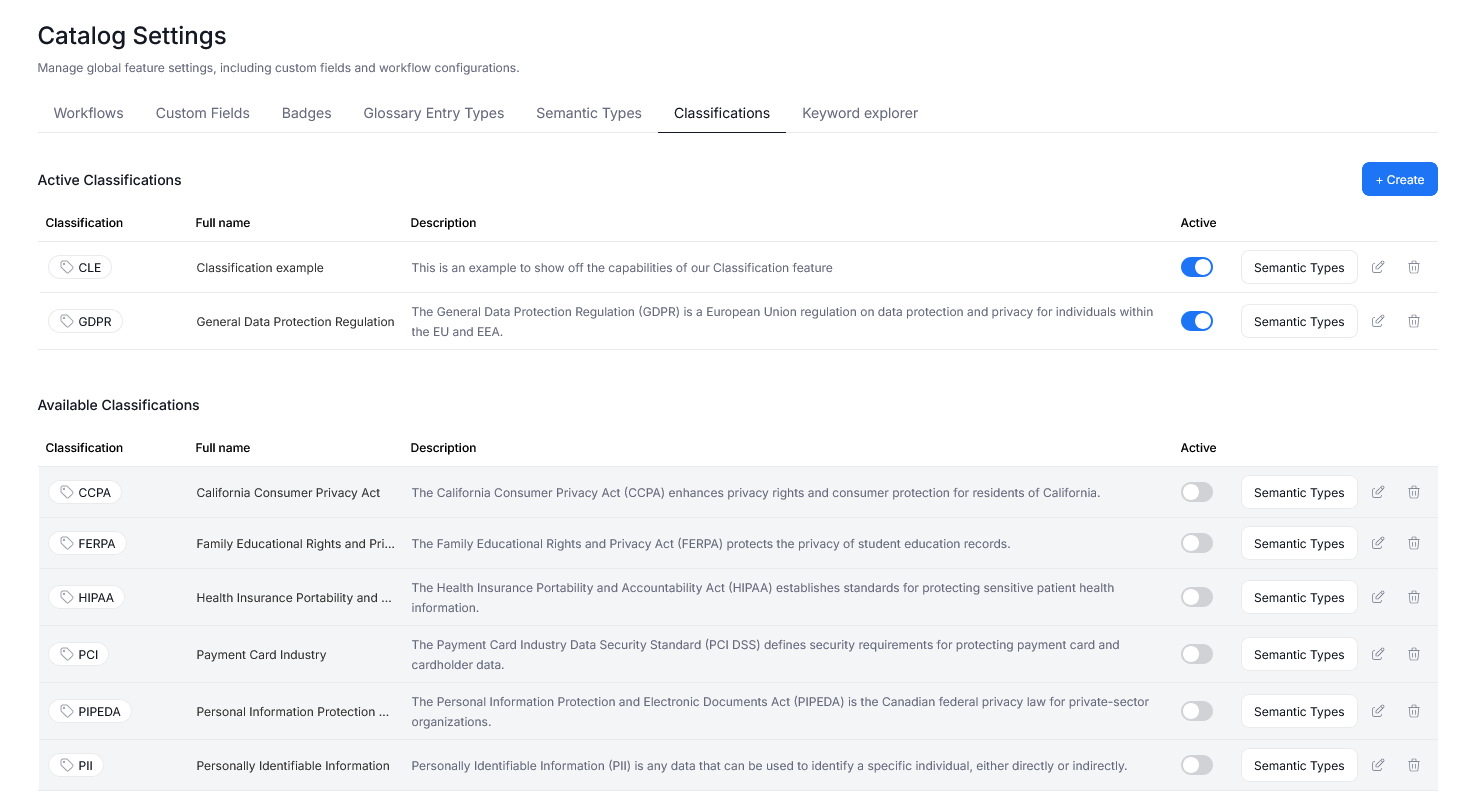
To manage Data Classification and Semantic Types we added two new tabs to Catalog Settings.
The Classifications tab, lets you decide which Data Classifications are used in your repository. You can also manage the existing Data Classifications, and define new ones. Find a full breakdown here.
In Semantic Types you can edit and define Semantic Types, including the rules governing Type detection. We offer support for Regular Expressions, and dictionary-based matching.

Using Classification
Data Classification and Semantic Type detection run automatically after Metadata Imports, provided that certain conditions are met.
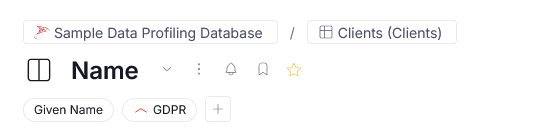
Once Data Classification is finished, classified objects will be marked with appropriate badges throughout your repository, assisting with data compliance in your organization.
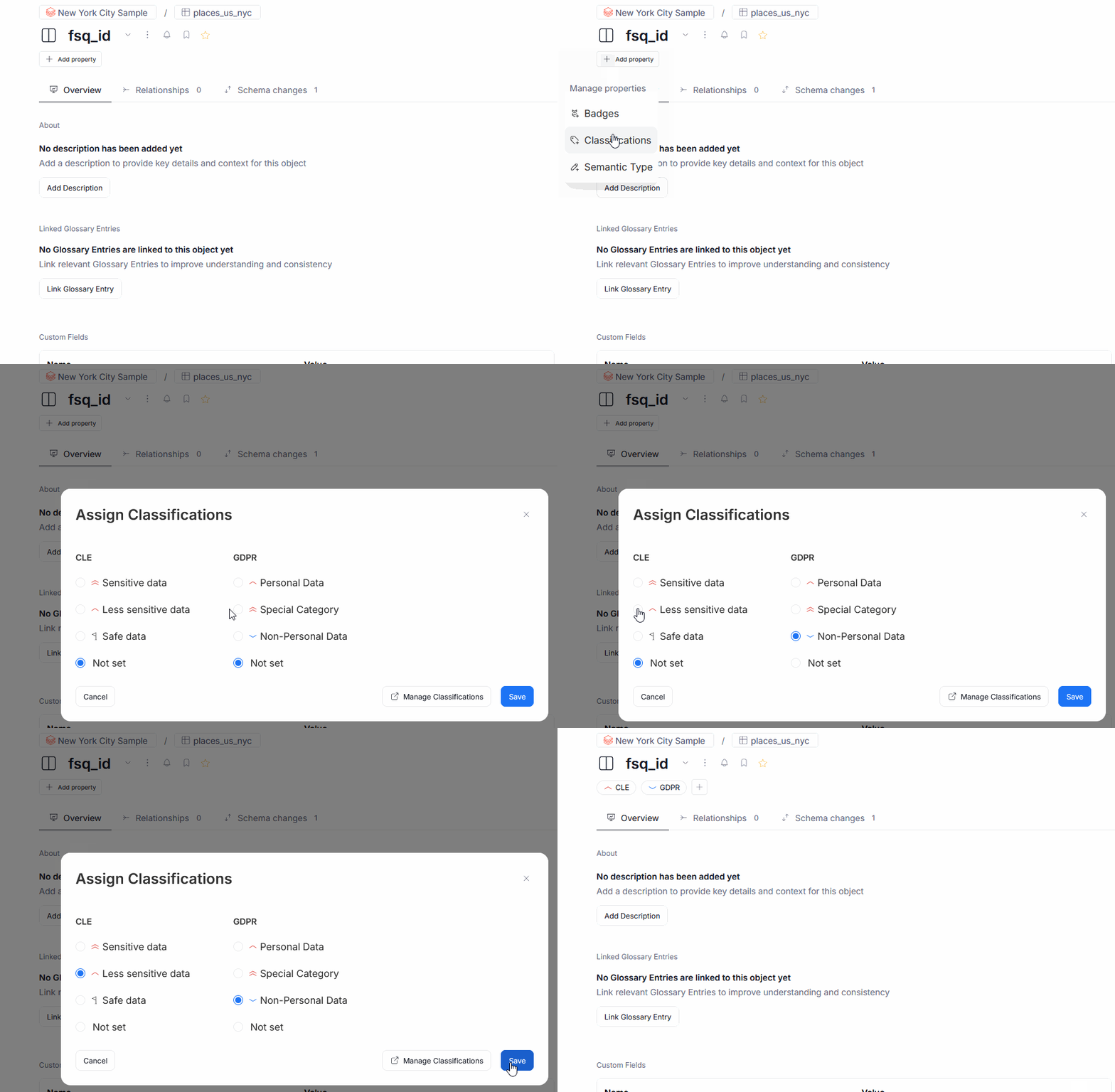
We also introduced the ability to add Semantic Types and Data Classification to objects by hand.
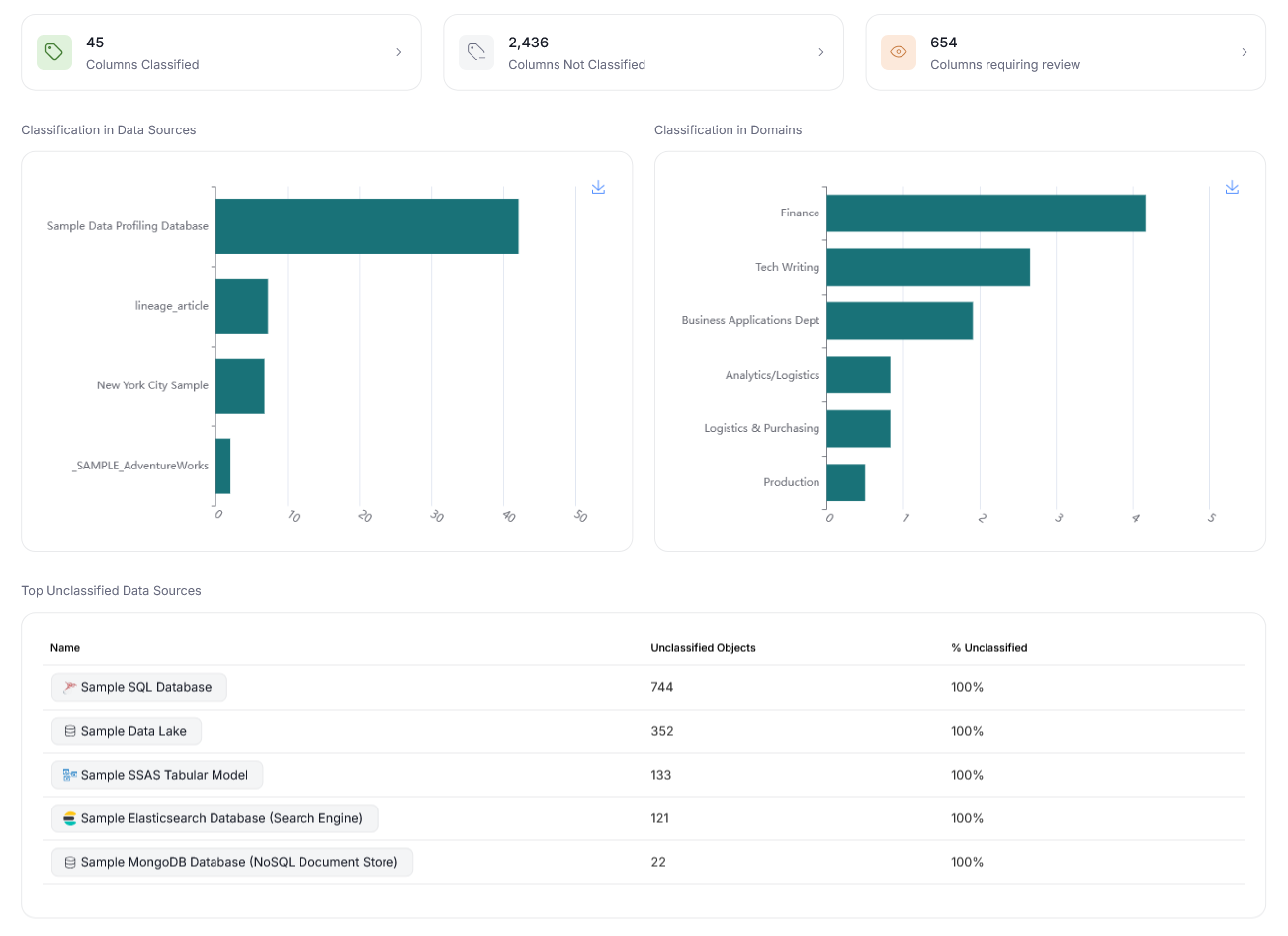
Finally, the Data Classification page was refreshed, with new, functional widgets and dashboards, offering summary of the classified data at a glance!
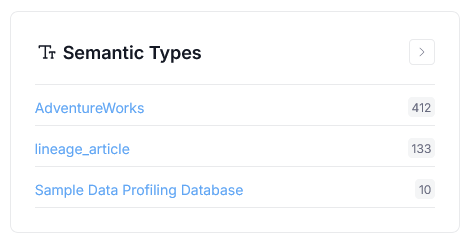
Steward Hub
We added a new Steward Hub module. Semantic Types lets you manually assign Semantic Types to objects, whose type could not be confidently determined by our system.
Manual Lineage moved to Portal
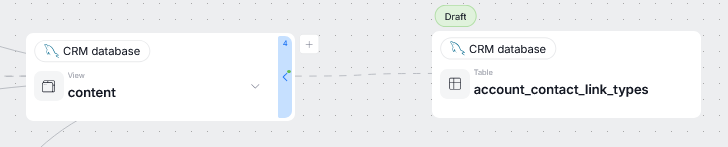
Version 26.1 marks the beginning of our plan to bring Data Lineage editing to Dataedo Portal. In this update, we introduced the option to create lineage between two objects (including processors selection) — allowing Data Stewards to amend Lineage by hand, if Automatic Lineage extraction was incomplete. We plan on expanding this functionality in our next major update, by enabling editing, adding, and removing entire processes within processors.
Manual Lineage is marked with a dashed line, as opposed to continuous lines used for Automatic Lineage.
Edit Mode
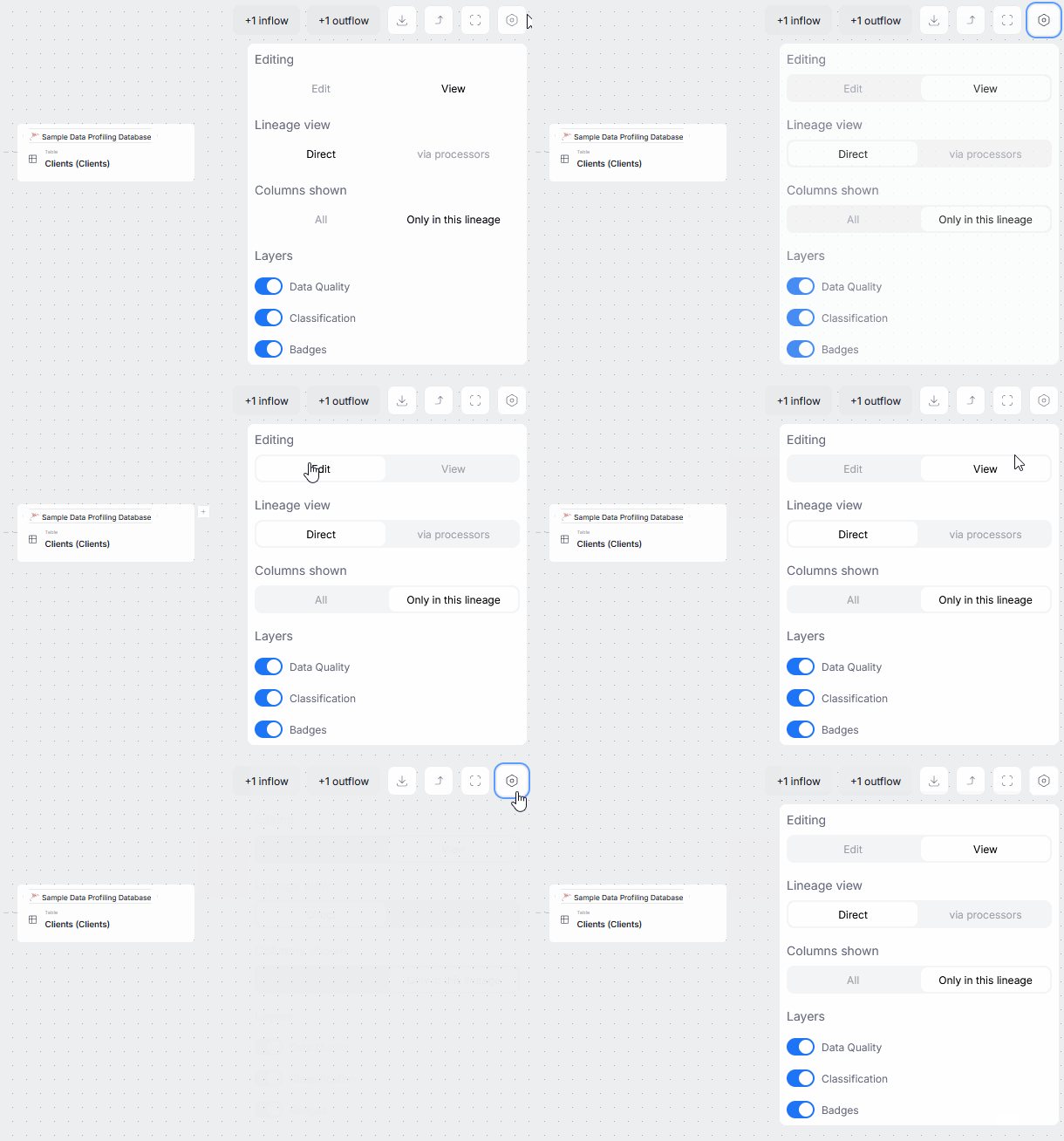
Objects' lineage sections now offer the option to switch to edit mode. You can use it to make tentative changes in Data Lineage, and save them once they can be shared with the rest of your organization.
Read more here.
Column mapping and auto-match
You can create direct mappings between specific columns of each table. This allows for a more precise representation of the dataflow in your sources.
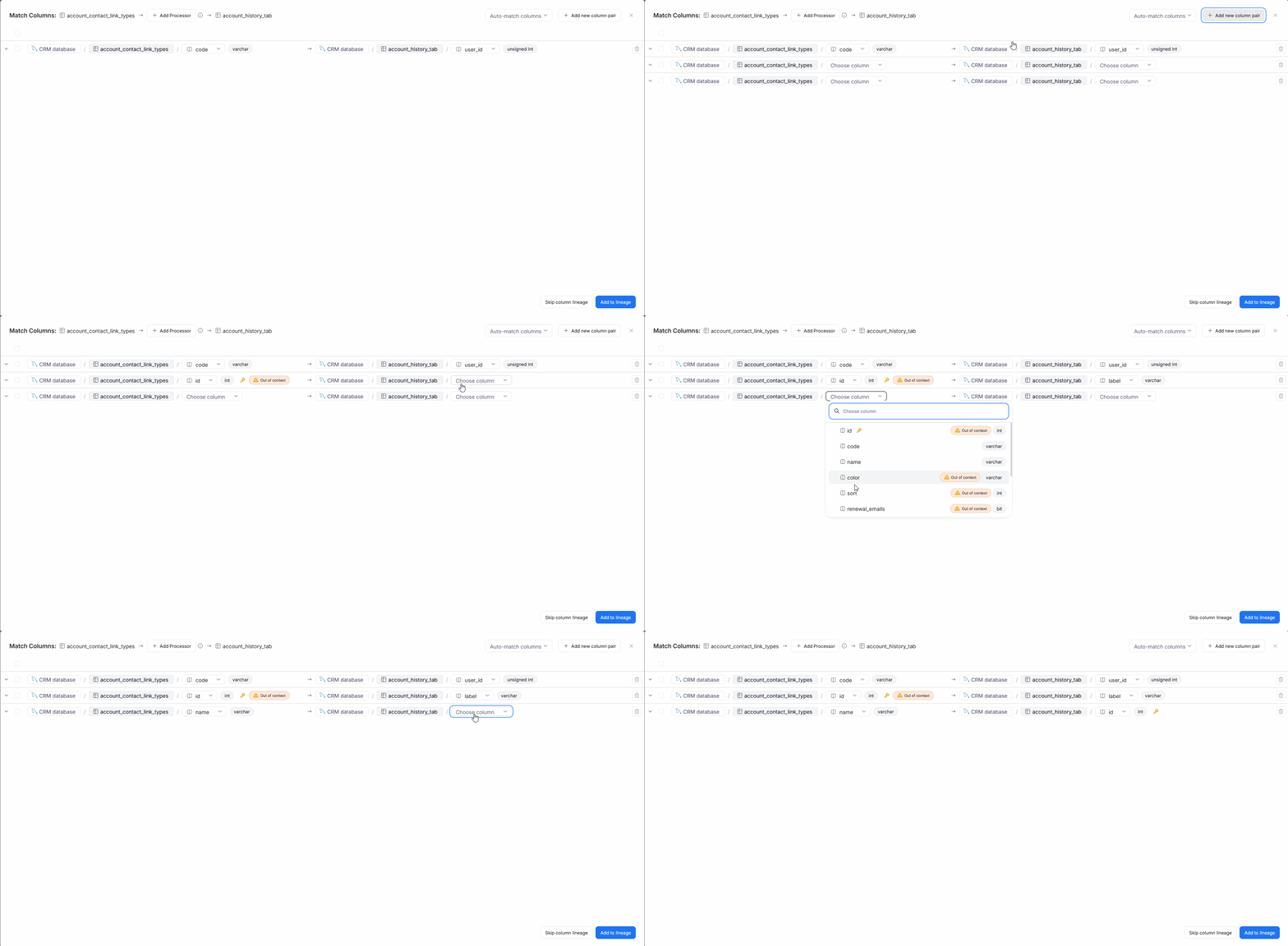
To assist you with this process, we added an auto-match feature, that can generate automated column lineage propositions based on similarities between column names in your repository. There are multiple auto-match protocols you can use, depending on how strict you want to be with the procedure
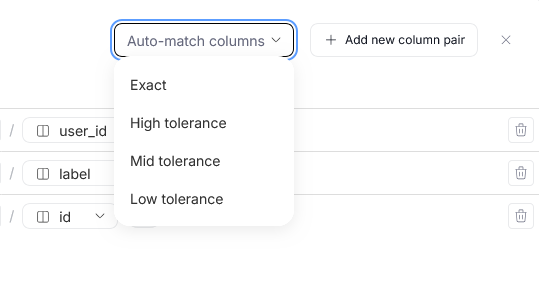
Data Quality
Adjust the number of saved failing rows
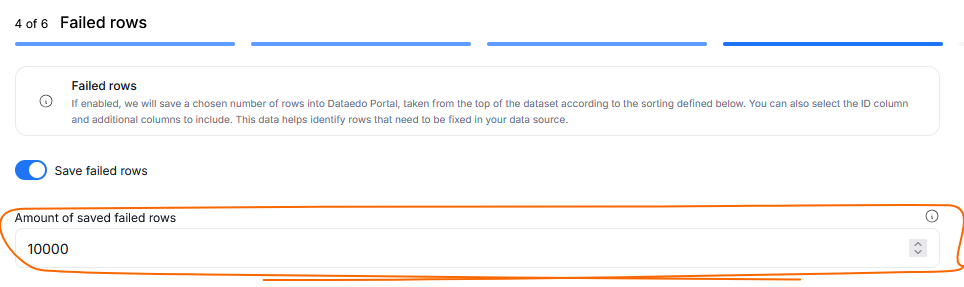
You can now decide how many failed rows (up to 1000000) you want to save during your Data Quality runs. This parameter can be defined when creating custom SQL rules and applying Rule Instances to objects. Since this feature can be set separately for each Instance, you can save different numbers of failing rows per Rule Instance, adjusting for your dataset's size and archiving needs.
Source link configuration
When implementing rule instances, you can now optionally configure a source link directly to your original source or a CRM. The link can reference just the source, or specific rows that should be targeted.
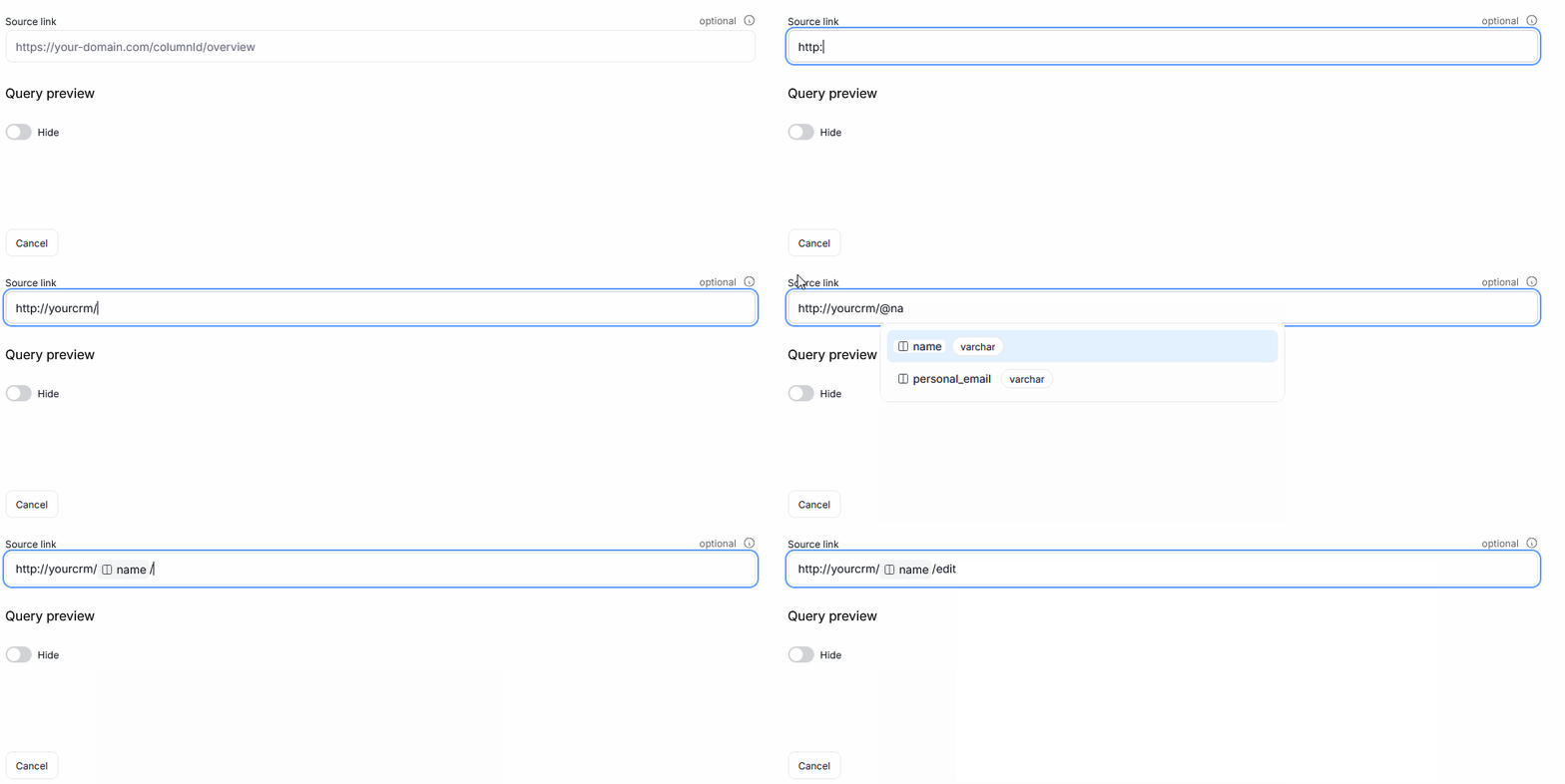
When inspecting failed rows, if a link was configured, the rowIDs will be highlighted and clickable. Clicking it, opens your source in a new tab, letting you fix the failing row directly.
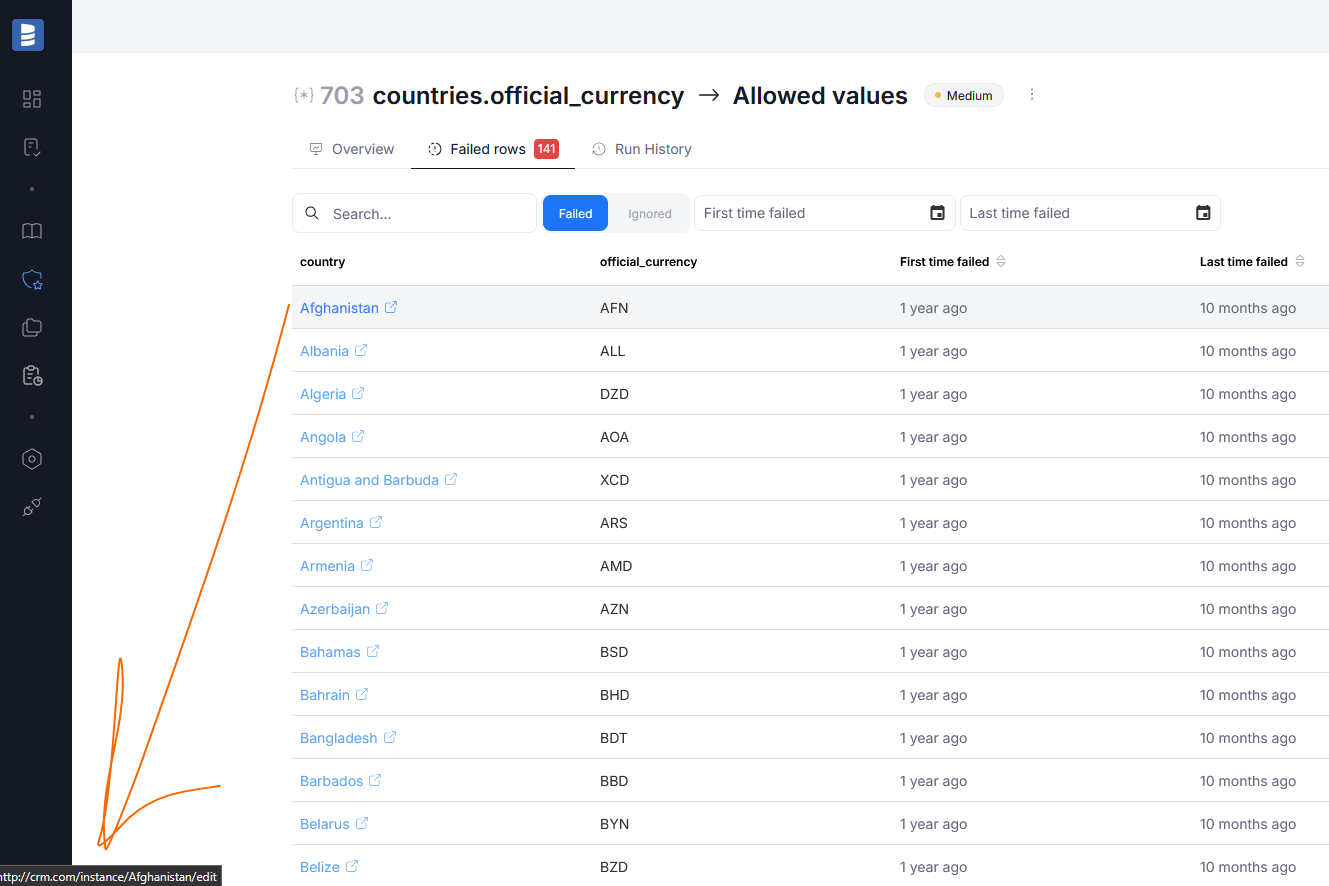
If a row was specified, the link will be generated based on the combination of a row and the failing column, taking you to the concrete failed example.
Read more here
Data Quality Score widgets added to dashboard
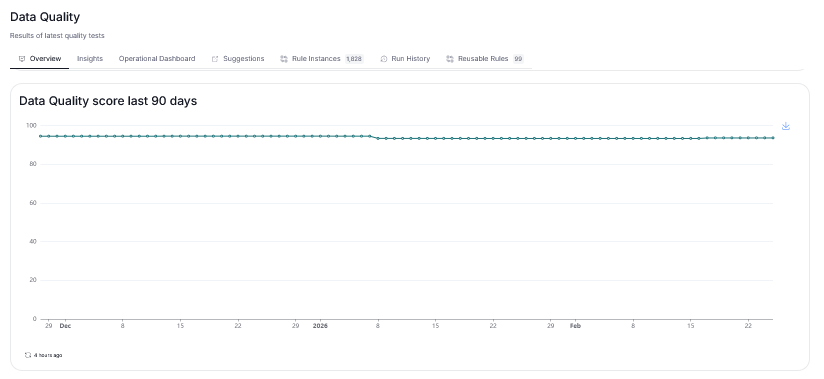
We added Data Quality score widgets to the Data Quality's overview dashboard. You can now quickly reference not only Data Quality's ratios, but also scores, giving you better insights into your data's accuracy.
Improvements
- Dimension added as one of the optional columns in the Data Quality instances grid
- Number of failed rows added as one of the optional columns in the Data Quality instances grid
Connectors
MS Fabric Lakehouse - new connector
Microsoft Fabric's Lakehouse service allows users to combine the scalability of a data lake warehouse model with the ability of querying data. With our newest connector, you can import metadata stored in MS Fabric Lakehouse environments directly to Dataedo repository. This connector is available both in Portal and Desktop.
You can import Tables, Views, Stored Procedures and Functions. This connector takes advantage of SQL parsing to automatically generate column-level Data Lineage, giving you a better understanding of your data.
Learn more in our MS Fabric Lakehouse article
MS Fabric Data Factory - new connector
Microsoft Fabric's Data Factory is a data integration service that allows users to create, schedule, and manage data pipelines. With our newest connector, you can import metadata stored in MS Fabric Data Factory environments directly to Dataedo repository. This connector is available both in Portal and Desktop.
You can import Pipelines, Datasets, Source and Destination objects, and more. This connector takes advantage of SQL parsing to automatically generate column-level Data Lineage, giving you a better understanding of your data.
Learn more in our MS Fabric Data Factory article
Metadata import in Portal
We enabled metadata imports in Portal using the following connectors:
Power BI
We've improved the reliability of Power BI imports, by addressing a recurring issue that could cause imports to fail when using Workspace Scanner. This update should significantly reduce the occurrence of Serialization error when processing Workspace Scanner or Unable to deserialize the response errors.
Snowflake
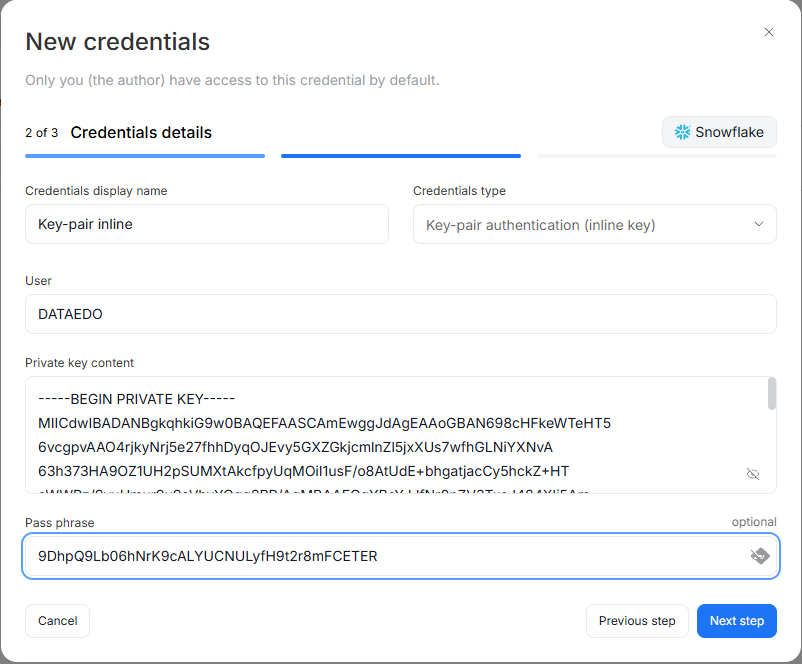
Snowflake connector now supports inline key-pair authentication. Previously, key-pair authentication required a .p8/.key file stored on disk. With this update, you can paste the private key content directly into the connection form. The encrypted key is stored in your Dataedo repository, eliminating the need to manage key files on the server. This option is available for both standard Snowflake and Snowflake Enterprise Lineage connections in Desktop.
SSIS
From this version on, SSIS's Lookup components are imported as Source objects with the Lookup type. Information regarding their connection to Data Sources is retained. Derived Column transformations are now fully supported in automatic lineage detection too.
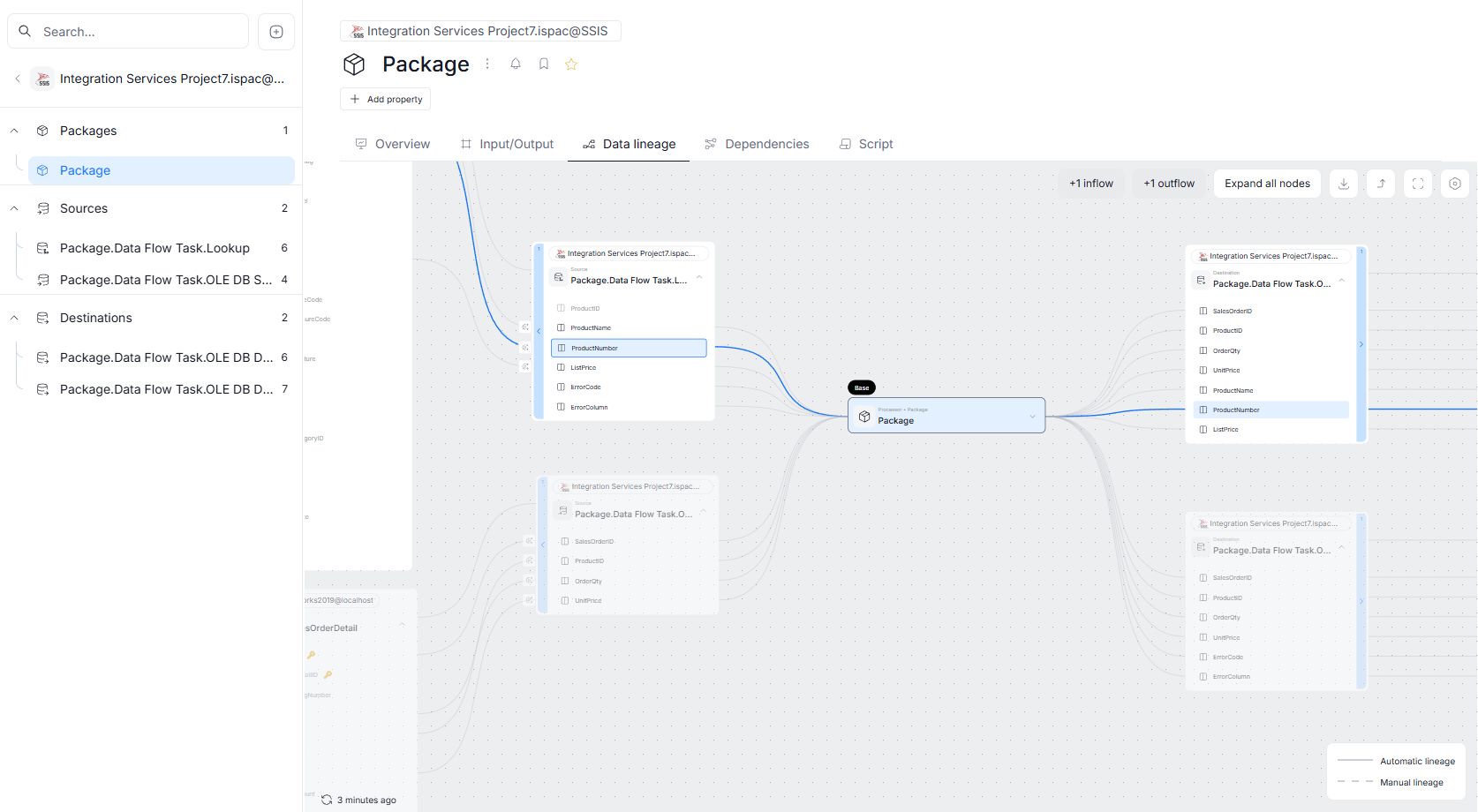
These changes work to improve the reliability and completeness of Automatic Data Lineage for SSIS metadata.
Redshift
Since 26.1, the Redshift connector splits procedures and functions into separate object types. Along with this improvement, we've significantly enhanced automatic data lineage detection for stored procedures, providing more accurate lineage tracking.
Strategy One
We've added support for new object types in the Strategy One connector, including Documents, SQL Statements, Content Groups, and Subscriptions.
Interface Tables (Public API)
Instead of loading interface tables directly into Dataedo repository, users can now load them through our Public API. This allows for more flexibility in how you use interface tables, especially for customers with specific security requirements or SaaS users.
Scheduler
Dataedo 26.1 adds a few quality of life changes to the scheduler.
Adding tasks in Bulk
It is now possible to schedule a task for multiple data sources at once. In the Task Planner tab you can select multiple data sources using checkboxes next to their name, and use the Schedule button that will appear above the data sources grid.
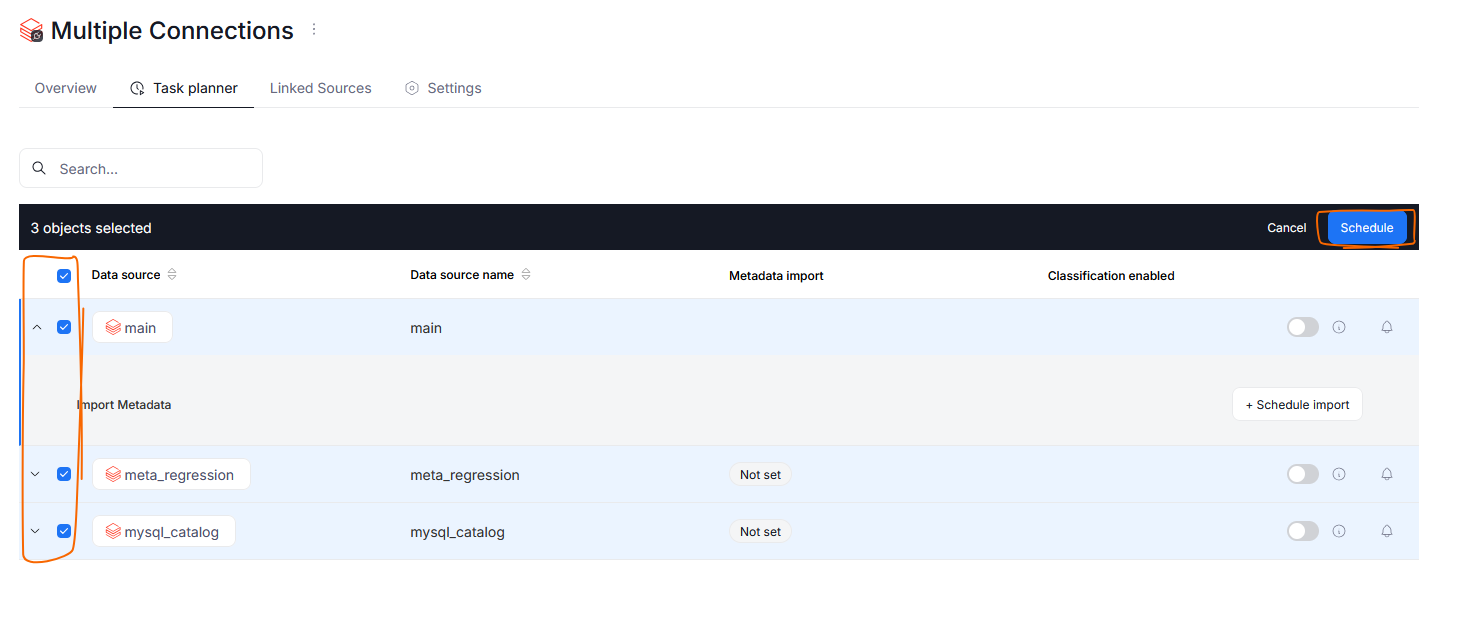
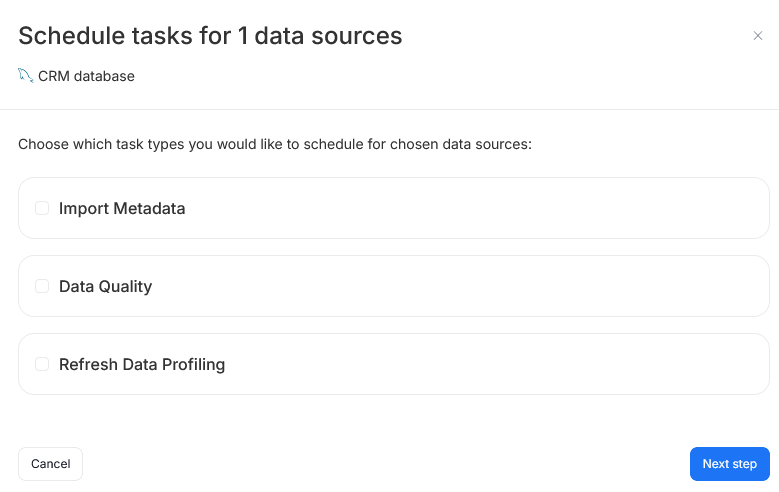
The bulk creation wizard asks you to specify which types of tasks (Metadata import/Data Quality/Refresh Profiling) you want to schedule. Next steps of import scheduling closely match the current procedure.
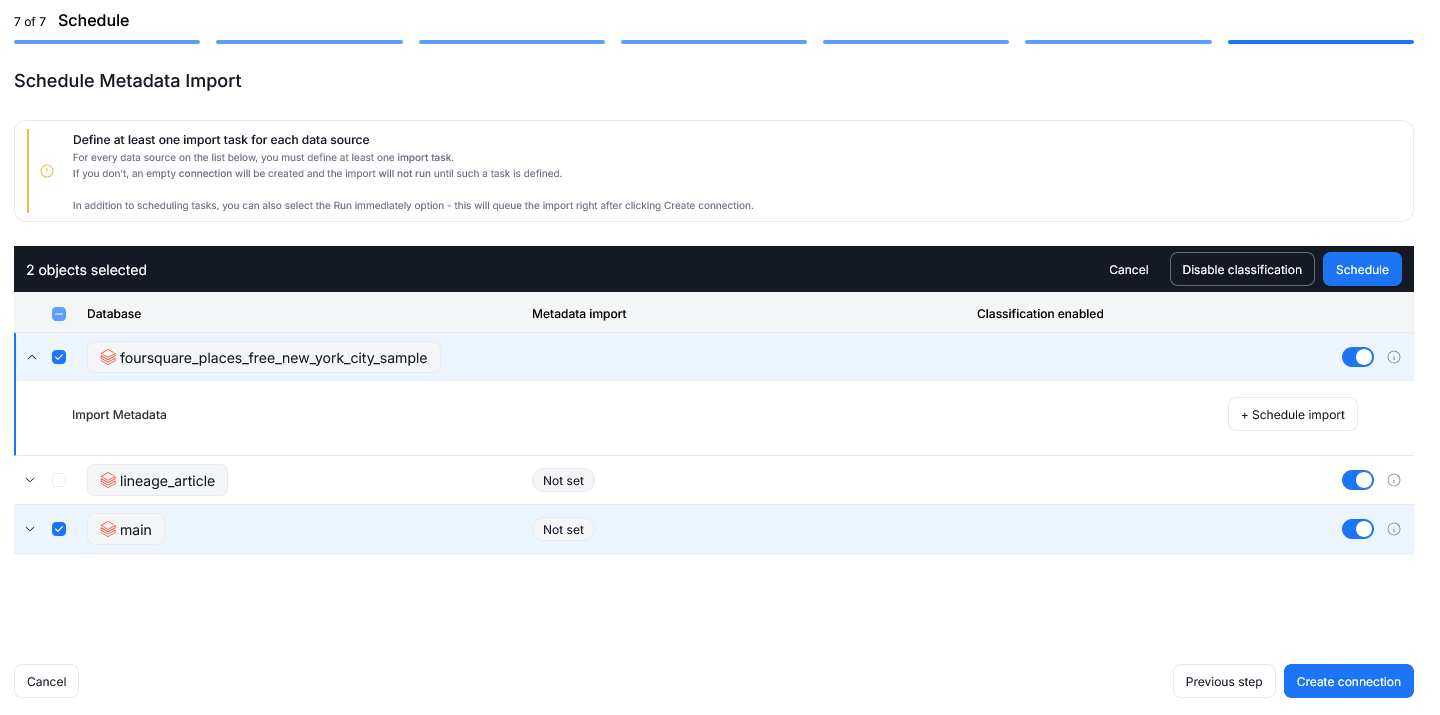
We have also refreshed the process for initial metadata imports using connectors that let you connect to multiple databases at once. You are now able to schedule tasks in bulk during the import itself.
Credentials management
Prior to this version, connection credential details were accessible to all users with the Connection Manager role.
Credentials can still be created and used only by Connection Managers, however we added additional access restrictions.
Now credentials can be used and edited only by users with access. User who creates a credential will receive access to it by default. The access can be shared with other Users or User Groups during creation and editing in the Permissions step.
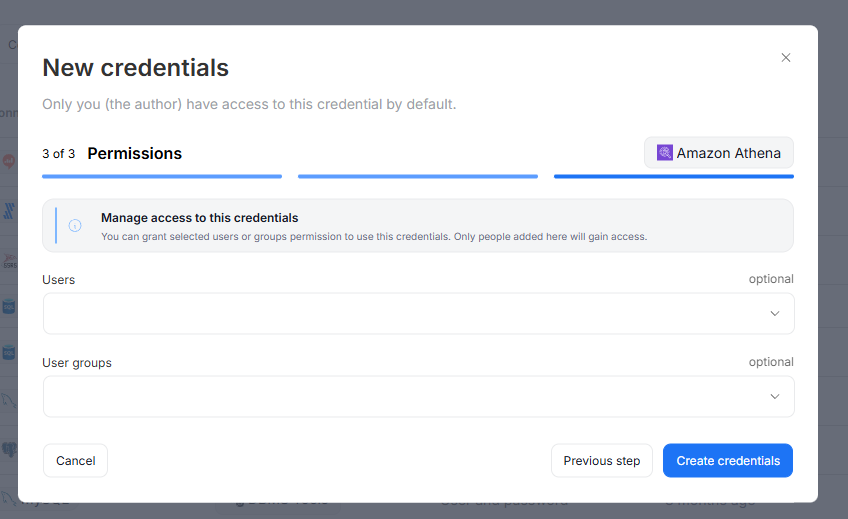
Existing credentials added before upgrade to Dataedo 26.1 will be shared with all the users who have Connection Manager permissions at the time of the update. You can of course modify the access settings after the update.
Read more about Credentials access and access interactions in the dedicated article
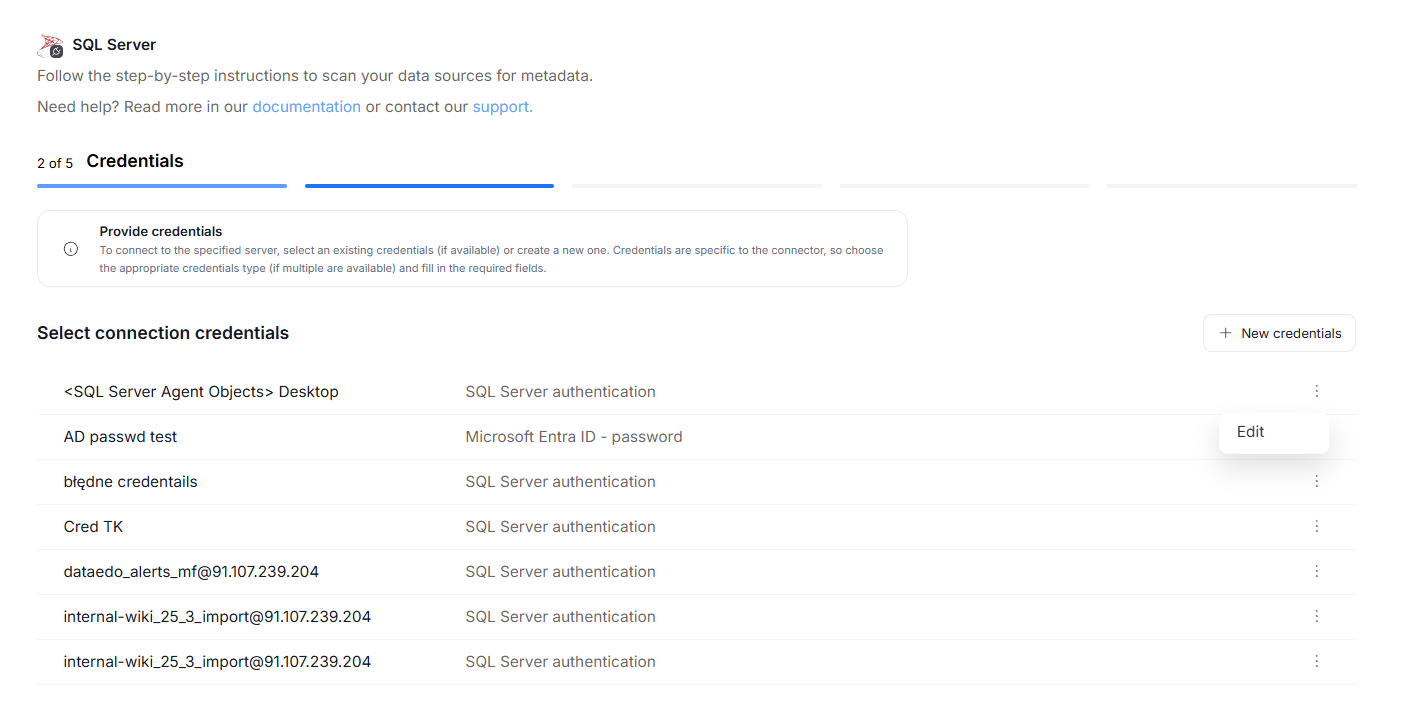
Editing credentials
Prior to 26.1, credentials could be edited only in the Credentials section of the Portal. Now, they can also be edited directly, when first establishing a connection to a data source, or when editing the import task.
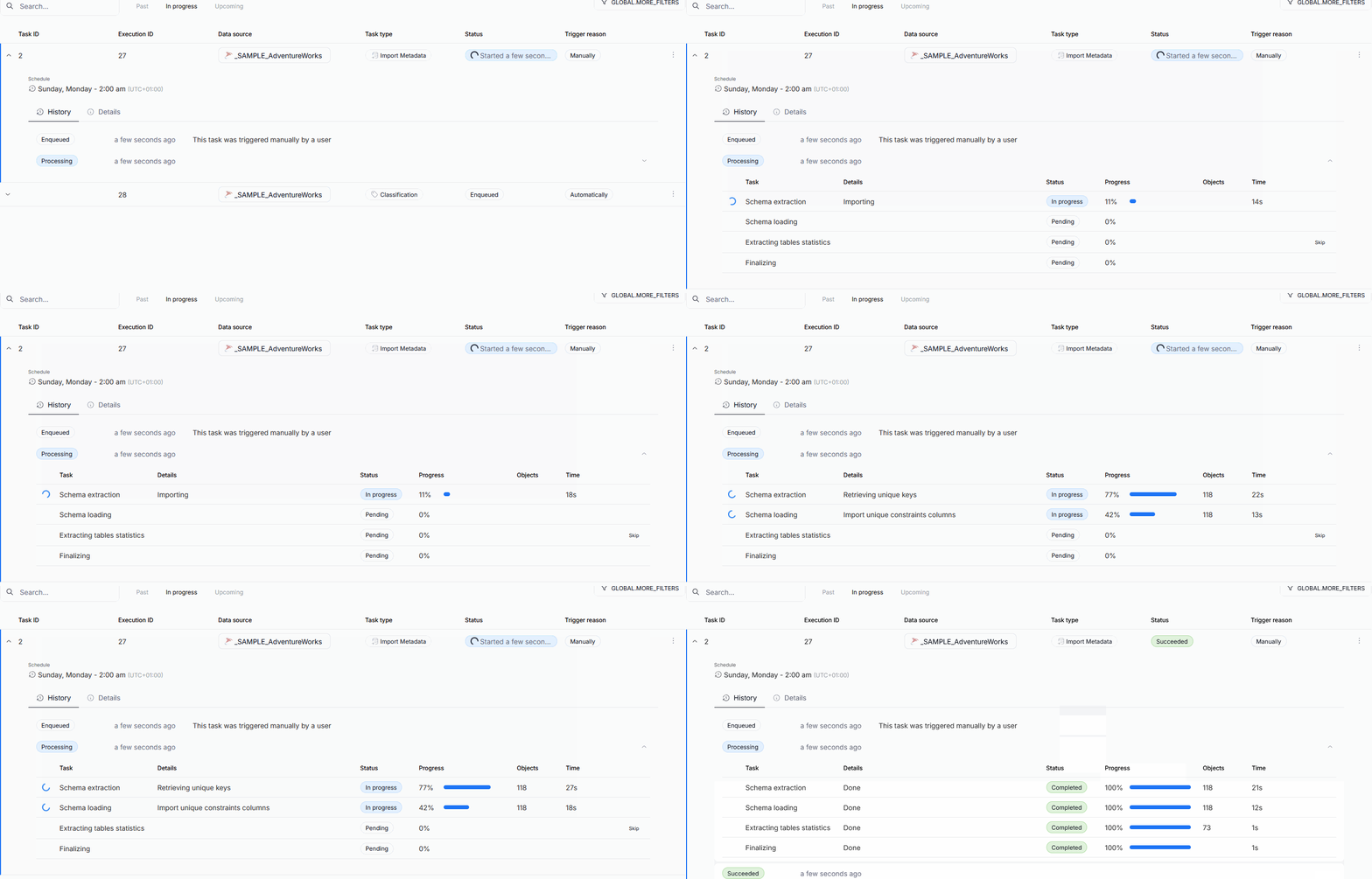
Import progress tracking
The processing step of Metadata Imports has been broken down into seven sub-processes. This allows Users to better understand the timeline of the import process, and helps with eventual troubleshooting. We also added the option to cancel the task during most of the steps. Read more here
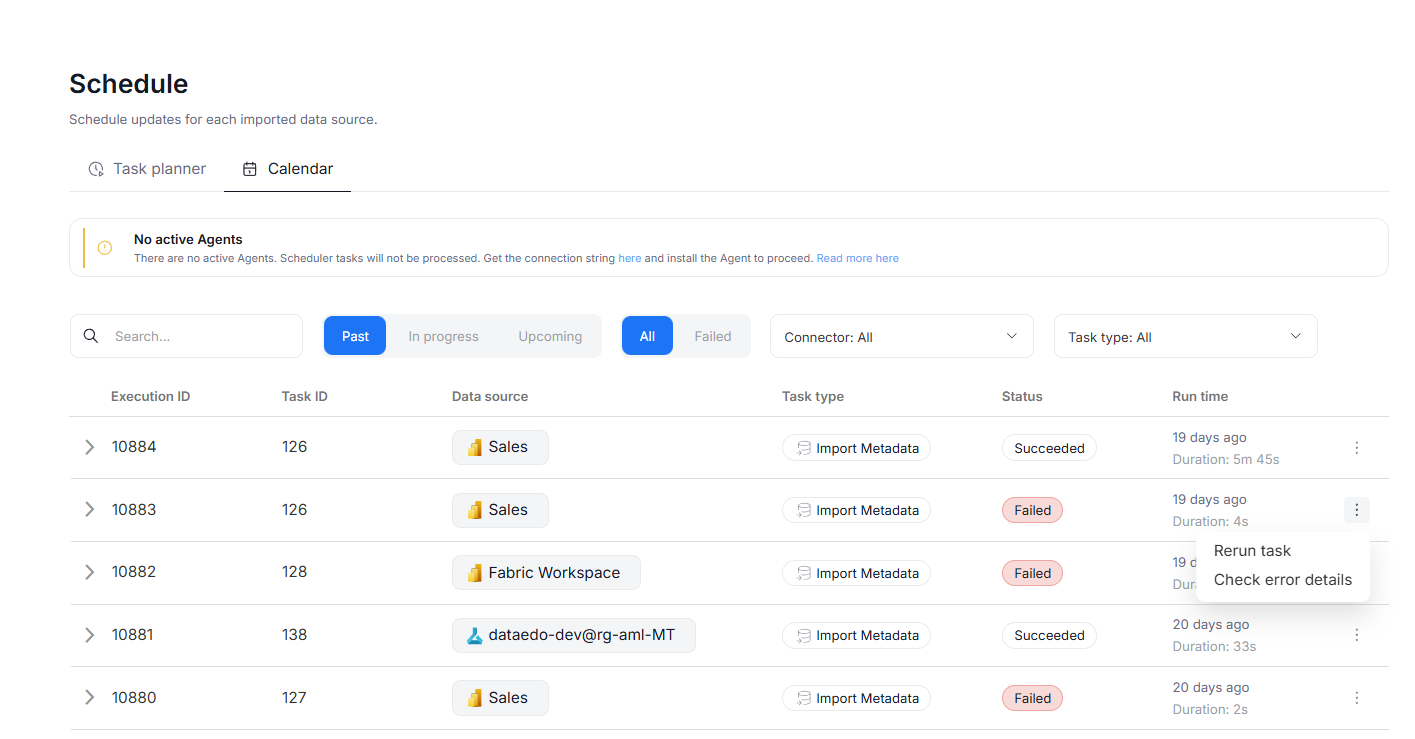
Run tasks from calendar
Now, tasks can be managed directly from the scheduler's calendar tab. To do so, press the three dots icon next to a task's name. You will have the option to rerun the task immediately or — in case of failed tasks — see the error details.
Other improvements
API One-time executions
It is now possible to perform one-time task executions through our API, without the need to schedule them in the scheduler. This allows you to perform tasks using external tool's pipelines, without extra set-up in our Portal.
Support for schema names in search
Quick search and advanced search can now also find supported objects (tables, procedures, and reports) using their schema name.
Login SAML name extraction
In Dataedo 25.3, we added the functionality of e-mail address being automatically extracted and stored in the e-mail field in your Dataedo account if using SAML as a login method. Dataedo 26.1 expands this functionality, by also automatically extracting and storing the Display Name.
Improved notifications
We reworked the system of notification processing, so that Failed Data Quality Check and Schema Change notifications now reach followers of individual tables and objects, rather than just database followers. The notifications display information regarding only the followed objects.
Data Access
We added extra options for our customers in data-sensitive industries, giving the option to easily restrict Dataedo's access to Metadata only.
The Data Access section of System Settings gives you control over how data is used for Data Quality and Data Classification.

The Enable Data Quality and Profiling toggle determines whether Dataedo can access your column data to undertake Data Quality checks and Data profiling. Disabling this switch effectively makes it impossible to benefit from these features.
Enable Data-Based Classification determines whether Semantic Type detection and Data Classification can use data samples from your columns. Disabling this option does not prevent Data Classification, however, only column-name-based rules can be used, lowering Classification's accuracy.
Since these settings seriously limit range of functionalities of Dataedo, we recommend modifying them only when necessary.
Deleting Glossaries
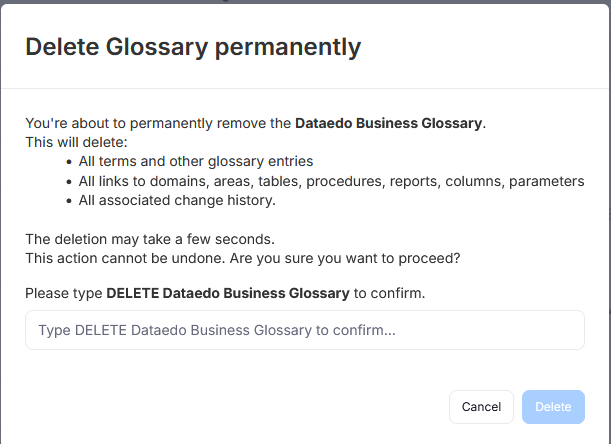
It is now possible to permanently delete a Glossary from your repository. To do so, open the Glossary and click the three dots icon next to its name. In the drop down menu, select the Delete option.
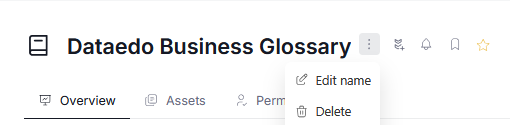
Afterwards, a pop-up asking you to confirm your intention will appear. If you are sure you want to delete the glossary, you can click Delete.
Add Custom Fields during Metadata Import
Admin users, can now easily add new Custom Fields during Metadata Imports, without leaving the import interface. This is especially useful when working with data source's extended properties, if existing Custom Fields do not map onto what's in the source.
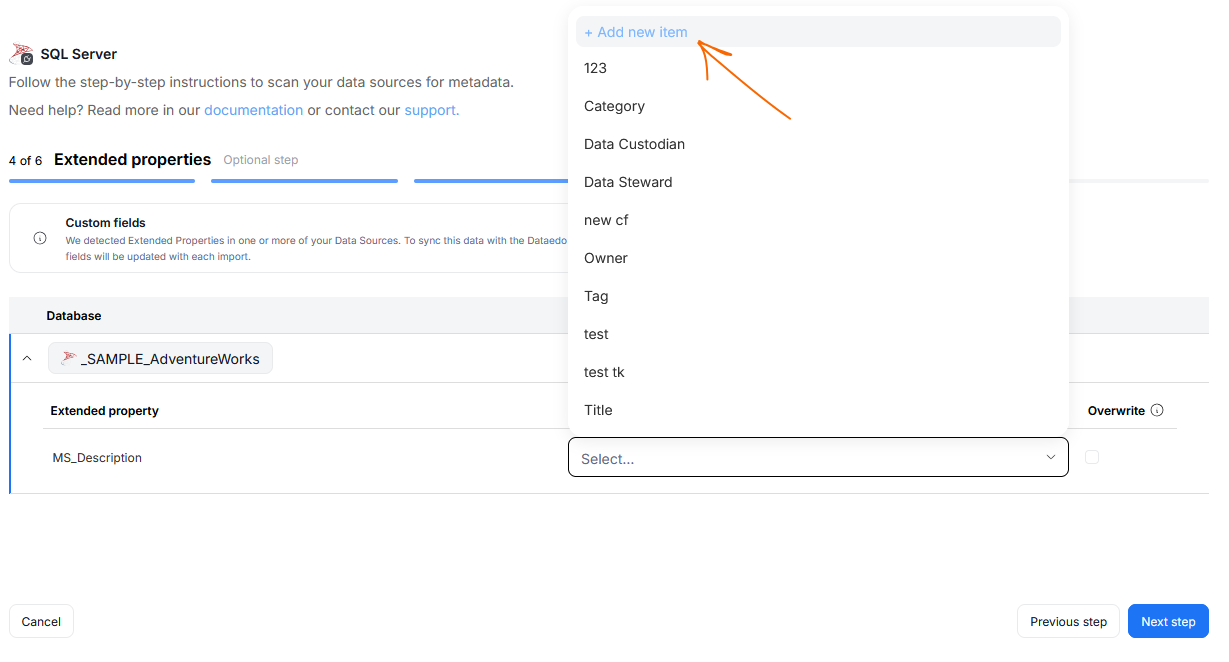
Custom Fields added that way will be reusable and saved to your repository. Like all Custom Fields, they can be managed in Catalog Settings
UX/UI changes
With each major version, we enhance our UI to make it more modern, consistent, and user-friendly. Here are some of the improvements in this release.
Business Domains
Business Domains now have a new icon.

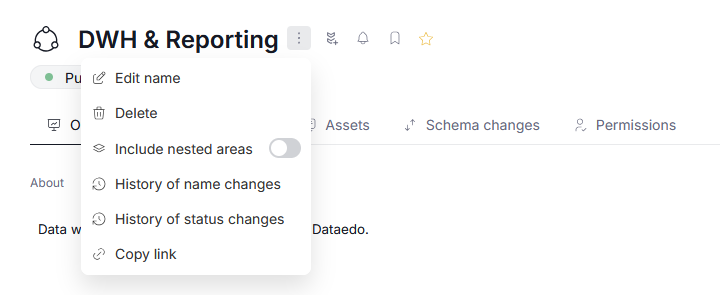
Nested Areas switch
We've modified the navigation in Data and Business Domains. Now, the toggle that determines whether nested Areas are included in Asset aggregation can be found in the general Domain settings, and affects all summary Tabs.
Glossaries
We changed the position of Glossaries in Portal's navigation. Now they can be found in the Knowledge Base section, better reflecting their role as an onboarding and cross-reference resource.

Adjustable pagination
We added the option to adjust the number of objects displayed per page, using a drop-down on the bottom of paginated views.
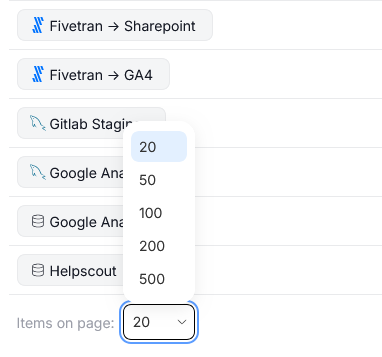
The choice is saved in your browser's local storage. This means that your pagination preferences will persist between login sessions, as long as you stay on the same browser and device.
Advanced search
We refreshed the look of advance search. This includes: adjustments to the object hierarchy, reworked filters, workflow status support and improved navigation.
Side panels
You can now expand all side panels up to 900px of width. This can be done by clicking and dragging the panel's edge.