Connect ChatGPT
We tested this configuration in the ChatGPT web client: (chatgpt.com/plugins).
You can connect ChatGPT to the Dataedo MCP server using a custom plugin, which you can create yourself in your organization's ChatGPT workspace.
Before you start
Make sure you have:
- the Dataedo MCP server running in Hosted Mode. ChatGPT connects to it from OpenAI's servers, so the server must be reachable over HTTPS from the public internet
- a ChatGPT Business or Enterprise workspace
- the following permissions in your ChatGPT workspace:
- Create plugins with MCPs
- Publish plugins to workspace
- admin access to the OpenAI Admin Console if you want to install the plugin for all workspace members
OpenAI's products change quickly — the user interface shown here might look different on your end, but the functionality remains similar. For more information, see OpenAI's documentation.
Step 1: Register ChatGPT in Dataedo
ChatGPT needs its own OAuth application in Dataedo.
-
Register an OAuth application in Settings > OAuth applications and give it a name, for example ChatGPT
-
In Redirect URIs, enter ChatGPT's callback URL:
https://chatgpt.com/connector_platform_oauth_redirect -
Copy the Client ID and Client secret. The secret is shown only once.
Step 2: Create the plugin in ChatGPT
-
Go to chatgpt.com/plugins, click Add, and select create a custom MCP server
-
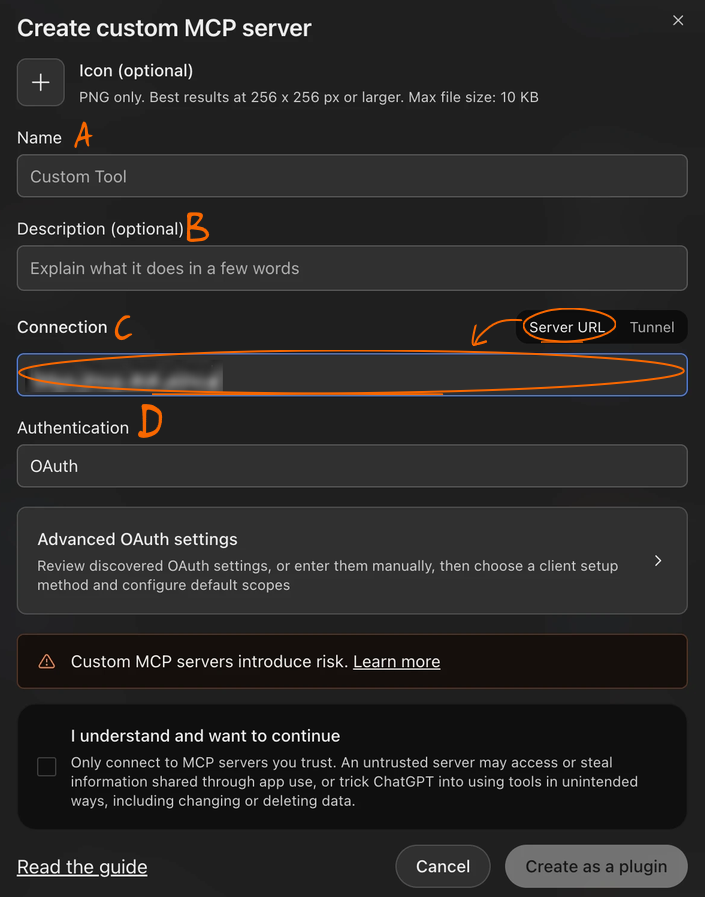
In the pop-up that appears, fill in:
- Name [A]: e.g. Dataedo
- Description [B] (optional): e.g.
Search and explore the Dataedo data catalog - Connection [C]: select Server URL and enter your server's endpoint,
https://<your-public-url>/mcp - Authentication [D]: OAuth
-
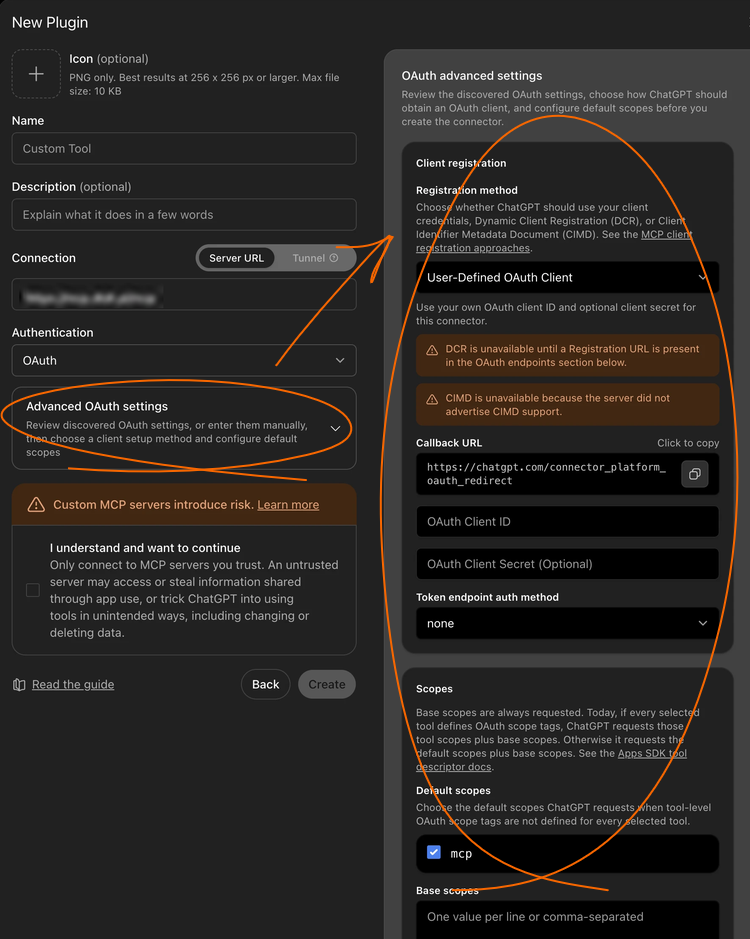
Open Advanced OAuth settings and fill in the Client registration section:
- Registration method: User-Defined OAuth Client
- Callback URL: the same URL you added in Step 1
- OAuth Client ID and OAuth Client Secret: the credentials of the OAuth application you registered in Dataedo
- Token endpoint auth method: leave it set to client_secret_post, which ChatGPT sets automatically once you enter the client ID and secret
- Default scopes: select mcp
The OAuth endpoints and OpenID support sections are filled in automatically from your server URL, so you do not need to change them. Registration URL stays empty, which is expected.
-
Click Create
You can now find the plugin in the Installed section of the plugins page.
Step 3: Publish the plugin to your workspace
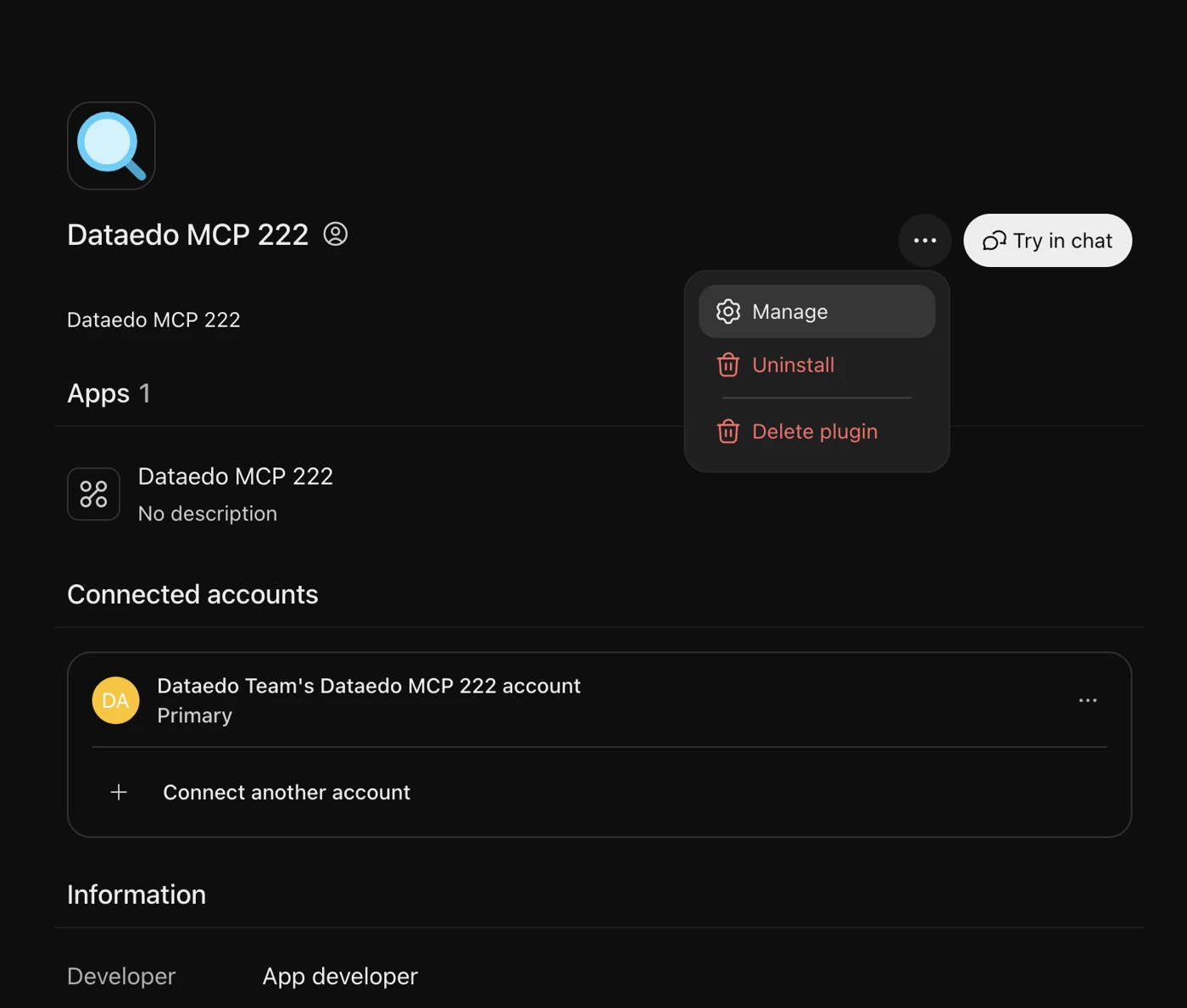
- In ChatGPT plugins, open the custom plugin you created
- Open the plugin's menu using the three dots icon and select Manage > Publish
Publishing can take a long time. Until it finishes, the plugin does not appear in the Admin Console.
Step 4 (optional): Install the plugin for all workspace members
By default, a published plugin is only Available: members have to find and install it themselves. Workspace admins can install it for everyone instead:
-
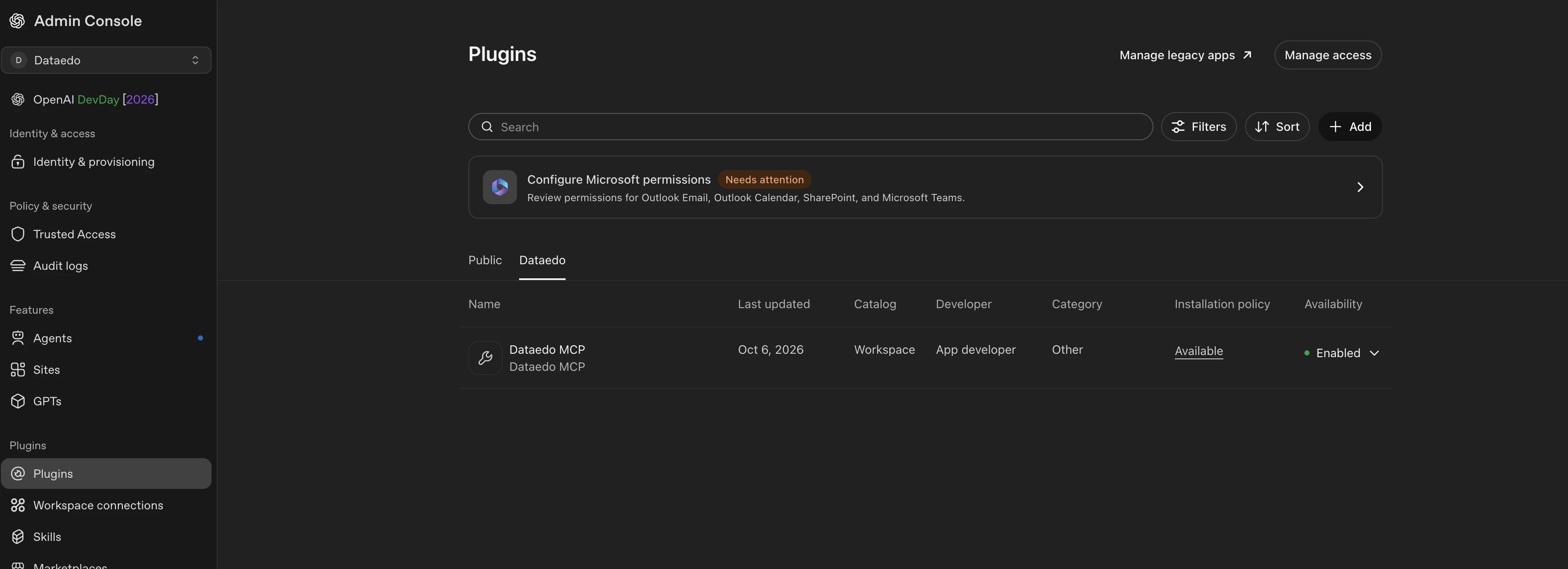
Go to the OpenAI Admin Console and select Plugins
-
Open the custom plugin you created
-
In Availability, switch Workspace default from Available to Installed
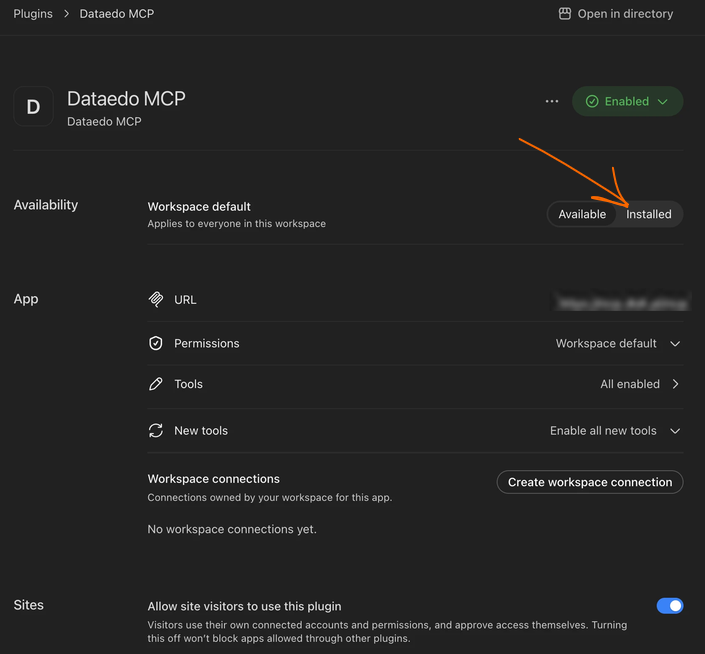
The plugin is now installed for everyone in the workspace. Each member still has to sign in to Dataedo the first time they use it.
For more details on plugin authentication and workspace settings, see OpenAI's guide to plugin authentication.

