Dataedo Browser Extension
Benefits
The browser extension lets you access catalog information directly from other pages in your browser. This helps you:
- Understand your data faster — see descriptions, ownership, and context without leaving your BI tool.
- Trust what you are looking at — check whether an asset is certified or belongs to master data, and view its lineage.
- Stay in your workflow — no need to switch back and forth between Dataedo Portal and your BI environment.
In short, you always have the most important catalog details right where you use your reports.
Prerequisites
Before installing the browser extension, make sure that you have:
- Access to Dataedo Portal. You will need its URL to configure the extension.
- A supported browser: Google Chrome, Microsoft Edge, or Mozilla Firefox.
- An active login session in Dataedo Portal (or the ability to log in after configuration).
Installation
-
Find the extension:
-
Install the extension:
- Google Chrome: In the upper right of the Chrome Web Store page, click Add to Chrome. When prompted, click Add extension.
- Microsoft Edge: Follow the steps in Add an extension to Microsoft Edge from the Chrome Web Store.
- Firefox: On the Firefox Add-ons page, click Add to Firefox. When prompted, click Add.
Once installed, you should see the extension icon in your browser's toolbar.
Configuration
-
Open the extension:
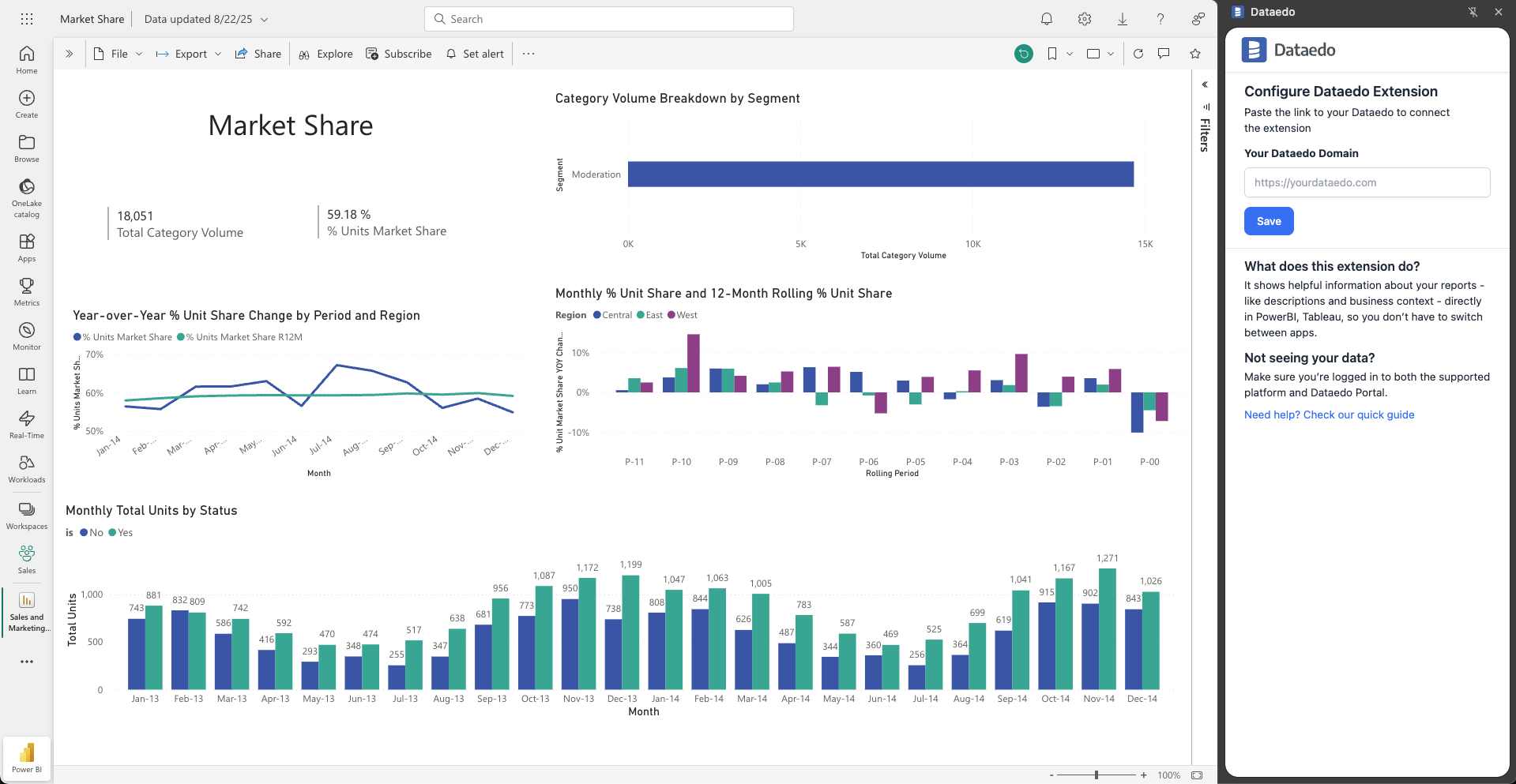
Click the extension icon in your browser toolbar. A sidebar will appear. -
Insert your Dataedo Portal link:
Paste the URL of your Dataedo Portal into the field. The URL will be saved after the first setup. You can change it later if needed.
- Log in (if needed):
If you are already logged into Dataedo Portal in your browser, the extension will use that session; otherwise, you will be prompted to log in.
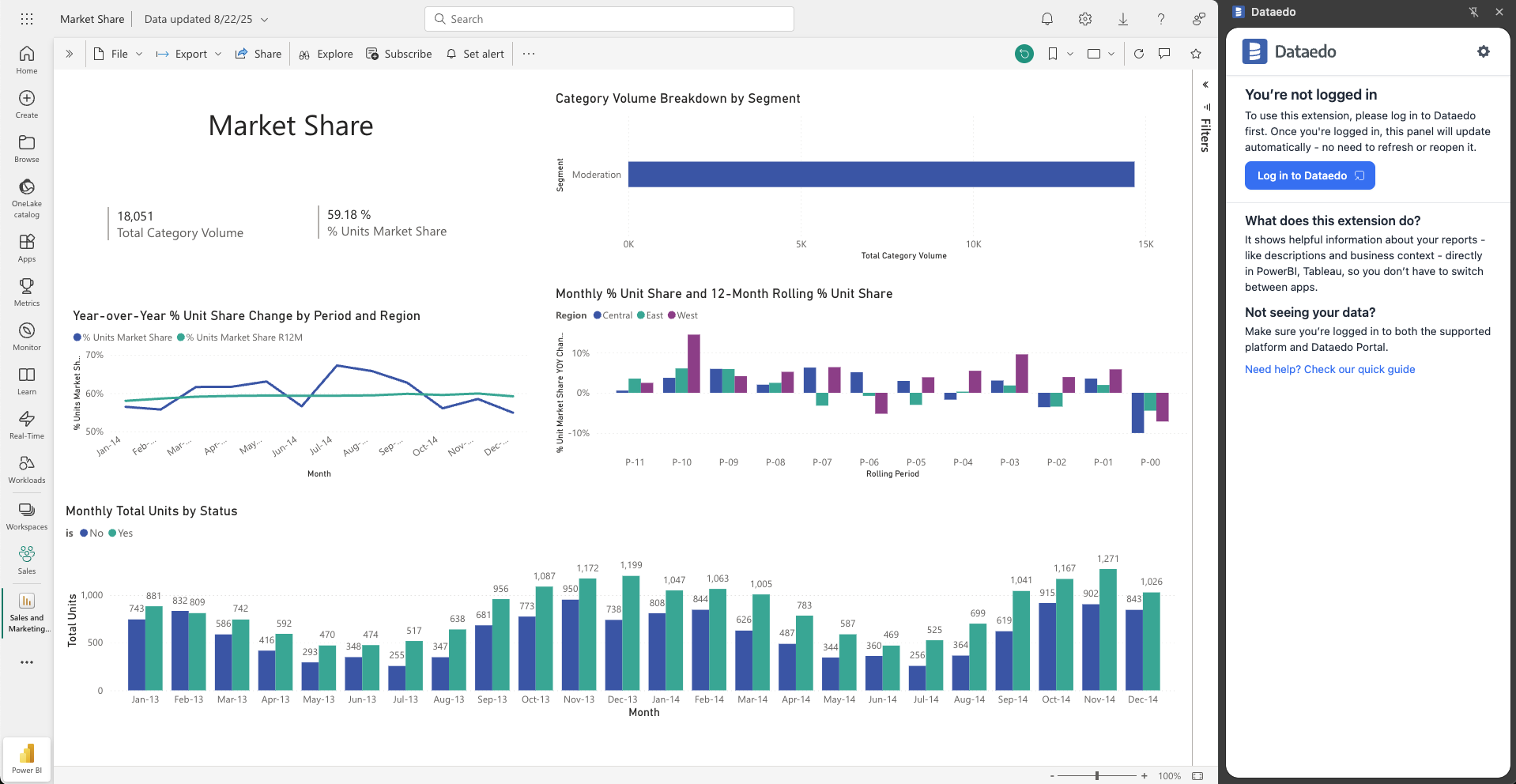
After configuration, the extension is ready to use.
Usage
Actions described in this section still require you to have relevant permissions in Dataedo. For example, descriptions can be edited only by Approvers and Data Stewards, while Community cannot be viewed by Explorers, Viewers, and Approvers, etc.
The extension currently works on all pages where assets can be viewed, so long as the asset has a unique, identifiable URL.
It offers context-aware insights for assets documented in your repository. This means that when you open a supported page with an asset, the extension shows:
- name and description
- glossary terms (with definitions)
- roles defined within Dataedo Portal, such as owners and subject matter experts
- certification, master data, or critical data status
- lineage link (opening the object inside Dataedo Portal)
- tags
- business context (domains and data products)
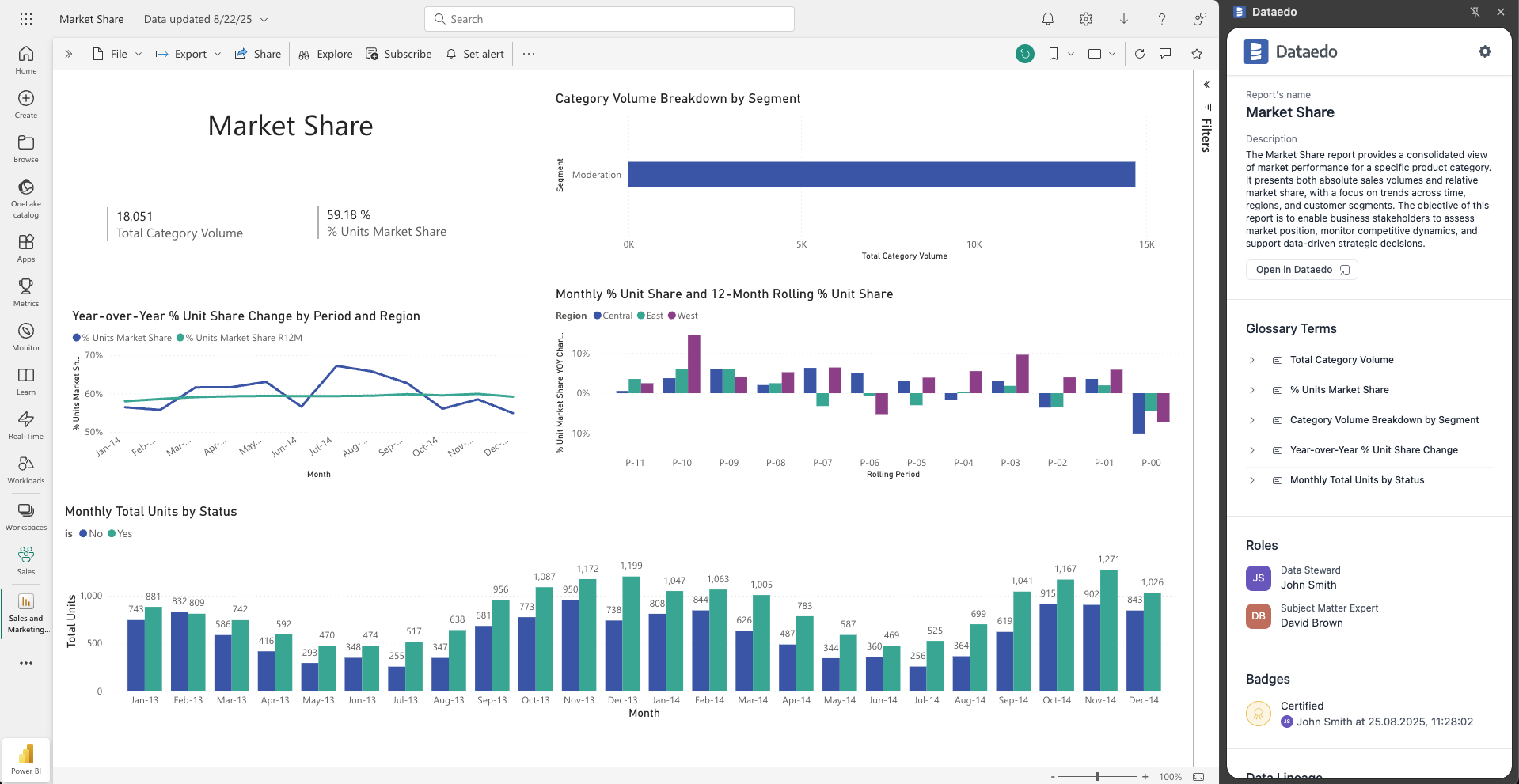
The pages are matched based on the asset's URL, which is automatically extracted during metadata export for supported sources.
You can use the extension on all web pages, even those that do not contain assets. The extension's search bar allows you to browse through saved data assets and view all the other objects saved in your repository — like Domains or Dictionaries.
Adding assets
If you are viewing an asset that is currently not documented in Dataedo, the extension will give you the option to add it to your Data Catalog via the Add this object to Dataedo button.
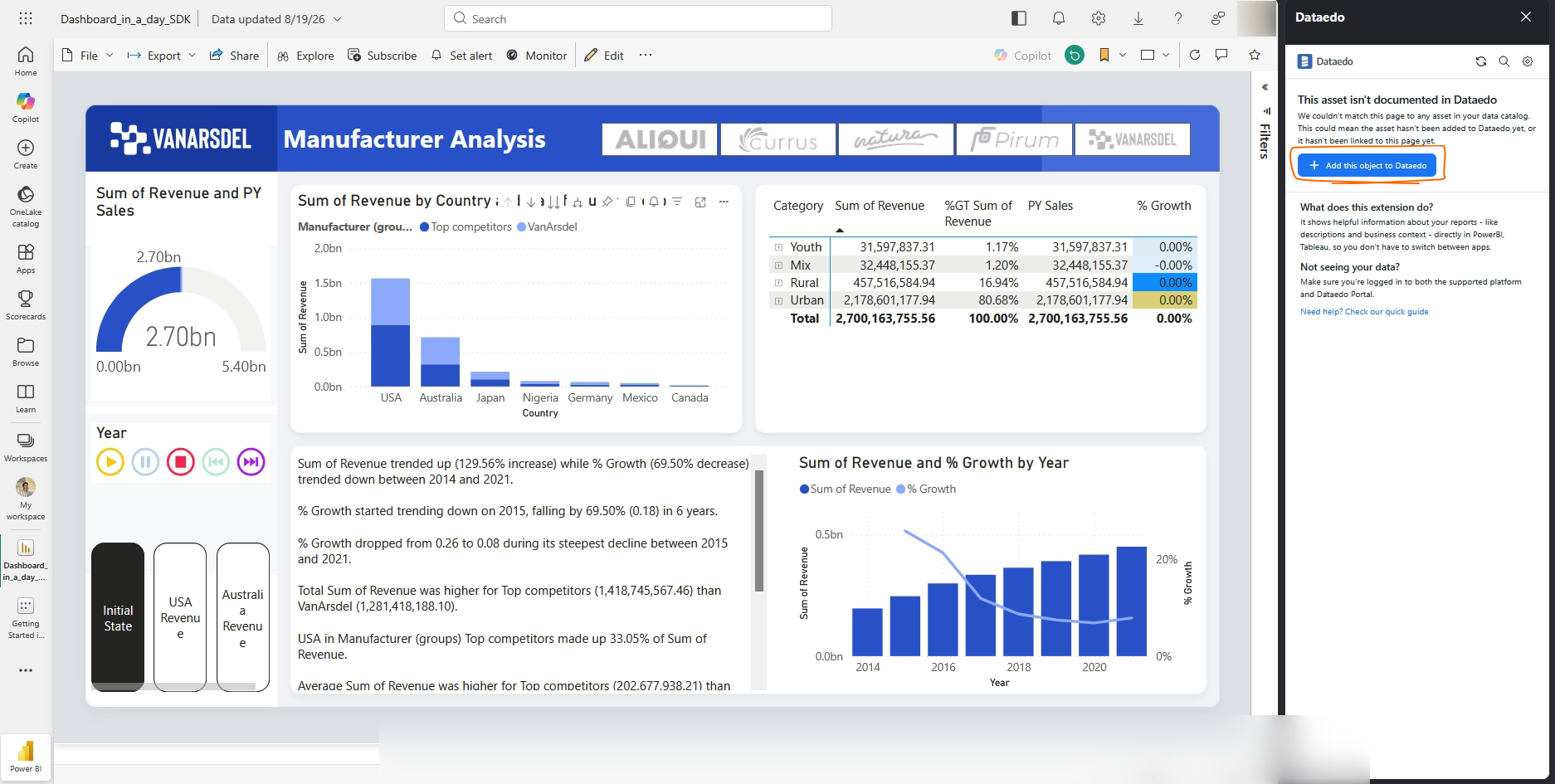
When you click this button, a form will appear where you have to fill in:
- a Data Source this asset should be associated with. You can select only from data sources you have established connection to in Dataedo
- a Schema this asset should be grouped under (optional)
- a Name this asset should have in Dataedo
- the Object Type
- a URL associated with the asset
- an Owner Custom Field (optional)
- a description this asset will have in Dataedo (optional)
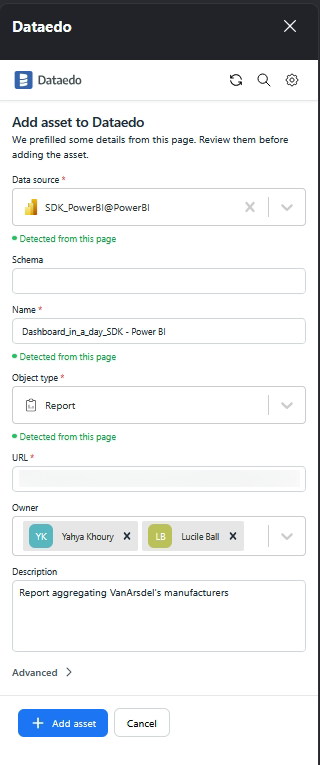
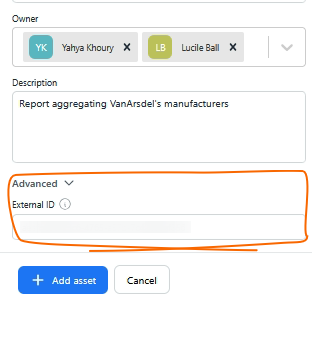
The browser extension will auto-fill as many of the details as it can, based on data detected from the currently opened webpage. One of these pre-filled values is External ID which you can see in the Advanced section. This value is extracted directly from the asset page's URL and will be used to update your asset during the next Metadata Import. If External ID is not provided (either deleted by you, or if a dedicated connector for your data source does not exist), the asset will still be added to Dataedo, but it will not be possible to refresh it automatically.
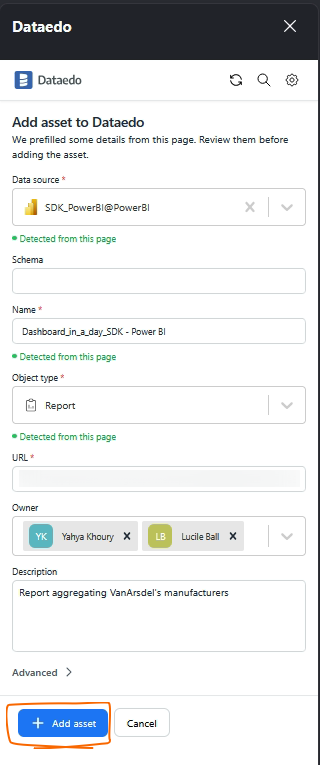
Once you have filled out the details, click Add Asset to save its metadata to Dataedo.
You can view and edit an asset added this way from the extension, like any other asset.
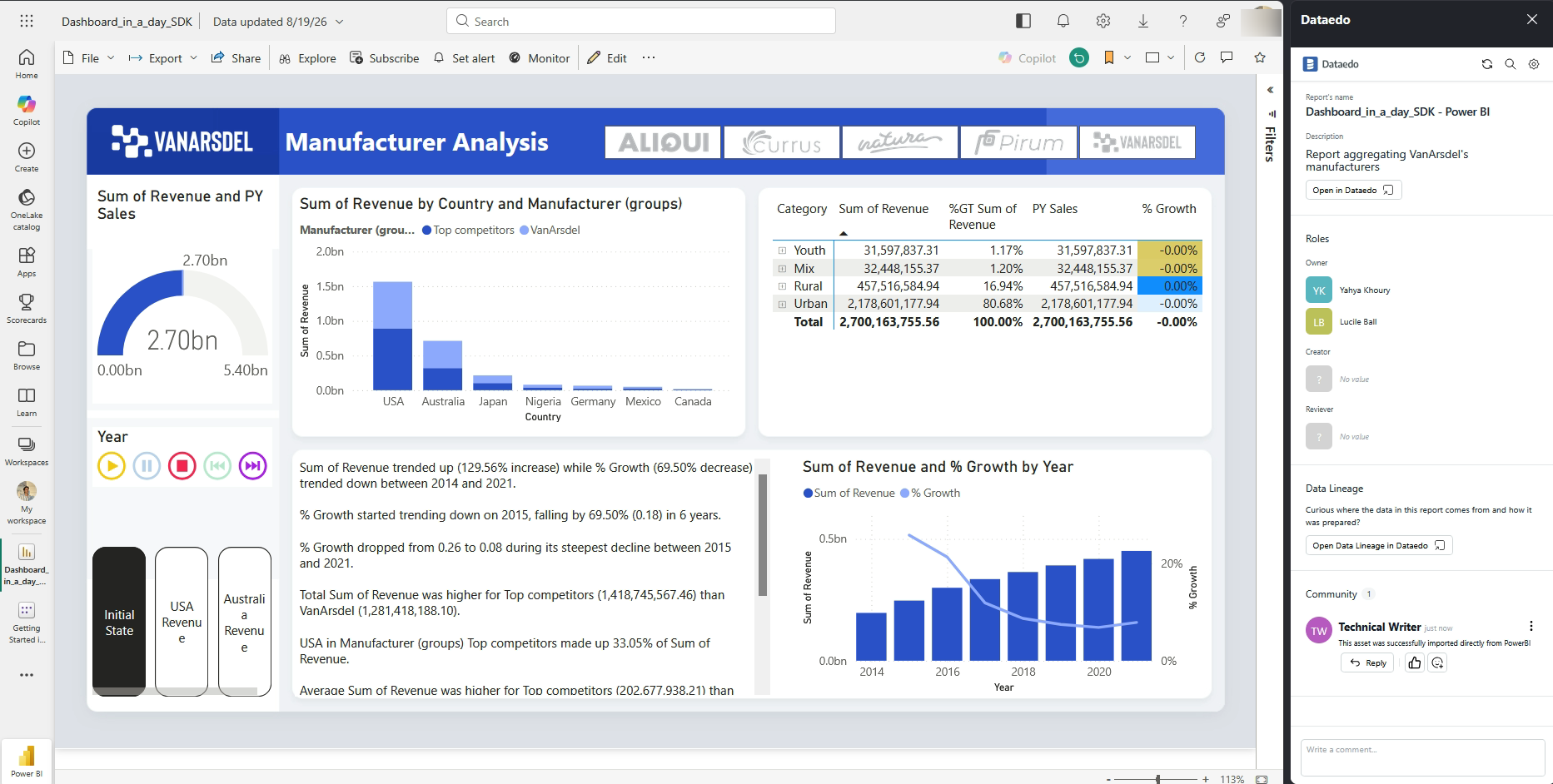
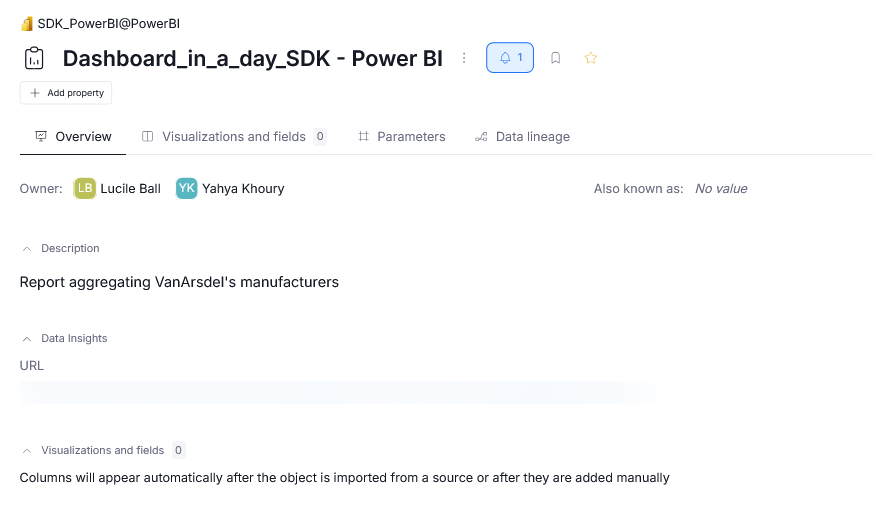
They also become available directly in Dataedo Portal.
Search functionality
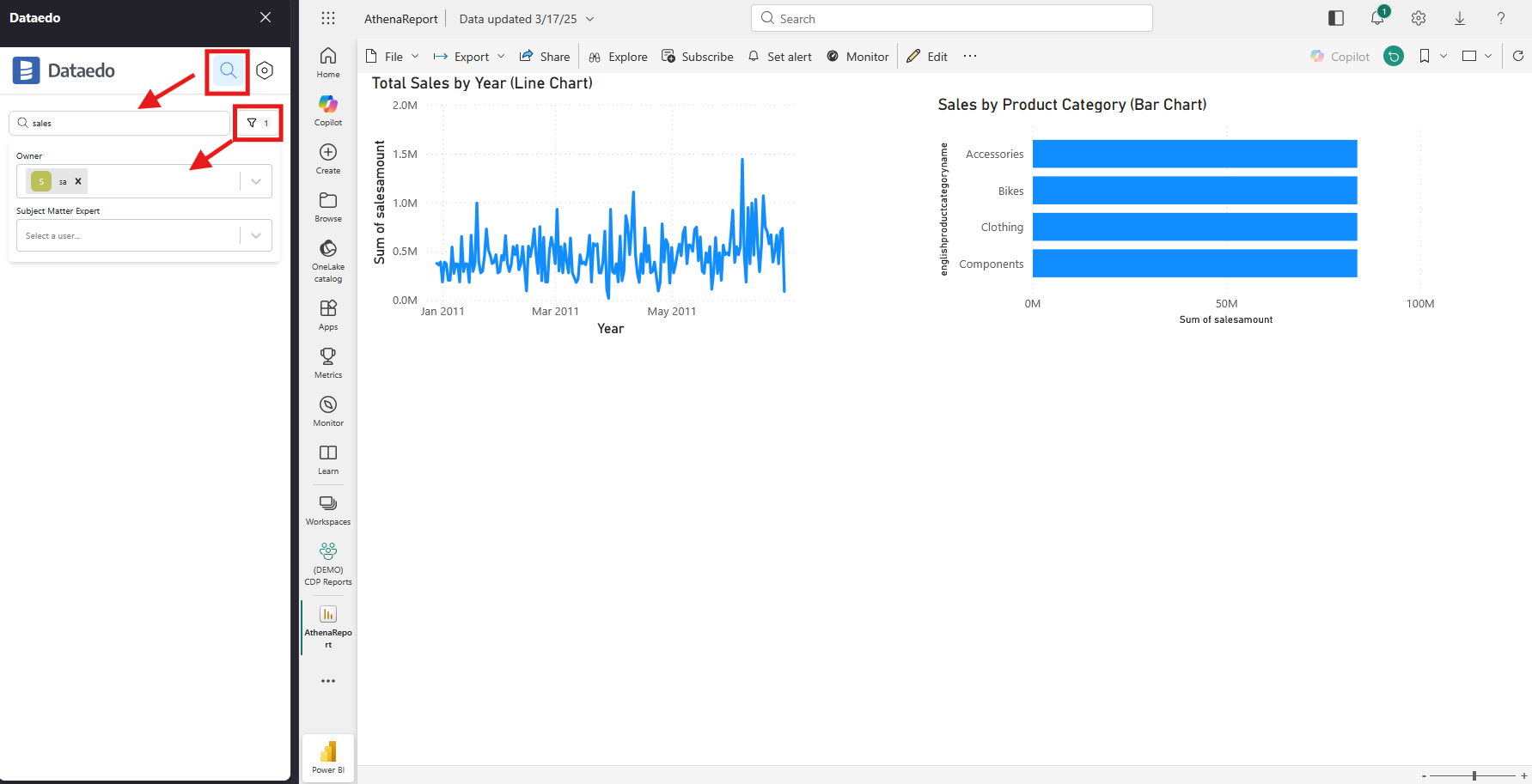
The browser extension allows for an on-the-fly search through the information saved in your repository without the need to switch browser tabs. Click on the search icon and enter your search query. If you want to additionally narrow down the results with user-based filters, use the filter icon next to the search bar.
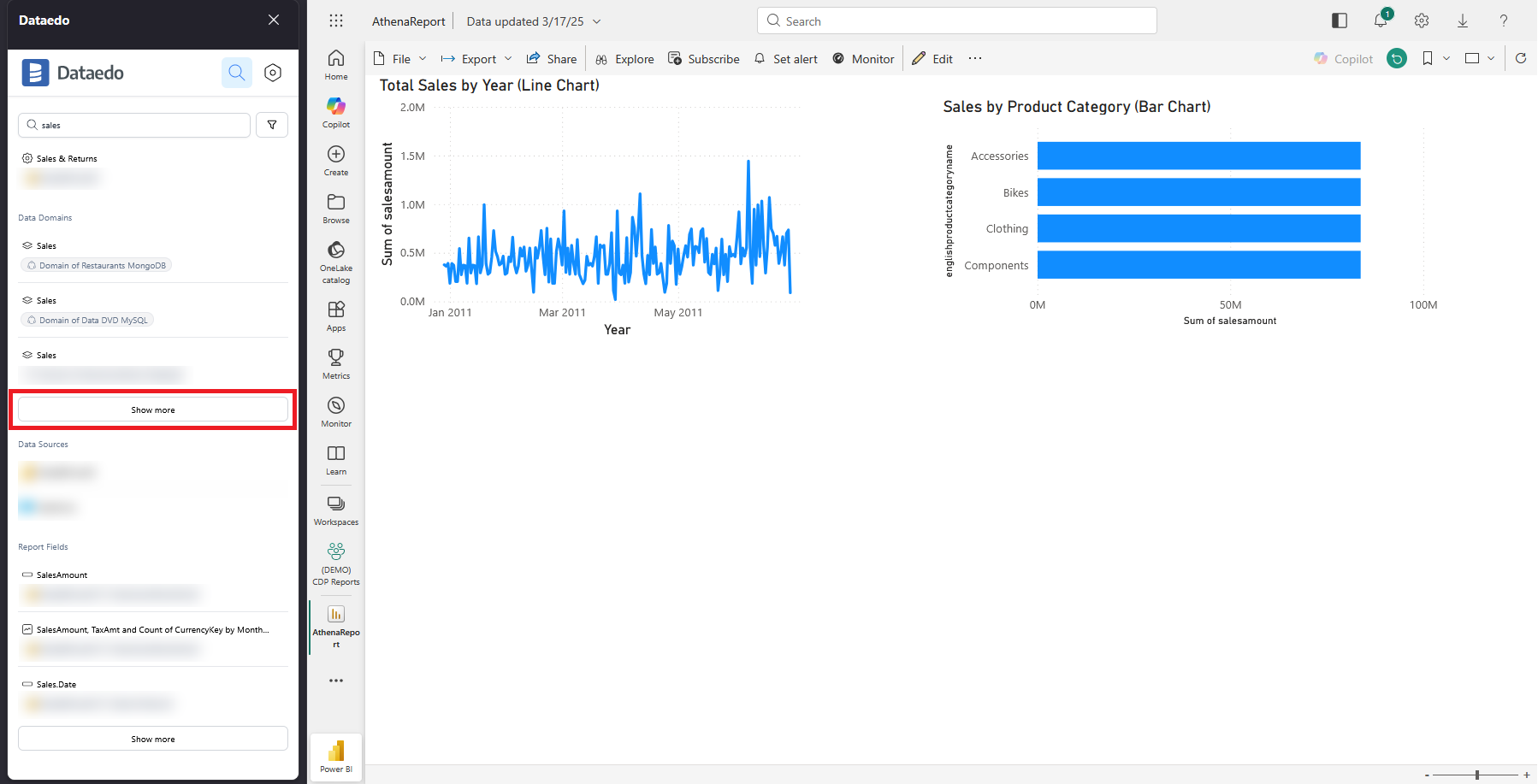
The search results are grouped in accordance with the Portal's structure. Each grouping shows up to three items. However, a group may contain more items that fulfill the search criteria than the ones shown. You can view them by pressing the Show more button.
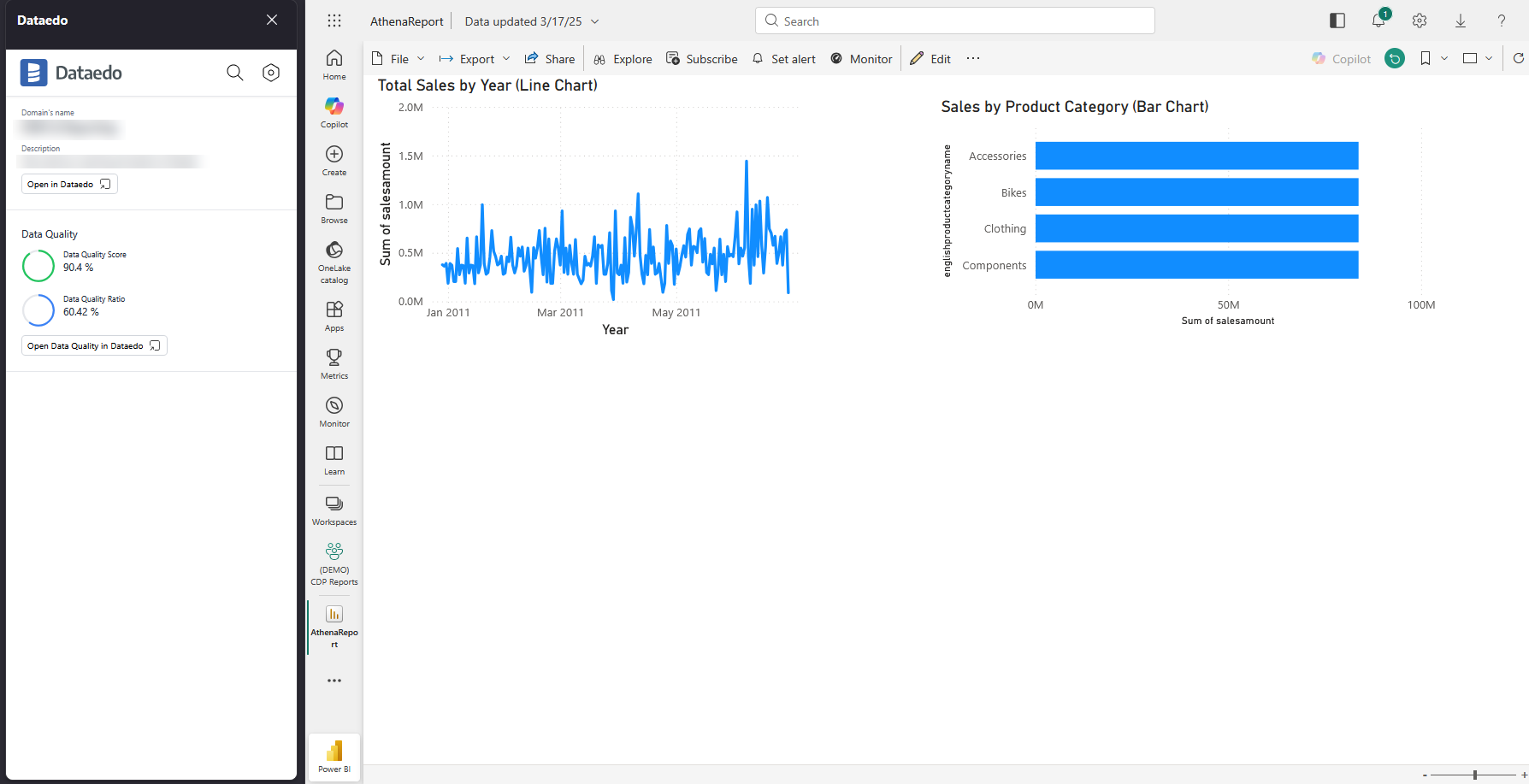
When you click an item, you will be taken to its detailed view. Depending on what is configured for the object, its detailed view contains: title, description, badges, linked terms, domains, areas and data products, tags, roles, and data quality score and ratio. You can also use the provided button to open the object directly in the Portal.
Editing assets
The browser extension lets you edit your asset's documentation without leaving the webpage you are currently on. You can edit an asset's description by hovering over it and selecting the Edit button.
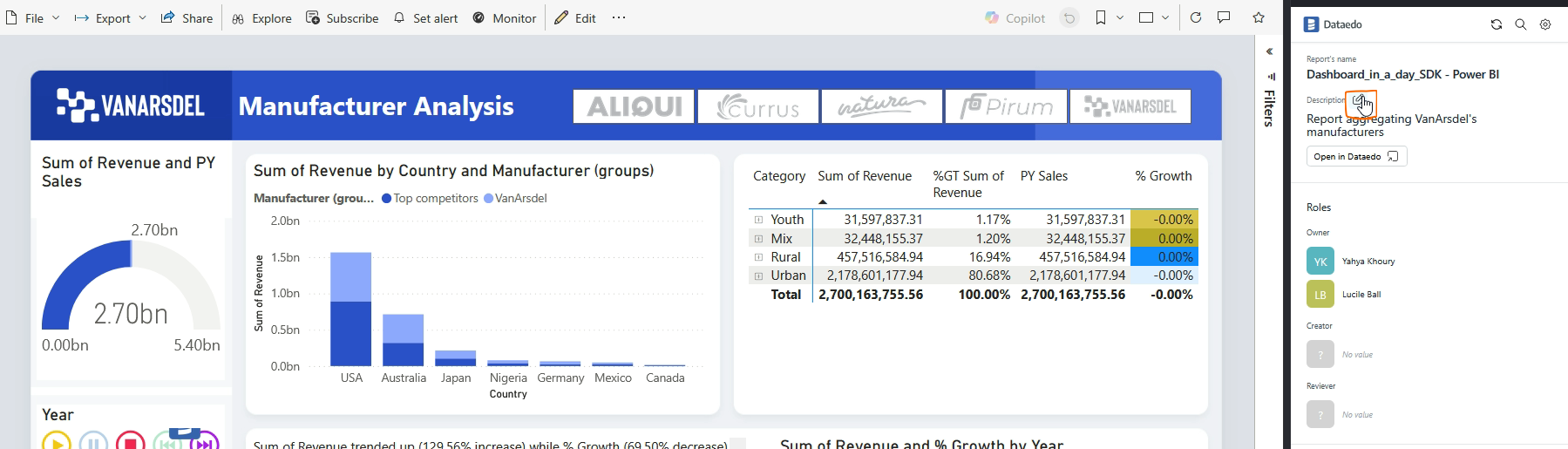
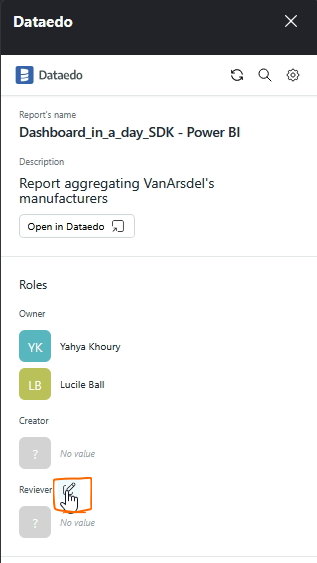
You can also assign and edit roles (or more accurately User Custom Fields). To do so, hover over the role you want to change and select the Edit button. You can then assign any users from the list of users in your repository.
Community
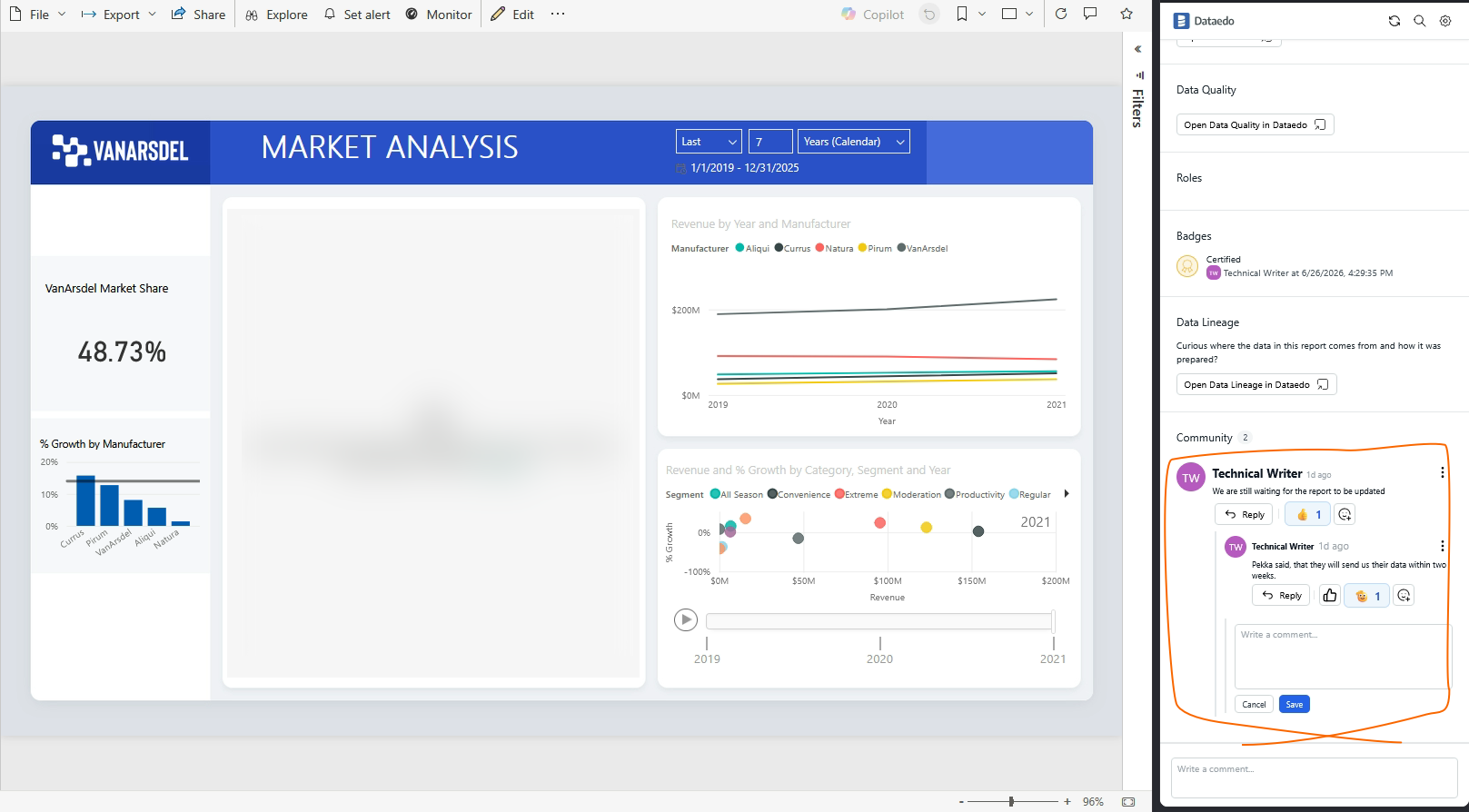
Dataedo's Community module lets you comment on assets in your repository. With the extension, you can not only view but also participate in the discussion without leaving your current browser window.
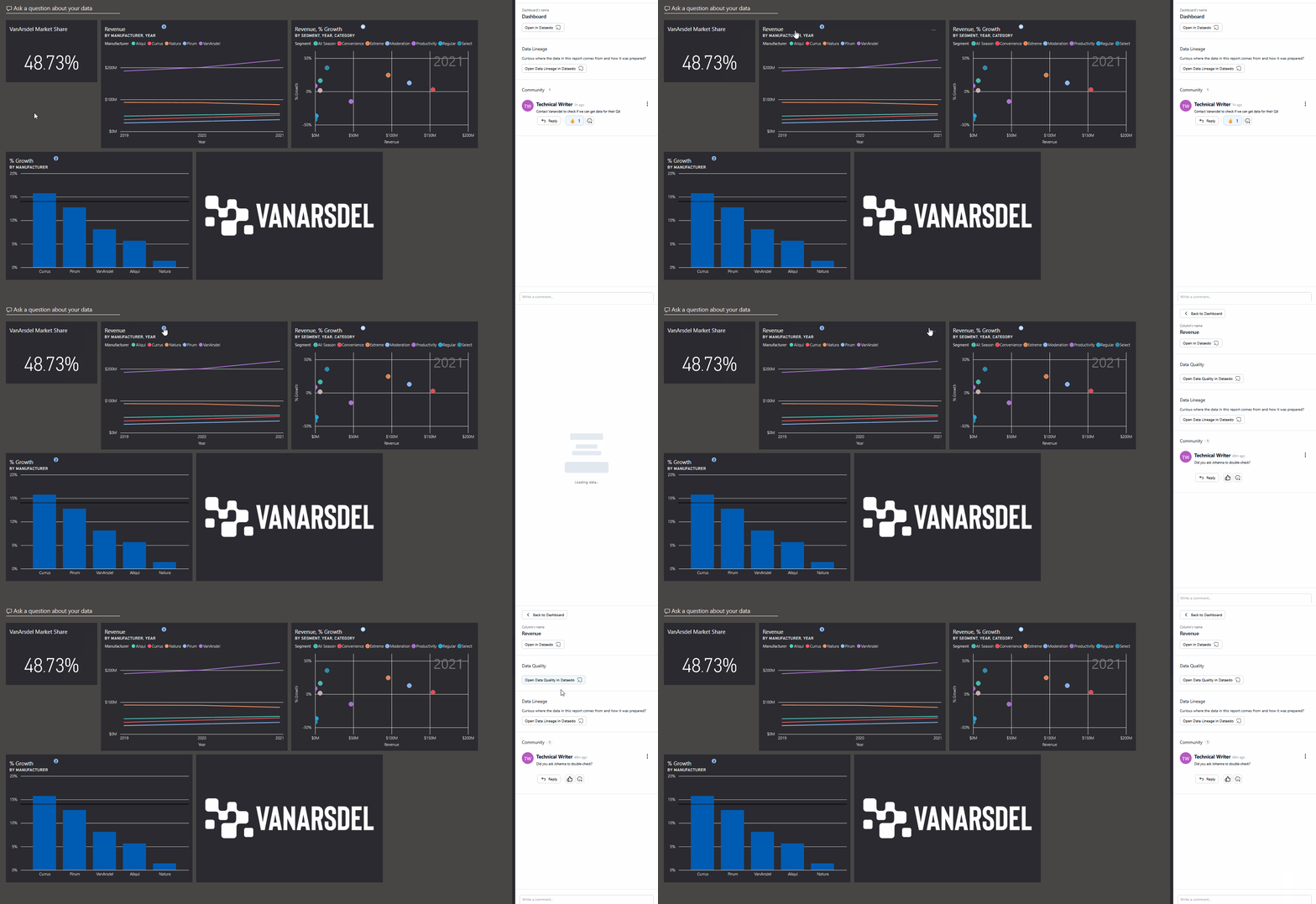
If the object you are viewing has any comments in Dataedo, a counter will appear on the extension's icon.
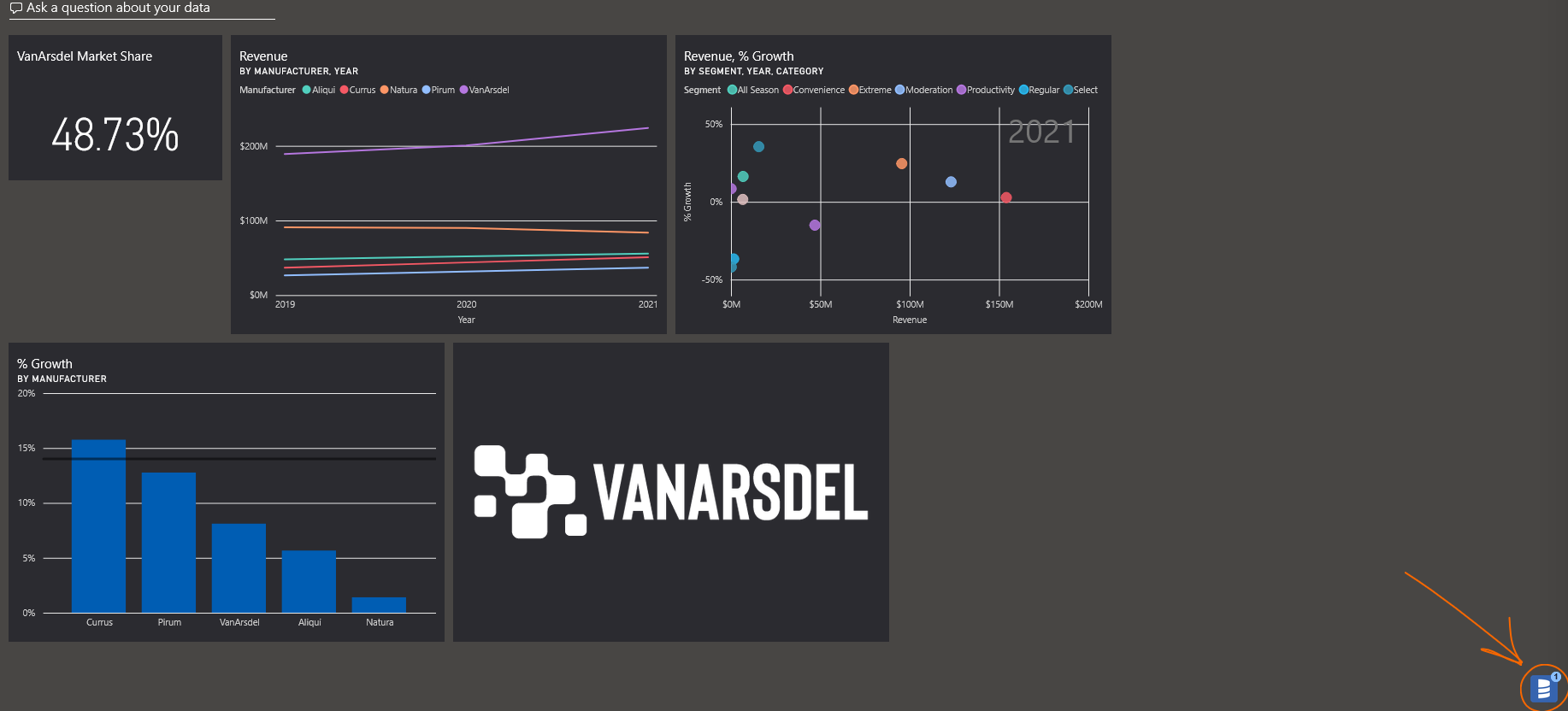
When you click the icon, the extension will open as a sidebar with the object's overview scrolled all the way down to Community. Additionally, new markers will appear on nested objects — counters for objects that already have community comments [A], or blank markers for objects that are documented in Dataedo but have no discussions yet [B].
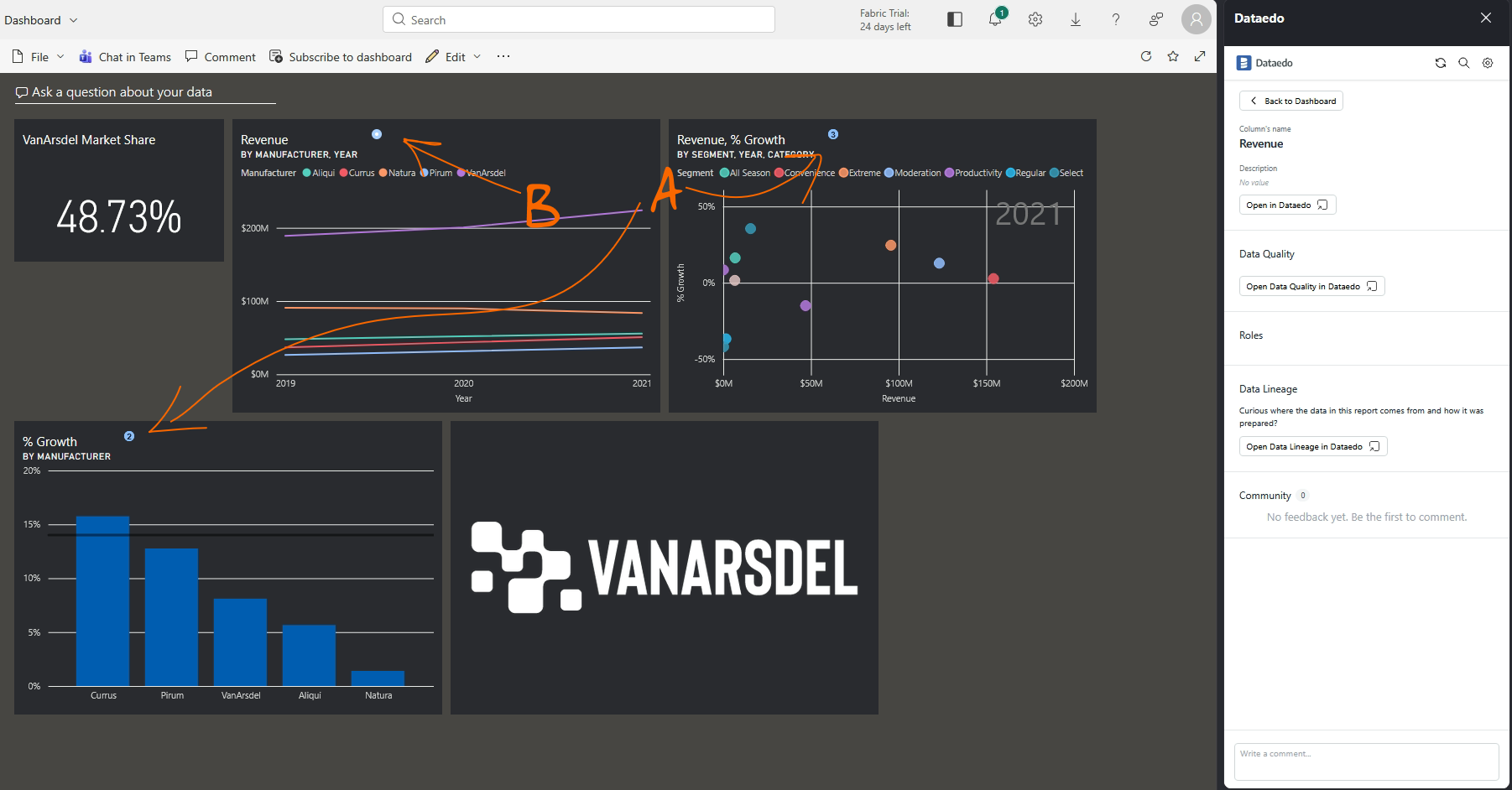
Clicking a marker opens an overview of its associated asset.
The extension's overview gives you the same capabilities as the Community in Dataedo Portal. As long as you have sufficient permissions, you can add new comments, react or reply to existing ones, and edit or delete your comments.
Unsupported pages
If you are on a page that supports context-aware insights, but not on a page that contains an asset, you will see a message instructing you to open a supported page.
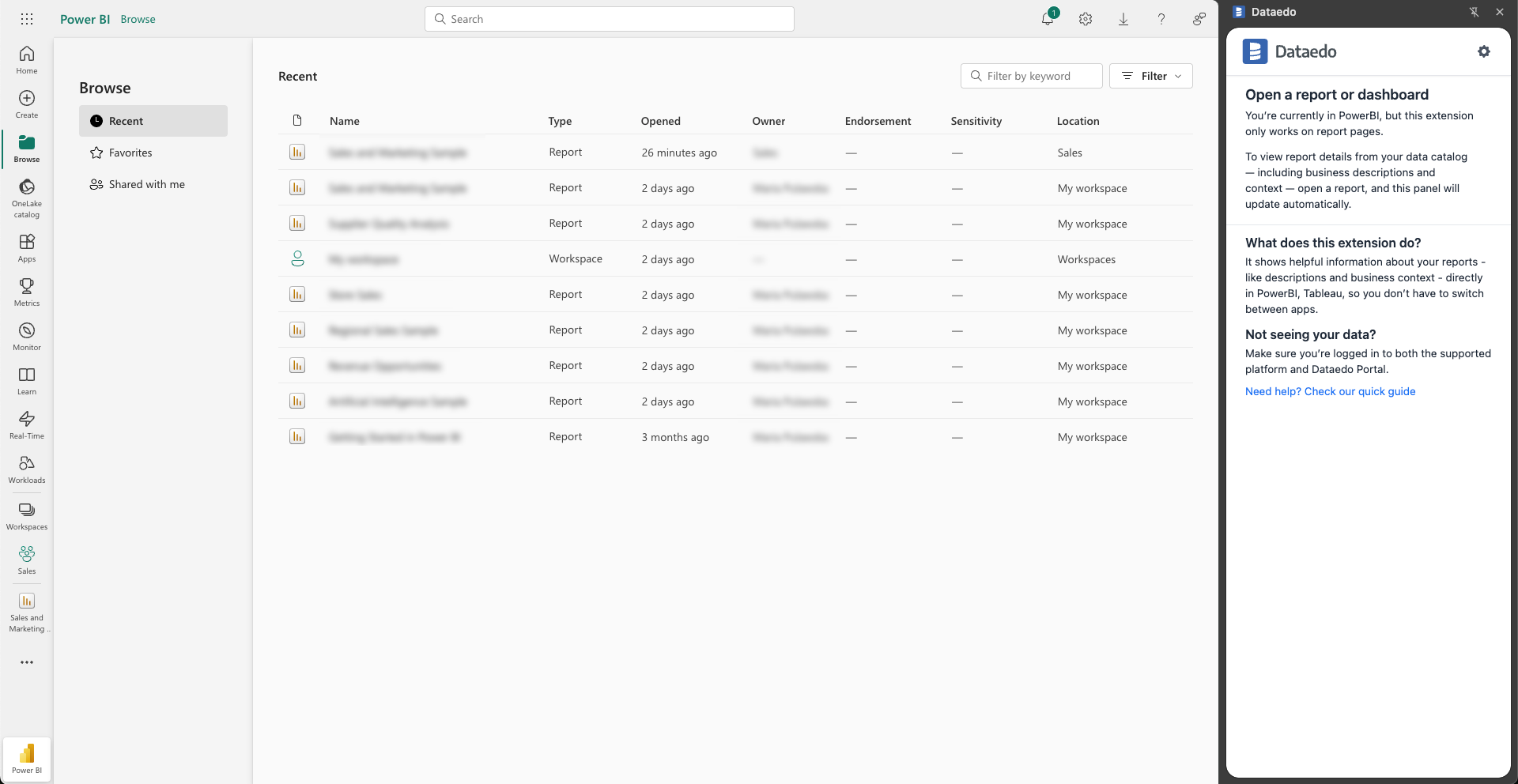
Alternatively, if an asset you are viewing is not documented in your Dataedo repository or cannot be matched via its URL, the browser extension can import it into Dataedo.
Troubleshooting
Here are some common issues and how to resolve them:
The Dataedo Portal URL is not working
- Make sure you entered the main Dataedo Portal URL where your catalog is hosted (e.g.
https://mycompany-dataedo.com). - Do not include additional paths such as
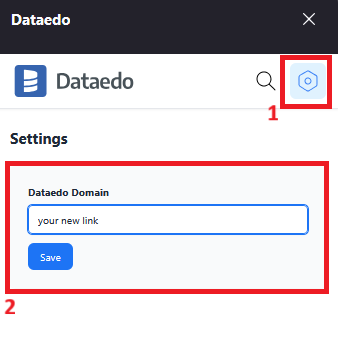
/home,/login, or trailing slashes (/). - If you need to change the current URL, click the settings icon and enter your desired link.
The extension is not showing data
- The extension only works on pages containing assets. As such, it will not display data on:
- the home page
- list views such as “All Reports” or “Workspaces”
Navigate to a specific report or asset page to see information about it.
The search results are not working
- Make sure that your search query is formatted properly and does not contain any typos.
- Double check the filters — user filters might affect your search results.
The Portal version is not supported
- If your Portal version is too old or contains breaking changes, the extension will not load catalog data.
- In this case, the extension will inform you that your Portal version is not supported.
- To avoid issues, keep your Portal updated to the latest available version.
Need help?
If you run into any problems or have questions, reach out to Dataedo support.

