Dataedo Browser Extension
Benefits
The browser extension lets you see information from the catalog directly inside your preferred Business Intelligence tool's dashboards and reports. This helps you:
- Understand your data faster – see descriptions, ownership, and context without leaving your BI tool.
- Trust what you are looking at – check whether a report is certified, master or critical data, and view its lineage.
- Stay in your workflow – no need to switch back and forth between the Dataedo Portal and your BI environment.
In short, you always have the most important catalog details right where you use your reports.
Prerequisites
Before installing the browser extension, make sure that you have:
- Access to the Dataedo Portal. You’ll need its URL to configure the extension.
- A supported browser: Google Chrome, Microsoft Edge, or Mozilla Firefox.
- An active login session in the Dataedo Portal (or be ready to log in after configuration).
Installation
-
Find the extension:
-
Install the extension:
- Google Chrome: In the upper right of the Chrome Web Store page, click Add to Chrome. When prompted, click Add extension.
- Microsoft Edge: Follow the steps in Add, turn off, or remove extensions in Microsoft Edge.
- Firefox: On the Firefox Add-ons page, click Add to Firefox. When prompted, click Add.
Once installed, you should see the extension icon in your browser’s toolbar.
Configuration
-
Open the extension:
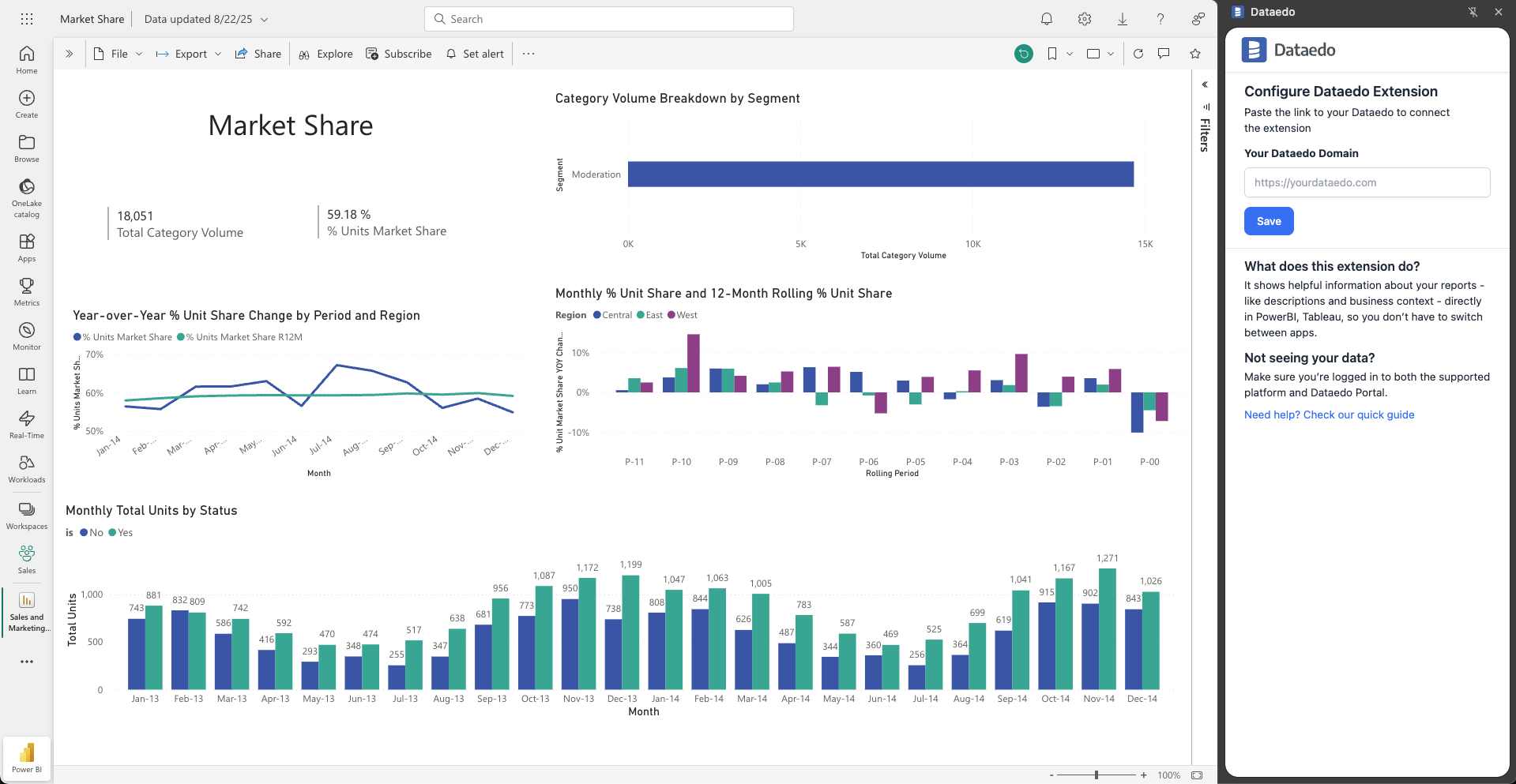
Click the extension icon in your browser toolbar. A sidebar will appear. -
Insert your Dataedo Portal link:
Paste the URL of your Dataedo Portal into the field. The URL will be saved after the first setup. You can change it later if needed.
- Log in (if needed):
If you are already logged into the Dataedo Portal in your browser the extension will use that session, otherwise you will be prompted to log in.
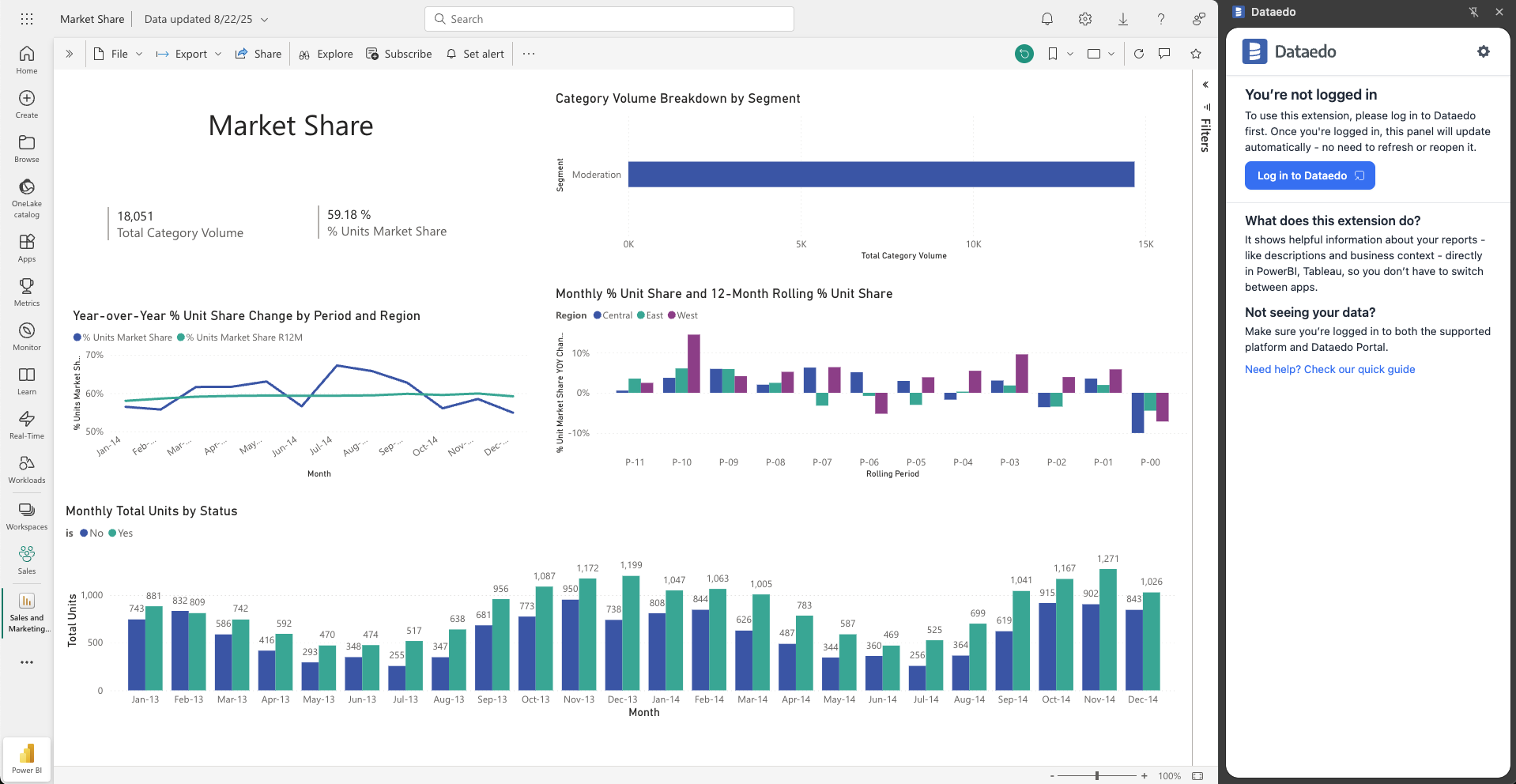
After configuration, the extension is ready to use.
Usage
The extension currently works on all dashboard and report pages in Business Intelligence tools.
The extension additionally offers Context-aware insights for PowerBi and Tableau. This means that when you open a supported report or dashboard, the extension shows:
- Name and description
- Glossary terms (with definitions)
- Roles defined within Dataedo Portal such as owners and subject matter experts
- Certification, master data, or critical data status
- Lineage link (opening the object inside the Dataedo Portal)
- Tags
- Business context (domains and data products)
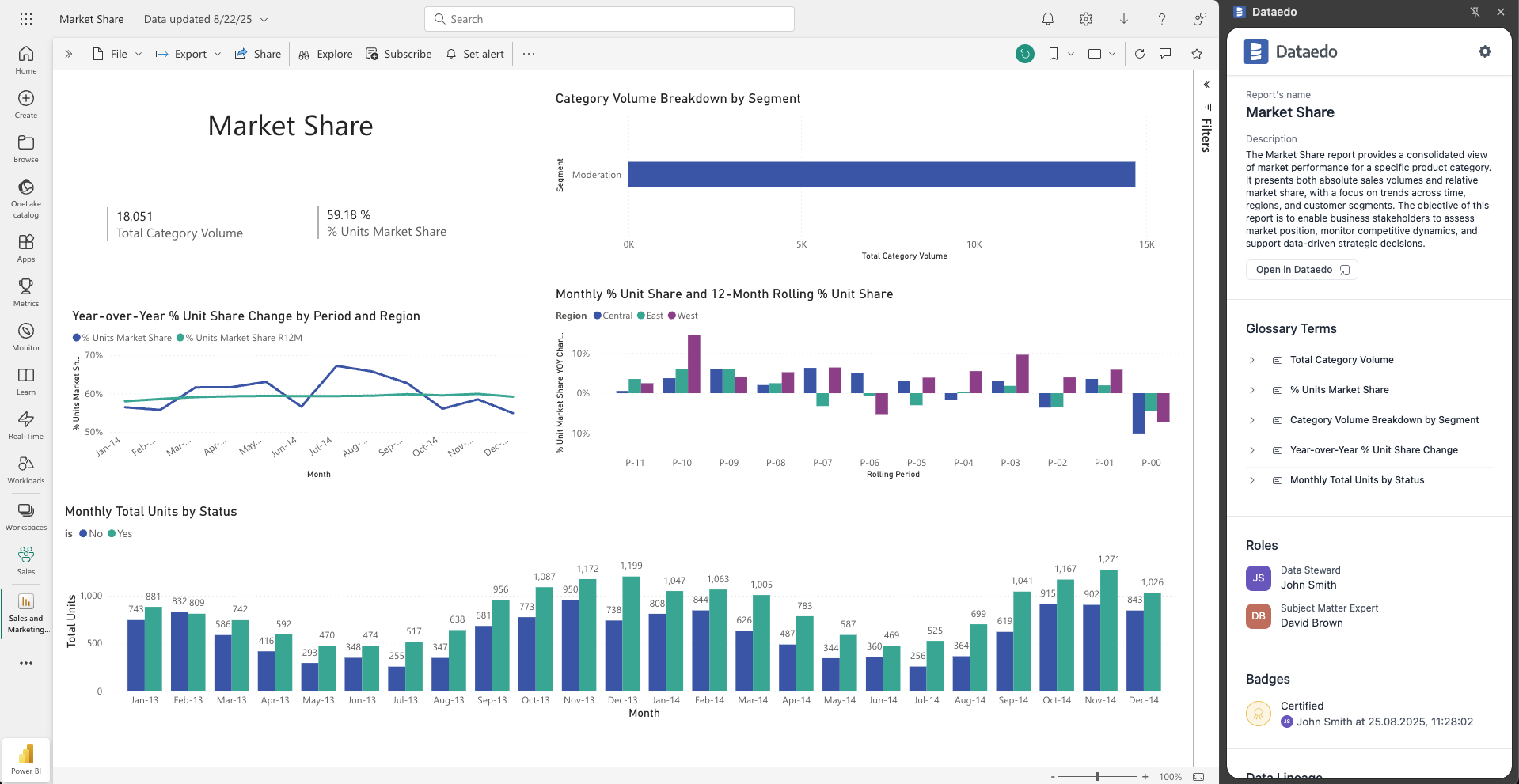
On other webpages including remaining Business Intelligence tools, you can access these details using the search bar. The search bar tool will also show all the other information saved in your portal — like Domains or tables.
Search functionality
Our browser extension allows for an on-the-fly search through the information saved in your repository without the need of switching browser tabs. Click on the search icon and write your search query. If you want to additionally narrow down the results with User-based filters, use the filter icon next to the search bar.
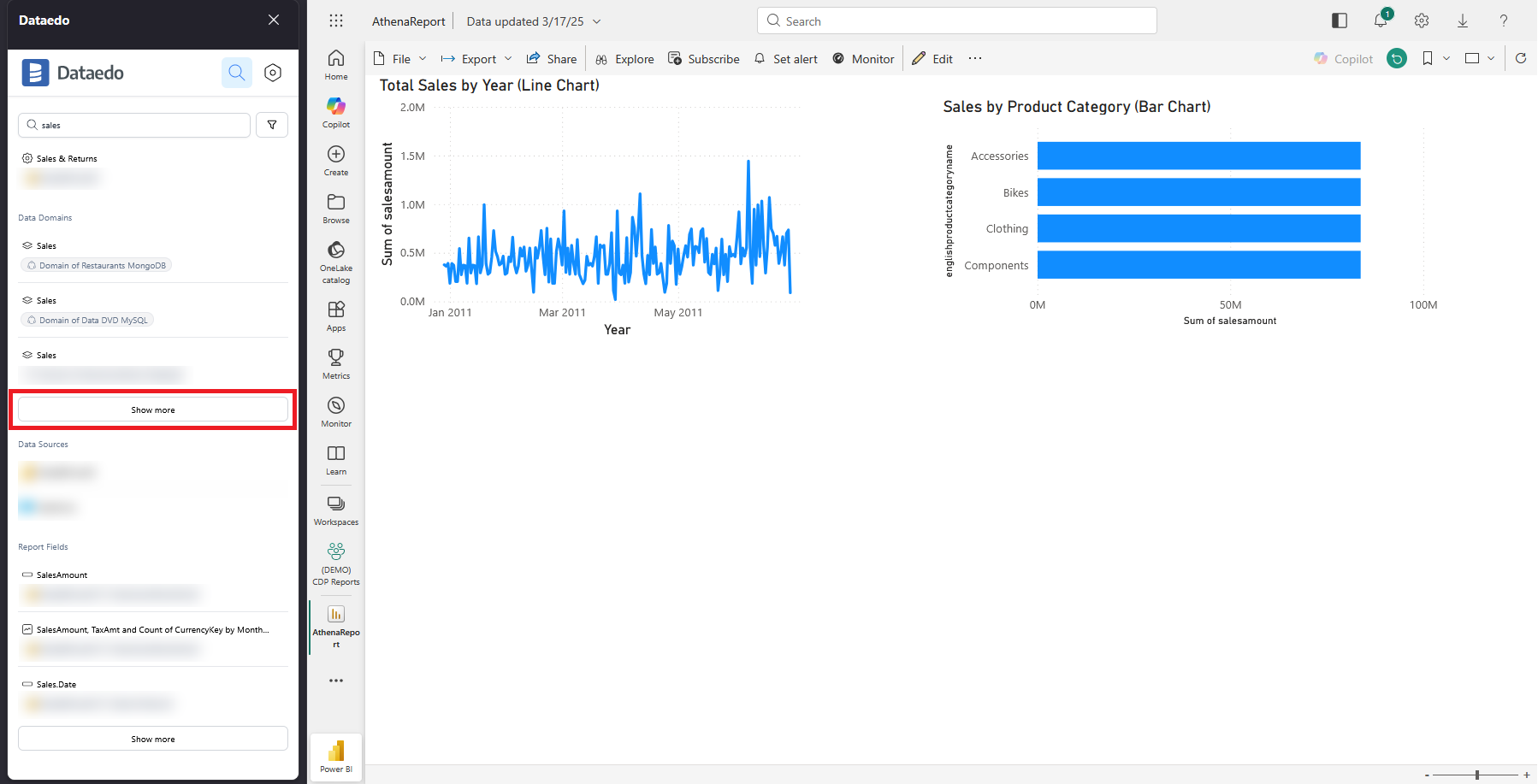
The search results are grouped in accordance with the portal's structure. Each grouping shows up to three items. It can, however, happen that there are more items that fulfill the search criteria in a given group. You can view them by pressing the Show more button.
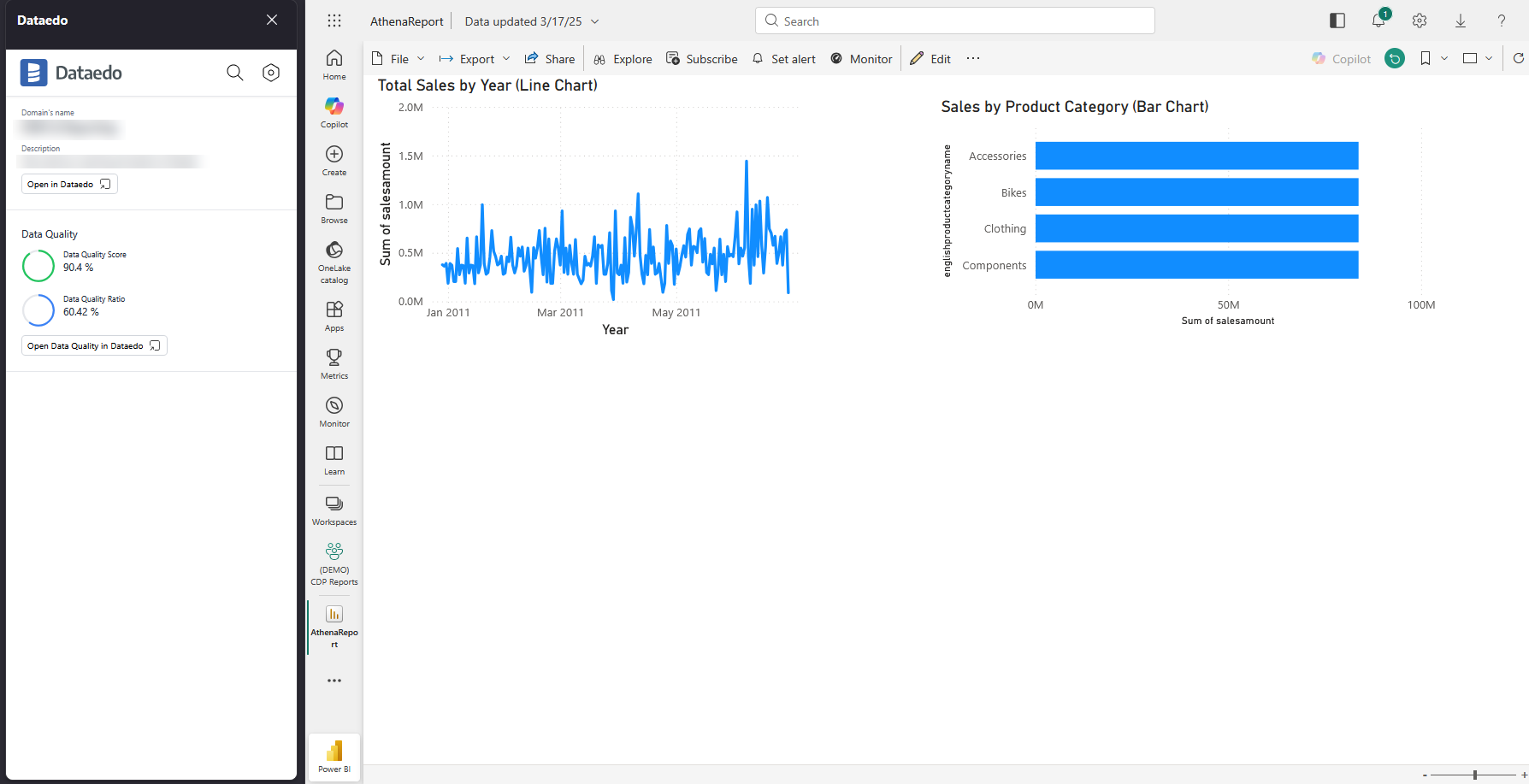
When you click on an item, you will be taken to its detailed view. Depending on what is configured for the object you can view it contains: title, description, badges, linked terms, domains, areas and data products, tags, roles, and data quality score and ratio. You can also use the provided button to open the object directly in the Portal.
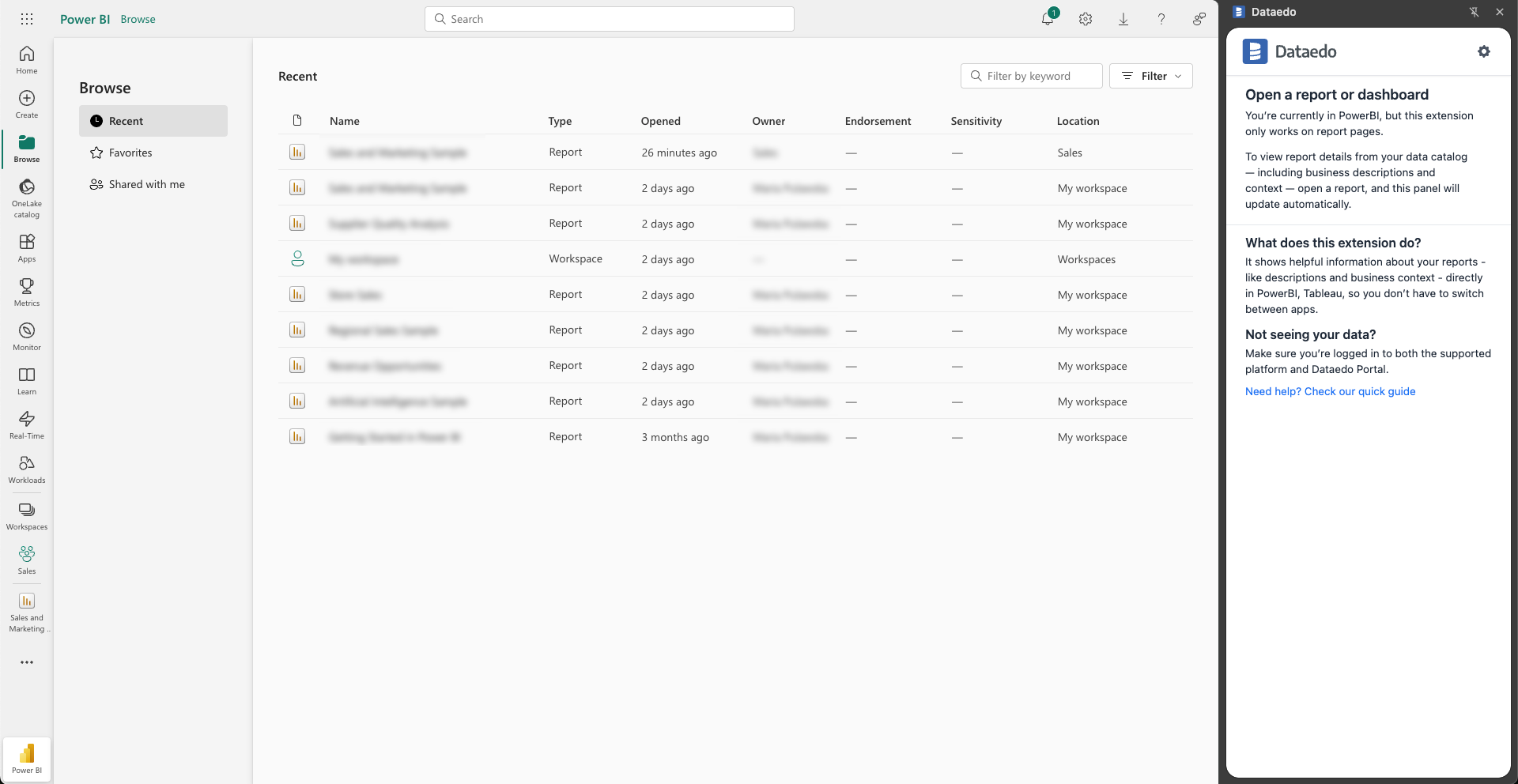
Unsupported pages
If you are in a software supporting Context-aware insights, but not on a report or dashboard page, you will see a message instructing you to open a report page.
Troubleshooting
Here are some common issues and how to resolve them:
The Dataedo Portal URL is not working
- Make sure you entered the main Dataedo Portal URL where your catalog is hosted (e.g.
https://mycompany-dataedo.com). - Do not include additional paths such as
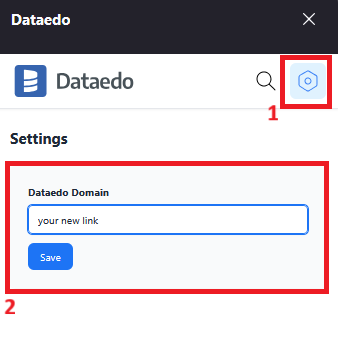
/home,/login, or trailing slashes (/). - If you need to change the current URL, click the settings icon and enter your desired link.
The extension is not showing data
- The extension only works on report and dashboard pages. As such it will not display data on:
- The home page.
- List views such as “All Reports” or “Workspaces.”
- Navigate to a specific report or dashboard to see information about it.
The search results are not working
- Make sure that your search query is formatted properly and does not contain any typos.
- Double check the filters — User filters might affect your search results.
The Portal version is not supported
- If your Portal version is too old or contains breaking changes, the extension will not load catalog data.
- In this case, the extension will inform you that your Portal version is not supported.
- To avoid issues, we recommend keeping your Portal updated to the latest available version.
Need help?
If you run into any problems or have questions, reach out to Dataedo support.

