User management
This article describes users, groups, roles, and permissions management in Dataedo Portal in detail.
Groups
Groups mirror company structure and are meant to make permissions management easier. One Group can correspond to a single role or aggregate multiple roles, and those roles are then propagated to every user assigned to the Group. In fact, Groups are the only way to grant roles to users — so they are central to managing users' access levels quickly and efficiently across your repository.
Adding a Group
The Groups tab lets you add a new Group [A] or edit an existing one [B].

Managing a Group
When editing a Group, you can use the Settings tab to edit basic details like the Group's name or whether new users should be assigned to it by default.
The Permissions tab lets you edit Group permissions. Permissions are explained in more detail later in this article.
In the Users tab you can use the Assign User button to quickly add a new user to a group.

Assigning a group to new users automatically
When creating or editing a Group, you can toggle "Automatically assign group to each new user" on. Every new user is then added to this Group automatically, so nobody has to assign them by hand. You can enable this on as many Groups as you like.
This applies whether a user is created manually or added automatically on their first SAML login.

SAML Synchronization
If you have configured SAML as a login method, you will see a Synchronize with SAML toggle in the group's Settings. Enabling this option means that upon logging in via SAML, user credentials are checked against a selected user group configured directly with your provider, and if a match is found, they are automatically assigned to the configured Dataedo user group.

The SAML synchronization requires you to select the SAML identity provider you want to use, and provide the name of the SAML group that you want to map to your edited Dataedo User Group.
When you enable this option, assignment to this group becomes automatic based on SAML credentials during login. You can no longer manually add or remove users from the selected Dataedo User Group.
Always double-check your SAML group configuration before enabling this option. Improper configuration can lead to users losing access to groups they previously belonged to. For example, imagine that you synchronized the SAML Overseers group with the Dataedo Admins group. If a user was previously assigned to the Admins group in Dataedo, but is not in the Overseers group in your SAML configuration, they will be removed from Admins at their next login attempt.
Deleting a group
Deleting a group requires confirmation in a popup.

When you confirm:
- all assigned users lose permissions inherited from this group
- the group with all its settings is irreversibly deleted
Users
Dataedo Portal lets you easily add, edit, or remove users. Navigate to the User Management view from Settings > User Management. You can view all users who already have access to Dataedo Portal in the Active Users table.

Adding a user
To add a new user, press the Add User button and provide their desired Login and Display name.

We strongly recommend using SAML for authentication instead of adding users by hand. When users log in via SAML for the first time, their accounts are created automatically, so there is usually no need to create them manually. New users are also added to any groups set to assign automatically and SAML-synchronized groups during login.
Please note that Dataedo Portal will not ask for a password at any point, as user authentication is handled through separate systems. Find out more about the login flow in the Accessing Dataedo Portal article.
Managing a user
The details button lets you access and manage user details.

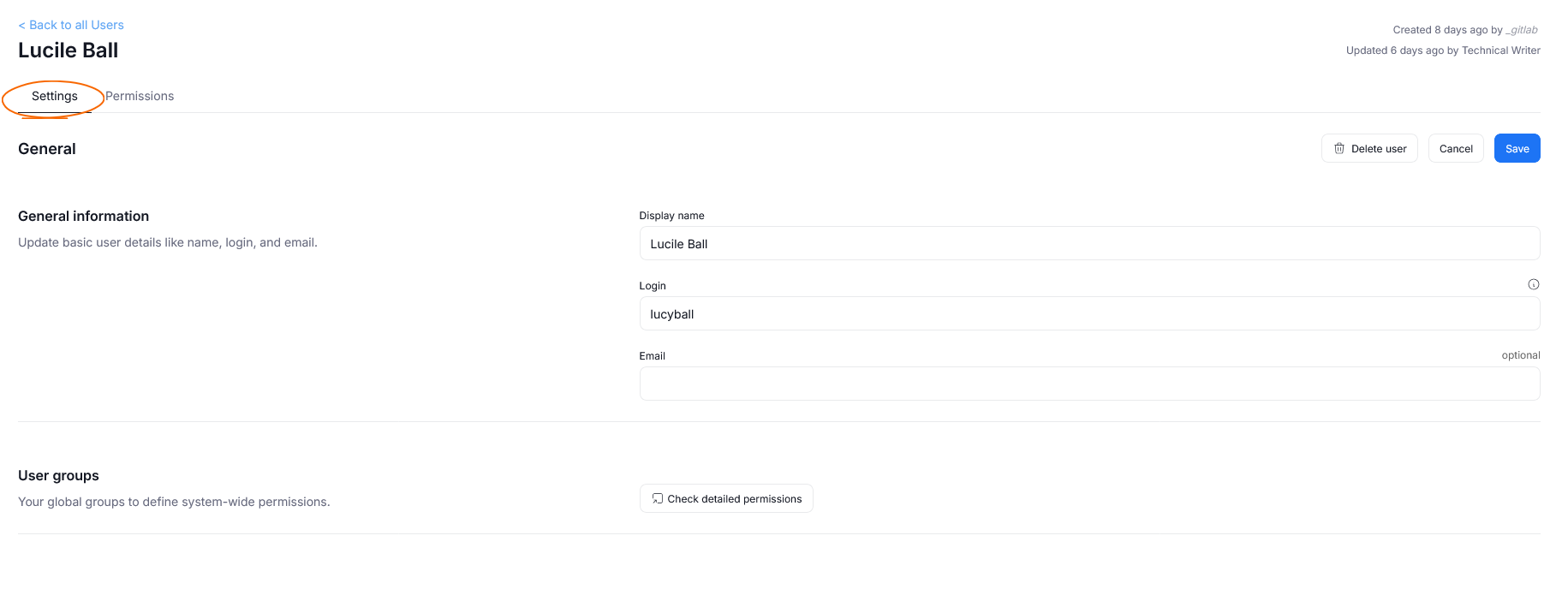
The Details view contains two tabs. Within Settings you can edit basic information and preview user groups. Permissions lets you manage a user's access levels via groups. You can find more on Permissions and Groups in other sections of this article.
Deleting a user
You can delete a user through either the Active Users table or the User Details view. You will have to confirm this action in a popup.

When a user is deleted, their name is anonymized, but their information persists in the database, so content created by the user (like comments) remains available.
Deleted users can no longer log in. Since user deletion is a soft-delete process, you can reverse it by altering the deleted column in the dbo.licenses table.
Deleting a user also immediately revokes all of their MCP access tokens, so a deleted user loses access to data served through MCP right away, without waiting for their tokens to expire naturally.
Restoring a user
Starting from Dataedo 10.3.2, you can restore users using the Deleted Users table.

In older versions, you can use the following command to restore a deleted user:
UPDATE [dbo].[licenses]
    SET [email] = '[email protected]', --Email address used for notifications
        [name] = 'Display Name', --Name displayed on comments created in Dataedo Portal
        [deleted] = 'false' --do not change this value
    WHERE [login] = 'login'; --Login used to access (SQL login, AD name (including domain), or email address if using SAML)
Using two accounts
When the same person is working with both Dataedo Desktop and Dataedo Portal, it is possible that they will have two separate user accounts. For instance, an Online Account for Dataedo Desktop and an OKTA account for Dataedo Portal.
Best Practices
Deactivating or removing a user in your identity provider (SAML, OAuth, or a SQL login) only stops them from logging in to Dataedo Portal — it does not propagate to Dataedo and does not remove or lock their Dataedo account.
If their Dataedo account still exists, their MCP tokens keep working even though the user themselves can no longer log in through the identity provider. The tokens can remain usable for long time — stdio PAT for as long as the token's configured lifetime (commonly up to 180 days), and an HTTP JWT indefinitely, as long as it keeps being refreshed within its 14-day refresh window.
The only way to be certain that a former user, or anyone else who shouldn't have access anymore, loses all access to Dataedo, including MCP, is to delete their account in Dataedo. Deleting a user revokes all their permissions and immediately invalidates every token they hold, so there is no need to wait for tokens to expire on their own. As a good practice, make deleting the Dataedo account a required step of your offboarding process, not just deactivating it in the identity provider.
Access Management
Users gain access to features in Dataedo through Groups and roles. A role defines what a user can do, and a Group carries one or more roles within a given scope. Because roles reach users only through Groups, assigning a user to a Group is the single way to grant them permissions — you cannot assign a role to a user directly. The sections below explain how this works.
Roles
A Role is a named set of actions that a user can perform. Think of roles as archetypes, each with a predefined set of actions. You can review Dataedo Roles in this article.
Permissions
A Permission is a role granted to a Group within a specific scope — either the whole Repository or a single data source.
Examples of permissions are:
- John Doe, a member of the GLOBAL_ADMINS group, has Admin privileges across the whole Repository
- the Analysts group has an Editor role in the Oracle data source
- the Viewers group has a Viewer role for the whole Repository
Granting permissions to a group
You need a Group before you can grant any permissions. Learn more about creating Groups here.
To grant a permission, open the Group's Permissions tab and click Assign permissions, then pick a scope and a role. In the image below, the Connection Manager role is assigned to the Data Analyst group in a Financial Data report scope. As a result, every user in the Data Analyst group gains Connection Manager permissions directly in the Financial Data report.

Assigning users to a group
Once a Group holds the right permissions, assigning a user to it grants them those permissions. You can do this from either side.
From the Group's view, open the Users tab and use the Assign User button, as described in Managing a Group.
Alternatively, go to User Management and open a user's profile. Navigate to the Permissions tab [1] and click Assign user group [2]. In the popup that appears, you can assign the user to one or more Groups [3].

Auditing permissions
You can also check permissions from a data source's perspective. Open the Permissions tab on the database page to view all users with their access levels.


