User Responsibilities & Activities
Dataedo keeps track of every user's activities in Dataedo Portal. You can view the activity summary in the user's profile. This is not only a handy way to check and control your output within the Data Catalog, but also a powerful work history tool — you can use it to trace the assets you have previously modified and continue working on them if, for example, you forgot what you were working on.
Viewing user profile
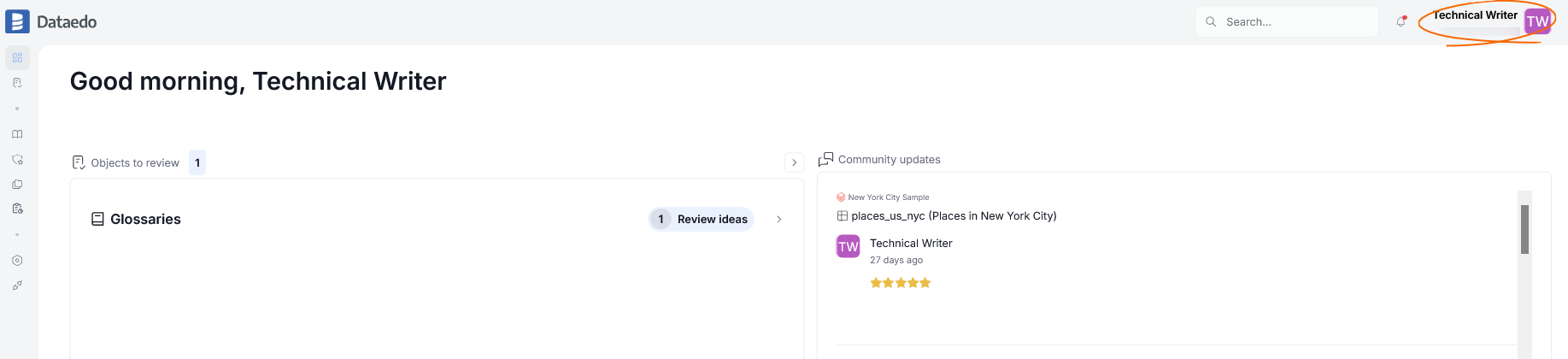
You can view your own profile by clicking the Profile icon in the top-right corner of Dataedo.
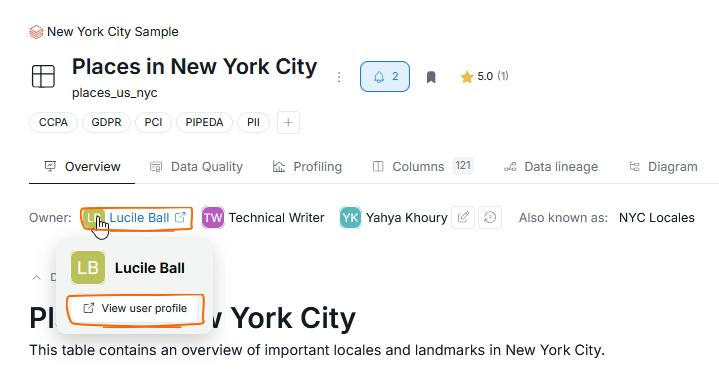
If you want to open another user's profile, you first have to find their profile icon — either in the Community section, or by looking at a custom field they are assigned to. Then you can click their user name, or hover over their profile icon and select View user profile.
User activity
When you go to a user's profile (either your own or someone else's), you can switch to the Activity tab to see the grid with their activity from the last 12 months. Dataedo logs the following events:
- editing and creating documentation (descriptions, Custom Fields, asset aliases, etc.)
- commenting in the community
- reacting to community comments
- changing Data Quality (creating custom rules, assigning rule instances, etc.)
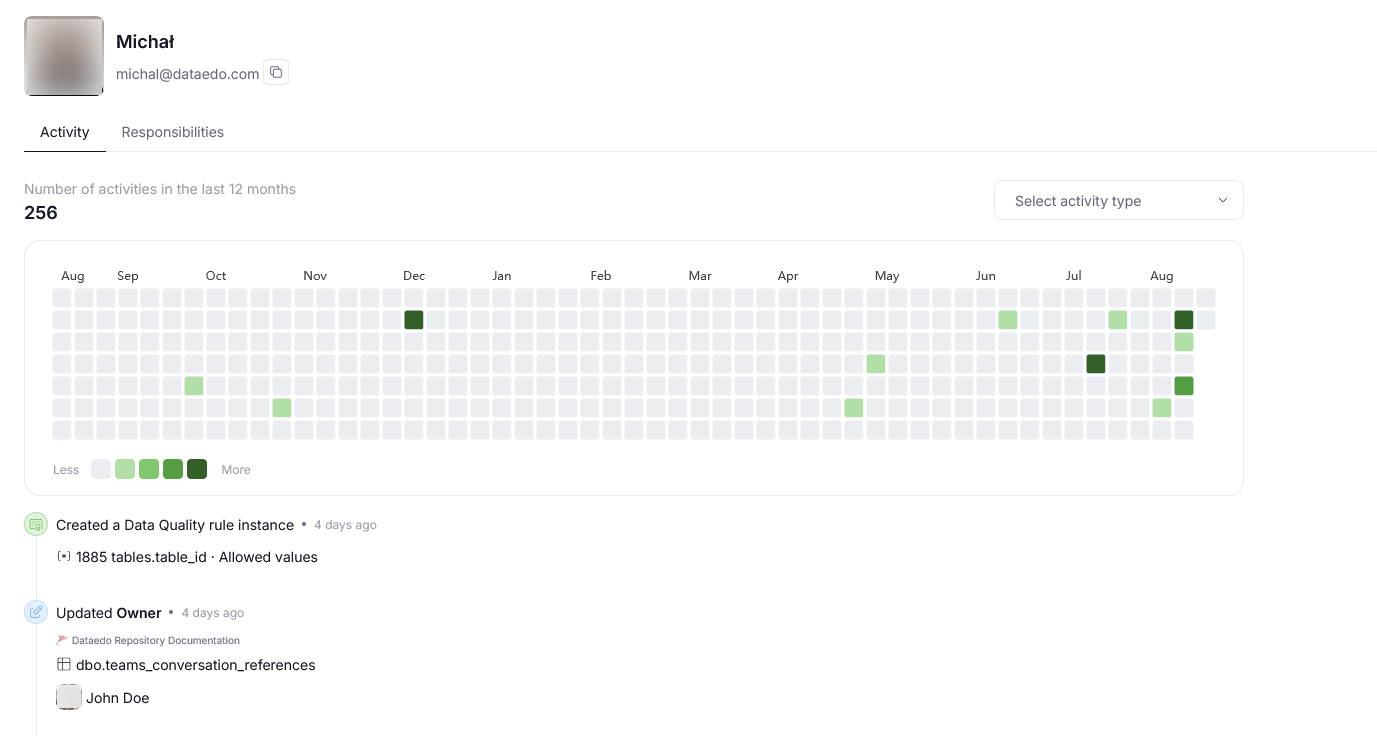
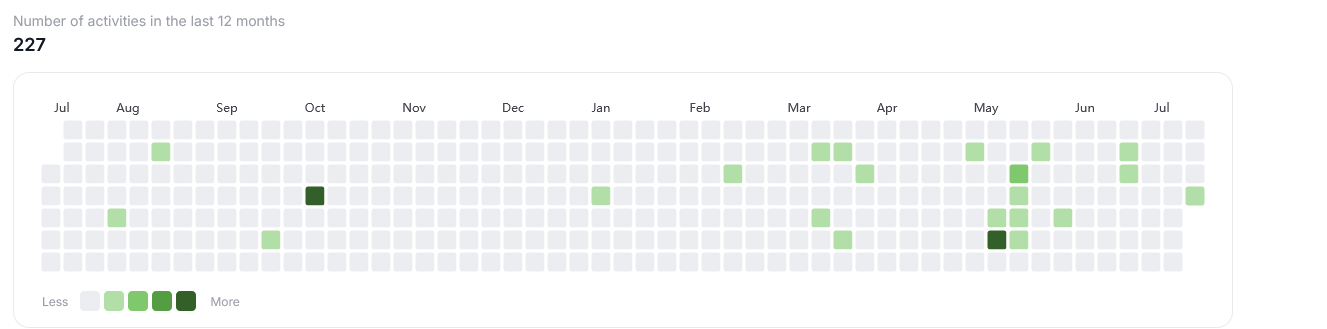
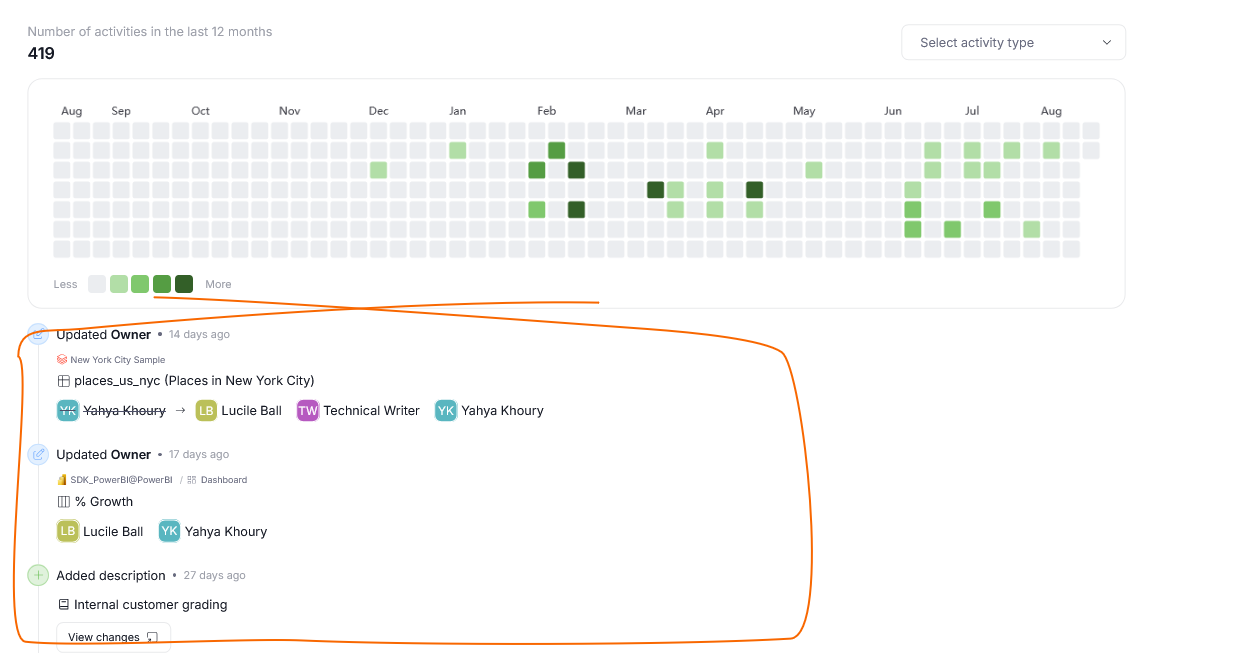
Each tile corresponds to a certain day of a certain month, and is colored according to the legend — the darker the tile, the more activities a user has done that day.
Below the grid, you can find an overview of the user's last activities.
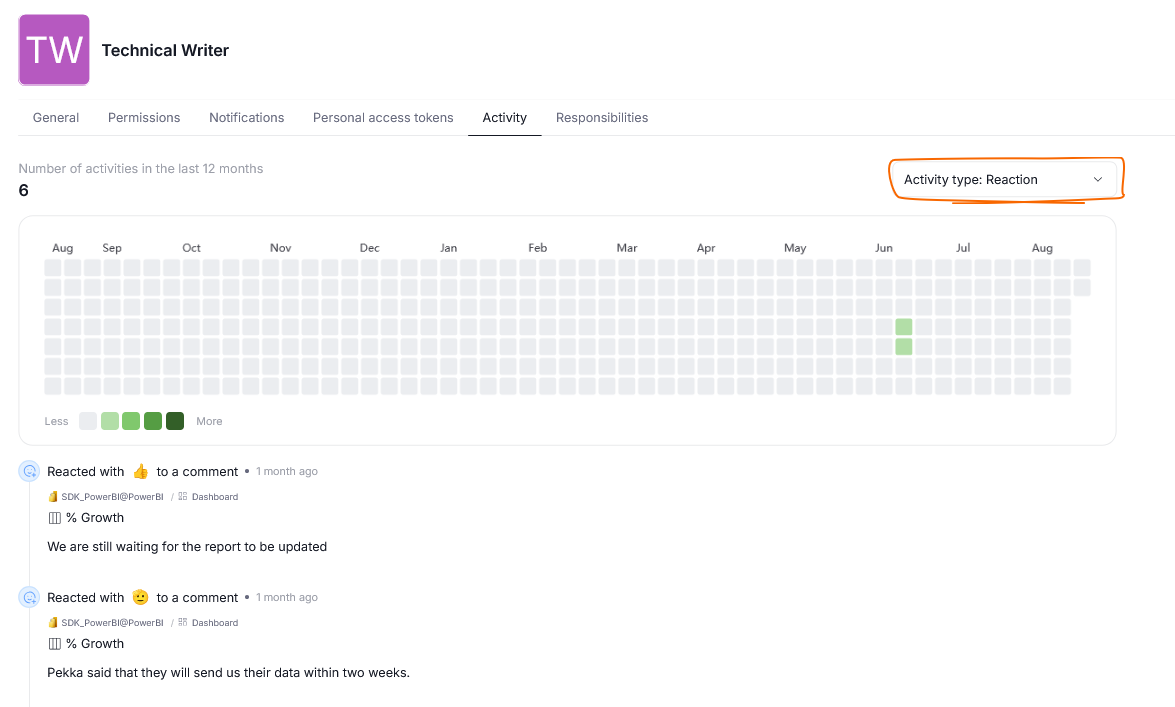
You can use the filters next to the grid to show only activities of a certain type. This will affect both the grid and the list of recent activities.
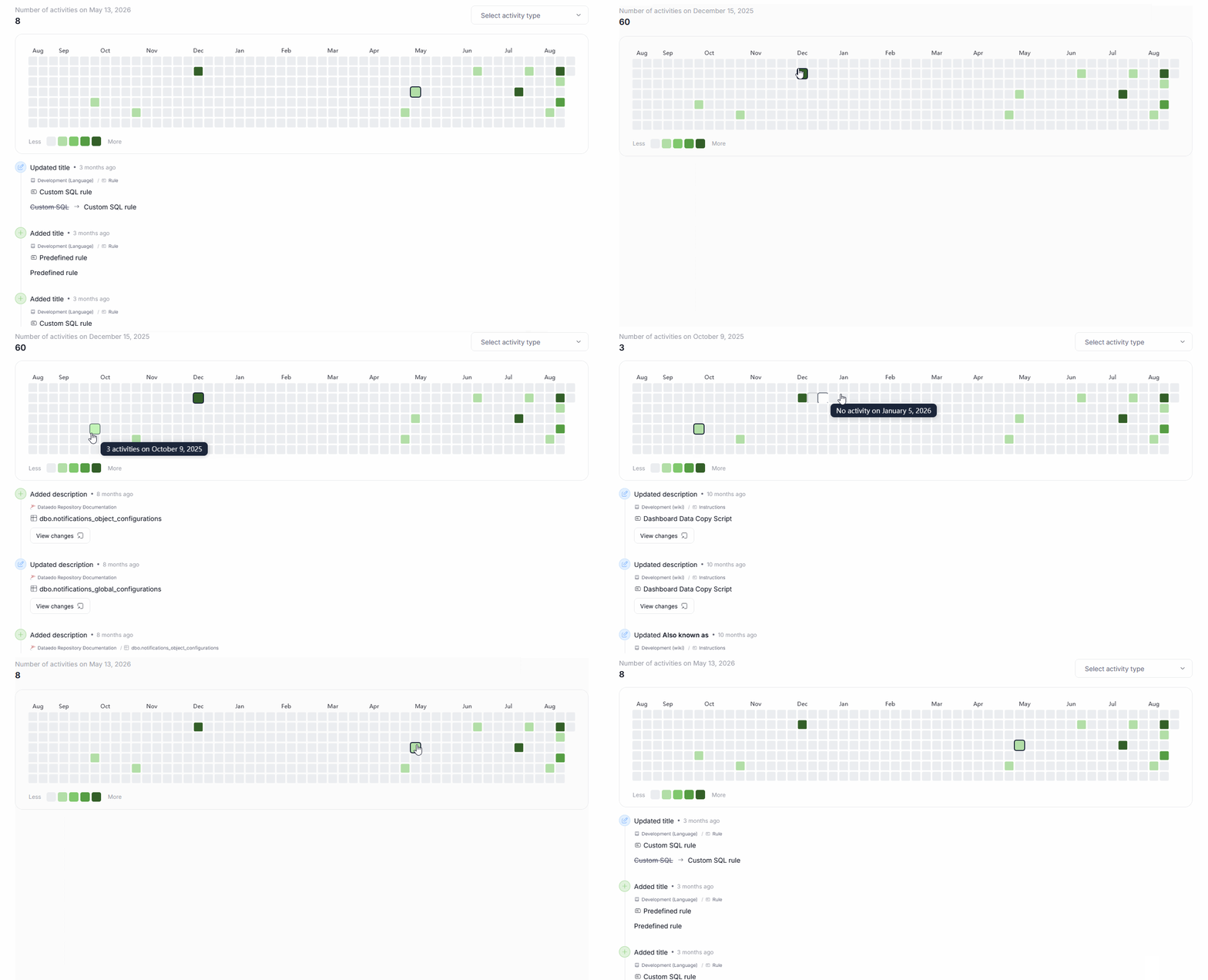
Clicking a tile will show only activities that happened on that particular date.
Permissions
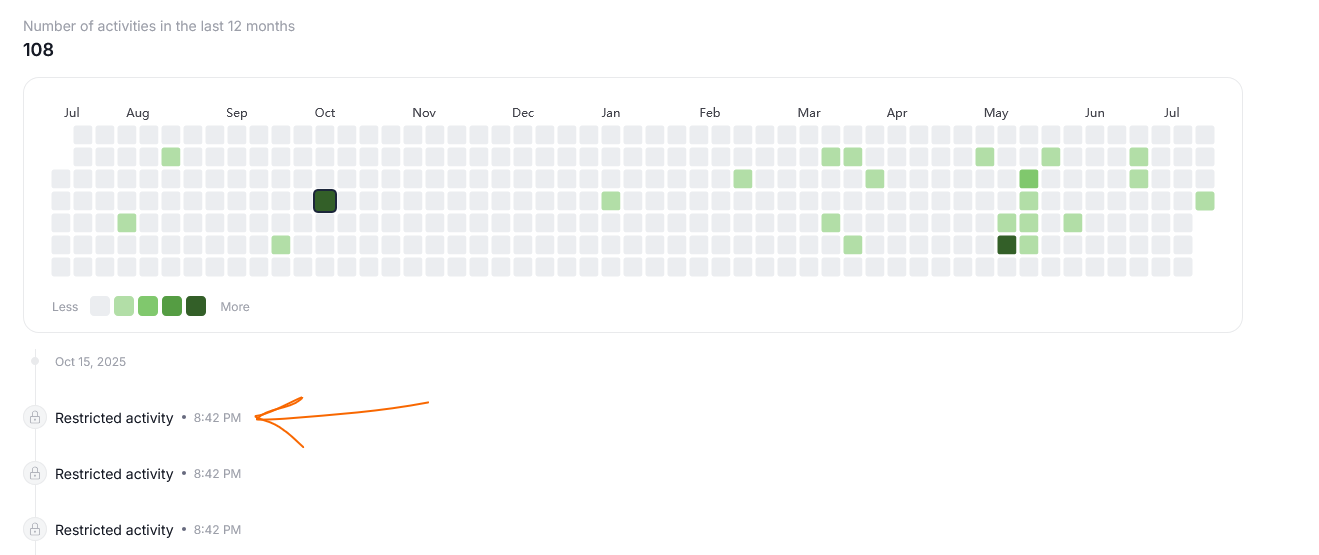
A user can have access to assets that you yourself cannot view. If a user worked on an asset you cannot view, you will still see that they performed some action, but you will not be able to see what asset was modified or what activity they performed.
User responsibilities
Only assets you have access to will be shown in the Responsibilities tab.
The user profile also lets you view user responsibilities — assets where a given user is responsible for a certain role — they can be an owner, a reviewer, a data custodian, or one of many other roles existing in your organization. User responsibilities are generated based on User-type custom fields in your repository.
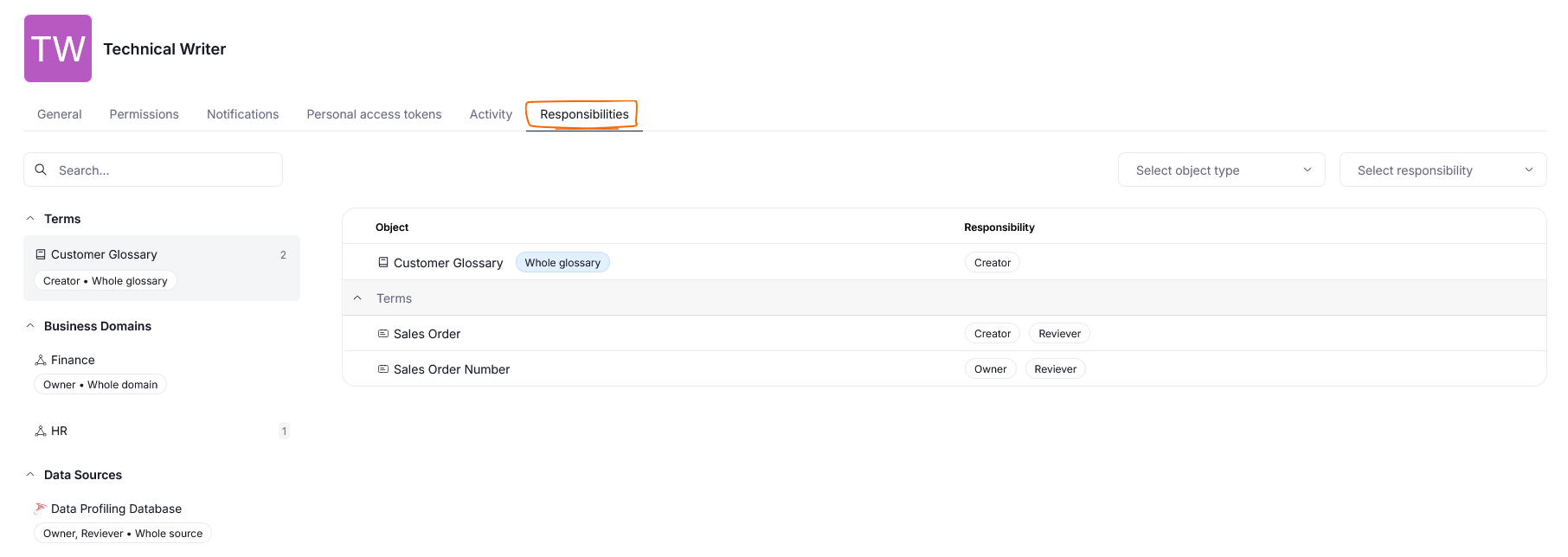
The responsibility view is divided into two parts. On the left [A], you can see a list of assets grouped by type (Terms, Domains, Data Sources, etc.). There, you can choose what object types you want to see. Those objects will appear as a grid on the right [B], where the objects to which the user has any role assigned are displayed.
![Responsibilities view with the object type list [A] and the responsibilities grid [B] highlighted](/img/get-started/portal/responsibilities-2.png)

