Notifications and following
Notifications are available only in Dataedo Portal.
Dataedo notifications are meant to help you stay informed and never miss crucial updates to the objects you are following or that are instrumental to your work.
Configuration
Dataedo offers both e-mail and in-app notifications. In order for the notification system to run in your repository you have to have to set up the Dataedo Agent. While the in-app notifications will work by default once it is configured, e-mail notifications require you to set up an SMTP server to work. This is explained in more depth in our article about configuring email notifications.
Global notification settings
Dataedo lets you manage your notifications as well as their delivery channels through account settings. Click on your profile icon in the top right part of the screen, and navigate to Notifications.
Using checkboxes you can specify whether you want to receive e-mail and app notifications for each specified action. By default all checkboxes are enabled.
Keep in mind that notification settings related to scheduled tasks (marked below) will be visible only to Connection Managers (as access to the Scheduler is necessary).
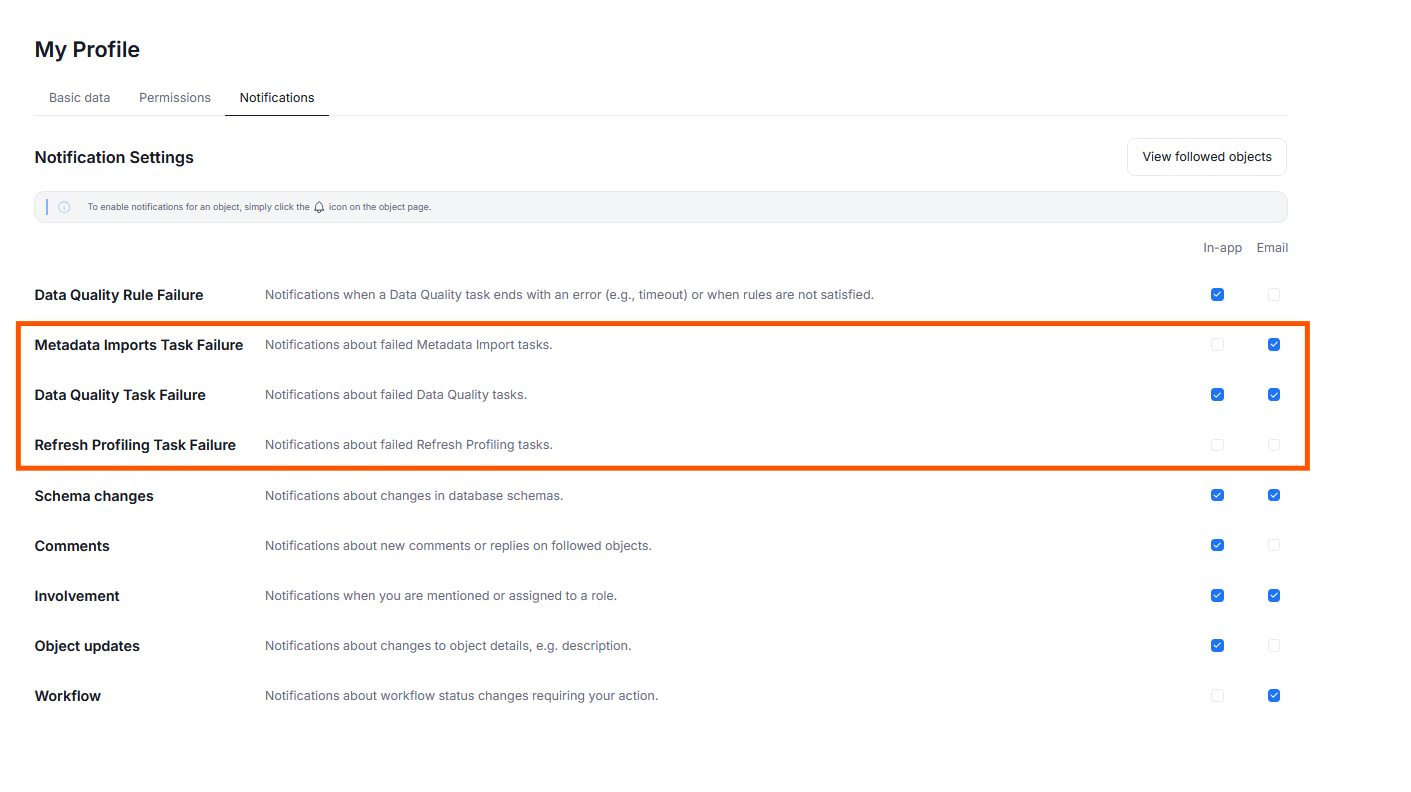
Notification preferences saved in your account settings are global. This means that they affect all notifications you receive from your entire repository.
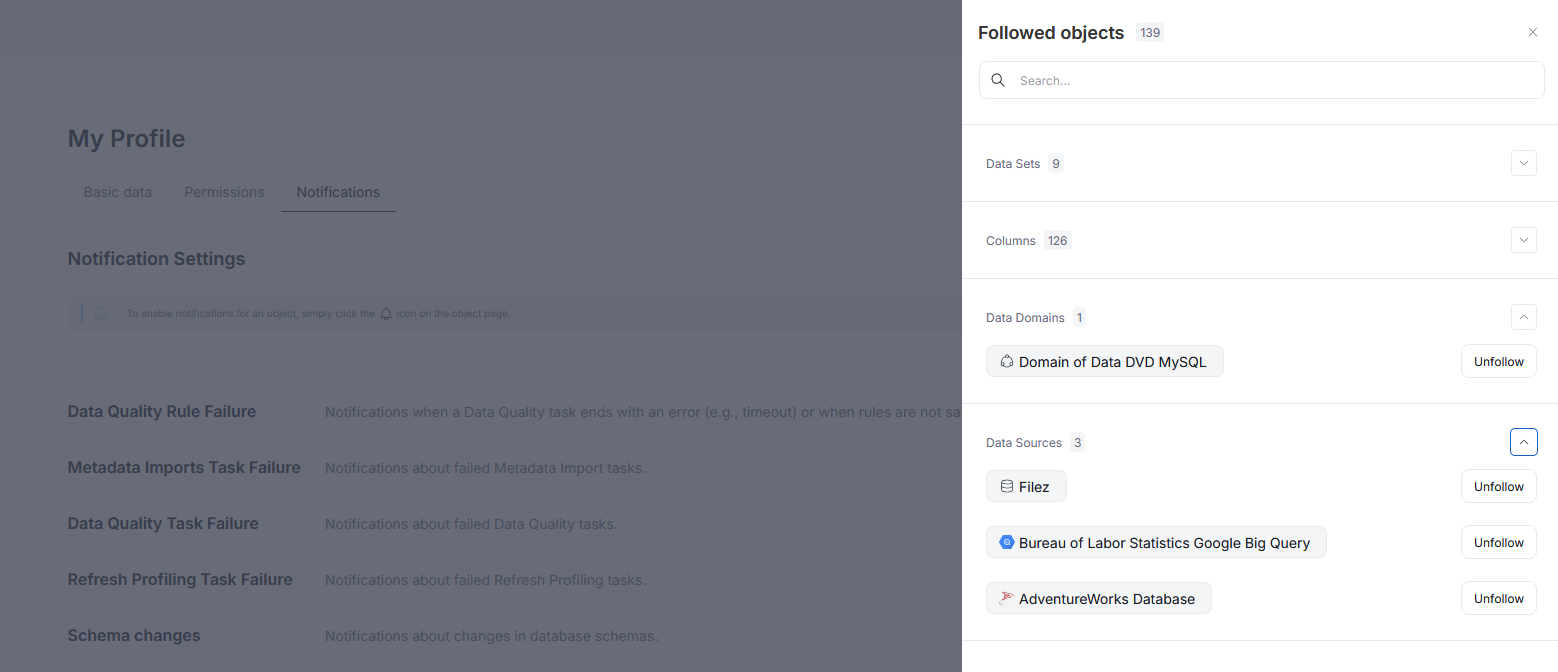
You can also use the View followed objects button to quickly see and manage the individual objects you are following.
Local notification settings
Since this option requires access to the Scheduler, it is available to Connection Managers only
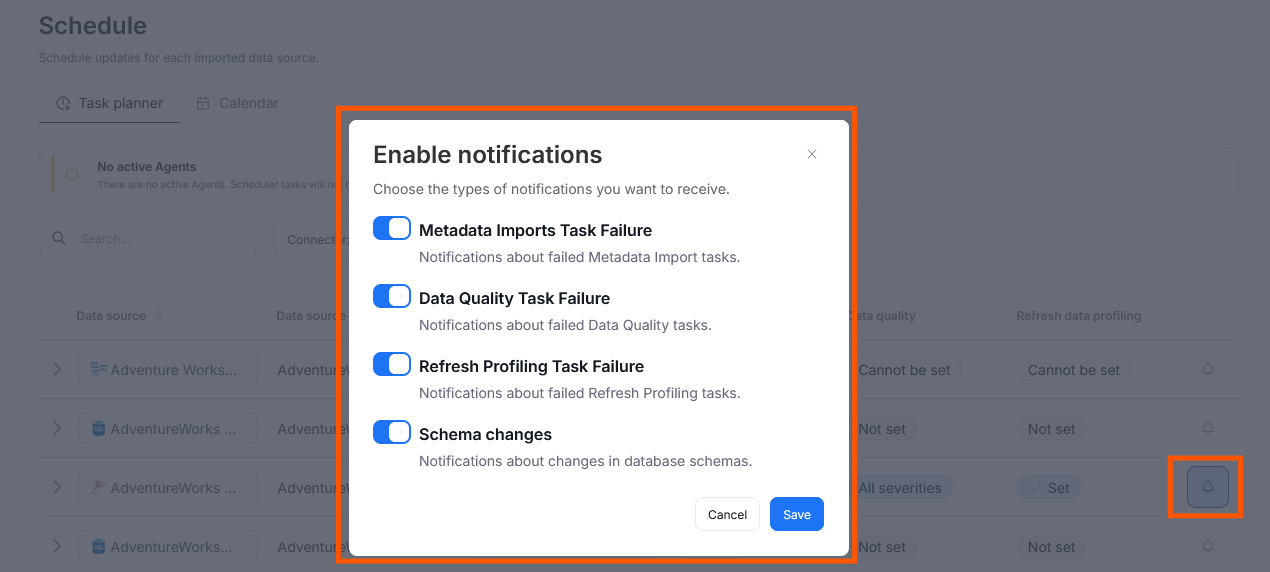
It is possible to fine-tune your notification preferences for objects you can schedule tasks for (Data Sources and Reporting Instances). To do that head to Connectors>Schedule and select the Task Planer tab. You can click on the bell icon next to the object that interests you to specify which exact notifications you wish to receive for that specific object.
How it works
Following is an important feature of our notification system. You will receive notifications only for changes in objects you are following to avoid unnecessary clutter in your notifications dashboard.
Manual following
You can follow or unfollow objects using Dataedo Portal. With the object open, click on the bell icon next to its name. If everything is set up correctly and the action was successful the icon will light up in light blue.
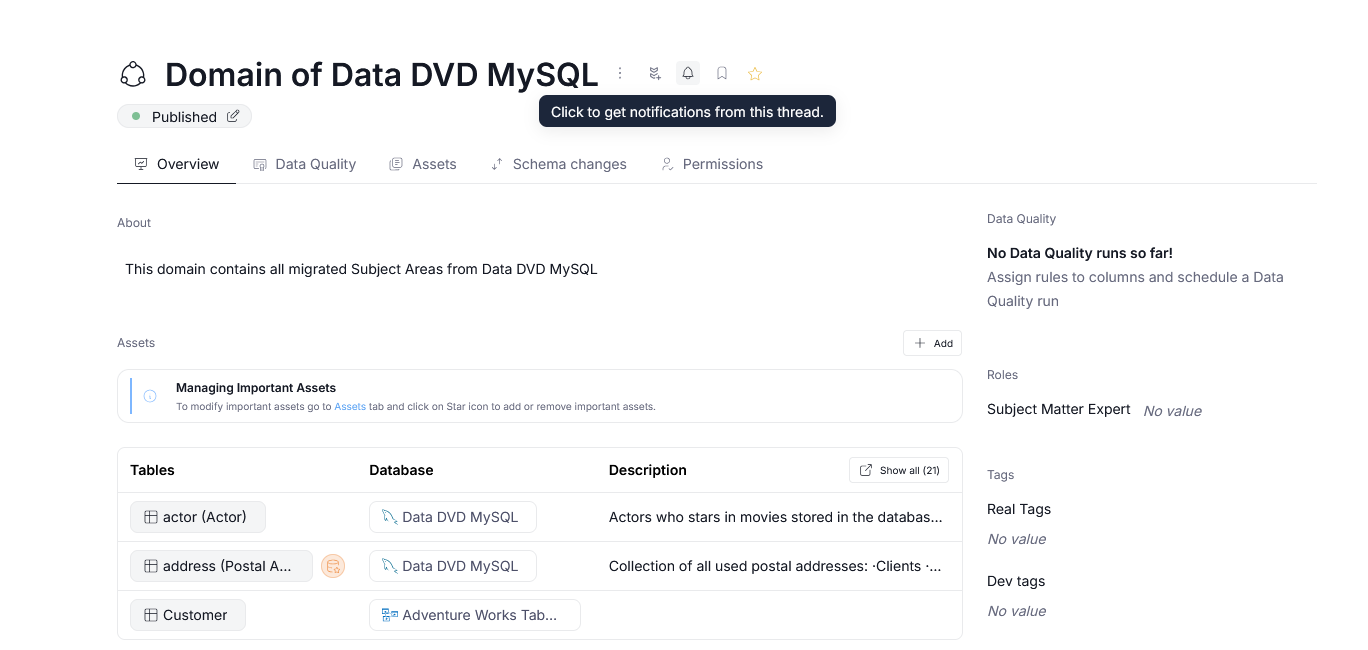
You will now receive notifications about changes in this object and all of its children.
Object's children are all the objects nested within it. For a Database all of the objects it contains are treated as children. For Domains, Areas, and Data Products their assets are also treated as children. For a Table its columns will be treated as children etc.
Automatic following
Certain actions will automatically subscribe you to notifications on an object. These actions are:
- commenting in the object's community tab
- changing the object's description
- editing or assigning the object's Custom Fields.
Following an object automatically is subjected to the same logic as with manual following — you will receive notifications for the object itself as well as its children.
Manual unfollowing
You can unfollow an object directly from its view by clicking on the bell icon (provided notifications for it were previously activated). Once this is done, you will see a pop-up asking whether you want to unfollow only the current object or all of its children. Selecting children will also stop notifications regarding this object's nested objects.
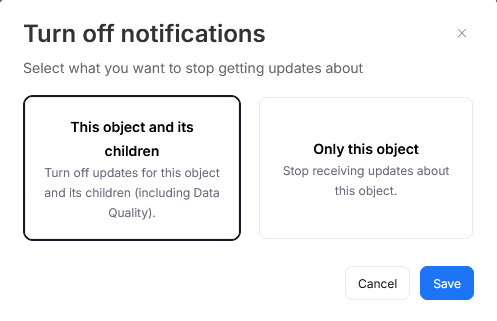
Another option is heading to your account settings and using the View followed objects button in the Notifications view. The side view will show all of the objects you are currently following. Pressing the unfollow button next to an object will trigger the same pop-up.
Proactive notifications
Notifications can also appear when something important occurs in your workspace, even if you do not follow a particular object. Actions that can trigger a notification are:
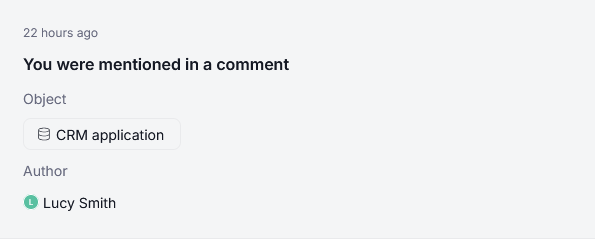
- being mentioned in a comment in some object's community section
- being assigned to a new role/responsibility (eg: Owner, SME)
Proactive notification examples
Changes for users with no access.
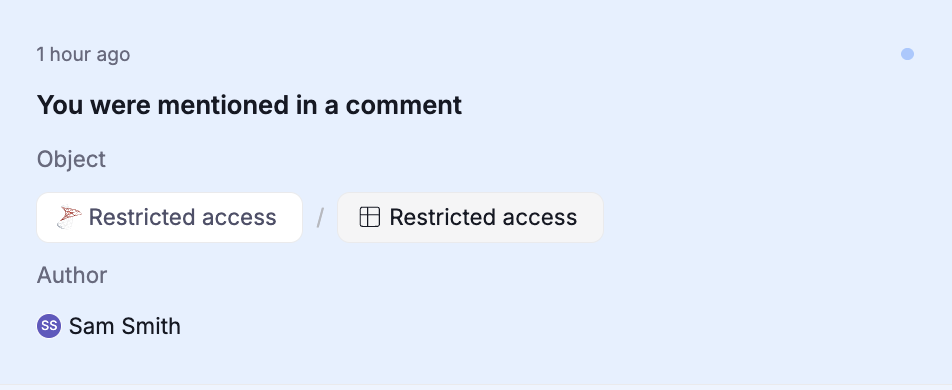
You might be mentioned or assigned a new role in an object you are currently not permitted to view. You will still receive a notification nonetheless, however it will be anonymized — meaning no sensitive information will be visible.
If you receive such a notification, we advise you contact your organization's admin or the person who mentioned you — they might have to grant you sufficient permissions.
Navigating notifications
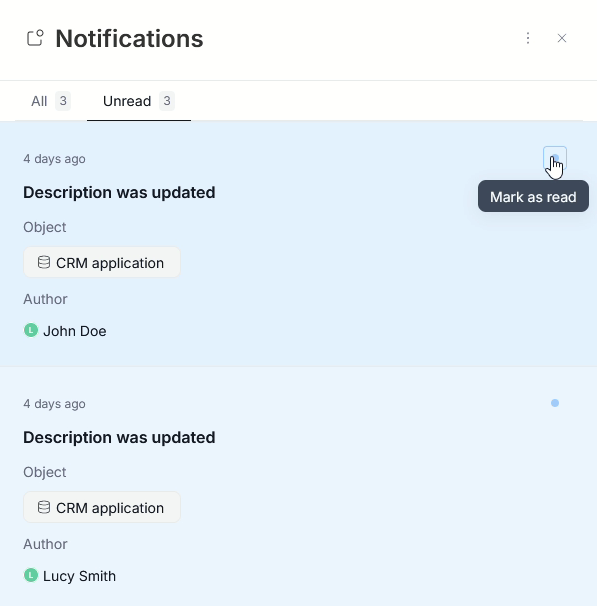
The in-app notifications you receive are accessible after clicking the Notifications button in the top part of the website. This opens a notification panel, where you can either view all of your notifications or only the unread ones. Clicking on a notification will take you directly to the change/action it is related to. It will also mark the notification as read (if it has not been read already).
If you want to mark a notification as read without opening it, you can use the small blue dot in its top right corner.
Data Quality Rule failure vs Task Failure.
There are two types of notifications related to Data Quality runs. Since they highlight different potential problem with the same task, it is important to understand the difference between them.
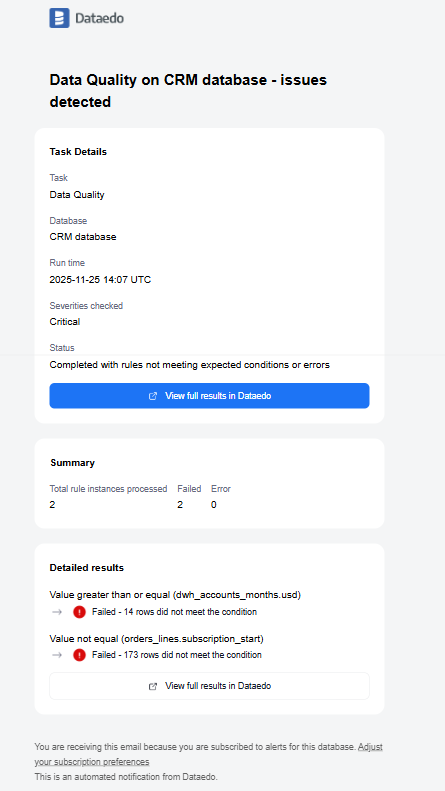
Data Quality Rule Failure notification can be received by any User who follows the object. It is triggered when rule instances do not meet expected conditions or contain errors at the rule definition level. This notification means that you should inspect both your Rule Instance and the table you applied it to and fix the issue to prevent working with faulty data.
Data Quality Task Failure notifications are visible only to Connection Managers. They are triggered when your scheduled Data Quality check did not run.
Data Quality Notifications
Archiving Notifications
In-app notifications are deleted from the Portal 180 calendar days after they have been read. 180 days is a default value, but you can modify it to have the notifications removed earlier or later. To do so head to your repository and open the dbo.configuration table. In there locate the AUTO_CLEAN_NOTIFICATIONS_INAPP_MESSAGES_PERIOD_IN_DAY column and modify its value to match the number of days after which notifications should be deleted. Only integer values are accepted. If you want to disable the automatic deletion rather than adjust the deletion period, simply set the value to 0.
There are two other columns in dbo.configuration which you should be aware of when it comes to notification history management. These are AUTO_CLEAN_NOTIFICATIONS_EVENTS_PERIOD_IN_DAYS and AUTO_CLEAN_NOTIFICATIONS_EMAIL_MESSAGES_PERIOD_IN_DAYS which are responsible for keeping track of events triggering notifications and sent e-mails respectively. Both are set to 30 by default (meaning that the tracked pieces of information will be removed after 30 days to avoid bloating your database).
We strongly advise that you do not modify these default values, however, if necessary for the needs of your organization it can be done.

