Install Dataedo Agent
To use the Scheduler, you need to configure the Dataedo Agent first.
All task schedules are created and managed through the Portal. The Agent listens for these scheduled executions and performs them using Dataedo Desktop on the backend. The Agent must run in the background for scheduled tasks to execute.
Dataedo Agent is a Windows service that you can set up with a dedicated installer. It is responsible for:
- Executing planned scheduler tasks
- Sending execution results and error logs to the Portal
- Sending notifications
- Allowing the Portal to display clear error statuses and stack traces for failed tasks
- Managing Agents (for example, removing inactive Agents from the repository)
Currently, only one Agent per repository is allowed.
Installation on Windows
Dataedo Agent can run on either Windows or Docker. This section will explain the Windows installation.
Prepare an encrypted connection string
During the installation, you will be asked for a connection string to your repository. The connection string will include both the repository connection details and the account used to connect. The used Database account needs to have permissions to access Dataedo Desktop.
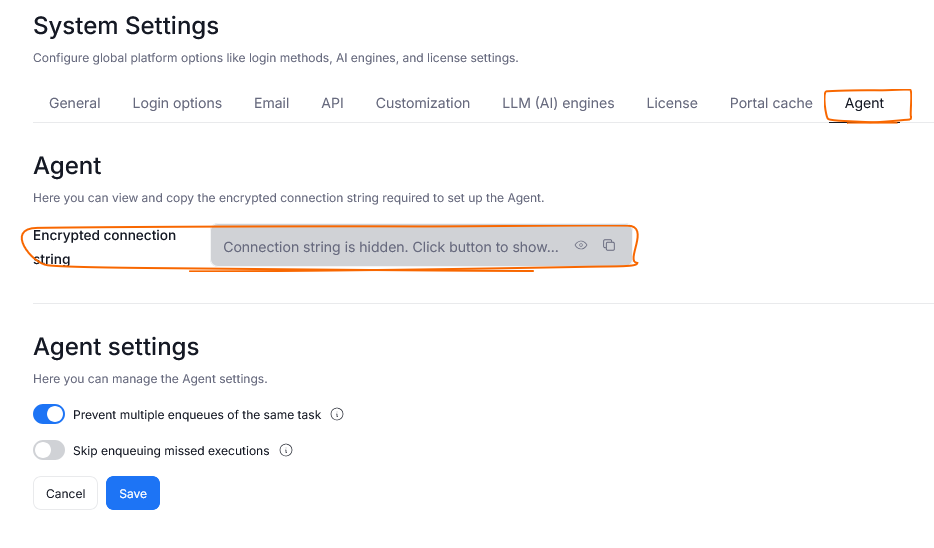
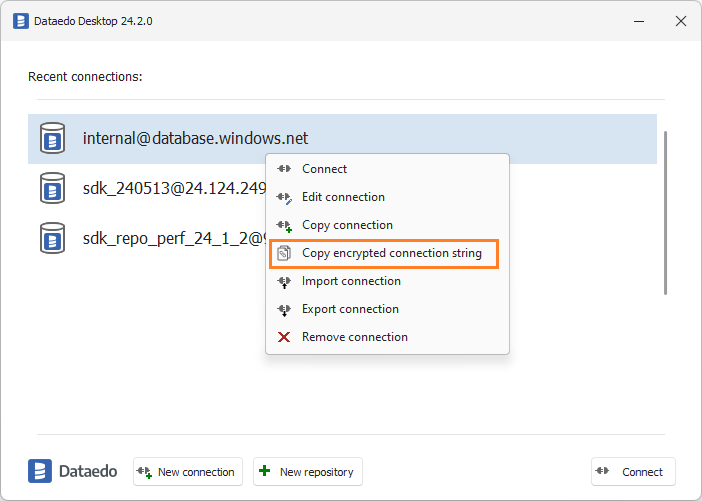
For security reasons, Datedo encrypts the connection string. You can obtain the encrypted connection string either from:
- Dataedo Portal by navigating to Settings>System Settings>Agent
- From the login form in the Recent connections screen - right-click on the repository you would like to use and click on the Copy encrypted connection string option.
Windows account
The agent requires a local Windows account with Log on as a service permission to run the service. To add the permission to an existing account, follow the steps mentioned in the Microsoft System Center article Enable Service Logon.
If the connection string uses Windows Authentication, ensure the service account has access to the repository database. It should be assigned to the USERS within the database.
Installation process
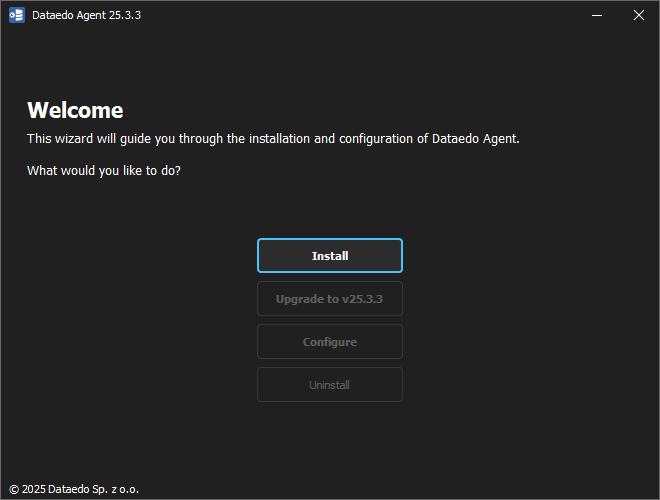
After preparing the connection string, run the installer as an administrator.
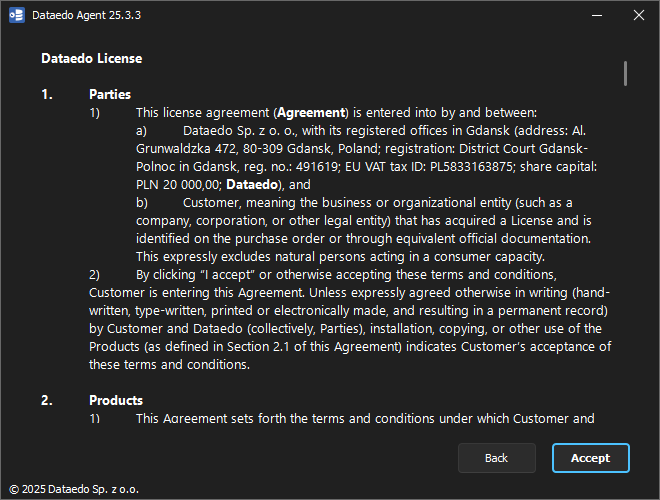
Accept the license to continue.
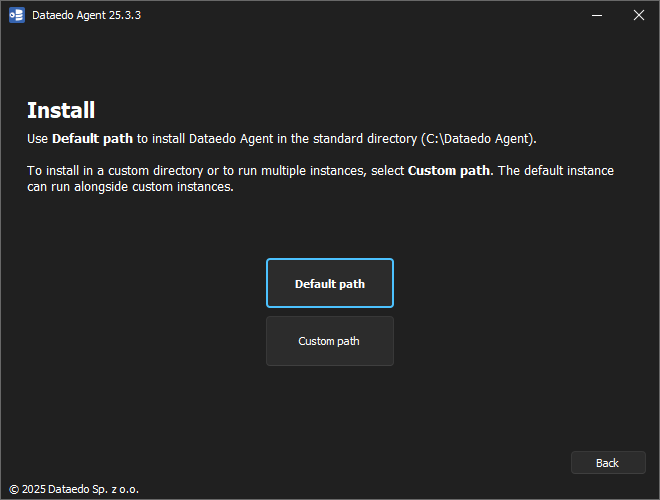
Choose either the default or a custom installation path for the Agent. If using a custom path, avoid protected folders such as Program Files or the Documents folder.
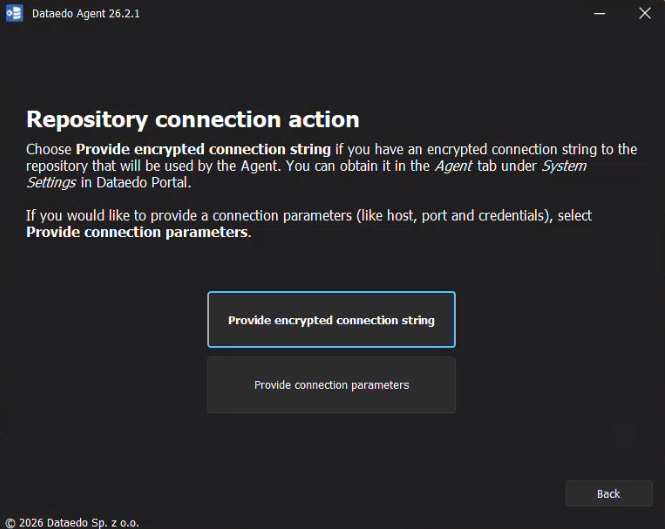
When prompted, select how you want to connect the Agent to your repository.
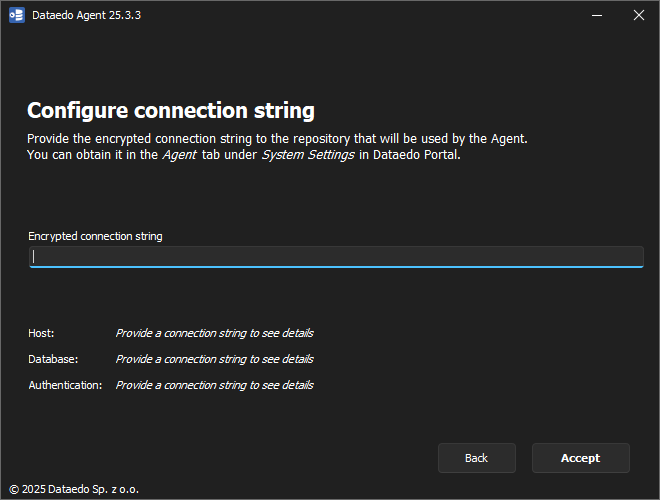
We suggest choosing the Provide the connection string option and pasting the string you prepared earlier. Once you provide the string, the installer will display connection details, so you can double-check whether everything is correct.
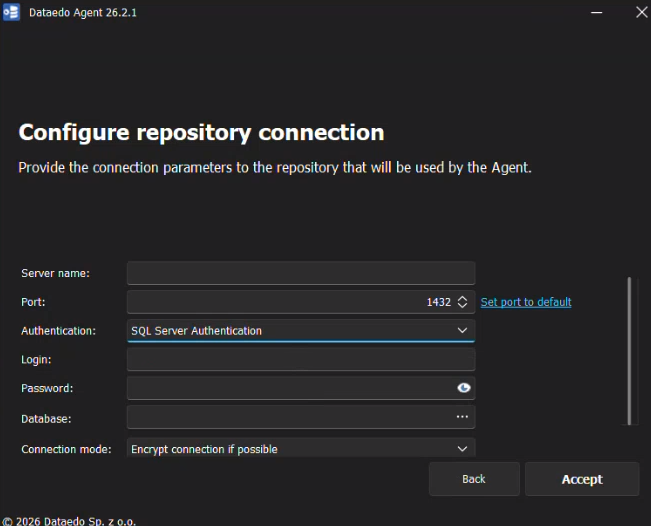
Alternatively, you can choose the Provide connection parameters option if you want the Agent to run on a separate repository. If you choose this option, you will be asked to provide the repository details. Make sure the database user provided has the Users role assigned in the repository database.
After establishing a connection, choose whether you want the Agent service to run using a preexisting account or to create a new one. If the account doesn't have the Log on as a service permission, the installer can grant it directly.
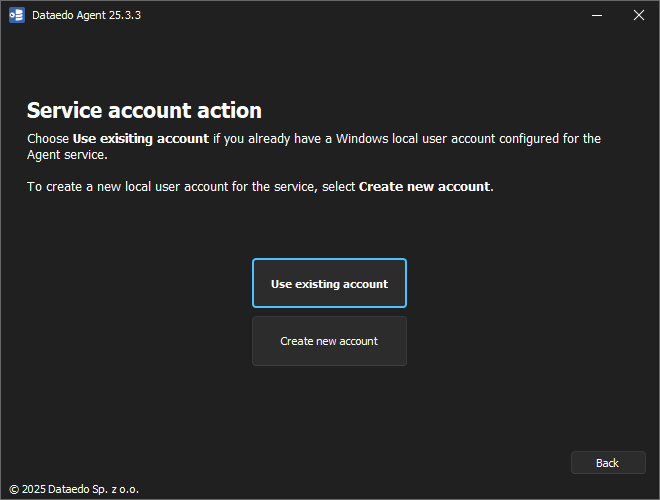
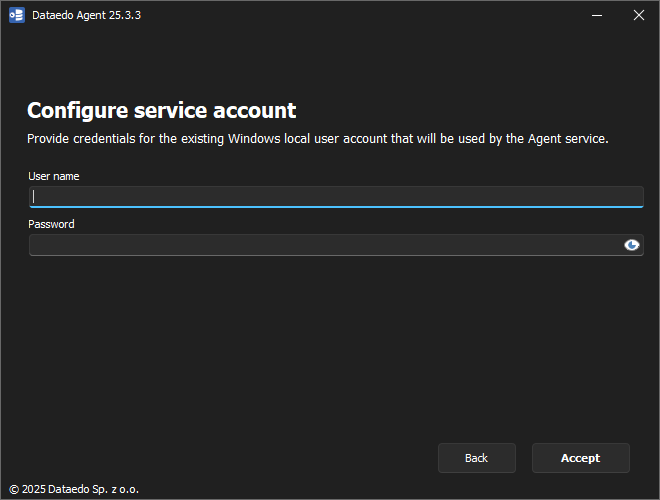
Provide the account username and password.
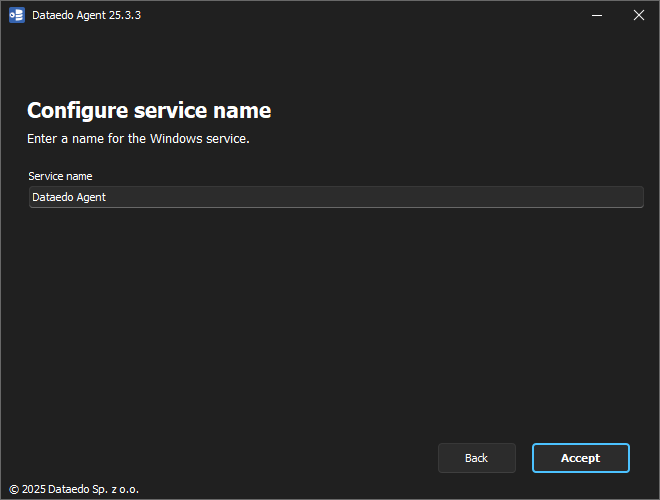
Choose the name for the Agent service.
Wait for the installation process to finish and the service to start.
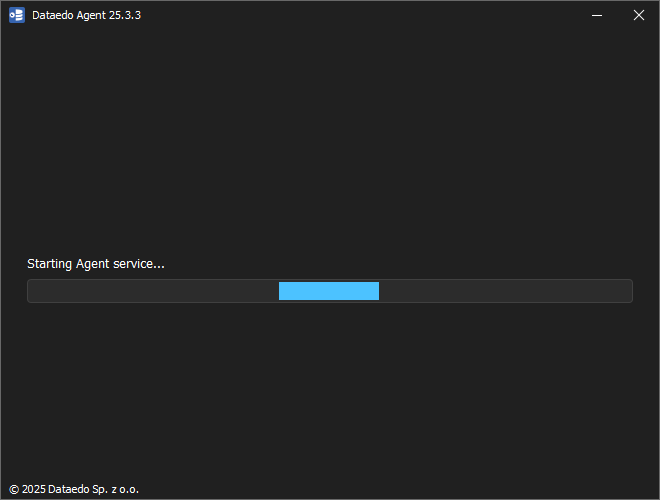
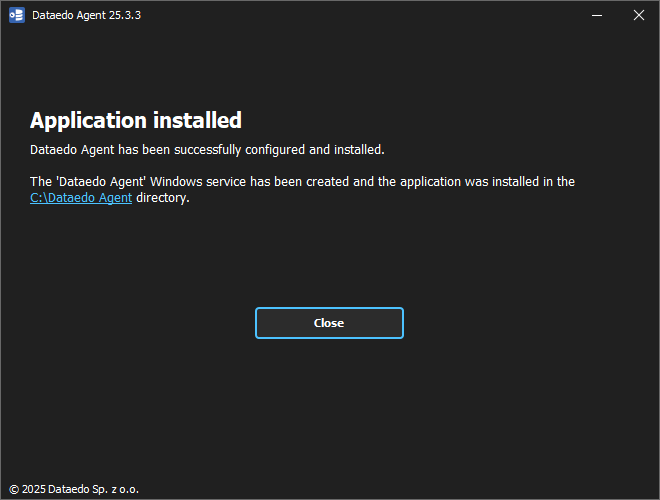
After the installation finishes, the installer will confirm that the Agent is up and running.
Next steps
To update, reconfigure, restart, or uninstall the Agent, or to troubleshoot it, see Configuring Dataedo Agent.

