Connecting to Oracle PeopleSoft
Importing Metadata in Dataedo Portal
Entry point
To start the Metadata Import flow, make sure you have the Connection Manager role.
Then navigate to:
Connections → Add new connection → Oracle PeopleSoft
This will open the import wizard described in the following steps.
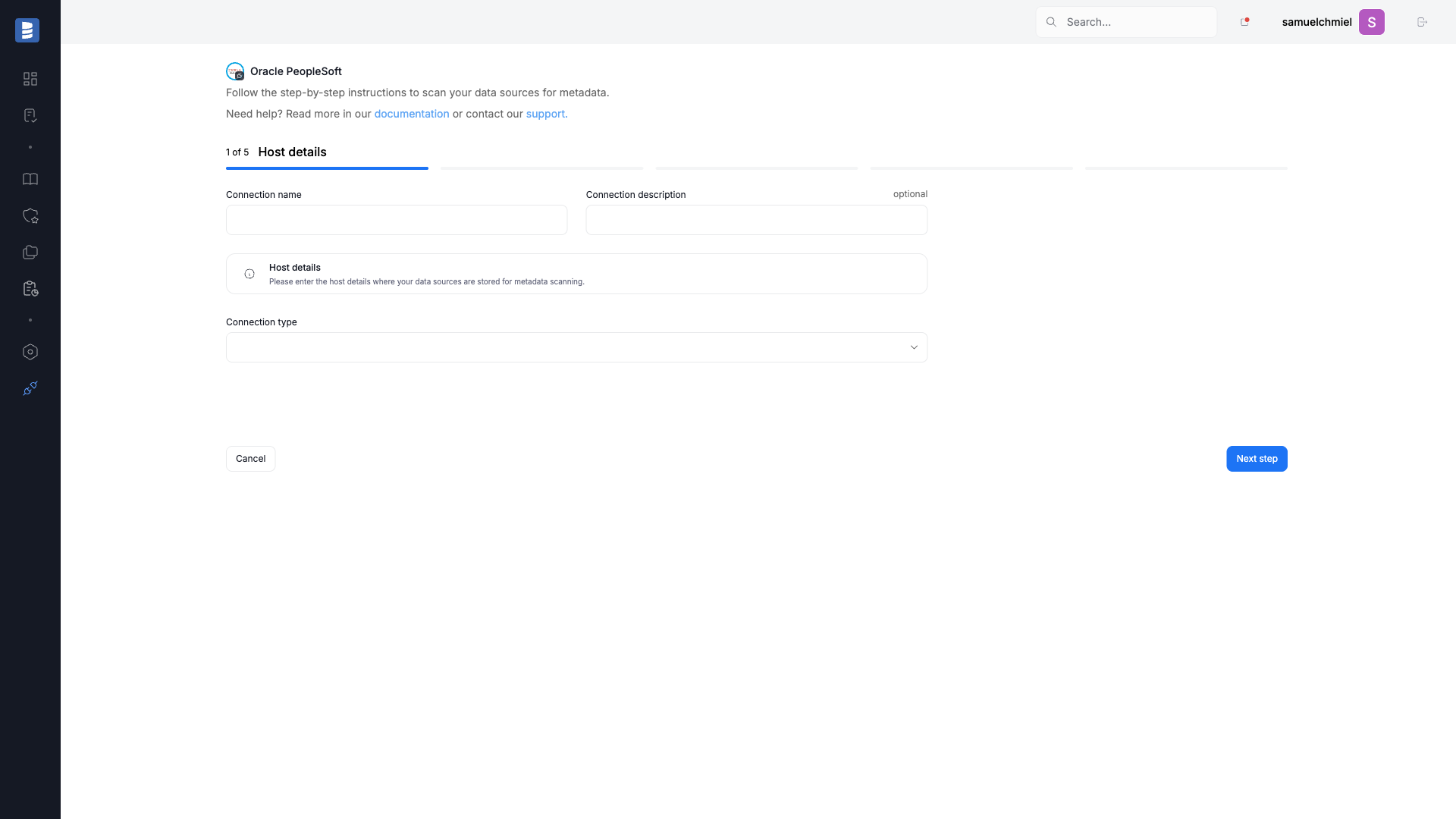
Step 1. Connection details
Provide the name of Connection, the required connection details, and an optional description.
A Connection in Dataedo represents a saved configuration for accessing a data source.
It can be reused for future imports and scheduling.
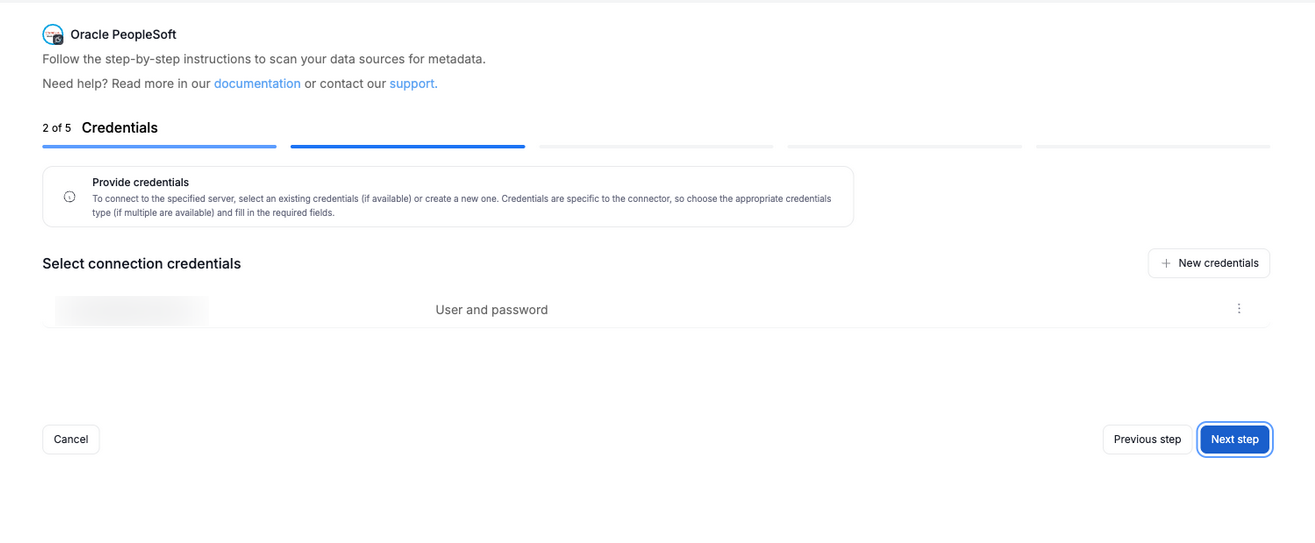
Step 2. Credentials
Choose credentials from the list of existing ones available for the selected connector, or add new credentials.
Step 3. Data Sources
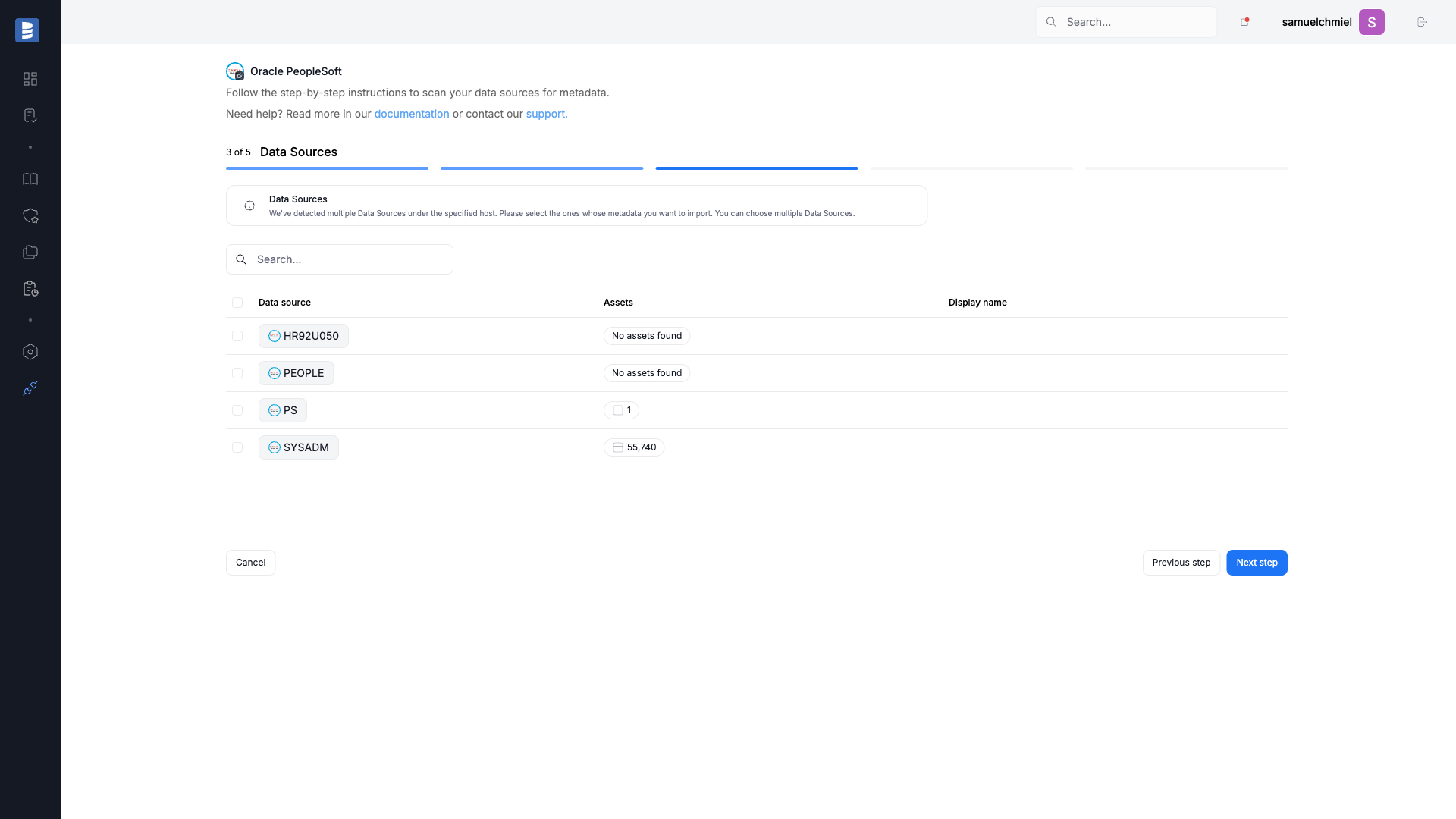
During one import you can read the metadata of up to 20 data sources. You can reuse the same connection to import more sources later.
- The Portal will display all databases accessible with the provided credentials.
- You can select multiple databases at once and use the search box to narrow down results.
- Each selected database should be given a Title, which will be visible in Dataedo.
- At this step, the Portal also retrieves the number of assets in each source.
Step 4. Extended properties (optional)
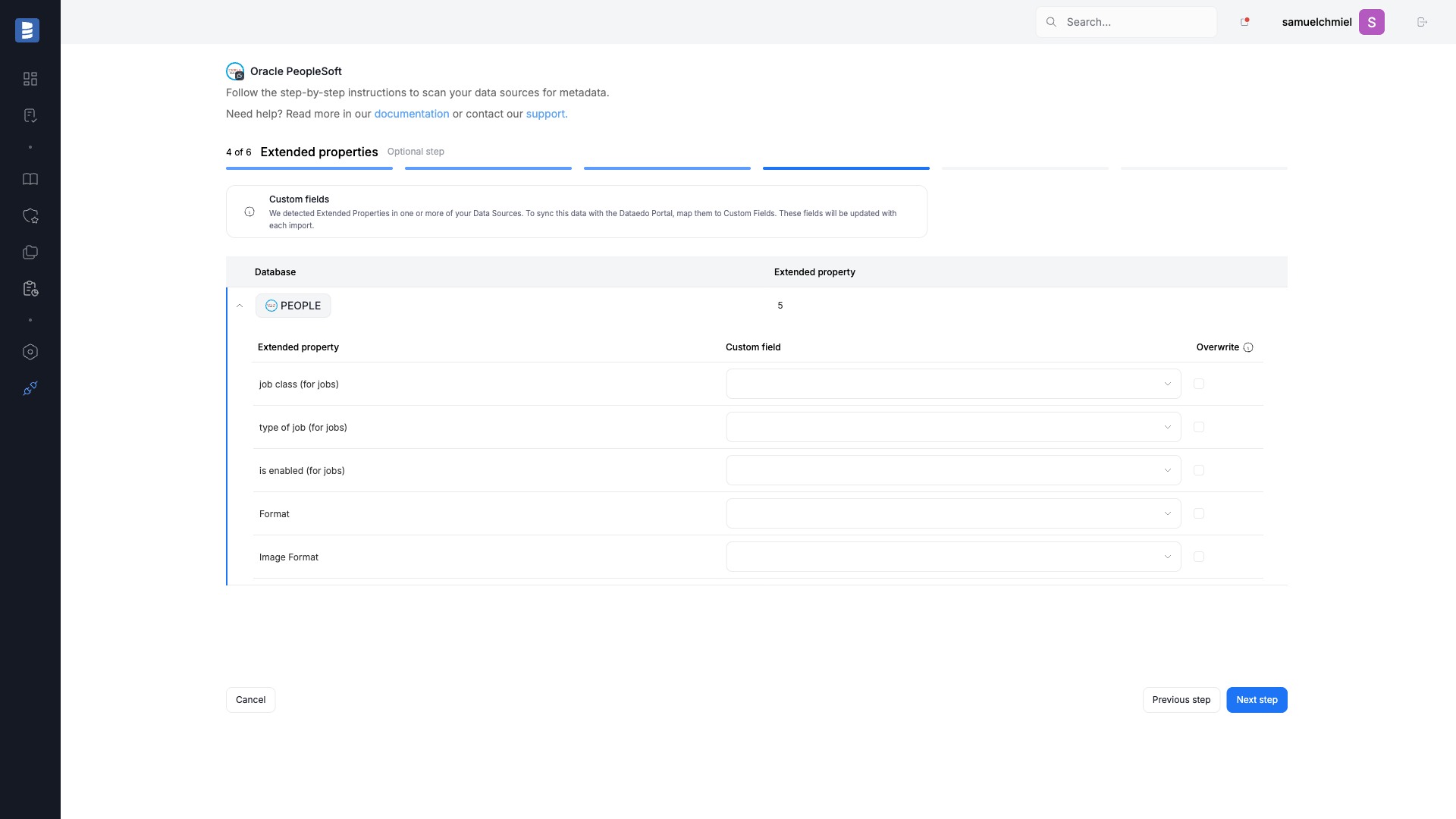
This step appears only if the source exposes Extended Properties.
You can map them to Custom Fields in Dataedo, or skip this step entirely.
If skipped, no extended properties will be imported.
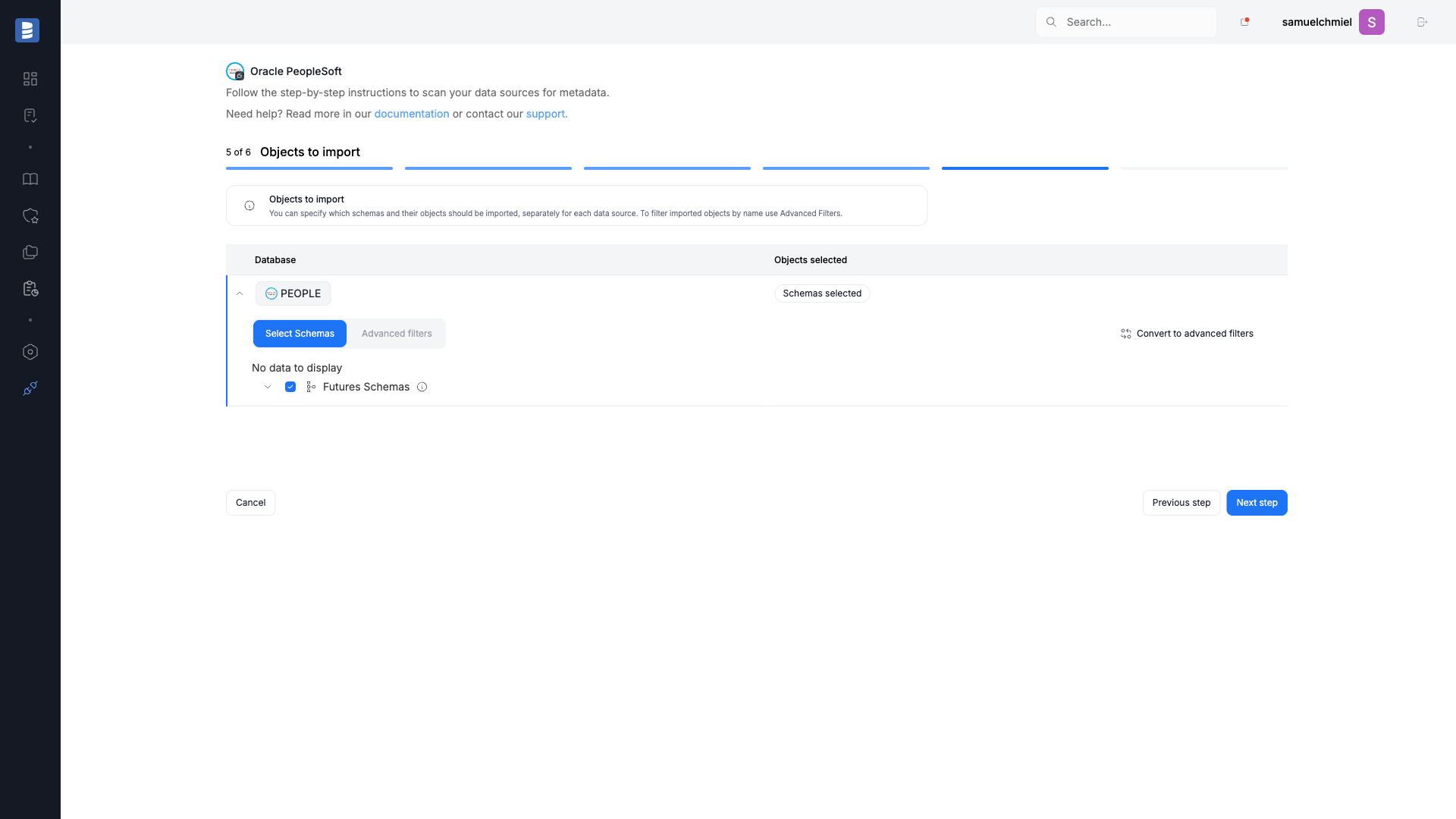
Step 5. Objects to import
For each selected database, you can refine which objects to import:
- Select schemas and object types (tables, views, procedures, etc.).
Step 6. Schedule
Configure scheduling options for each source individually:
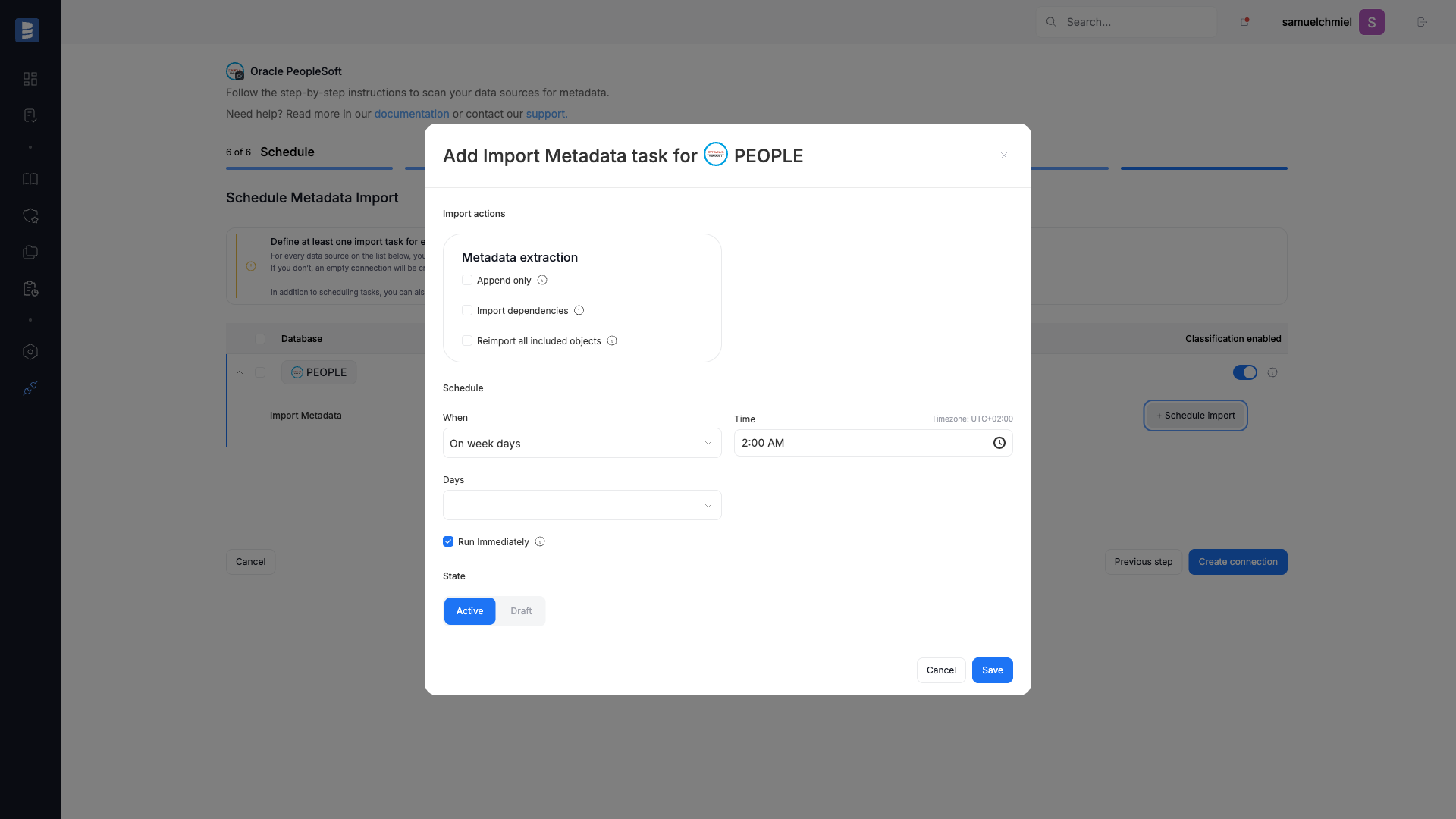
- Define tasks you want to schedule (Metadata Import).
- Run daily, on selected weekdays, or on specific days of the month.
- Choose an exact time of execution.
- Task state:
Active– the task will run as scheduled.Draft– the task is saved but not executed until switched to Active.
- Run immediately – when checked, the task will also be executed right after clicking
Create connection.
Only one source in a metadata import can have Run immediately selected.
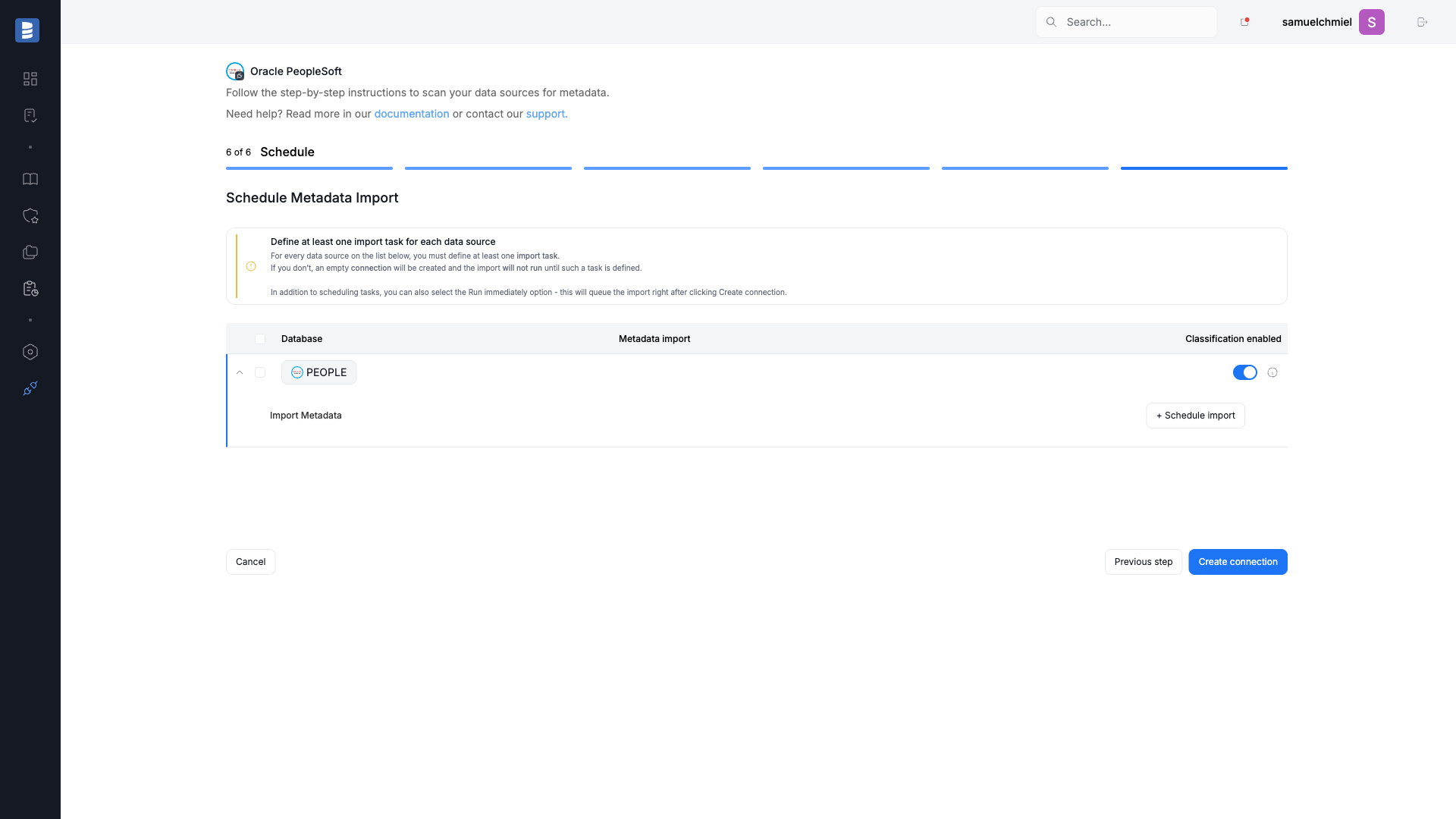
You must configure at least one import task in the schedule section.
If you skip this, an empty database will be created and no metadata will be imported.
Importing Metadata in Dataedo Desktop
- Connection type - choose connection type (Direct or Oracle Wallet)
- Host - provide a host name or address where a database is on. E.g. server17, server17.ourdomain.com or 192.168.0.37.
- Instance identifier - Service name or SID
- Port - type in Oracle instance port name
- User and password - provide your username and password
- Schema - you can choose schema(s) that you want to import to your documentation
- Record owner - you can choose record owner (logical layer) that you want to import to your documentation
NOTE! You can choose whether to import the physical layer, the logical layer, or both layers of Oracle PeopleSoft.

What to Expect
Views
Dataedo analyzes SQL scripts defining database views with built in SQL Parser and builds column-level lineage from tables/views to views (both materialized and not) queried by them. To learn more about parsing PL/SQL dialect visit: PL/SQL Parsing.
Stored Procedures and Functions
Dataedo will create column-level data lineage for stored procedures based on the script. Script will be divided into steps represented as separate processes. Data lineage will be created only for supported steps, the unsupported steps will be named after the first word from the process script and end with three dots. This is seen on the data lineage configuration tab in Desktop.
Logical layer
Dataedo build automatic column-level lineage between physical and logical layers of Oracle PeopleSoft. Lineage is based on our SQL parser for views. Lineage is builded between:
- tables (physical) and object (logical)
- tables (physical) and perspective (logical)
Known Limitations
- Check the limitations for views lineage from SQL parser
- Check the limitations for stored procedures lineage from SQL parser
Troubleshooting
I don't see data lineage for views
- Make sure you have selected right SQL dialect - in this case PL/SQL (SQL Dialect field at Data Source level).
- Rerun import of the source - maybe schema was imported in older version or configuration was incorrect.
I don't see data lineage for stored procedures
- Make sure Dataedo supports SQL syntax of procedure. Check Know Limitation above
- Rerun import of the source - maybe schema was imported in older version or configuration was incorrect.
I don't see data lineage for logical layer
- Make sure you have selected right SQL dialect - in this case PL/SQL (SQL Dialect field at Data Source level).
- Rerun import of the source - maybe schema was imported in older version or configuration was incorrect.

