Connecting to Apache Cassandra
This article explains how to connect Dataedo to Apache Cassandra (and compatibile databases) and import metadata - tables, views, keys, etc..
Importing Metadata in Dataedo Portal
Entry point
To start the Metadata Import flow, make sure you have the Connection Manager role.
Then navigate to:
Connections → Add new connection → Apache Cassandra
This will open the import wizard described in the following steps.
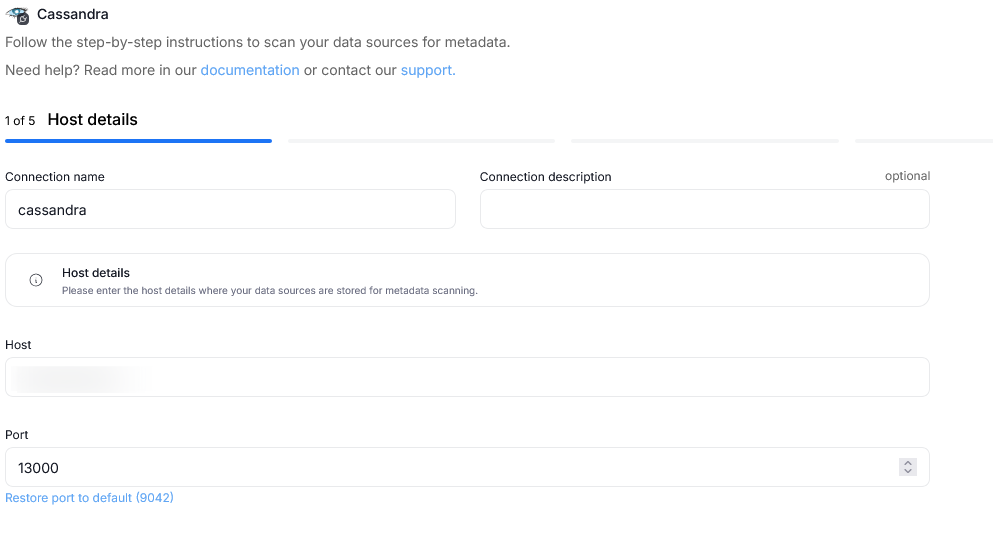
Step 1. Host details
Provide the name of Connection, the required connection details, and an optional description.
A Connection in Dataedo represents a saved configuration for accessing a data source.
It can be reused for future imports and scheduling.
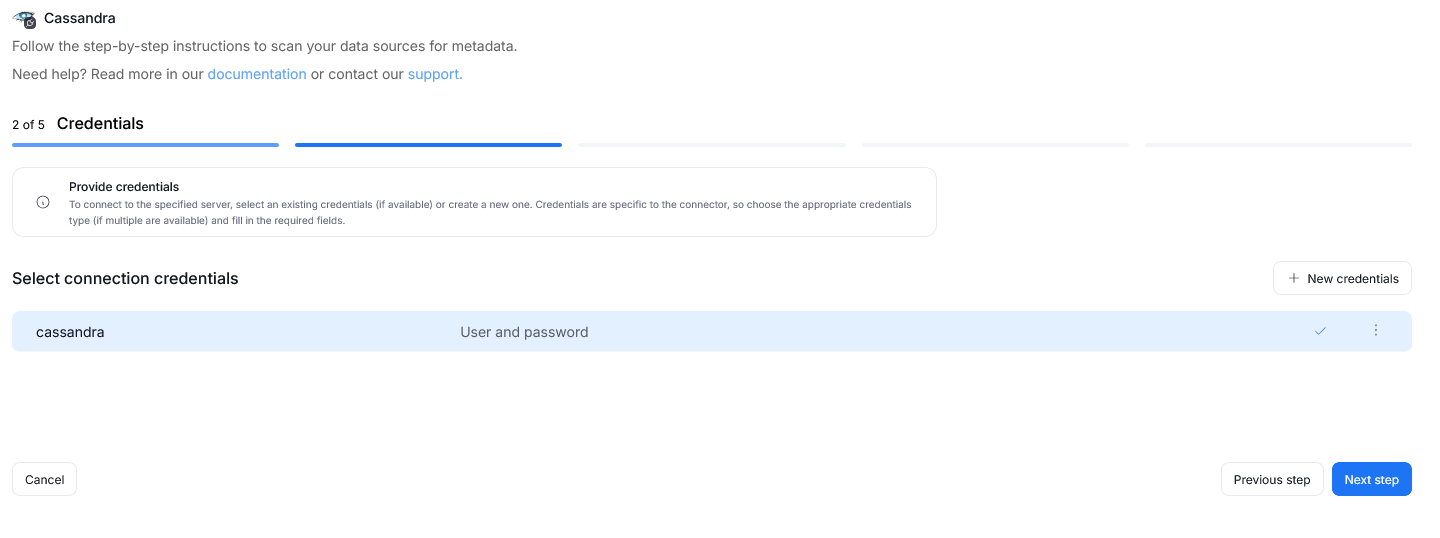
Step 2. Credentials
Choose credentials from the list of existing ones available for the selected connector, or add new credentials.
Step 3. Data Sources
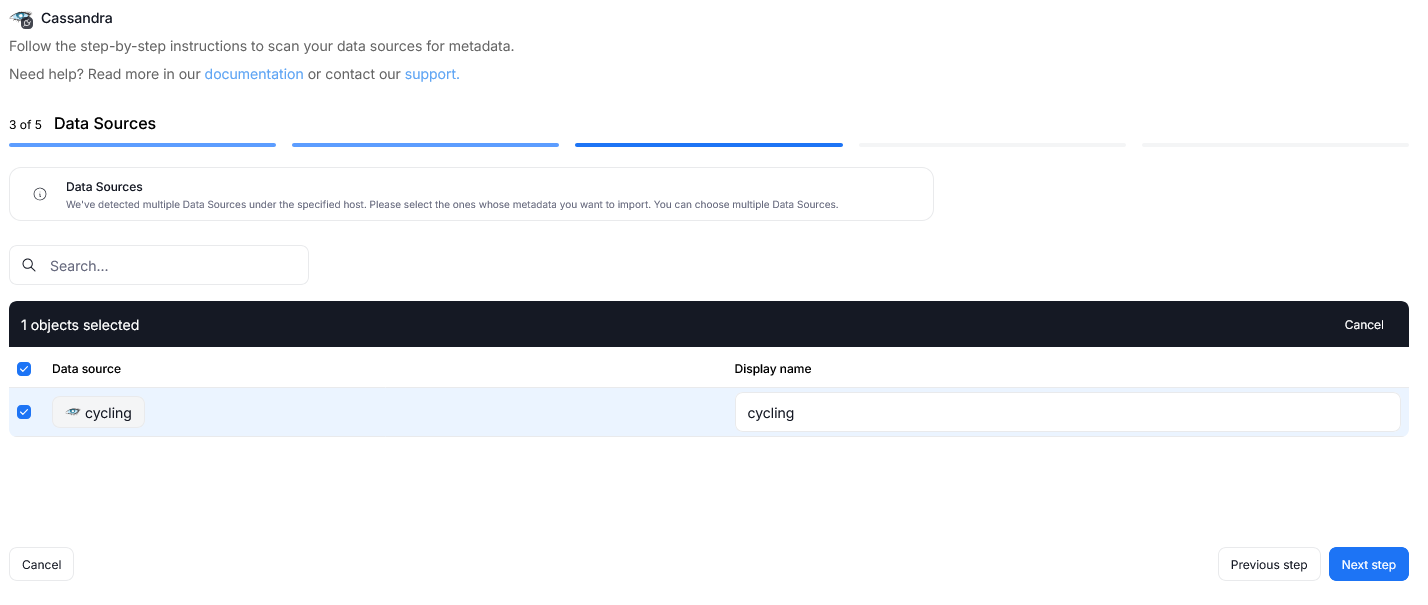
During one import you can read the metadata of up to 20 data sources. You can reuse the same connection to import more sources later.
- The Portal will display all databases accessible with the provided credentials.
- You can select multiple databases at once and use the search box to narrow down results.
- Each selected database should be given a Title, which will be visible in Dataedo.
- At this step, the Portal also retrieves the number of assets in each source.
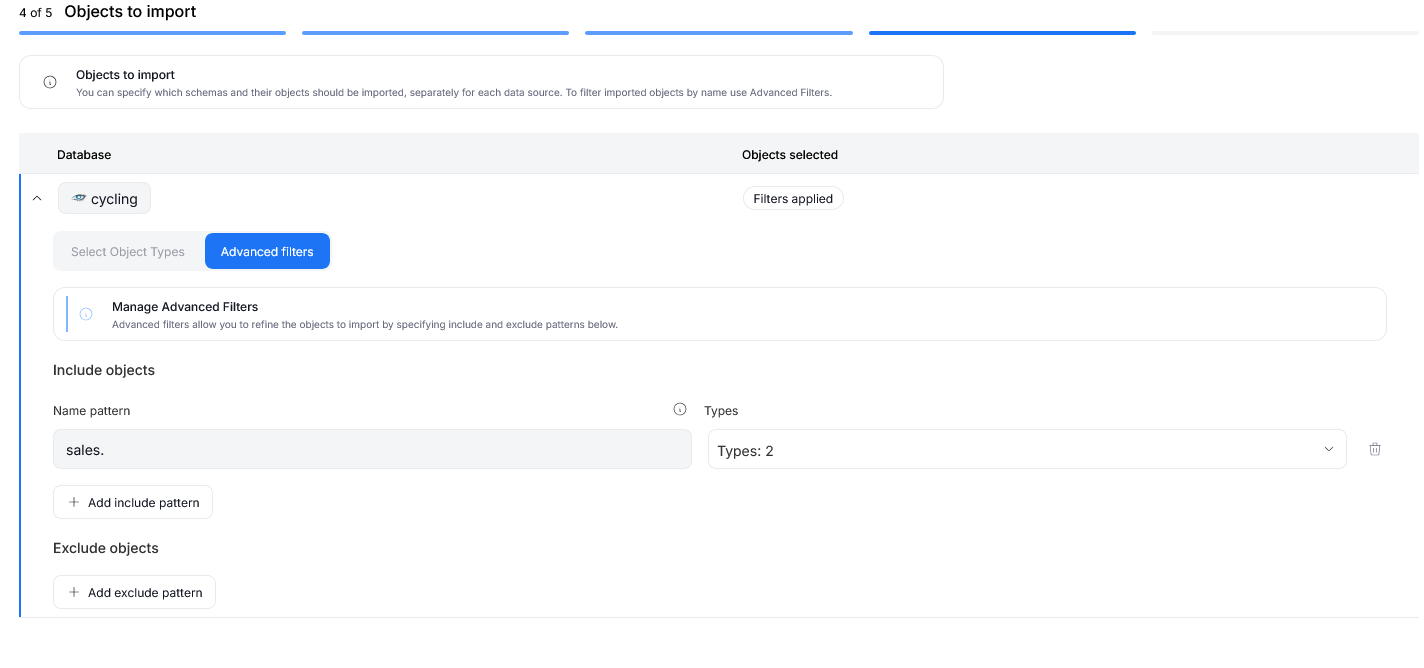
Step 4. Objects to import
For each selected database, you can refine which objects to import:
- Select schemas and object types (tables, views, procedures, etc.).
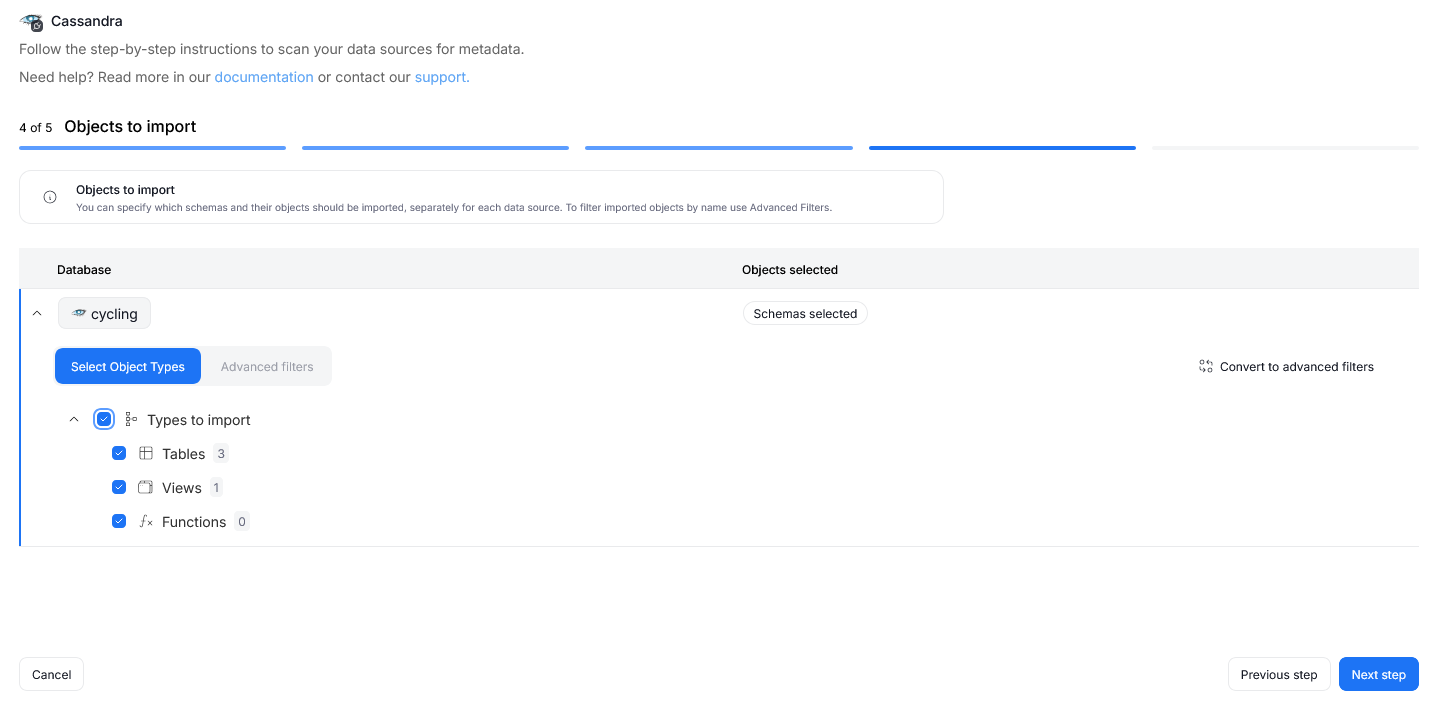
- Use Advanced filters to include or exclude objects with:
- schema patterns
- name patterns
Step 5. Schedule
Configure scheduling options for each source individually:
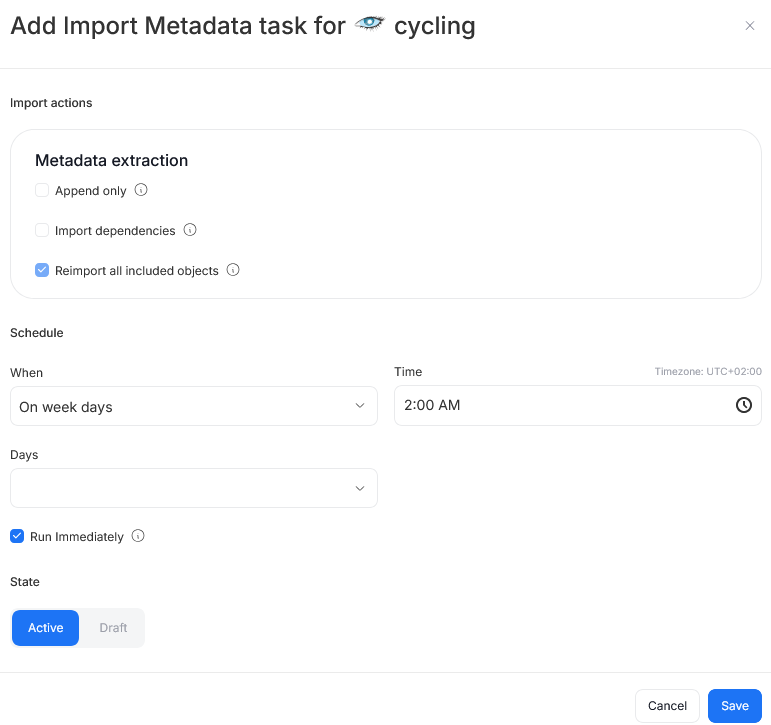
- Define tasks you want to schedule (Metadata Import).
- Run daily, on selected weekdays, or on specific days of the month.
- Choose an exact time of execution.
- Task state:
Active– the task will run as scheduled.Draft– the task is saved but not executed until switched to Active.
- Run immediately – when checked, the task will also be executed right after clicking
Create connection.
Only one source in a metadata import can have Run immediately selected.
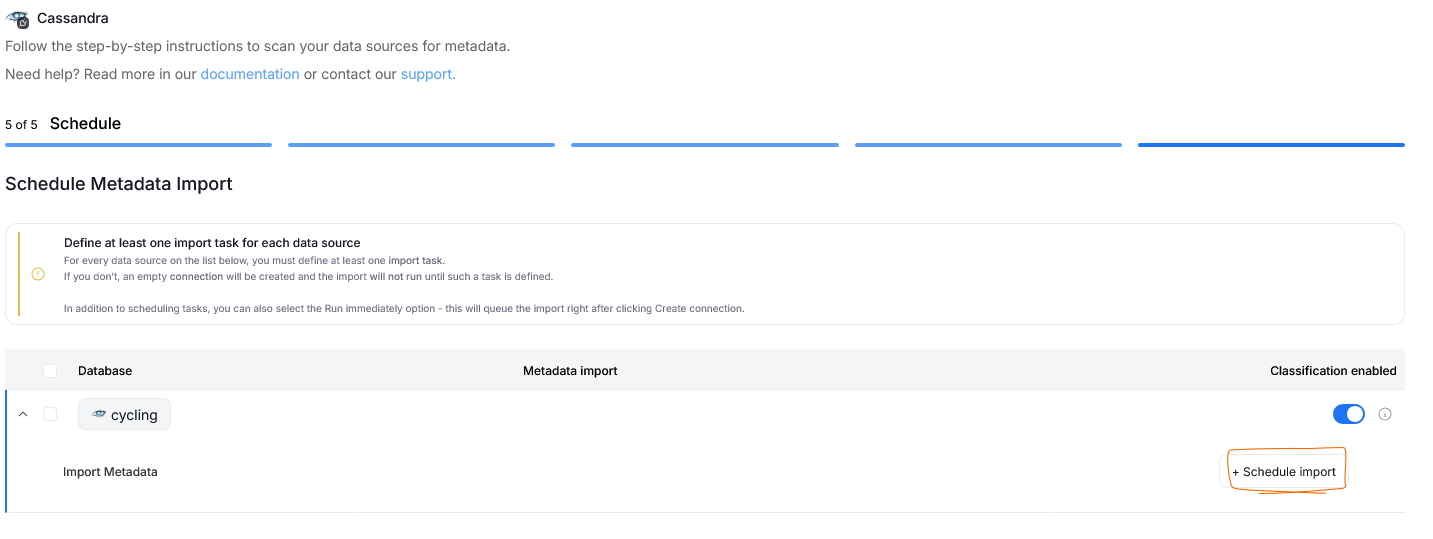
You must configure at least one import task in the schedule section.
If you skip this, an empty database will be created and no metadata will be imported.
Importing Metadata in Dataedo Desktop
To connect to Cassandra database create new documentation by clicking Add documentation and choosing Database connection.
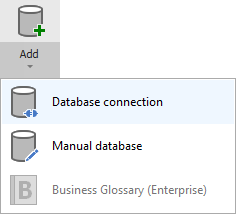
On the Add documentation screen choose Cassandra.

Connection details
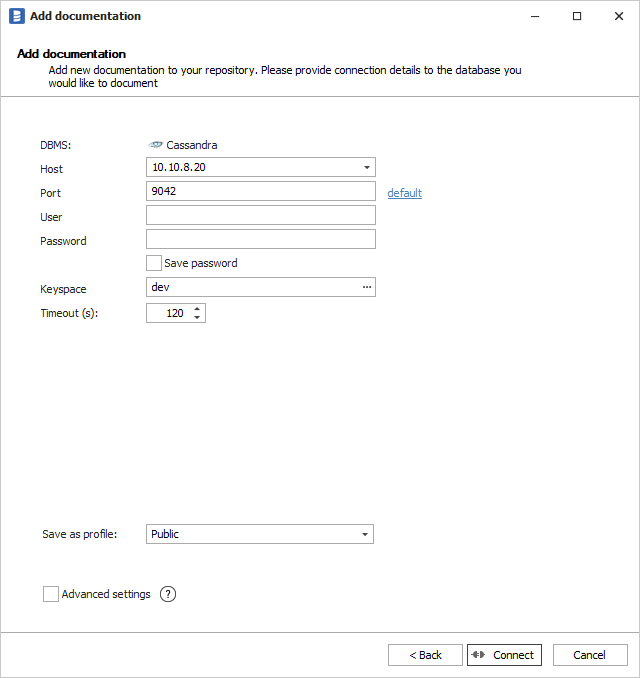
Provide database connection details:
-
Host - provide a host name or address where a database is on. E.g. 10.10.8.20, server17.ourdomain.com or 192.168.0.37.
-
Port - provide a port at which Cassandra database is listening on (default is 9042)
-
User and password (optional) - provide your Cassandra username and password if required by database.
-
Keyspace - type in keyspace name or click [...] and choose it from the list.
Saving password
You can save password for later connections by checking Save password option. Passwords are saved in the repository database.
Importing schema
When connection was successful Dataedo will read objects and show a list of objects found. You can choose which objects to import. You can also use advanced filter to narrow down list of objects.
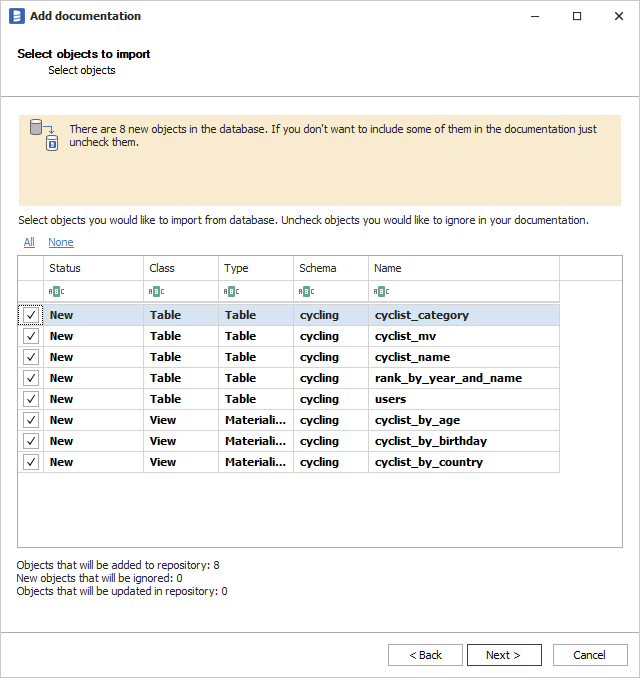
Confirm list of objects to import by clicking Next.
Next screen allows you to change default name of the documentation under which your schema will be visible in Dataedo repository.
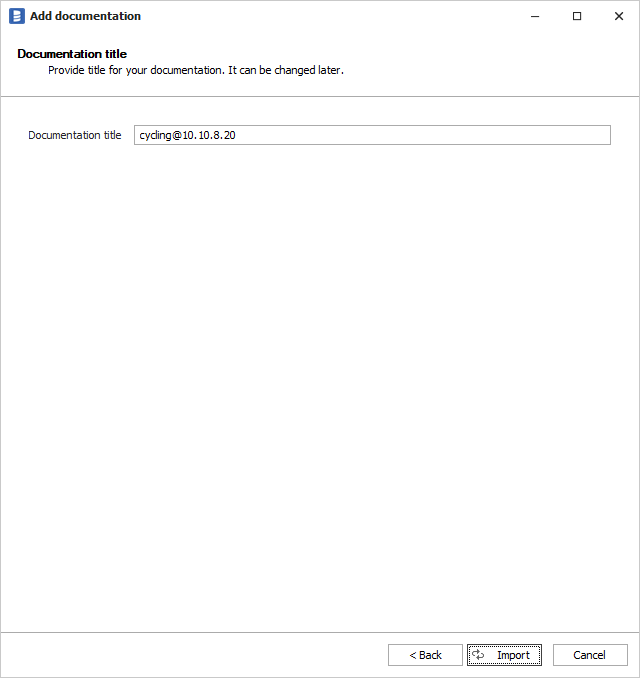
Click Import to start the import.
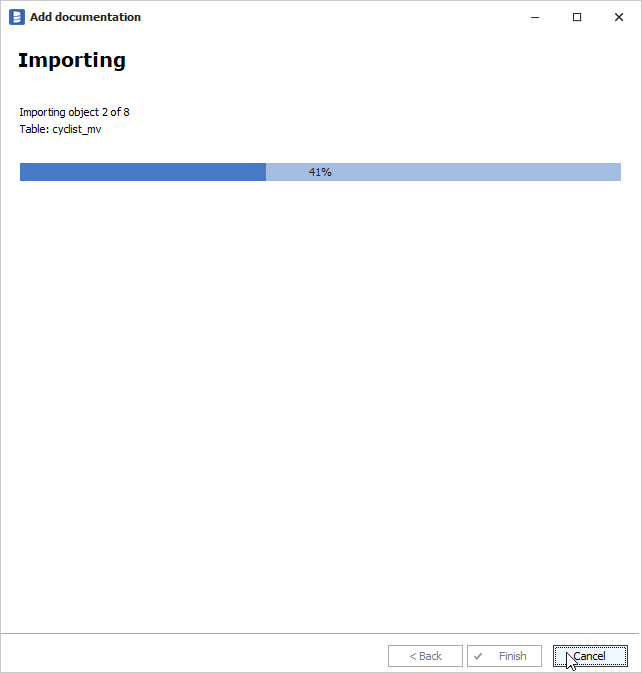
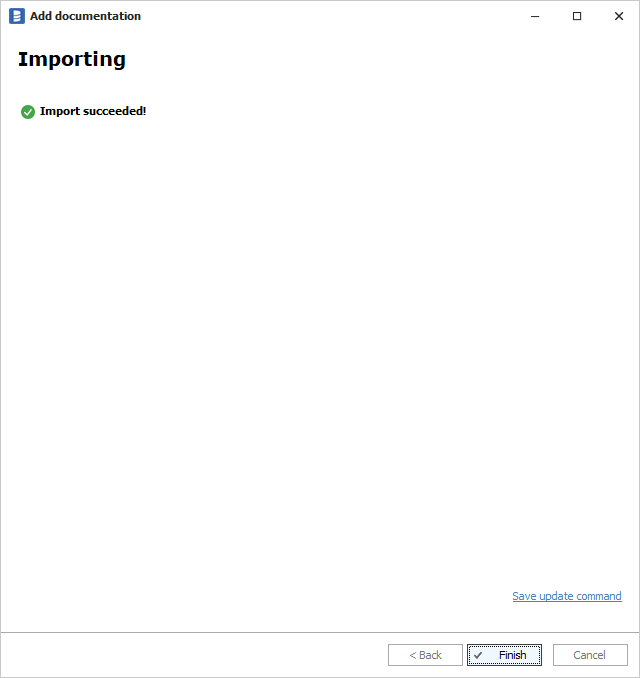
When done close import window with Finish button.
Output
Your database has been imported to new documentation in the repository.

Cassandra support
Learn more about Cassandra support in Dataedo.

