Amazon DynamoDB
DynamoDB is a key-value and document database that is based on a single-table model. Working with DynamoDB is more about access patterns, data usage, and denormalization rather than the traditional approach of highly normalized, relational databases modeled in accordance with business needs. Such an approach results in much faster times of queries for tables containing billions of rows.
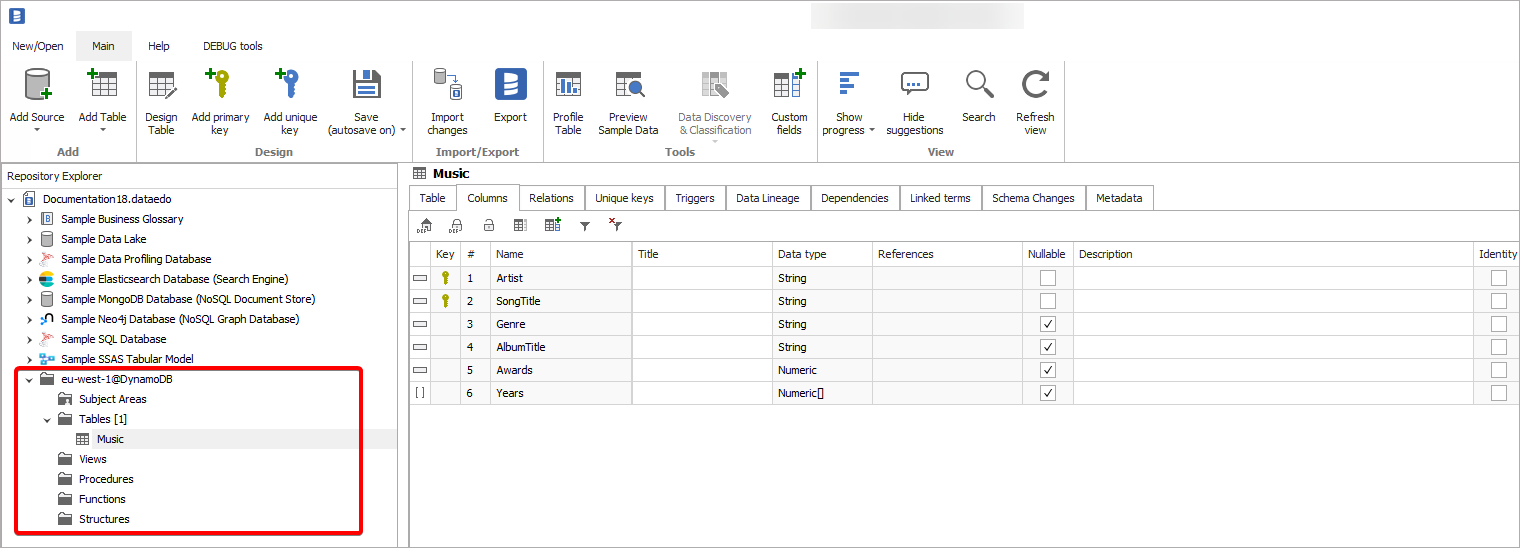
Dataedo provides a native connector to DynamoDB which documents primary key and attributes of the table.
Supported elements and metadata
Dataedo reads the following metadata from DynamoDB databases:
-
Tables
-
Attributes
-
Name
-
Primitive Types
-
Complex Types
-
-
Primary Keys
-
Partition Key
-
Sort Key
-
Not supported metadata:
- Secondary indexes
Configure AWS
Connecting Dataedo to DynamoDB instance requires you to create an IAM (Identity and Access Management) account, which is basically a programmatic user that has its own Access Key (username) and Secret Key (password). Authenticating with this account is a recommended way to access AWS services, since it's much more secure than using a root account. The following section describes configuring IAM account which will be used to connect Dataedo to DynamoDB.
Create an IAM user
Dataedo connects to AWS Athena with an IAM user, which is a default authentication method for programmatic access. Account for Dataedo will require the following permissions:
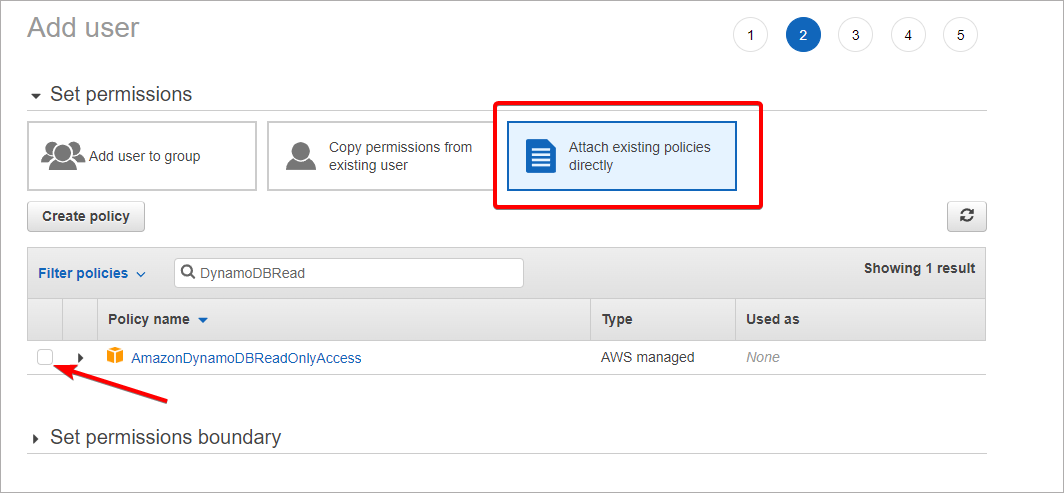
- AmazonDynamoDBReadOnlyAccess
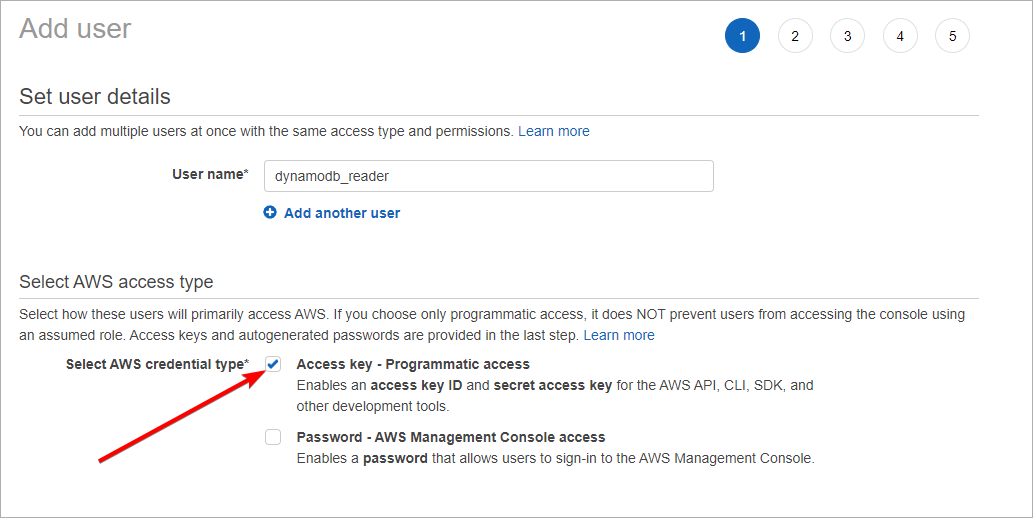
To create an IAM user, go to IAM service main window and open the Users tab and click the Add user button. Give a user a name and select Access Key – Programmatic access in the Select AWS access type section. Click Next.
In Permissions tab, select Attach existing policies directly, and look for AmazonDynamoDBReadOnlyAccess (you can use filter policies search bar). Click Next.
In the next step, you can set tags, optionally. Click next, review settings and create a user. Save the IAM credentials, as you will need them later to authenticate Dataedo.
Get AWS region
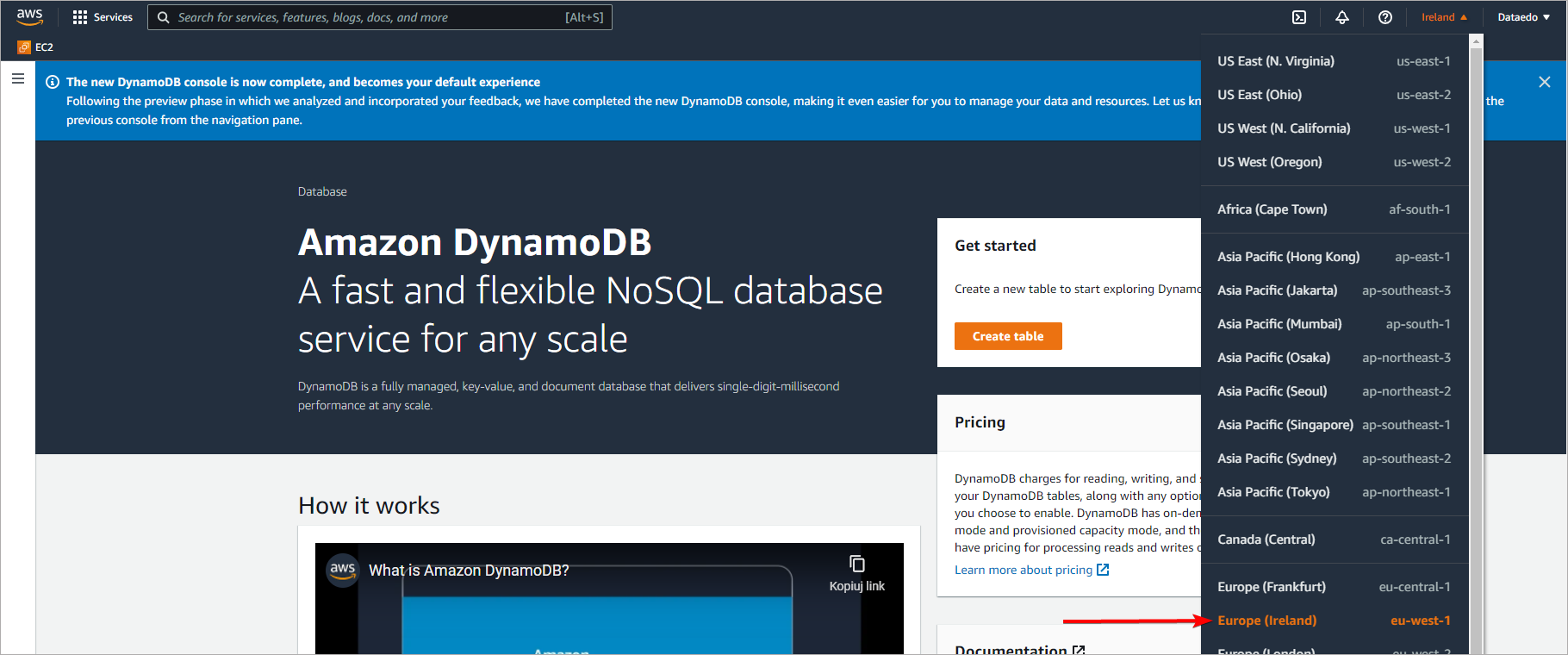
Open DynamoDB service home page. You will find DynamoDB region list in upper right corner. Look for highlighted region, which is the region where DynamoDB tables reside.
Importing Metadata in Dataedo Portal
Entry point
To start the Metadata Import flow, make sure you have the Connection Manager role.
Then navigate to:
Connections → Add new connection → Amazon DynamoDB
This will open the import wizard described in the following steps.
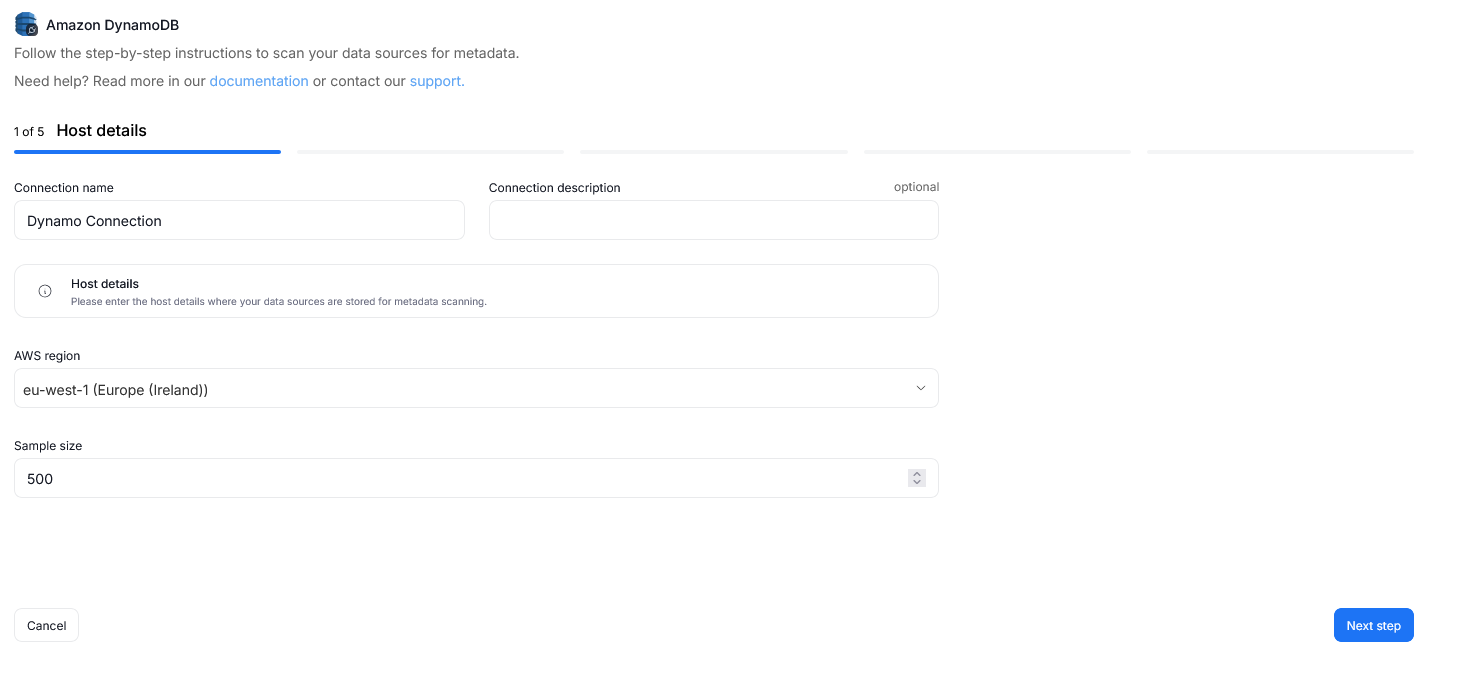
Step 1. Connection details
Provide the name of Connection, the required connection details, and an optional description.
A Connection in Dataedo represents a saved configuration for accessing a data source.
It can be reused for future imports and scheduling.
Step 2. Credentials
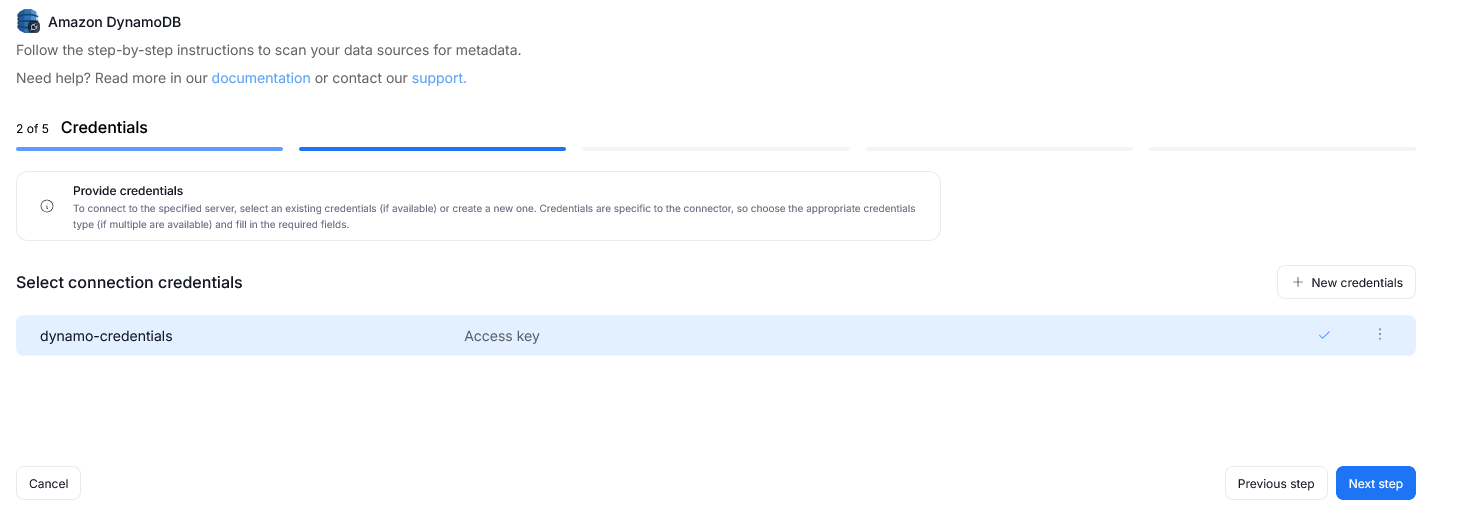
Choose credentials from the list of existing ones available for the selected connector, or add new credentials.
Step 3. Objects to import
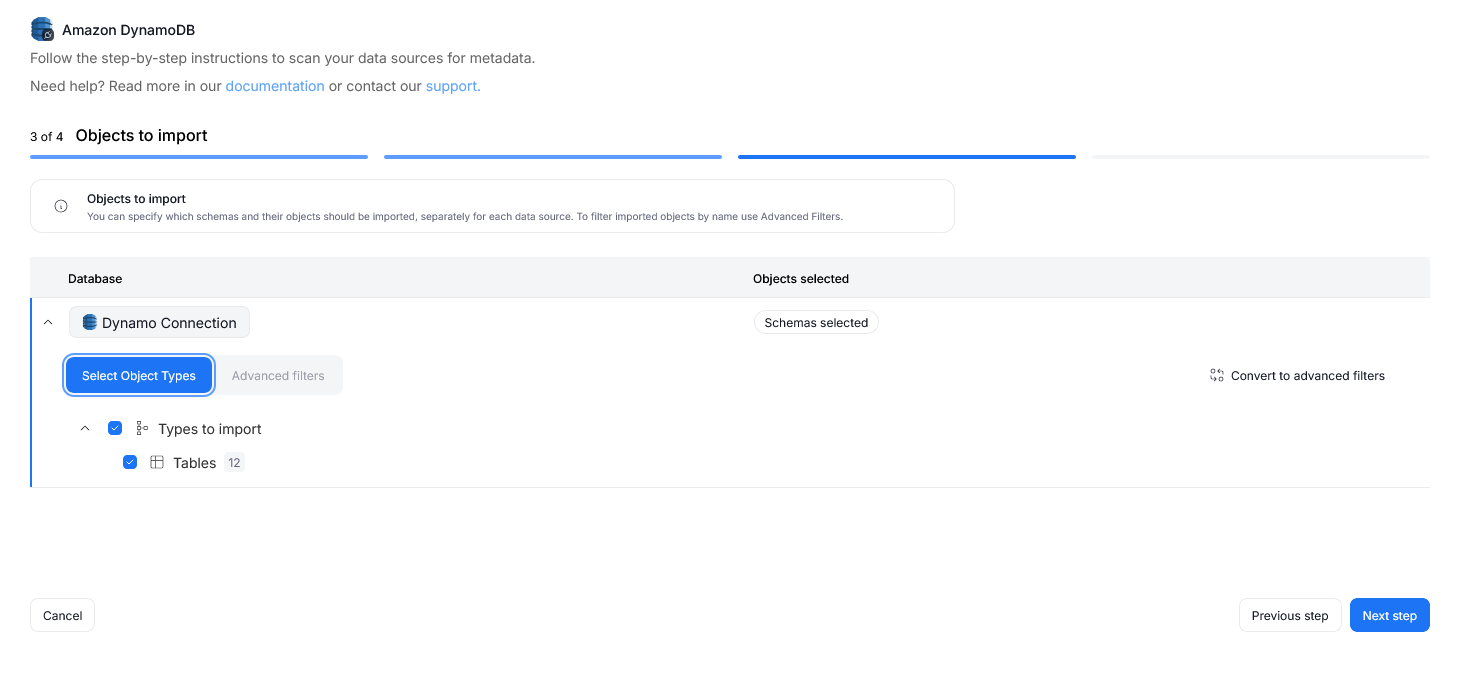
For each selected database, you can refine which objects to import:
- Select schemas and object types (tables, views, procedures, etc.).
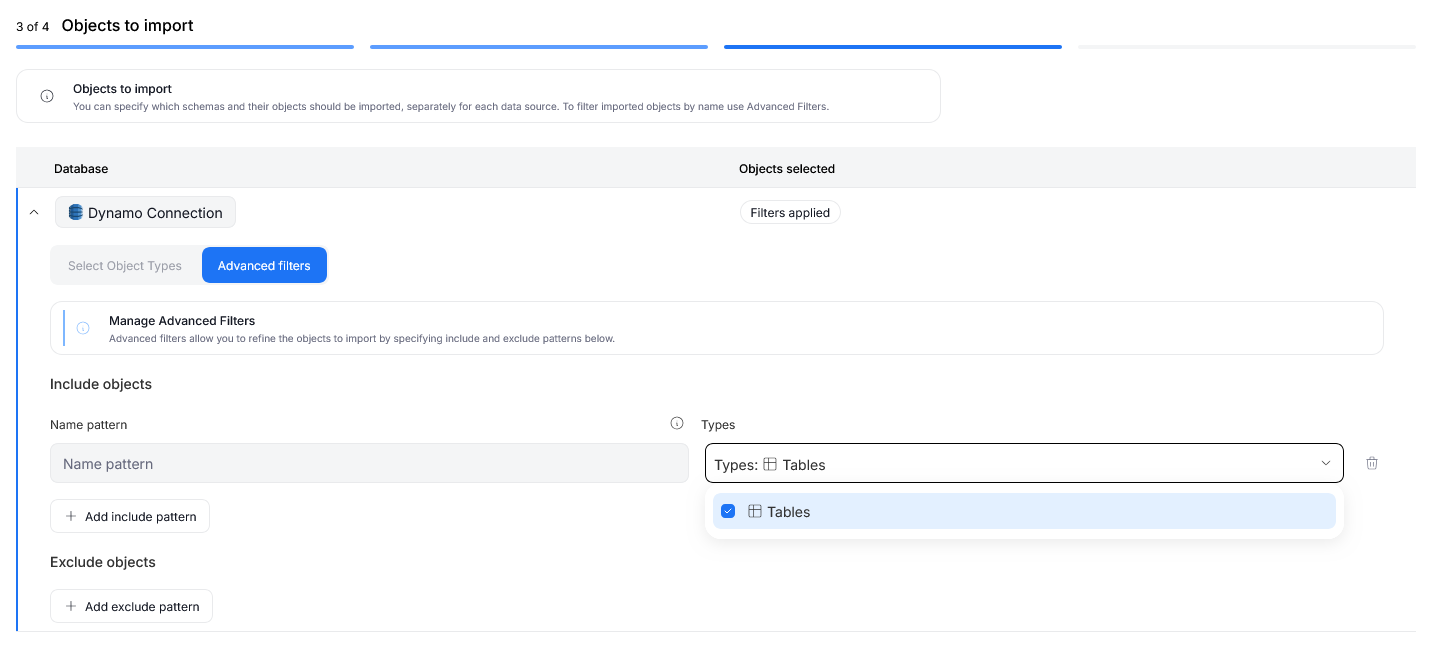
- Use Advanced filters to include or exclude objects with:
- schema patterns
- name patterns
Step 4. Schedule
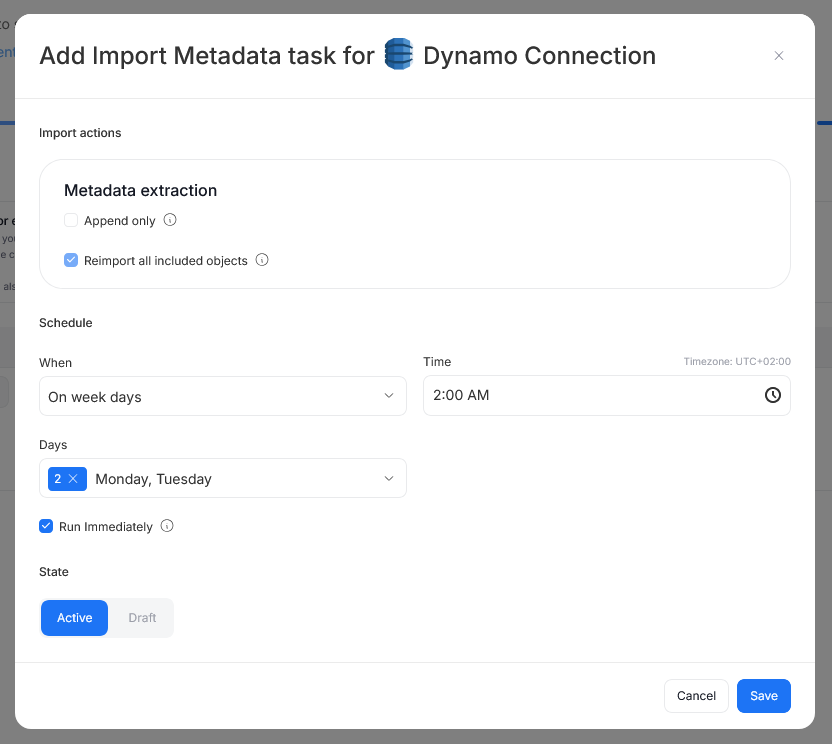
Configure scheduling options for each source individually:
- Define tasks you want to schedule (Metadata Import).
- Run daily, on selected weekdays, or on specific days of the month.
- Choose an exact time of execution.
- Task state:
Active– the task will run as scheduled.Draft– the task is saved but not executed until switched to Active.
- Run immediately – when checked, the task will also be executed right after clicking
Create connection.
Only one source in a metadata import can have Run immediately selected.
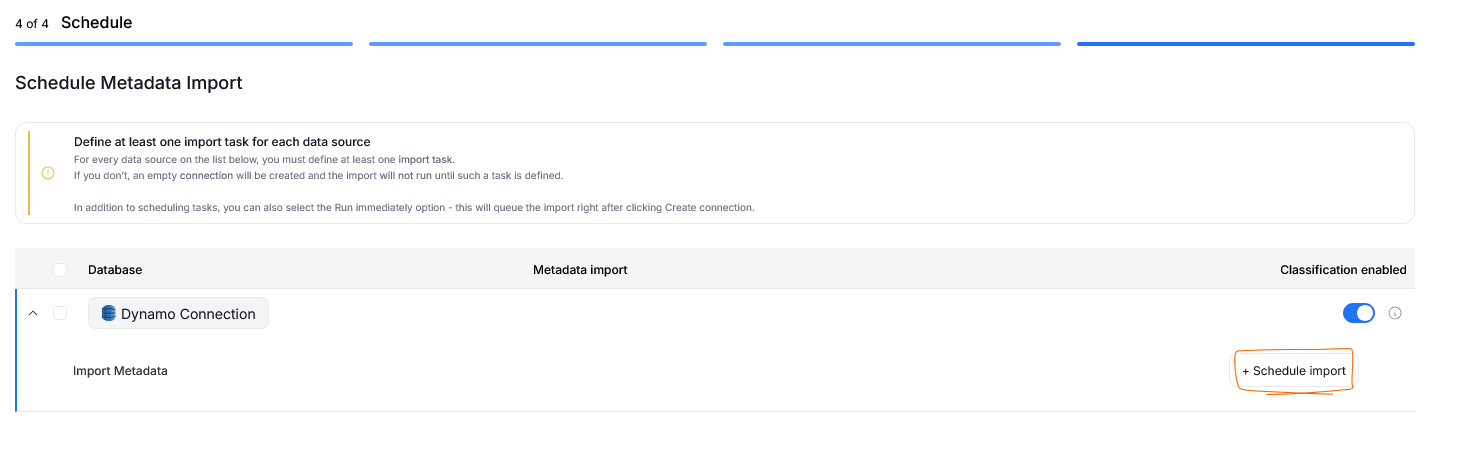
You must configure at least one import task in the schedule section.
If you skip this, an empty database will be created and no metadata will be imported.
Importing Metadata in Dataedo Desktop
Add new connection
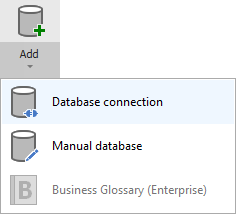
To connect to Amazon DynamoDB with Athena create new documentation by clicking Add documentation and choosing Database connection.
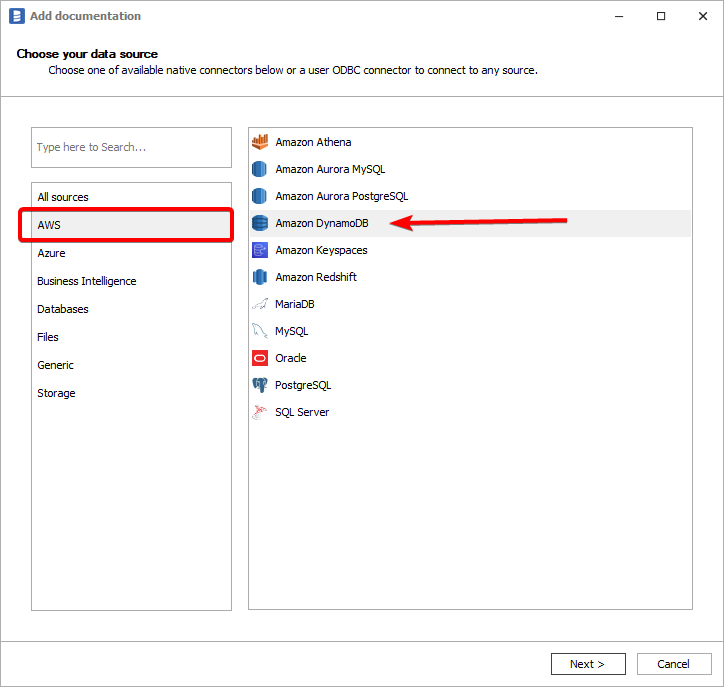
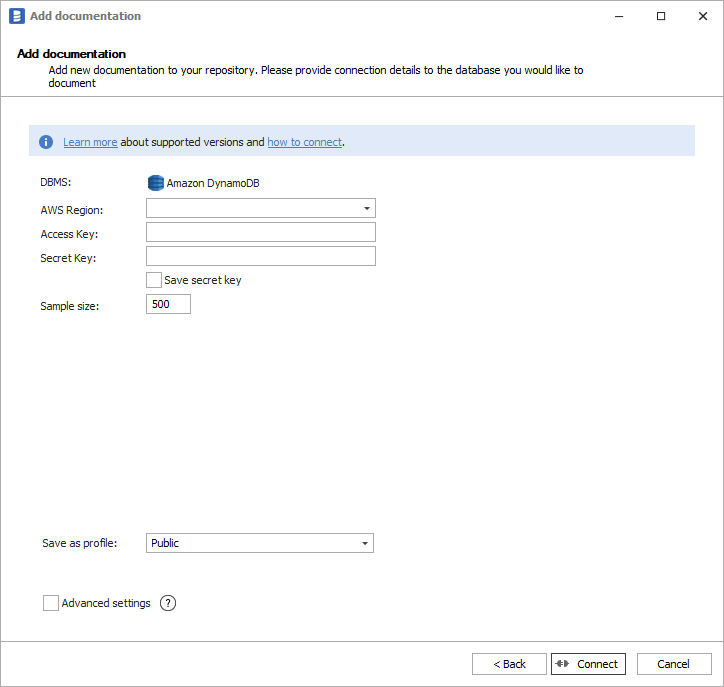
On the Add documentation window choose Amazon DynamoDB:
Connection details
Provide connection details. To obtain them, follow steps described in Configure AWS section of this article:
-
AWS Region - AWS region in which DynamoDB reside,
-
Access Key - IAM user access key ID,
-
Secret Key - IAM user secret key,
-
Sample Size - number of documents/rows which will be scanned to get the attributes.
Click Connect, and select objects to import. Click Next and set the documentation title. After successful import click Finish.
Outcome
Your DynamoDB database metadata has been imported to new documentation in the repository.