Copy & paste import
Copy & paste import allows you to import metadata into Dataedo by pasting tab-delimited data from a spreadsheet. This is useful when you have data in Excel or can export it from your source system.
Copy & paste import uses the same schema as Interface Tables. For detailed column reference, valid object types, and lineage rules, see the Interface Tables documentation.
What type of import to choose
If your data source does not have a native metadata scanner and you either can export the metadata to a file or have preexisting documentation, consider pasting the metadata directly to Dataedo.
Dataedo supports two ways of adding this data:
- Interface Tables
- Copy & paste import
Use Interface Tables when:
- It's more convenient for you to input data directly into the database
- You don't intend to use and maintain the Excel file
- You want to automate the import process with scripts
Use copy & paste when:
- It's more convenient for you to use UI
- You have the data handy in Excel
- You want quick, one-time imports
Start copy & paste import
Start by adding new connection to your repository.
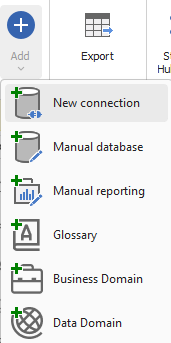
Paste Metadata can be found within the generic connector group.
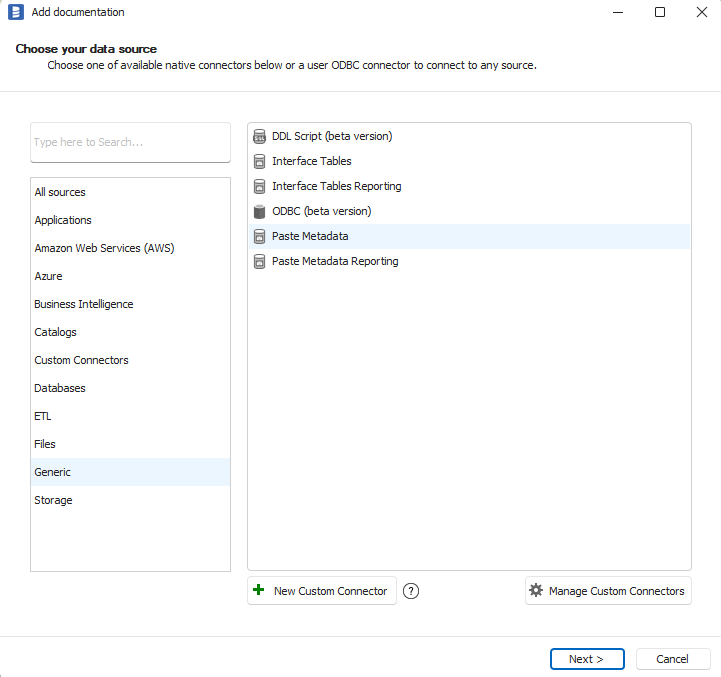
Choose specific copy & paste connector
Use Paste Metadata for importing:
- Tables and views
- Procedures and functions
Use Paste Metadata Reporting for importing:
- Reports and dashboards
- Datasets
These connectors differ based on the type of data they import, but they both support documenting the same elements:
- Columns
- Parameters
- Triggers
- Primary and unique keys
- Foreign keys
- Data lineage
- Lineage processes
- Linked sources
Available tabs and columns
Each tab corresponds to an interface table. Use the Copy template button on each tab to copy column headers to your clipboard, then paste them into your spreadsheet as a starting point.
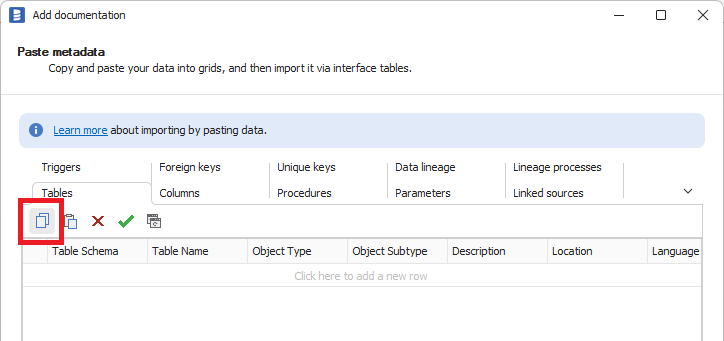
Paste Metadata connector
| Tab | Key Columns | Required Fields |
|---|---|---|
| Tables | TableSchema, TableName, ObjectType, ObjectSubtype, Description, Definition | TableName, ObjectType, ObjectSubtype |
| Columns | ObjectSchema, ObjectName, ObjectObjectType, ColumnName, DataType, Nullable | ObjectName, ObjectObjectType, ColumnName |
| Procedures | ProcedureSchema, ProcedureName, ObjectType, ObjectSubtype, Definition | ProcedureName, ObjectType, ObjectSubtype |
| Parameters | ObjectSchema, ObjectName, ObjectObjectType, ParameterName, ParameterMode, DataType | ObjectName, ObjectObjectType, ParameterName, ParameterMode |
| Triggers | TableSchema, TableName, TableObjectType, TriggerName, TriggerType, Before, After, OnInsert, OnUpdate, OnDelete | TableName, TableObjectType, TriggerName, TriggerType |
| Keys | TableSchema, TableName, TableObjectType, KeyName, KeyType, ColumnName | TableName, TableObjectType, KeyType, ColumnName |
| Foreign Keys | ForeignTableSchema, ForeignTableName, PrimaryTableSchema, PrimaryTableName, ForeignColumnName, PrimaryColumnName | ForeignTableName, PrimaryTableName, ForeignColumnName, PrimaryColumnName |
| Data Lineage | SourceDatabaseName, SourceObjectName, SourceObjectType, ProcessorObjectName, ProcessorObjectType, TargetDatabaseName, TargetObjectName, TargetObjectType | All source, processor, and target fields |
| Lineage Processes | ProcessorObjectSchema, ProcessorObjectName, ProcessorObjectType, ProcessorProcessName, Description | ProcessorObjectName, ProcessorObjectType |
| Linked Sources | LinkedSourceName, ConnectionDetails, SqlDialect, Description | LinkedSourceName |
Paste Metadata Reporting connector
The Reporting connector includes additional tabs and external ID fields:
| Tab | Key Columns | Required Fields |
|---|---|---|
| Datasets | ExternalId, TableSchema, TableName, ObjectSubtype, Description | TableName, ObjectSubtype |
| Reports | ExternalId, ReportSchema, ReportName, ObjectType, ObjectSubtype, Url, Description | ReportName, ObjectType, ObjectSubtype |
| Columns | ObjectExternalId, ObjectSchema, ObjectName, ObjectObjectType, ColumnName, ColumnExternalId | ObjectName, ObjectObjectType, ColumnName |
| Parameters | ObjectExternalId, ObjectSchema, ObjectName, ObjectObjectType, ParameterName, ParameterMode | ObjectName, ObjectObjectType, ParameterName, ParameterMode |
When importing BI objects (datasets, reports, dashboards), use ExternalId to uniquely identify objects. Data lineage to these objects must include the corresponding external_id columns. See Object matching for lineage for details.
Valid object types
All type values must be UPPERCASE. See Valid object types for the complete reference.
Quick reference
| Tab | ObjectType Values | ObjectSubtype Examples |
|---|---|---|
| Tables | TABLE, VIEW, STRUCTURE, DATASET | TABLE, EXTERNAL_TABLE, MATERIALIZED_VIEW, CSV, JSON |
| Procedures | PROCEDURE, FUNCTION | PROCEDURE, CLR_PROCEDURE, FUNCTION, CLR_FUNCTION |
| Reports | REPORT, DASHBOARD, VISUALIZATION | REPORT, POWER_BI_REPORT, DASHBOARD |
| Triggers | TRIGGER | TRIGGER, CLR_TRIGGER, RULE |
Keys and parameters do not use the ObjectType/ObjectSubtype pattern:
| Tab | Field | Valid Values |
|---|---|---|
| Keys | key_type | PK, UK |
| Parameters | parameter_mode | IN, OUT, INOUT |
Import steps
Copy headers to clipboard
Every tab has its own Copy template button.
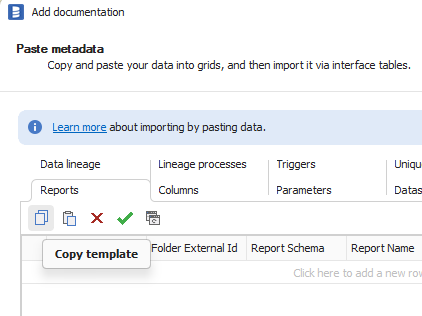
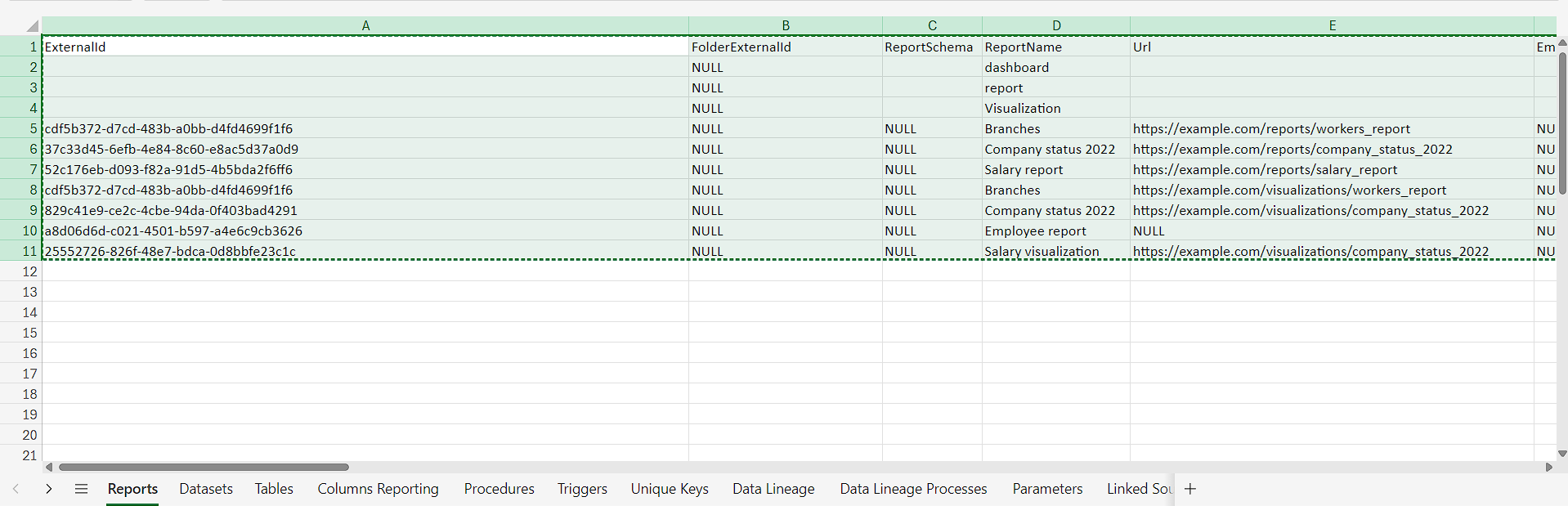
Prepare your data
Paste the template into your spreadsheet and populate the cells.
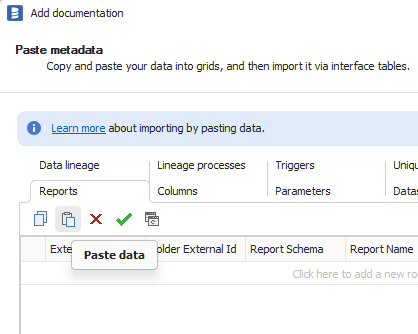
Paste data into Dataedo
Each tab has its own Paste data button.
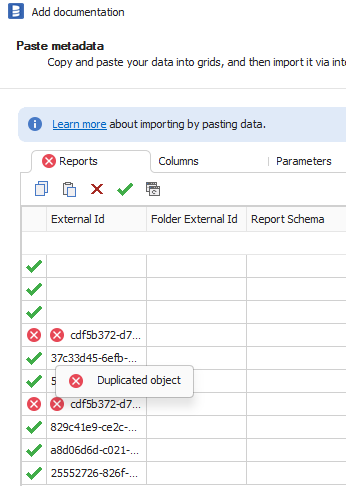
Correct your data if it fails validation
Every row needs to be valid to proceed with the import. Ensure data is correct by clicking the Validate button or pasting data into the tab. You can check for errors in the tooltip.
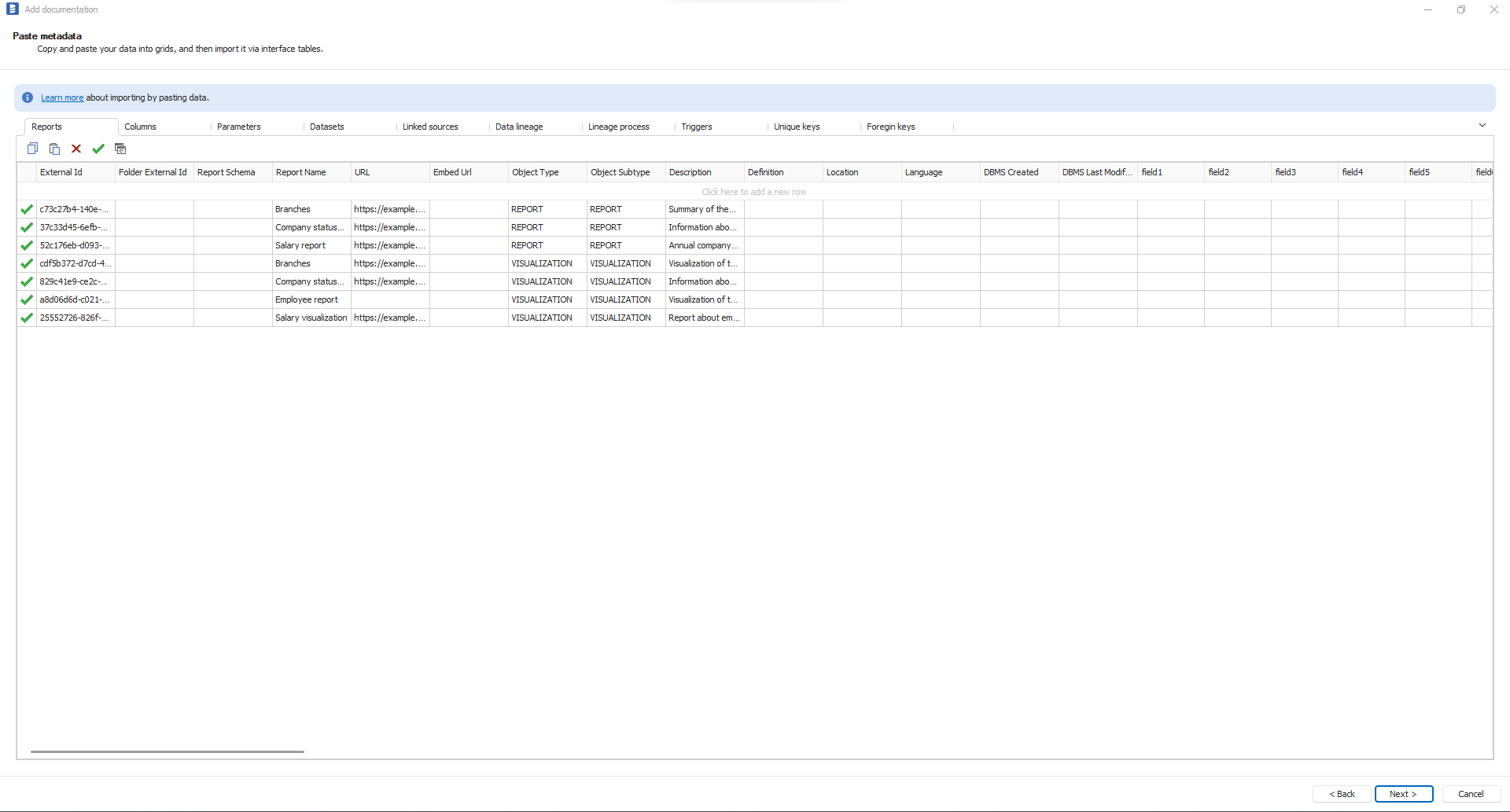
We recommend correcting the data in the Excel file first. Then, you can remove all rows by selecting all rows in Dataedo, pressing Ctrl + A, and then clicking the delete button. After that, paste the data again.
Common validation errors
| Error | Cause | Solution |
|---|---|---|
| Required field is empty | Missing value in required column | Fill in the required field (e.g., TableName, ObjectType) |
| Invalid ObjectType | Type value not recognized or not uppercase | Use valid uppercase type (e.g., TABLE, VIEW, PROCEDURE) |
| Invalid ObjectSubtype | Subtype not valid for the given ObjectType | Check valid subtypes for your ObjectType |
| Object not found | Column references non-existent table/procedure | Add the parent object first (paste Tables before Columns) |
| Duplicate object | Same object pasted twice | Remove duplicate row or use different schema/name |
| Invalid ParameterMode | Mode not IN, OUT, or INOUT | Use uppercase: IN, OUT, INOUT |
| Invalid KeyType | Key type not PK or UK | Use PK for primary key, UK for unique key |
| Column not found | FK/Key references non-existent column | Add the column to Columns tab first |
| Database not found | Lineage references unknown database | Add linked source or import the referenced database first |
Paste order
When pasting data across multiple tabs, follow this order to avoid validation errors:
- Tables (or Datasets/Reports for Reporting connector)
- Columns
- Procedures
- Parameters
- Triggers
- Keys and Foreign Keys
- Linked Sources
- Data Lineage
- Lineage Processes
Import
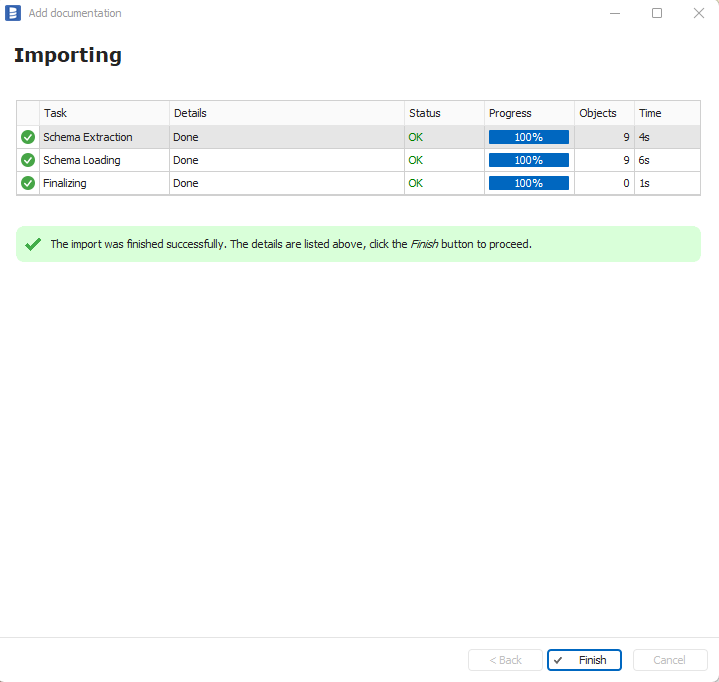
Metadata will be uploaded to Interface Tables, and the import process will continue as usual.
You can select additional import options or keep clicking the "Next" button.
Import changes
When importing changes to an existing database created by pasting, you must paste all the data again. Otherwise, objects existing in the documentation but not pasted will be marked as deleted.
See also
- Interface Tables - Full column reference and detailed documentation
- Interface Tables Example - Complete multi-database pipeline example

