Connecting to Tableau
Introduction
We recommend using Metadata Import in the Portal as the primary method of connecting your data sources.
The Portal offers significant advantages compared to the Desktop application:
- Schedule recurring tasks (Metadata Import).
- Manage connections centrally.
Import through Desktop is still available and allows importing one source at a time.
You can find the instructions at the bottom of this page.
Prerequisites
Metadata API
Dataedo imports metadata through the Tableau Metadata API, so it has to be available on the imported site:
- Tableau Server: the Metadata API is turned off by default. Enable it as described in the Tableau documentation. Data Management is not required.
- Tableau Cloud: since October 2026, the Metadata API requires Data Management. It is turned on automatically on sites with Data Management. Sites that were already using the Metadata API without Data Management can continue until June 2027. See About Tableau Catalog in the Tableau documentation.
Required permissions
The Tableau account used for the metadata import needs the Site Administrator Explorer role on the imported site. Site Administrator Creator and, on Tableau Server, Server Administrator also work.
With an administrator role, the account can see all database and table metadata through the Metadata API, and no other permissions have to be granted. See Permissions on external assets in the Tableau documentation.
If the Tableau account has the Creator, Explorer or Viewer role, Dataedo imports only the workbooks, dashboards, sheets, data sources and tables that the account can view. Columns of these tables and column-level lineage from source databases to Tableau are not imported, even if derived permissions are enabled.
We recommend a dedicated service account for the metadata import, so that it does not depend on any one person's account.
Authentication
Dataedo signs in to Tableau through the Tableau REST API, with a personal access token or with a username and password. We recommend a personal access token. Tableau recommends it for the REST API, and it works regardless of how users sign in to your site. See Signing in and out (Authentication) in the Tableau documentation.
A personal access token is the only option when:
- The account signs in to Tableau through SAML single sign-on (SSO). The REST API does not support SAML SSO, so Tableau rejects the username and password with an
Unauthorizederror. This happens even though the same account can sign in through the browser or Tableau Desktop. See SAML requirements. - The Tableau Cloud site uses Tableau authentication with multi-factor authentication (MFA).
Create a personal access token
- Sign in to Tableau as the account used for the metadata import.
- Open My Account Settings and scroll to the Personal Access Tokens section.
- Enter a token name and click Create new token.
- Click Copy to clipboard and save the token name and secret in Dataedo.
Administrators cannot create tokens for other users. On Tableau Cloud, a site administrator decides who can create tokens, and on sites activated in June 2023 (Tableau 2023.2) or later, creating tokens is turned off by default. See Personal access tokens for Tableau Server and Tableau Cloud.
Token expiration and sessions
A token expires if it is not used for 15 consecutive days. Every metadata import uses the token, so a scheduled import that runs every 14 days or more often keeps it active. A token that is used regularly expires after one year on Tableau Server (configurable by a server administrator), or after the period set by a site administrator on Tableau Cloud (1 to 365 days). Then create a new token and update the credentials in Dataedo.
A token can be used in only one session at a time. Signing in again with the same token ends the previous session, so use a separate token for each Dataedo connection and for each other tool that connects to Tableau.
Username and password
A username and password work only when Tableau checks the password itself, with local authentication or Active Directory, and not through SAML SSO. With Active Directory, if the user name is not unique across domains, enter it with the domain, for example domain\user (see Sign In). If the password changes regularly, update it in Dataedo after each change.
Host details
To connect, Dataedo needs the following details:
- Host - The address of your Tableau Server or Tableau Cloud site, with
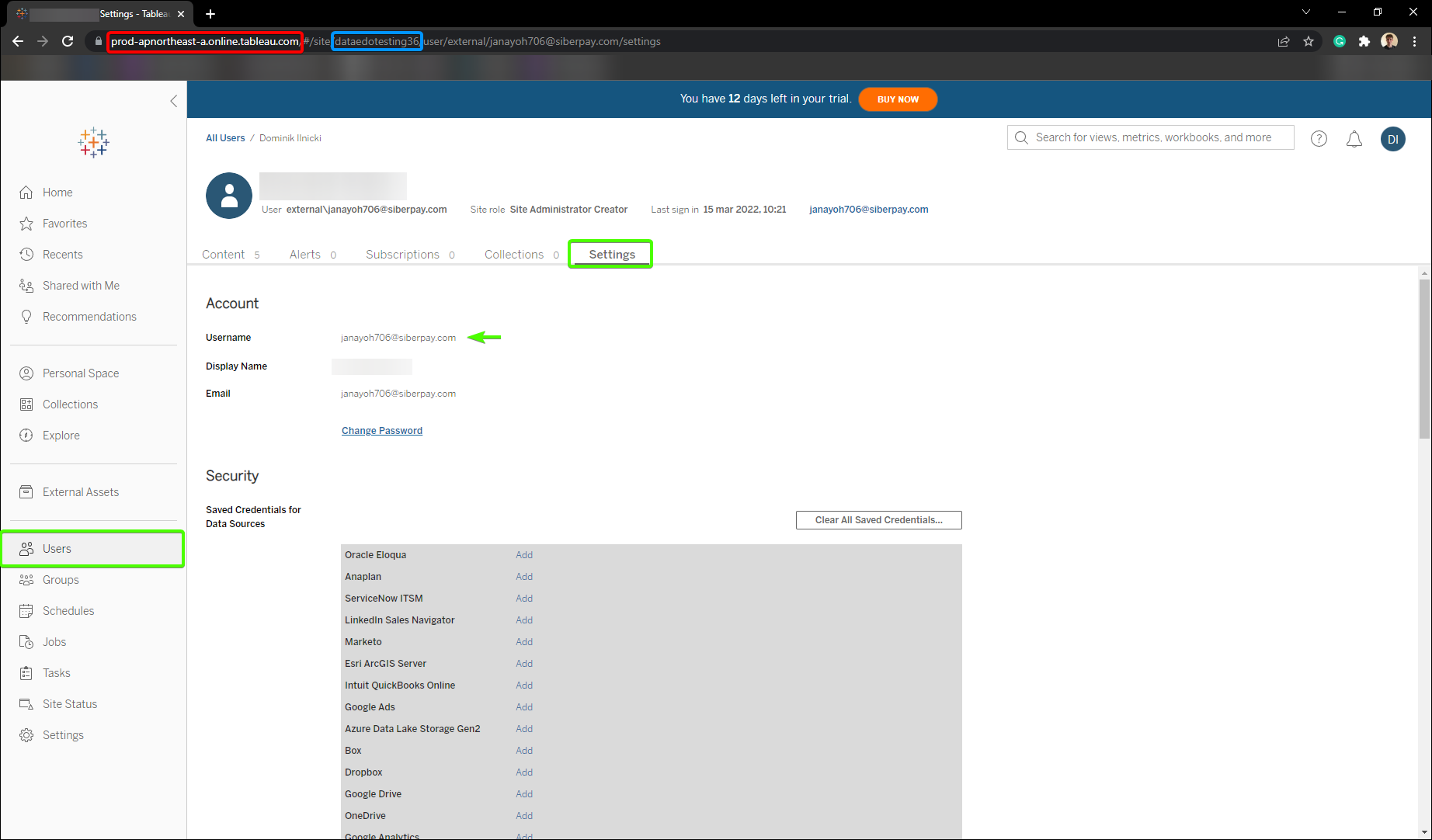
https://and, if your server uses one, the port. For examplehttps://dub01.online.tableau.comfor Tableau Cloud orhttps://tableau.example.com:8443for Tableau Server. - Product - Tableau Cloud (prev. online) or Tableau Server, depending on which one you use. Tableau Cloud sites have addresses in the
tableau.comdomain. - Site - The site ID, as shown in the Tableau address after
/site/. For example, forhttps://dub01.online.tableau.com/#/site/marketing/home, entermarketing. For the default site of Tableau Server, enterDefault. One connection imports one site. - Credentials - A personal access token (token name and secret) or a username and password. See Authentication.
- Query limit - The number of objects Dataedo requests from Tableau in one HTTP request.
In the Tableau address bar you can find the host (red) and the site ID (blue). The username (green) is shown in the account settings.
Importing metadata in Dataedo Portal
Entry point
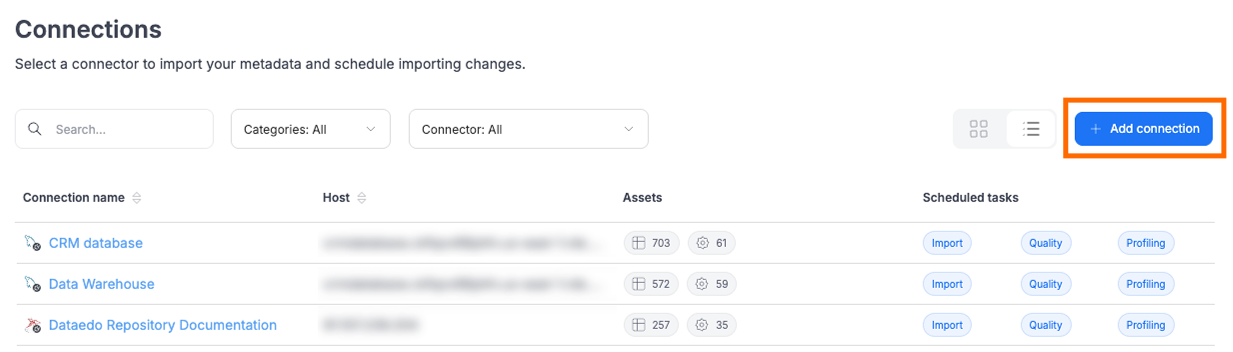
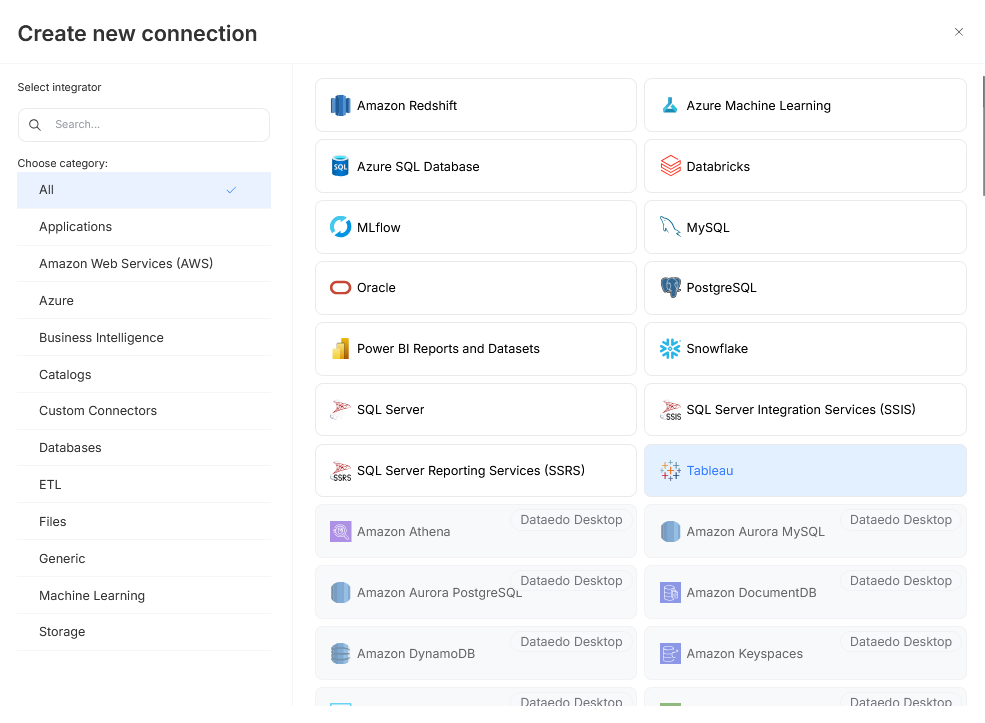
Make sure that you have the Connection Manager role. Then open Connectors>Connections and press the Add Connection button. Select Tableau.
Step 1. Host Details
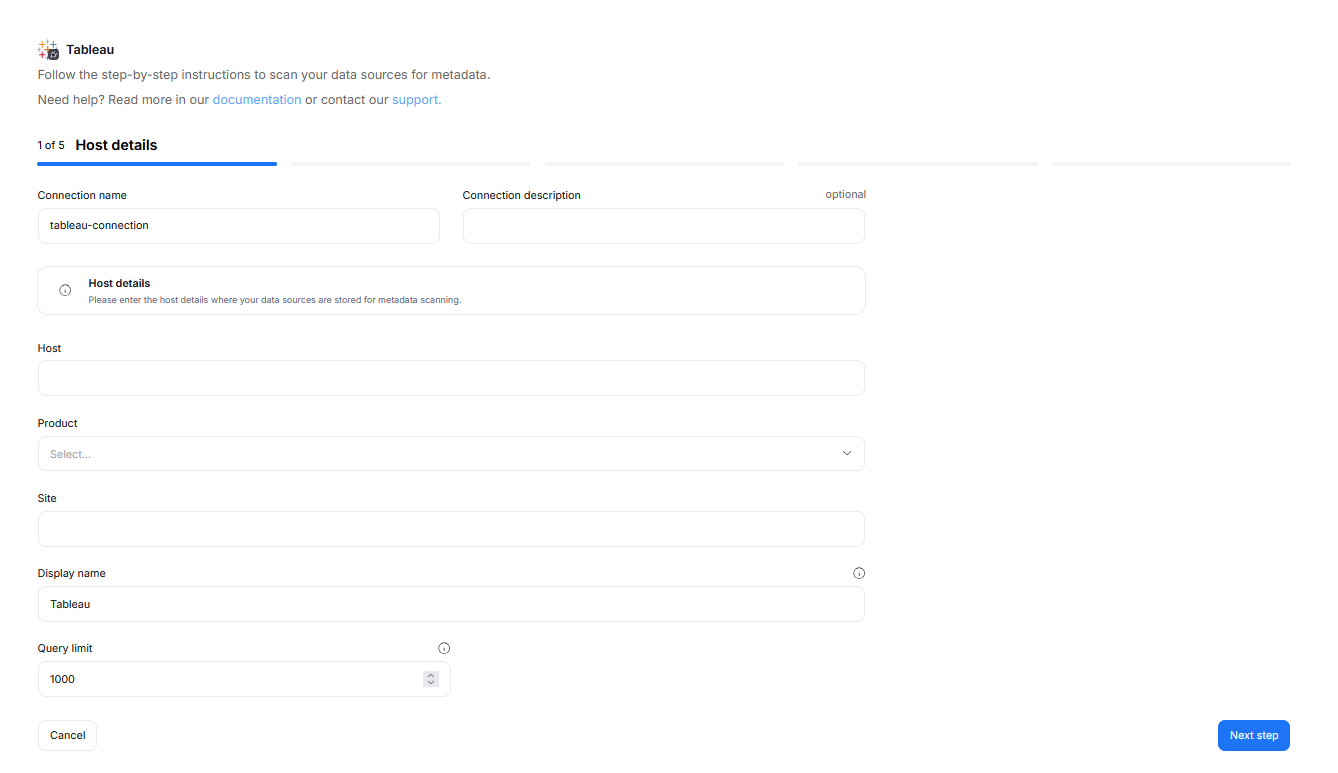
Provide the connection name, and (optionally) the connection description. These impact how the connection will be visible in your repository.
Then provide the Host, Product and Site of your Tableau, as described in Host details.
Finally, you can modify the Display Name and Query limit. Make sure that the Display Name is easy to identify. One connection imports one Tableau site.
Step 2. Credentials
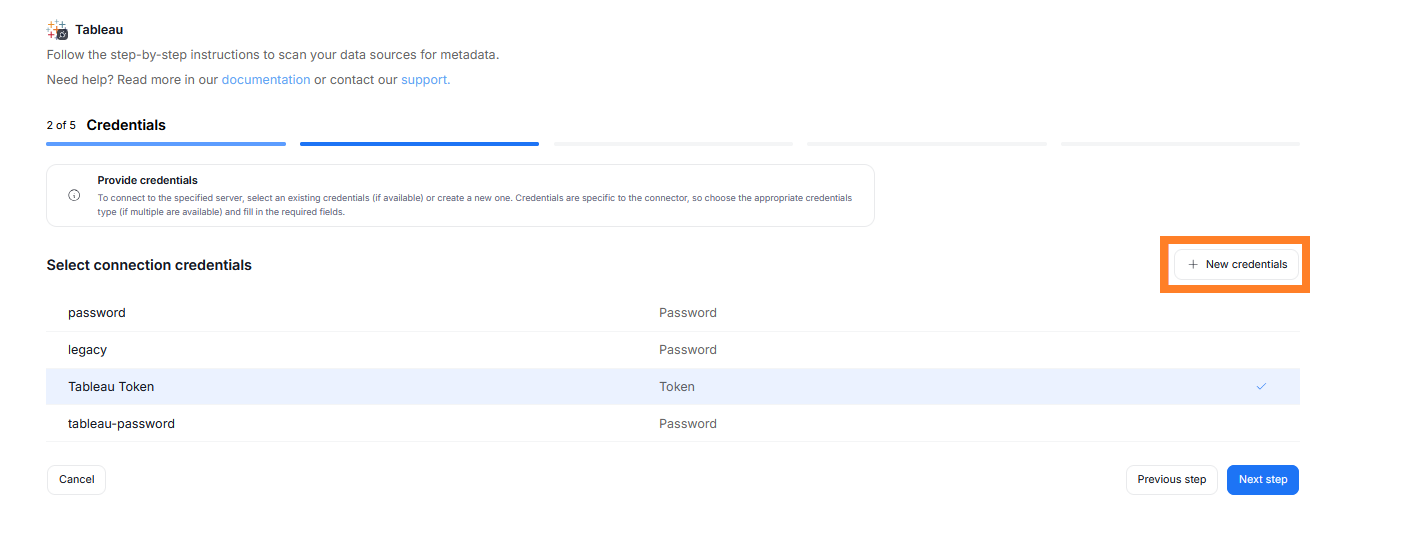
Choose your credentials from the list of the ones already saved for your chosen connector, or add new ones using the New credentials button. Credentials of the Token type are a personal access token, and Password credentials are a username and password. See Authentication to choose between them.
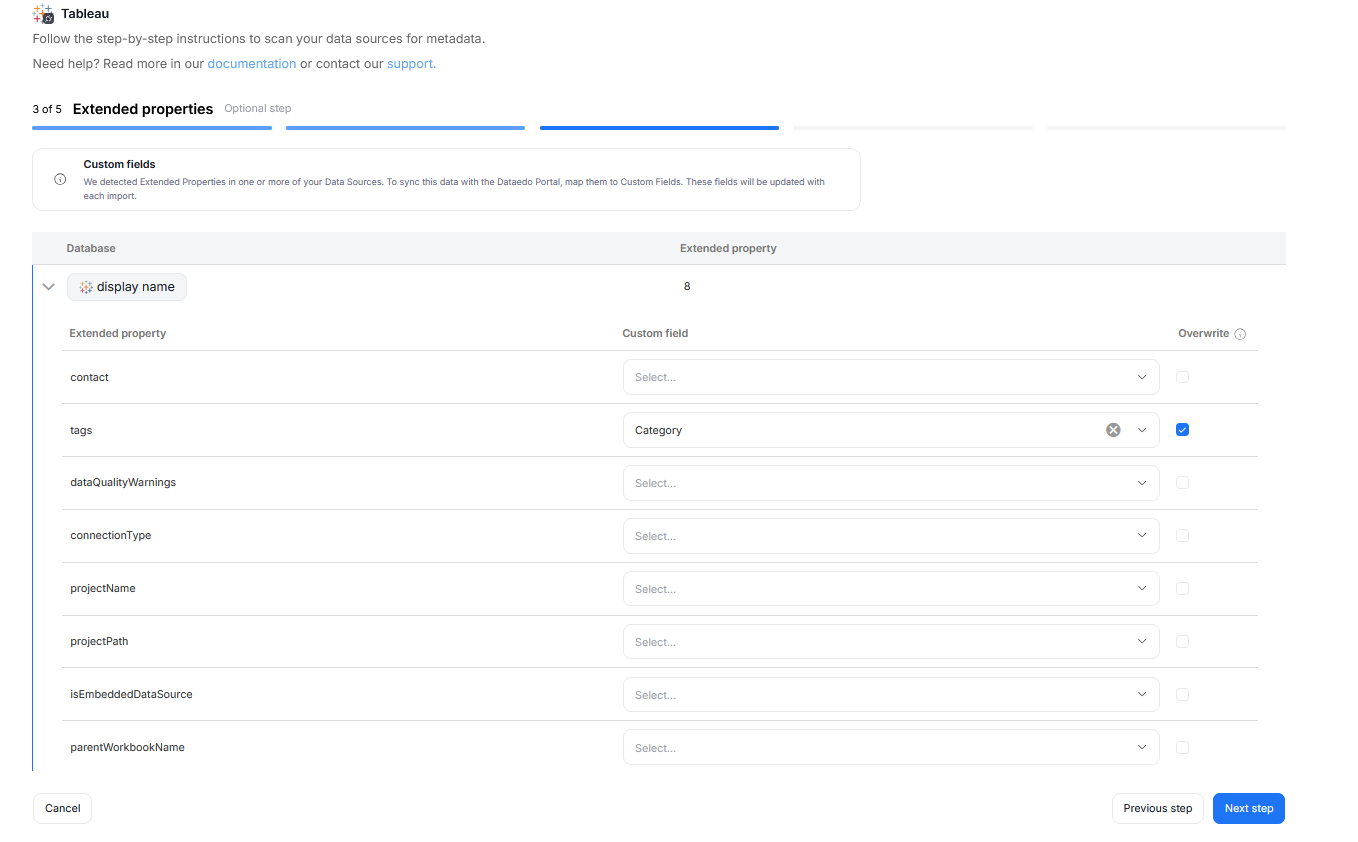
Step 3. Extended properties (optional)
This step appears only if the source exposes Extended Properties. You can map them to Custom Fields in Dataedo, or skip this step entirely.
If skipped, no extended properties will be imported.
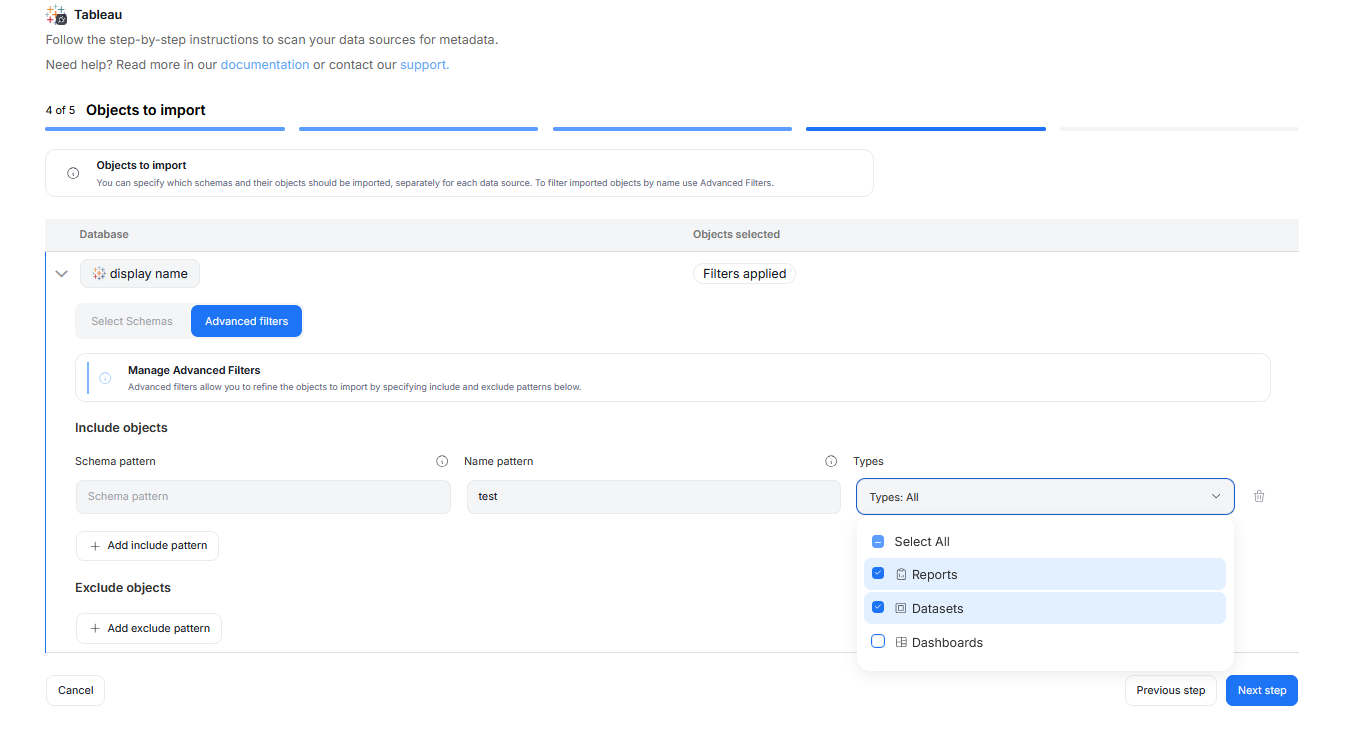
Step 4. Objects to Import
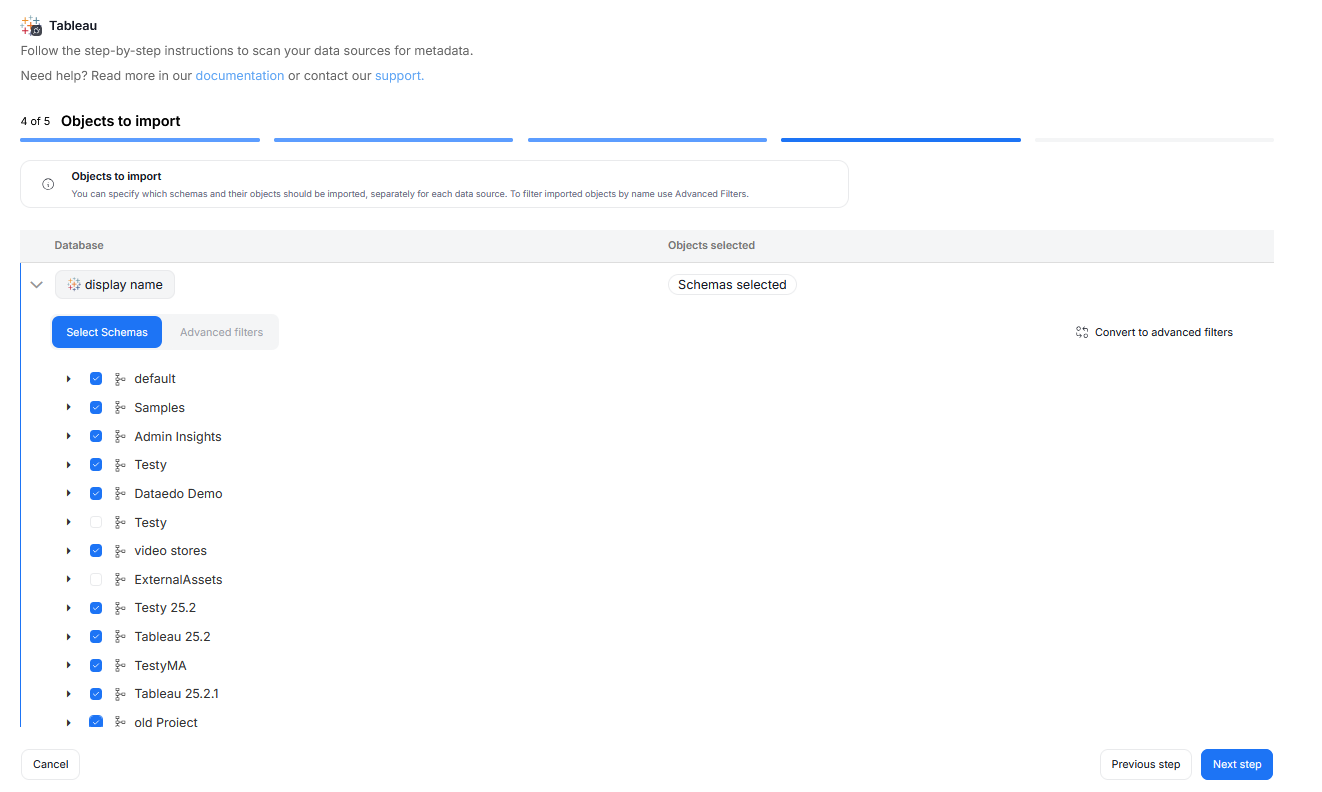
You can select which objects to import from your Tableau site. You have two ways to do that.
Select Schemas lets you choose the Tableau projects you want to import. Projects are shown in the list as schemas.
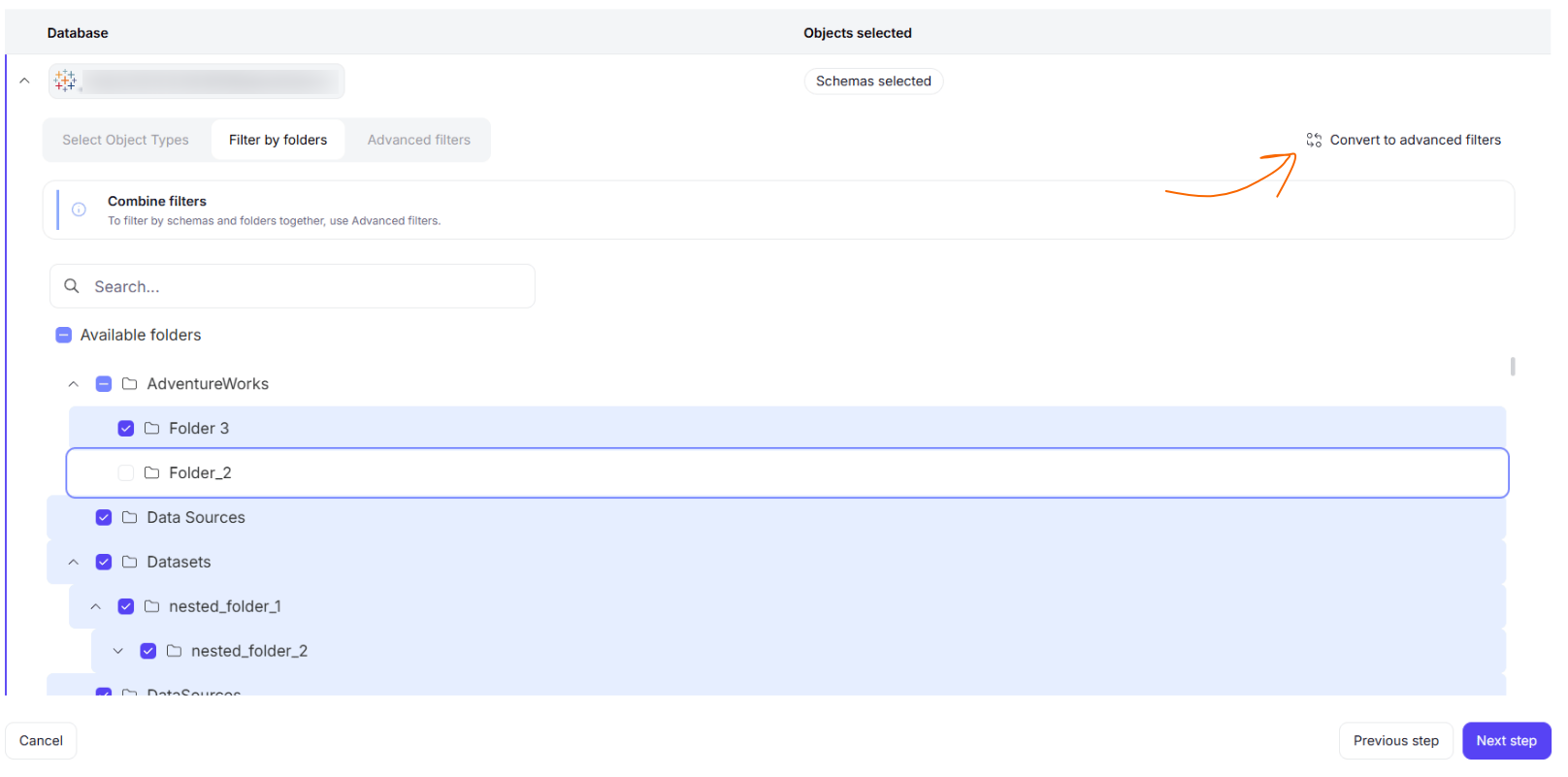
Using Filter by Folders, you can take advantage of your data source's folder structure and select which folders should be imported. If you need to combine those folders with advanced filters, you can click the convert to advanced filters button — your selected folders will then be automatically converted to a glob pattern in the advanced filters section.
The Advanced Filters let you include or exclude objects based on schema and name patterns using regular expressions. You can configure multiple patterns, and each one can apply only to certain object types. You can also combine Advanced Filters with Filter by Folders results using the Path Pattern option. Path patterns should follow the glob convention.
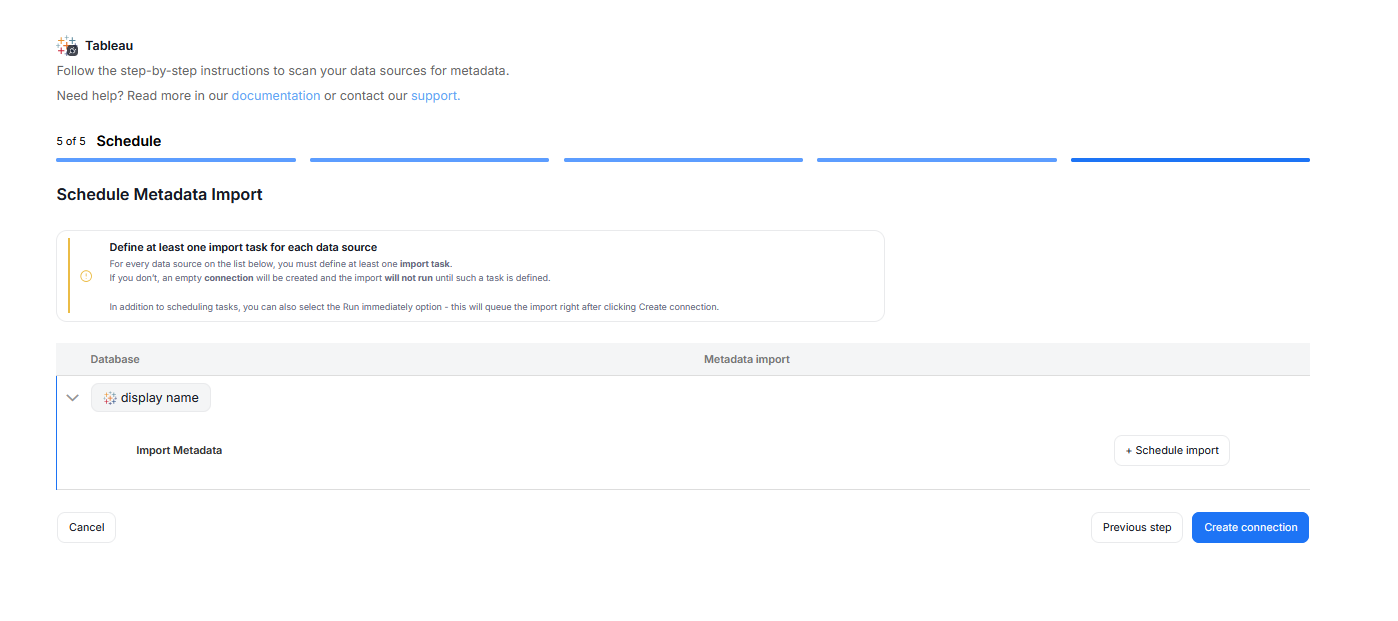
Step 5. Schedule Metadata Import
By default, Dataedo adds a Metadata Import task for each selected source. It runs every Monday at 3:00 AM and has Run immediately selected, so the first import starts as soon as you click Create connection. You can edit or delete this task, or add more.
Each source needs at least one import task. If you delete the default one and don't add another, an empty database will be created and no metadata will be imported.
Configure scheduling options for each source individually. You can schedule Metadata Imports, data quality runs, and refresh data profiling.
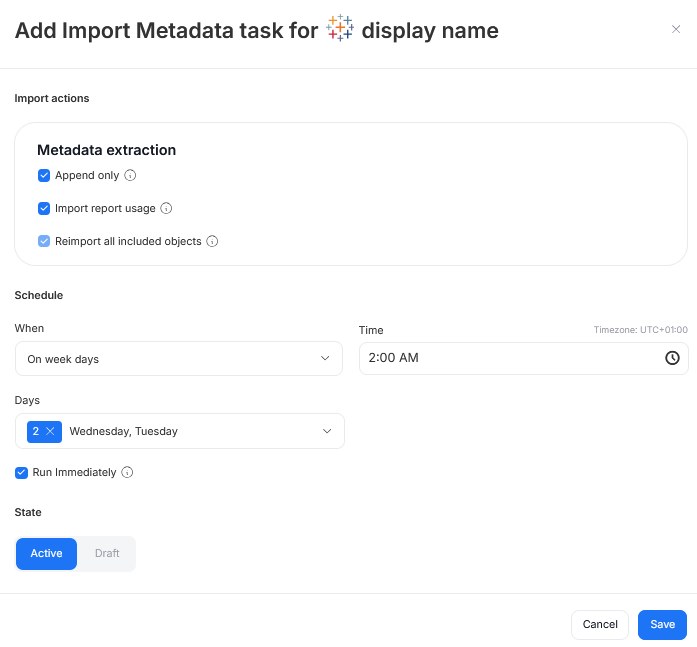
When you schedule a Metadata Import, you can:
- Use the recommended import settings, or switch to Custom configuration to choose them yourself, for example Import report usage
- Choose its frequency (daily, on selected weekdays, on selected days of the month)
- Choose a time of its execution
- Set its state (
Activetasks will run as scheduled,Draftones will be saved for future but will not run until changed toActive) - Schedule a task to run immediately — this will run the task immediately after you finish configuring imports and according to schedule after that.
If the connection uses a personal access token, keep an import task that runs every 14 days or more often, because a token that is not used for 15 consecutive days expires. The default weekly task is enough. See Token expiration and sessions.
Importing metadata in Dataedo Desktop
Add new connection
To connect to Tableau instance create new documentation by clicking Add and choosing Database connection.
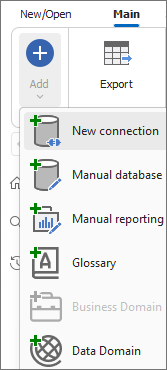
On the connection screen choose Tableau and provide the host details.
Importing schema
When the connection was successful Dataedo will read objects and show a list of objects found. You can choose which objects to import. You can also use an advanced filter to narrow down the list of objects.
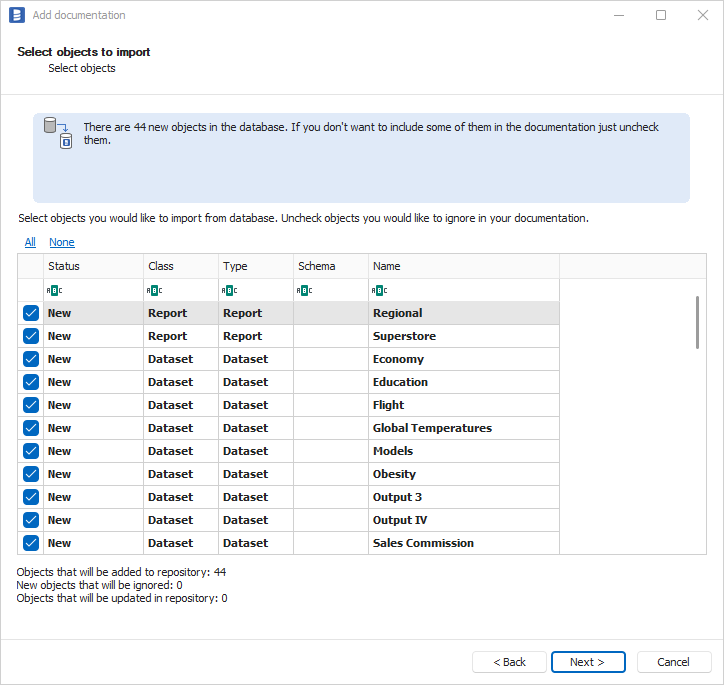
Confirm list of objects to import by clicking Next.
The next screen allows you to change the default name of the documentation under your schema will be visible in the Dataedo repository.
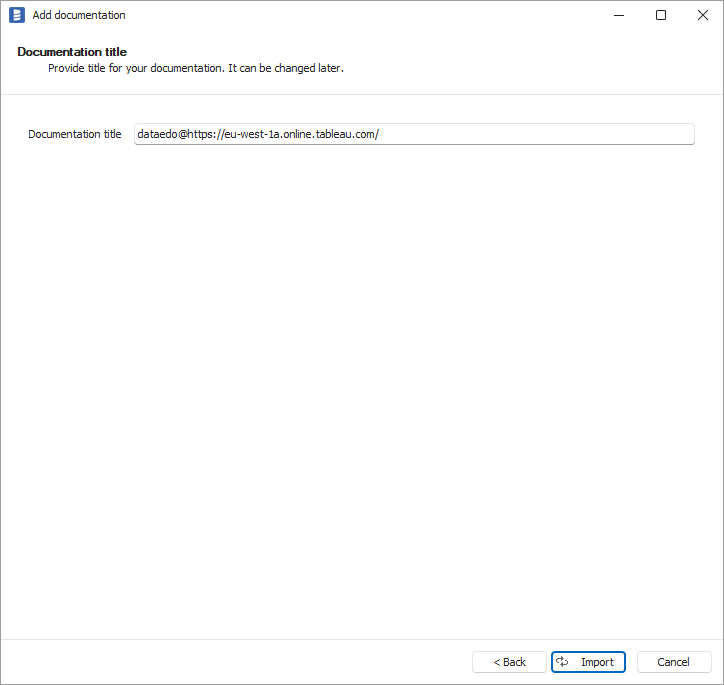
Click Import to start the import.
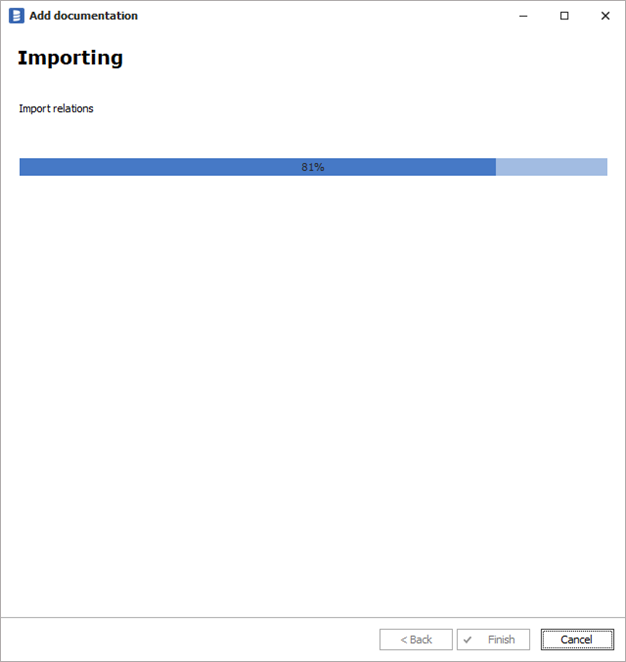
When done close import window with Finish button.
Outcome
Your database schema has been imported to new documentation in the repository.
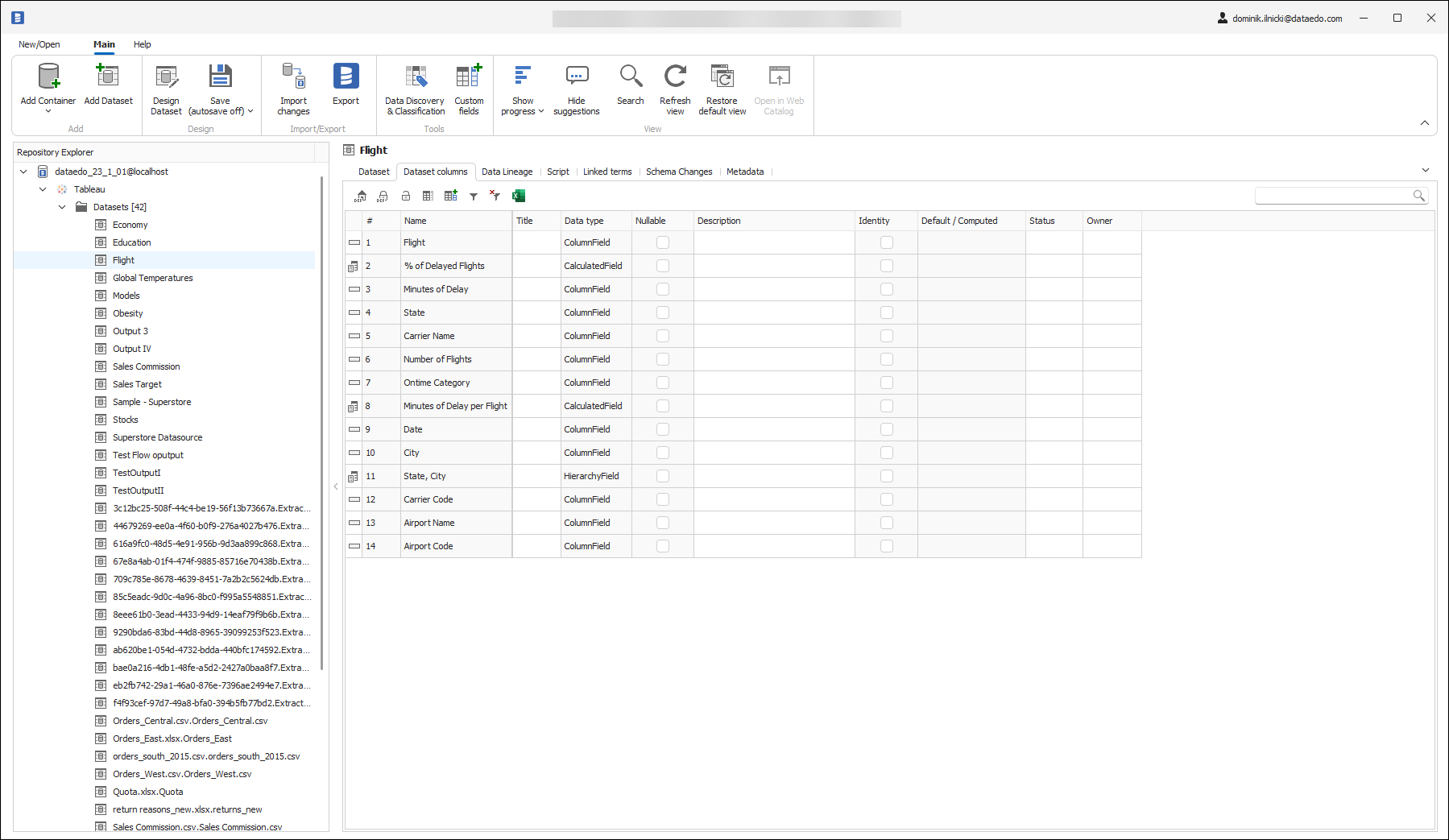
Importing changes
To sync any changes in the schema in Tableau and reimport any technical metadata simply choose Import changes option. You will be asked to connect to Tableau again and changes will be synced from the source.
Troubleshooting
Error: Failed to connect, Unauthorized
The error "[Unauthorized] Tableau API error: Authentication failed" means that Tableau did not accept the credentials. Check the possible causes in this order:
- The account signs in through SSO. Username and password do not work for such an account. Use a personal access token.
- The token has expired or the same token is used somewhere else. See Token expiration and sessions.
- The user name has no domain. With Active Directory, enter it as
domain\user. - Sign-in is blocked or the password has expired. Tableau returns the same error after several failed sign-in attempts, when the password has expired, or when an administrator requires a password change. Ask your Tableau administrator to check the account. See the errors of Sign In in the Tableau REST API reference.
- The site is wrong. Credentials are checked on the site given in the Site field. Make sure the account has access to this site and the site ID is correct.
Error: Metadata API not enabled or not authorized
These errors mean that Dataedo signed in to Tableau, but cannot read from the Metadata API:
- "Can't run the query because the Metadata API has not been enabled yet" or "The Metadata API is not enabled for this site" - On Tableau Server, the Metadata API is turned off. Ask your Tableau Server administrator to enable it. See Metadata API.
- "You are not authorized to use the Tableau Metadata API" - On Tableau Cloud, check that the site has Data Management. Also check that the account has the role described in Required permissions.
Error: BACKFILL_RUNNING
Tableau returns this error ("Tableau still creating the Metadata API Store") after the Metadata API is enabled, while it indexes the site content. Wait until Tableau finishes and run the import again.
Error: Node limit, page size or time limit exceeded
The errors NODE_LIMIT_EXCEEDED, MAX_PAGE_SIZE_EXCEEDED and TIME_LIMIT_EXCEEDED mean that a single request to the Metadata API returned too much data or took too long. When a request exceeds the node limit or the page size, Dataedo automatically retries it with fewer objects. If an error persists, lower the Query limit in the connection's host details and run the import again.
Warning: Access to some objects was denied
The import summary shows this warning when Tableau limited what the account could read. The details of the warning show the reason:
- Columns of dataset tables - The account used for the metadata import does not have an administrator role, so Tableau did not return columns and column-level lineage of Database Tables, Custom SQL Tables and Virtual Connection Tables. Assign the Site Administrator Explorer role to this account and run the import again. No changes in Dataedo are needed.
- PERMISSIONS_MODE_SWITCHED - Informational. Tableau returns it when the site's Sensitive Lineage Information setting (Settings > General) filters lineage instead of obscuring sensitive data. It does not limit an administrator account, so no action is needed.
- INHERITANCE_INCOMPLETE or LINKED_RESULTS_INCOMPLETE - Informational. Tableau returns them together with filtered results. No action is needed.
In Dataedo 26.3 and older, these issues are shown in the Tableau import issue window. The missing columns are reported as "Columns and data lineage unavailable for Database Tables, Custom SQL Tables, and Virtual Connection Tables". In Dataedo 26.2.5 and older, PERMISSIONS_MODE_SWITCHED stops the import.
Metadata not available from Tableau
Some metadata is not provided by Tableau for any account:
- Database tables used only through Custom SQL are shown without columns. The columns are available on the Custom SQL table itself.
- Lineage of Custom SQL that contains syntax unsupported by Tableau Catalog can be incomplete. See Tableau Catalog support for custom SQL.

