Qlik Sense SaaS support
Not supported: Data Quality, Data Profiling, Foreign Key Testing, Reference Data, Metadata Sync, Execution Flows
Qlik Sense SaaS is a cloud-based platform for data visualization and analytics that enables users to create, share, and access interactive visualizations and reports easily. Dataedo can help Qlik Sense users enhance data understanding and promote better data governance and management practices.
Catalog and Documentation
Qlik analytics apps with their sheets are imported to Dataedo as reports. Users can browse visualizations and fields (dimensions and measures) used by particular app sheets. Application tables that were created from datasets or uploaded from external sources in the Dataedo repository are visible as dataset tables. Dataedo also imports datasets from the Qlik Sense catalog as datasets and connections as linked sources.
Qlik Sense connector supports creating Data lineage to enable tracking data flows to visualizations created in the app's sheets. Column-level lineage is created between apps tables and apps to find out which columns are the sources of data used by a given sheet. App tables are related to either datasets from the Qlik Sense catalog or table objects from an external source defined by connection (if that source is documented in the Dataedo repository).
Other features include:
- running Data Classification to find potentially sensitive data in Qlik Sense data fields.
- adding and changing descriptions in Dataedo Desktop and Dataedo Portal
- linking Business Glossary entries to any documented Qlik Sense object
- building lookups for columns and views and feeding them with distinct values from a column
Required permissions
The Qlik user account used to create the Api Key that allows connecting to Qlik Sense (see Connecting to Qlik Sense) must possess access to objects to be documented. If the user has not created some app, then they must belong to the Shared Space to which the given app is added. During import, Dataedo uses only GET requests from Qlik Sense APIs.
Prerequisites
To connect to Qlik Sense SaaS from Dataedo, the user must possess an Api Key. You can create it in your Qlik Sense hub by following the Enabling API keys in the tenant subsection in Managing API keys Qlik documentation page.
Importing Metadata in Dataedo Portal
Entry point
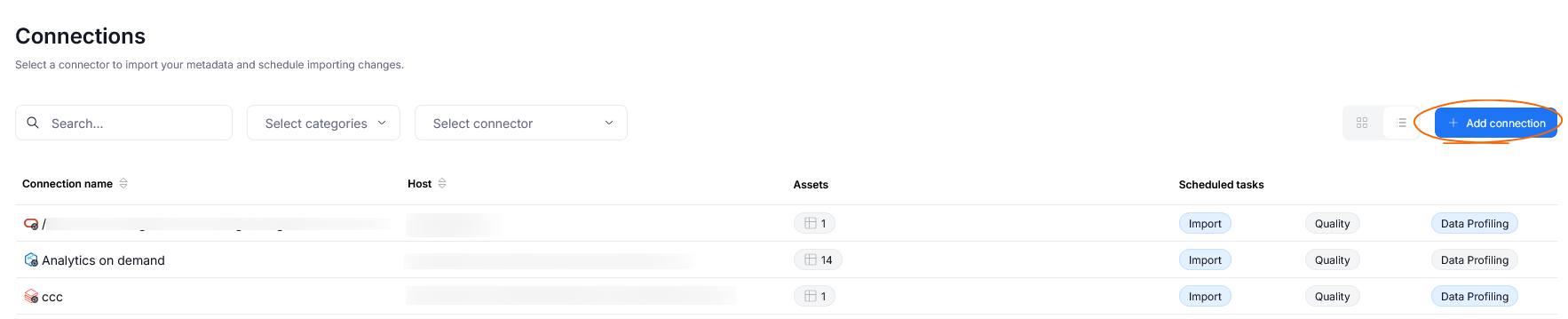
To start the Metadata Import flow, make sure you have the Connection Manager role. Go to Connections and click Add connection, then pick Qlik Sense SaaS from the connector list to open the import wizard described in the following steps.
Step 1. Host details
Provide the name of the Connection, an optional description, and the Host - the URL of your Qlik Sense tenant, for example https://company.eu.qlikcloud.com. Each connection reads one tenant, so there is no separate step for picking data sources.
A Connection in Dataedo represents a saved configuration for accessing a data source.
It can be reused for future imports and scheduling.
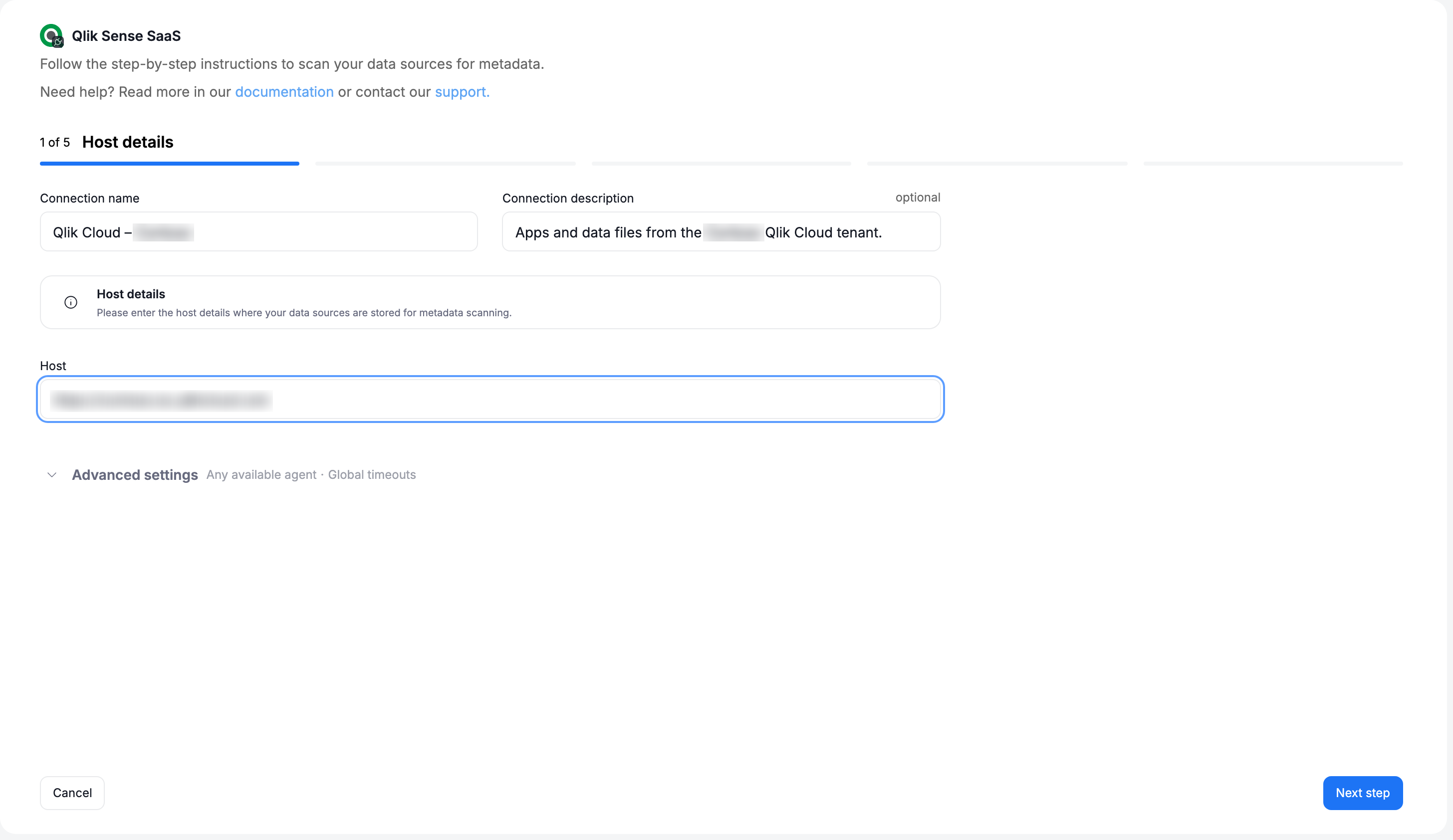
Advanced settings is optional — you can leave it collapsed and the connection will run on any available agent with the global timeouts. Expand it if you want to restrict the connection to a specific agent or override the task timeouts.
Step 2. Credentials
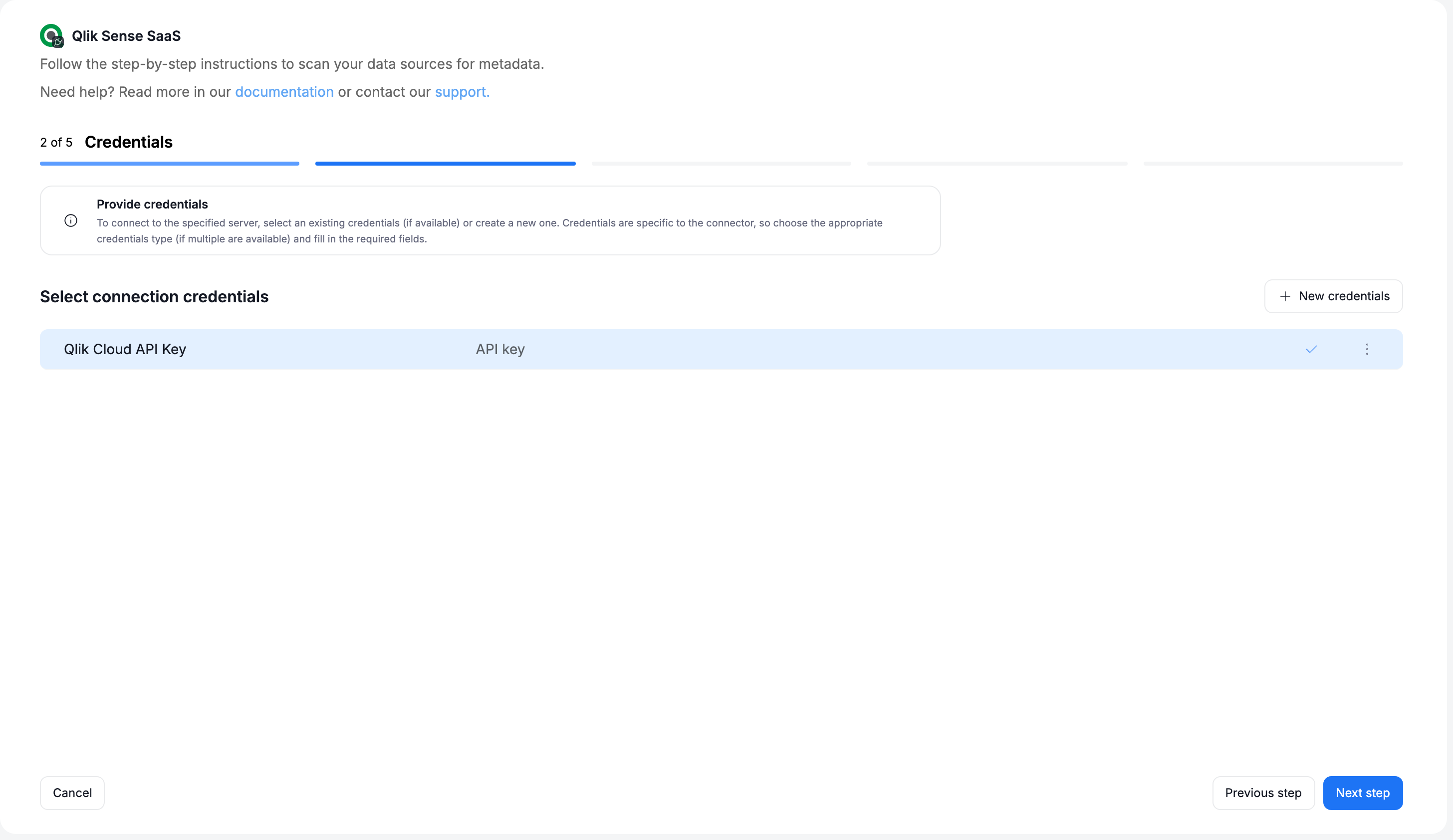
Choose credentials from the list of existing ones available for the selected connector, or add new credentials. Qlik Sense SaaS uses an API key - see Prerequisites.
Step 3. Objects to import
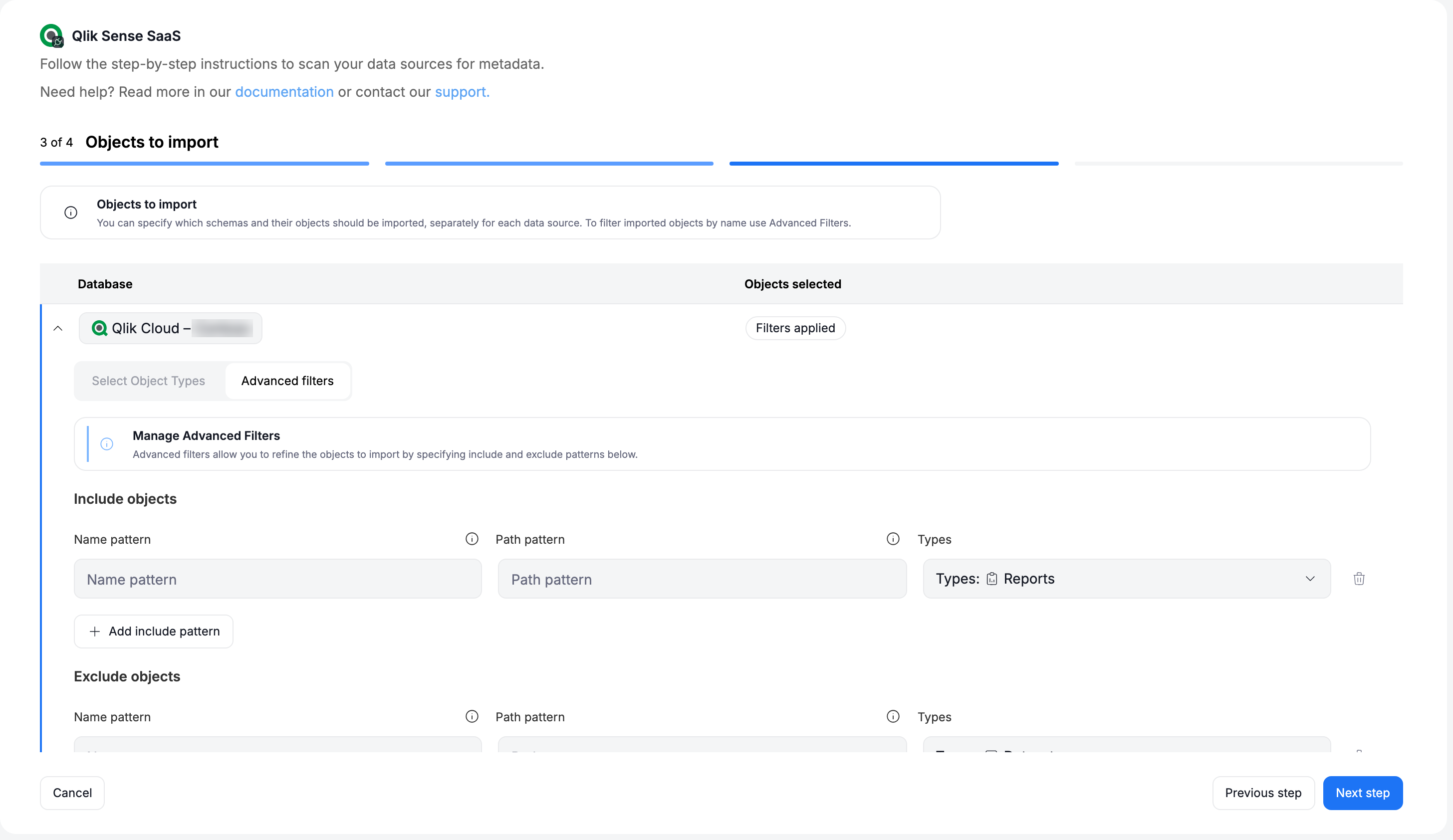
Choose which object types to import: Reports (analytics apps) and Datasets (from the Qlik Sense catalog). Portal does not count the objects up front, so both show Unknown count.
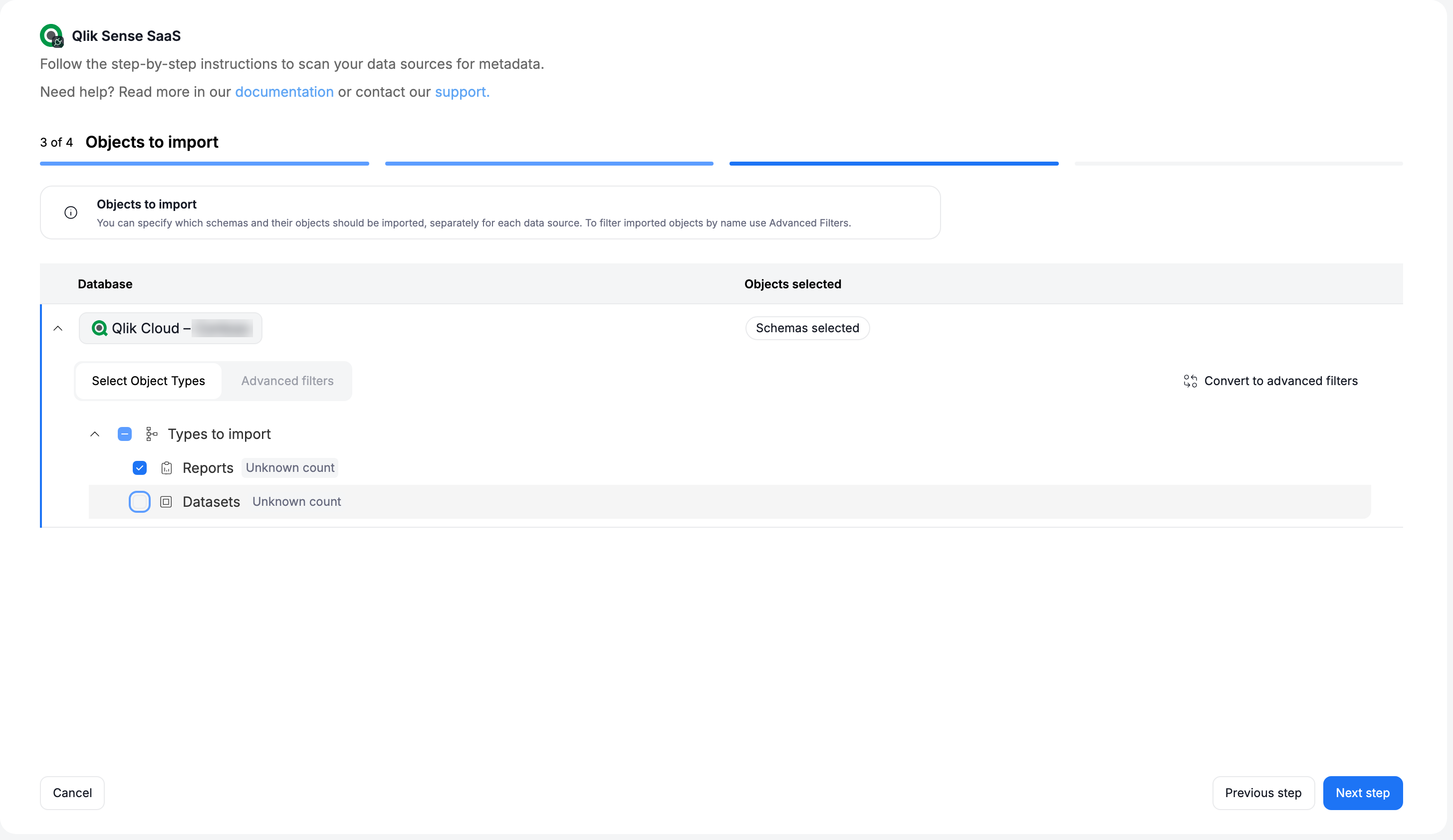
Use Advanced filters to include or exclude objects by name pattern, path pattern, and object type.
Step 4. Schedule
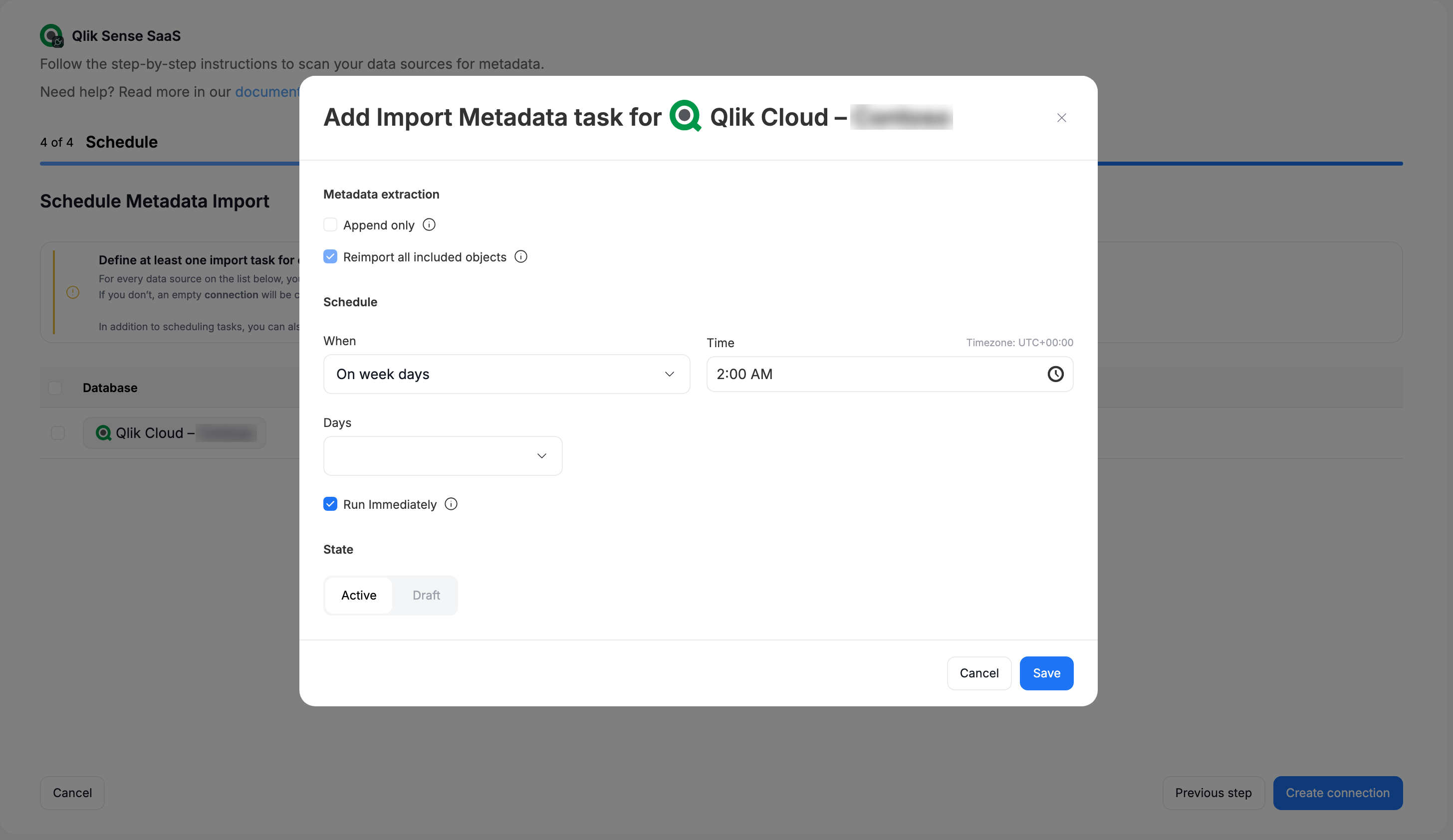
Configure the Metadata Import task for the tenant:
- choose the metadata extraction options (
Append only,Reimport all included objects) - run daily, on selected weekdays, or on specific days of the month
- choose an exact time of execution
- Task state:
Active- the task will run as scheduledDraft- the task is saved but not executed until you switch it to Active
- Run Immediately - when checked, the task will also be executed right after you click
Create connection
Once saved, the task appears next to the tenant in the schedule list.
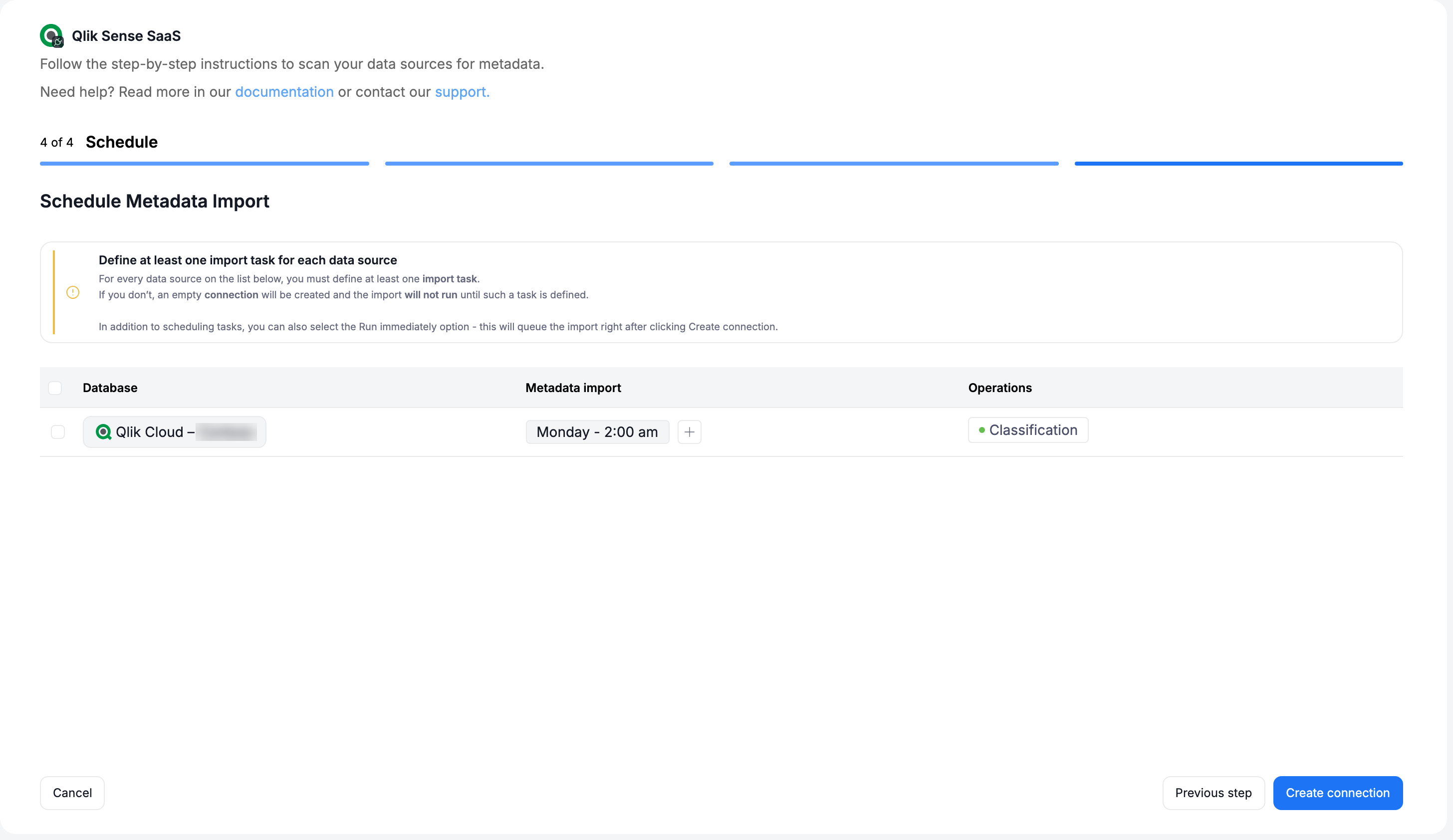
You must configure at least one import task for the data source.
If you skip this, an empty database will be created and no metadata will be imported.
Importing Metadata in Dataedo Desktop
To connect to a Qlik Sense SaaS instance, click the Add button in the upper left corner and choose New connection.
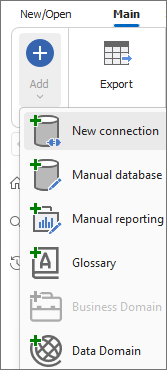
From the sources, choose Qlik Sense SaaS.

Now data necessary to establish a connection between Dataedo and the Qlik Sense Cloud must be provided.
There are two fields required to be completed:
- Host - hostname of Qlik Sense tenant, for example, https://cloudtenant.eu.qlikcloud.com.
- Api key - the unique identifier used for authentication of a user (see Required access level)

After clicking Connect, Dataedo will start retrieving a list of database objects. When it finishes, it will display a window to choose objects to import. Checking the Advanced settings checkbox allows you to define more complex filters.

Click Next to confirm which objects are to be imported. You will then see a window that allows you to change the default name of the documentation, under which it will be visible in the Dataedo repository.

Click Import to start the import process. Wait until the import process is complete.

Close the import window using the Finish button. Qlik Sense objects have been imported to new documentation in the repository.

Connector specification
Imported metadata
| Imported | Editable | |
|---|---|---|
| Analytics apps -> Reports | ||
| Last updated date | ||
| Sheets | ||
| Visualizations | ||
| Visualizations titles | ||
| Dimensions | ||
| Measures | ||
| Measures computed formulas | ||
| Apps tables -> Dataset Tables | ||
| Columns | ||
| Data types | ||
| Nullability | ||
| Column comments | ||
| Associations -> Relations | ||
| Datasets -> Datasets | ||
| Last updated date | ||
| Connections -> Linked Sources | ||
| Connection details | ||
| SQL dialect (if applicable) | ||
| Source database (if documented) |
Supported features
| Feature | Supported |
|---|---|
| Data profiling | |
| Data classification | |
| Data lineage | |
| Reference data (import lookups) | |
| Importing from DDL | |
| Generating DDL | |
| FK relationship tester |
Data Lineage
| Destination | Source | Column level |
|---|---|---|
| Analytic app | App tables | |
| App table | Dataset or Source table |
To learn more about Data Lineage in Qlik Sense visit Qlik Sense SaaS - Automatic data lineage
Known issues and limitations
- Column-level lineage is now available only between apps and apps tables.
- Sheets of applications are imported only if they are made public.
- If some objects are missing, check if you have access to them from your Qlik Sense account.
- Some visualizations titles may not be imported.
- To check Data Lineage limitations visit: Qlik Sense Data Lineage limitations

