Documenting and cataloging Power BI
Not supported: Data Quality, Data Profiling, Foreign Key Testing, Reference Data, Metadata Sync, Execution Flows
Catalog and documentation
Dataedo imports reports, datasets, dashboards, and dataflows available in a selected workspace, including Microsoft Fabric Dataflow Gen2.
Power BI Reports
Overview
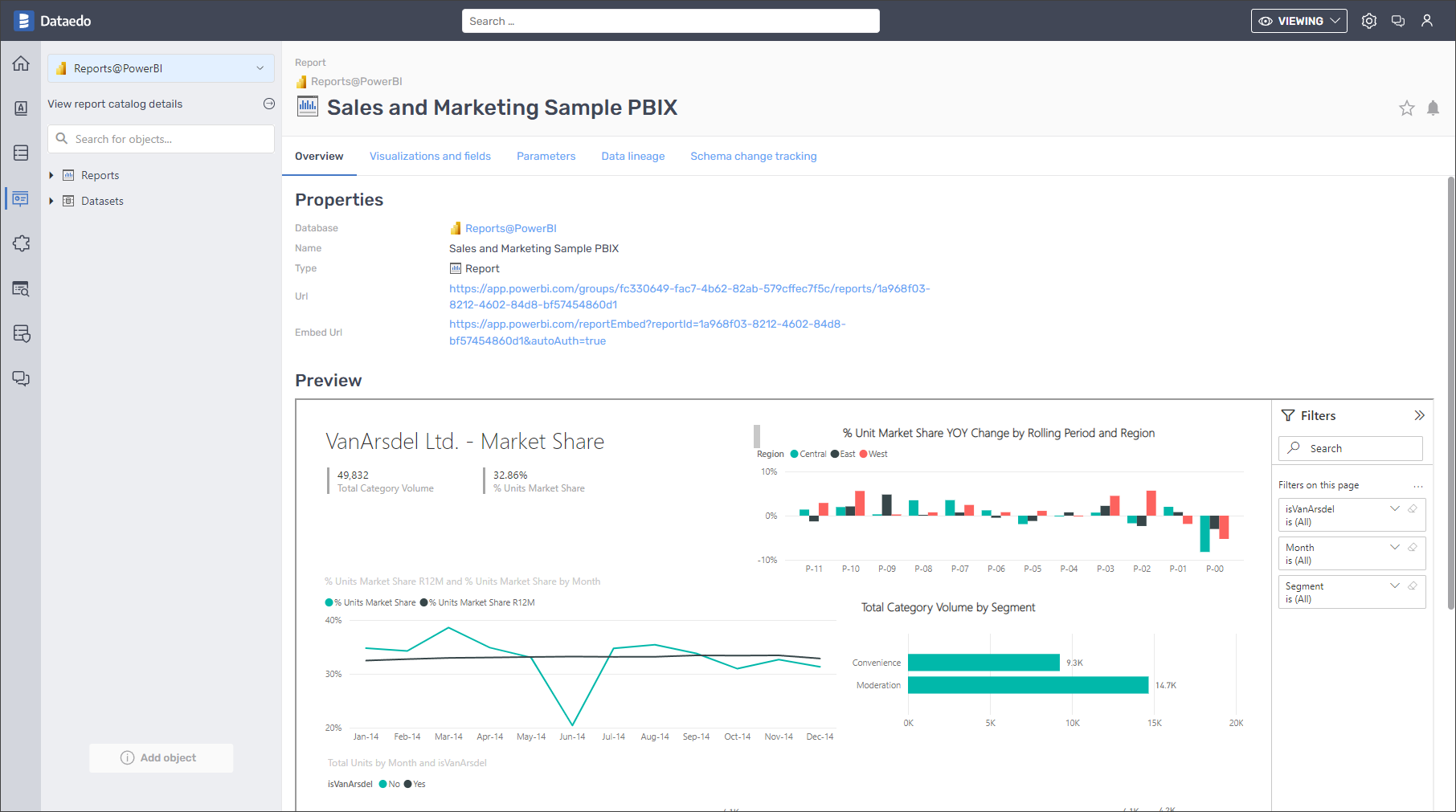
On the overview page, you will see basic information about the report such as report URL, name, and embed URL which you can use to embed the report. You will also be able to peek at the documented report in a live embed view from Power BI Service.
Visualizations and fields
During the import process, Dataedo will document the following report's elements:
- Pages
- Visuals
- Visuals fields
In the following sample report, which was created and is the property of obviEnce, you can see a few pages, while the currently active one is Market Share. I also highlighted a visual with the generated title - % Unit Market Share YOY Change by Rolling Period and Region. It uses three fields Rolling Period, % Unit Market Share YOY Change, and Region.
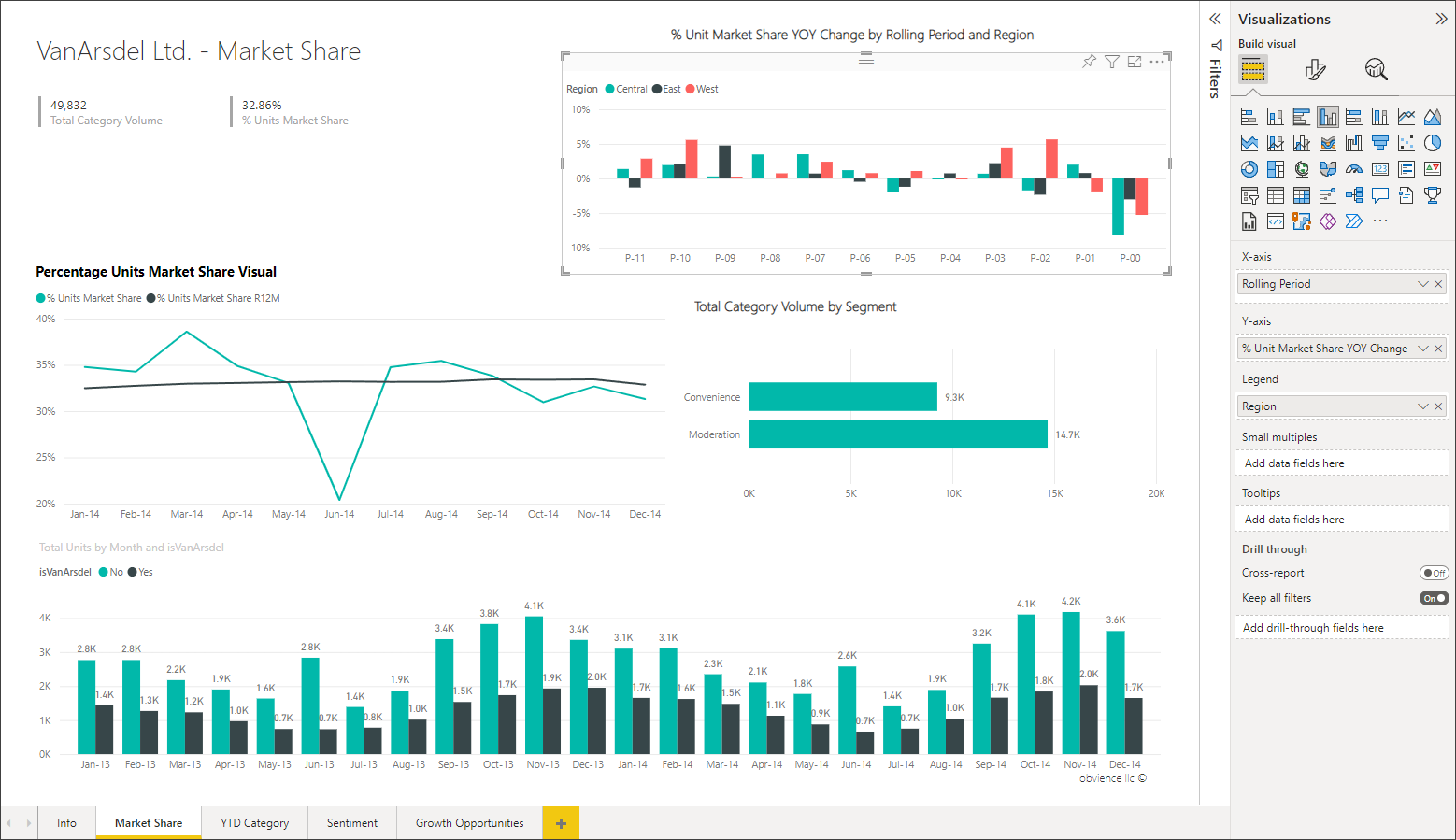
That report will be documented by Dataedo in the following way:
- Market Share page - field no. 2 with data type Page
- % Unit Market Share YOY Change by Rolling Period and Region - the field no. 7 under Market Share Page.
- Used fields - all fields under visual.

Field types
| Data type | The field is |
|---|---|
Column | a model column used as it is |
Measure | a measure from the semantic model |
Aggregation (<function>) | a model column aggregated in the visual, for example Aggregation (Sum), Aggregation (Average), Aggregation (Count (Distinct)) or Aggregation (Median) |
Hierarchy level (<hierarchy>) | a level of a hierarchy, for example a year of a date hierarchy |
Arithmetic | an arithmetic expression calculated in the visual |
Group | a group defined in the report |
The function in brackets is the one selected for the field in the visual, for example Sum or Average. Power BI saves First and Last on a text field as minimum and maximum, so Dataedo shows them as Aggregation (Min) and Aggregation (Max).
Before version 26.4, every report field had the data type Field. The first import after the upgrade records the new data type of each report field once in schema change tracking. Descriptions and lineage of the fields don't change.
Paginated Reports
Overview
In Dataedo, you have the capability to document a special type of report - paginated reports. This report type is also known from other Microsoft systems, such as SSRS.
On the overview page, you will see basic information about the paginated report such as report URL, name, and embed URL which you can use to embed the report.

Visualizations and fields
For paginated reports, we retrieve the report content, its fields, and visualization elements.

Datasets, Paginated Reports Datasets, and Dataflows
In Dataedo, the system documents objects from Power BI like the Semantic Model (formerly known as Dataset), Dataset from a Paginated Report, and Dataflow. Dataflows Gen1 are documented as Datasets. Microsoft Fabric Dataflows Gen2 are documented as Dataflows, see Dataflow Gen2.
In cases where the Dataset (Semantic Model) is created using a Live connection (e.g., for an Analysis Services data source), to create a detailed import with columns and lineage, Dataedo will require a previously documented source database.
Overview
The overview tab contains basic information regarding the dataset.

Dataset Tables
Starting with version 24.2, Dataedo will import tables from datasets as separate objects named Dataset Tables. The name of each table will include a prefix that consists of the Dataset name.

Columns
Dataedo will document all tables, columns, and measures in a dataset in the hierarchical form:

Scripts
In the case of Paginated Reports where the datasets are created from an SQL script, this script is recorded in the documentation.

Calculated fields of paginated report datasets are documented with their expression as the formula.
Dataflow Gen2
Dataedo imports Microsoft Fabric Dataflow Gen2 with its tables, columns, Power Query (M) scripts, and lineage. Lineage shows the whole path of the data: from the source database, through the dataflow, into semantic models and reports, and into the Lakehouse or Warehouse tables the dataflow writes to. See Lineage in Dataflow Gen2.
Importing Dataflow Gen2 requires Service Principal authentication. It also requires the tenant setting Service principals can call Fabric public APIs and a workspace role for the service principal. Power BI admin permissions and Premium capacity are not required. See Setting up authentication for Power BI.
How Gen2 dataflows are documented:
- Dataflow - each Gen2 dataflow is documented as an object of type Dataflow, in the folder of its workspace.
- Dataflow tables - each query that is visible and loaded becomes a dataflow table named
<dataflow>.<query>. Hidden queries are skipped. - Script - the Script tab of a dataflow table shows the Power Query (M) code of its query.
- Columns - if the query reads a table documented in Dataedo, Dataedo starts from the columns of that table and applies the query's steps, so the columns are the same as in Power BI. A column passed through unchanged keeps the nullability and identity of the source column.
- Dataflows Gen1 are still documented as Datasets, so the existing documentation of Gen1 dataflows is kept.
To include or exclude Gen2 dataflows with Advanced filters, set rules for the Dataflow object type. Rules for Gen1 dataflows are still set for the Dataset object type.
If Dataedo can't read the definition of a Gen2 dataflow, the dataflow is imported without its tables. See Troubleshooting.
Folders
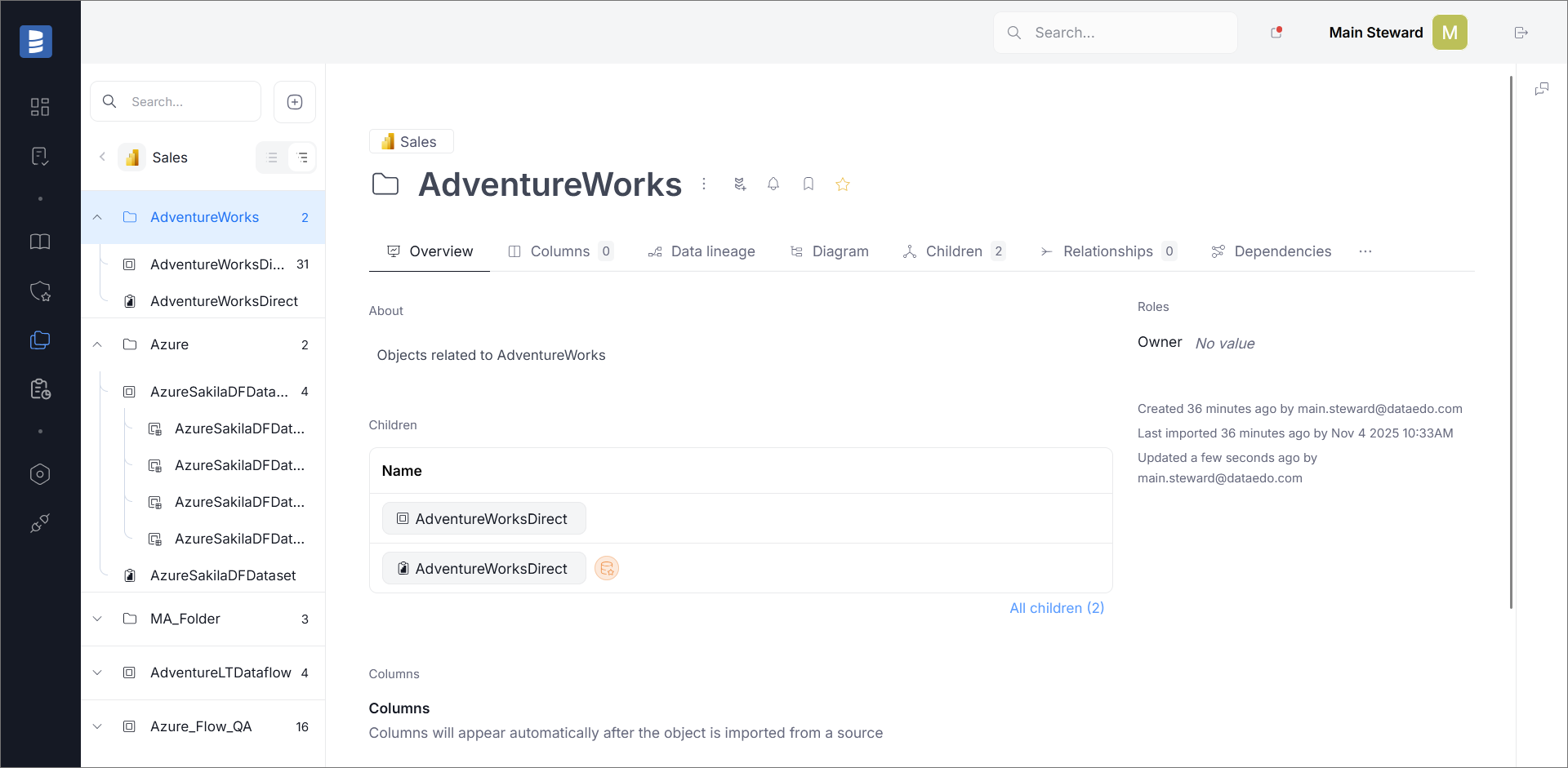
Folders that allows to organize PowerBI objects inside workspaces are documented along with information about their included objects. This allows to browse objects just as they are stored inside PowerBi:
Reports Usage
Importing usage may slow down the import because of extensive use of API to fetch data. We recommend using this option while importing changes to already existing documentation.
Starting with version 24.3, Dataedo will import information about the usage of Power BI reports and dashboards. It can be used to answer questions concerning the number of views and viewers of workspace reports. You can find imported data in Dataedo Portal in the Reports Usage dashboard:
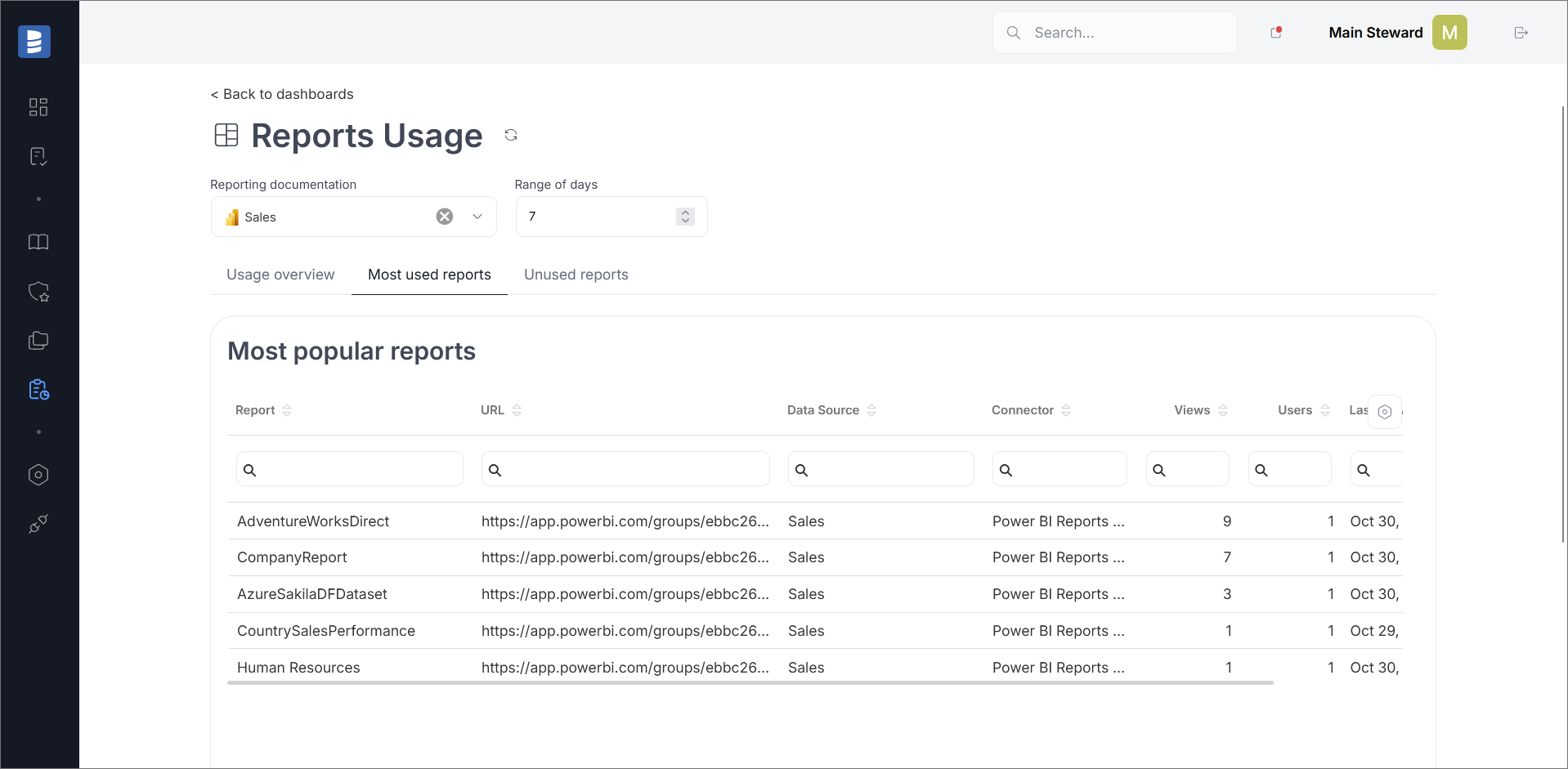
To narrow down the scope to particular report or dashboard go to Report Usage tab of object of interests:
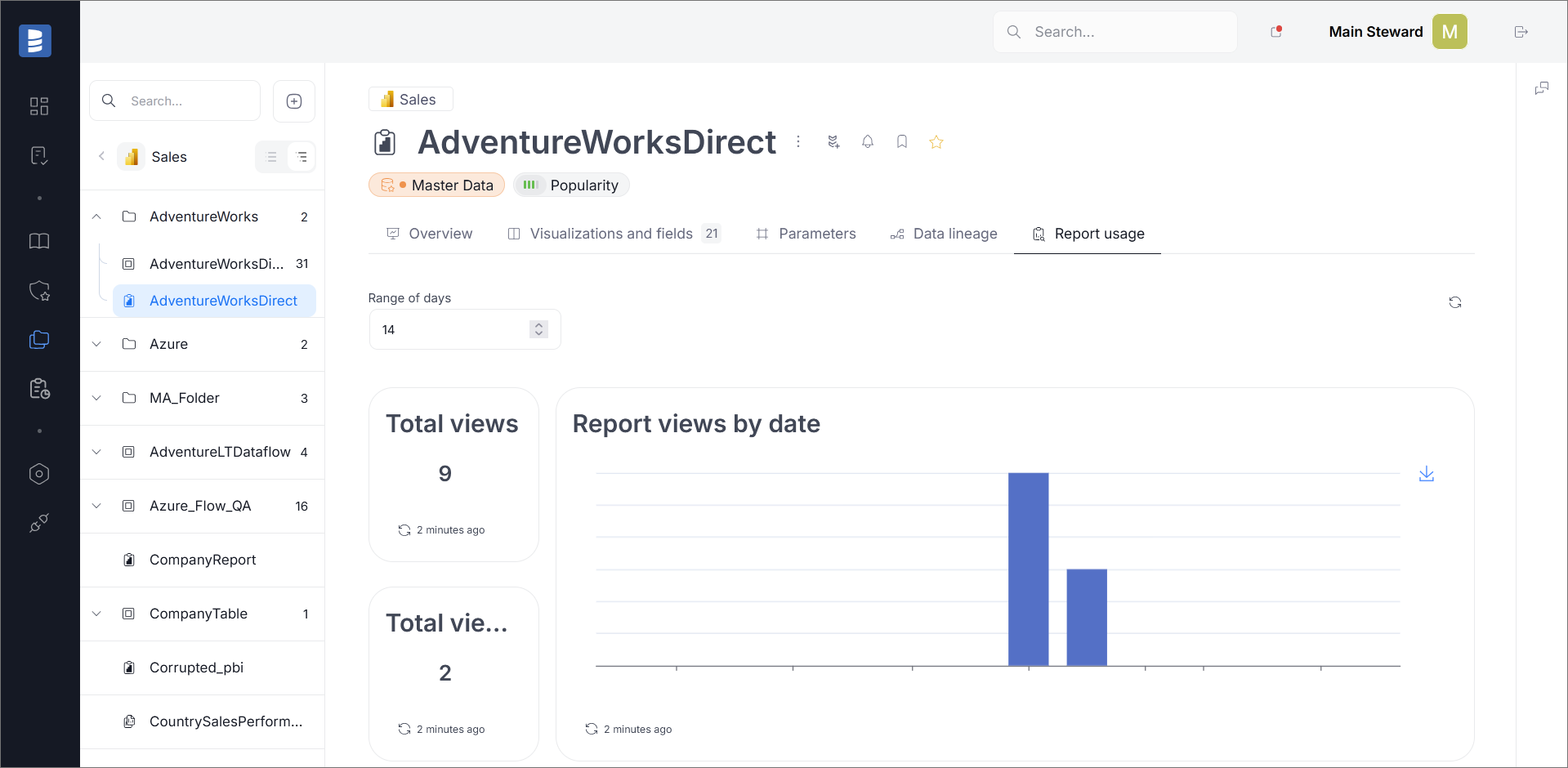
You can use report usage data to:
- identify the most-used reports and dashboards,
- detect unused or duplicate content for cleanup,
- prioritize documentation and governance work based on actual adoption.
Requirements and notes
- Importing reports usage requires additional permissions and Power BI Admin API settings. See Setting up authentication for Power BI and make sure the required permissions are configured.
- In Dataedo Desktop, usage import is controlled by the Import reports usage option in connection details.
- If usage data is missing or incomplete, verify authentication/permissions first and then confirm that usage import is enabled for the import.
Power BI Data Lineage
Dataedo will identify and create data lineage from Dataset Table to Report always, for any mode of the dataset (Import, Direct Query, Live connection). Lineage from Datasources to Dataset Table will be created if the Datasource was documented in Dataedo. The documentation has to reside in the same repository as the Power BI Documentation.
Dataedo establishes lineage even when data originates from multiple sources by identifying the source of each table in the dataset. This ensures comprehensive Linked Sources matching for datasets with diverse origins, with each table in the dataset individually matched to its source. You can read more about linked sources in this article.
You can find a detailed description of data lineage capabilities in the Power BI documentation in this article.

Currently, Dataedo automatically creates lineage at both the object and column levels for the most popular data sources:
- SQL Server → Power BI
- Microsoft Fabric Data Lakehouse → Power BI
- Microsoft Fabric Data Warehouse → Power BI
- PostgreSQL → Power BI
- MySQL → Power BI
- Oracle → Power BI
- SQL Server Analysis Services Tabular → Power BI
- SQL Server Analysis Services Multidimensional → Power BI
- Snowflake → Power BI
- Databricks Unity Catalog → Power BI
- File (csv, xlsx) → Power BI
- SQL Server → Power BI Paginated Report
- Microsoft Fabric Dataflow Gen2 → Power BI
- Microsoft Fabric Lakehouse / Warehouse (data destination)
Dataedo creates lineage based on reading the DAX script, which allows it to accurately map relationships between data sources, even when column or table names differ from the source. By analyzing the DAX script, Dataedo also generates lineage for measures, ensuring precise tracking of data transformations.
Dataedo creates a lineage when a Dataset is created by a SQL query. We use an advanced SQL Parser for this. More about our Parser here.

Additionally, Dataedo supports lineage for Dataflows. In these cases, Dataedo automatically generates a comprehensive lineage that captures the entire data processing flow, covering every stage from the data source, through Dataflow tables, to dataset tables and reports:
Data Source → Dataflow Table → Dataset Table → Report
For Gen2 dataflows, lineage also continues from a dataflow table to the Lakehouse or Warehouse table the dataflow writes to:
Data Source → Dataflow Gen2 Table → Lakehouse / Warehouse Table
This detailed lineage mapping enables complete understanding and tracking of data transformations and flows at every stage, which is crucial for data management, auditing, and compliance purposes.
Relationships
The program imports relationships from Power BI datasets, providing clear visibility into the structure of your data model. This allows you to easily identify relationships such as many-to-many, one-to-many, and others, ensuring a thorough understanding of how your data is connected.
Relationships are only imported for workspaces with a PowerBI Premium license.

Descriptions, aliases, and custom fields
When technical metadata is imported, users will be able to edit descriptions of each object and element, provide meaningful aliases (titles), and document everything with additional custom fields.
Business Glossary
You can link a Business Glossary term to any Power BI object.
Lookups / Reference data
You will be able to build Lookups for columns in Power BI reports and datasets and feed them with distinct values from a column.
Data Classification
You will be able to run classification on Power BI reports and datasets in the repository in search of columns containing potentially sensitive data. All built-in functions are supported.
Importing changes and schema change tracking
To import changes from Power BI Service and update metadata in Dataedo, simply use the Import changes option. All changes in reports and datasets will be shown under the schema change tracking tab.
Description changes
Changes to descriptions in Dataedo Desktop and Web Catalog are tracked and saved in the repository.
Share in Web Catalog or export to HTML, PDF, or Excel
Documentations can be exported by sharing it in the web catalog or generating HTML, PDF, or Excel.
Setting up authentication
Documenting is supported for both Power BI Pro and Power BI Premium license workspaces.
Authentication setup is described in the dedicated guide: Setting up authentication for Power BI. It includes:
- permissions required in Power BI / Fabric,
- Service Principal setup (recommended),
- Power BI Admin API settings (including settings required for Service Principal),
- Interactive authentication requirements.
After completing that setup:
- use Importing Metadata in Dataedo Portal for Service Principal imports (recommended),
- use Importing Metadata in Dataedo Desktop for Desktop imports (including Interactive authentication).
Importing Metadata in Dataedo Portal vs Dataedo Desktop
We recommend using metadata import in the Portal as the primary method of connecting your data sources.
The Portal offers significant advantages compared to the Desktop application:
- Import multiple sources in a single flow.
- Schedule recurring tasks (metadata import, profiling, and data quality checks).
- Manage connections centrally.
Import through Desktop is still available and allows importing one source at a time.
You can find the instructions at the bottom of this page.
Importing Metadata in Dataedo Portal
This section describes signing in and creating the connection in Dataedo Portal. If you use Service Principal, complete the Microsoft/Fabric configuration first in Setting up authentication for Power BI.
Entry point
To start the Metadata Import flow, make sure you have the Connection Manager role.
Then navigate to:
Connections → Add new connection → Power BI Reports and Datasets
This will open the import wizard described in the following steps.
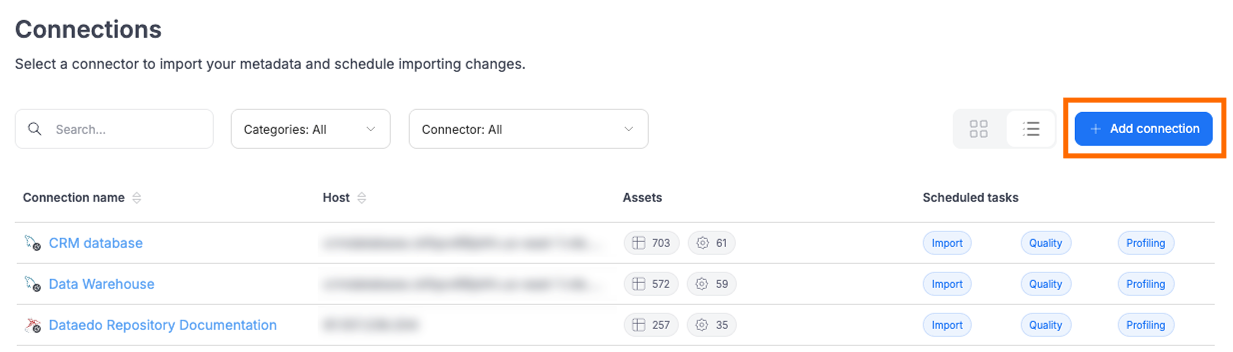
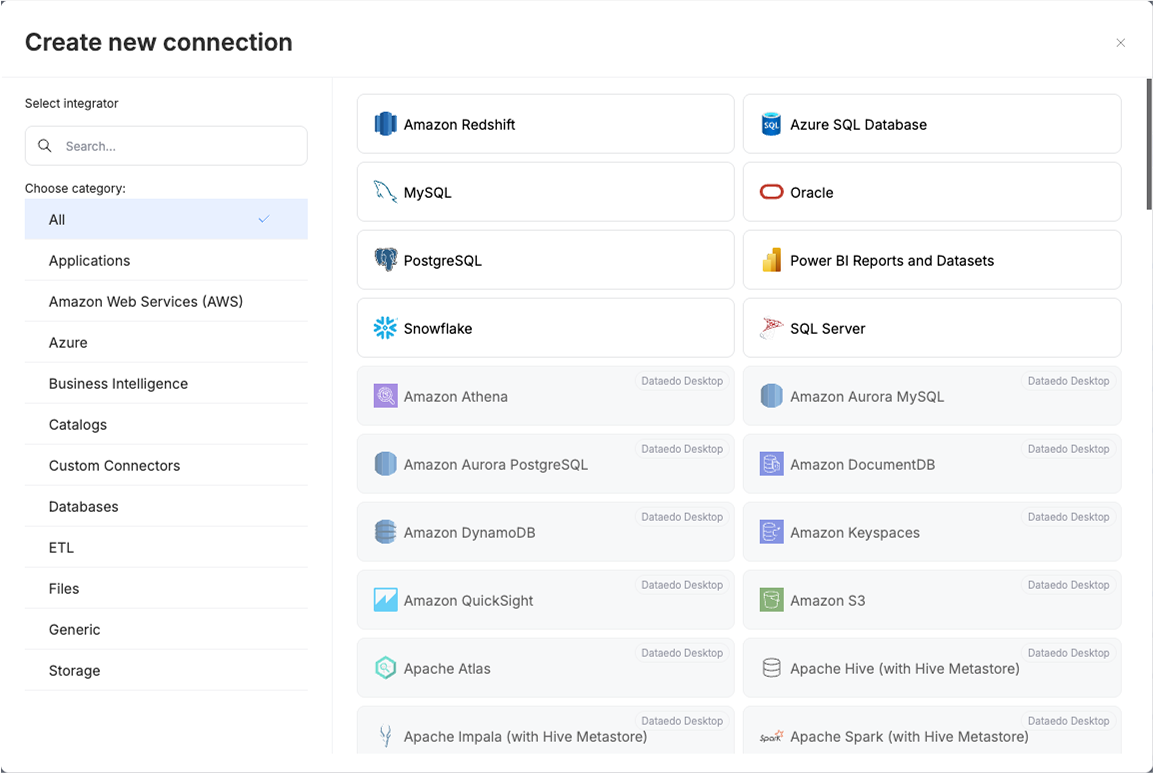
Step 1. Connection details
Provide the name of Connection and an optional description.
A Connection in Dataedo represents a saved configuration for accessing a data source.
It can be reused for future imports and scheduling.
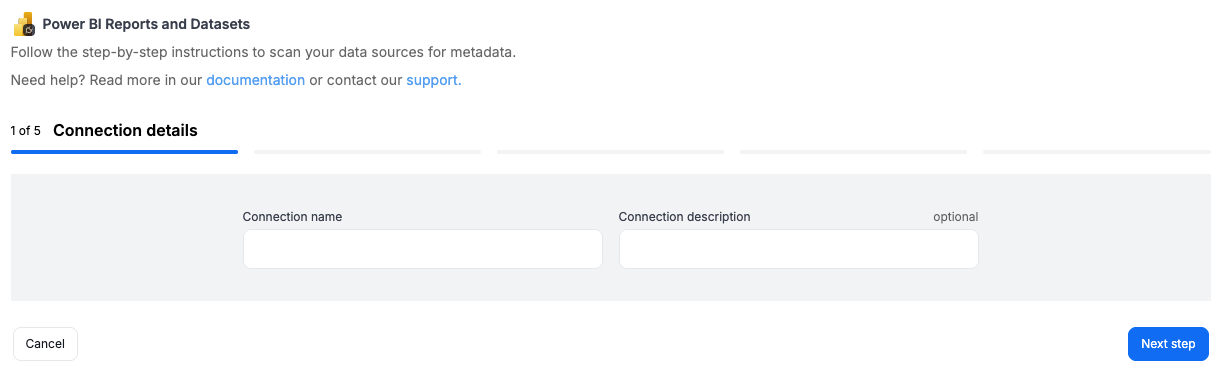
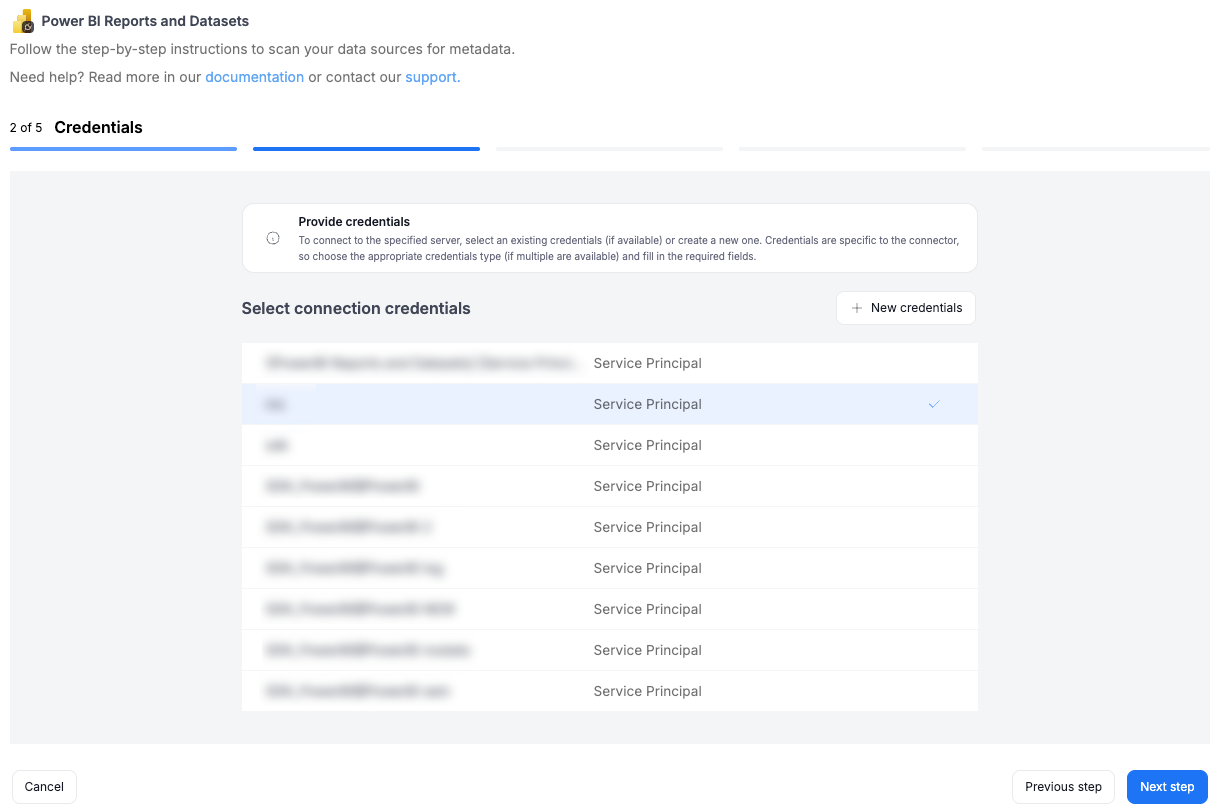
Step 2. Credentials
Choose credentials from the list of existing ones available for the selected connector, or add new credentials.
Step 3. Databases
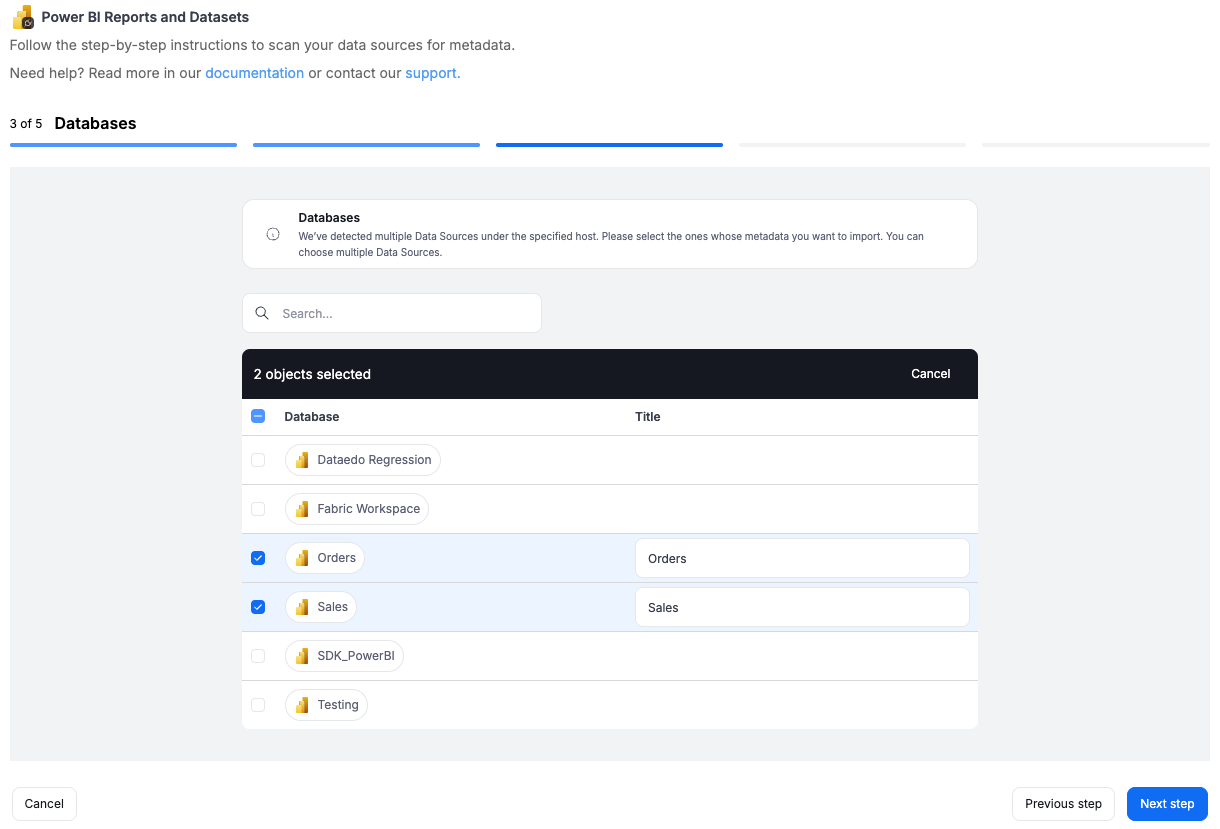
During one import you can read the metadata of up to 20 data sources. You can reuse the same connection to import more sources later.
- The Portal will display all databases accessible with the provided credentials.
- You can select multiple databases at once and use the search box to narrow down results.
- Each selected database should be given a Title, which will be visible in Dataedo.
- At this step, the Portal also retrieves the number of assets in each source.
Step 4. Extended properties (optional)
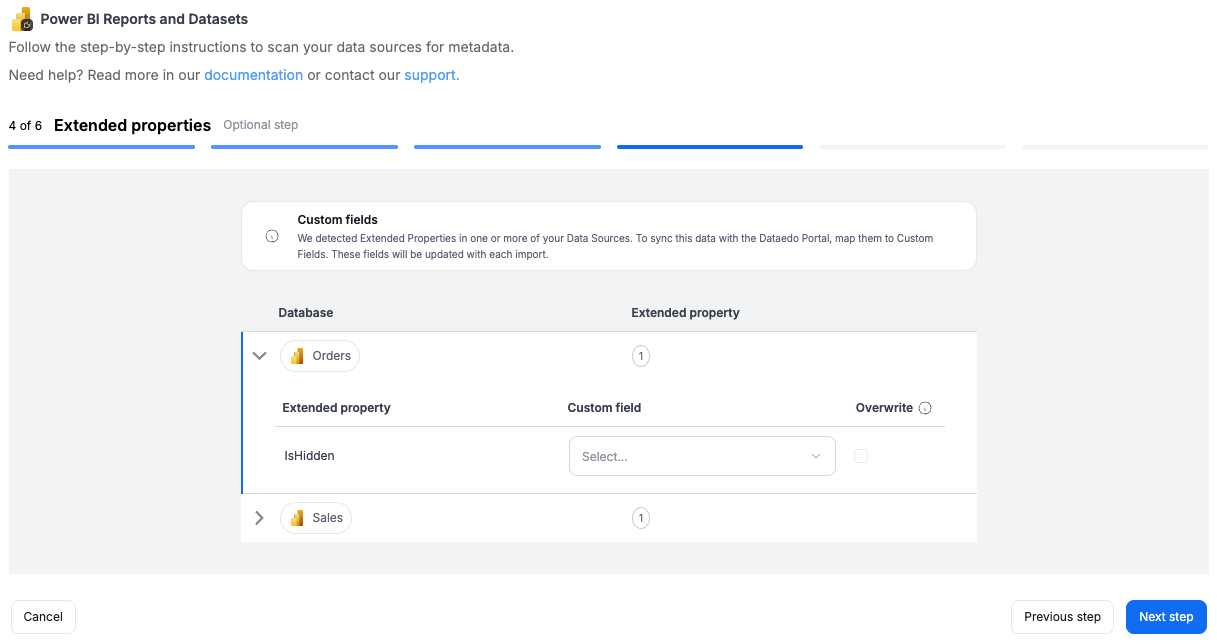
This step appears only if the source exposes Extended Properties.
You can map them to Custom Fields in Dataedo, or skip this step entirely.
If skipped, no extended properties will be imported.
Step 5. Objects to import
For each selected database, you can refine which objects to import:
- Select schemas and object types (tables, views, procedures, etc.).
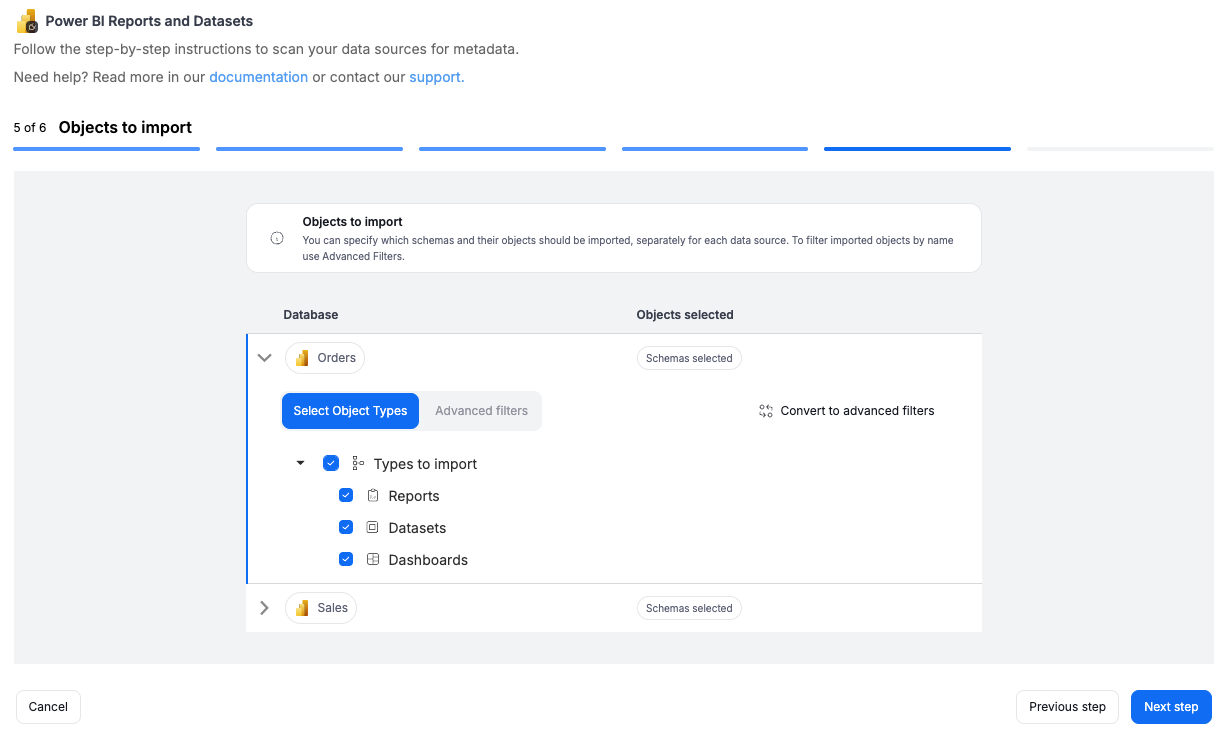
- Use Advanced filters to include or exclude objects with:
- schema patterns
- name patterns
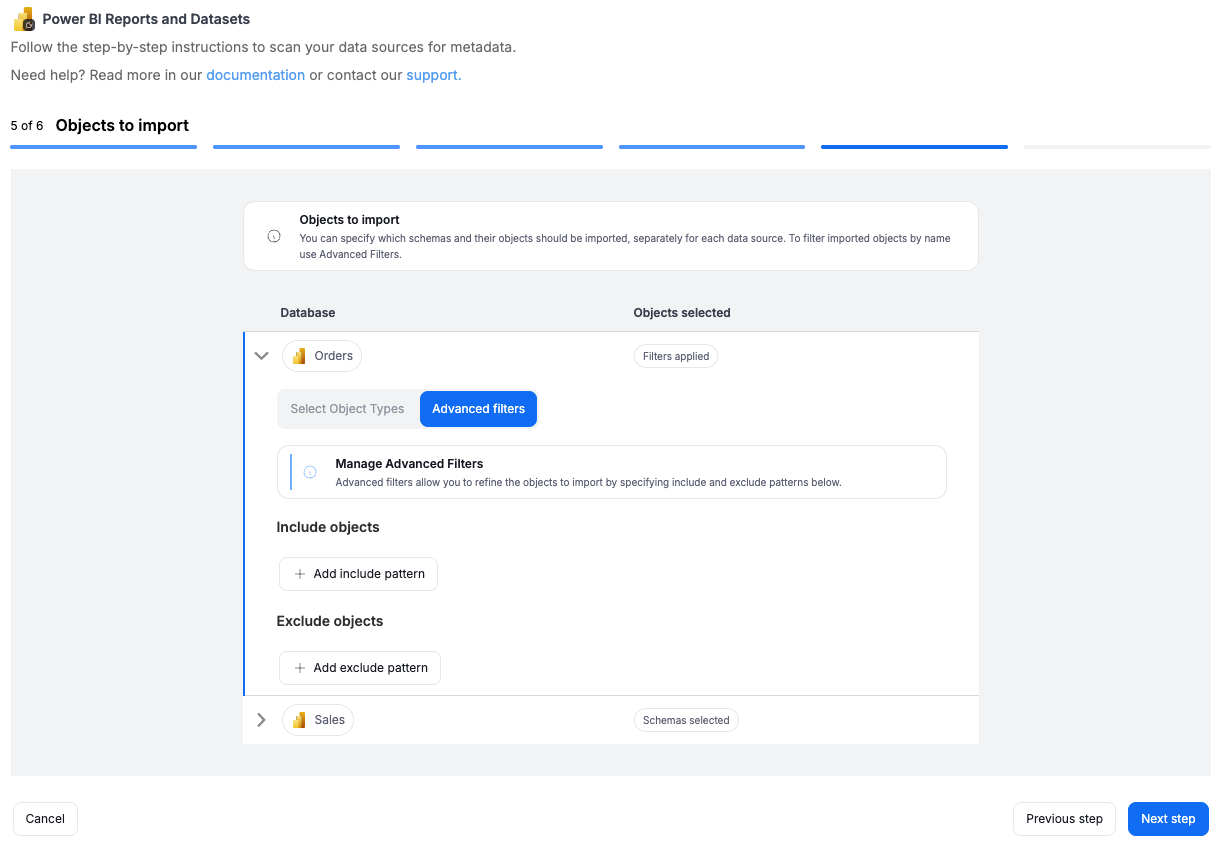
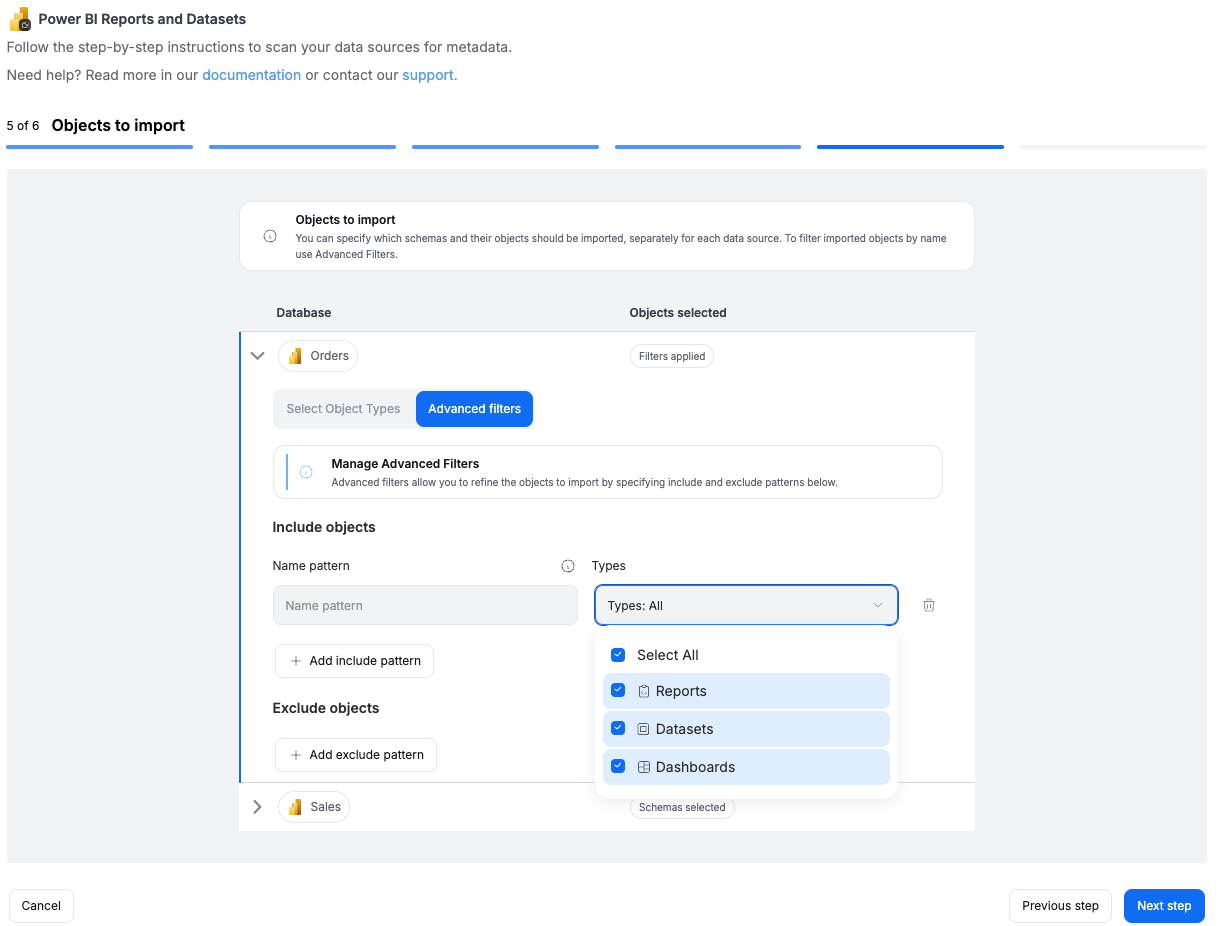
Rules for Gen2 dataflows are set for the Dataflow object type. Rules for Gen1 dataflows are set for the Dataset object type.
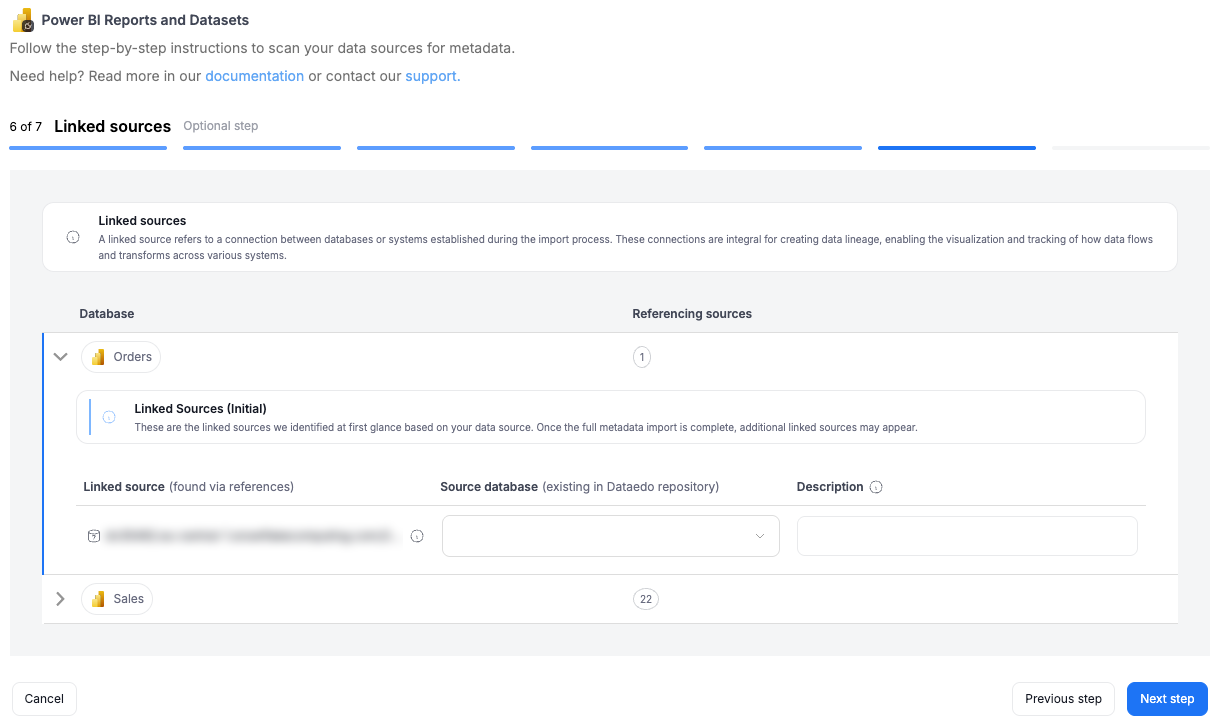
Step 6. Linked sources (optional)
A linked source refers to a connection between databases or systems established during the import process.
They are essential for data lineage, enabling visualization and tracking of how data flows and transforms across systems.
In this step, you can map linked sources to existing Dataedo sources. This mapping can also be updated later in the Connection details.
Step 7. Schedule
By default, Dataedo adds a Metadata Import task for each selected source. It runs every Monday at 3:00 AM and has Run immediately selected, so the first import starts as soon as you click Create connection. You can edit or delete this task, or add more.
Configure scheduling options for each source individually:
- Define tasks you want to schedule (Metadata Import, Data Quality run, Refresh Profiling).
- Run daily, on selected weekdays, or on specific days of the month.
- Choose an exact time of execution.
- Task state:
Active– the task will run as scheduled.Draft– the task is saved but not executed until switched to Active.
- Run immediately – when checked, the task will also be executed right after clicking
Create connection.
For each source, you can select Run immediately for only one Metadata Import task.
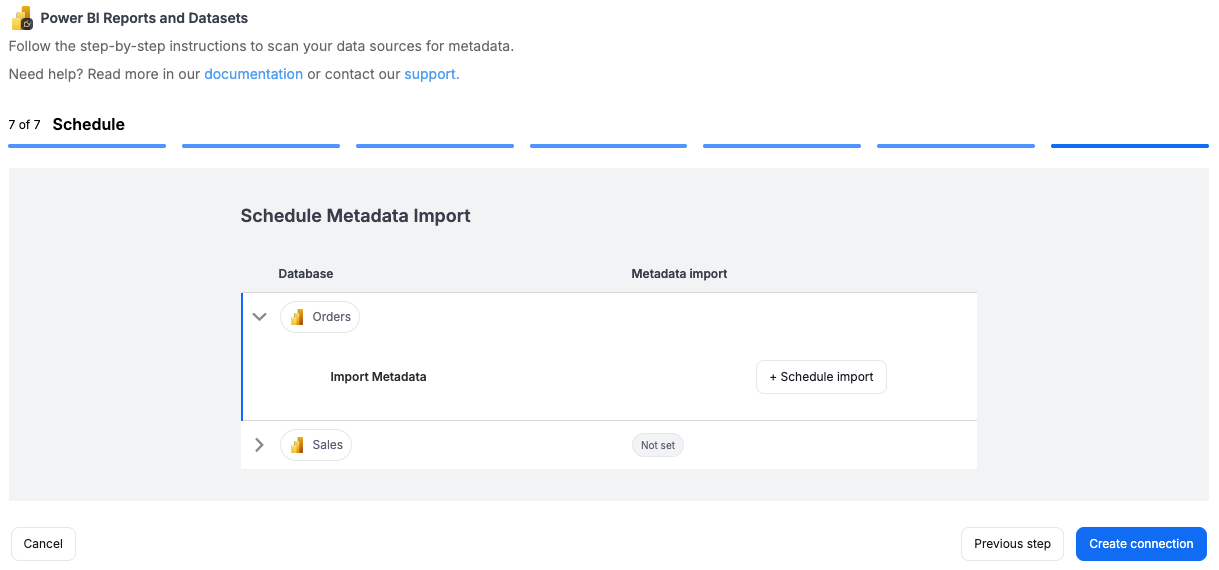
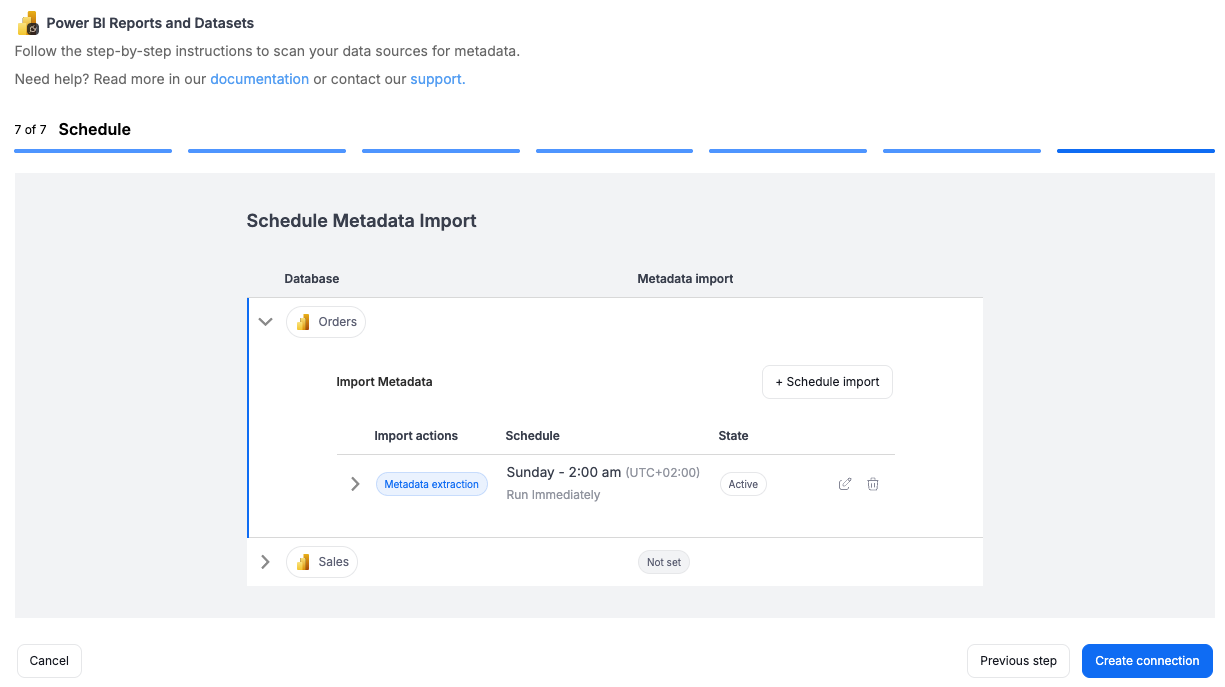
Each source needs at least one import task. If you delete the default one and don't add another, an empty database will be created and no metadata will be imported.
Importing Metadata in Dataedo Desktop
This section describes signing in and importing metadata in Dataedo Desktop. Authentication prerequisites (Service Principal/Interactive configuration in Microsoft/Fabric) are described in Setting up authentication for Power BI.
Metadata import is also possible using Dataedo Desktop.
In this mode, you can only import one source at a time.
To connect to Power BI, select Add source -> New connection. On the connectors list, select Power BI Reports and Datasets.
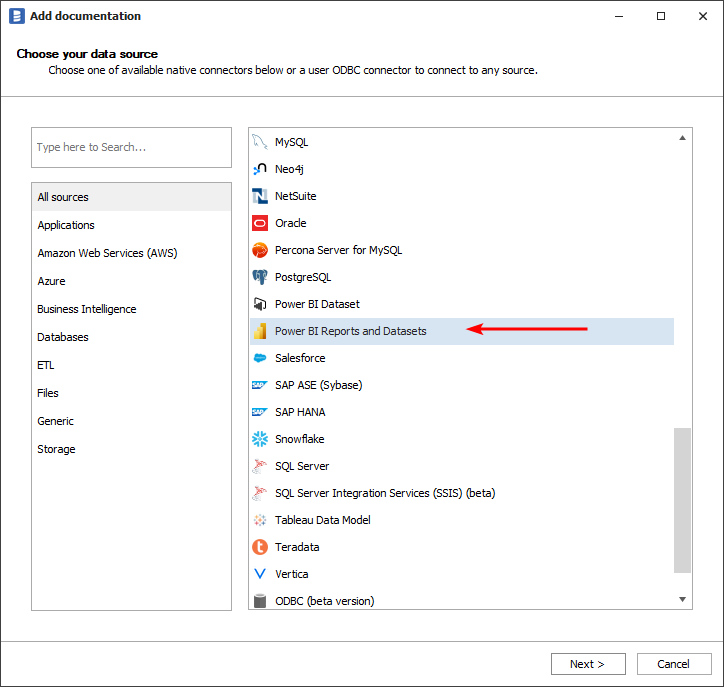
Choose one of the available login methods:
- Service Principal
- Interactive (logging in with a Microsoft account)
(more information about those login methods can be found here)

Connection Details
- Workspaces - you can provide a workspace name by simply typing it or clicking the Sign In button to log in to your Power BI account and list available workspaces.
- Use a nonstandard XMLA (optional) checkbox - check this box if you have any problem with importing your workspace (this is an alternative method of connecting to Power BI), available when your workspace has premium capacity.
- XMLA Endpoint - if you have checked nonstandard XMLA, you will also see this box where you need to place the Endpoint. For instructions on how to get this value, see Connection Requirements.
- Document only report pages - in case of timeouts, you can check this box. Dataedo will document only reports' pages, which should help avoid timeouts during the import process.
- Import reports usage - specify whether you want to import reports usage data. Remember that it requires additional permissions that are described in the Reports Usage paragraph above!
After performing steps according to the chosen login method, click Connect and go through the import process.
Outcome
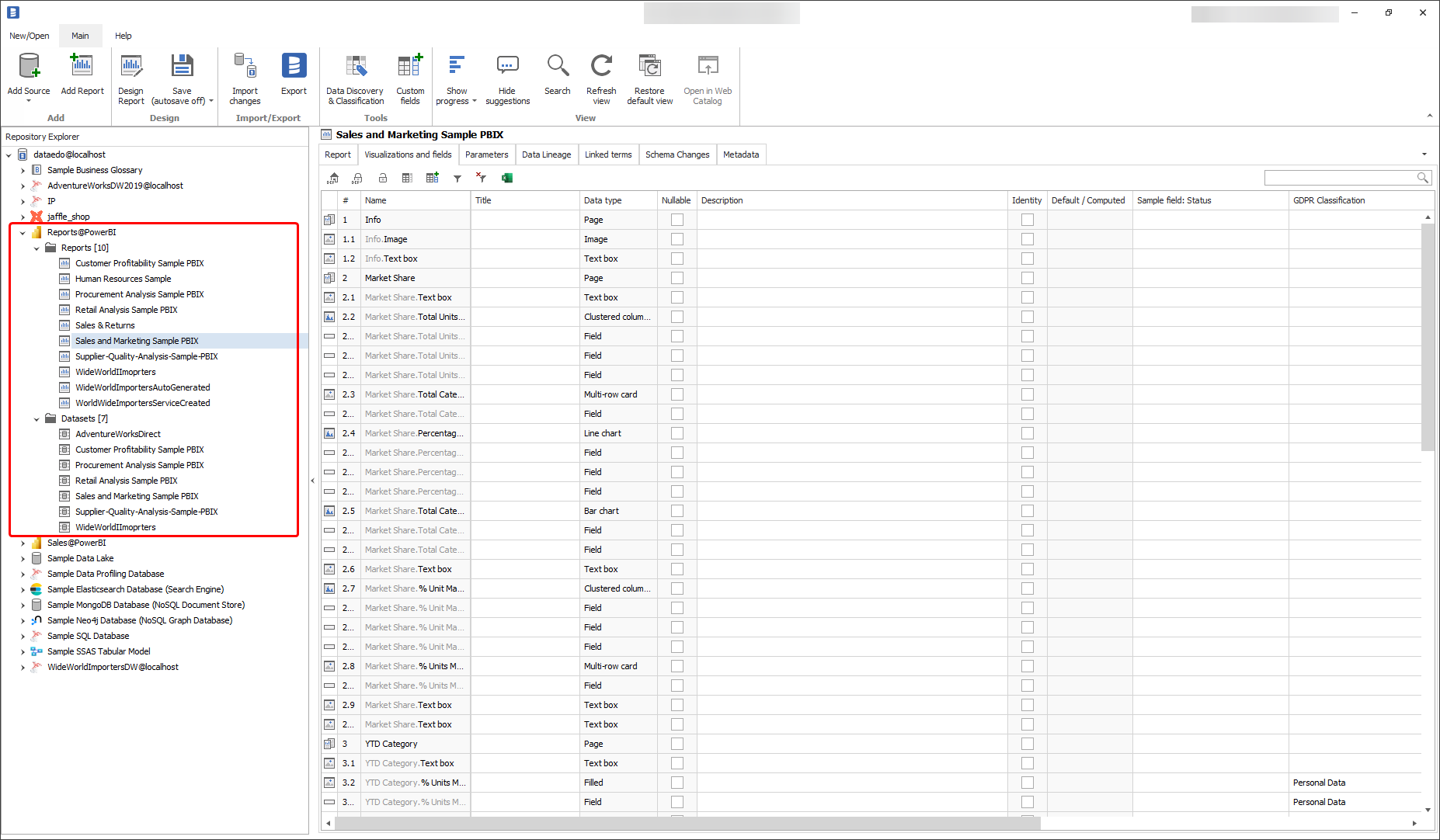
Troubleshooting
Common issues
No workspaces or objects are visible
Usually this means the account used for import does not have access to the target workspace/objects. Verify the prerequisites in Setting up authentication for Power BI, especially workspace/object visibility and role assignments.
Columns are not visible in reports
If report columns/fields are missing, this usually means the access level is too low for the account used for import (for example Viewer). Verify workspace role assignments and use the minimum access level described in Setting up authentication for Power BI.
Import is incomplete (missing metadata, lineage, or usage data)
Common causes:
- missing Power BI Admin API settings in Setting up authentication for Power BI,
- incomplete Additional settings for Service Principal (when using Service Principal),
- missing permissions/scopes (for example
Tenant.Read.Allfor usage statistics), - usage import not enabled in the import configuration.
Portal connection created an empty database
In the Portal schedule step, at least one import task must be configured. If no import task is added, the connection can be created but metadata will not be imported.
Import is slow or times out
Typical causes are broad import scope and usage import enabled during the first full import. To reduce load:
- import a smaller scope first (fewer workspaces/objects),
- disable reports usage for the initial import and enable it later for import changes,
Lineage from data sources to Power BI datasets is missing
Dataedo creates lineage from Power BI dataset tables to reports, but upstream lineage depends on linked source matching. Make sure the source systems are documented in the same repository and verify linked source mapping during import (Portal step Linked sources).
A Dataflow Gen2 is imported without tables
Dataedo couldn't read the definition of the dataflow. The import lists the dataflow with the reason returned by Power BI (for example HTTP 401). Check that:
- the tenant setting Service principals can call Fabric public APIs is enabled for the security group of the service principal,
- the service principal has at least the Contributor role in the workspace. The Viewer role is not enough to read item definitions.
See Setting up authentication for Power BI.
The import says that tables were kept from an earlier import
Dataedo reads the schema of a semantic model from its definition in Fabric and, if that fails, from the admin scan. If neither can be read (for example because of missing permissions, a timeout, or a Direct Lake model on a capacity that doesn't support exporting its definition), Dataedo keeps the tables, columns, measures, descriptions, and lineage of the model as the last successful import left them, instead of marking them as deleted. The import log names the model and says that its tables were kept. The same applies to Gen1 and Gen2 dataflows whose definition can't be read.
Fix the access to the model and run the import again. If the model was never imported before, it is imported without tables.
The import summary reports Power BI queries
If Dataedo can't follow a Power Query (M) query of a dataflow or semantic model, the import summary shows a message about it, ending with:
- ... use a connector Dataedo does not support yet: <function> - the query reads data with a connector that Dataedo doesn't support.
- ... are not linked to any database in this repository - Dataedo couldn't read the server or database from the query, or couldn't resolve the Microsoft Fabric item (Lakehouse, Warehouse) it reads, for example because the import account has no access to its workspace.
- ... were not built into data lineage because the script could not be parsed - the query, or a part of it, couldn't be read.
- ... have incomplete data lineage - the query uses a step that Dataedo can't trace yet (for example
Table.AddFuzzyClusterColumn) or has too many steps.
Tables named in these messages may have incomplete columns or lineage. See Known Limitations of Power BI lineage.
Diagnostics checklist
- Confirm you are using the intended path: Service Principal + Portal (recommended) or Interactive + Desktop.
- Confirm the target workspace and objects are visible in Power BI for the account/service principal you use.
- If report columns/fields are missing, verify the workspace access level is not too low (for example Viewer) and meets the minimum required role from the authentication guide.
- If using Service Principal, confirm:
- the Azure Application Registration exists,
- the security group exists and includes the application registration,
- the security group has access to the workspace.
- Confirm Enable admin API settings in Microsoft Power BI is completed.
- If using Service Principal, confirm Additional settings for Service Principal are completed.
- If importing reports usage, confirm the required permissions/scopes (including
Tenant.Read.All) and that usage import is enabled. - In the Portal import wizard, confirm at least one import task is configured in Schedule.
- If lineage is incomplete, confirm linked source mapping and that upstream sources are documented in the same repository.
FAQ
Which authentication method should I use?
Use Service Principal in most cases, especially for repeatable imports and Portal-based workflows. Use Interactive mainly for manual imports in Dataedo Desktop. This is a legacy method and we do not recommend it for new setups.
Can I use Interactive authentication in Dataedo Portal?
No. Interactive authentication is not supported in Dataedo Portal. Use Service Principal for Portal imports (recommended).
Can I enable Power BI Admin API settings only for selected groups?
Yes. For settings such as Enhance admin APIs responses with detailed metadata and Enhance admin APIs responses with DAX and mashup expressions, you can choose Entire organization or limit access to specific security groups (see the authentication setup guide).
Why are report usage metrics missing?
Check all of the following:
- required permissions/scopes are configured (including
Tenant.Read.All), - relevant Power BI Admin API settings are enabled,
- Import reports usage is enabled in the import configuration.
Why is lineage incomplete?
Power BI lineage coverage depends on source type and linked source matching. For upstream lineage, make sure the source is documented in the same repository and linked correctly. See Power BI data lineage details.
Specification
Imported metadata
Dataedo reads the following metadata from Power BI Workspace.
| Imported | Editable | |
|---|---|---|
| Power BI Reports and Dashboards | ||
| Visualizations and fields | ||
| Data types | ||
| Descriptions | ||
| URL | ||
| Embed URL | ||
| Description | ||
| Data Lineage | ||
| Paginated Reports | ||
| Visualizations and fields | ||
| Data types | ||
| Descriptions | ||
| URL | ||
| Embed URL | ||
| Description | ||
| Data Lineage | ||
| Datasets and Dataflows | ||
| Columns | ||
| Data types | ||
| Nullability | ||
| Descriptions | ||
| Description | ||
| Data Lineage | ||
| Relationships | ||
| Dataflows Gen2 | ||
| Dataflow tables | ||
| Columns | ||
| Script (Power Query M) | ||
| Description | ||
| Data Lineage | ||
| Folders | ||
| Included objects (children) | ||
| Shared metadata | ||
| Dependencies | ||
| Created time | ||
| Last updated time |

