Import OpenAPI/Swagger documentation
Requirements
A document containing the OpenAPI/Swagger specification for the API is required. The document can be in JSON or YAML format. Dataedo supports the 2.0.X and 3.0.X versions of the specification. The document can be provided using: a link, a file on disk, or by pasting.

Importing Metadata in Dataedo Portal
Entry point
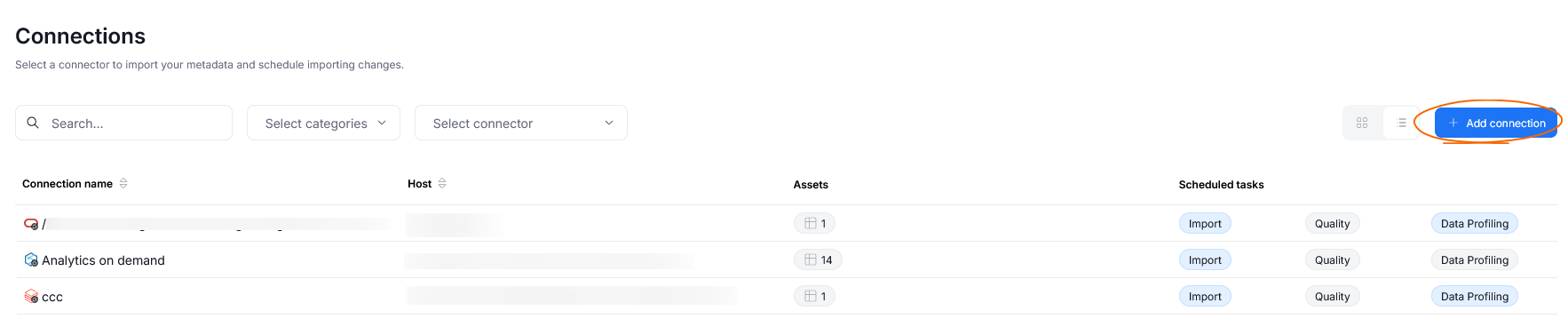
To start the Metadata Import flow, make sure you have the Connection Manager role. Go to Connections and click Add connection, then pick OpenAPI/Swagger from the connector list to open the import wizard described in the following steps.
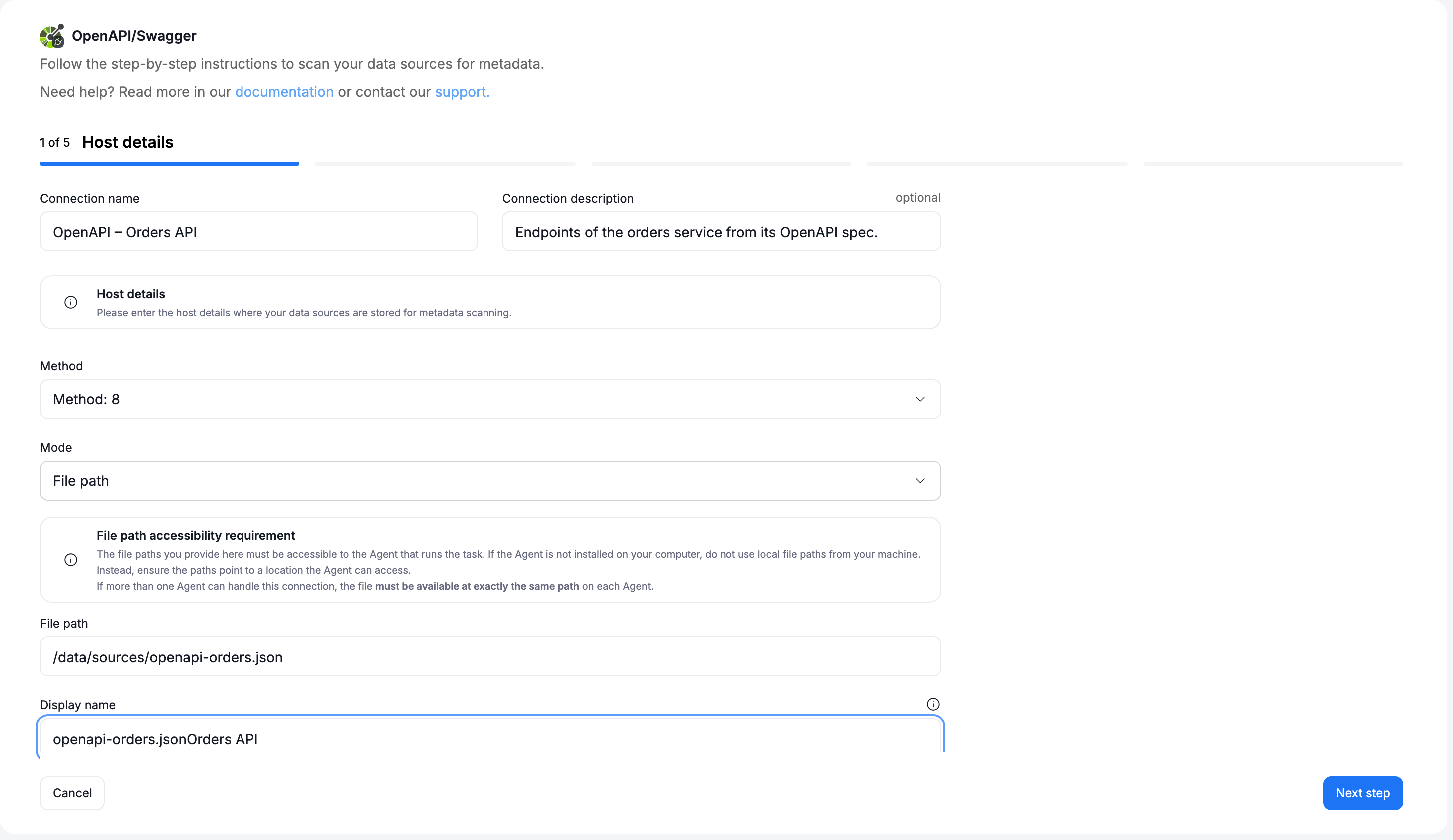
Step 1. Host details
Provide the name of the Connection, an optional description, and tell Dataedo which specification to read and how:
- Method - the HTTP methods to import. All eight are selected by default; clear the ones you do not want documented.
- Mode - how the document is provided:
File path, a URL, or pasted content. - File path - in
File pathmode, the path to theJSONorYAMLspecification, for example/data/sources/openapi-orders.json. - Display name - the Title under which the imported source will be visible in Dataedo.
In File path mode, the path is opened by the Agent that runs the task, not by your browser, so a local path from your own machine will not work unless the Agent runs there. If several Agents can handle this connection, the file must be available at exactly the same path on each of them.
A Connection in Dataedo represents a saved configuration for accessing a data source.
It can be reused for future imports and scheduling.
Advanced settings is optional — you can leave it collapsed and the connection will run on any available agent with the global timeouts. Expand it if you want to restrict the connection to a specific agent or override the task timeouts.
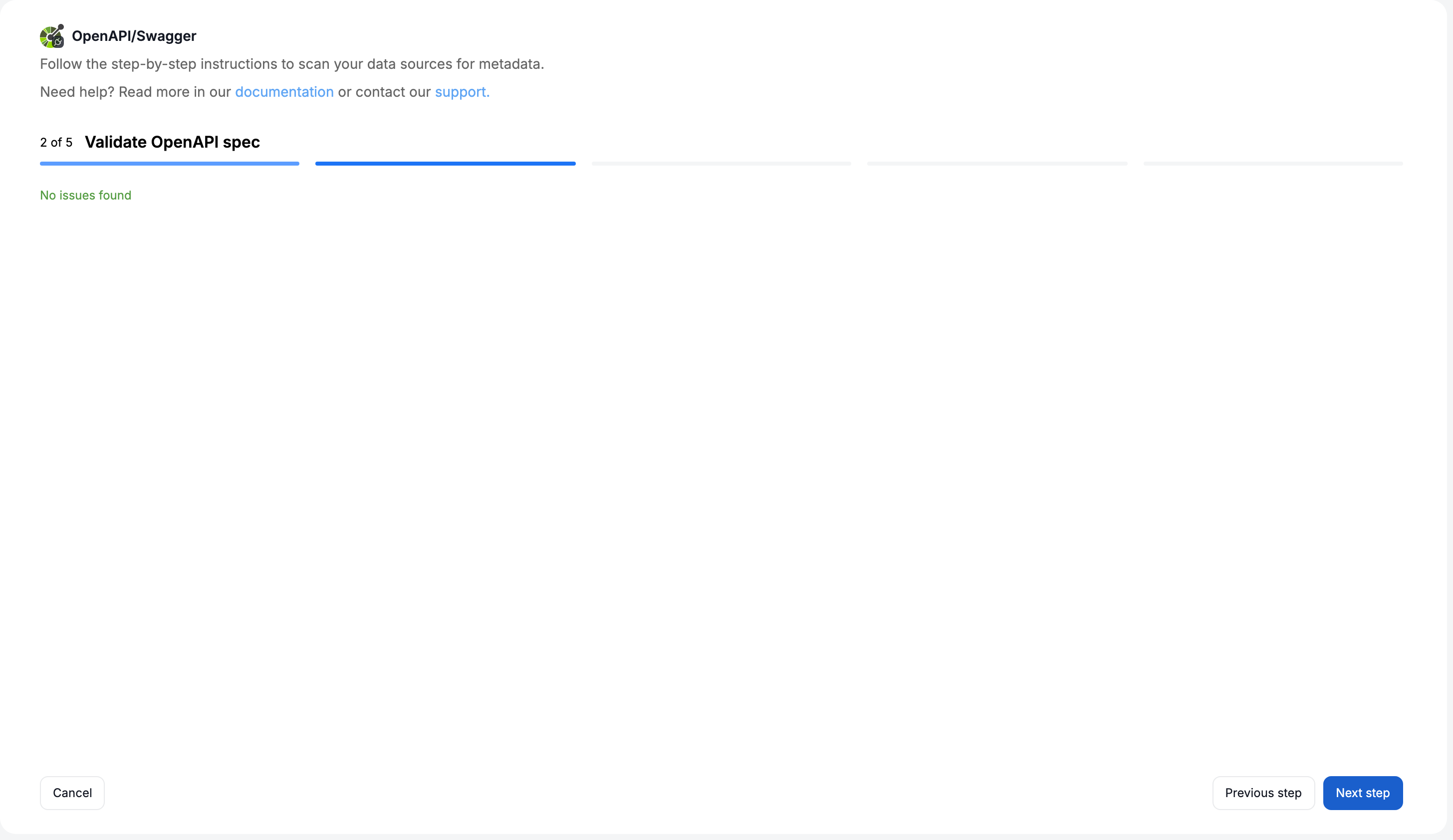
Step 2. Validate OpenAPI spec
Dataedo parses the specification and reports what it found before anything is imported. A clean document shows No issues found; otherwise, the warnings and errors are listed here - see Warnings and Errors below for what they mean.
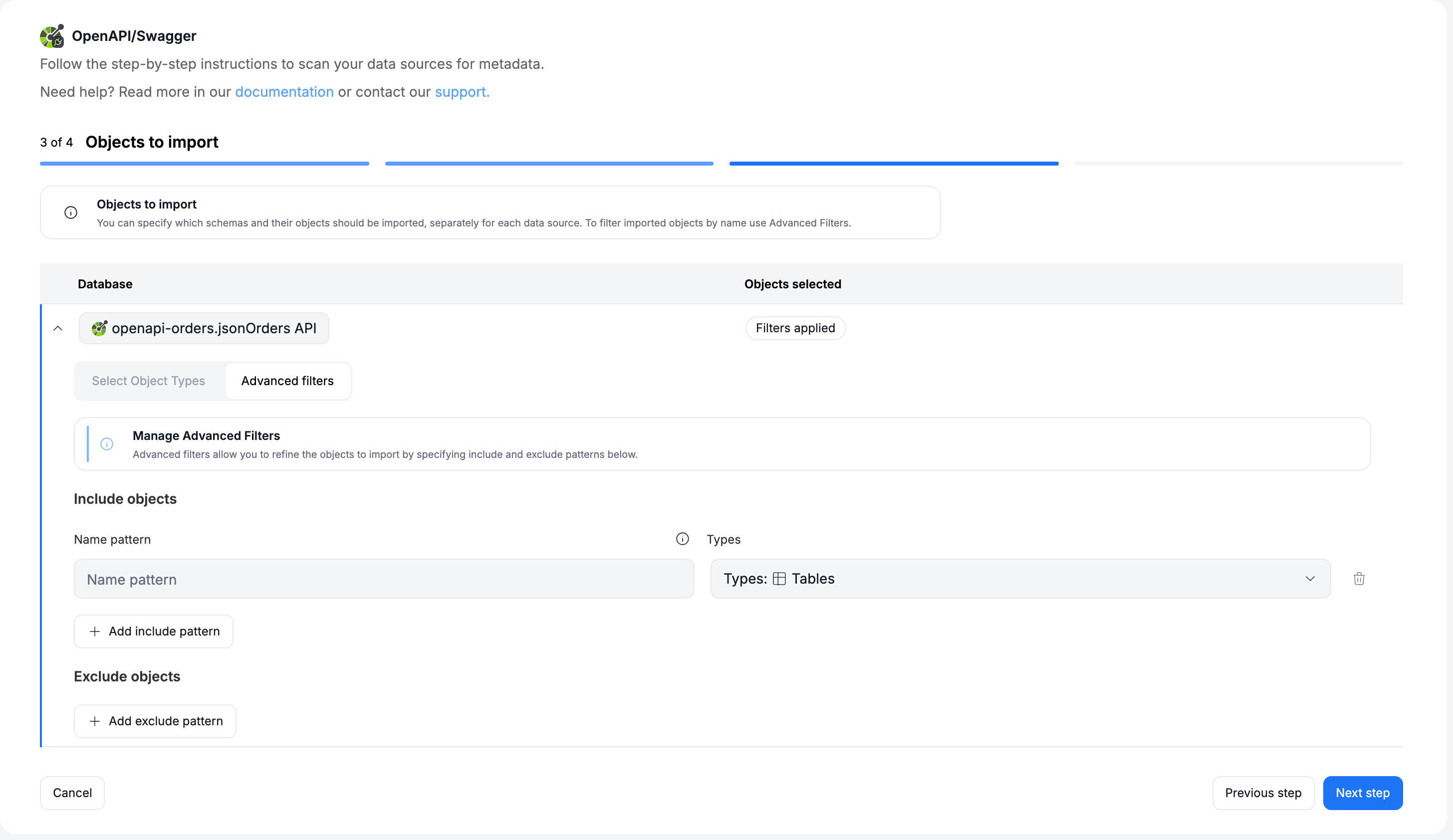
Step 3. Objects to import
The specification is imported as a single object type - Tables, one per endpoint schema.
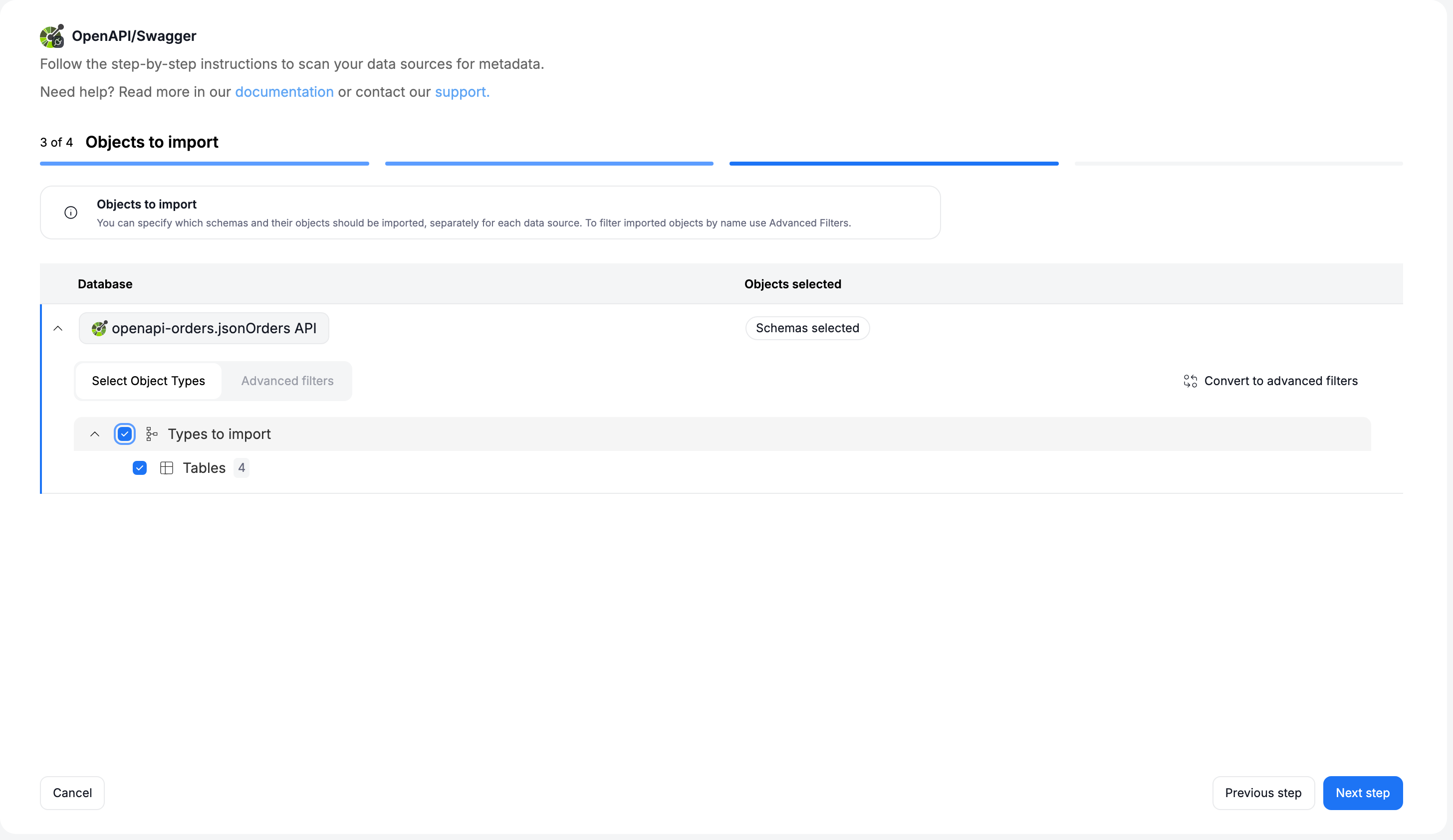
Use Advanced filters to include or exclude objects by name pattern.
Step 4. Schedule
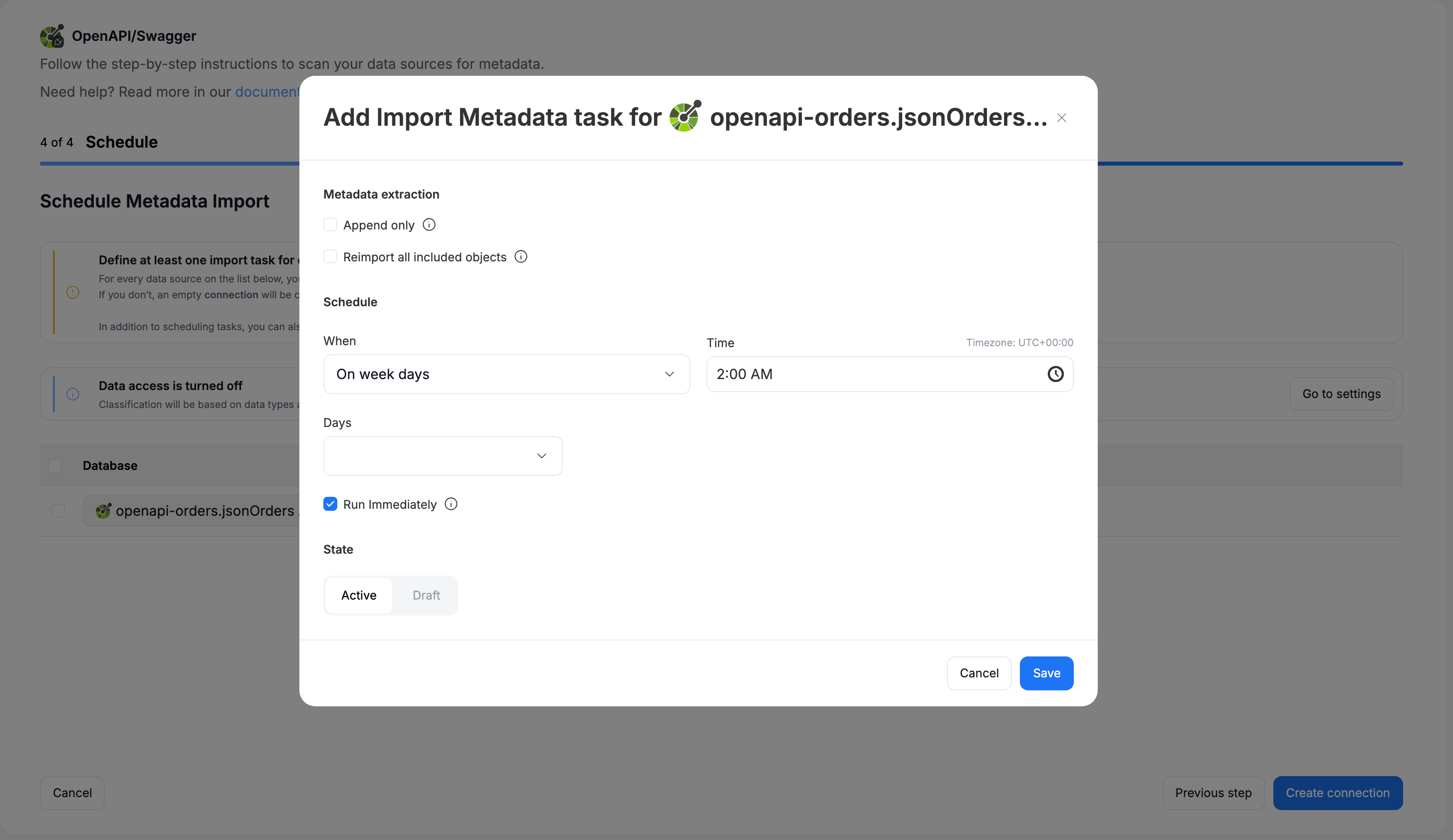
Configure the Metadata Import task for the source:
- choose the metadata extraction options (
Append only,Reimport all included objects) - run daily, on selected weekdays, or on specific days of the month
- choose an exact time of execution
- Task state:
Active- the task will run as scheduledDraft- the task is saved but not executed until you switch it to Active
- Run Immediately - when checked, the task will also be executed right after you click
Create connection
Once saved, the task appears next to its source in the schedule list.
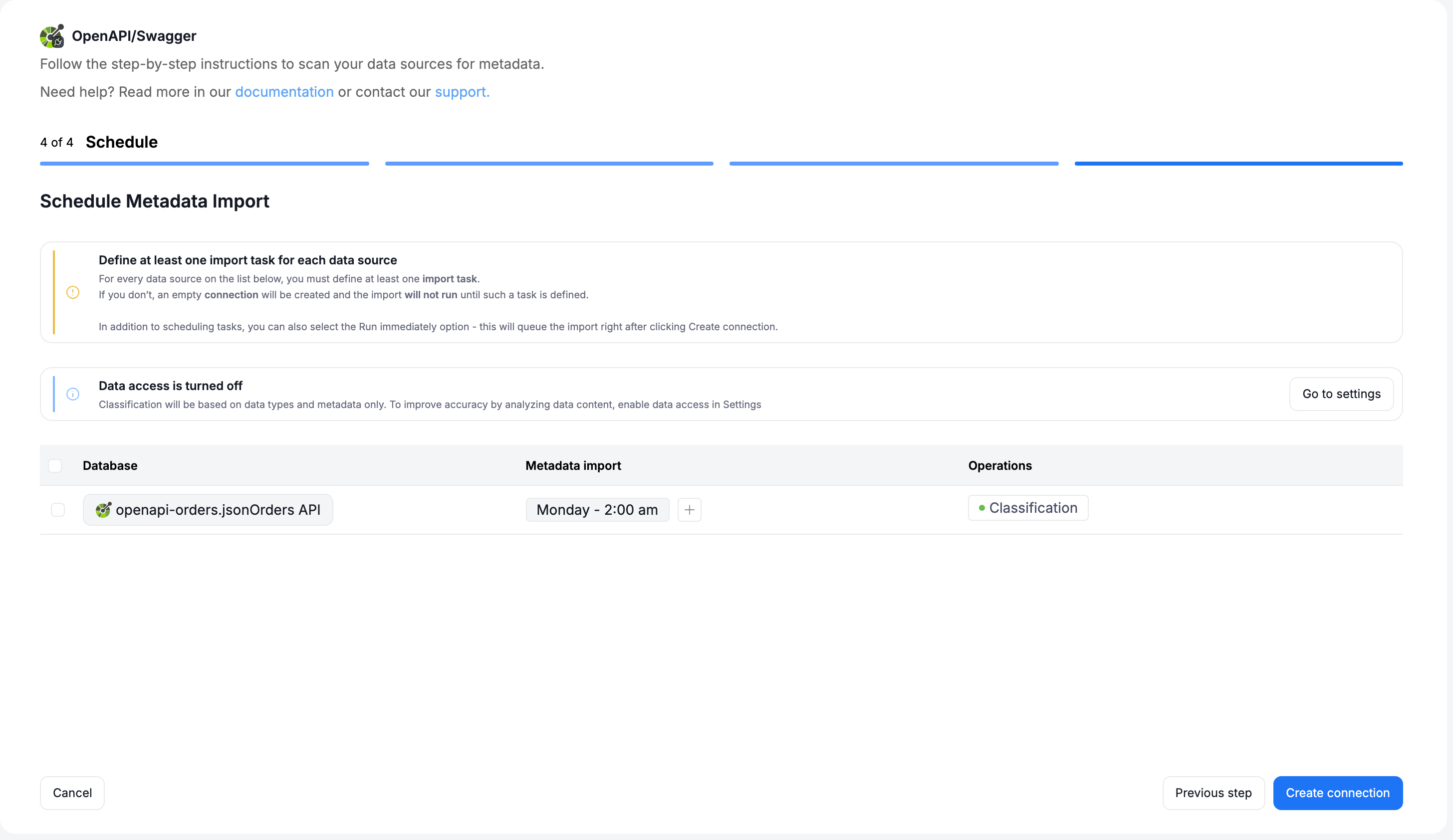
You must configure at least one import task in the schedule section.
If you skip this, an empty database will be created and no metadata will be imported.
Importing Metadata in Dataedo Desktop
Opening the connector window
To import OpenAPI/Swagger Specification, click the Add button in the upper left corner and choose New connection.

From the sources, choose OpenAPI/Swagger, and then click Next >

Selecting HTTP methods to import
Use the Methods field to select which HTTP methods (operations) you want to import. By default, all methods are selected.

Selecting connector mode
Using the Mode field you can choose how you want to provide the OpenAPI document.
URL- specifying the URL to the OpenAPI document.Manual- specifying the location of the file on disk with the OpenAPI document.- if you want to paste the content of the OpenAPI document, you can do it in both modes.

Providing a document
There are 3 ways to provide an OpenAPI document.
Pasting the document
In the URL and Manual modes, you can directly paste an OpenAPI document. You need to hover over the text field, click the left mouse button, then paste the document (the menu expands when you press the right mouse button on the field), and then click the Connect button.

Providing a document URL
Select URL mode. You need to hover over the URL text field, click the left mouse button, then paste the URL (the menu expands when you press the right mouse button on the URL text field), and then click the Load button.

Once the document loads in the text box, just click on the Connect button.

Providing a document file
Select Manual mode. Click on the Browse.

Select the appropriate document to import, then click Open.

Once the document loads in the text box, just click on the Connect button.

Warnings and Errors
When the Connect button is clicked, either Warning or Error may appear.
Warning with a blue checkmark will appear when there are minor inaccuracies, e.g. the property will be of type boolean, and as a default is a string, e.g. "some_text". This will not affect the import, and the message is mainly informative that the document contains errors. In this situation, the only option will be to click OK.

Error with a yellow checkmark will appear when the error is more serious, for example, the document will not contain the information required by the standard. In such a situation it is still possible to continue the import by clicking Yes, but this may result in the malfunctioning of the program. It is recommended in this situation to verify the document and correct the errors according to the described errors. Clicking No will return to the previous window.

An Error with a red checkmark will appear when the import is not possible, e.g. when the document is in an unsupported version. In such a situation the only option will be to click OK.

Filtering and documentation title
The imported objects will be of type Table. Apart from the previously mentioned option to filter by HTTP methods, there is no option to filter by endpoints. You should click Next >.

Provide the documentation title and then click on the Import button.

Results
When the import is completed, click the Finish button.


