Microsoft Dataverse
Not supported: Data Quality, Data Profiling, Foreign Key Testing, Reference Data, Extended Properties, Metadata Sync, Execution Flows
Dataverse connector allows accessing data in Microsoft Dynamics 365, Microsoft Power Pages, and other tables you store inside the Dataverse instance.
Connector features
Data catalog
Dataedo documents metadata of the following objects:
- Tables
- Views
- System forms
What are system forms
System forms are predefined forms that are used to display and interact with data for various entities. These forms are managed by the system and are typically used for standard system operations such as viewing, editing, and creating records. System forms are automatically generated and maintained by the Dataverse platform to provide users with an out-of-the-box user interface for working with data. They are designed to be functional and customizable to meet the needs of different users and organizations.

Data lineage
For Dataverse, Dataedo supports both manual and automatic lineage. Automatic lineage is available for views and forms. Dataedo will parse views and show the source of each of the columns.
Data profiling
Dataedo does not support profiling for Dataverse.
Unique keys
Dataedo marks columns as unique keys when the data type equals UniqueIdentifier or the column has a defined alternate key on it.
Importing Metadata in Dataedo Portal
Entry point
To start the Metadata Import flow, make sure you have the Connection Manager role.
Then navigate to:
Connections → Add connection → Microsoft Dataverse
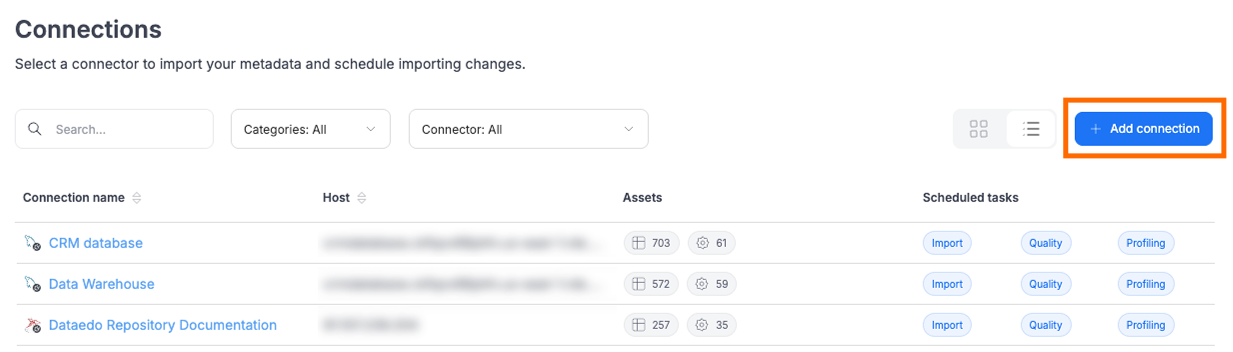
This will open the import wizard described in the following steps.
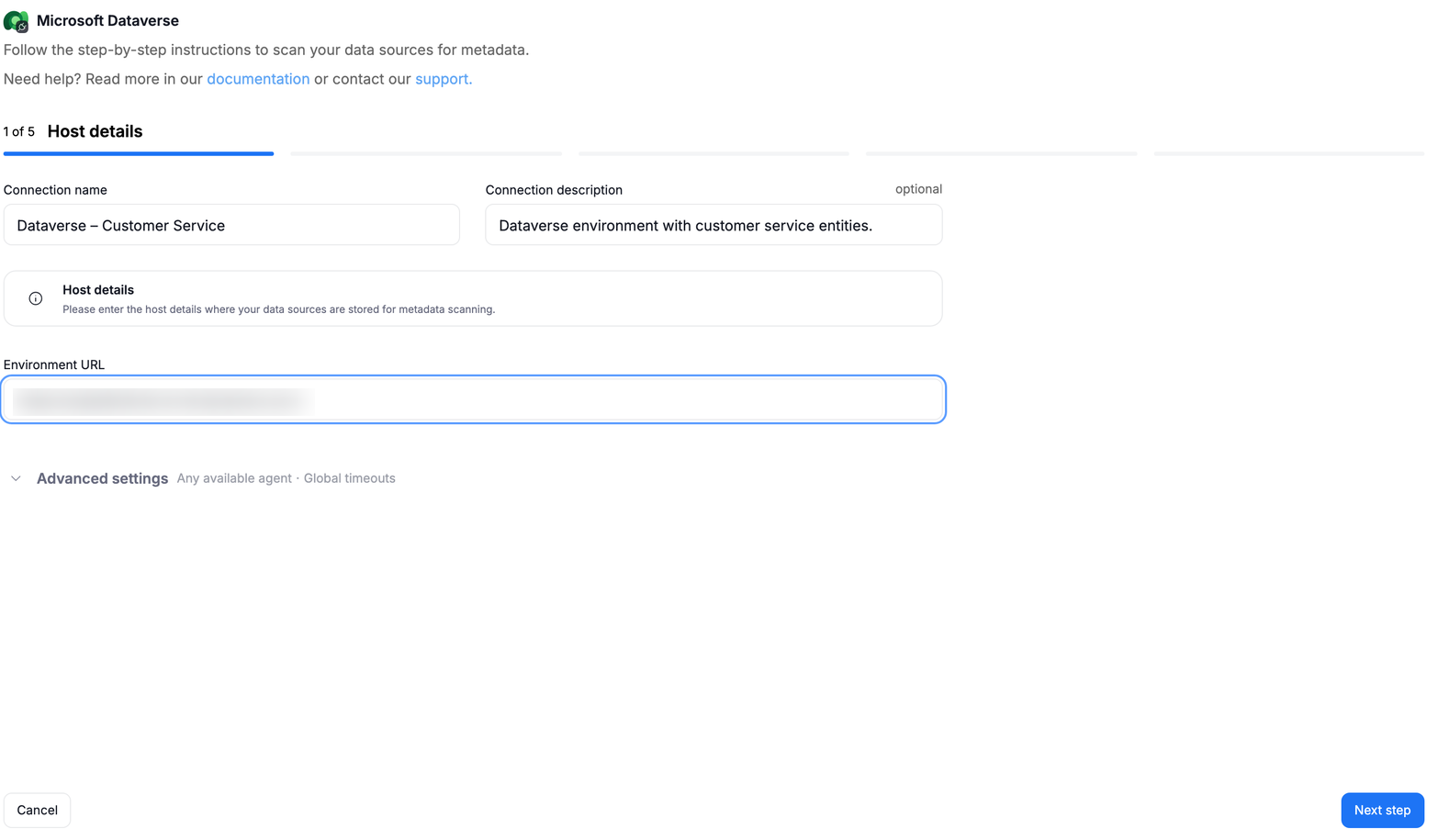
Step 1. Host details
Provide the name of the Connection, the required connection details, and an optional description.
For Dataverse, the only required host detail is the Environment URL – the address of your Dataverse instance (for example https://org1a2b3c4d.crm4.dynamics.com). See Get Environment URL below for how to find it.
A Connection in Dataedo represents a saved configuration for accessing a data source.
It can be reused for future imports and scheduling.
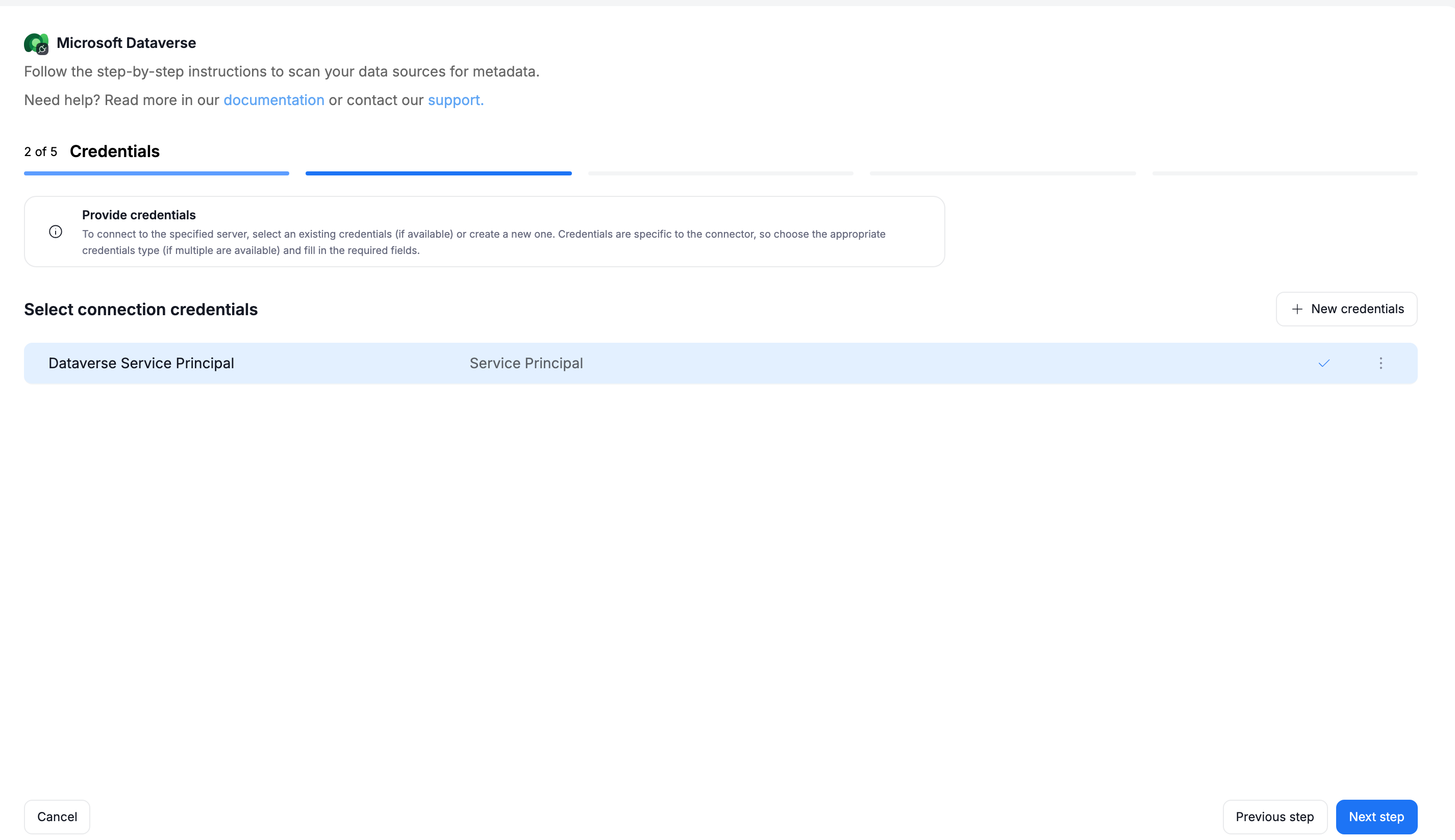
Step 2. Credentials
Choose credentials from the list of existing ones available for the selected connector, or add new credentials.
Dataverse uses Service Principal credentials – see Service Principal Authentication for the values you need to provide.
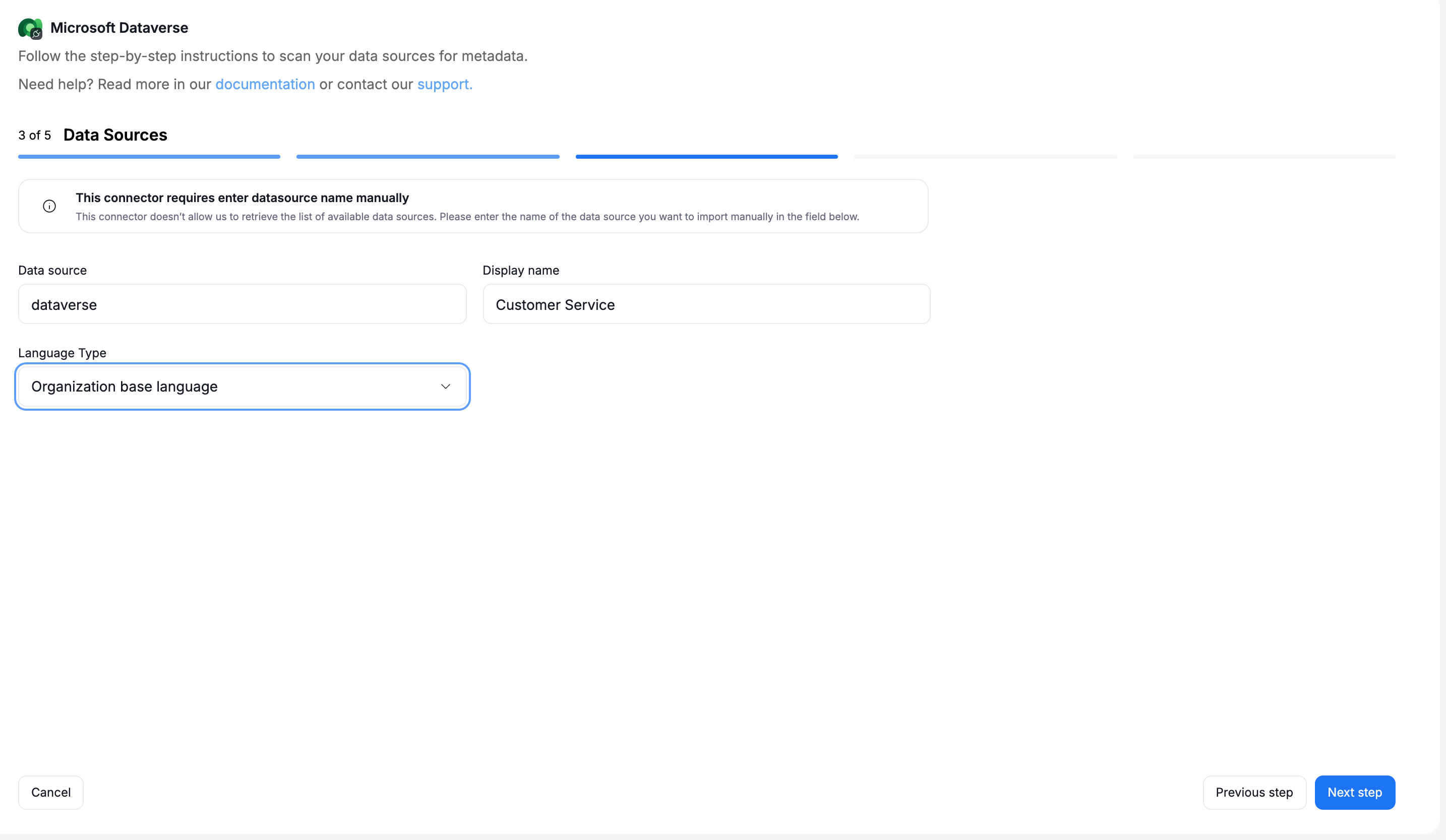
Step 3. Data Sources
The Dataverse connector does not allow Dataedo to retrieve the list of available data sources, so the source has to be entered manually:
- Data source – the name of the data source you want to import
- Display name – the Title under which the source will be visible in Dataedo
- Language Type – either Organization base language (the default language set by the organization) or User localized language (the language of the account used to connect)
Step 4. Objects to import
For each selected data source, you can refine which objects to import:
- select object types – Tables, Views, and Application Forms
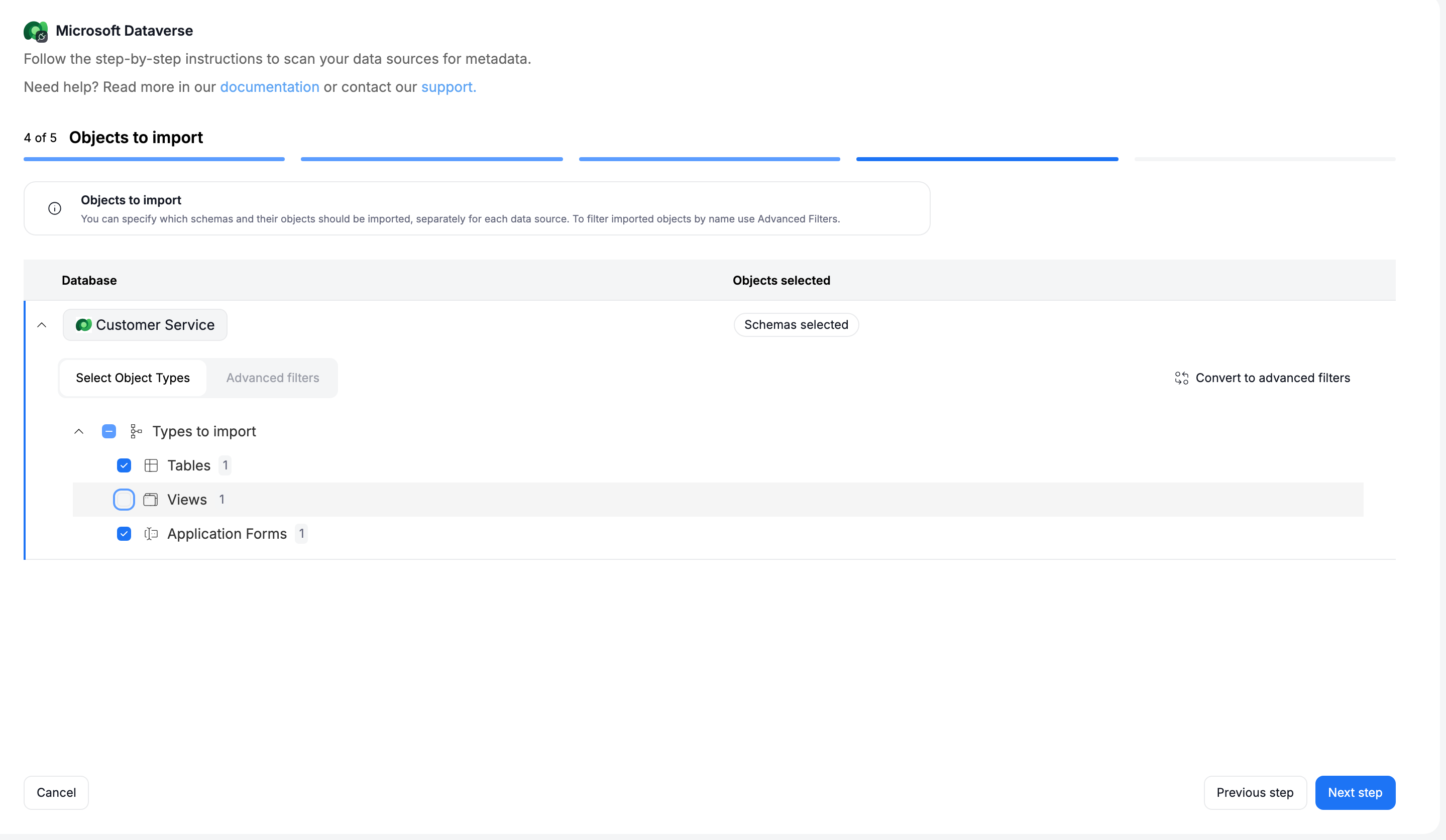
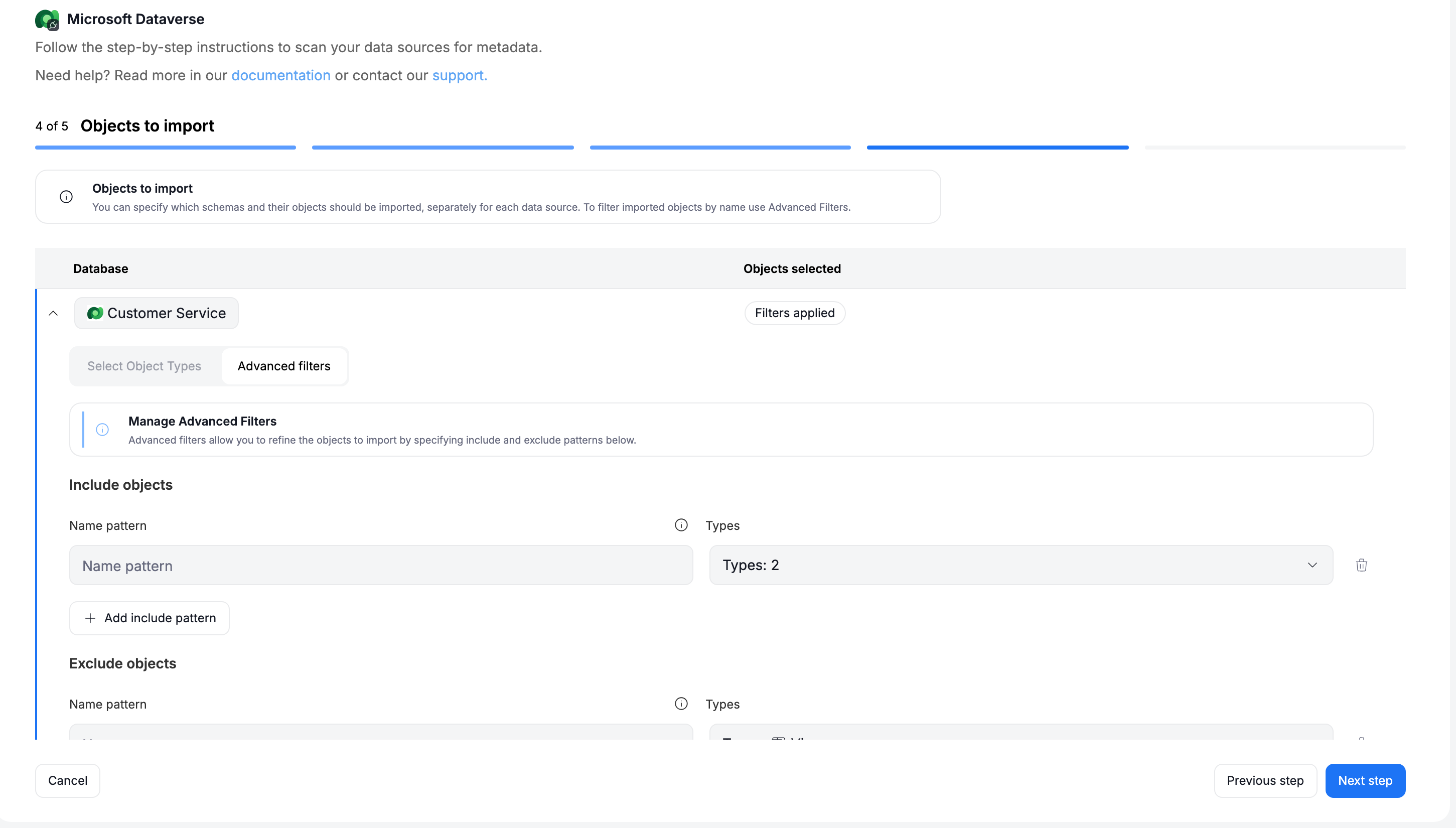
- use Advanced filters to include or exclude objects with:
- name patterns
- object types
Step 5. Schedule
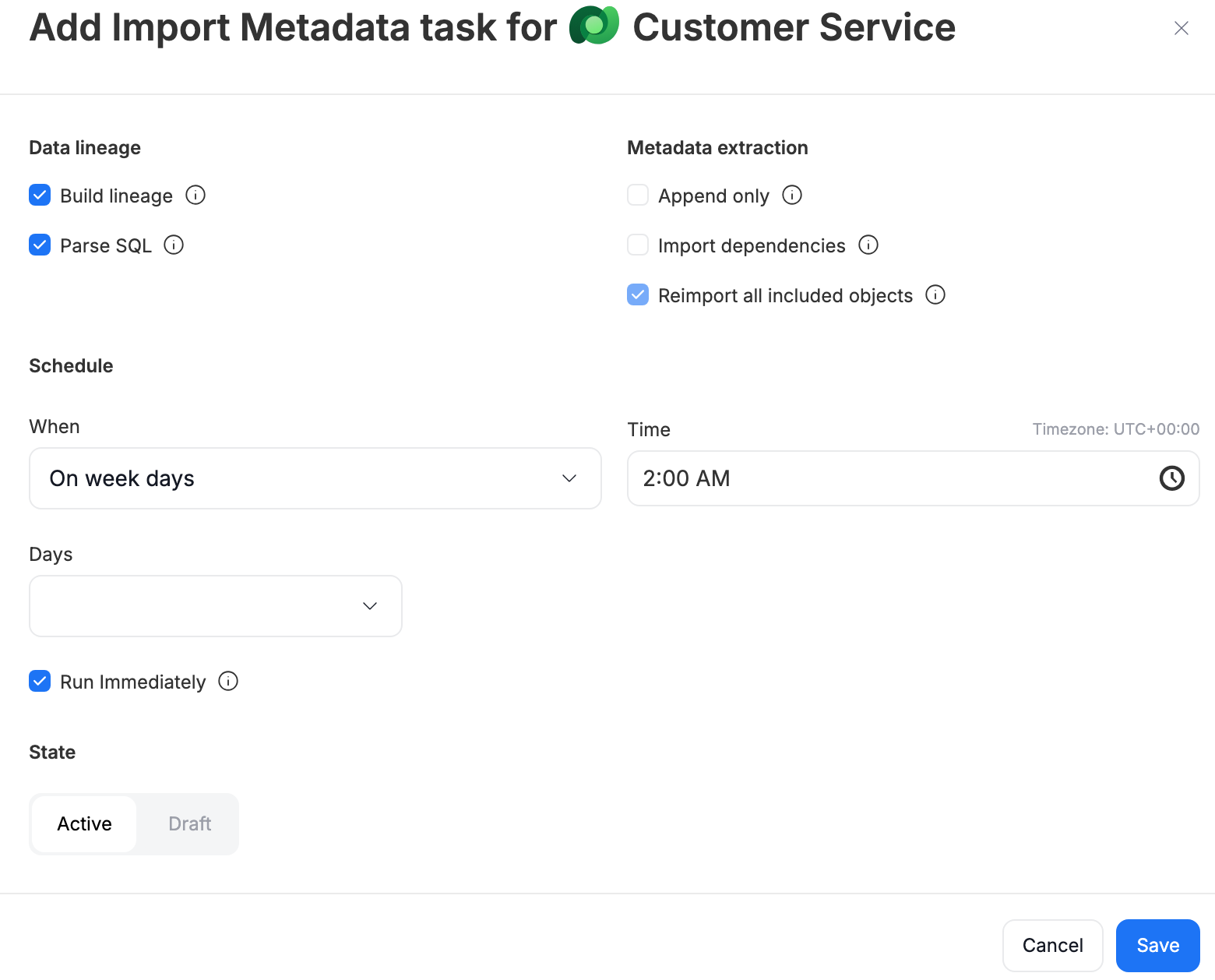
Configure scheduling options for each source individually. For Dataverse, you can schedule a Metadata Import task:
- define the import task for the data source
- choose the data lineage options (
Build lineage,Parse SQL) and metadata extraction options (Append only,Import dependencies,Reimport all included objects) - run daily, on selected weekdays, or on specific days of the month
- choose an exact time of execution
- Task state:
Active- the task will run as scheduledDraft- the task is saved but not executed until you switch it to Active
- Run Immediately - when checked, the task will also be executed right after you click
Create connection
Only one source in a metadata import can have Run Immediately selected.
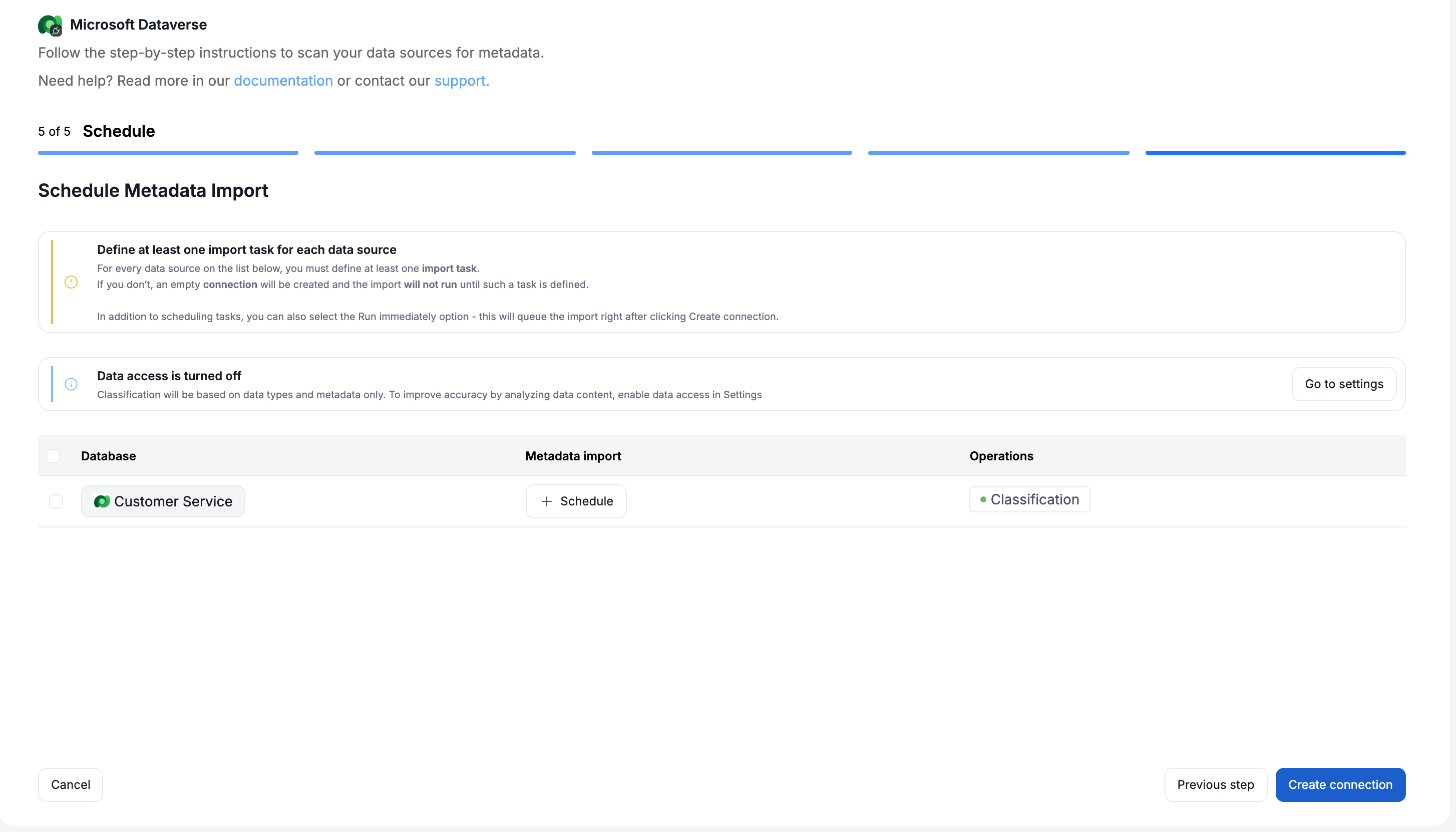
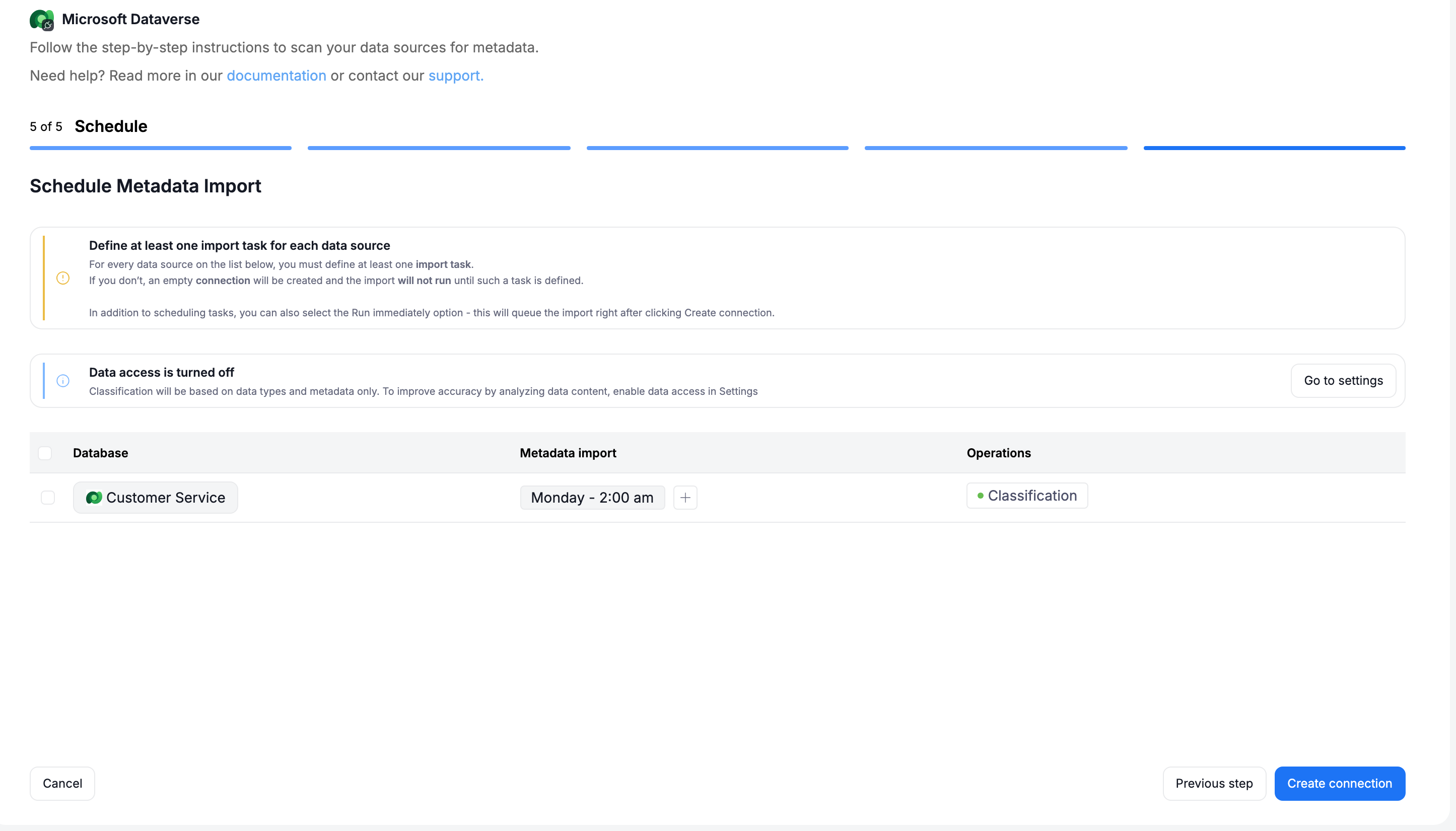
You must configure at least one import task in the schedule section.
If you skip this, an empty database will be created and no metadata will be imported.
Importing Metadata in Dataedo Desktop
Add new connection
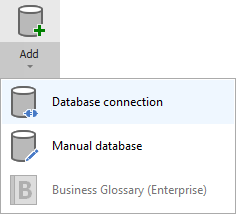
To connect to Dataverse and create new documentation, click Add documentation and choose Database connection.
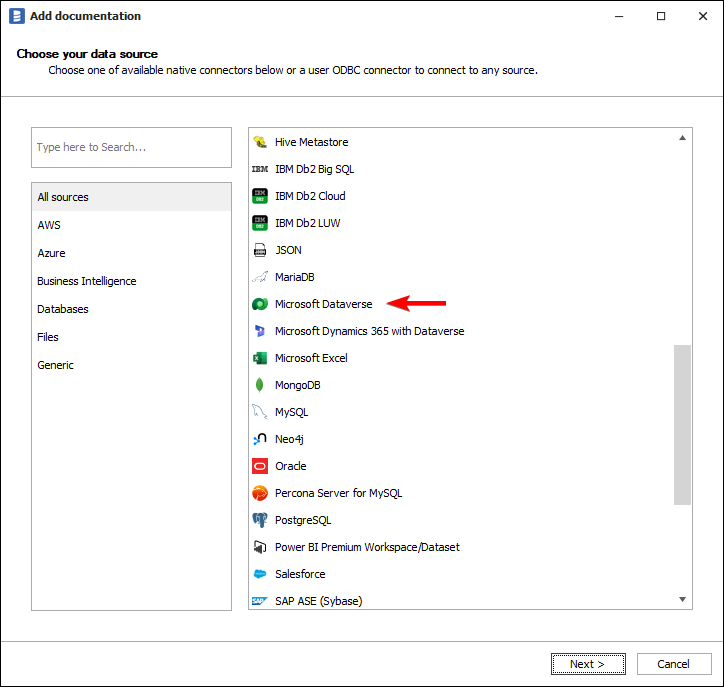
On the connection screen, choose Microsoft Dataverse as DBMS.
Connection details
You can connect to Dataverse using two authentication methods:
Interactive Authentication
- Environment URL - URL to your Dataverse instance (e.g., org432482.crm4.dynamic.com)
- Authentication Type: Select "Interactive"
- App ID - Application ID. The default App ID is provided by Microsoft for tests and development purposes. If you'd like to change it, set up an application with the Microsoft identity platform. Learn more
- Redirect URI - Redirect URI needs to match a URI set up with your Microsoft identity app. The default Redirect URI is provided by Microsoft and meant for tests and development. Learn more
- Language
- User localized language - The language the current user has the account set up
- Organization base language - Default language enabled and set by the organization
Service Principal Authentication
To use Service Principal authentication, follow these steps:
-
Create App Registration in Azure Portal
- Sign in to the Azure portal
- Navigate to "Azure Active Directory" > "App registrations"
- Select "New registration"
- Name your application (e.g., "Dataedo Integration")
- Choose "Accounts in this organizational directory only"
- Click "Register"
-
Create Client Secret
- Go to "Certificates & secrets"
- Click "New client secret"
- Add description and set expiration
- Copy the secret value immediately (it won't be visible later)
-
Add Application User in Power Platform
- Go to Power Platform Admin Center
- Navigate to your environment > Settings > Users + permissions > Application users
- Click "+ New app user"
- Add your registered application and assign necessary security roles
-
Configure in Dataedo
- Environment URL: Your Dataverse instance URL
- Authentication Type: Select "Service Principal"
- Application (client) ID: Paste from Azure Portal
- Client Secret: Paste the secret value
- Tenant ID: Paste the Directory (tenant) ID
- Language: Select preferred language option
Note: When using Service Principal authentication, ensure all values are copied exactly as shown in Azure Portal and that proper permissions have been granted.
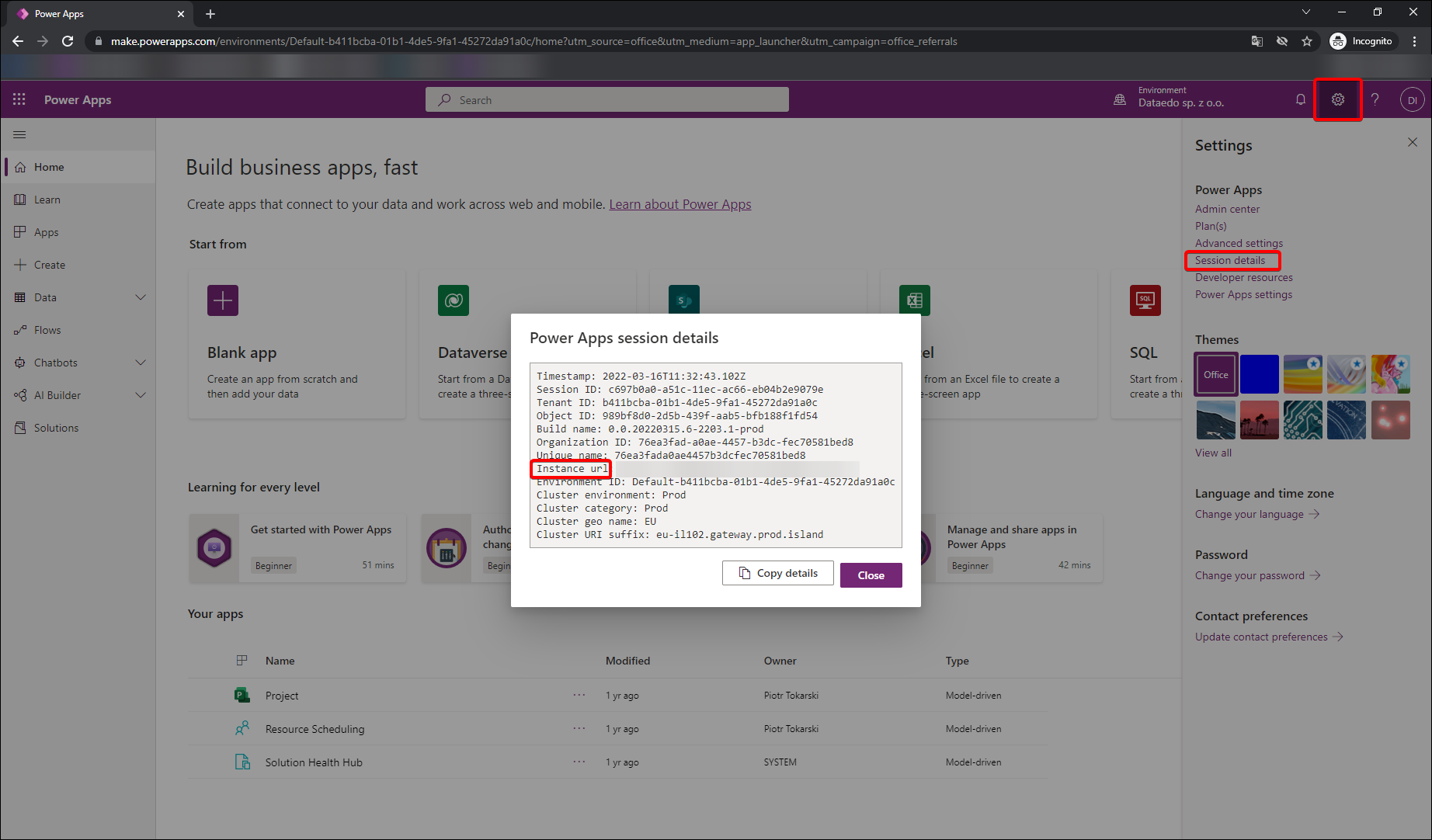
Get Environment URL
- Go to make.powerapps.com and log in with your Microsoft account.
- Click Settings icon in the top right corner.
- Open Session details
- Copy Instance URL, this is your Dataverse Environment URL.
Saving password
You can save the password for later connections by checking the Save password option. Passwords are securely stored in the repository database.
Importing schema
When the connection is successful, Dataedo will read objects and show a list of objects found. You can choose which objects to import. You can also use an advanced filter to narrow down the list of objects.
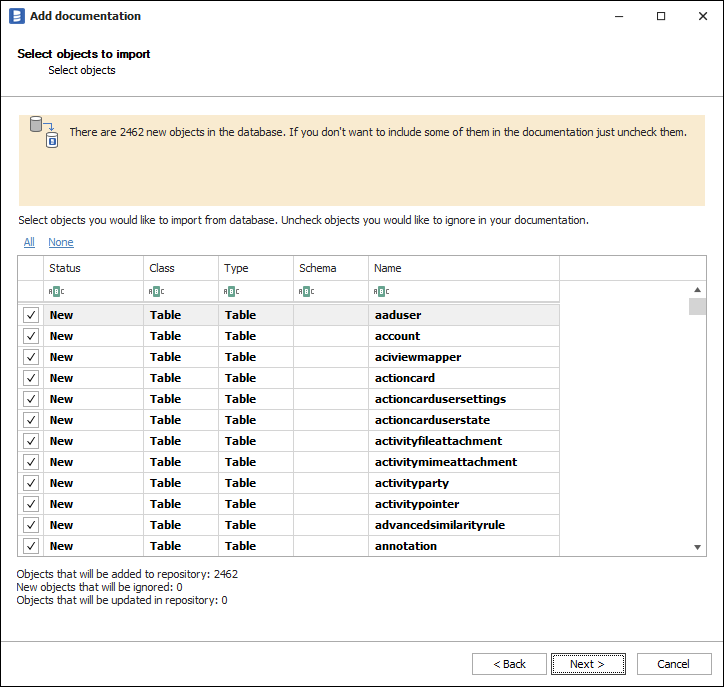
Confirm the list of objects to import by clicking Next.
The next screen allows you to change the default name of the documentation under which your schema will be visible in the Dataedo repository.
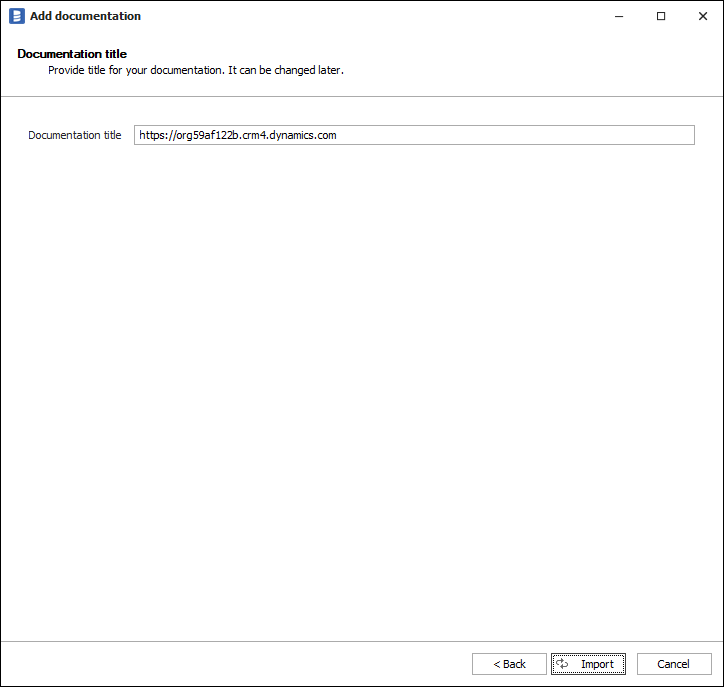
Click Import to start the import.
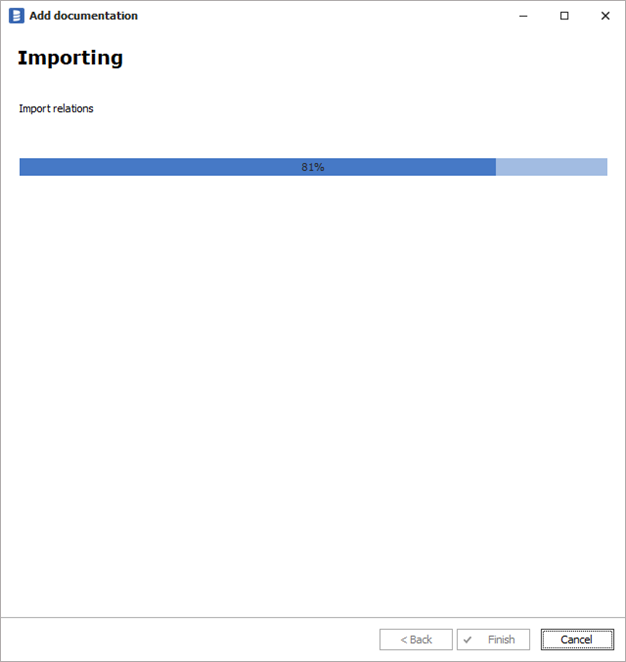
When done, close the import window with the Finish button.
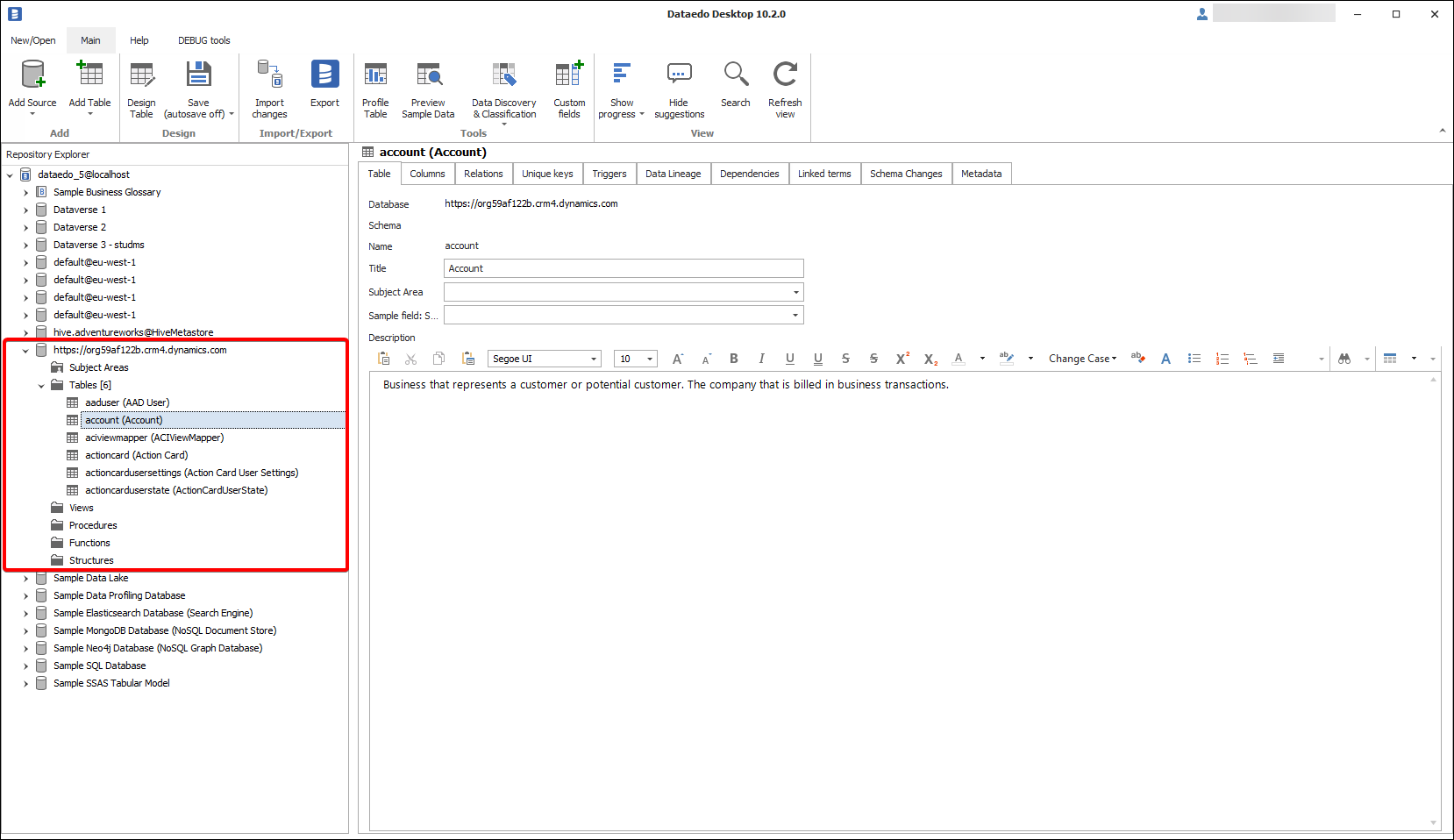
Outcome
Your database schema has been imported to new documentation in the repository.
Connector specification
Tested environments
Dataedo connection was tested with the following applications/environments:
- Dynamics 365 Sales
- Dynamics 365 Marketing
- Power Pages
Imported objects
| Object | Imported as |
|---|---|
| Table | Table |
| View | View |
| Form | Form |
Tables metadata
| Metadata | Imported as |
|---|---|
| Name | Name |
| Description | Description |
| Columns | Columns |
| Name | Name |
| Title | Title |
| Data type | Data type |
| Description | Description |
| Primary keys | Primary keys |
| Unique keys | Unique keys |
Views metadata
| Metadata | Imported as |
|---|---|
| Name | Name |
| Schema | Schema |
| Description | Description |
| Script | Script |
| Columns | Columns |
| Name | Name |
| Title | Title |
| Data type | Data type |
| Description | Description |
Forms metadata
| Metadata | Imported as |
|---|---|
| Name | Name |
| Description | Description |
| Columns | Columns |
| Name | Name |
| Position | Position |
| Description | Description |

