Documenting MLflow
The connector is used to import metadata from MLflow into Dataedo, including:
- machine learning models (RegisteredModel)
- model versions (ModelVersion)
Dataedo connects to an MLflow instance, retrieves the complete metadata structure, and imports it into Dataedo as documentation objects.
Additionally, in the Source Description field, the connector automatically generates:
- Model Card – for a model
- Model Version Card – for a specific version of a model
Both cards are rendered as HTML using dedicated templates embedded in the connector.
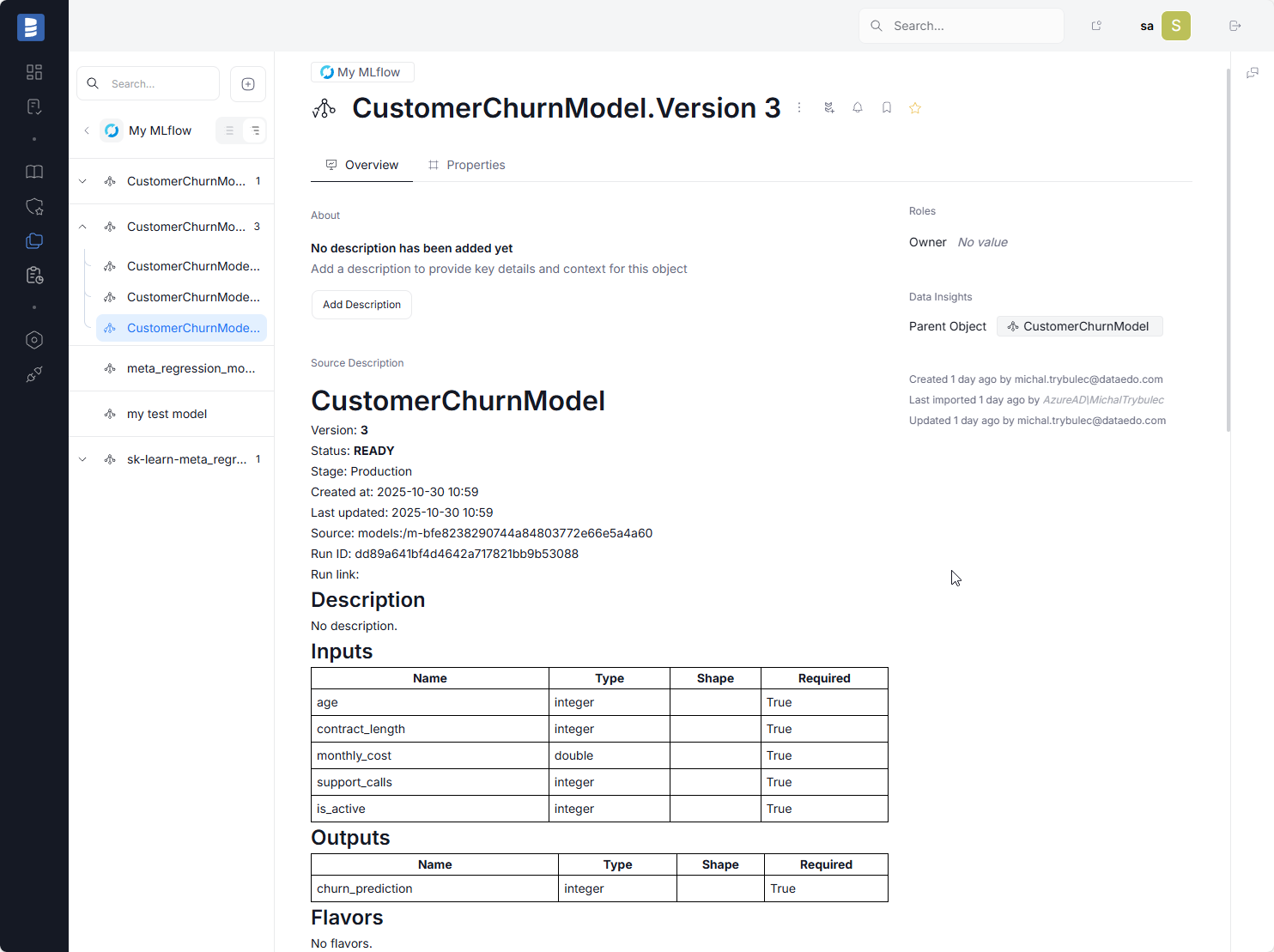
Structure of the Model Card Template (RegisteredModel)
The Model Card for a registered model includes the following sections:
-
Header
- title (model name)
- created by
- created at
- last updated
- deployment ID
- deployment status
-
Description
- model description
- or No description
-
Latest Versions
- table containing:
- Version
- Status
- Description
- table containing:
-
Tags
- table of model tags:
- Key
- Value
- table of model tags:
-
Aliases
- table of model aliases:
- Alias
- Version
- table of model aliases:
Structure of the Model Version Card Template (ModelVersion)
The Model Version Card includes detailed metadata about a specific version of a model:
-
Header
- model name
- version
- status
- stage
- created at
- last updated
- source
- run ID
- run link
-
Description
- version description
- or No description
-
Signature
- Inputs (Name / Type / Shape / Required)
- Outputs (Name / Type / Shape / Required)
- If not available → No signature defined
-
Flavors
- list of model flavors
- e.g., python_function, sklearn
- with flavor-specific metadata
-
Saved Input Example
- table containing:
- Artifact path
- Pandas orient
- Serving input path
- Type
- table containing:
-
Technical Metadata
- MLflow version
- Model ID
- Model UUID
- Size (bytes)
- UTC Created timestamp
-
Parameters
- table of run parameters (Key / Value)
-
Metrics
- table of metrics (Key / Value / Step)
Connecting to MLflow
Importing Metadata in Dataedo Portal
Entry point
This action can be performed only by users with the Connection Manager role
Navigate to:
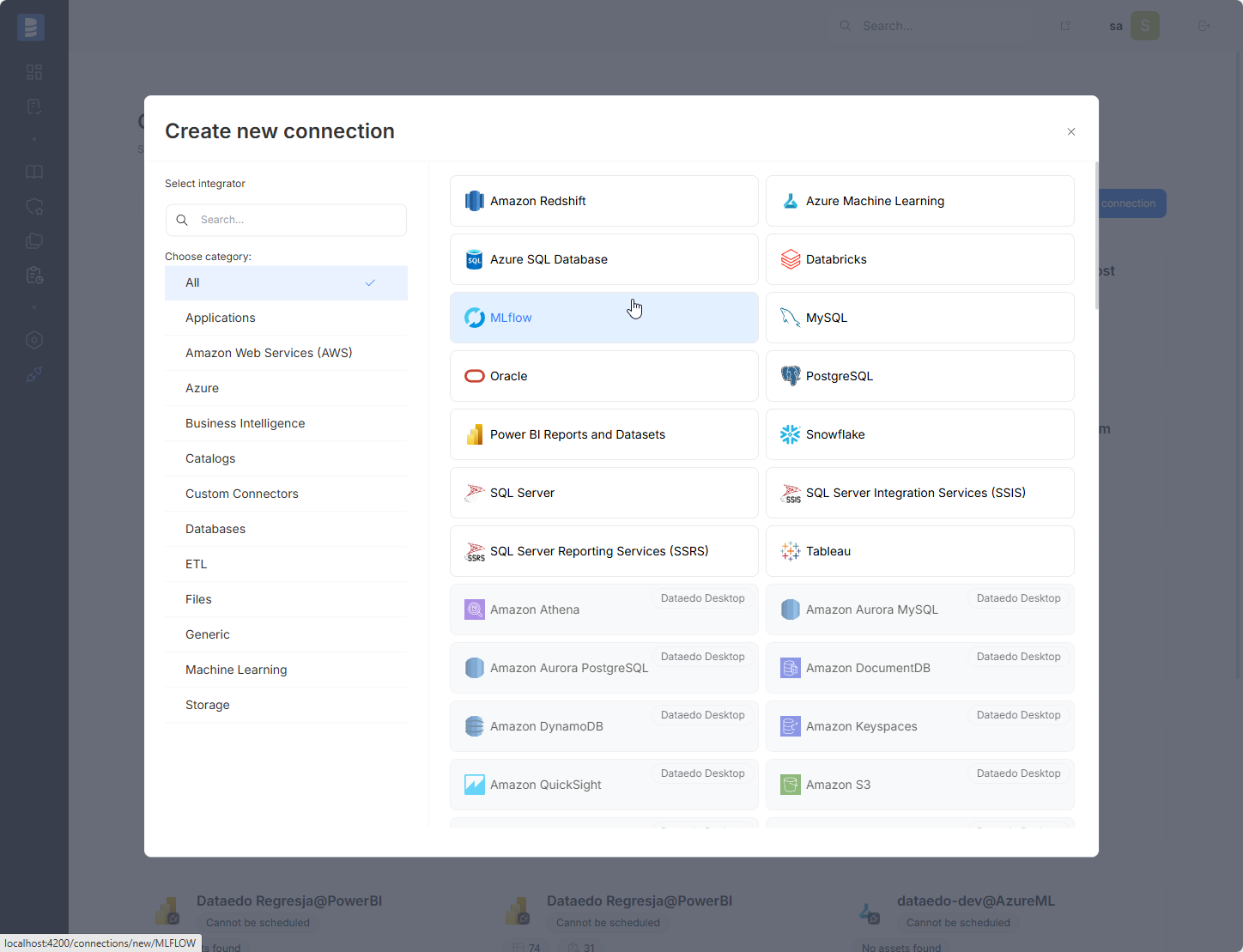
Connections → Add new connection → MLflow
This will open the import wizard.
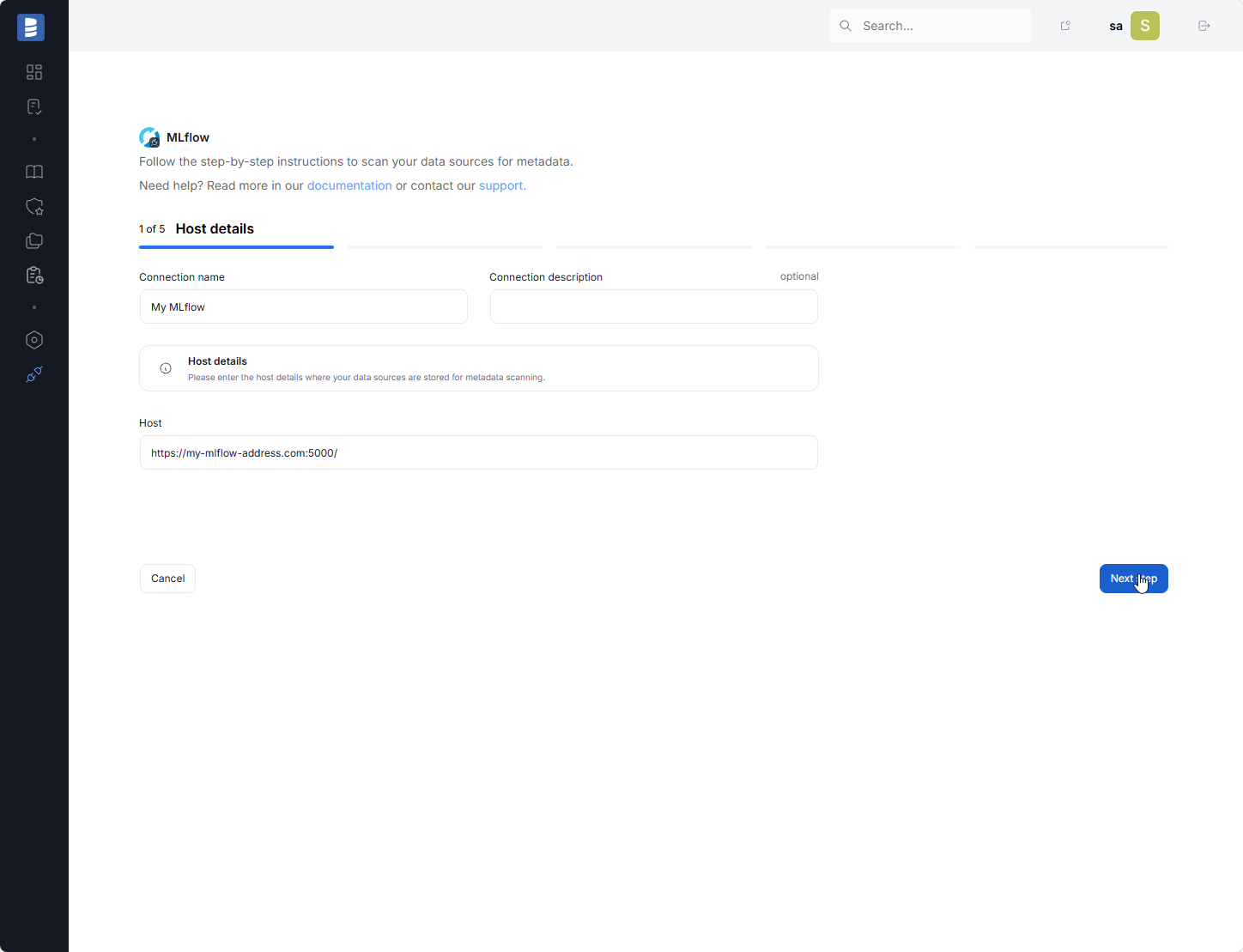
Step 1. Connection details
A Connection in Dataedo represents a saved configuration for accessing a data source.
It can be reused for future imports and scheduling.
Provide the required connection details, including the Connection name.
You can also add an optional description to provide additional context.
Fill in the Host field by entering the address together with the port.
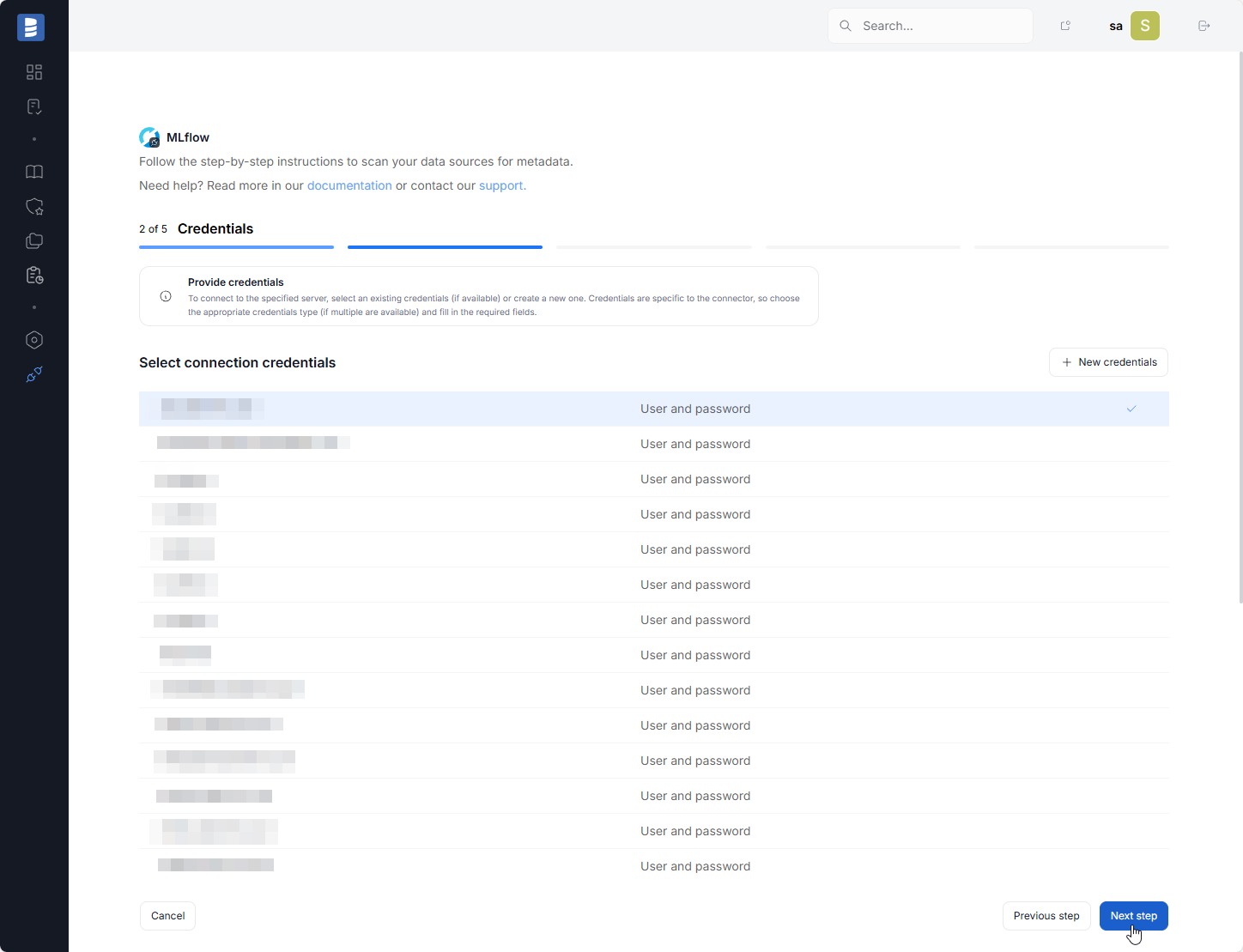
Step 2. Credentials
Choose your credentials from the list of the already saved ones, or add new ones using the New credentials button.
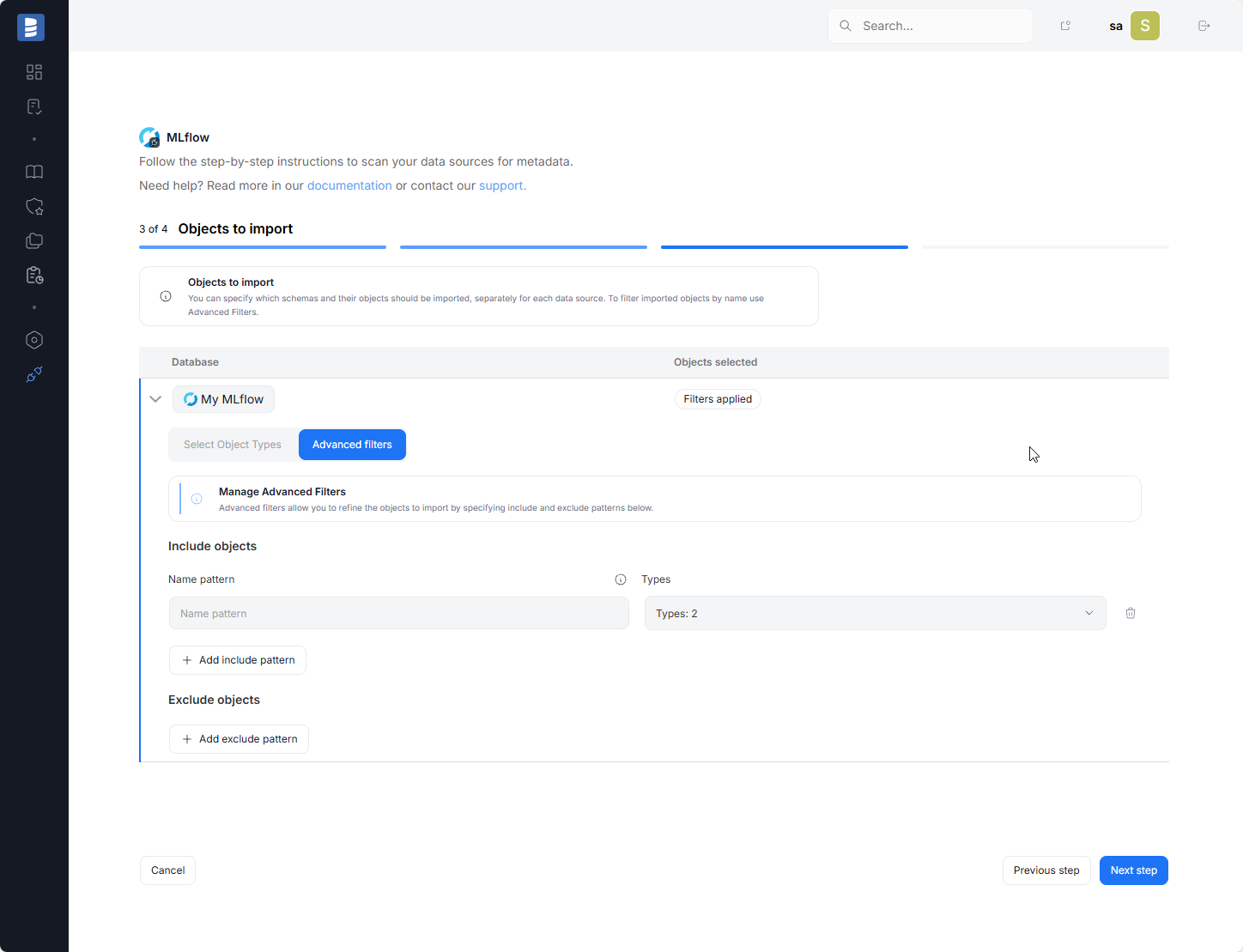
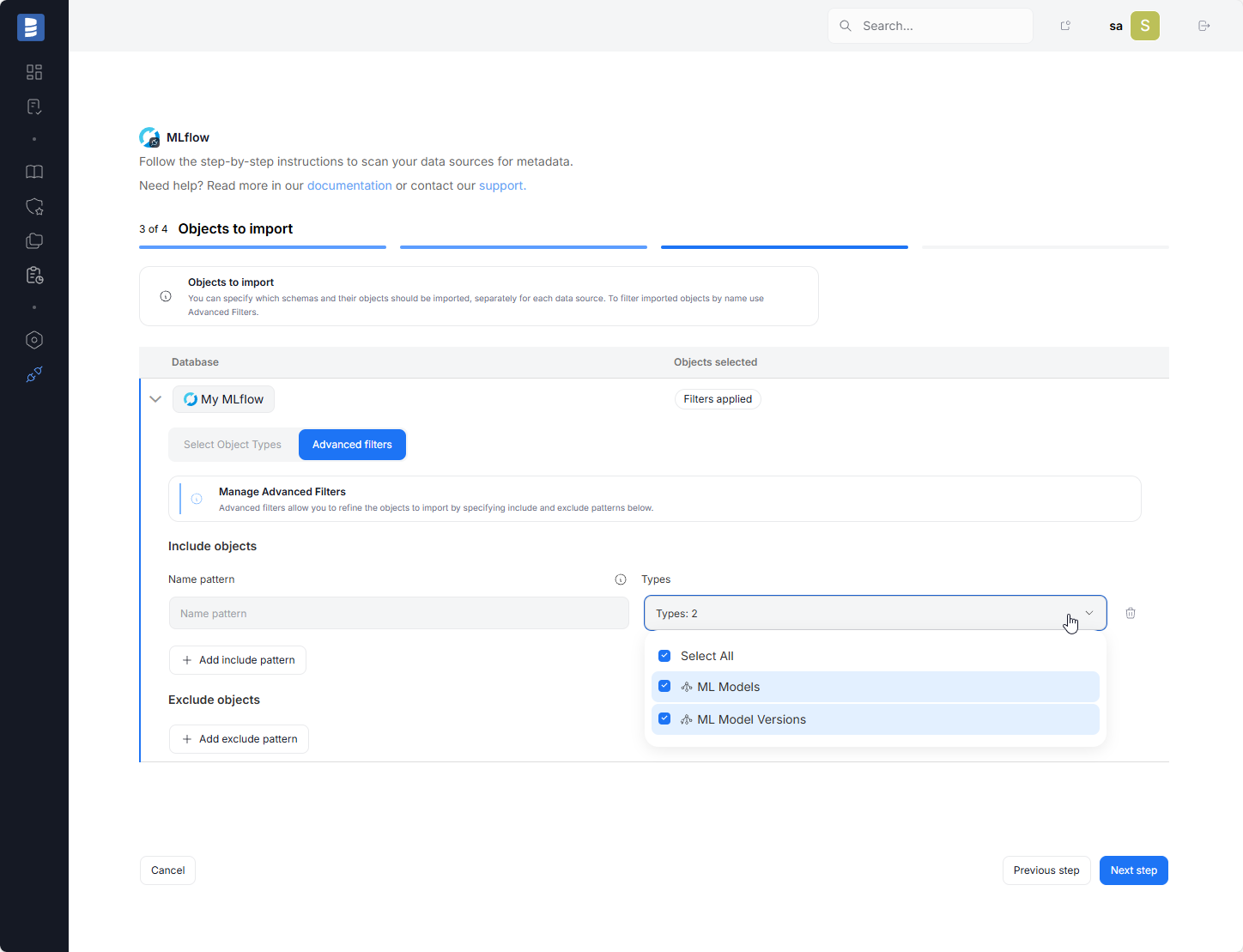
Step 3. Objects to import
For each selected database, you can choose which objects to import:
- Select object types.
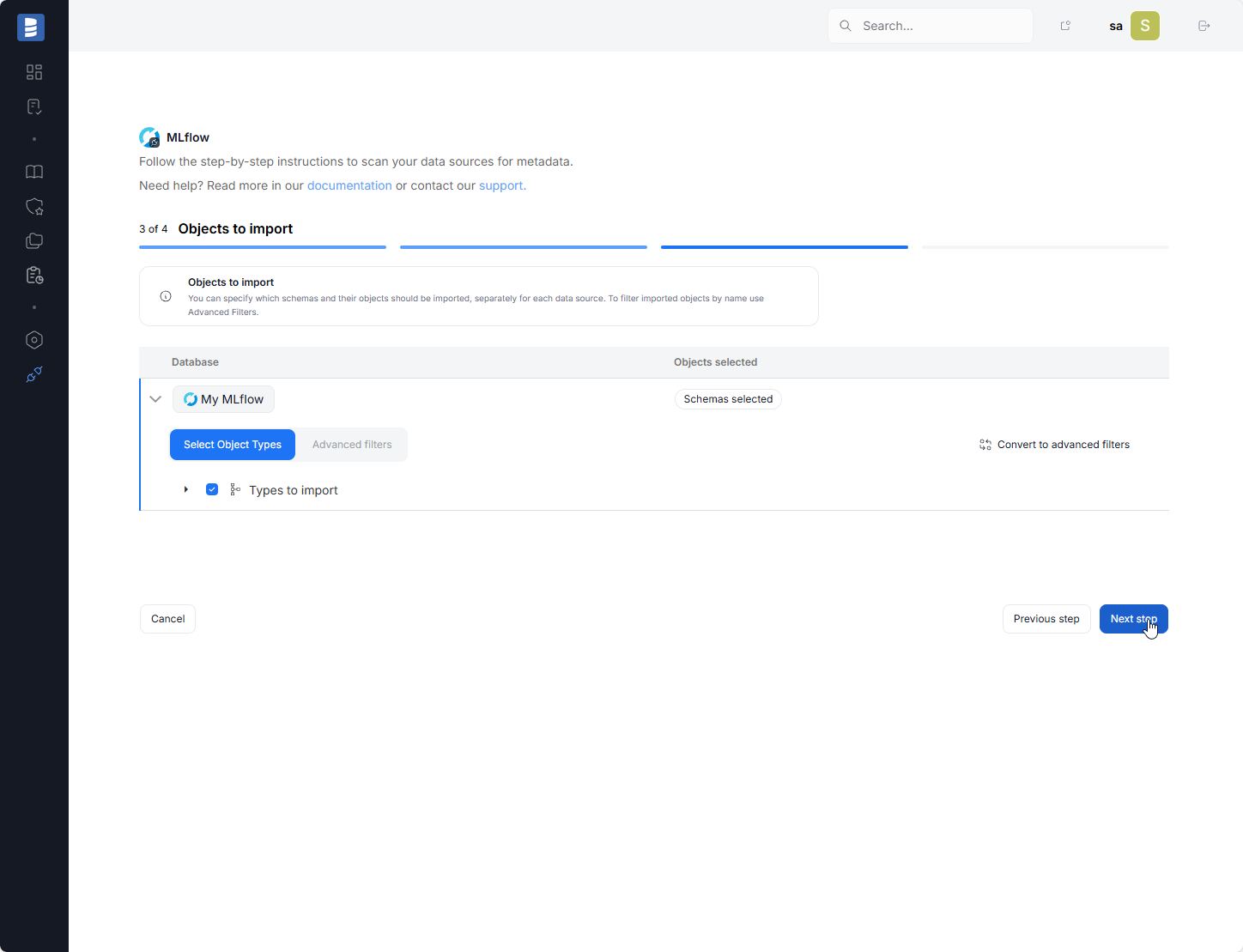
- Use Advanced filters to include or exclude objects with name patterns
Step 4. Schedule
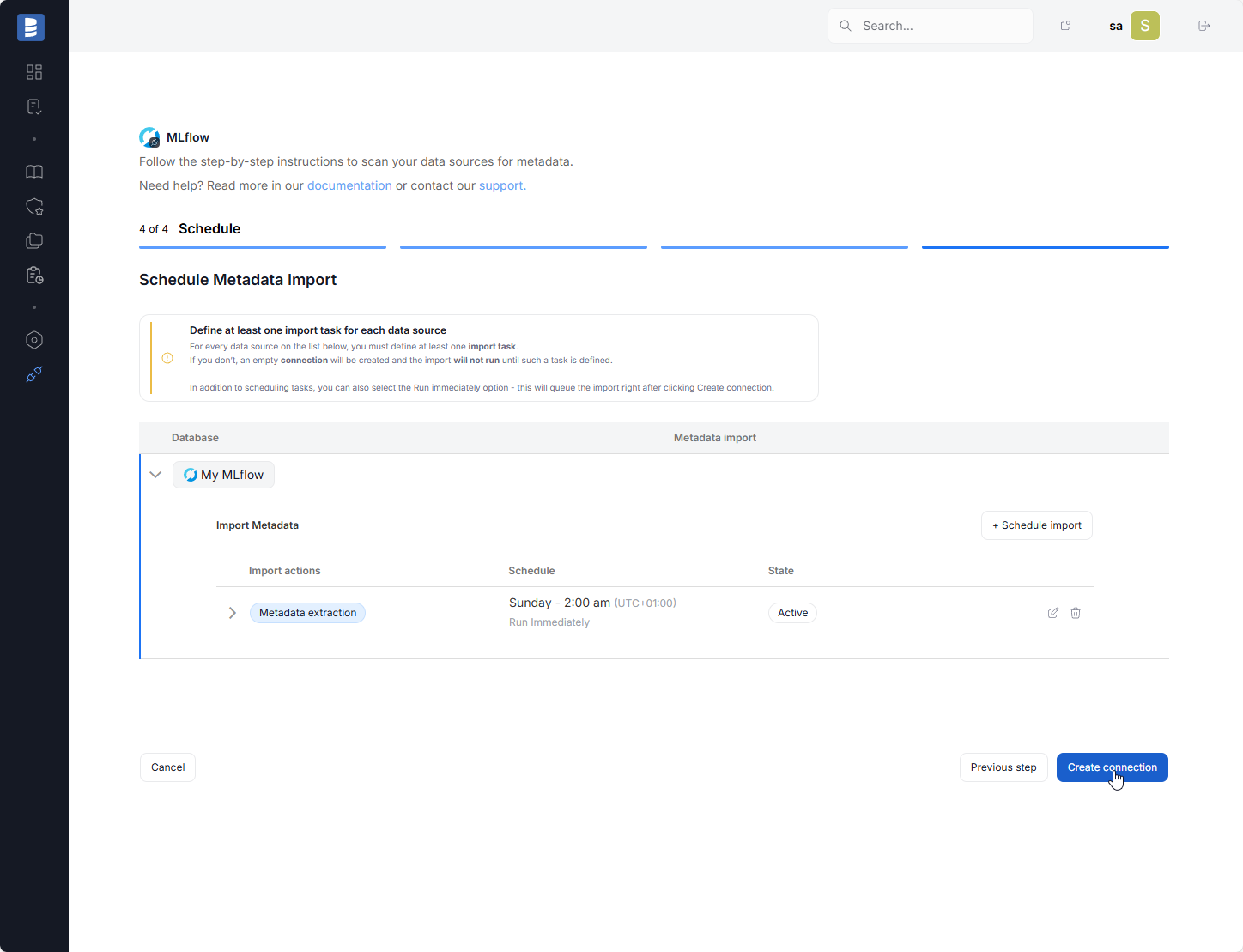
By default, Dataedo adds a Metadata Import task for each selected source. It runs every Monday at 1:00 AM and has Run immediately selected, so the first import starts as soon as you click Create connection. You can edit or delete this task, or add more.
Each source needs at least one import task. If you delete the default one and don't add another, an empty database will be created and no metadata will be imported.
Configure scheduling options for each source individually:
- Define tasks you want to schedule (Metadata Import, Data Quality run, Refresh Profiling)
- Run daily, on selected weekdays, or on specific days of the month
- Choose an exact time of execution
- Task state:
Active– the task will run as scheduledDraft– the task is saved but not executed until switched to Active
- Run immediately – when checked, the task will also be executed right after clicking
Create connection.
For each source, you can select Run immediately for only one Metadata Import task.
Limitations
- Dataedo does not import Execution or Prompt objects. The metadata of Run objects is part of the Model Version Card documentation, but they are not separate objects.
Specification
Imported metadata
| Imported | Editable | |
|---|---|---|
| Model | ||
| Model Card (Source Description) | ||
| Model Version | ||
| Model Version Card (Source Description) | ||
| Parameters | ||
| Inputs | ||
| Outputs |

