Copy & paste import
Copy & paste import allows you to import metadata into Dataedo by pasting tab-delimited data from a spreadsheet. This is useful when you have data in Excel or can export it from your source system.
Copy & paste import uses the same schema as Interface Tables. For detailed column reference, valid object types, and lineage rules, see the Interface Tables documentation.
What type of import to choose
If your data source does not have a native metadata scanner and you either can export the metadata to a file or have preexisting documentation, consider pasting the metadata directly to Dataedo.
Dataedo supports two ways of adding this data:
- Interface Tables
- Copy & paste import
Use Interface Tables when:
- It's more convenient for you to input data directly into the database
- You don't intend to use and maintain the Excel file
- You want to automate the import process with scripts
Use copy & paste when:
- It's more convenient for you to use UI
- You have the data handy in Excel
- You want quick, one-time imports
Importing Metadata in Dataedo Portal
Entry point
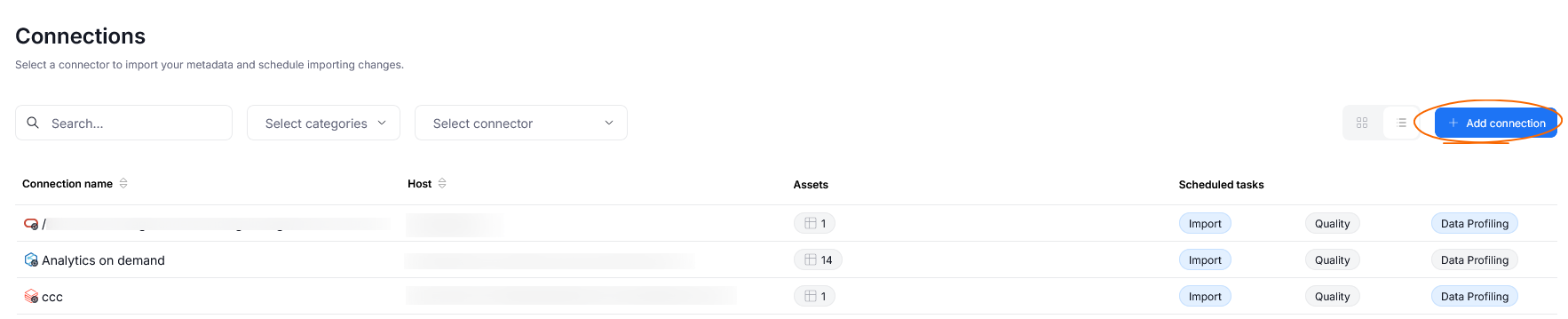
To start the Metadata Import flow, make sure you have the Connection Manager role. Go to Connections and click Add connection, then pick Paste Metadata or Paste Metadata Reporting from the connector list - see What type of import to choose above - to open the import wizard described in the following steps.
In Portal, both connectors read your metadata from a spreadsheet file rather than from a grid you paste into. Prepare the workbook first, using the same tabs and columns as the Desktop flow - see Available tabs and columns below.
Step 1. Host details
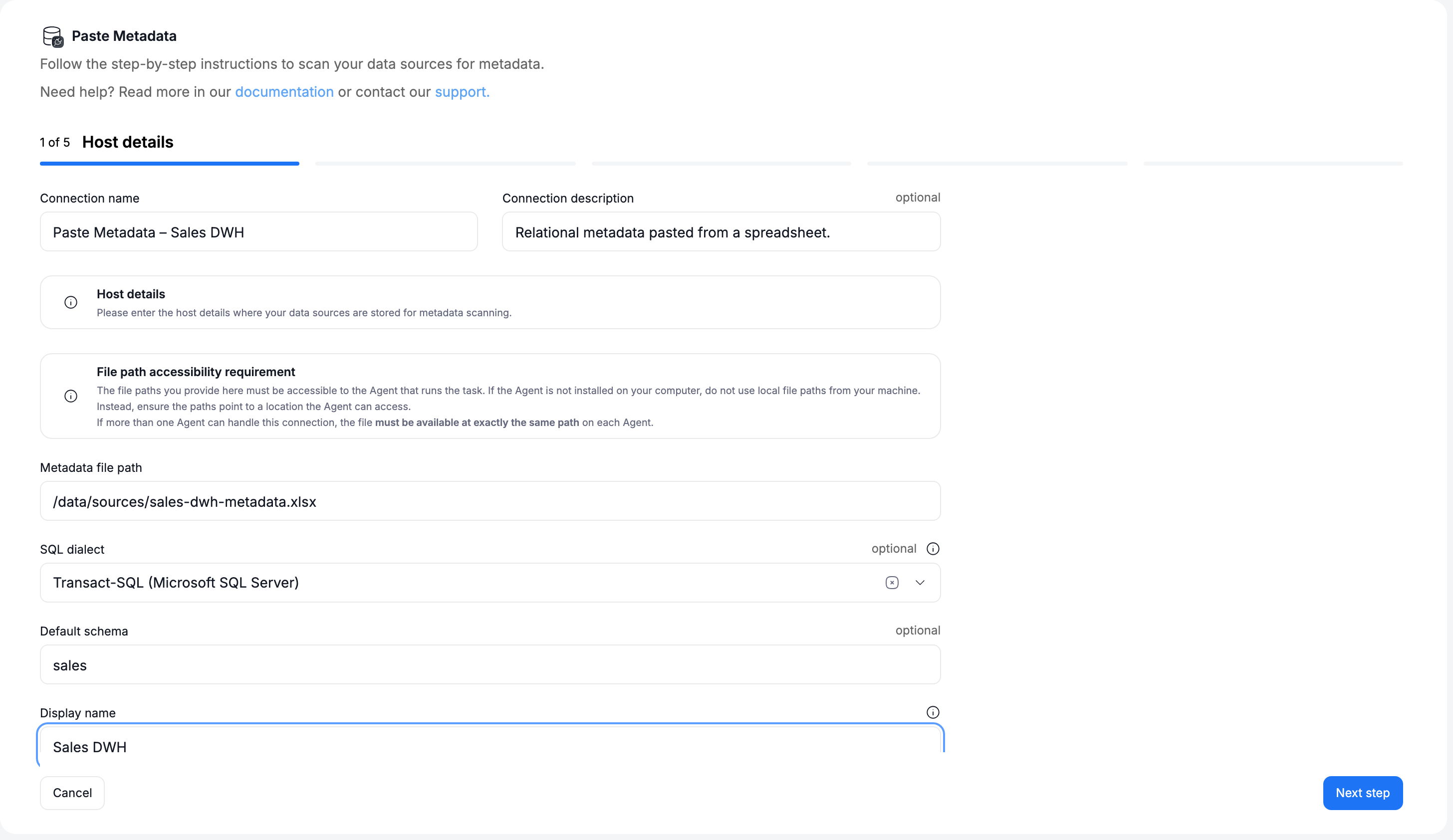
Provide the name of the Connection, an optional description, and tell Dataedo where the workbook is:
- Metadata file path - the path to the
.xlsxfile holding your metadata - SQL dialect (optional) - the dialect to use when parsing any SQL in the workbook
- Default schema (optional) - the schema to assign to objects whose row does not name one
- Display name - the Title under which the imported source will be visible in Dataedo
The path you enter here is opened by the Agent that runs the task, not by your browser - so a local path from your own machine will not work unless the Agent runs there. If several Agents can handle this connection, the file must be available at exactly the same path on each of them.
A Connection in Dataedo represents a saved configuration for accessing a data source.
It can be reused for future imports and scheduling.
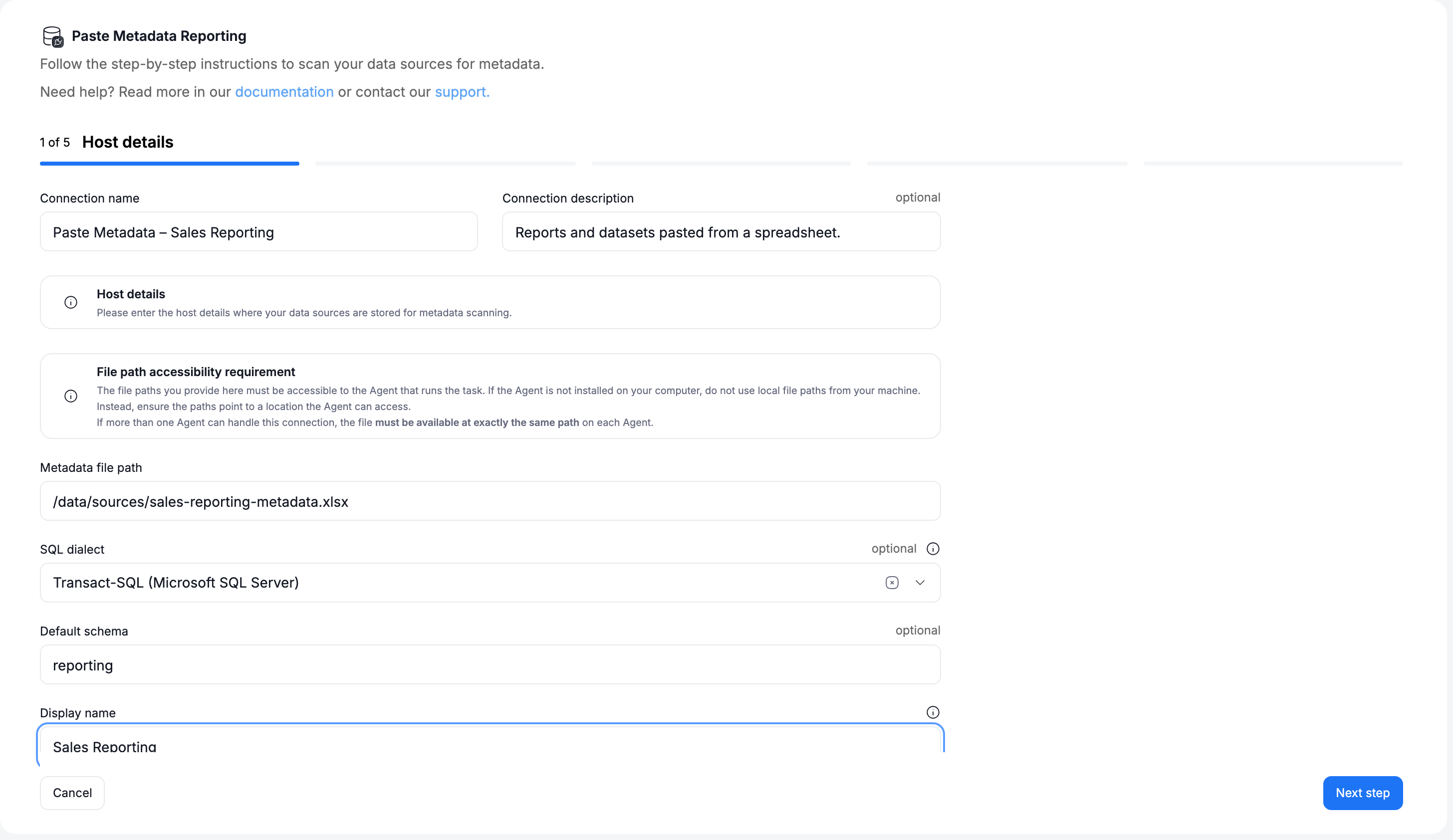
The form is the same for Paste Metadata Reporting:
Advanced settings is optional — you can leave it collapsed and the connection will run on any available agent with the global timeouts. Expand it if you want to restrict the connection to a specific agent or override the task timeouts.
Step 2. Validate data
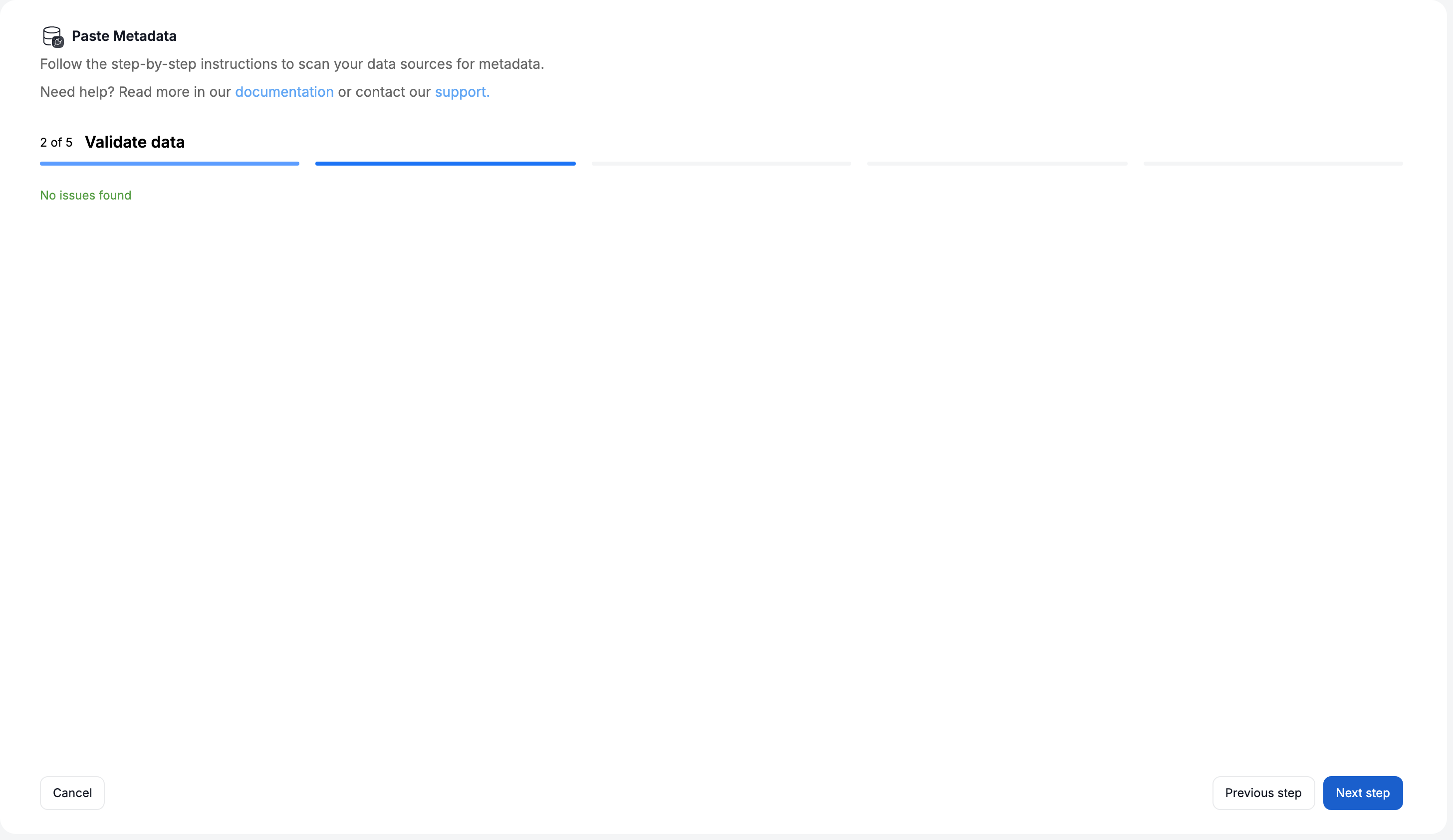
Dataedo reads the workbook and reports what it found before anything is imported. A clean file shows No issues found; otherwise the problems are listed here - see Correct your data if it fails validation below for how to fix the most common ones.
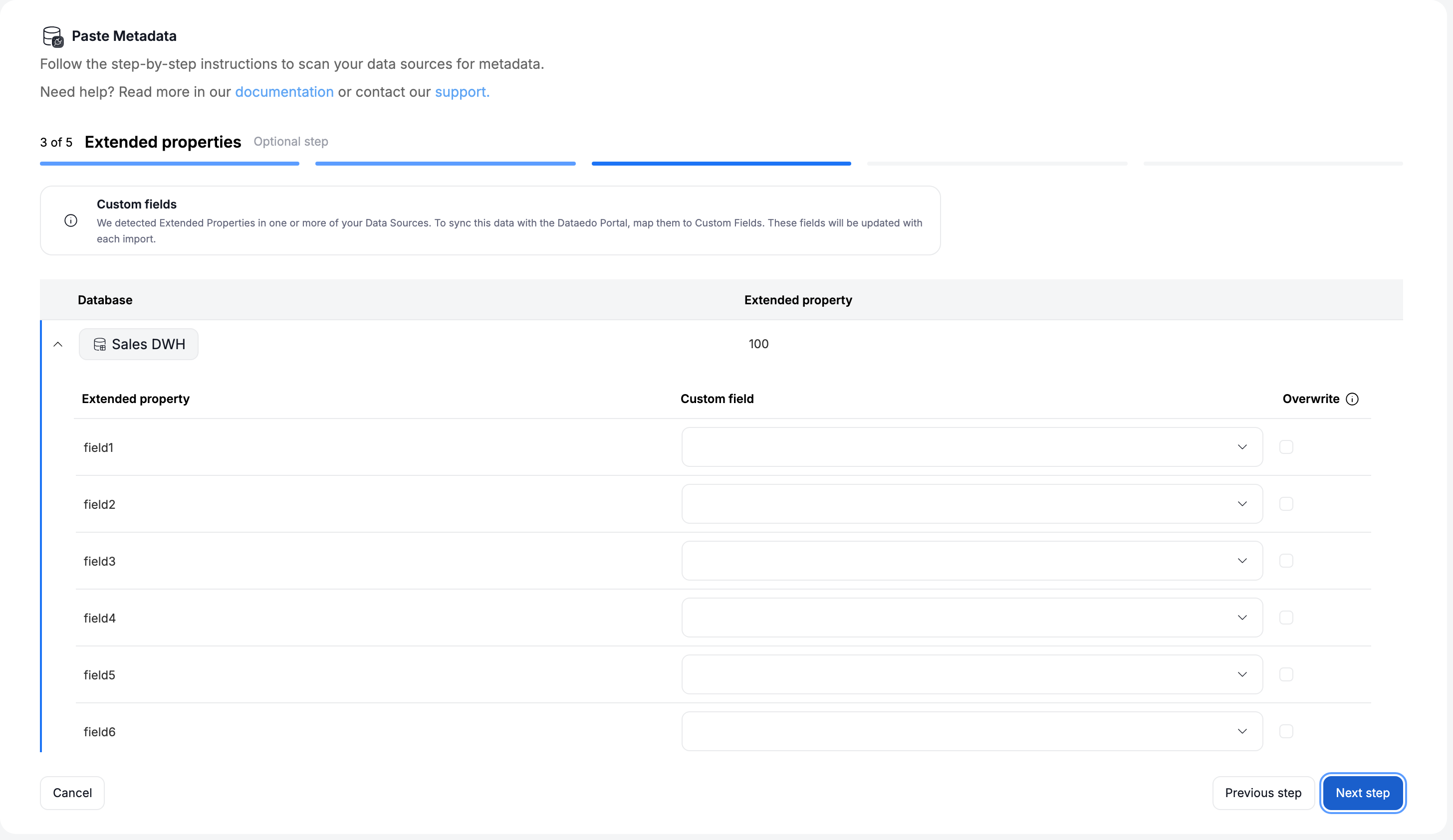
Step 3. Extended properties (optional)
This step appears only if the workbook contains Extended Properties. You can map them to Custom Fields in Dataedo, or skip this step entirely. If you skip it, no Extended Properties will be imported.
Use the Overwrite option to decide whether each import replaces values already set in Dataedo.
Step 4. Objects to import
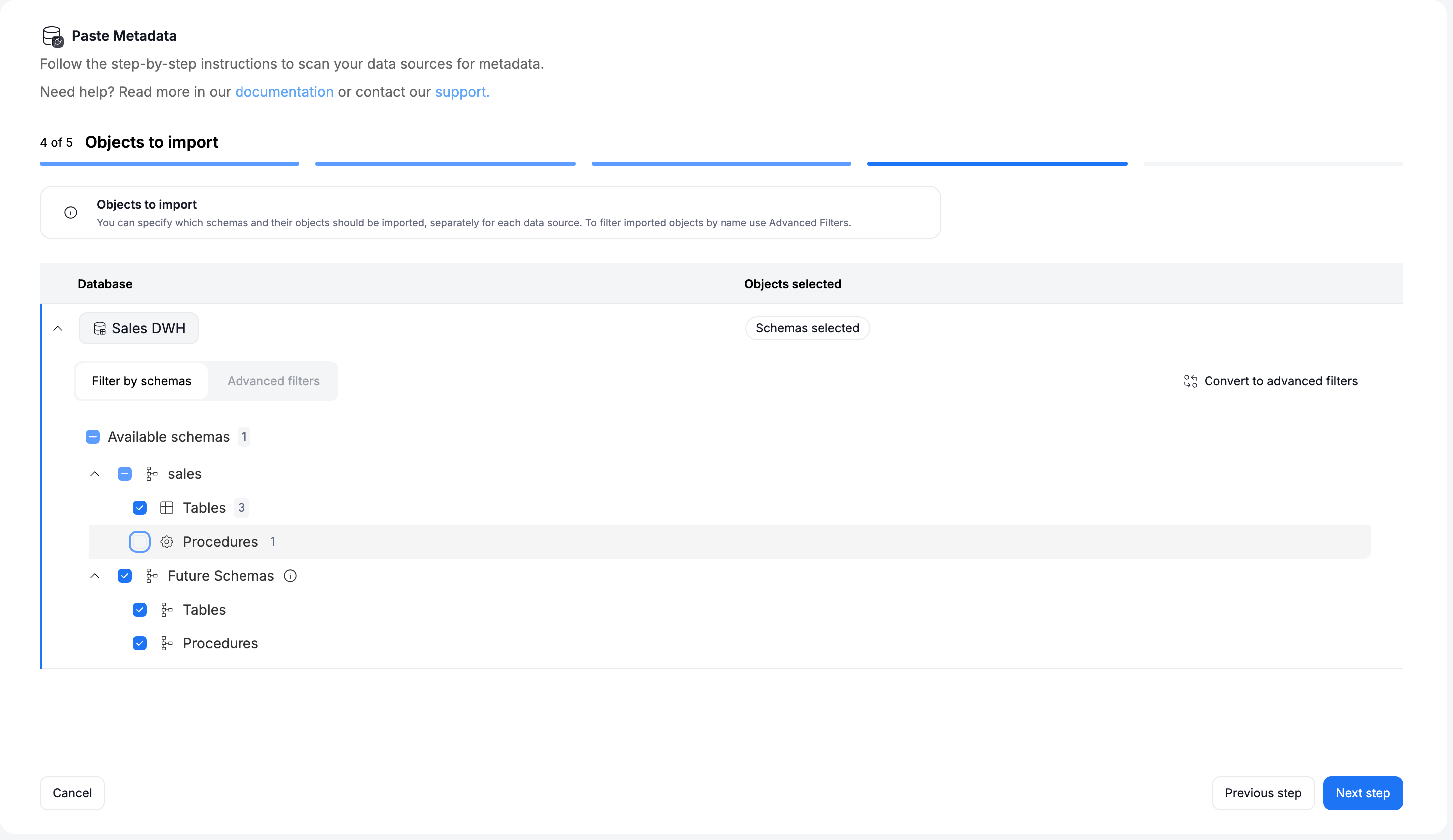
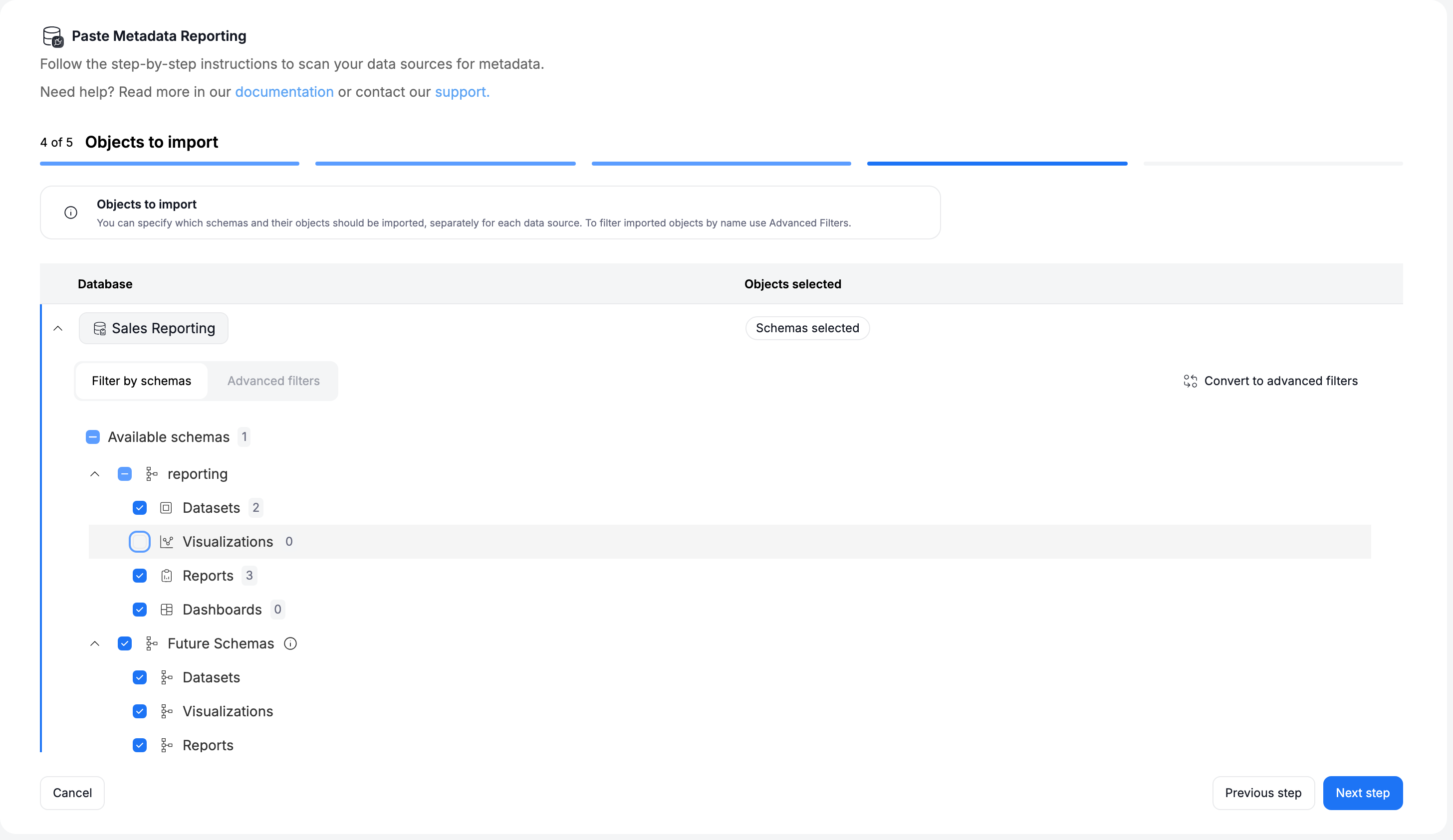
Use Filter by schemas to choose the schemas to read and, within each one, the object types to import. Select Future Schemas to include schemas that appear in the workbook after this import as well.
The available types depend on which connector you picked. Paste Metadata offers Tables and Procedures:
Paste Metadata Reporting offers Datasets, Visualizations, Reports and Dashboards:
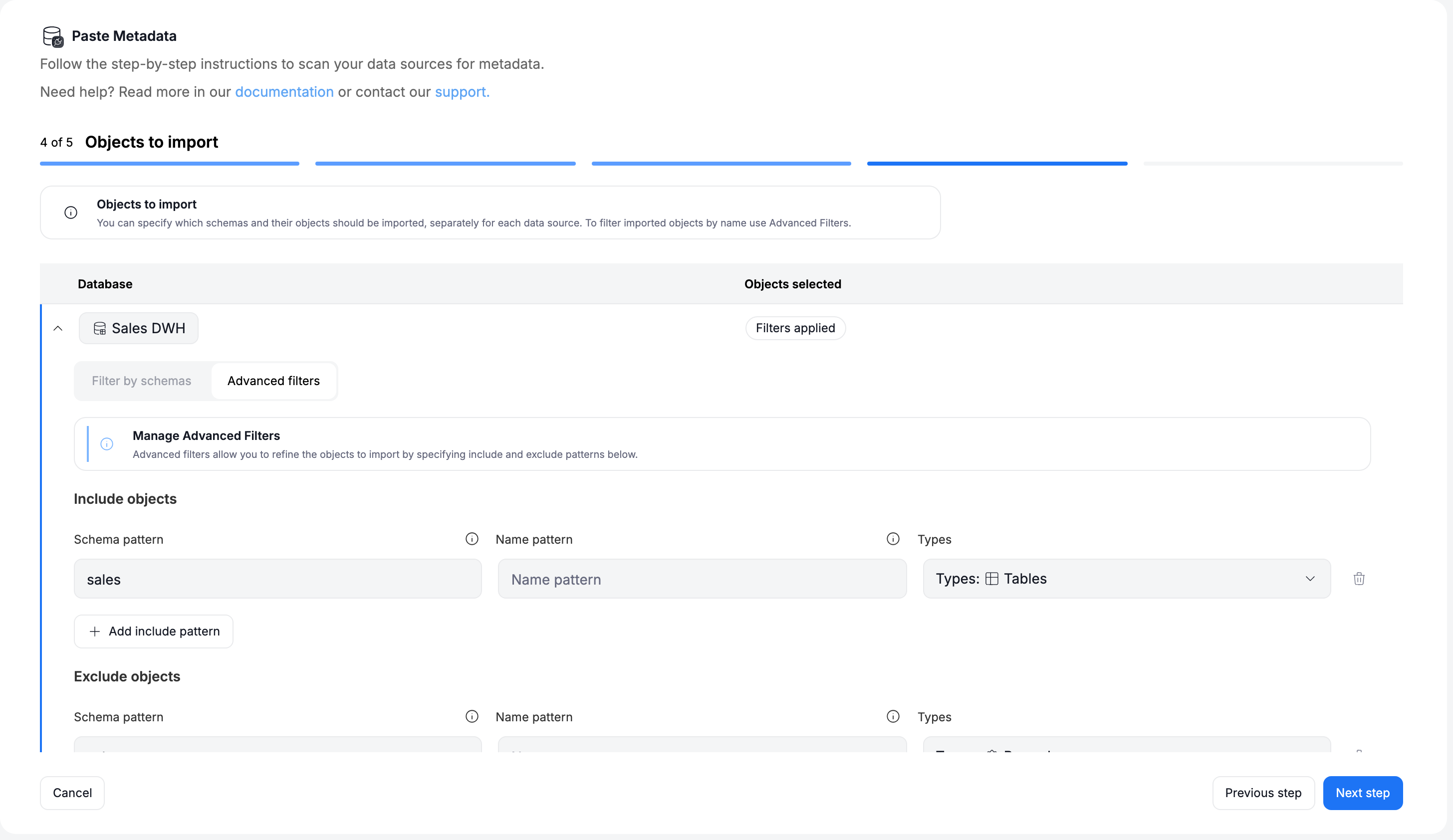
Switch to Advanced filters to include or exclude objects with schema patterns, name patterns and object types instead.
Step 5. Schedule
Configure the Metadata Import task for the source:
- choose the metadata extraction options (
Append only,Reimport all included objects) - run daily, on selected weekdays, or on specific days of the month
- choose an exact time of execution
- Task state:
Active- the task will run as scheduledDraft- the task is saved but not executed until you switch it to Active
- Run Immediately - when checked, the task will also be executed right after you click
Create connection
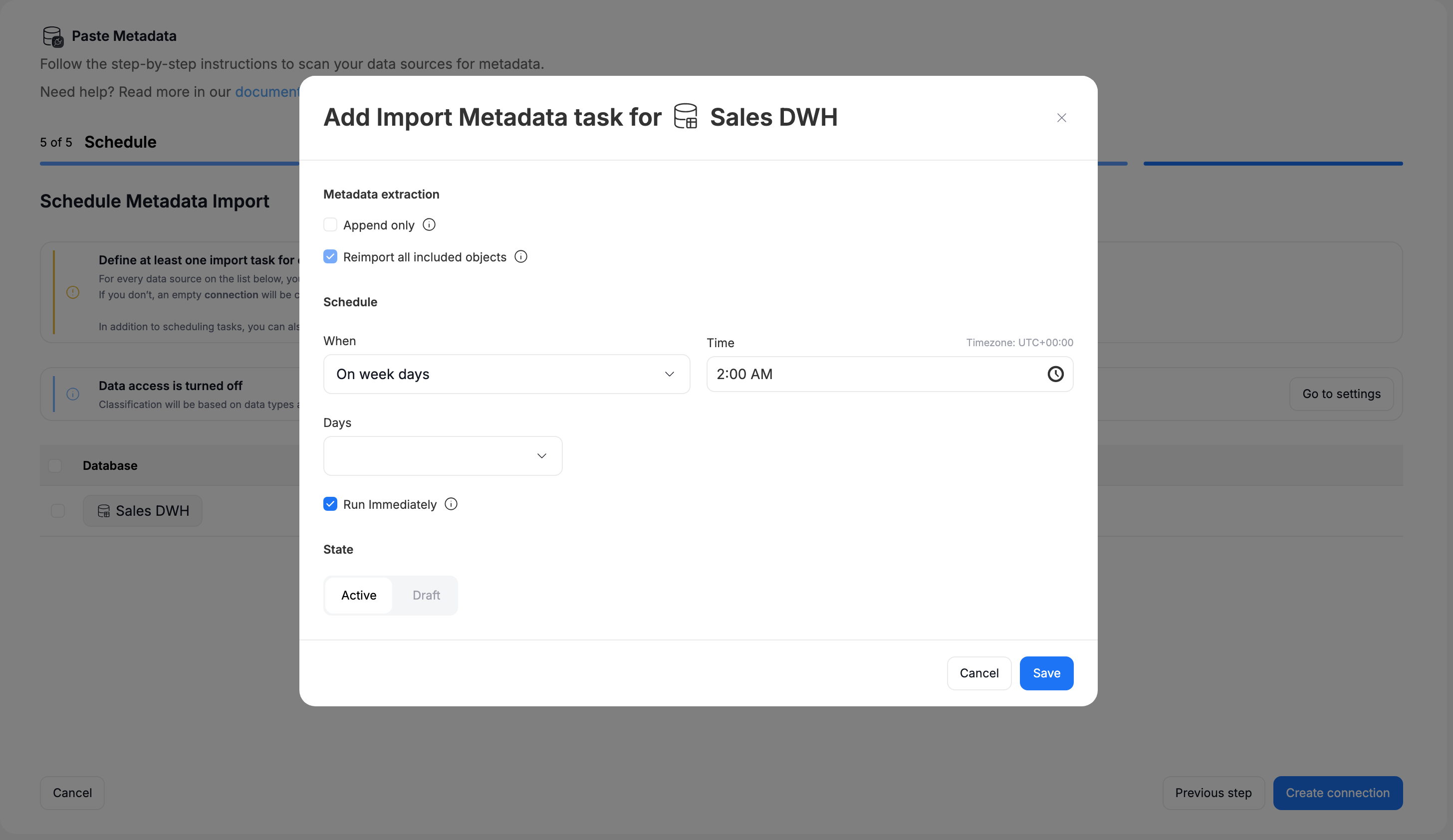
Once saved, the task appears next to its source in the schedule list.
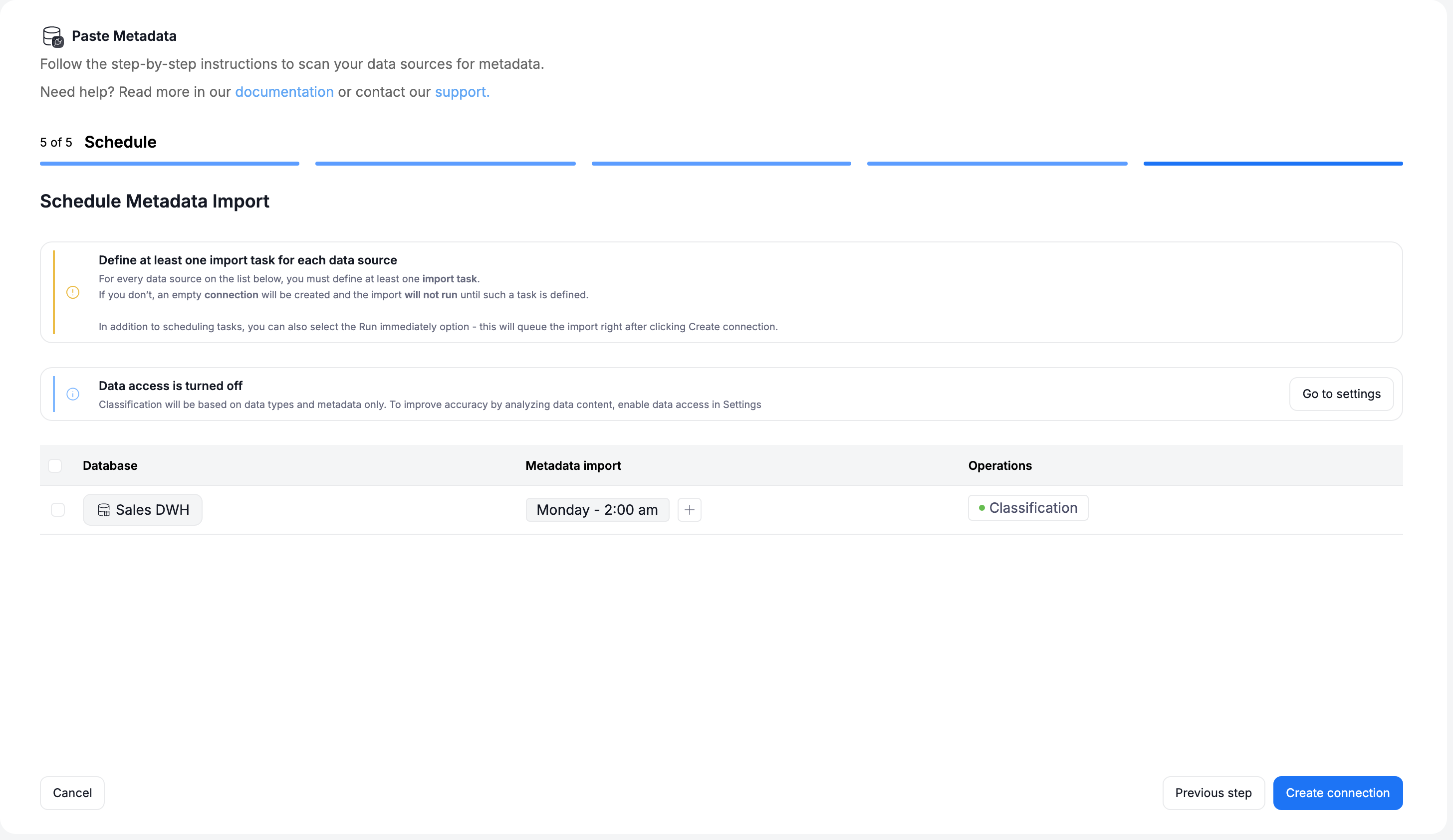
You must configure at least one import task in the schedule section.
If you skip this, an empty database will be created and no metadata will be imported.
Importing Metadata in Dataedo Desktop
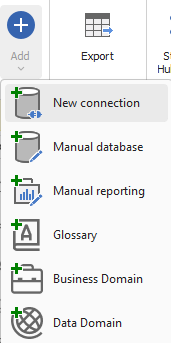
Start by adding new connection to your repository.
Paste Metadata can be found within the generic connector group.
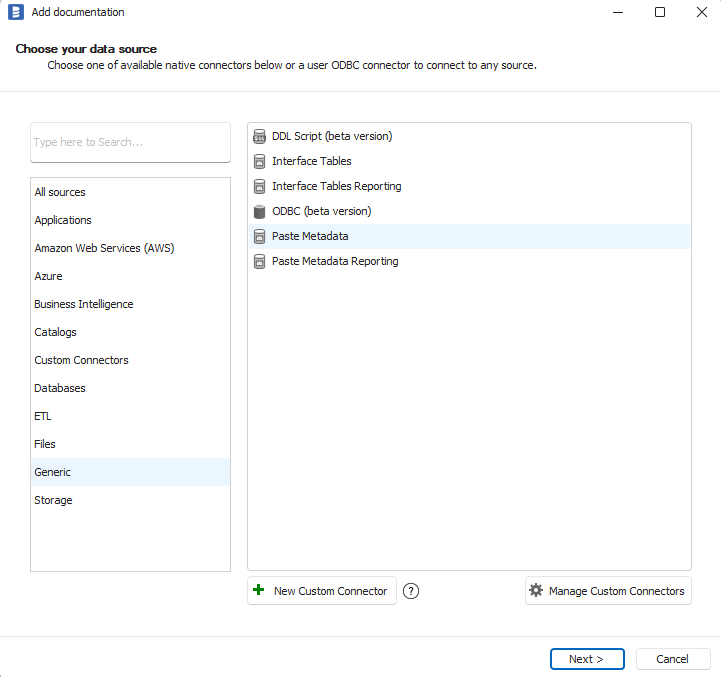
Choose specific copy & paste connector
Use Paste Metadata for importing:
- Tables and views
- Procedures and functions
Use Paste Metadata Reporting for importing:
- Reports and dashboards
- Datasets
These connectors differ based on the type of data they import, but they both support documenting the same elements:
- Columns
- Parameters
- Triggers
- Primary and unique keys
- Foreign keys
- Data lineage
- Lineage processes
- Linked sources
Available tabs and columns
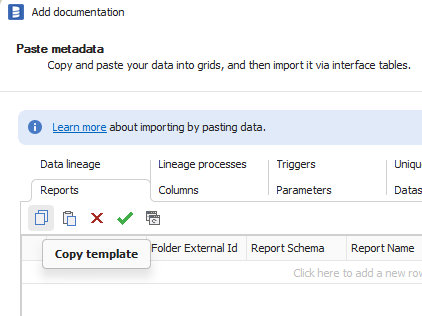
Each tab corresponds to an interface table. Use the Copy template button on each tab to copy column headers to your clipboard, then paste them into your spreadsheet as a starting point.
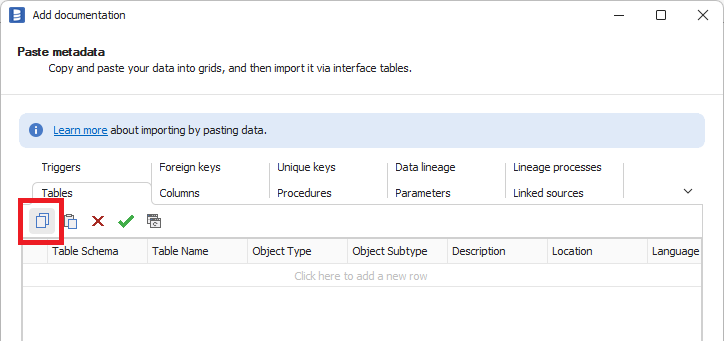
Paste Metadata connector
| Tab | Key Columns | Required Fields |
|---|---|---|
| Tables | TableSchema, TableName, ObjectType, ObjectSubtype, Description, Definition | TableName, ObjectType, ObjectSubtype |
| Columns | ObjectSchema, ObjectName, ObjectObjectType, ColumnName, DataType, Nullable | ObjectName, ObjectObjectType, ColumnName |
| Procedures | ProcedureSchema, ProcedureName, ObjectType, ObjectSubtype, Definition | ProcedureName, ObjectType, ObjectSubtype |
| Parameters | ObjectSchema, ObjectName, ObjectObjectType, ParameterName, ParameterMode, DataType | ObjectName, ObjectObjectType, ParameterName, ParameterMode |
| Triggers | TableSchema, TableName, TableObjectType, TriggerName, TriggerType, Before, After, OnInsert, OnUpdate, OnDelete | TableName, TableObjectType, TriggerName, TriggerType |
| Keys | TableSchema, TableName, TableObjectType, KeyName, KeyType, ColumnName | TableName, TableObjectType, KeyType, ColumnName |
| Foreign Keys | ForeignTableSchema, ForeignTableName, PrimaryTableSchema, PrimaryTableName, ForeignColumnName, PrimaryColumnName | ForeignTableName, PrimaryTableName, ForeignColumnName, PrimaryColumnName |
| Data Lineage | SourceDatabaseName, SourceObjectName, SourceObjectType, ProcessorObjectName, ProcessorObjectType, TargetDatabaseName, TargetObjectName, TargetObjectType | All source, processor, and target fields |
| Lineage Processes | ProcessorObjectSchema, ProcessorObjectName, ProcessorObjectType, ProcessorProcessName, Description | ProcessorObjectName, ProcessorObjectType |
| Linked Sources | LinkedSourceName, ConnectionDetails, SqlDialect, Description | LinkedSourceName |
Paste Metadata Reporting connector
The Reporting connector includes additional tabs and external ID fields:
| Tab | Key Columns | Required Fields |
|---|---|---|
| Datasets | ExternalId, TableSchema, TableName, ObjectSubtype, Description | TableName, ObjectSubtype |
| Reports | ExternalId, ReportSchema, ReportName, ObjectType, ObjectSubtype, Url, Description | ReportName, ObjectType, ObjectSubtype |
| Columns | ObjectExternalId, ObjectSchema, ObjectName, ObjectObjectType, ColumnName, ColumnExternalId | ObjectName, ObjectObjectType, ColumnName |
| Parameters | ObjectExternalId, ObjectSchema, ObjectName, ObjectObjectType, ParameterName, ParameterMode | ObjectName, ObjectObjectType, ParameterName, ParameterMode |
When importing BI objects (datasets, reports, dashboards), use ExternalId to uniquely identify objects. Data lineage to these objects must include the corresponding external_id columns. See Object matching for lineage for details.
Valid object types
All type values must be UPPERCASE. See Valid object types for the complete reference.
Quick reference
| Tab | ObjectType Values | ObjectSubtype Examples |
|---|---|---|
| Tables | TABLE, VIEW, STRUCTURE, DATASET | TABLE, EXTERNAL_TABLE, MATERIALIZED_VIEW, CSV, JSON |
| Procedures | PROCEDURE, FUNCTION | PROCEDURE, CLR_PROCEDURE, FUNCTION, CLR_FUNCTION |
| Reports | REPORT, DASHBOARD, VISUALIZATION | REPORT, POWER_BI_REPORT, DASHBOARD |
| Triggers | TRIGGER | TRIGGER, CLR_TRIGGER, RULE |
Keys and parameters do not use the ObjectType/ObjectSubtype pattern:
| Tab | Field | Valid Values |
|---|---|---|
| Keys | key_type | PK, UK |
| Parameters | parameter_mode | IN, OUT, INOUT |
Import steps
Copy headers to clipboard
Every tab has its own Copy template button.
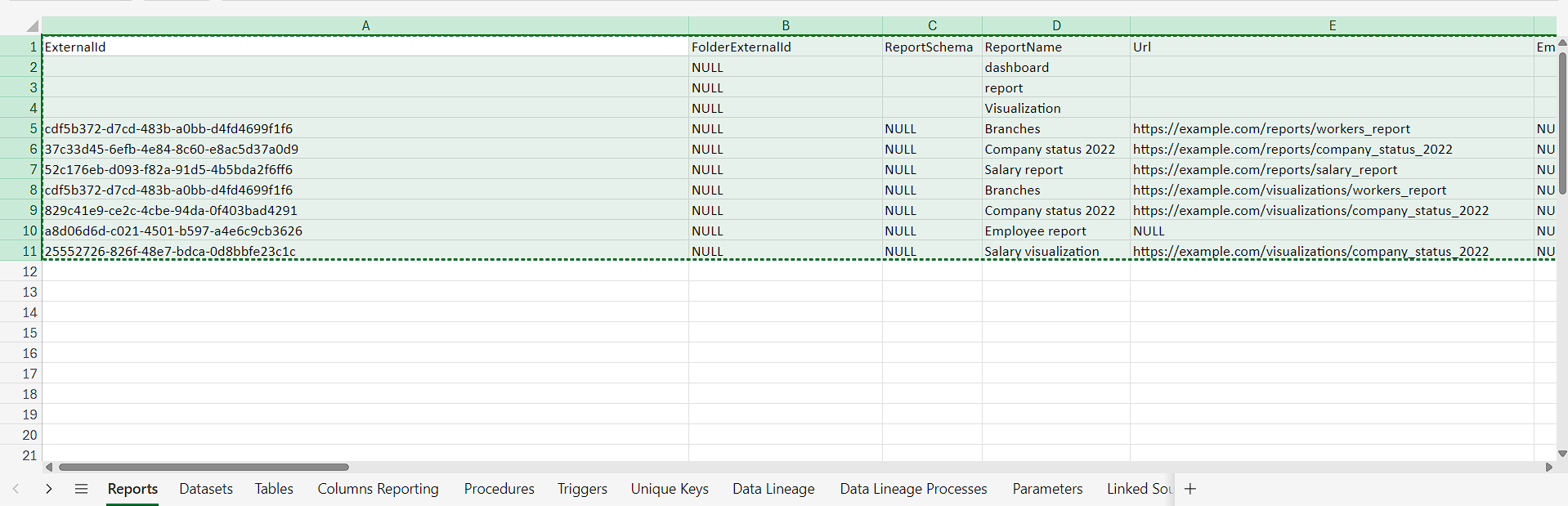
Prepare your data
Paste the template into your spreadsheet and populate the cells.
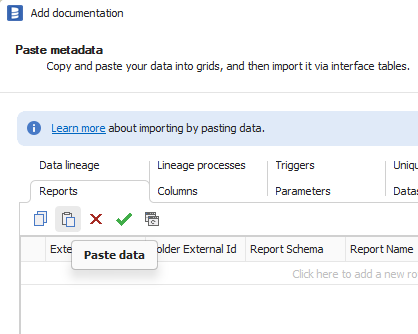
Paste data into Dataedo
Each tab has its own Paste data button.
Correct your data if it fails validation
Every row needs to be valid to proceed with the import. Ensure data is correct by clicking the Validate button or pasting data into the tab. You can check for errors in the tooltip.
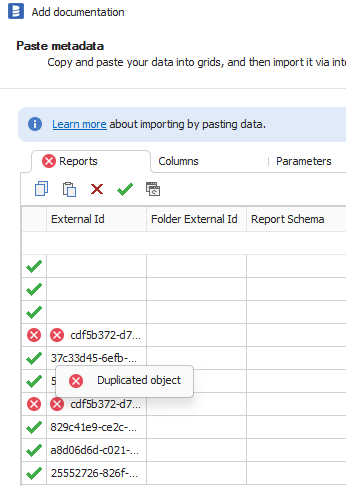
We recommend correcting the data in the Excel file first. Then, you can remove all rows by selecting all rows in Dataedo, pressing Ctrl + A, and then clicking the delete button. After that, paste the data again.
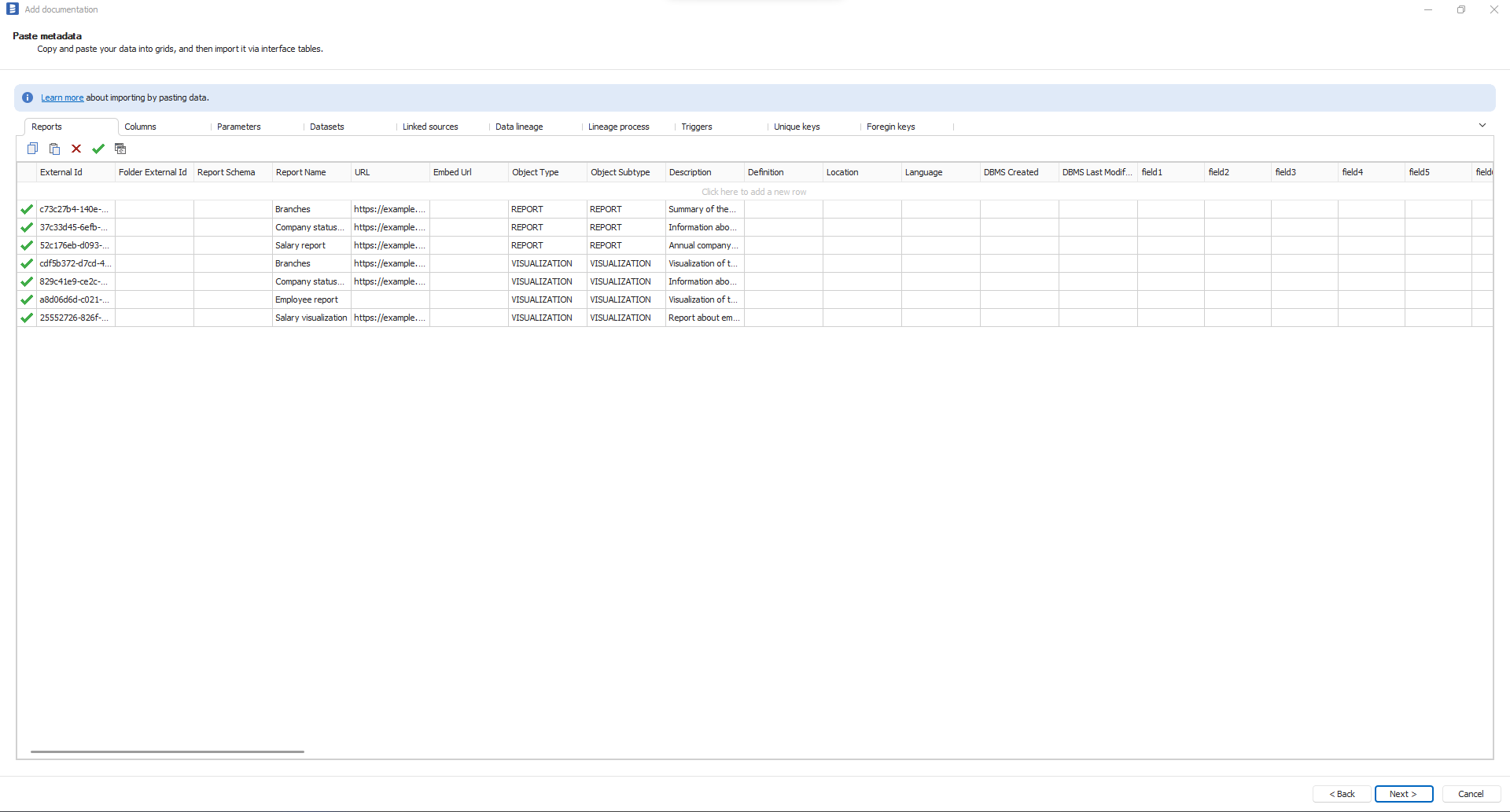
Common validation errors
| Error | Cause | Solution |
|---|---|---|
| Required field is empty | Missing value in required column | Fill in the required field (e.g., TableName, ObjectType) |
| Invalid ObjectType | Type value not recognized or not uppercase | Use valid uppercase type (e.g., TABLE, VIEW, PROCEDURE) |
| Invalid ObjectSubtype | Subtype not valid for the given ObjectType | Check valid subtypes for your ObjectType |
| Object not found | Column references non-existent table/procedure | Add the parent object first (paste Tables before Columns) |
| Duplicate object | Same object pasted twice | Remove duplicate row or use different schema/name |
| Invalid ParameterMode | Mode not IN, OUT, or INOUT | Use uppercase: IN, OUT, INOUT |
| Invalid KeyType | Key type not PK or UK | Use PK for primary key, UK for unique key |
| Column not found | FK/Key references non-existent column | Add the column to Columns tab first |
| Database not found | Lineage references unknown database | Add linked source or import the referenced database first |
Paste order
When pasting data across multiple tabs, follow this order to avoid validation errors:
- Tables (or Datasets/Reports for Reporting connector)
- Columns
- Procedures
- Parameters
- Triggers
- Keys and Foreign Keys
- Linked Sources
- Data Lineage
- Lineage Processes
Import
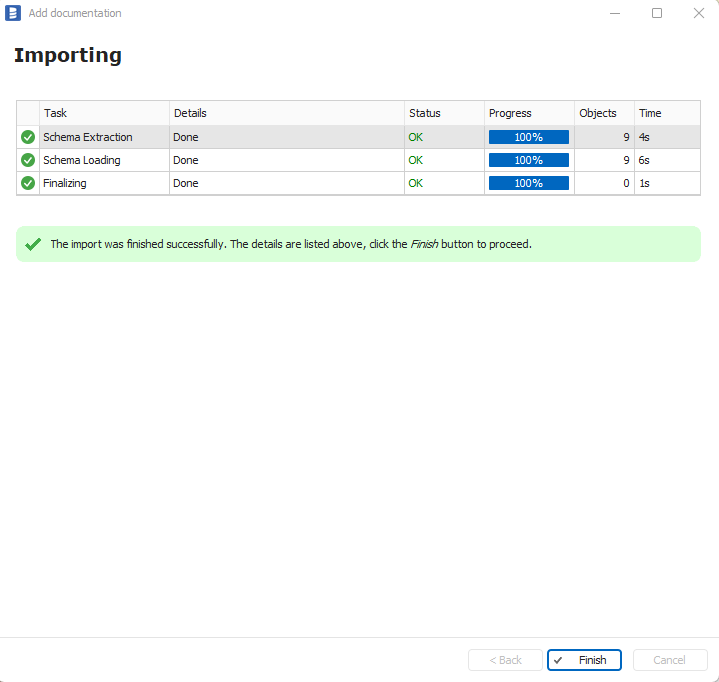
Metadata will be uploaded to Interface Tables, and the import process will continue as usual.
You can select additional import options or keep clicking the "Next" button.
Import changes
When importing changes to an existing database created by pasting, you must paste all the data again. Otherwise, objects existing in the documentation but not pasted will be marked as deleted.
See also
- Interface Tables - Full column reference and detailed documentation
- Interface Tables Example - Complete multi-database pipeline example

