Connecting to dbt Core (artifacts from path)
Supported versions
Dataedo’s dbt connector works with both dbt Core and dbt Cloud starting from version v1.0. The connector is platform-agnostic, so you can use it with any warehouse supported by dbt - Snowflake, BigQuery, Redshift, and more. For the lineage support, make sure that the warehouse is connected to Dataedo as well.
Prepare for import
Dataedo needs two dbt artifacts to import metadata:
manifest.json- must come from a dbt command that also compiles your models,catalog.json- produced bydbt docs generatecommand.
See below for details on how to generate or retrieve these files.
Generate the dbt docs artifacts
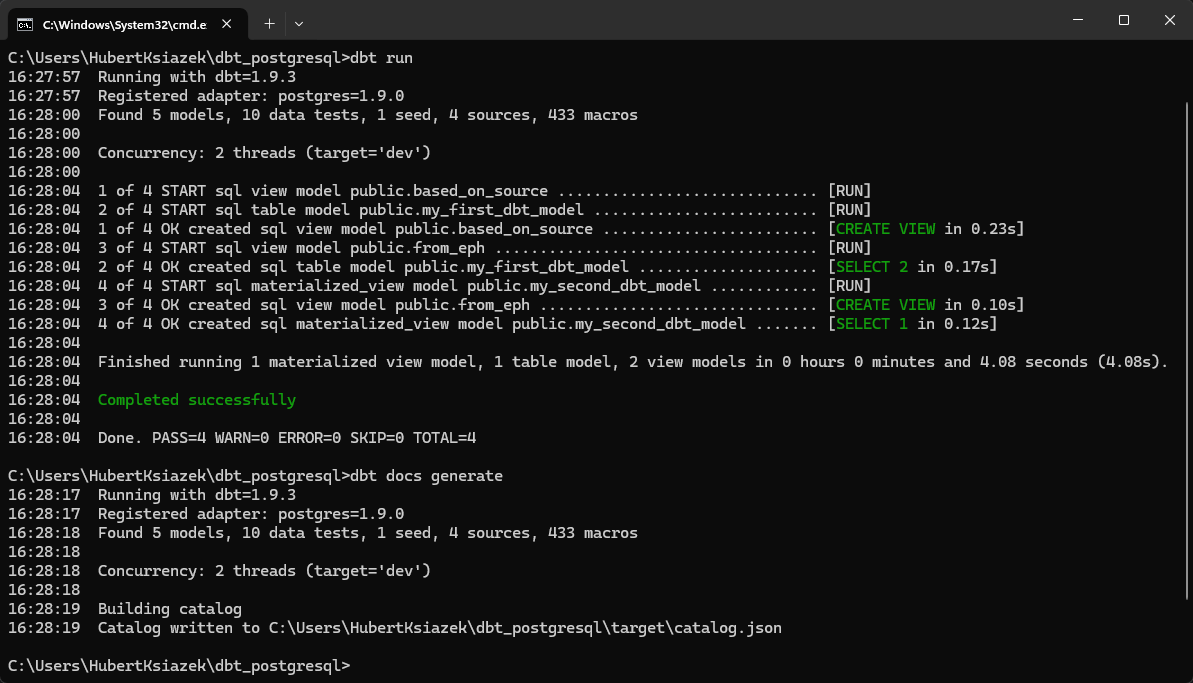
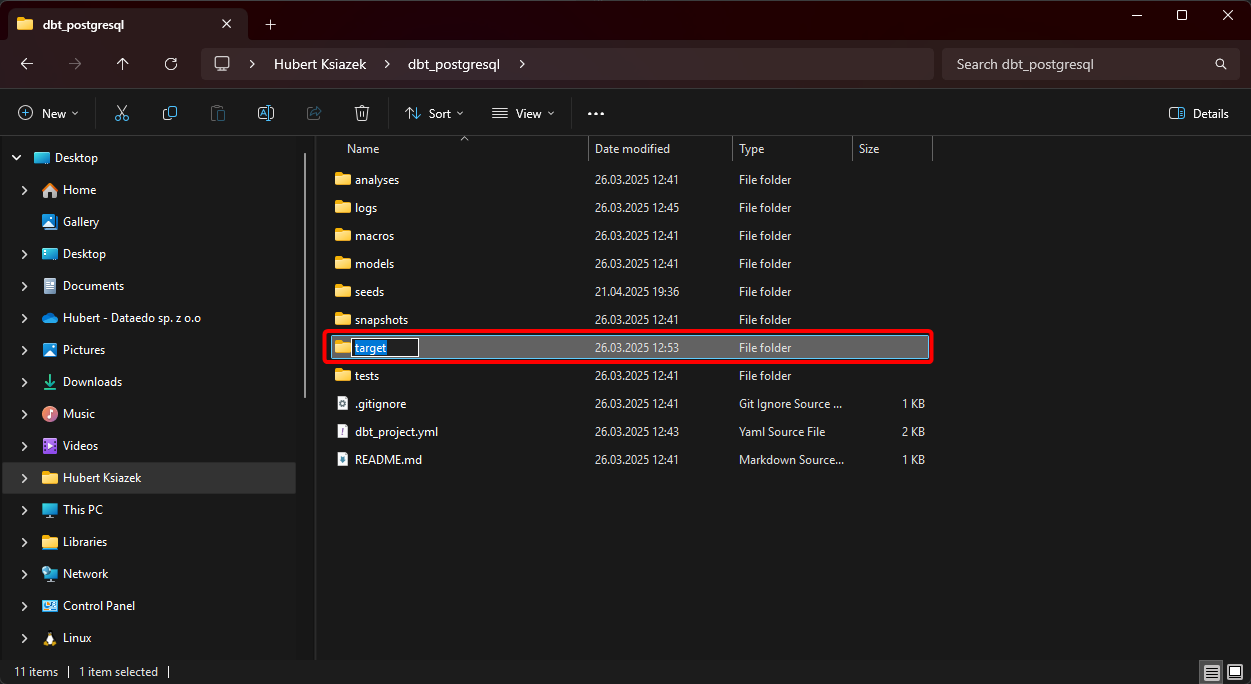
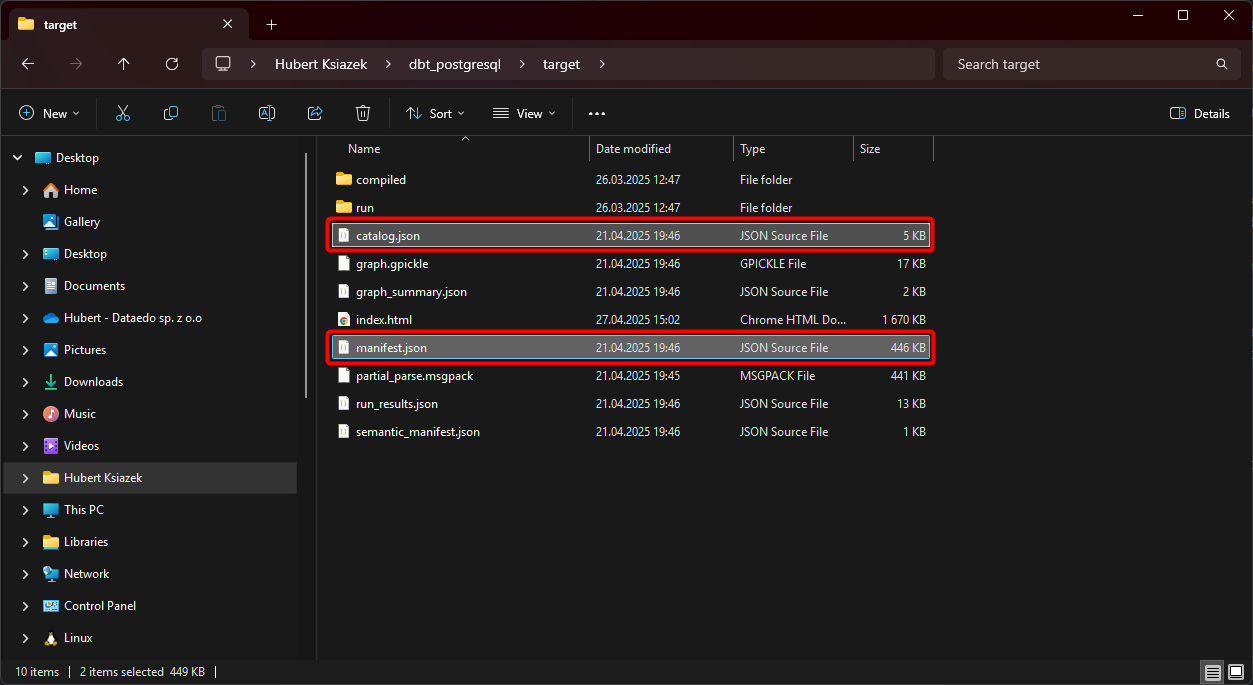
After your regular dbt run, execute dbt docs generate in the terminal inside your project directory. This command creates the manifest.json and catalog.json files in the target folder (unless you changed the default path). These two files are required for Dataedo to import metadata from dbt.
Step by step, with screenshots
Run the commands in your project directory.
Open the project folder and go into target.
Both files are in there.
You don’t have to run dbt docs generate immediately after dbt run. You can execute it at any time as long as all models are already materialized. Otherwise, the generated documentation may be incomplete.
Check that the manifest contains compiled SQL
manifest.json has to contain the compiled SQL of your models, or you end up with object-level lineage only.
Only the dbt commands that compile your models store that SQL in manifest.json (the compiled_code field). Dataedo builds column-level lineage by parsing it, so a manifest from dbt parse, dbt ls or dbt docs generate --no-compile leaves it out - and the import still succeeds and looks correct, which makes this easy to miss. If your pipeline uses --no-compile, remove the flag.
dbt compile, dbt run and dbt build also put compiled SQL in the manifest, but they do not refresh catalog.json - and a run narrowed down with --select compiles only the models it touches. Plain dbt docs generate is the command that gives you both artifacts, complete.
To confirm the models were compiled, check that target now holds a compiled subfolder with one .sql file per model. Dataedo reads the compiled SQL from manifest.json rather than from those files, but an empty or missing target/compiled means nothing was compiled.
Importing Metadata in Dataedo Portal
Entry point
To start the Metadata Import flow, make sure you have the Connection Manager role.
Then navigate to:
Connections → Add connection → dbt
This opens the import wizard described in the following steps.
Step 1. Host details
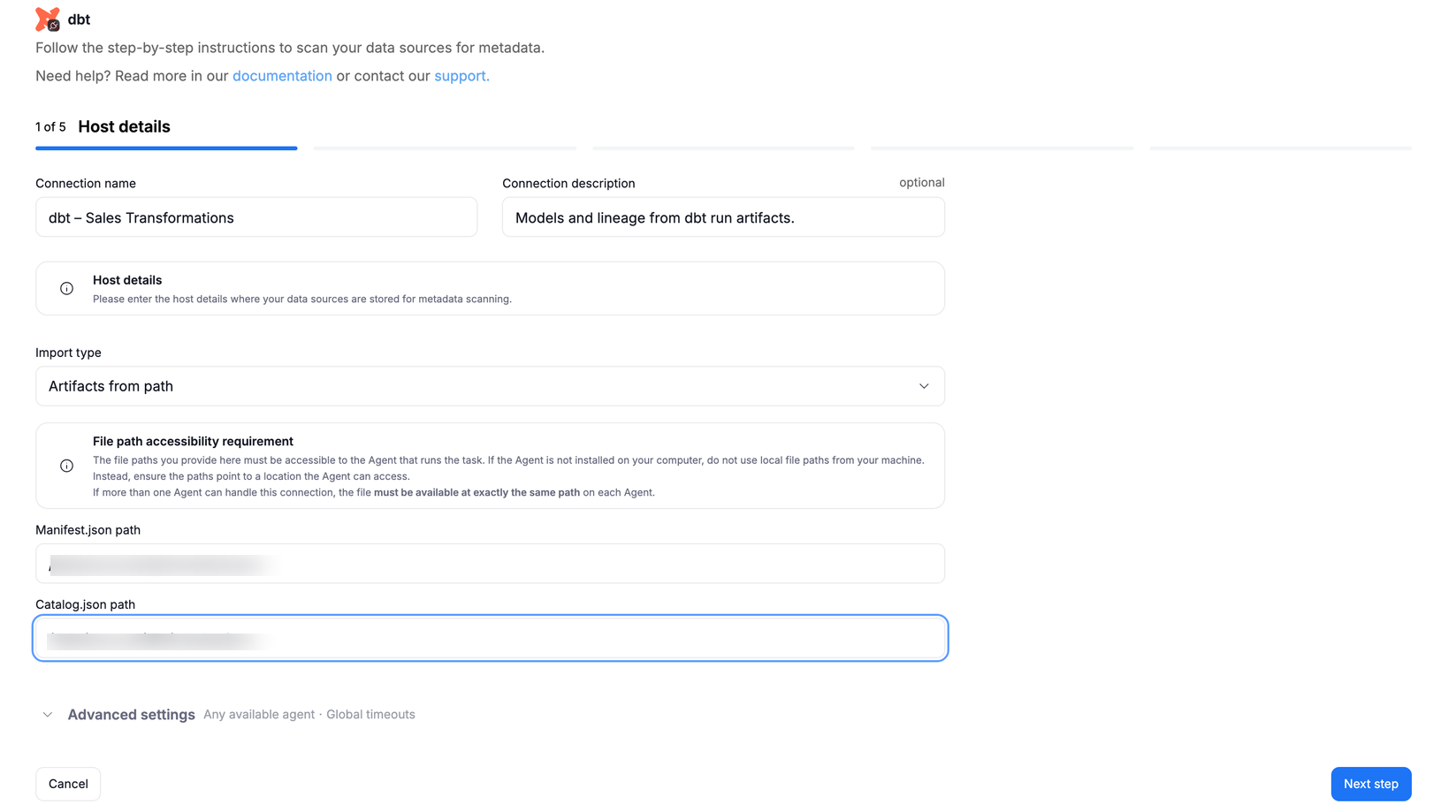
Provide the name of the Connection and an optional description, then choose Artifacts from path as Import type and point Dataedo to the two artifacts:
- Manifest.json path - the path to the
manifest.jsonfile - Catalog.json path - the path to the
catalog.jsonfile
See Generate the dbt docs artifacts above for how to produce both files.
The paths you enter here are opened by the Agent that runs the task, not by your browser - so local paths from your own machine will not work unless the Agent runs there. If several Agents can handle this connection, the files must be available at exactly the same path on each of them.
A Connection in Dataedo represents a saved configuration for accessing a data source.
It can be reused for future imports and scheduling.
Step 2. Objects to import
Dataedo reads the artifacts and lists the schemas found in the project. For each schema, you can choose which object types to import - Models, Sources and Structures.
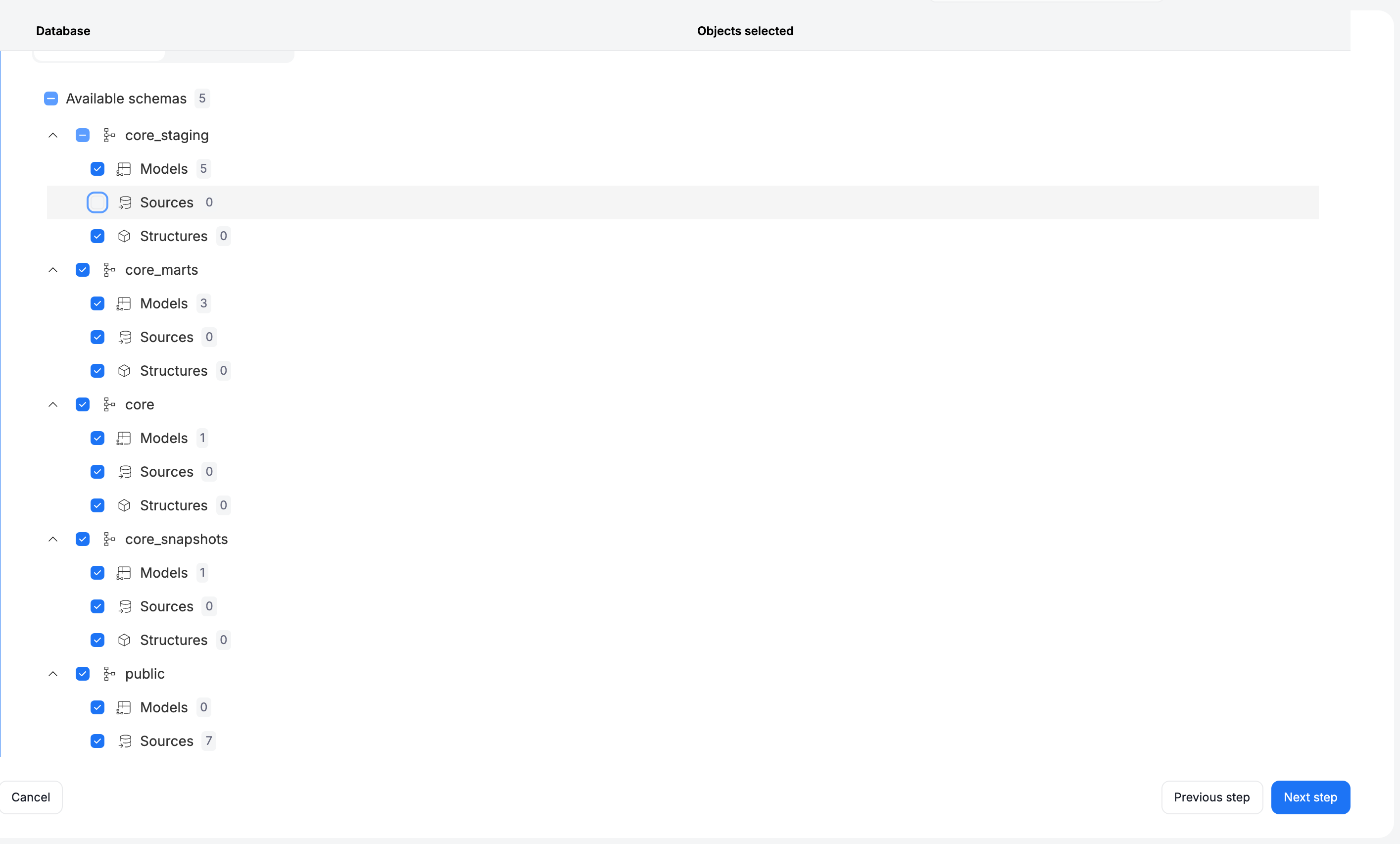
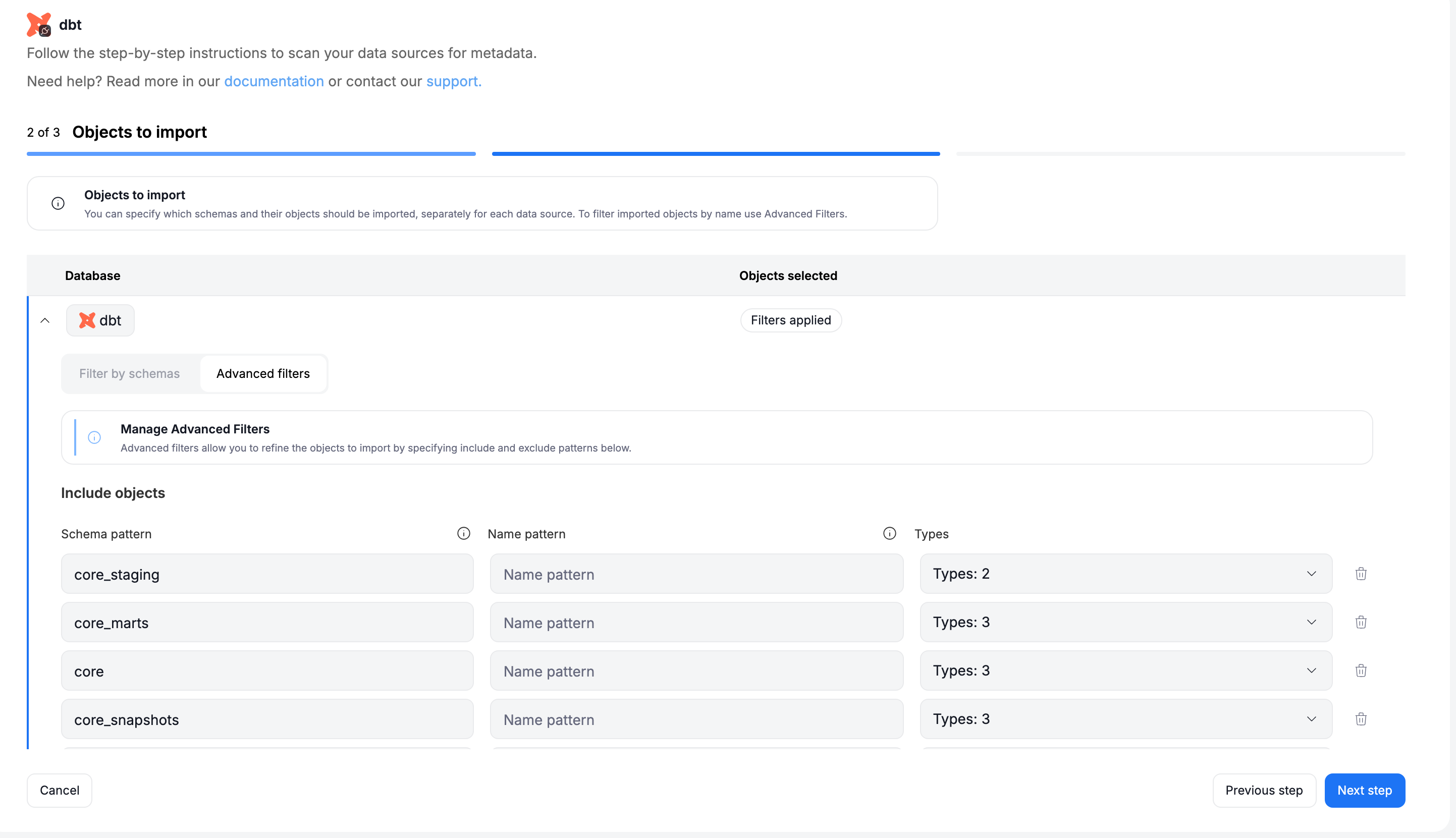
Use Advanced filters to include or exclude objects by name pattern and object type.
Step 3. Linked sources (optional)
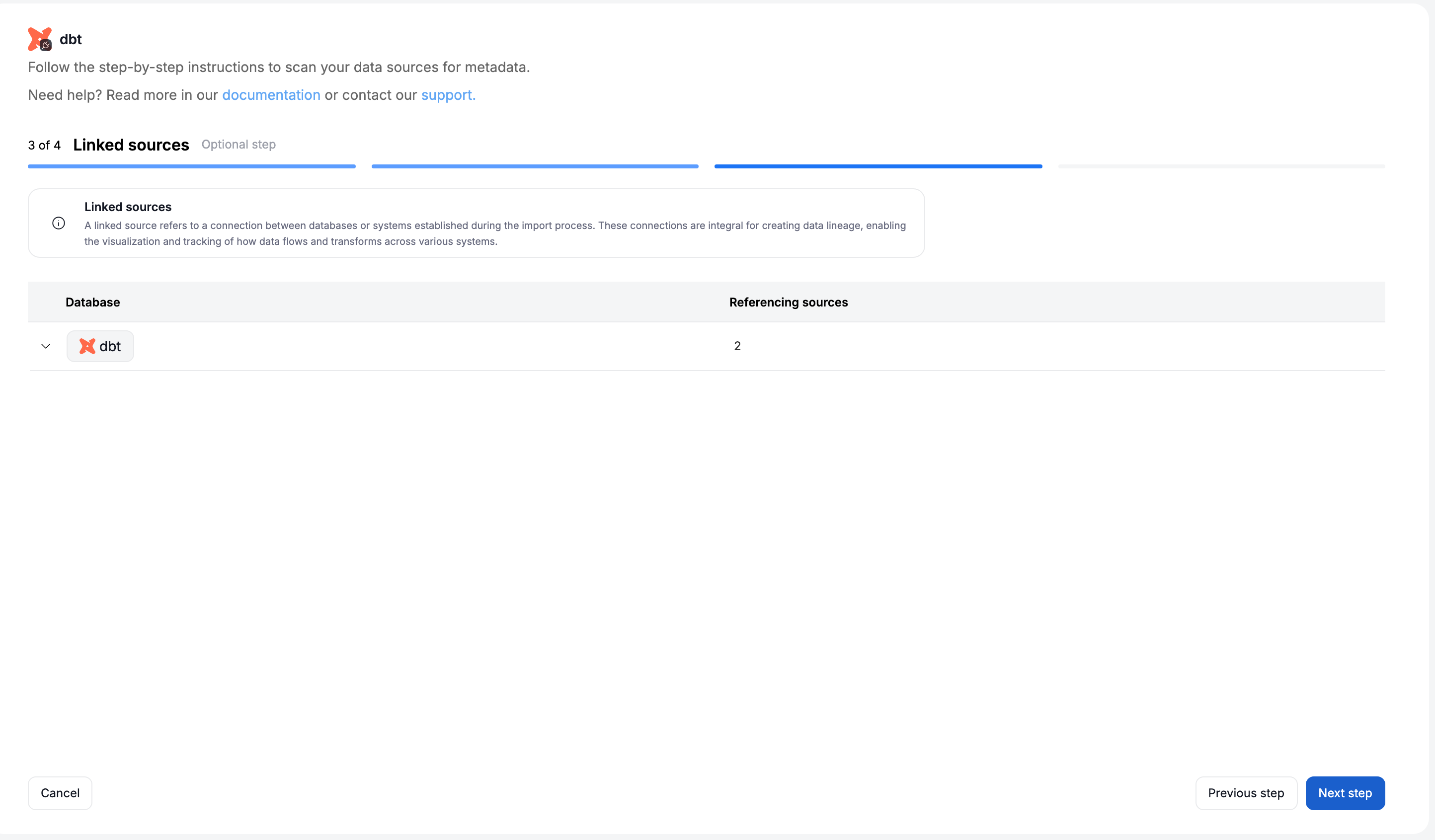
dbt lineage depends on linked sources - they tell Dataedo which documentation in the repository represents each database referenced by the project. This step lists the referencing sources detected in the artifacts so you can map them during the import instead of afterwards.
To learn what the individual linked sources mean and which documentation each one should point to, see After the first import - activate automatic lineage below.
Step 4. Schedule
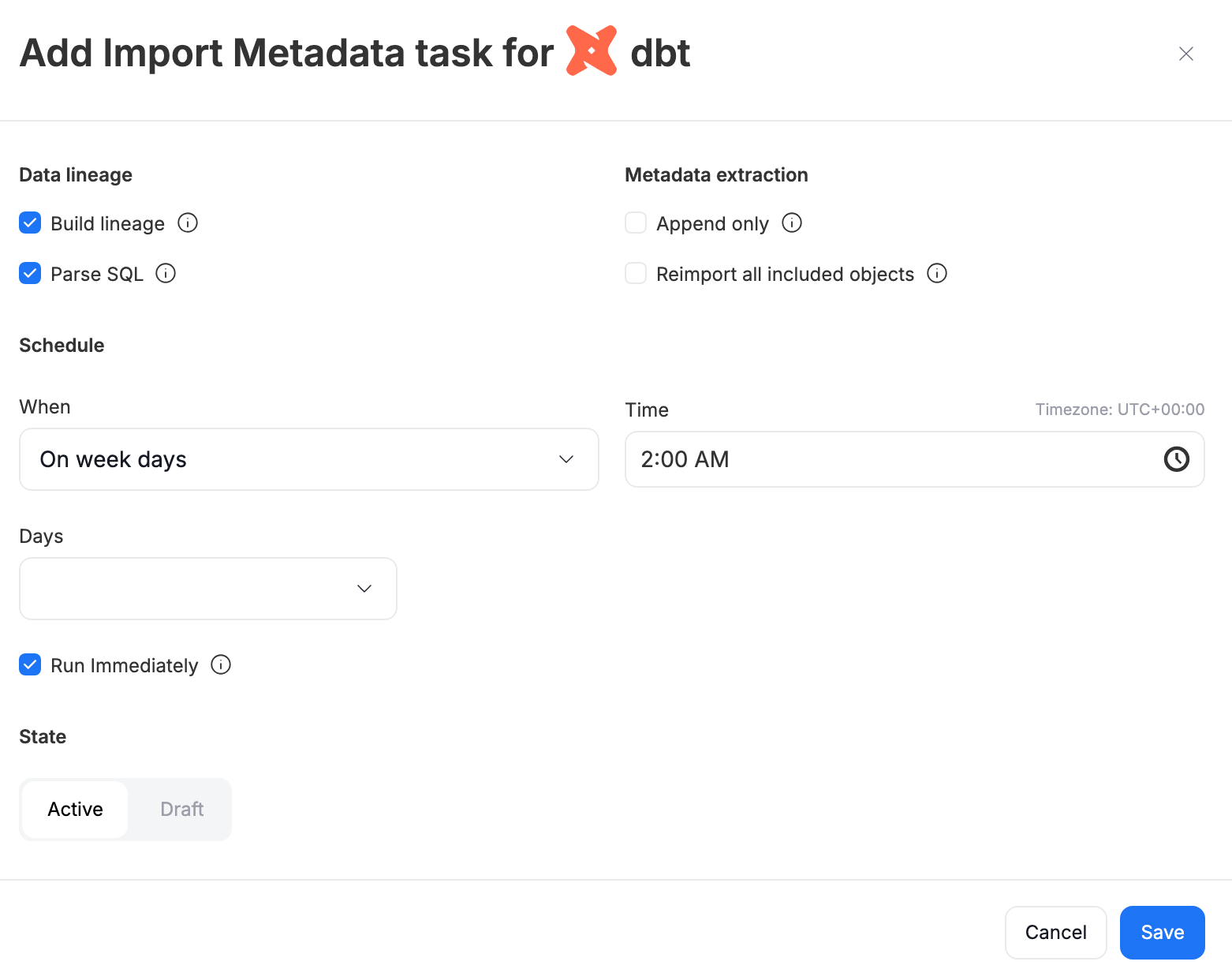
Configure the Metadata Import task for the source:
- choose the data lineage options (
Build lineage,Parse SQL) and metadata extraction options (Append only,Reimport all included objects) - run daily, on selected weekdays, or on specific days of the month
- choose an exact time of execution
- Task state:
Active- the task will run as scheduledDraft- the task is saved but not executed until you switch it to Active
- Run Immediately - when checked, the task will also be executed right after you click
Create connection
Once saved, the task appears in the schedule list for that data source.
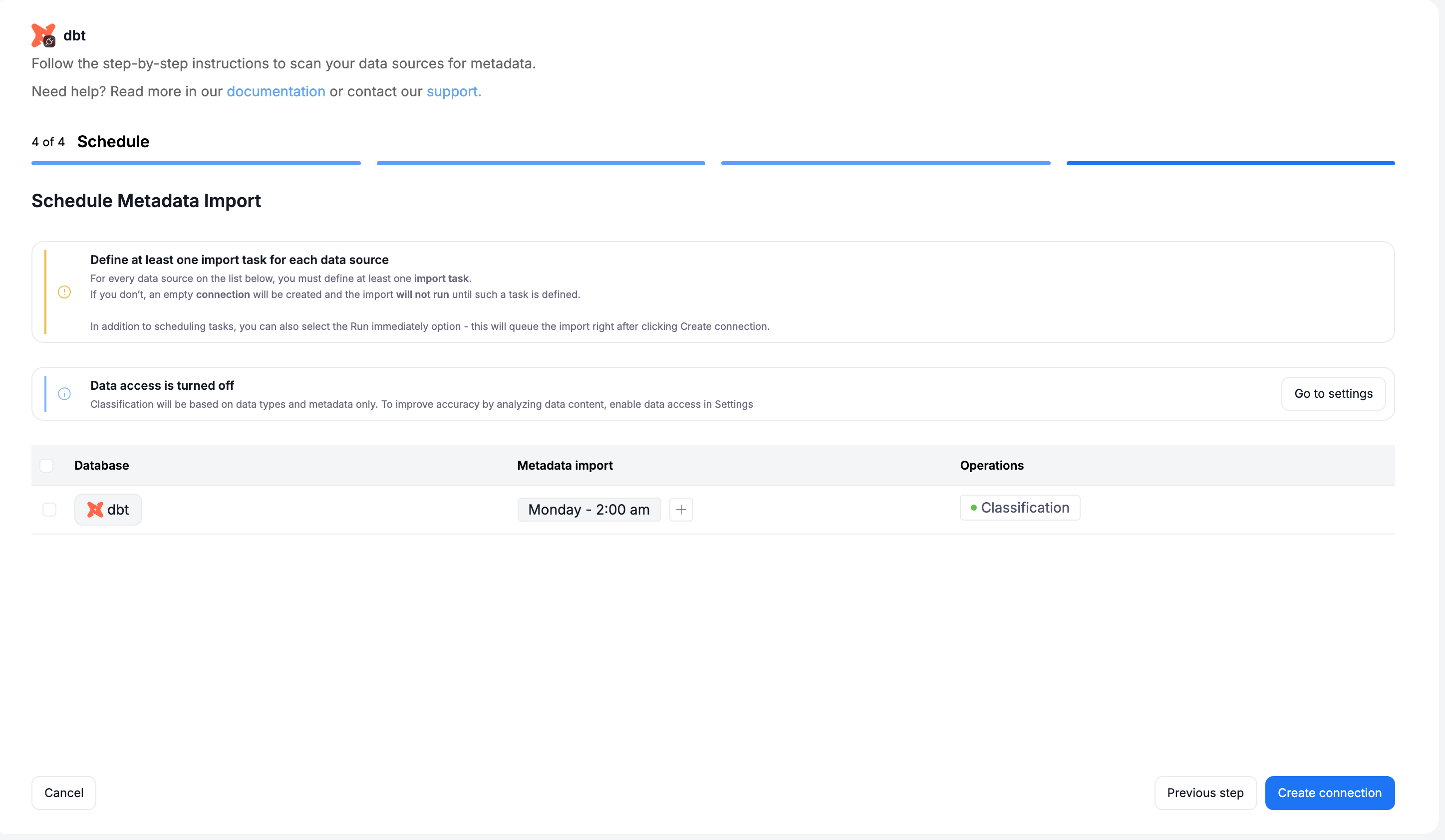
You must configure at least one import task in the schedule section.
If you skip this, an empty database will be created and no metadata will be imported.
Importing Metadata in Dataedo Desktop
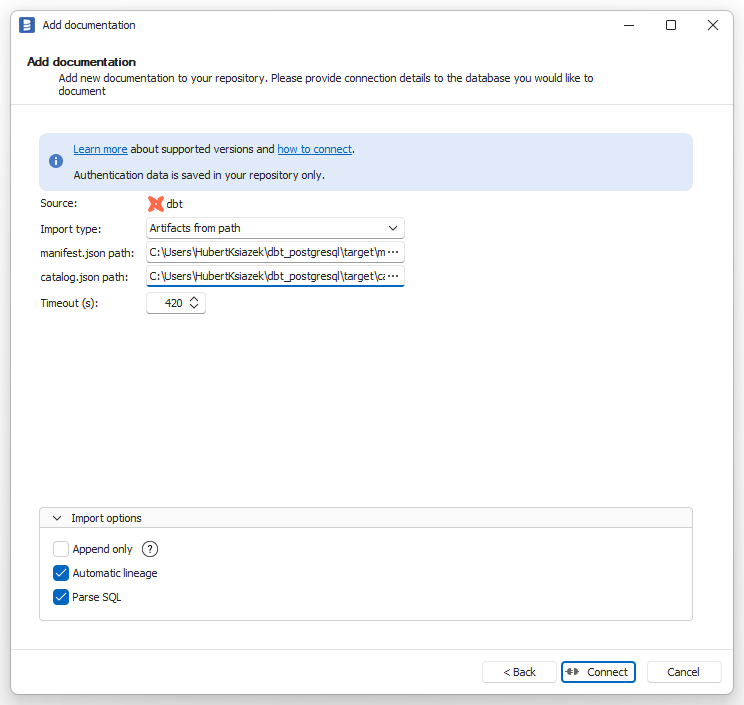
Choose Artifacts from path (dbt Core) as Import type and fill in the following fields:
- manifest.json path - the path to the
manifest.jsonfile. You can use the Browse button to select it or type it manually/paste it - see section above for instructions on how to generate it. - catalog.json path - the path to the
catalog.jsonfile. You can use the Browse button to select it or type it manually/paste it - see section above for instructions on how to generate it.
After the first import - activate automatic lineage
The initial import brings in objects and descriptions, but lineage is empty until you set up the Linked sources and run Import changes. Follow the steps below to create automatic lineage.
What is a linked source?
A linked source identifies which documentation set inside Dataedo represents a particular external system. By mapping it, you remove the ambiguity that appears when identical object names exist in several documentations—Dataedo now knows exactly where to look to resolve cross-database lineage.
Need more context? See the Linked sources overview.
In dbt, Dataedo creates three kinds of linked sources:
| Linked source type | When it is created | Name in Dataedo |
|---|---|---|
| Project | Always. Represents the whole dbt project. | Always Project warehouse |
| Seed | Only if the project contains seeds. | Always Seeds |
| Source | One per source defined in your dbt project. | Same as the source name in dbt. |
Map each linked source to the right database
| Linked-source type | Map it to documentation that represents… |
|---|---|
| Project | The database where dbt models (and seeds) are materialized. |
| Seed | The database that holds the seed .csv files, not the database where the seeds are materialized. |
| Source | The upstream database referenced by that specific source in dbt. |
For step-by-step instructions on assigning a linked source to a documentation set, see the overview.
A linked source can point to several documentations - for instance, if you imported the same database multiple times, but one schema at a time. In most scenarios, though, you will connect each linked source to a single documentation.
Run Import changes
After you assign the linked sources, run Import changes to populate the lineage. Dataedo will now automatically create the lineage.
Remember to update the linked sources whenever you add/update the sources in your dbt project. The automatic data lineage feature only works if the linked sources are up to date.

