Azure Data Factory — Execution Flows
Dataedo builds Execution Flow diagrams for Azure Data Factory pipelines. Unlike database connectors, no SQL parsing is involved — the flow is built directly from the pipeline structure: its activities and the dependencies between them.
Supported objects
| Object type | Execution Flows |
|---|---|
| Pipelines |
Requirements
- Enable the Build execution flows option when importing the data source — see Enabling Execution Flows
- Your Dataedo license must include the Execution Flows. All current licenses except for Dataedo Essentials have it
How flows are built
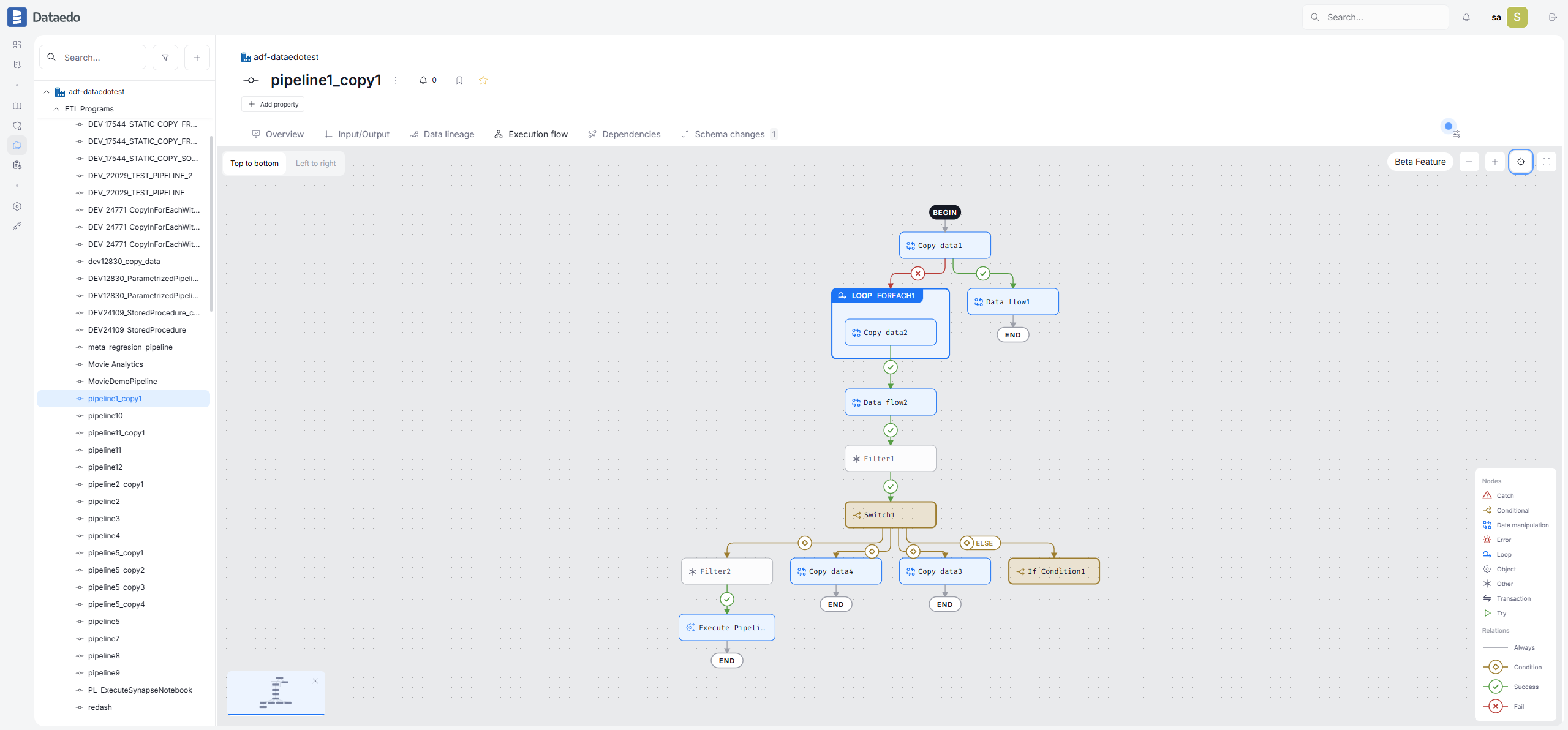
Each pipeline activity becomes a node on the diagram:
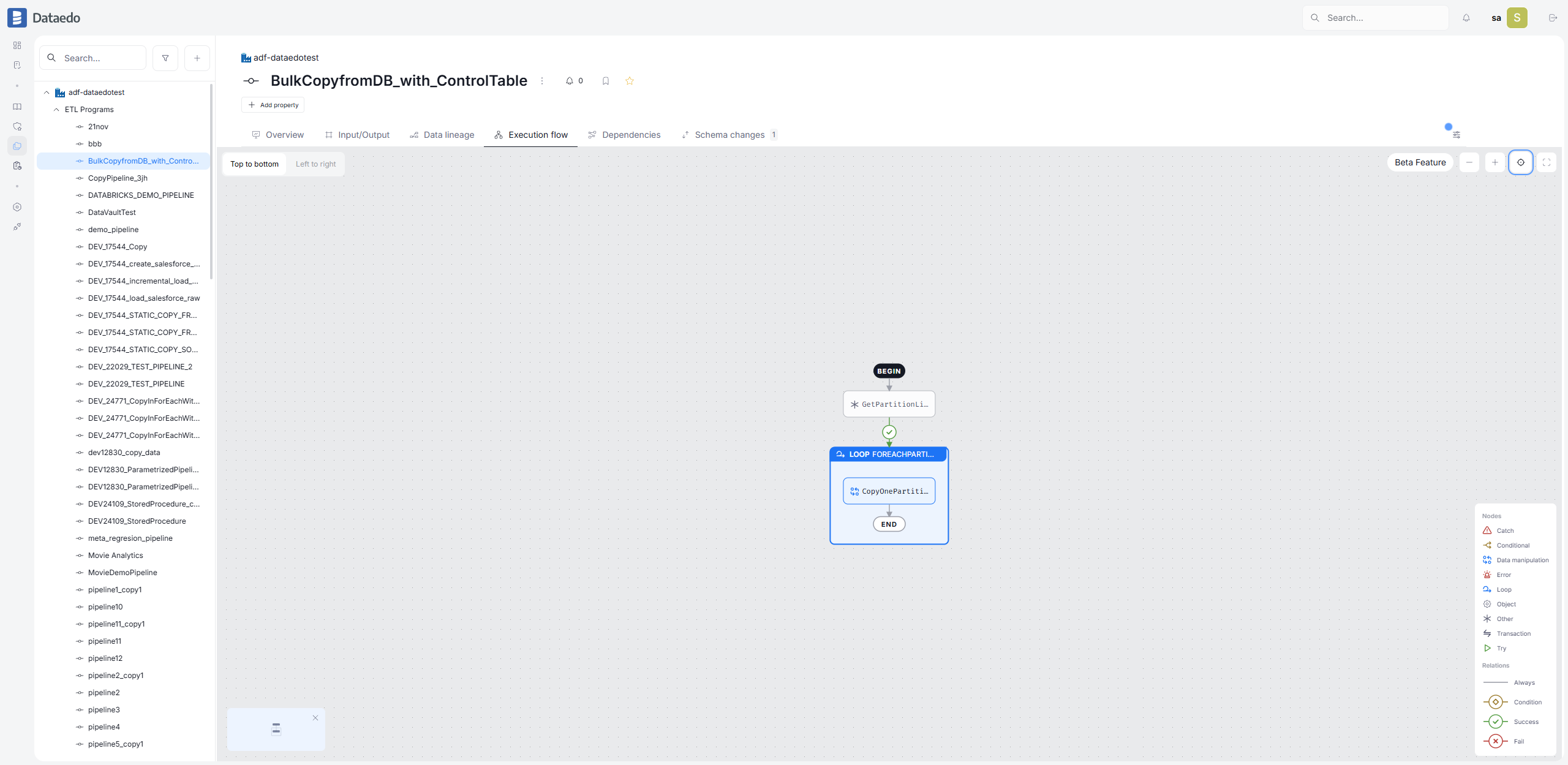
- ForEach and Until activities become loop containers wrapping their inner activities
- If Condition and Switch activities become branch points — each branch (
True/False, or aSwitchcase) leaves as a labeled arrow - Execute Pipeline activities link to the invoked pipeline's page in the catalog — where you can open its own Execution Flow
- activities covered by Data Lineage (for example, Copy data) link to their lineage process
- all other activities are shown as plain nodes with the activity name
Dependencies between activities become arrows, and their conditions determine the arrow type: Succeeded becomes the green success arrow, Failed becomes the red fail arrow, and other conditions (Completed, Skipped) are shown as plain sequence arrows.
Known limitations
- the diagram shows the static structure of the pipeline — triggers, schedules, and run history are not included
- pipelines have no SQL script, so the script panel does not appear on their diagrams
- an activity that maps to more than one Data Lineage process is shown without a lineage link
Troubleshooting
No flows after import
- Make sure the Build execution flows option was enabled during the import and re-run it
Make sure the pipeline definitions were downloaded during the import — pipelines skipped during metadata extraction have no flows.

