SAP ASE (Sybase) support
Not supported: Data Quality, Foreign Key Testing, Extended Properties, Metadata Sync, Execution Flows
You can connect to your SAP Sybase ASE databases in the following ways:
- SAP Sybase ASE native connector (from 10.2)
- ODBC connection
SAP Sybase ASE native connector
Dataedo 10.2 added a native connector to SAP Sybase ASE databases.
Supported versions
Versions: 16
Supported schema elements and metadata
- Tables
- Columns
- Data type with length
- Nullable
- Computed columns specification
- Default values
- Unique indexes
- Name
- Columns
- Primary keys
- Name
- Columns
- Triggers
- Name
- When trigger
- Description
- Script
- Columns
- Views
- View name
- Schema name
- Columns (see tables)
- Procedures
- Script
- Dependencies
- Input/Output parameters
- Functions
- Script
- Input/Output parameters
- Dependencies
Descriptions
Dataedo reads descriptions from the following Sybase objects:
- Tables
- Columns
- Primary/unique keys
- Triggers
- Views
- Columns
- Procedures
- Parameters
- Functions
- Parameters
Dataedo does not write descriptions back to the Sybase database at this moment.
Data profiling
Dataedo supports the following data profiling in SAP ASE (Sybase):
- Tables
- Rows count
- Column distribution
- Distinct values
- Non-distinct values
- Empty
- NULL
- Numeric columns profile
- Minimum value
- Maximum value
- Average of values
- Variance of values
- Standard deviation
- Span as the difference between min and max value
- Number of distinct values
- String columns profile
- Min value as the first string in alphabetical order
- Max value as the last string in alphabetical order
- Number of distinct values
- Date columns profile
- Min value as the earliest date
- Max value as the latest date
- Span as the difference between min and max dates
- Number of distinct dates
- Top N values
- Top 10/100/1000 popular values
- All values if less than 1000 distinct
- 10 Random values
Read more about profiling in the Data Profiling documentation.
Importing Metadata in Dataedo Portal
Entry point
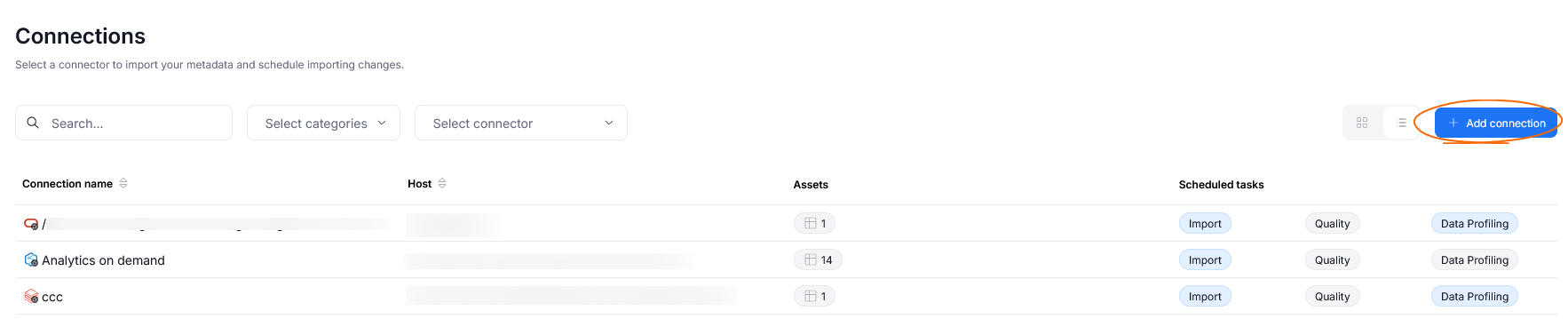
To start the Metadata Import flow, make sure you have the Connection Manager role. Go to Connections and click Add connection, then pick SAP ASE (Sybase) from the connector list to open the import wizard described in the following steps.
Step 1. Host details
Provide the name of the Connection, an optional description, and the details of the ASE server:
- Host - the address of the server, for example
ase-prod.company.internal - Port - the port the server listens on, for example
5000 - Charset - the character set of the connection, for example
utf8
A Connection in Dataedo represents a saved configuration for accessing a data source.
It can be reused for future imports and scheduling.
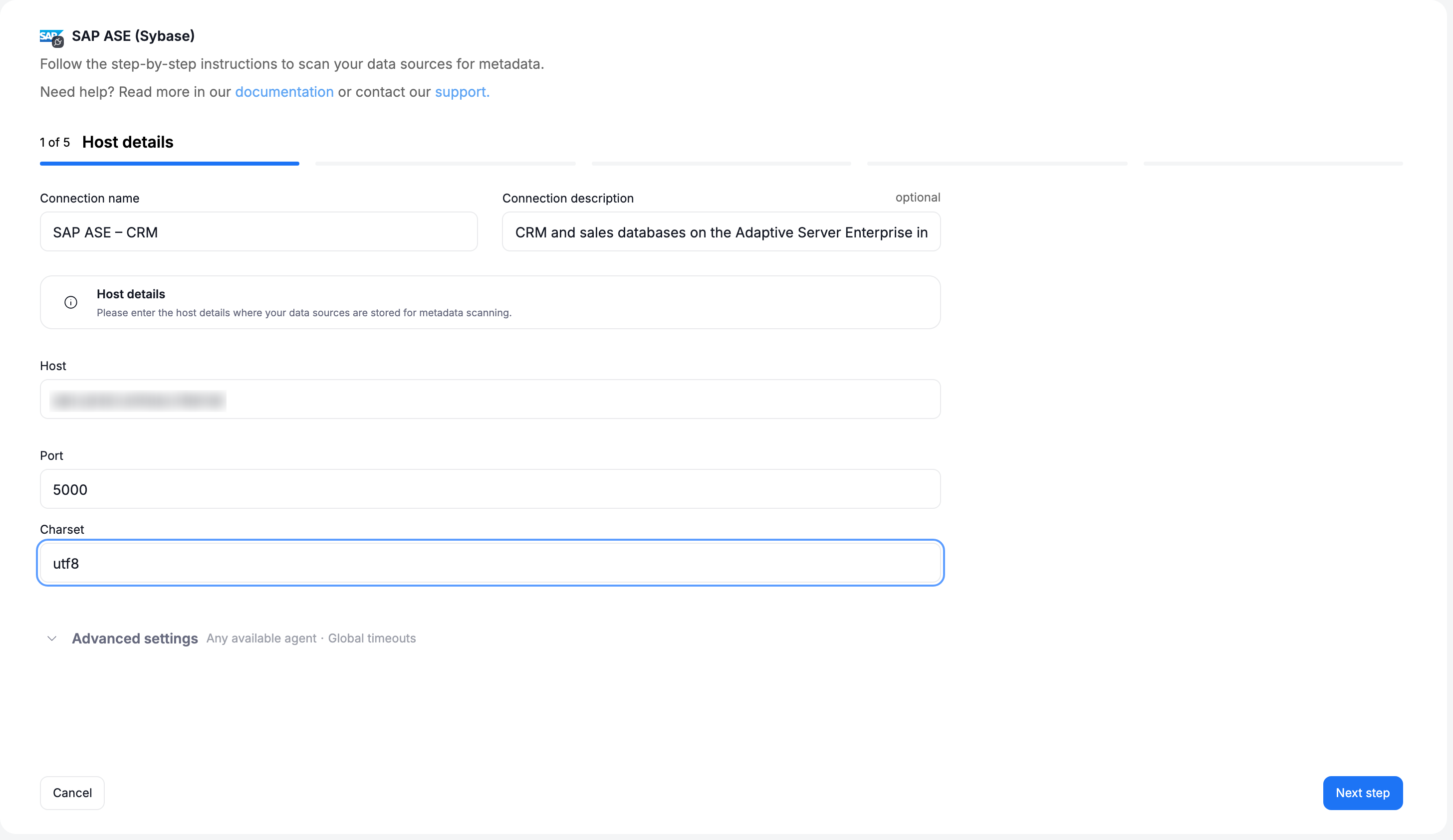
Advanced settings is optional — you can leave it collapsed and the connection will run on any available agent with the global timeouts. Expand it if you want to restrict the connection to a specific agent or override the task timeouts.
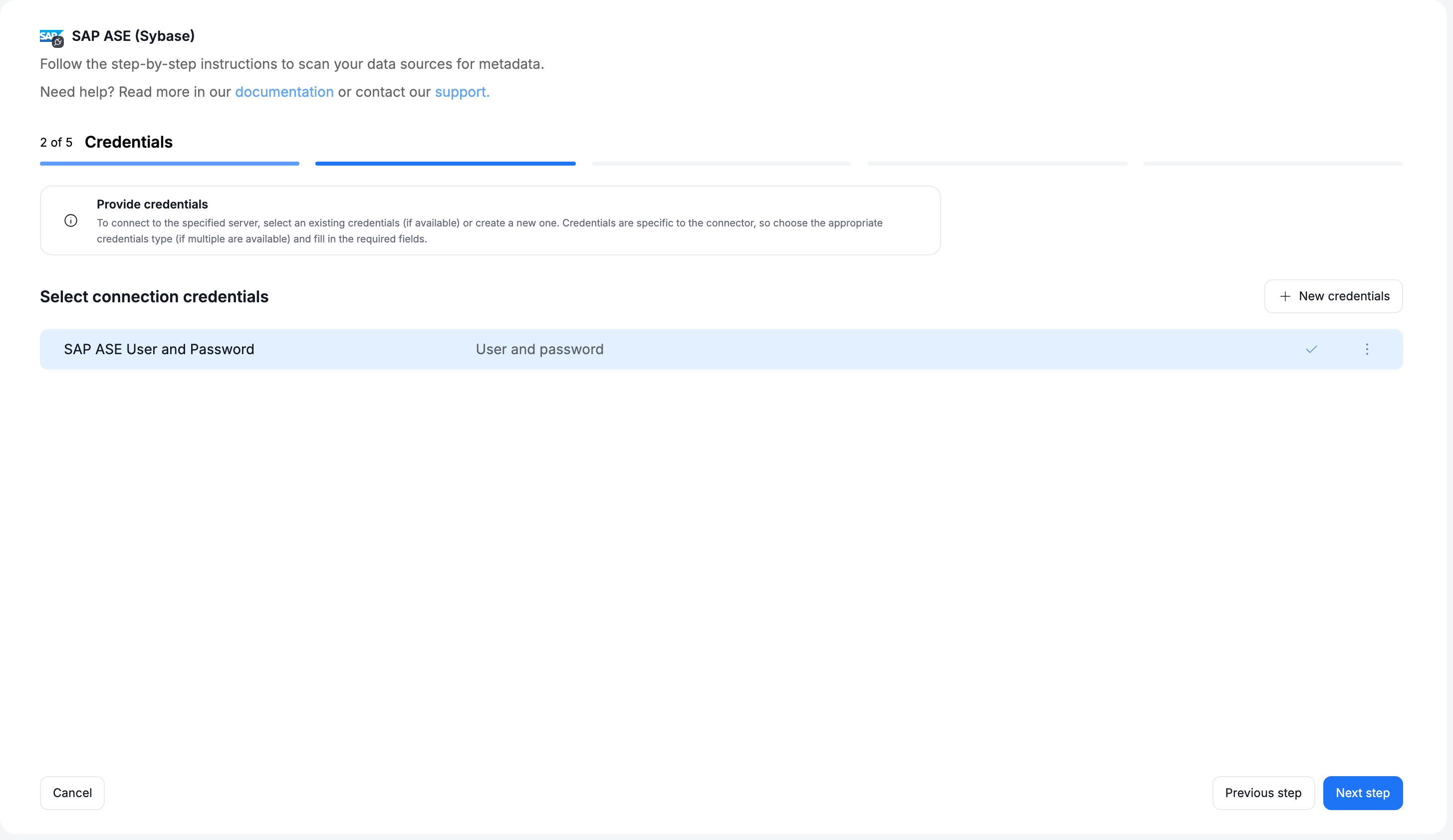
Step 2. Credentials
Choose credentials from the list of existing ones available for the selected connector, or add new credentials. SAP ASE uses a user and password pair.
Step 3. Data Sources
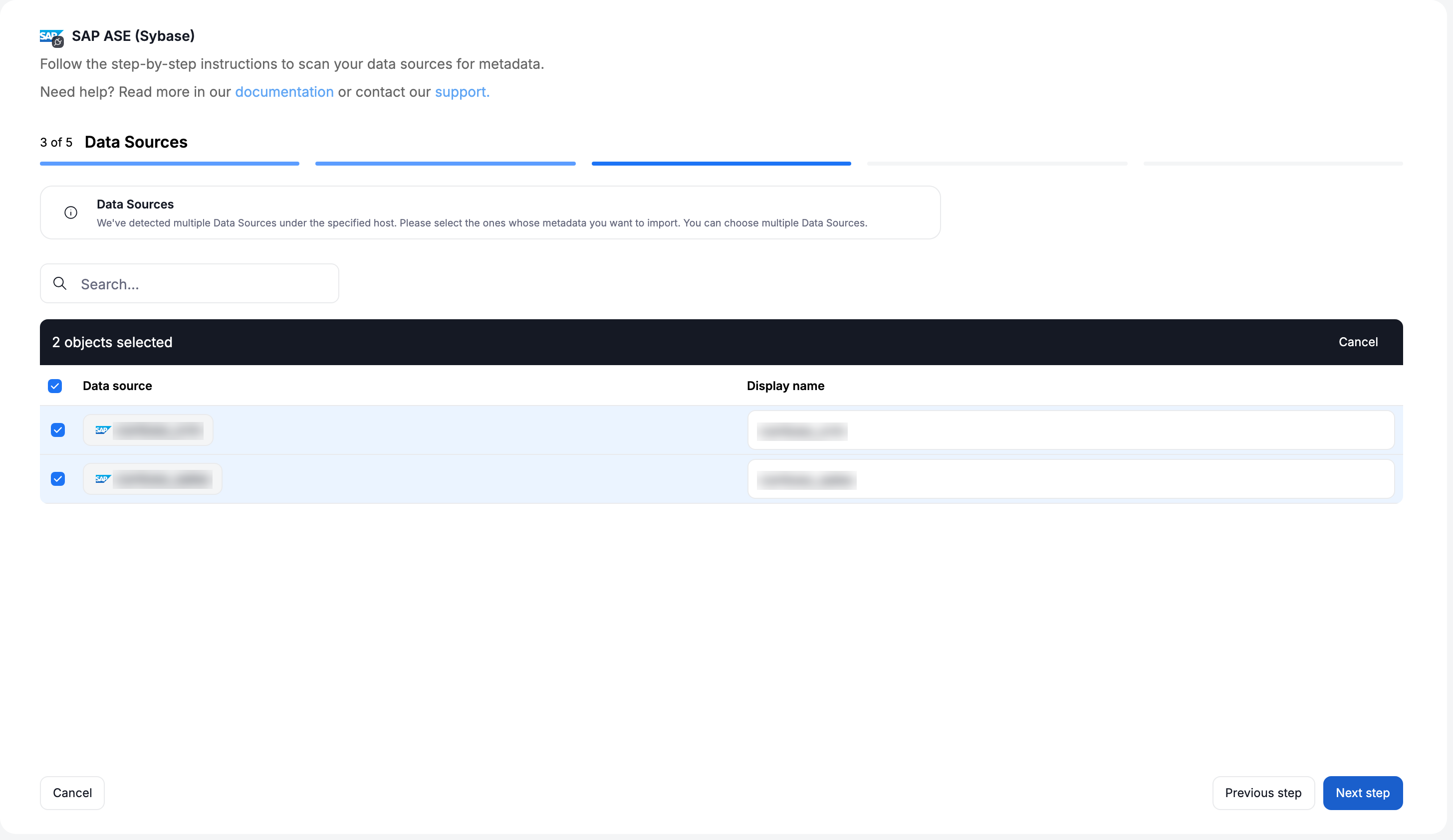
During one import you can read the metadata of up to 20 data sources. You can reuse the same connection to import more sources later.
- Portal displays all databases accessible with the provided credentials
- you can select multiple databases at once and use the search box to narrow down the results
- each selected database should be given a Display name, which will be visible in Dataedo
Step 4. Objects to import
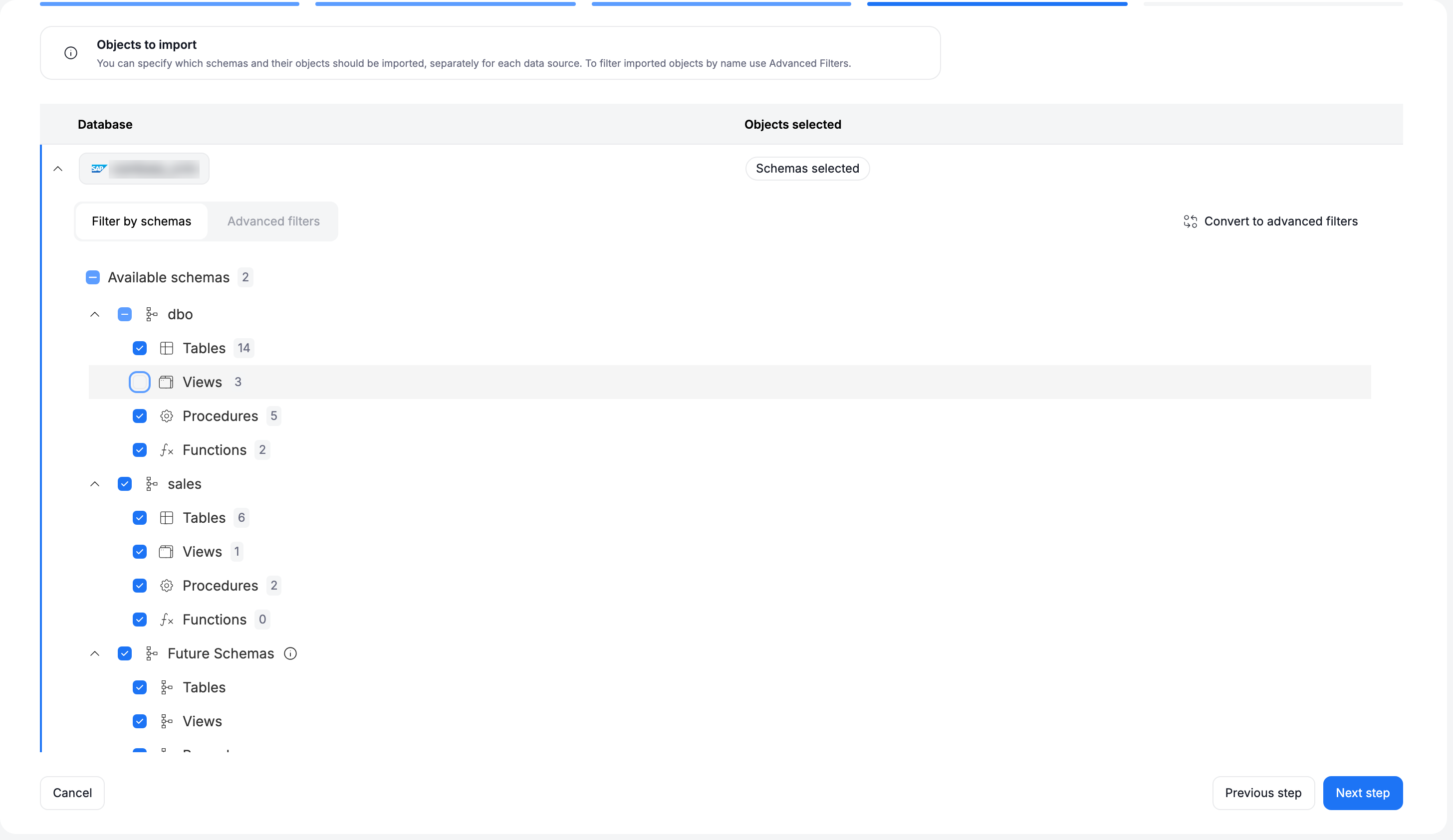
For each selected database, on the Filter by schemas tab, select the schemas to import and, within each schema, the object types: Tables, Views, Procedures, and Functions. Keep Future Schemas selected to also import schemas created after the connection is set up.
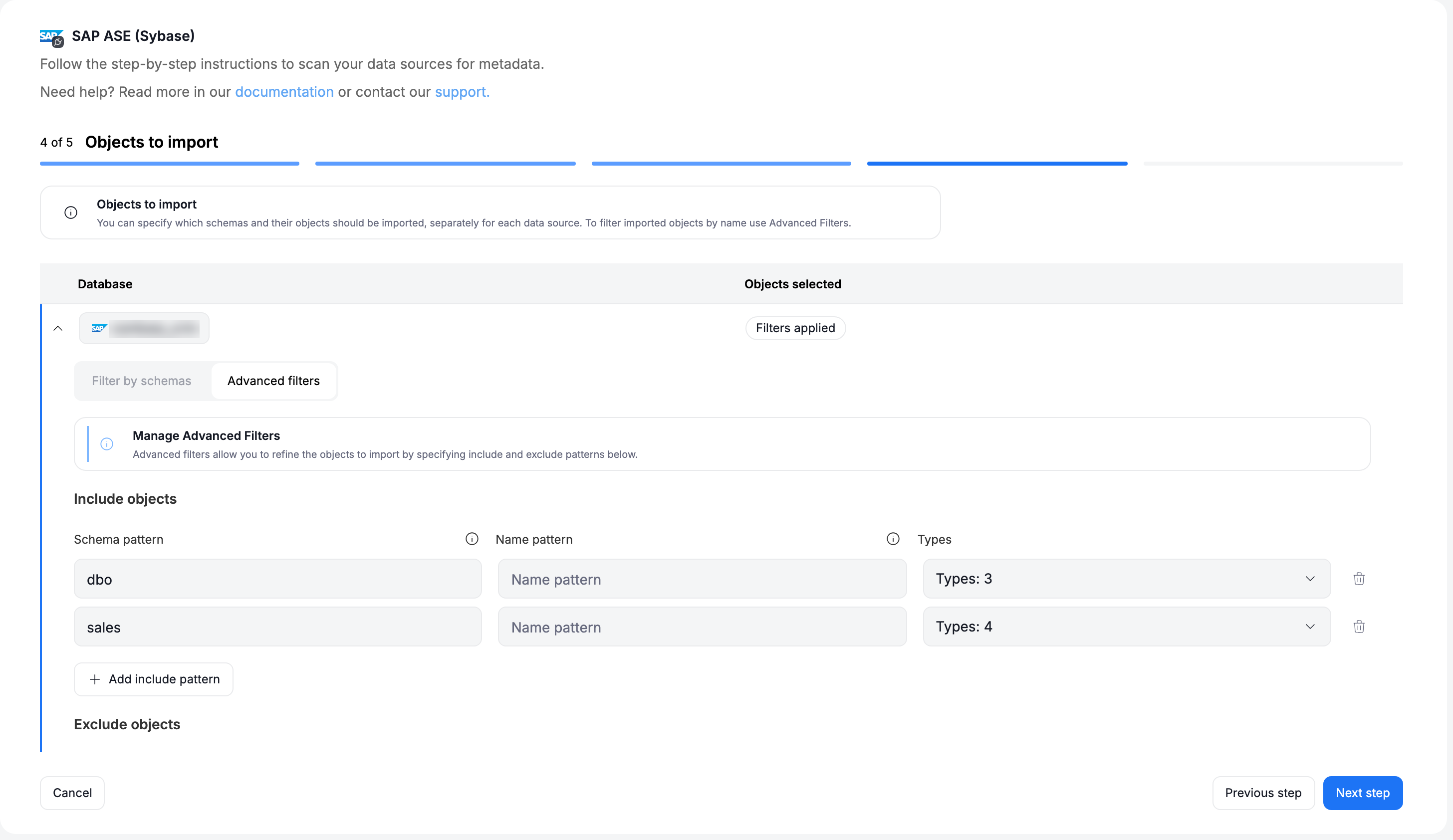
Use Advanced filters to include or exclude objects by schema pattern, name pattern, and object type.
Step 5. Schedule
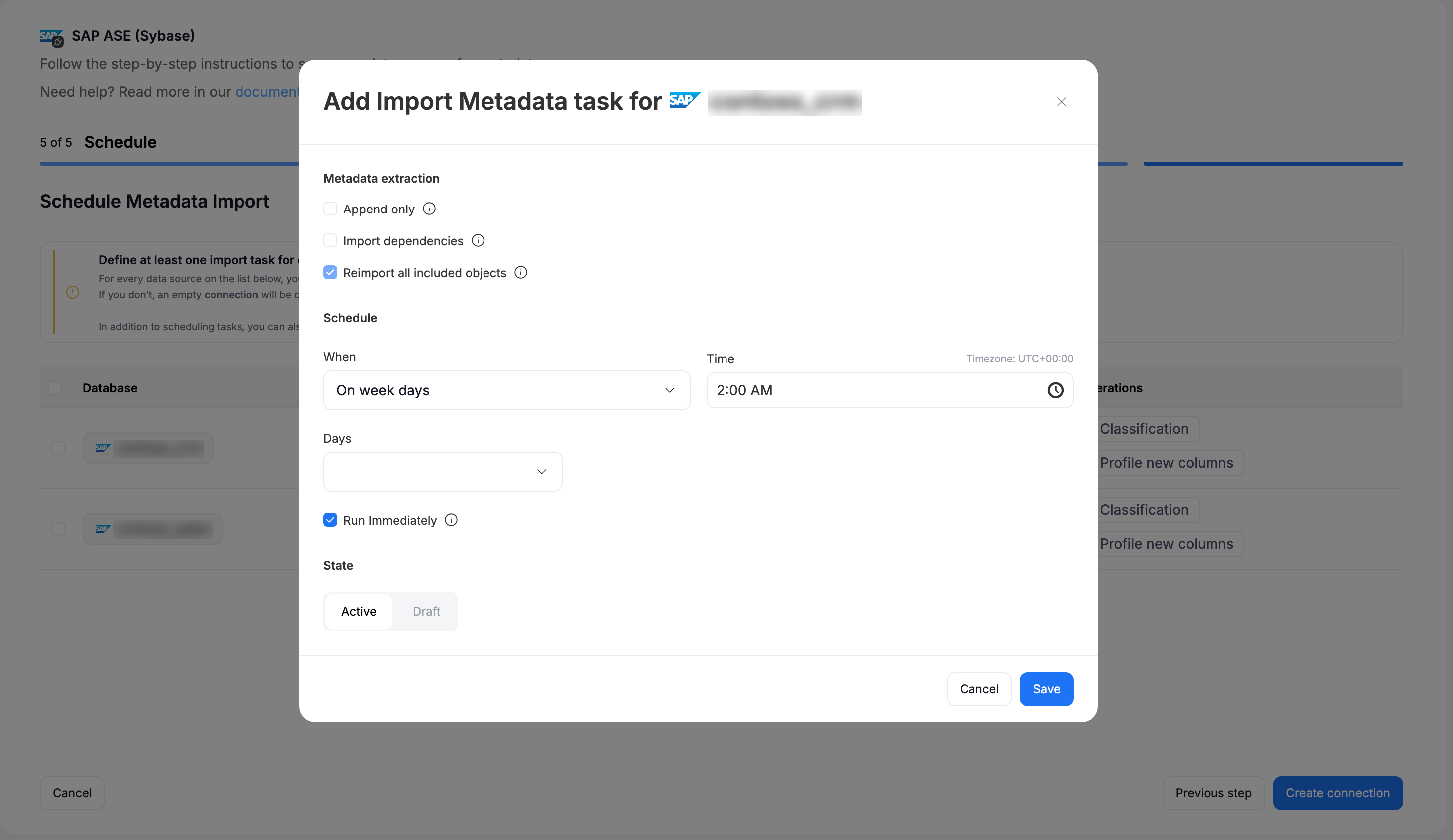
Besides Metadata import, you can also schedule a Data Profiling task for each database. To configure the Metadata Import task:
- choose the metadata extraction options (
Append only,Import dependencies,Reimport all included objects) - run daily, on selected weekdays, or on specific days of the month
- choose an exact time of execution
- Task state:
Active- the task will run as scheduledDraft- the task is saved but not executed until you switch it to Active
- Run Immediately - when checked, the task will also be executed right after you click
Create connection
Only one source in a metadata import can have Run Immediately selected.
Once saved, the task appears next to its database in the schedule list.
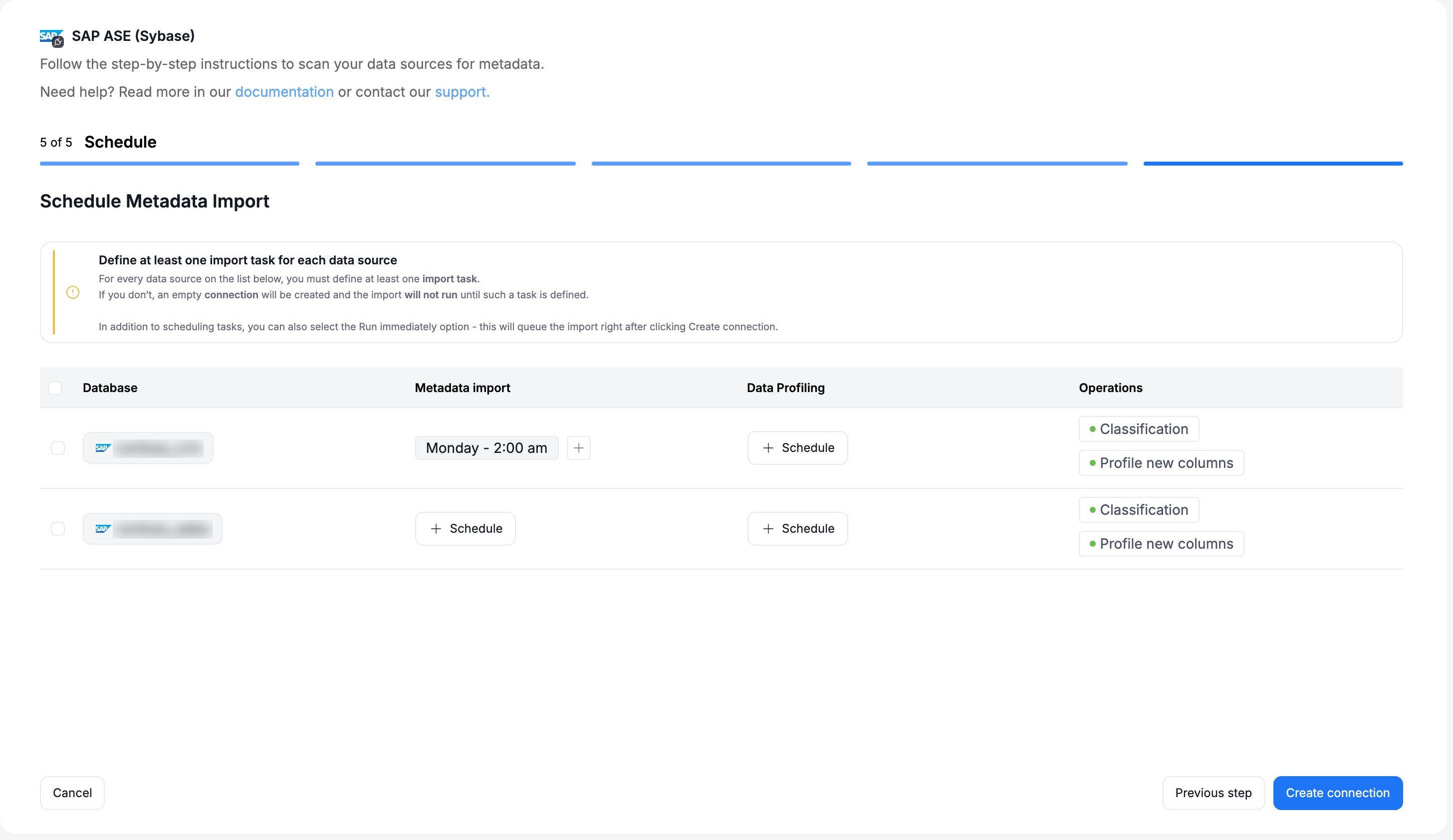
You must configure at least one import task for every data source.
If you skip this, an empty database will be created and no metadata will be imported.
Importing Metadata in Dataedo Desktop
This section explains how to connect Dataedo Desktop to the SAP ASE (Sybase) database and import metadata.
Add new connection
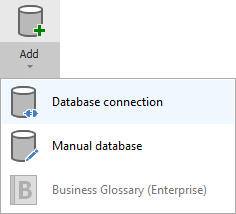
To connect to the SAP ASE (Sybase) database, create a new data source by clicking Add Source and choosing Database connection.
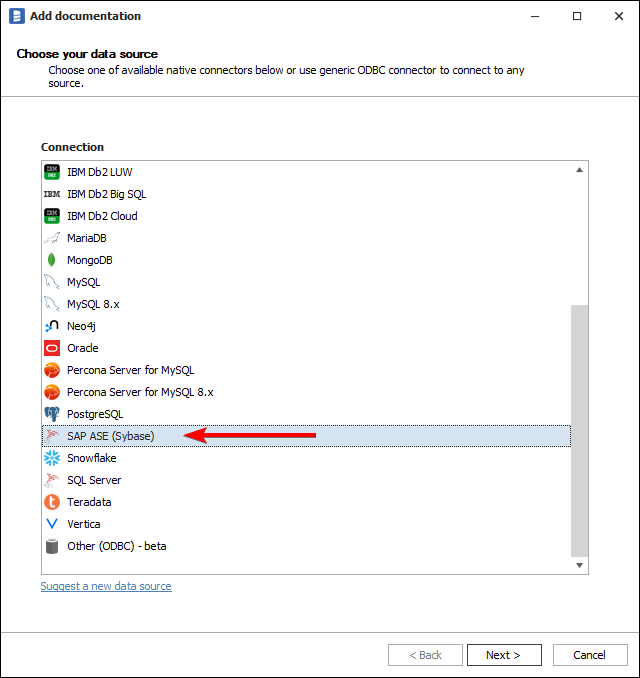
On the connection screen, choose SAP ASE (Sybase) and click Next.
Connection details
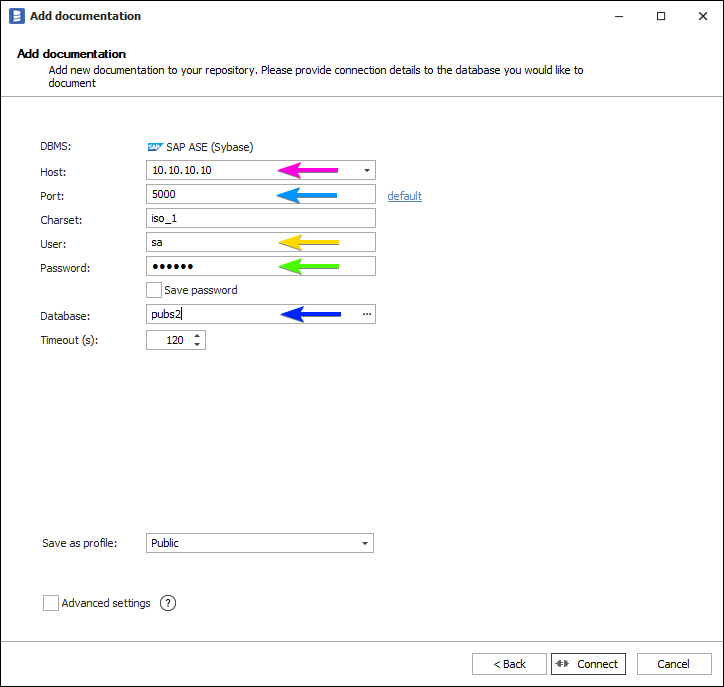
Provide database connection details:
- Host - provide a host name or address where the database is located (e.g., server17, server17.ourdomain.com, or 192.168.0.37).
- Port - provide a port number that your database is hosted on (e.g., 5000, 5001).
- Username and password - type in your database username and password.
- Charset - change the default charset if needed.
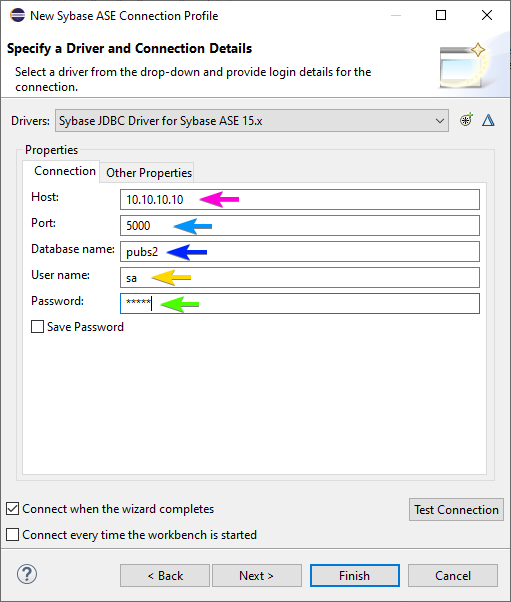
How to get connection details with Eclipse Data Tools Platform
Here is a comparison with connection details in Eclipse Data Tools Platform (DTP).
Importing schema
When the connection is successful, Dataedo will read objects and show a list of objects found. You can choose which objects to import. You can also use an advanced filter to narrow down the list of objects.
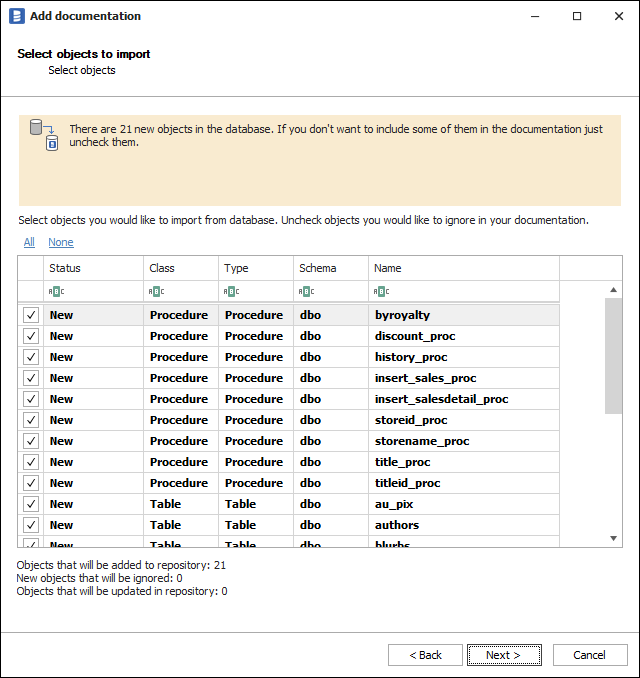
Confirm the list of objects to import by clicking Next.
The next screen allows you to change the default name of the documentation under which it will be visible in the Dataedo repository.
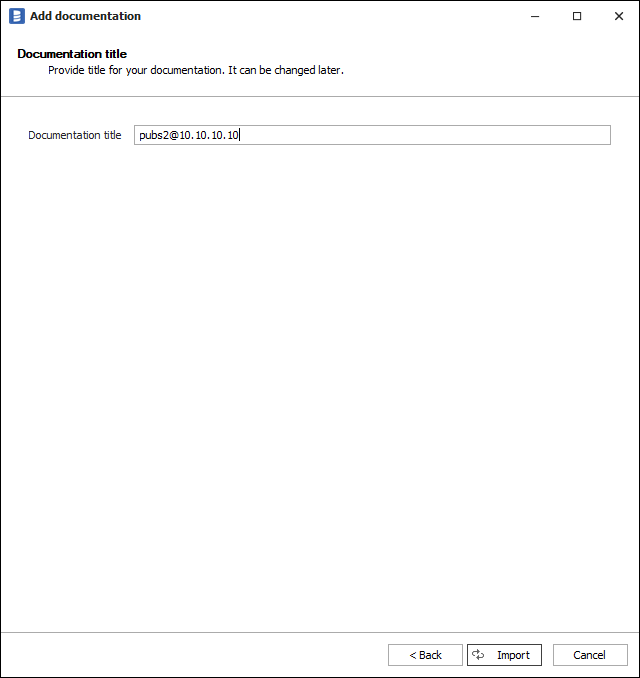
Click Import to proceed.
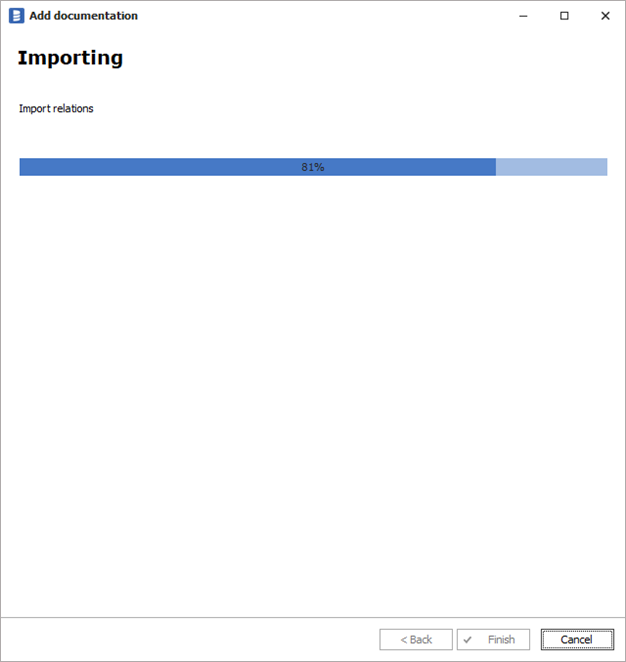
When done, close the import window with the Finish button.
Outcome
Your database schema has been imported to new documentation in the repository.
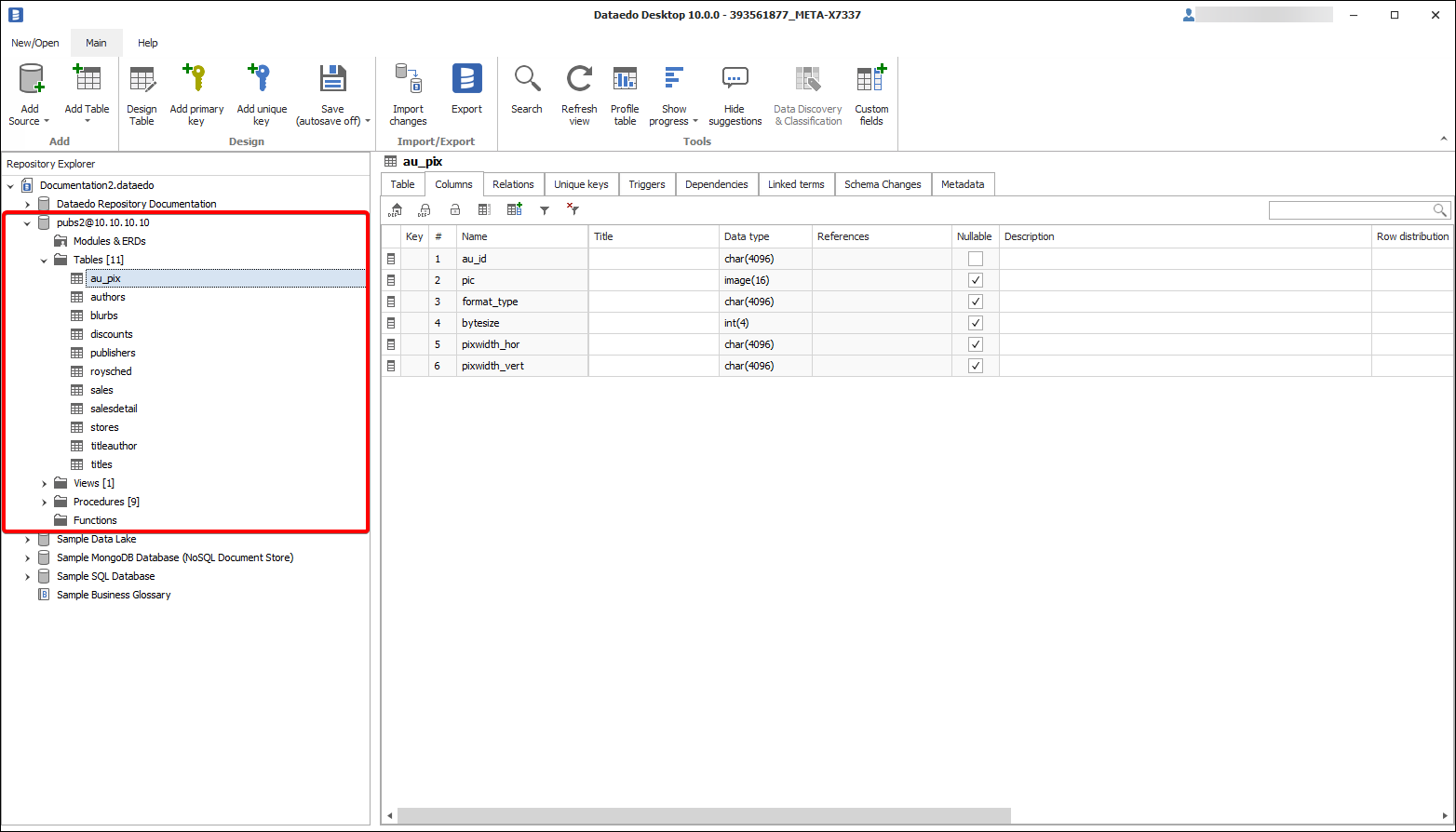
Connecting to SAP Sybase ASE with ODBC
We have tested and successfully connected to and imported metadata from SAP ASE (Sybase) with ODBC drivers listed below. It is highly likely it will work with other drivers as well.
Tested ODBC Driver: Devart ODBC for ASE [Paid]
We have tested and successfully connected to and imported metadata in the following environment:
ODBC version: 1.4.8 64-bit
SAP ASE (Sybase) version: 16.0
Supported schema elements and metadata
Dataedo reads the following metadata from SAP ASE (Sybase) databases.
- Tables
- Columns
- Data type with length
- Nullable
- Columns
- Views
- Columns
- Data type with length
- Nullable
- Columns
Limitations
The following schema/metadata elements currently are not supported:
- Function/Procedure
- View script
- Trigger
- Foreign keys
- Primary keys
- Unique constraints
ODBC Driver
Download Devart for ASE ODBC driver

