Oracle Database—Data Quality
With Data Quality, you can define quality checks, choose from 80+ predefined rules, monitor failed rows over time, and schedule automated checks. This feature allows your teams to maintain high data quality and quickly address quality issues once they arise.
Create rule instances
Data Quality rules define the criteria for acceptable data, while instances represent the application of those rules to columns. You can create rule instances in three ways:
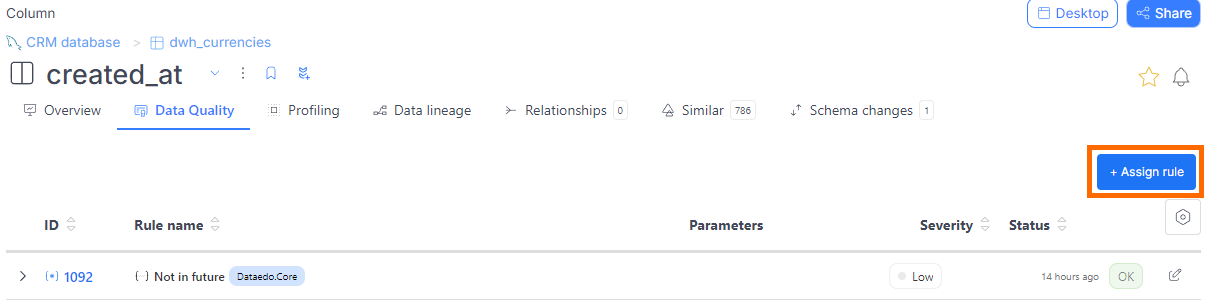
- From a column
- From a table
- From the Data Quality tab
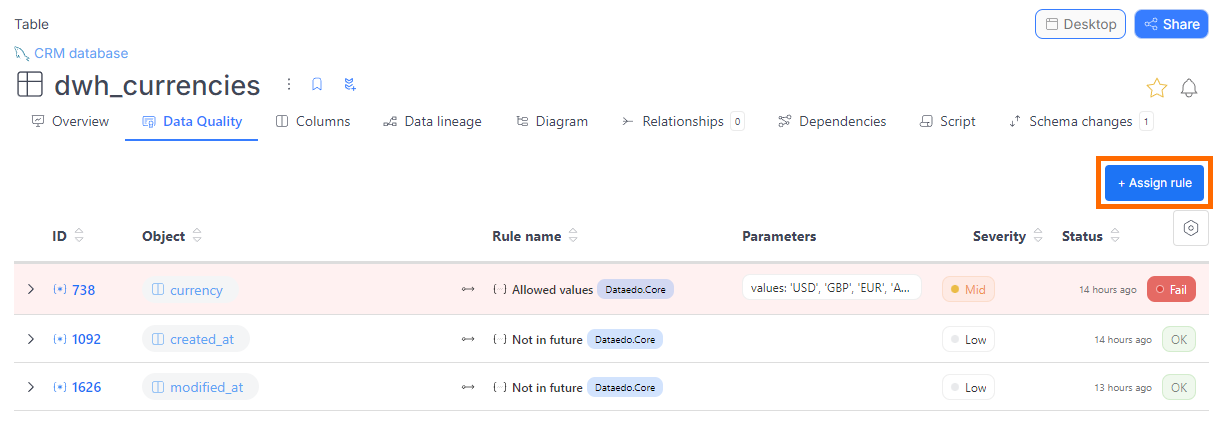
- Find the table you're interested in.
- Navigate to its Data Quality tab.
- Click the Create rule instance button.
- Select a column from the table, then choose the rule you want to apply.
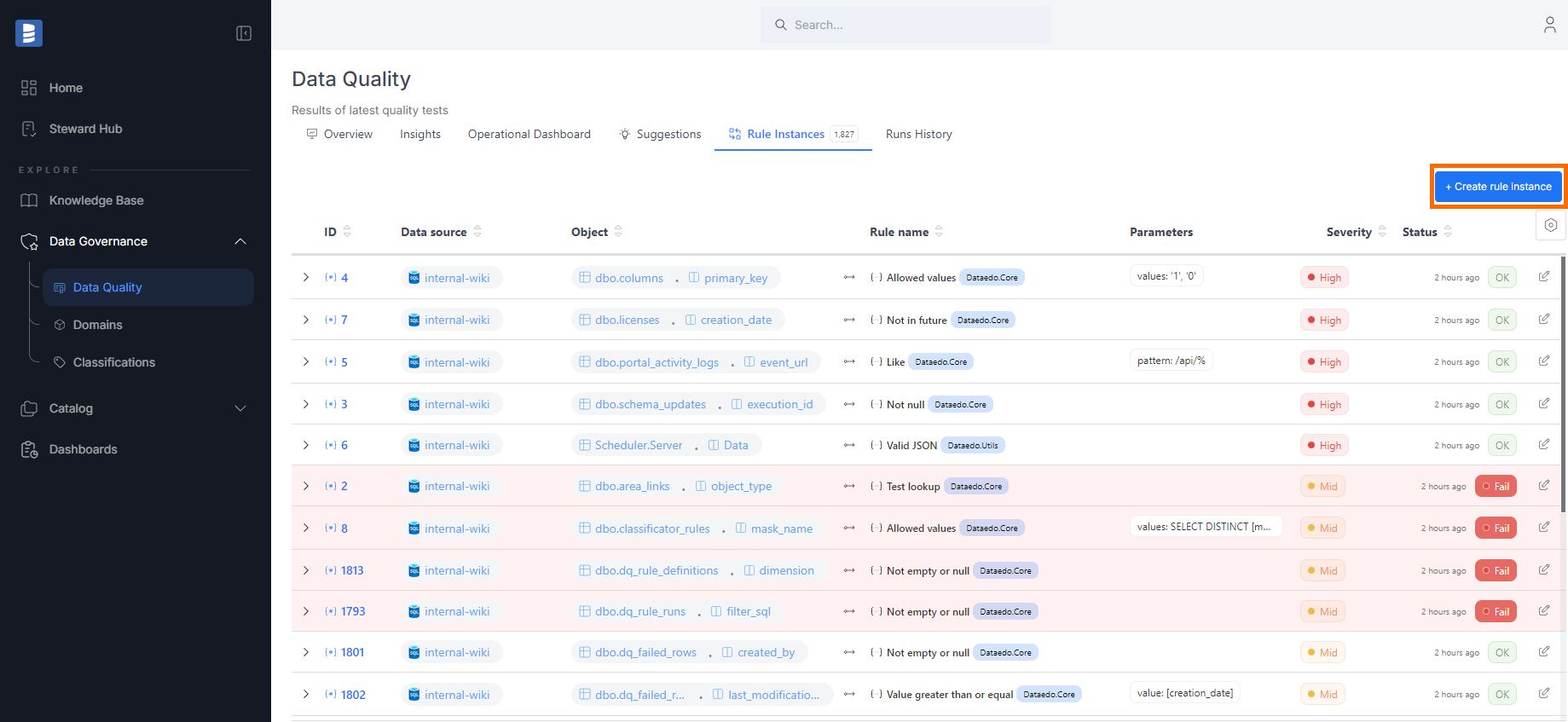
- Navigate to the Data Quality tab in the main menu.
- Go to the Rule Instances tab.
- Click the Create rule instance button.
- A popup will guide you through selecting a data source, table, and column, followed by choosing a rule.
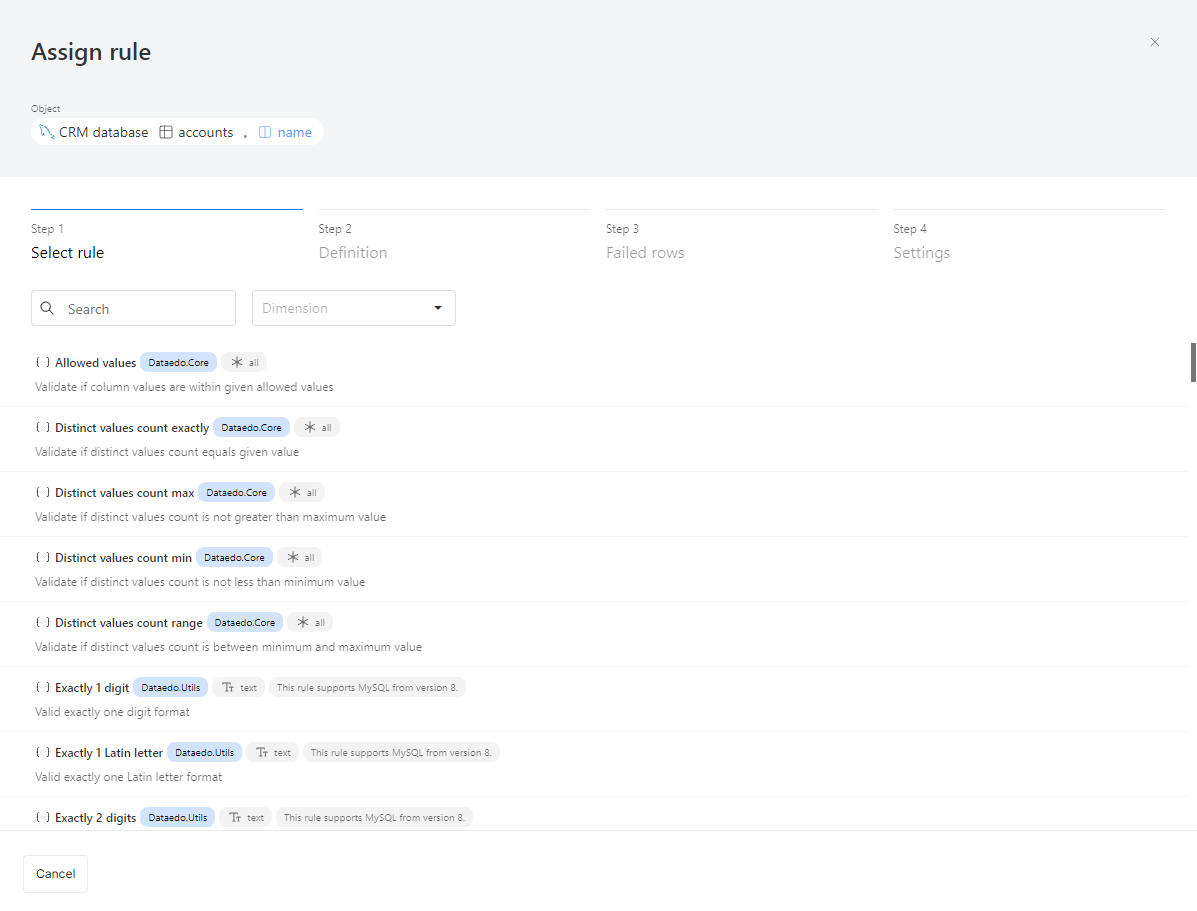
After selecting a column, the first step is to choose a rule. Each rule has the following attributes:
- Name and description: Explains what the rule checks.
- Library: The rule belongs to a specific library. In the future, you'll be able to create your custom rule library.
- Applicable column types:
- All: Can be assigned to any column type.
- Text: For string-type columns only.
- Date: For date-type columns only.
Assigning a rule
- Step 1: Select a Rule
- Step 2: Parameters & Filters
- Step 3: Failed Rows
- Step 4: Settings
Choose a rule for the selected column. Each rule has:
- Name & description – Explains what it checks.
- Library – Where the rule belongs.
- Applicable column types – Defines where it can be used (All, Text, Date).
Warnings (such as compatibility issues) will be displayed here.
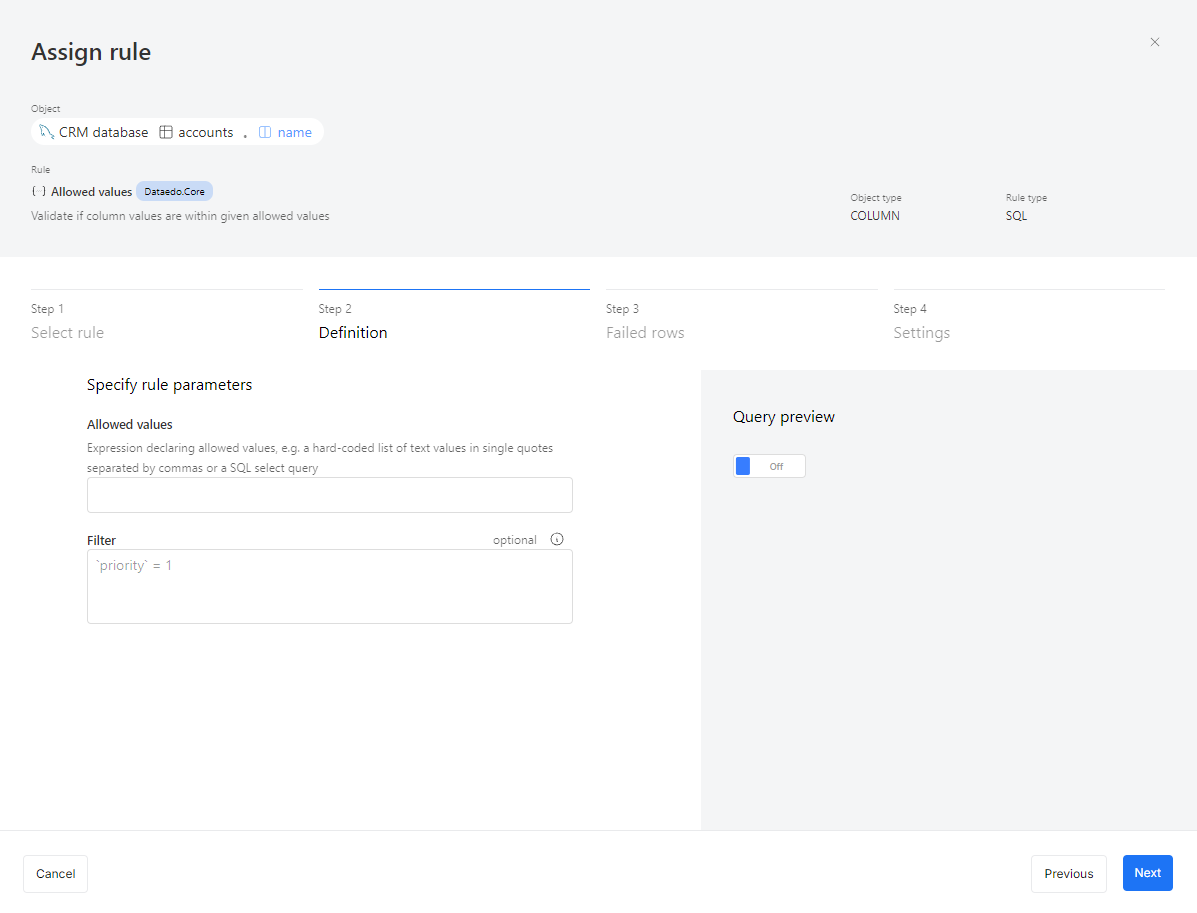
Some rules require additional inputs:
- Not null – No parameters needed.
- Allowed values – Define valid values.
- Value range – Set min/max limits.
Optionally, apply filters to check only specific records (e.g., invoices marked as high priority).
- Filter syntax depends on your connector (e.g.,
[priority] = 1for SQL Server).
You can also preview queries:
- Raw rule query – With placeholders.
- Instance rule query – With applied parameters.
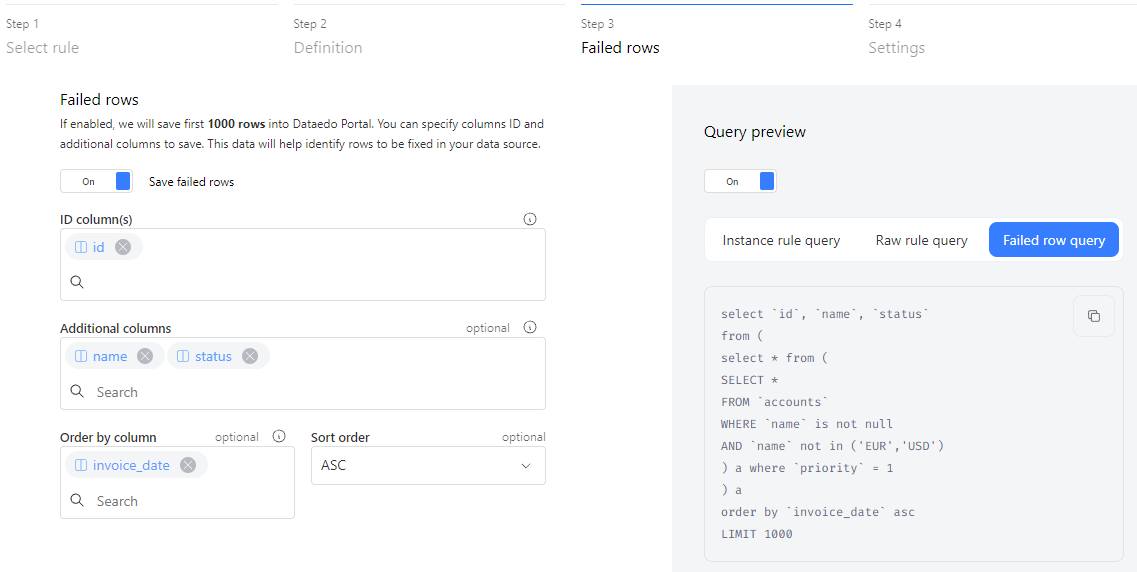
By default, Dataedo collects numeric statistics. Enable failed row collection (up to 1,000 rows) to review issues. You'll need:
- ID column(s) – To uniquely identify failed rows (defaults to Primary Key).
- Additional columns – For extra details.
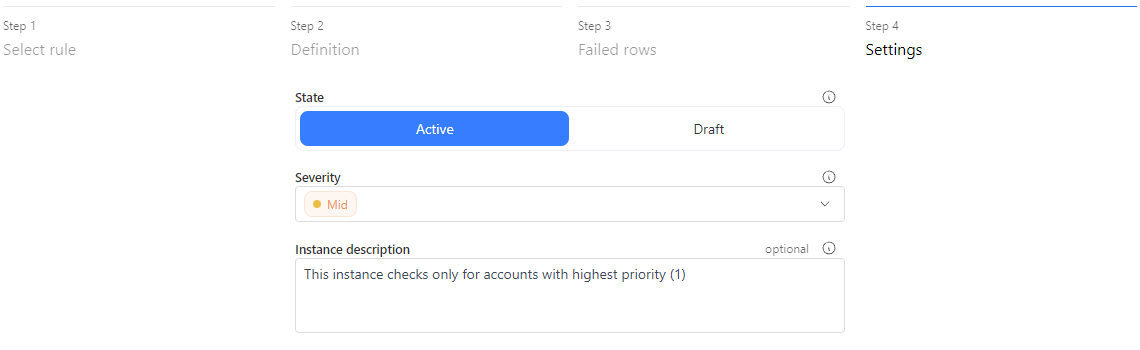
- Active – Runs during scheduled checks.
- Draft – Inactive until manually enabled.
- Severity – Defines rule priority (e.g., critical rules run daily).
- Description – Useful for noting applied filters or rule scope.
Browse results
Dataedo lets you track data quality across columns and tables. You can see data quality scores, check rule instances with severity and status details, and review historical trends. The Data Quality tab lists all rule instances, showing tested rows, failures, and execution timestamps.
Data Quality dashboards show key metrics, rule counts, and status breakdowns, helping you spot issues and track trends. Whether checking individual rule instances or assessing overall data health, these tools give you a clear view of data quality.
Check the Data Quality documentation to learn more.
Run data quality
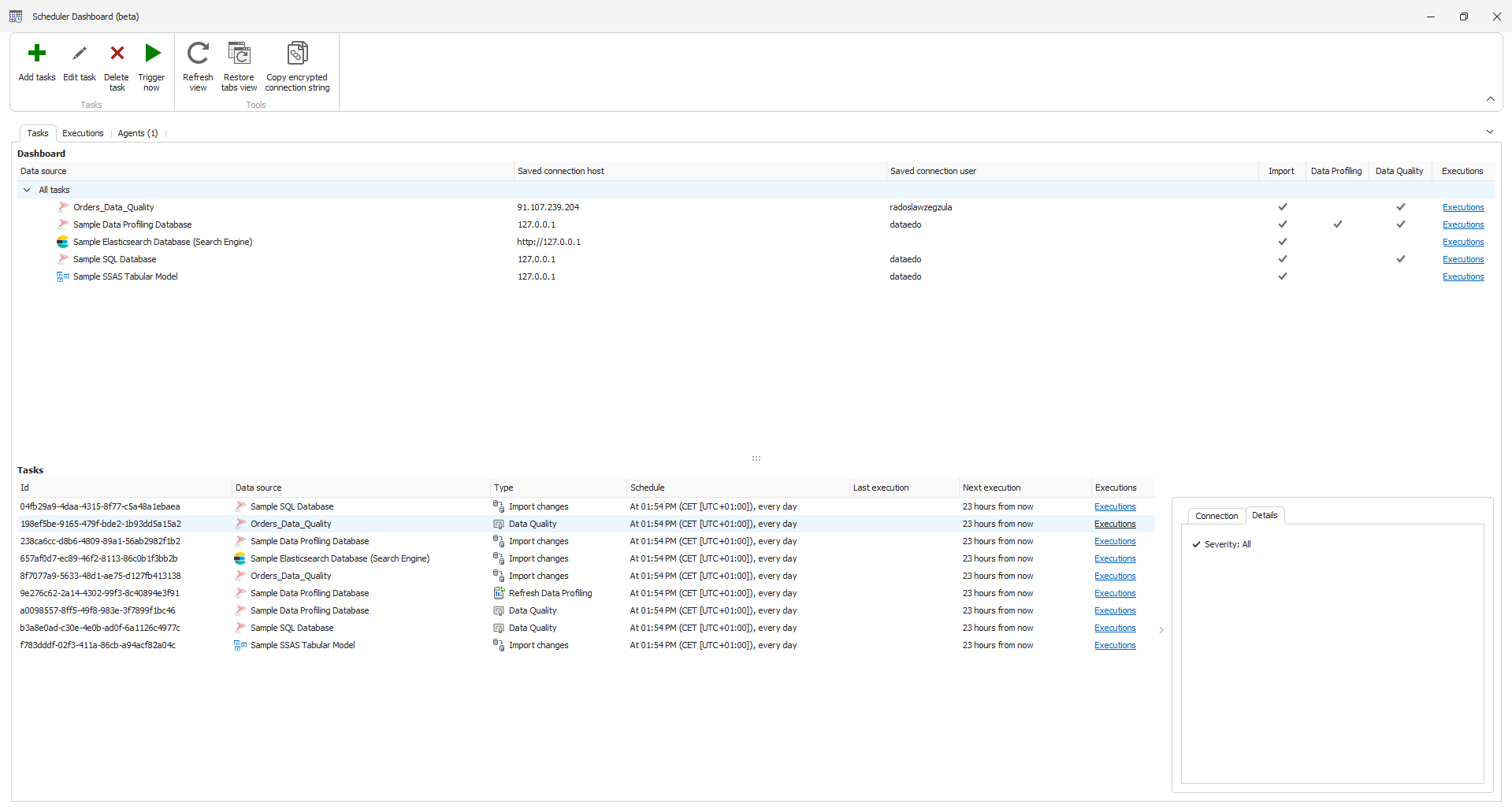
Data Quality runs through Dataedo scheduler, and you can find detailed setup instructions in this document.
It is a standalone task you can select, similar to scheduling imports or profiling. The key difference is that you can schedule runs based on the severity of the instances. This allows you to prioritize higher-severity instances, running Data Quality checks more frequently for critical issues, while lower-severity instances can be scheduled separately to run less often.
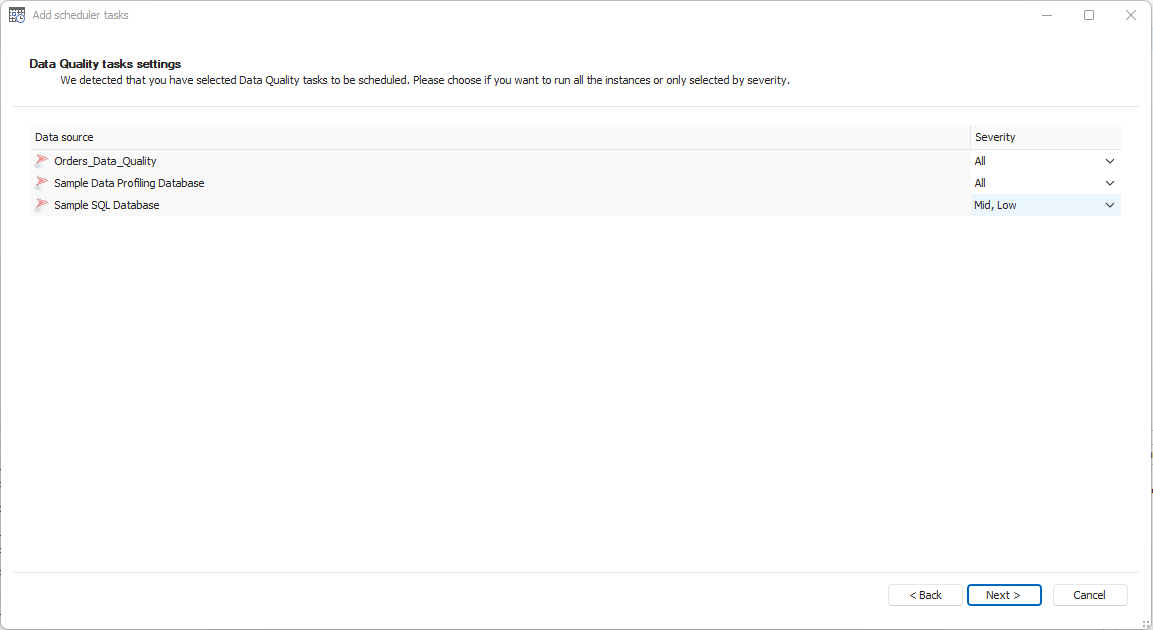
The rest of the scheduling process is the same. You can test your connection, specify how often the task should run, and adjust the Data Quality tasks to include instances based on their severity.
Oracle-specific behavior
Some Oracle data types need special handling in Data Quality rules. This section explains how rules behave on fixed-length text columns and on LOB columns.
Fixed-length CHAR and NCHAR columns
Oracle pads values in CHAR(n) and NCHAR(n) columns with trailing spaces up to the full column length. For example, '1' stored in a CHAR(10) column becomes '1' followed by nine spaces.
Data Quality rules check these columns without the trailing padding, so pattern, LIKE and string length rules (for example Exactly 1 digit, Valid email address or String length between) check the value as it was entered:
- Only trailing spaces are removed. Leading spaces are part of the value —
' 1'still fails Exactly 1 digit. - A value made only of spaces is treated as null, not as an empty string.
- The rule query wraps the column in
RTRIM(...). You can see it in the Instance rule query preview when creating a rule instance.
CLOB and NCLOB columns
Oracle does not allow comparing whole LOB values — a CLOB or NCLOB column can't be used with =, IN, DISTINCT or GROUP BY. Because of that, the following built-in rules are not supported on CLOB and NCLOB columns:
- Allowed values and Forbidden values
- Test lookup
- No placeholder values
- Unique
- Distinct values count exactly, Distinct values count min, Distinct values count max and Distinct values count range
- Valid US SSN and Valid US state code
- Value equal, Value not equal, Value greater than, Value greater than or equal, Value less than, Value less than or equal and Value range
When you select a rule for an Oracle column, these rules show a warning about this restriction. If such a rule is assigned to a CLOB or NCLOB column, its run stops with a message explaining the limitation.
Other text rules — regex and pattern rules, LIKE, string length, and null or empty string checks — work on CLOB and NCLOB columns as usual.
Custom SQL rules and your own reusable rules are not checked for this limitation. If their query compares whole LOB values, the run fails with an Oracle error (ORA-00932).

