Oracle - Foreign Keys
Oracle Database–Foreign Keys
When designing a relational database, such as Oracle Database, enforcing data integrity is crucial to maintaining accurate and consistent relationships between tables. Integrity constraints define rules that ensure the validity of data, preventing inconsistencies and enforcing business logic at the database level.
Foreign keys play a central role in maintaining referential integrity by establishing dependencies between related tables. By defining foreign key constraints, you ensure that references between tables remain valid—preventing orphaned records and maintaining the logical consistency of your data.
Rather than relying solely on application logic to enforce business rules, integrity constraints allow the database to validate data efficiently and consistently. Databases like Oracle enforce these constraints automatically, ensuring that all modifications adhere to the defined rules without requiring additional checks in application code.
Why Define Referential Integrity?
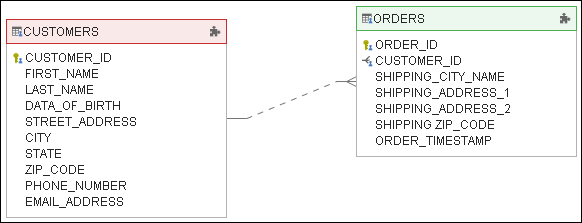
Referential integrity constraints help maintain logical relationships between tables. Consider a database with two tables:
CUSTOMERS– Stores customer details (e.g., name, address).ORDERS– Stores order details, including thecustomer_idthat links toCUSTOMERS.
When performing a JOIN, Snowflake relies on a common column (customer_id) to link these tables. Defining a foreign key constraint on customer_id in the ORDERS table ensures that every order references a valid customer. This improves data organization and helps simplify complex queries.
Preparation
Install Required Tools
- Install Dataedo and create a repository – Dataedo Installation (Desktop).
- To easily browse and read your database's documentation, use Dataedo Portal – Install Dataedo Portal.
Connect to Snowflake and Import Schema
- Connect to Snowflake.
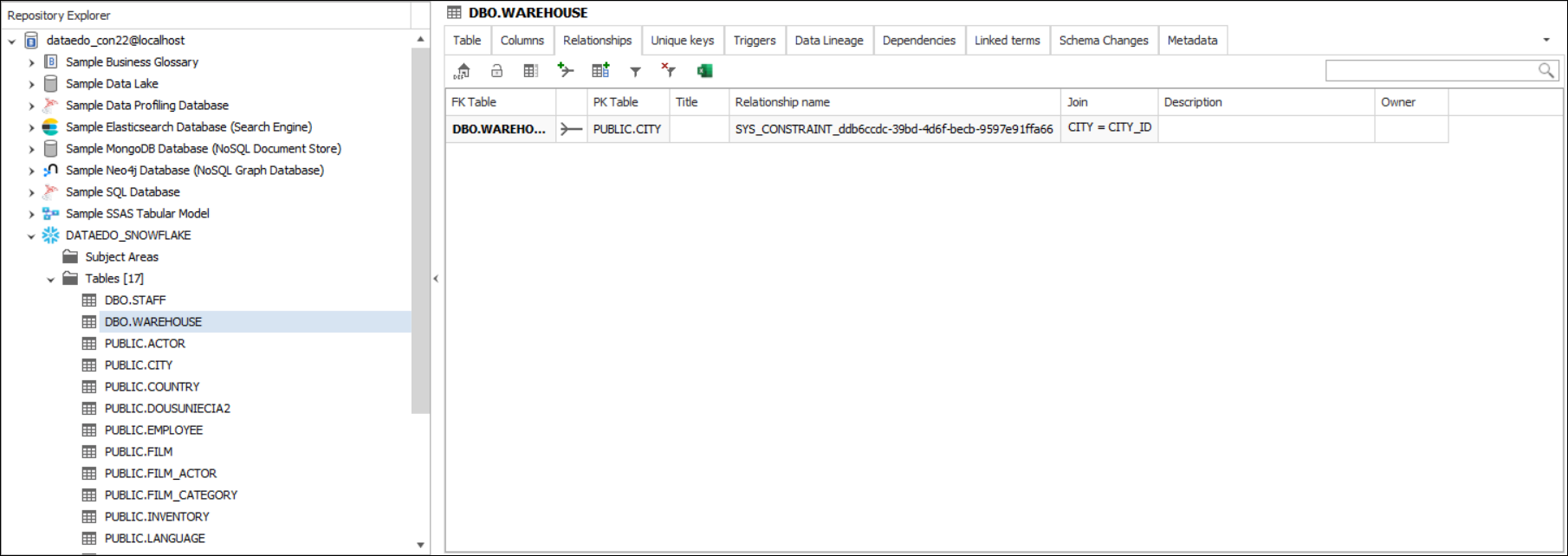
- After importing metadata, navigate to the Relationship tab to view foreign keys defined in the Snowflake database.
Document and test relationships
Document relationship
There are two ways to complete the documentation with missing entity relationships.
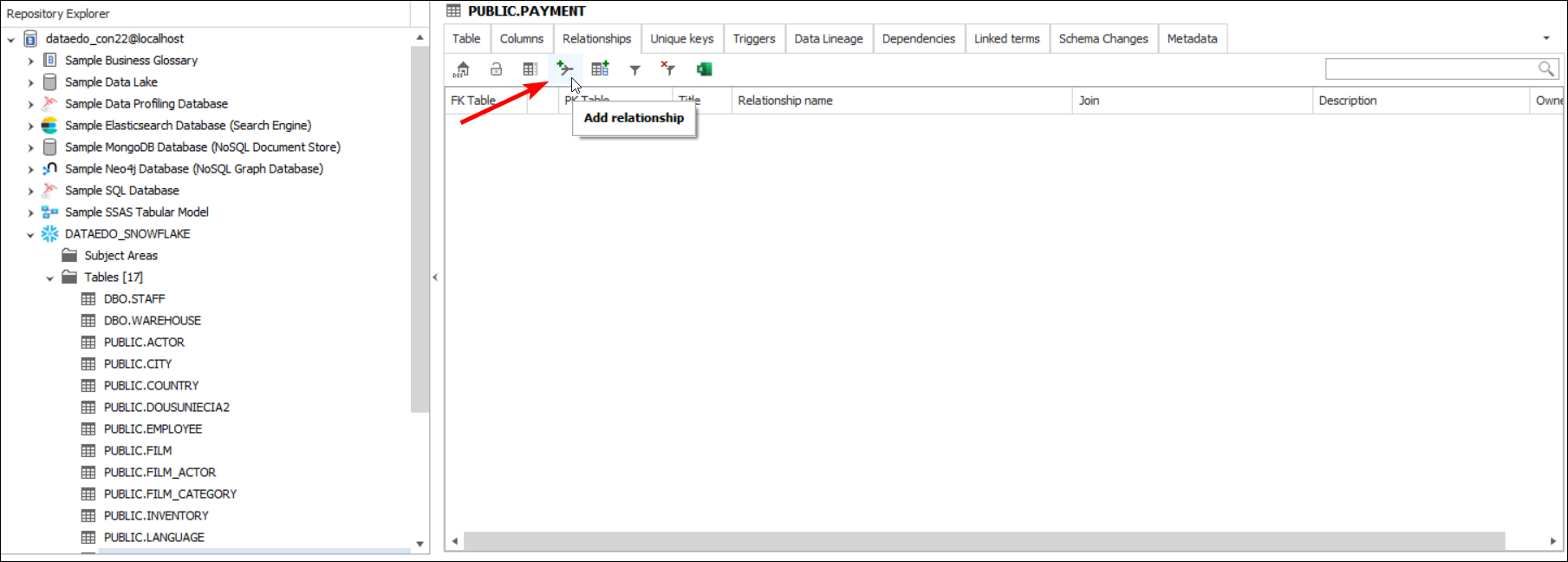
Method 1: From the Relationships tab
Click on Add Relationship button.
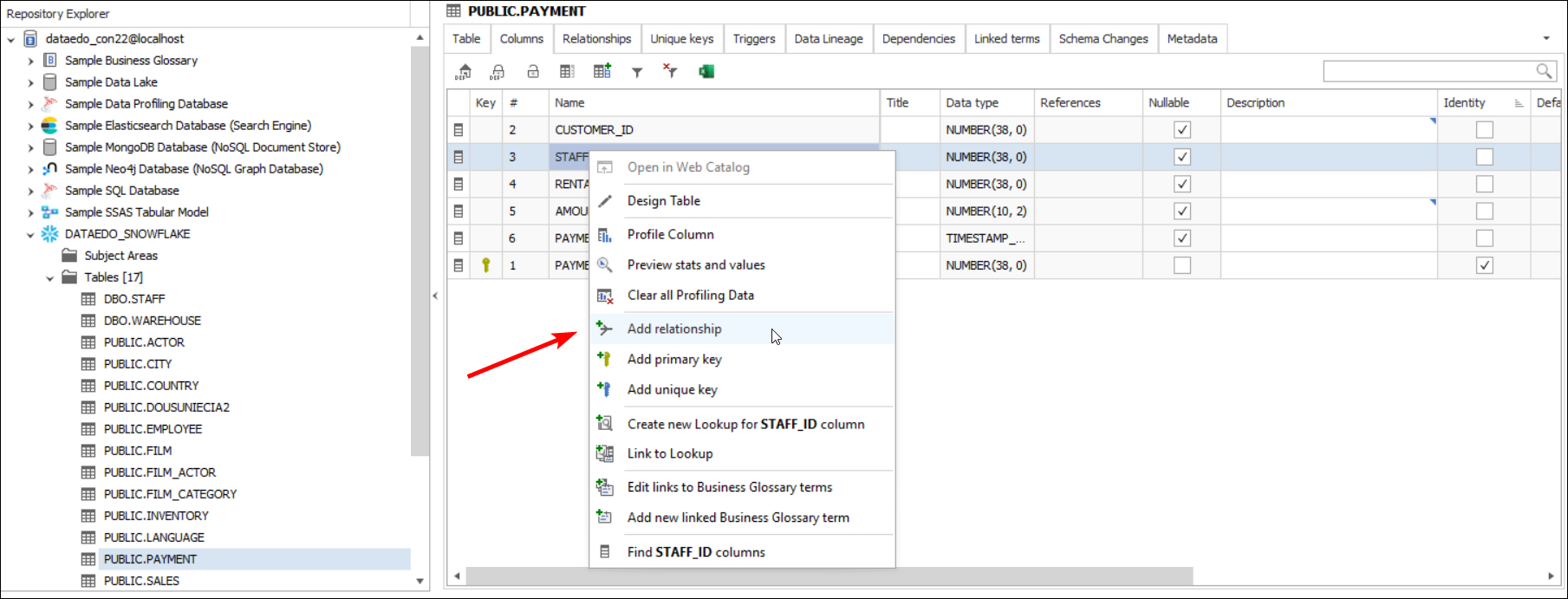
Method 2: Using the Columns tab
- Choose the column that will be the foreign key (you can select more than one).
- Right-click it and select Add relationship.
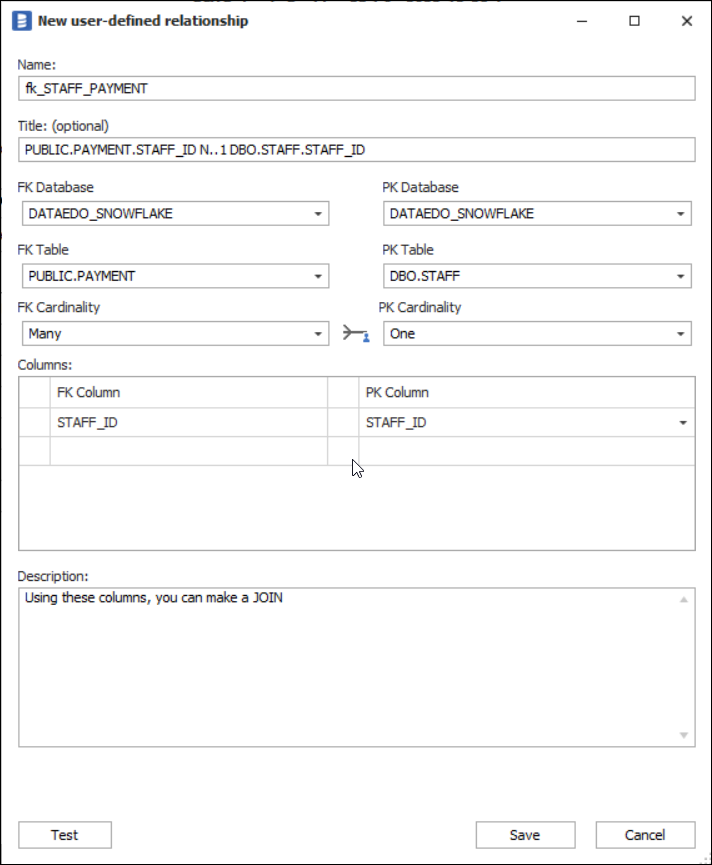
Complete relationship details
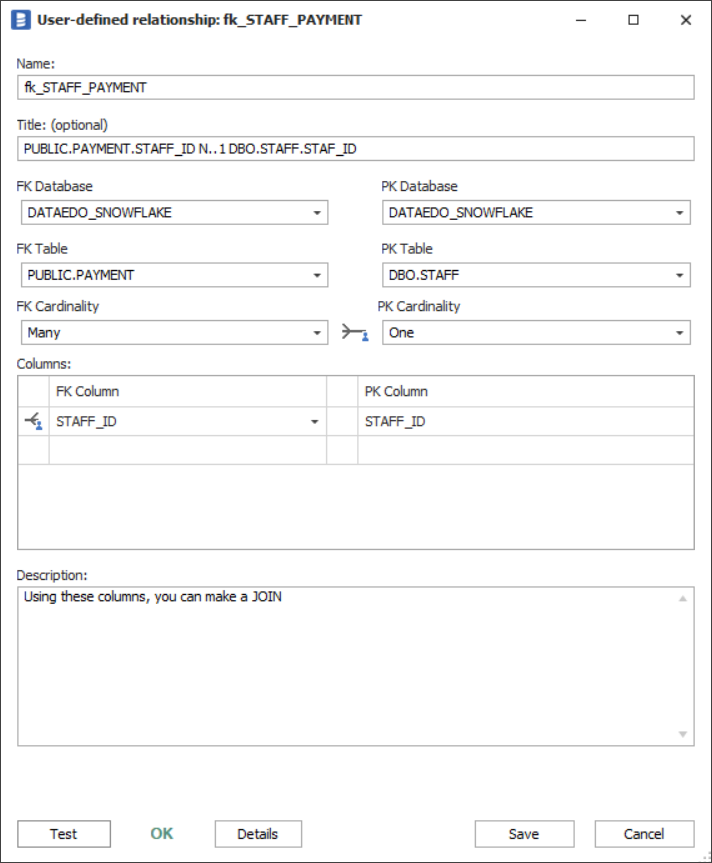
- Enter the primary key and foreign key information, then assign a name to the relationship.
- Optionally, you can set a title, adjust the cardinality, or add a description.
- Click Save to apply the relationship.
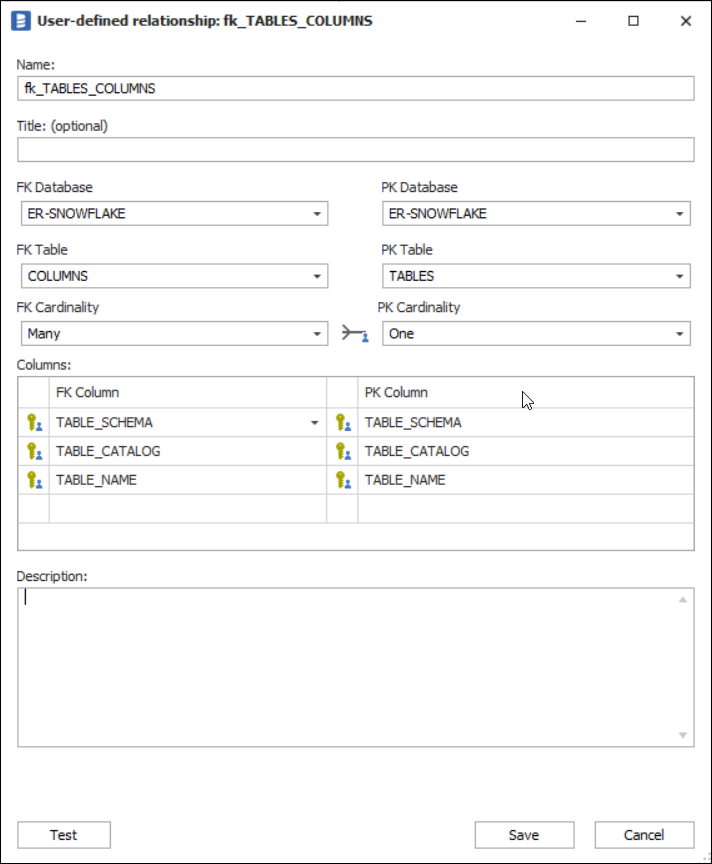
You can also add a composite foreign key by selecting multiple columns:
Test a relationship
To ensure your relationship is correct, you must to verify a few key conditions:
- The
Primary keycolumns must contain unique, non-null values - Every
Foreign keyvalue must match a value in the primary key and can't benull - Checking the number of rows in both tables can help you determine the best testing approach. If there are millions of rows, we may need a different strategy than if there are only a few, where accidental matches are more likely
To test the relationship, simply click Test during the relationship definition stage.
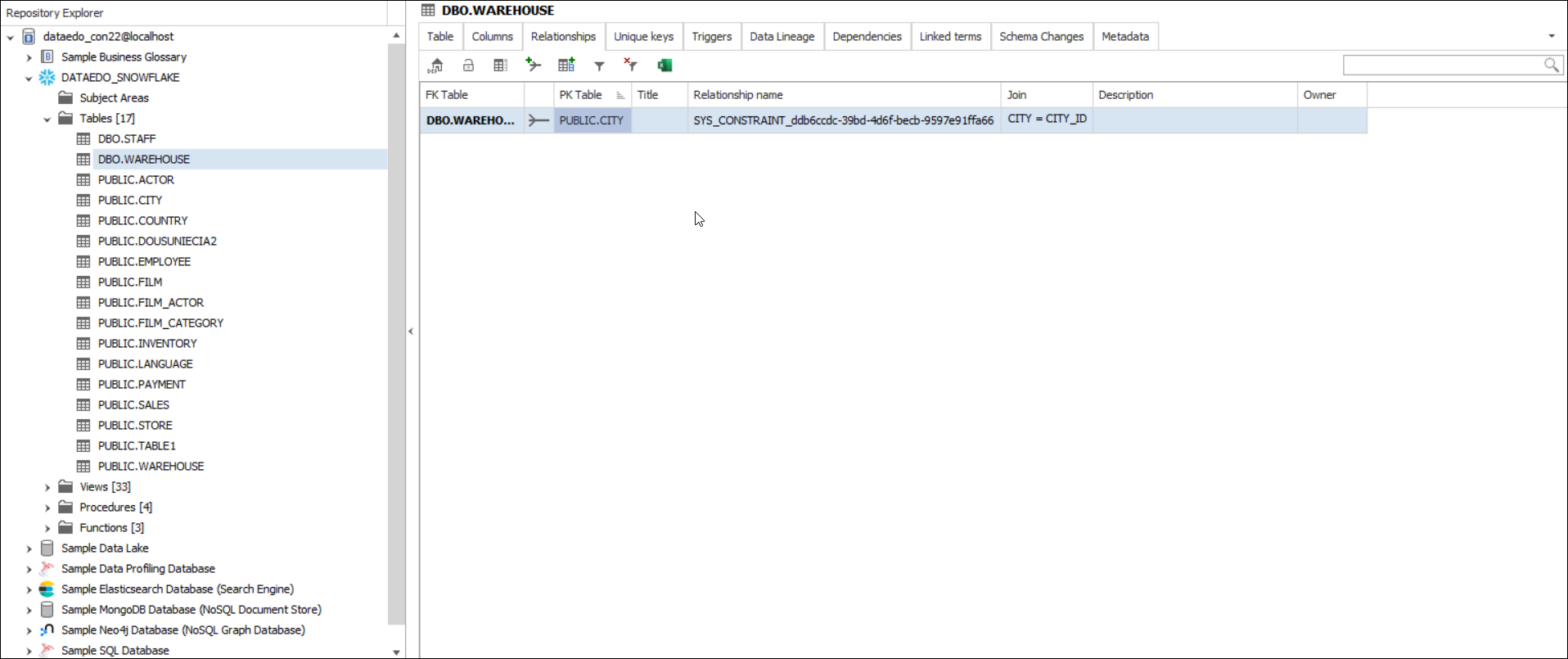
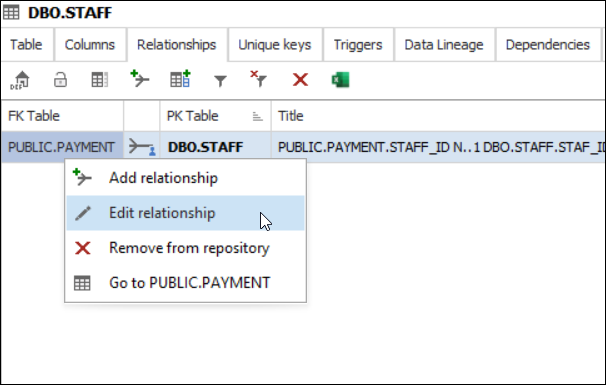
If the relationship has already been added, right-click on it, select Edit relationship, and test it as before.
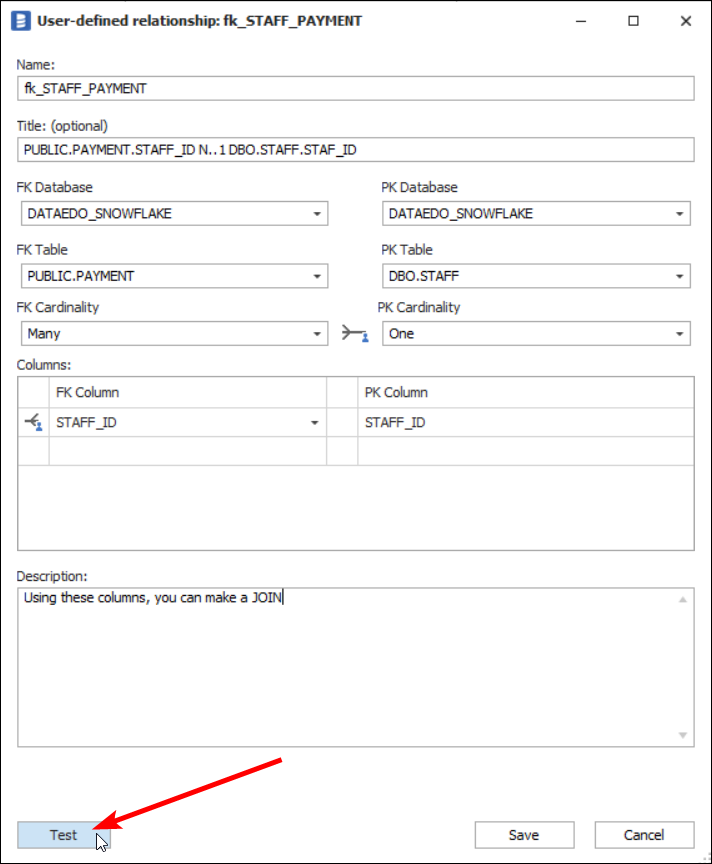
Test results
Once the test is complete, you’ll see one of three possible results:
- OK– All conditions are met; the relationship is valid
- Unknown– One or more columns are empty, making it impossible to verify the relationship
- Fail– The relationship is invalid due to missing or mismatched values
Viewing relationship diagram
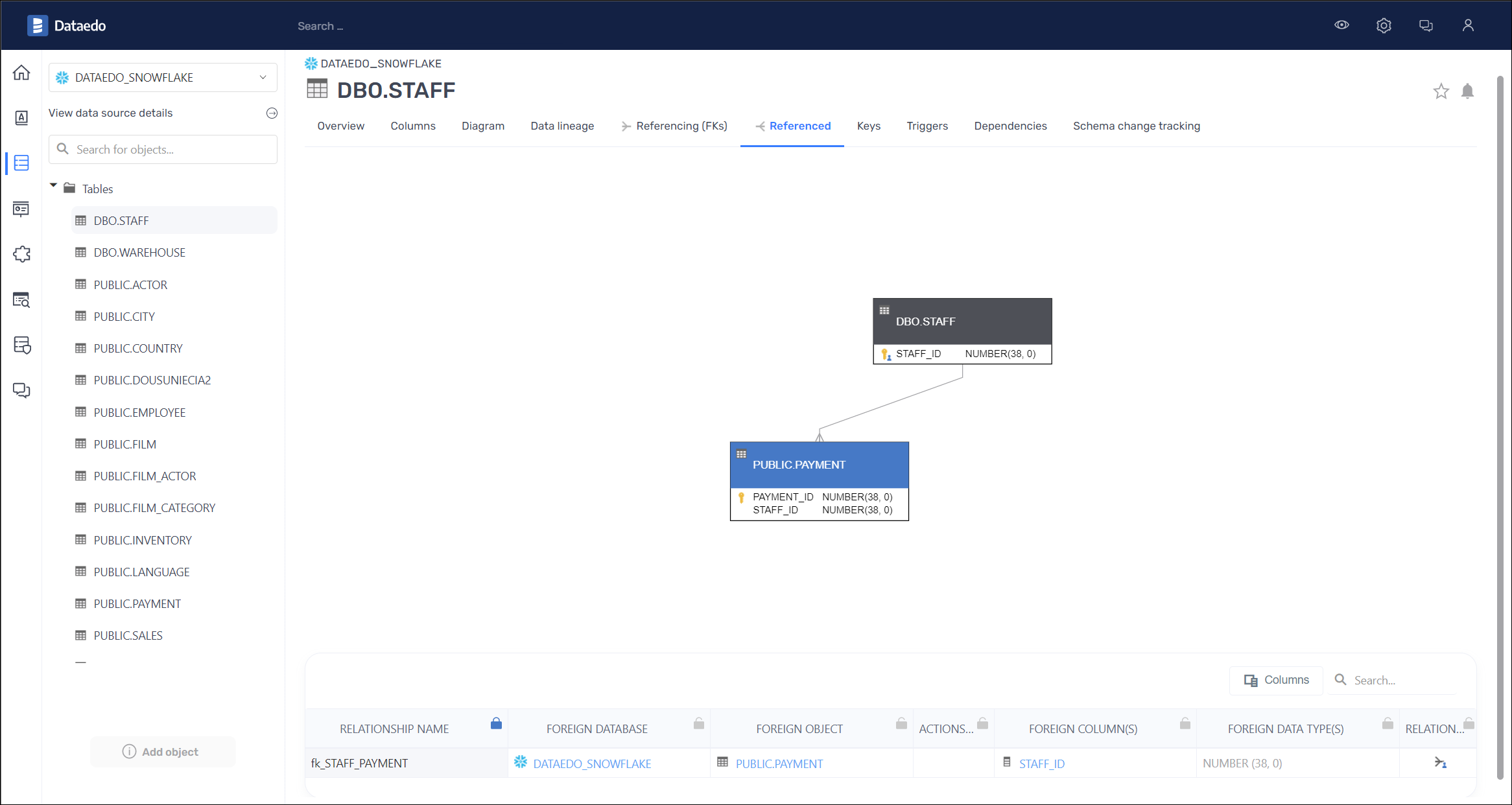
Dataedo Portal
You can view the relationship diagram directly in Dataedo Portal.
Dataedo Desktop
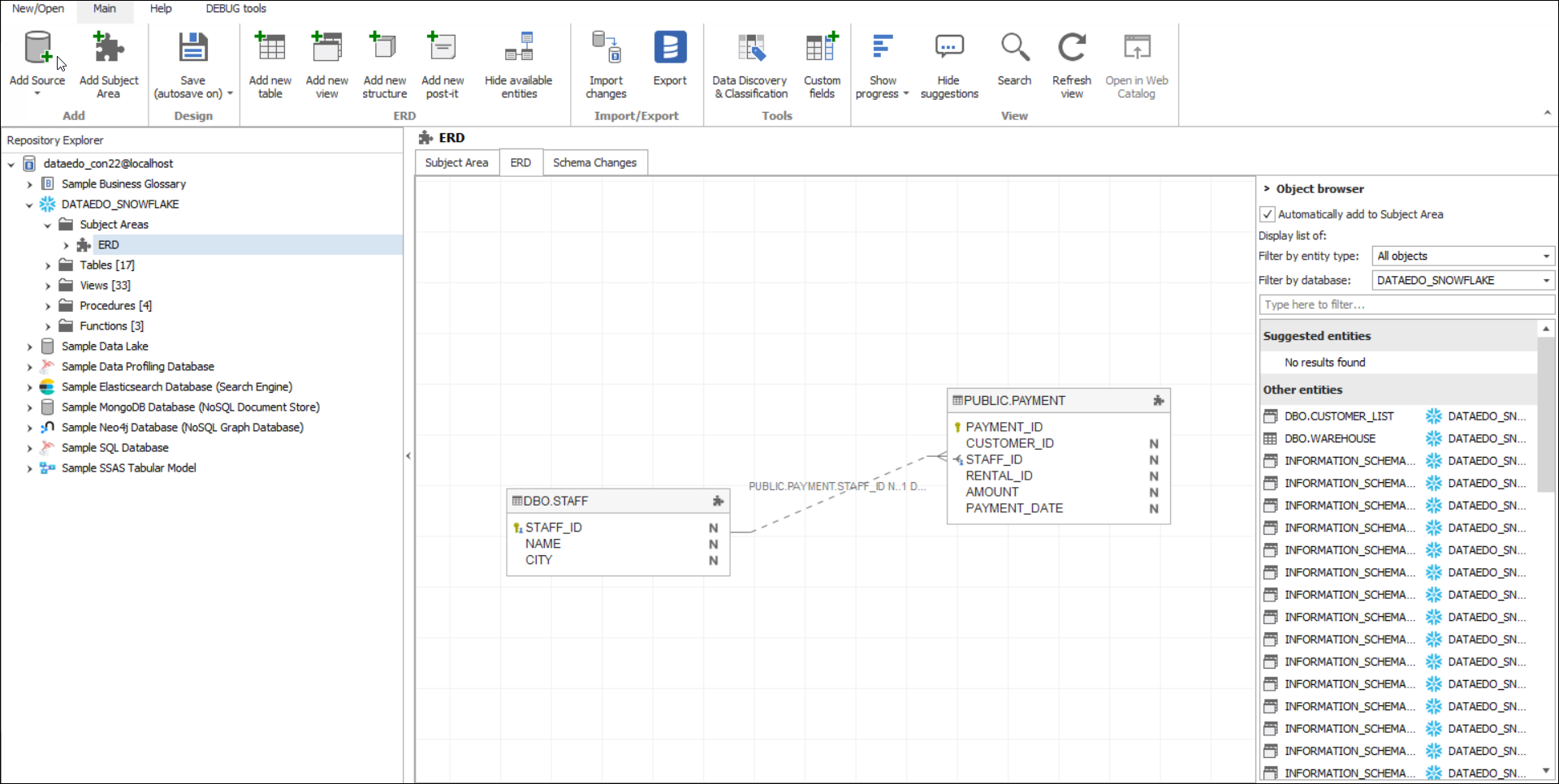
To see the relationship diagram in Dataedo Desktop, you must create a Subject Area and add tables to an ERD (Entity Relationship Diagram) – learn more.
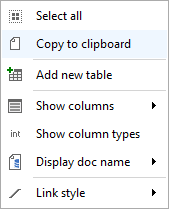
You can also copy the diagram to the clipboard. Right-click on a blank area of the diagram pane and select Copy to clipboard.
Exporting to HTML
You can export the documentation as an HTML file – learn more. The relationship diagram will be visible in the table's tab.
To see the diagram after exporting, you must create a Subject Area and add tables to the ERD – learn more.
Learn more
Want to learn more about foreign keys? Check out our resources!

