Azure Synapse Pipelines
Not supported: Data Quality, Data Profiling, Foreign Key Testing, Reference Data, Metadata Sync, Execution Flows
Azure Synapse Pipelines is a cloud-based data integration and orchestration service provided by Microsoft Azure. It allows you to create, schedule, and manage data workflows, as well as move and transform data across various sources and destinations.
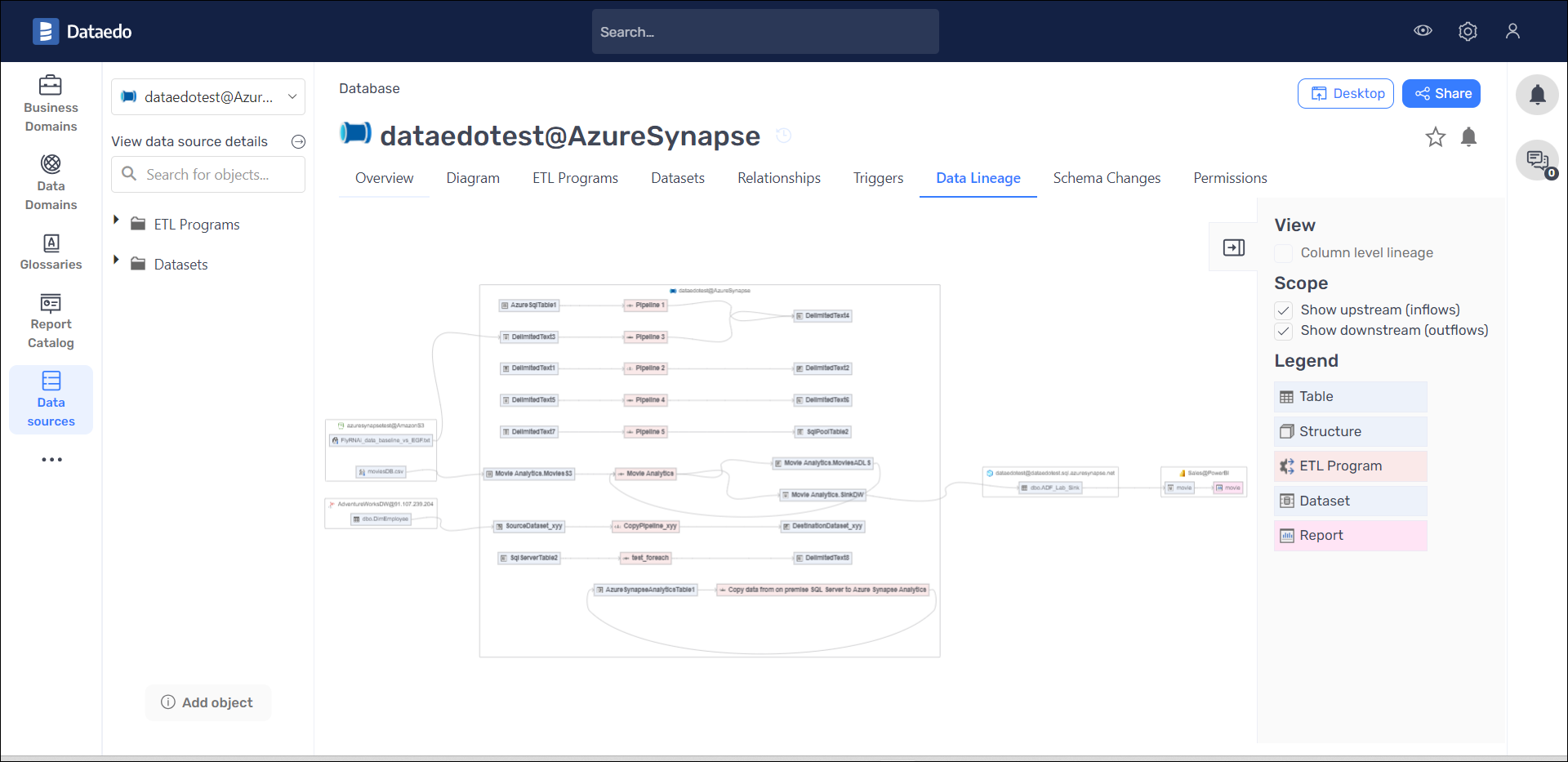
To obtain a complete lineage for your Azure Synapse Analytics environment, we highly recommend importing data into Dataedo using both the Azure Synapse Analytics connector and the Azure Synapse Pipelines connector.
Supported elements and metadata
Objects imported
-
Pipelines as ETL Programs
-
Name
-
Folder (as schema)
-
Activities as Processes in Data Lineage
-
Name
-
Data lineage (object and column level, details below)
-
-
-
Integration Datasets as Datasets
-
Name
-
Folder (as schema)
-
Columns
-
-
Sources
-
Name
-
Columns (if linked service is imported to Dataedo)
-
-
Destinations
-
Name
-
Columns (if linked service is imported to Dataedo)
-
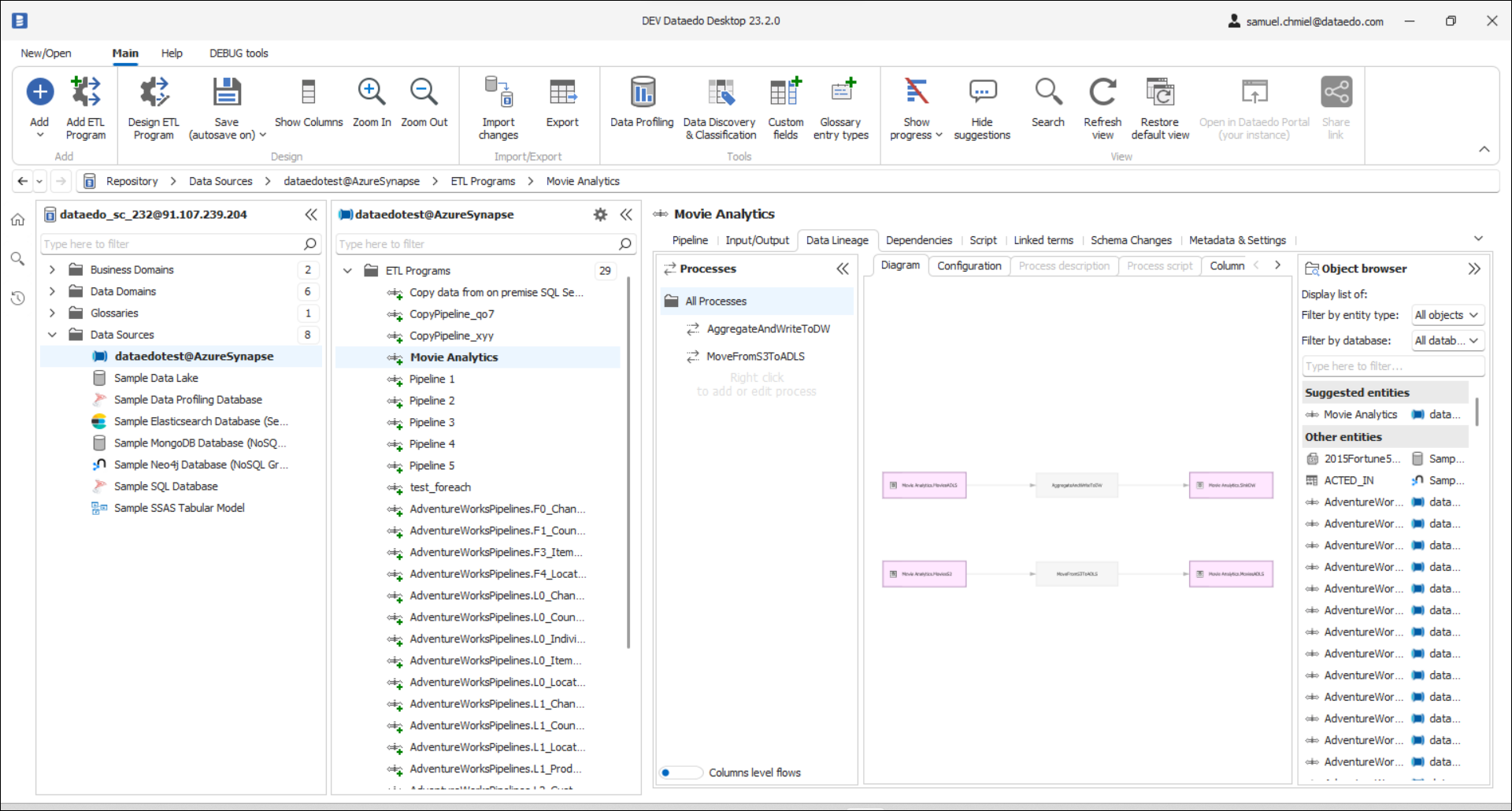
Dataedo imports all the activities as data processes within pipelines. Nested activities like ForEach, Until, IfCondition, and Switch are also imported with all the activities inside them.
Sources and Destinations are created based on Dataset information and runtime logs information (for parameterized datasets and linked sources) for presenting lineage purposes.
Activities we build automatic data-lineage for
- Copy activity - Object-level and column-level lineage
- Dataflow - Object-level lineage
Automatic data lineage
Dataedo Azure Synapse Pipelines connector always creates automatic data lineage dataset -> task -> dataset. We also support source -> dataset -> task -> dataset -> sink for the following linked service types:
- Microsoft SQL Server
- Azure SQL Server
- Azure Synapse Analytics
- Azure Blob Storage
- Azure Data Lake Storage
- Amazon S3
- Postgres
- Redshift
- MariaDB
- MySQL
- MongoDB
- Snowflake
- DB2
- Postgres
Connecting to Azure Synapse
Setting up authentication
To set up authentication for Azure Synapse Pipelines, please refer to this guide.
Importing Metadata in Dataedo Portal
Entry point
To start the Metadata Import flow, make sure you have the Connection Manager role.
Then navigate to:
Connections → Add new connection → Azure Synapse Pipelines
This will open the import wizard described in the following steps.
Step 1. Host details
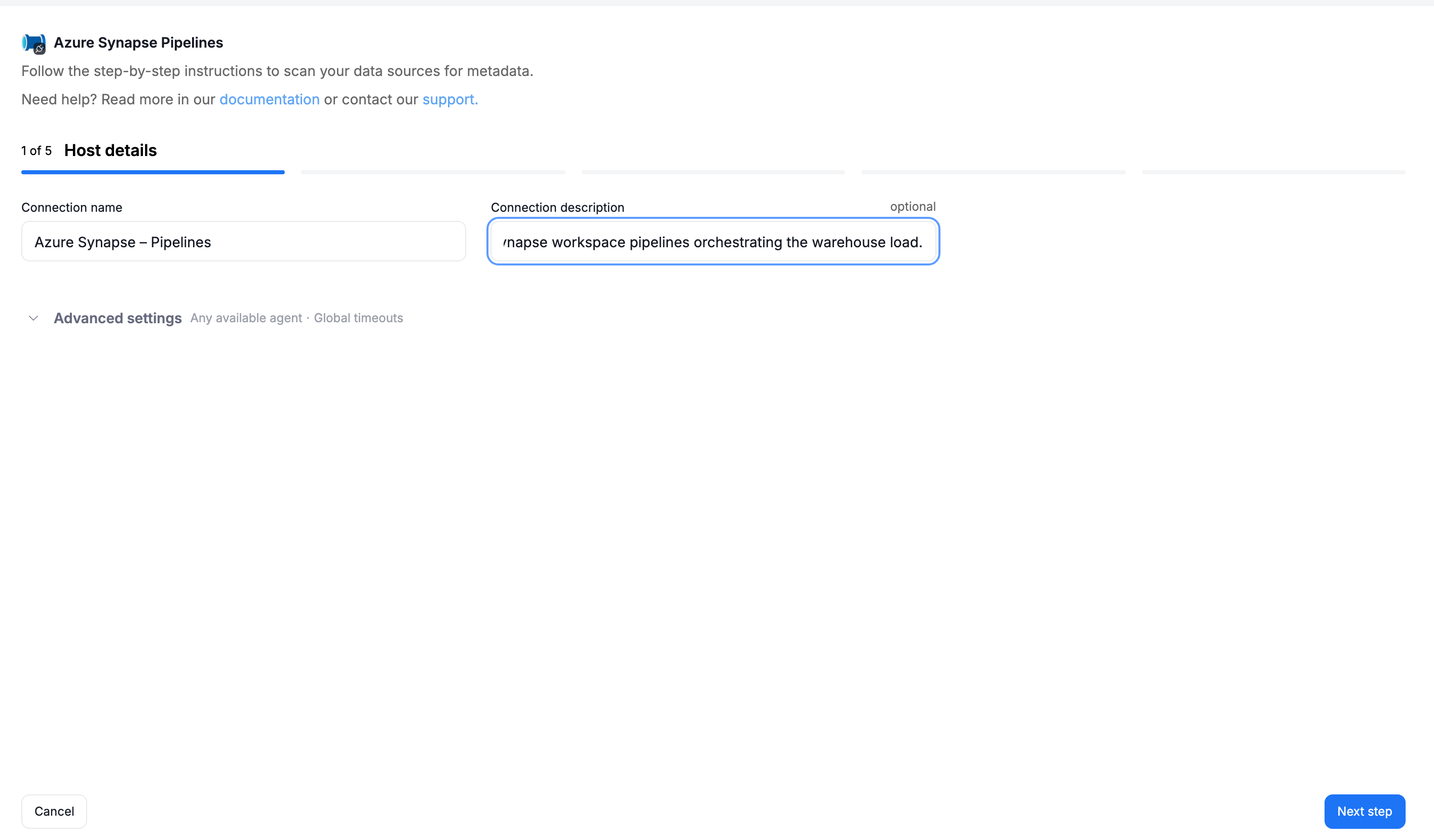
Provide the name of the Connection and an optional description. Azure Synapse Pipelines requires no host address here – the subscription, resource group, and workspace are chosen later, in the Data Sources step.
A Connection in Dataedo represents a saved configuration for accessing a data source.
It can be reused for future imports and scheduling.
Step 2. Credentials
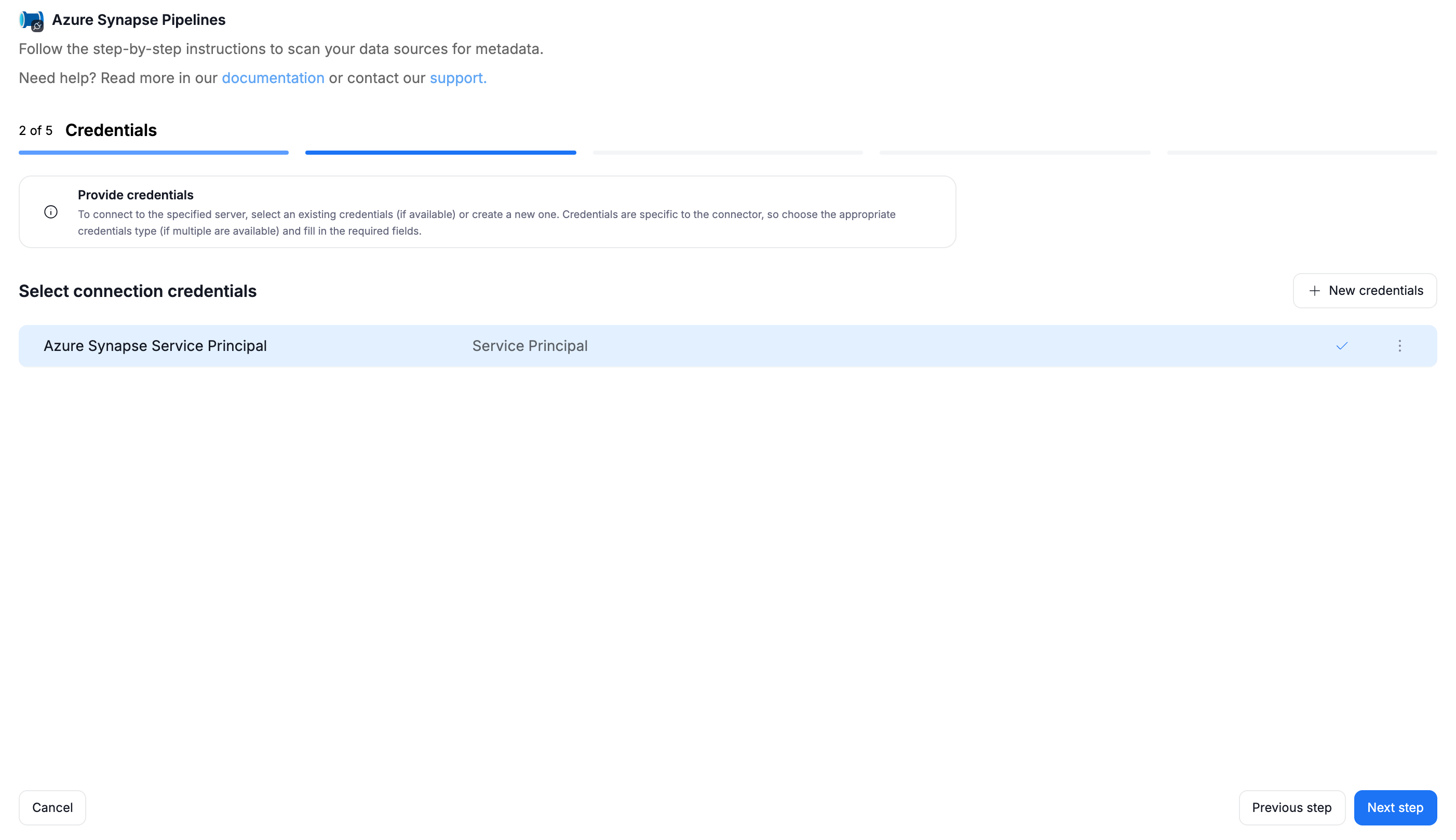
Choose credentials from the list of existing ones available for the selected connector, or add new credentials.
Azure Synapse Pipelines uses Service Principal credentials – see Setting up authentication for the values you need and the role that must be assigned.
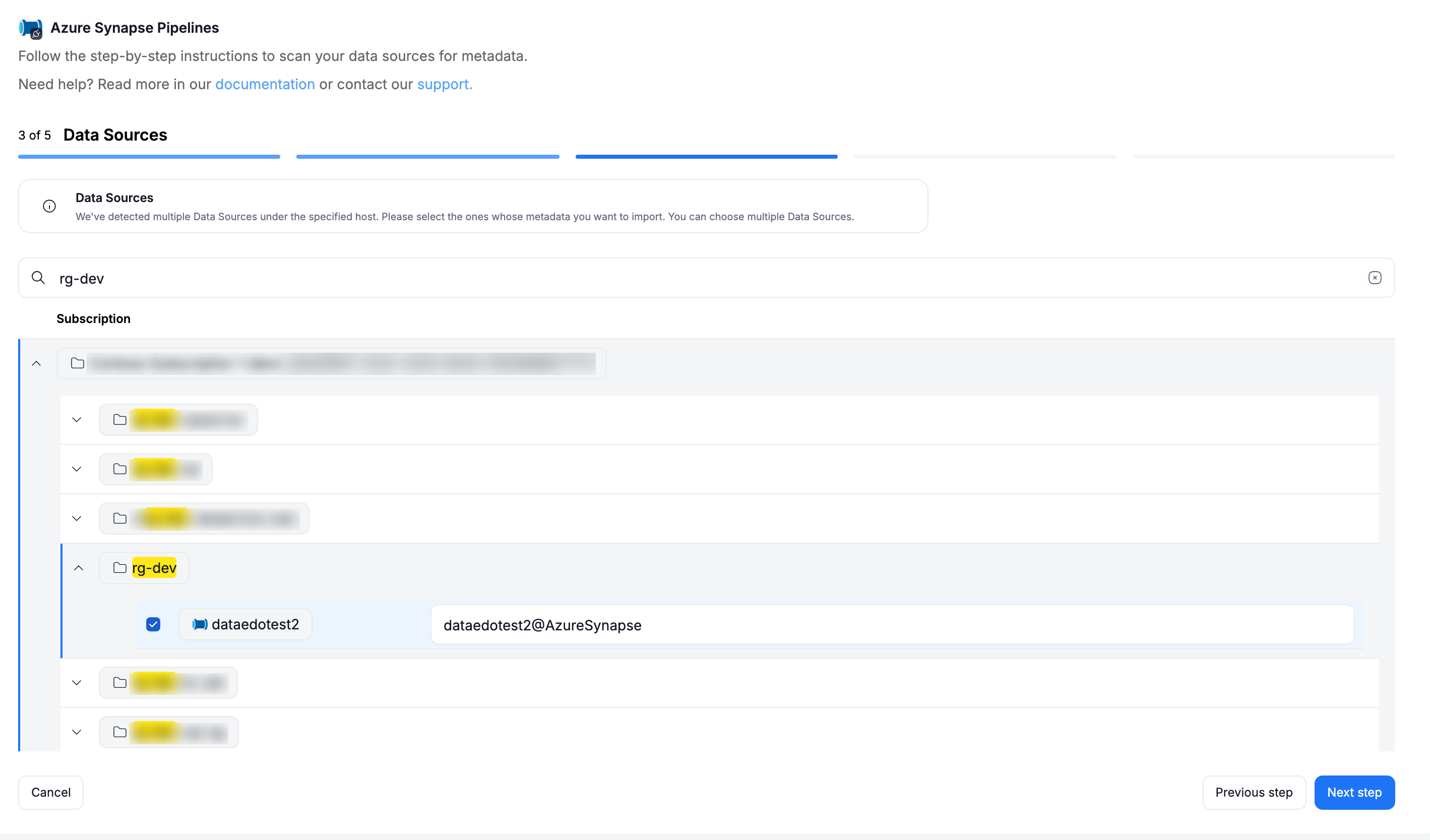
Step 3. Data Sources
During one import you can read the metadata of up to 20 data sources. You can reuse the same connection to import more sources later.
- Portal displays all Synapse workspaces accessible with the provided credentials, grouped by subscription and resource group
- you can select multiple workspaces at once and use the search box to narrow down results – matches are highlighted in the tree
- each selected workspace should be given a Title, which will be visible in Dataedo
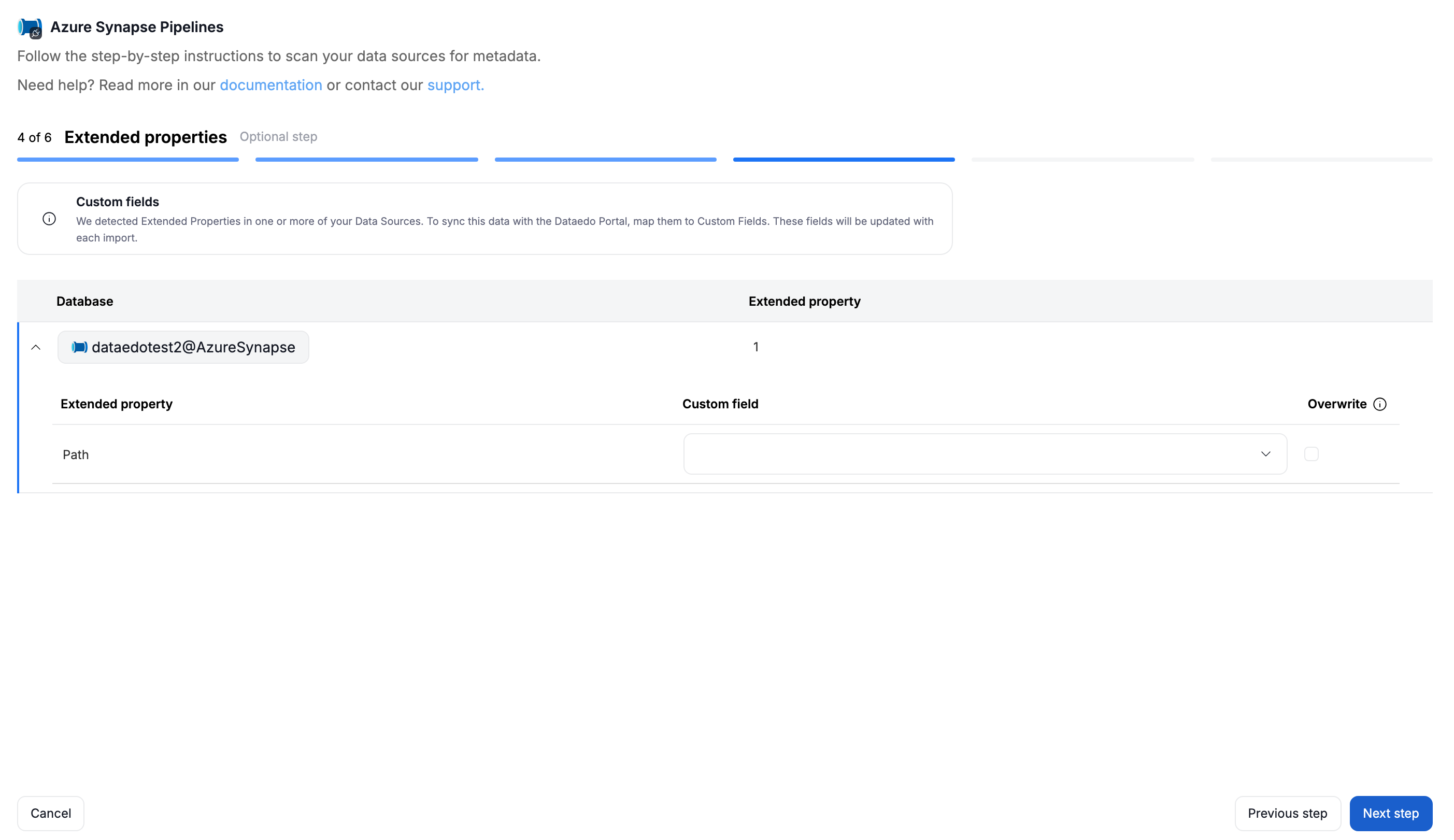
Step 4. Extended properties (optional)
This step appears only if the source exposes Extended Properties.
You can map them to Custom Fields in Dataedo, or skip this step entirely.
If you skip it, no Extended Properties will be imported.
Use the Overwrite option to decide whether each import replaces values already set in Dataedo.
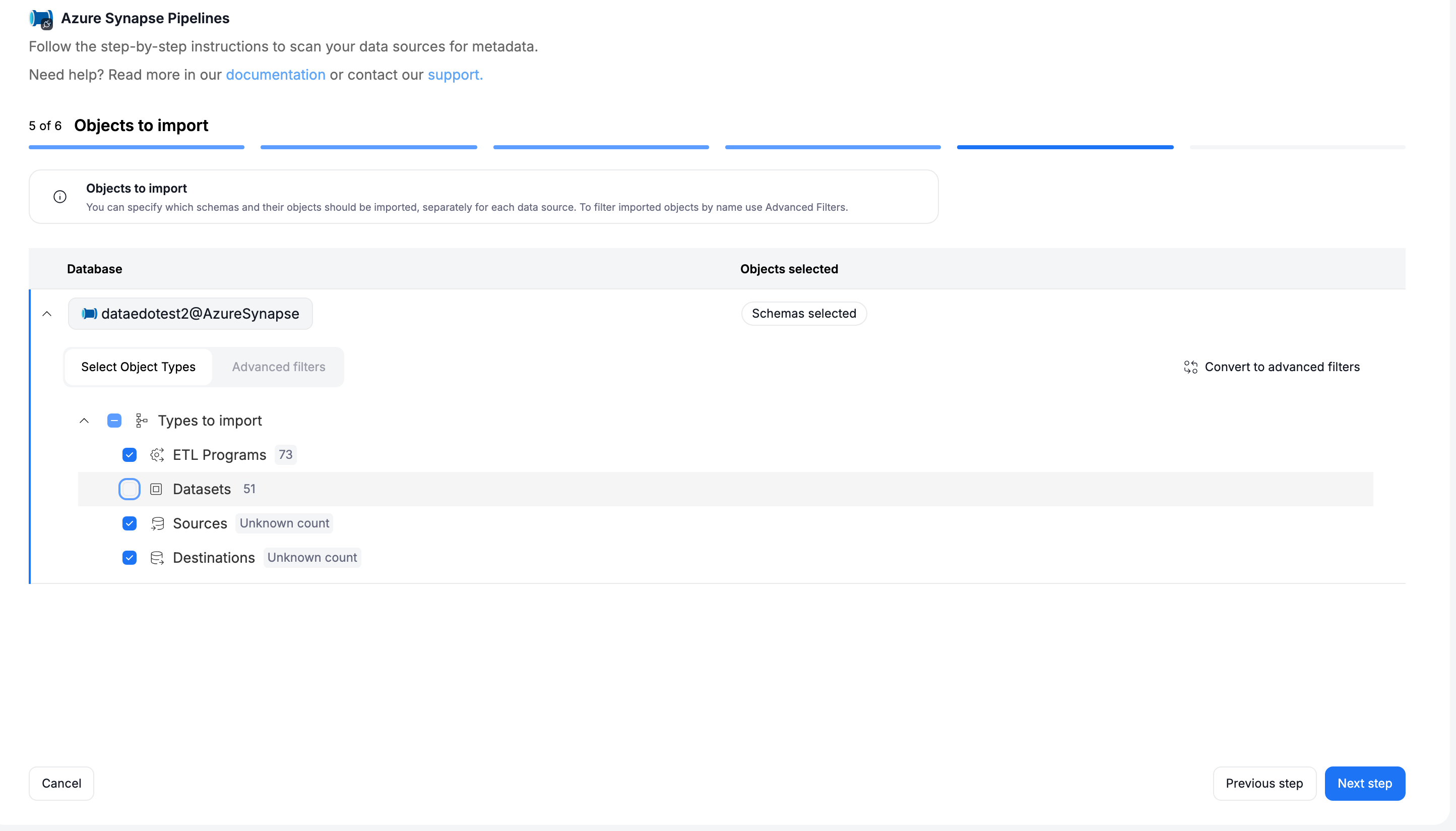
Step 5. Objects to import
For each selected workspace, you can refine which objects to import:
- Select object types – ETL Programs, Datasets, Sources, and Destinations.
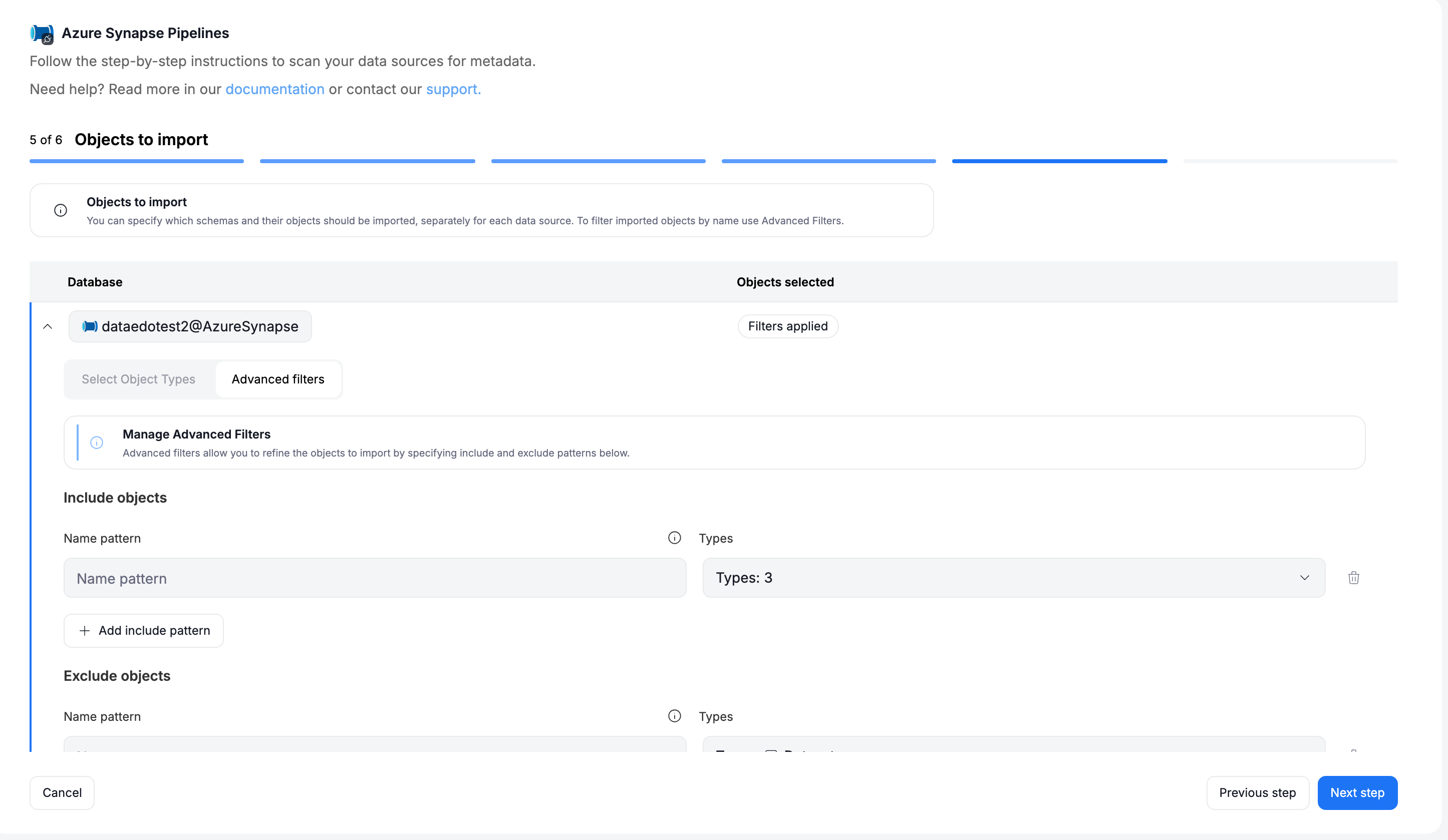
- Use Advanced filters to include or exclude objects with:
- name patterns
- object types
Step 6. Schedule
Configure scheduling options for each source individually. For Azure Synapse Pipelines, you can schedule a Metadata Import task:
- choose the metadata extraction options (
Append only,Reimport all included objects) - run daily, on selected weekdays, or on specific days of the month
- choose an exact time of execution
- Task state:
Active- the task will run as scheduledDraft- the task is saved but not executed until you switch it to Active
- Run Immediately - when checked, the task will also be executed right after you click
Create connection
Only one source in a metadata import can have Run Immediately selected.
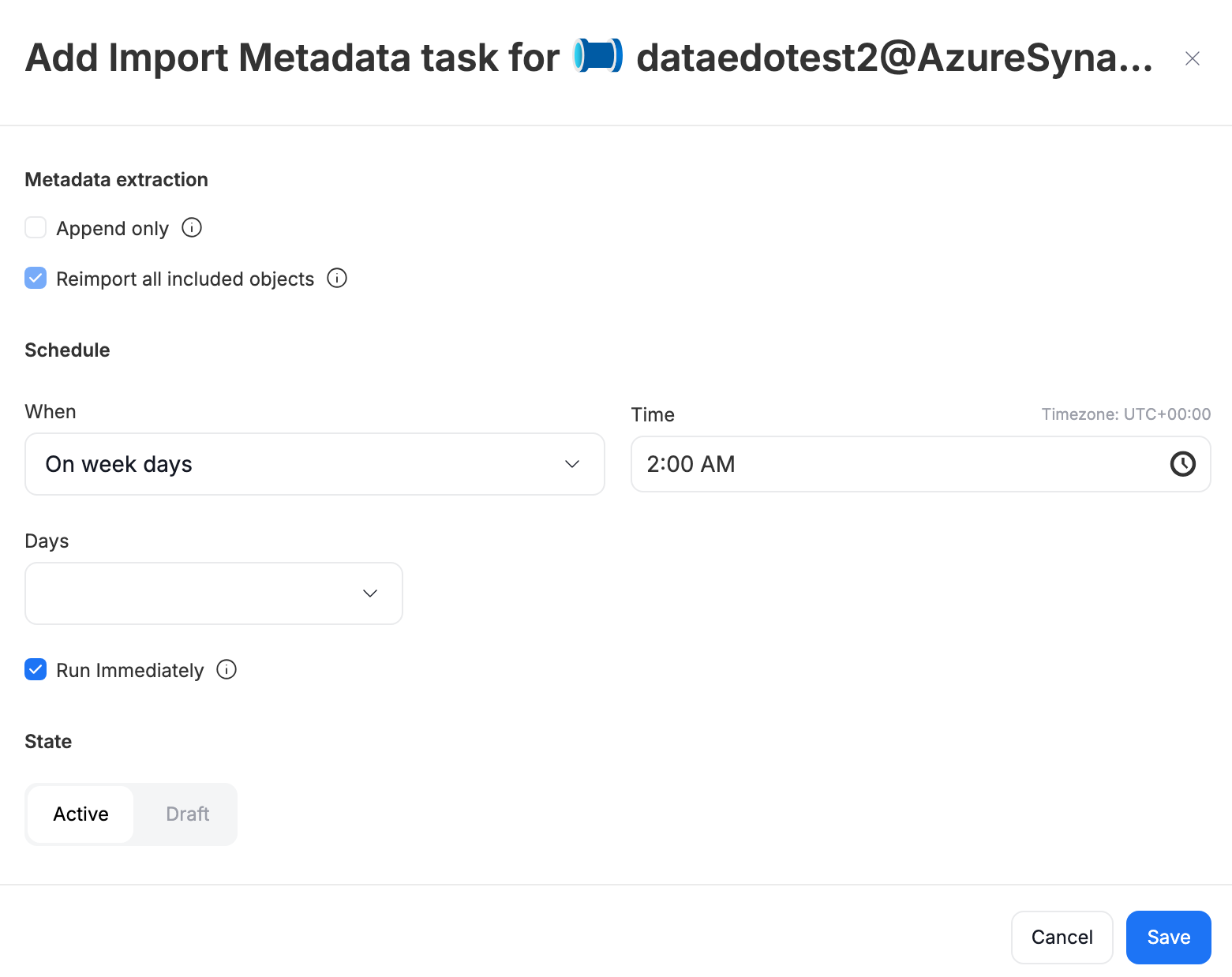
Once saved, the task appears in the schedule list for that data source.
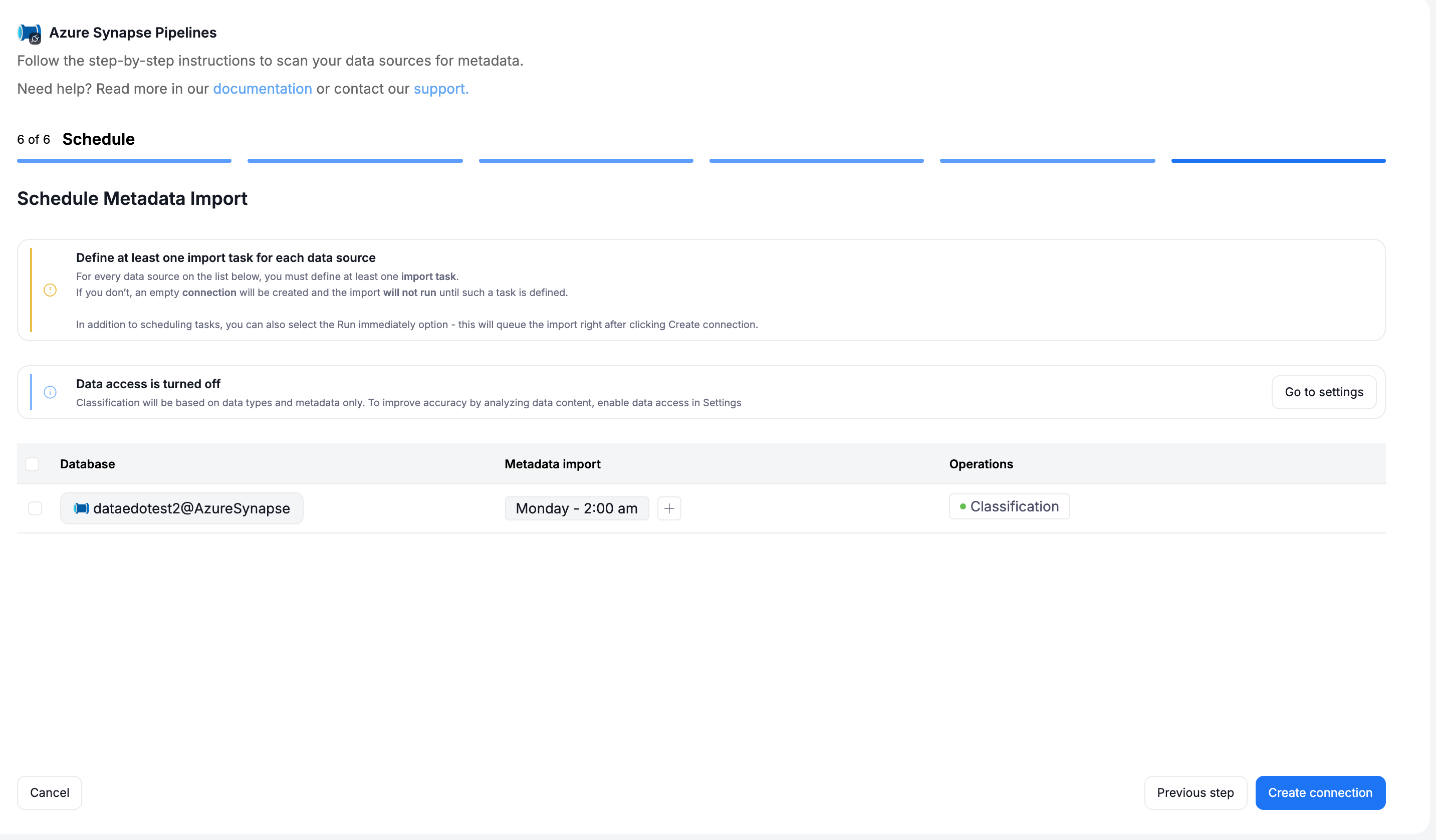
You must configure at least one import task in the schedule section.
If you skip this, an empty database will be created and no metadata will be imported.
Importing Metadata in Dataedo Desktop
Add new connection
To connect to Azure Synapse Pipelines and create new documentation click Add documentation and choose Database connection.
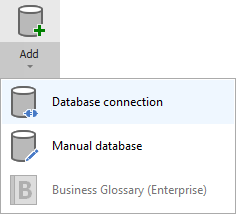
On the connection screen choose Azure Synapse Pipelines as DBMS.

Connection details
- Subscription - Azure subscription assigned to your workspace.
- Resource group - Resource group where your workspace sits in.
- Workspace - Name of the workspace you want to extract metadata from.

Go to portal.azure.com. Search for your Azure Synapse Analytics workspace name and open this resource to get the information needed.

Importing objects
When the connection is successful Dataedo will read objects and show a list of objects found. You can choose which objects to import. You can also use an advanced filter to narrow down the list of objects.

Confirm the list of objects to import by clicking Next.
The next screen allows you to change the default name of the documentation under your schema will be visible in the Dataedo repository.

Click Import to start the import.

When done close the import window with the Finish button.
Outcome
Your Azure Synapse Analytics objects have been imported to new documentation in the repository.