Connecting to Databricks Unity Catalog
To connect to Databricks it is required to provide SQL Warehouse name that will allow to execute SQL queries via Databricks API. The compute resources of this warehouse will be used in Data Profiling and Data Quality modules and to retrieve data lineage faster using system tables. To import column lineage, the following privileges are now required: USE SCHEMA on system.access schema and SELECT on system.access.column_lineage table.
Introduction
We recommend using Metadata Import in the Portal as the primary method of connecting your data sources.
The Portal offers significant advantages compared to the Desktop application:
- Import multiple sources in a single flow.
- Schedule Metadata Import.
- Manage connections centrally.
Import through Desktop is still available and allows importing one source at a time.
You can find the instructions at the bottom of this page.
Pre-requisites
To scan Databricks Unity Catalog, Dataedo connects to a Databricks workspace API and can authenticate either with a Personal Access Token (PAT) or with OAuth (Databricks Service Principal).
You need to have a Databricks workspace that is Unity Catalog enabled and attached to the metastore you want to scan.
Dataedo will need the following information to connect to the Databricks instance:
NOTE: You can find them in your Databricks workspace
-
Workspace URL - Once you've opened your Databricks workspace, copy the URL from the address bar in your web browser and paste it into Dataedo
-
Credentials - Either a Personal Access Token or an OAuth Service Principal (Client ID + Client Secret). See Credential details below for what to prepare and the privileges required for each method.
-
Catalog - Name of the documented catalog. It can either typed manually or be later chosen from the list.
-
Warehouse - Name of the SQL warehouse that will be used to execute SQL queries. It can either typed manually or be later chosen from the list.
Credential details
Dataedo supports two authentication methods for connecting to Databricks. Both are available in Dataedo Portal and Dataedo Desktop.
Personal Access Token (PAT)
A Personal Access Token is generated in profile settings in your Databricks workspace and is tied to the account (user or service principal) it was generated for.
To prepare:
- Generate a token for the account that will be used by Dataedo. Check how to generate a PAT.
- We recommend generating the token for a Service Principal rather than a personal user account, to avoid losing the connection if the individual account is removed or disabled.
- The account the token belongs to needs the following privileges:
- For each table/view to be imported:
SELECTon the object,USE CATALOGon the object's catalog, andUSE SCHEMAon the object's schema. - To import column level lineage:
USE SCHEMAonsystem.accessschema andSELECTonsystem.access.column_lineagetable.
- For each table/view to be imported:
Once generated, you only need to provide the token itself as the credential.
OAuth (Databricks Service Principal)
Dataedo can also authenticate using the OAuth flow with a Databricks Service Principal, using a Client ID and Client Secret instead of a token tied to an individual account.
To prepare:
- Create (or reuse) a Service Principal in Databricks.
- Generate an OAuth secret for that Service Principal — this gives you a Client ID and Client Secret. Check how to create a Service Principal and generate its OAuth secret.
- Grant the Service Principal the same privileges required for the PAT method:
- For each table/view to be imported:
SELECTon the object,USE CATALOGon the object's catalog, andUSE SCHEMAon the object's schema. - To import column level lineage:
USE SCHEMAonsystem.accessschema andSELECTonsystem.access.column_lineagetable.
- For each table/view to be imported:
- Make sure the Service Principal is added to the workspace, with access to the catalog(s)/schema(s) you want to import.
Once created, you need to provide the Client ID and Client Secret as the credential — Dataedo will use them to request short-lived OAuth tokens automatically for each connection.
Importing metadata in Dataedo Portal
Entry point
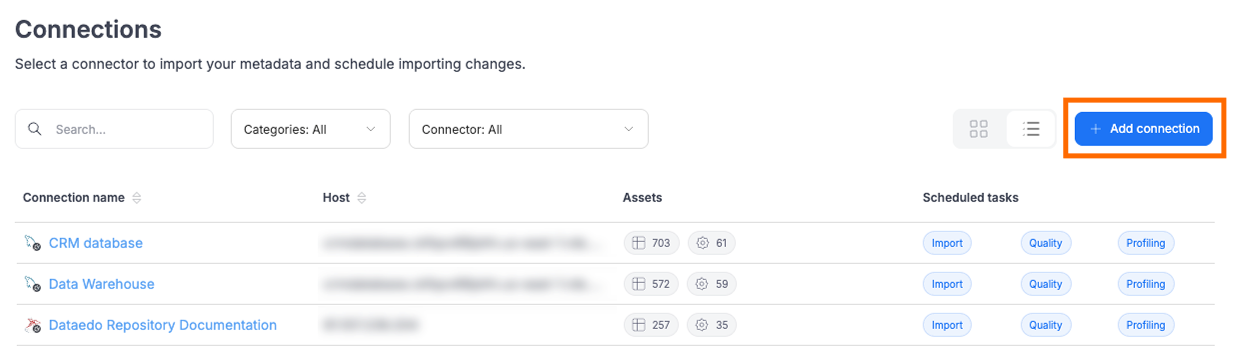
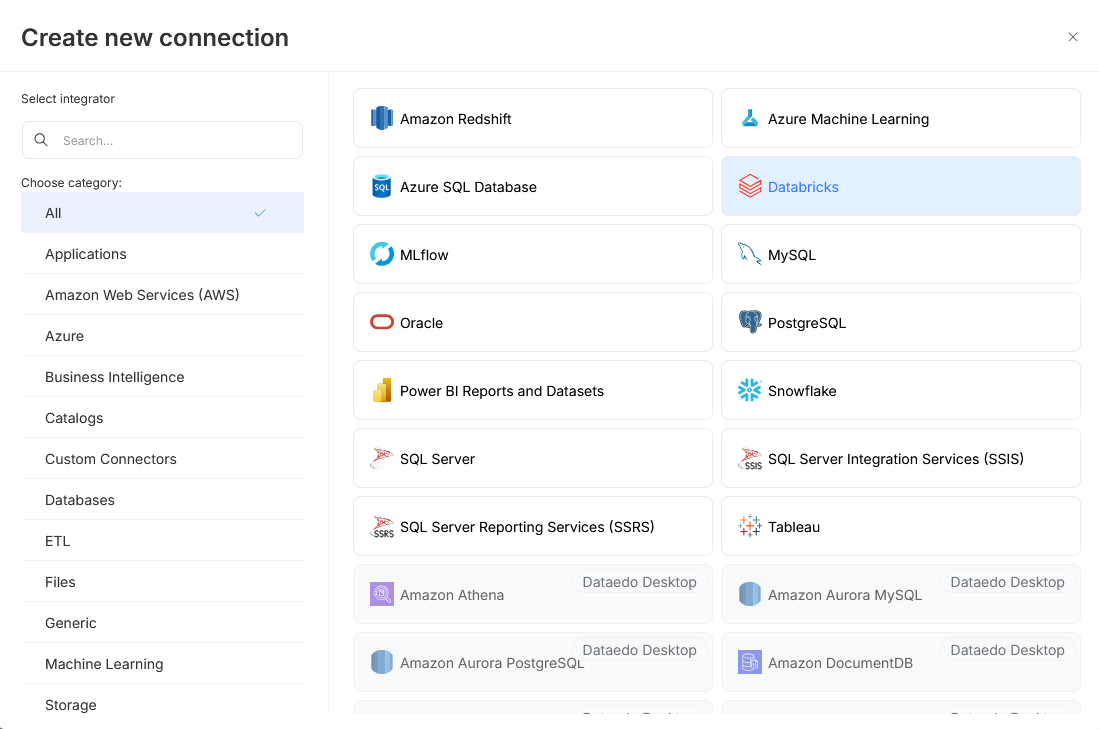
Make sure that you have the Connection Manager role. Then open Connectors>Connections and press the Add Connection button. Select Databricks.
Step 1. Host Details
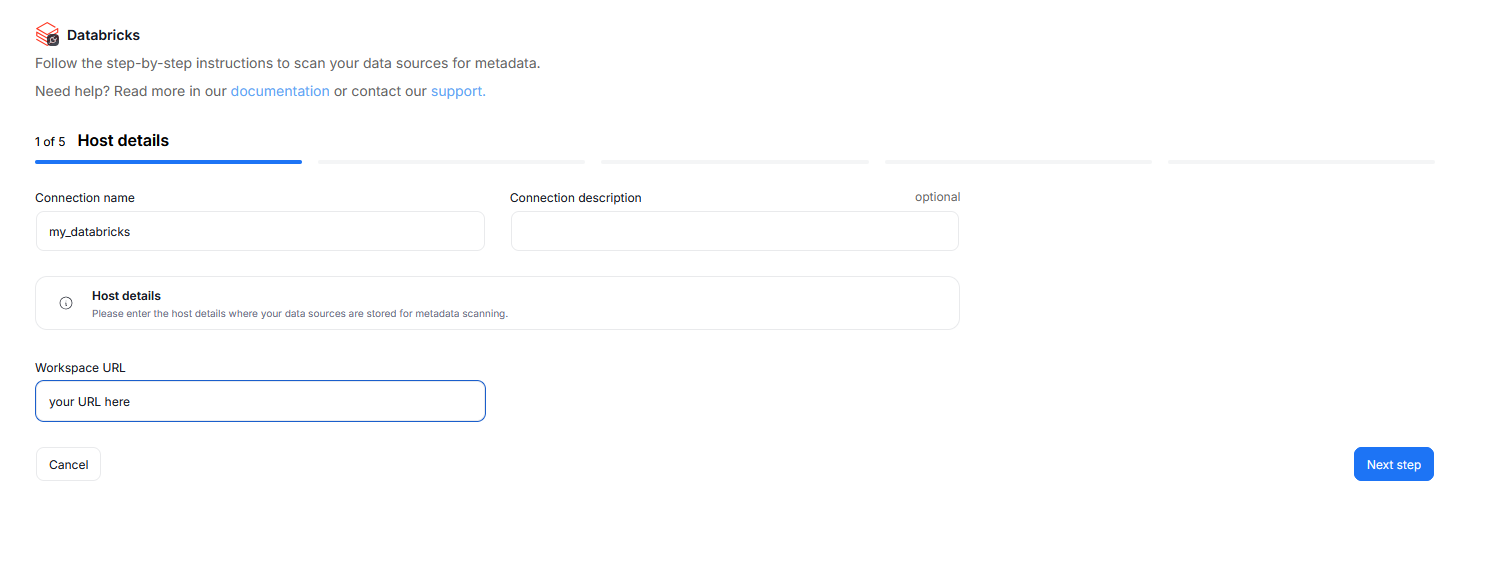
Provide the connection name, and (optionally) the connection description. These impact how the connection will be visible in your repository.
You also have to provide the URL of your Databricks workspace.
Step 2. Credentials
Choose your credentials from the list of the ones saved for Databricks, or add new ones using the New credentials button.
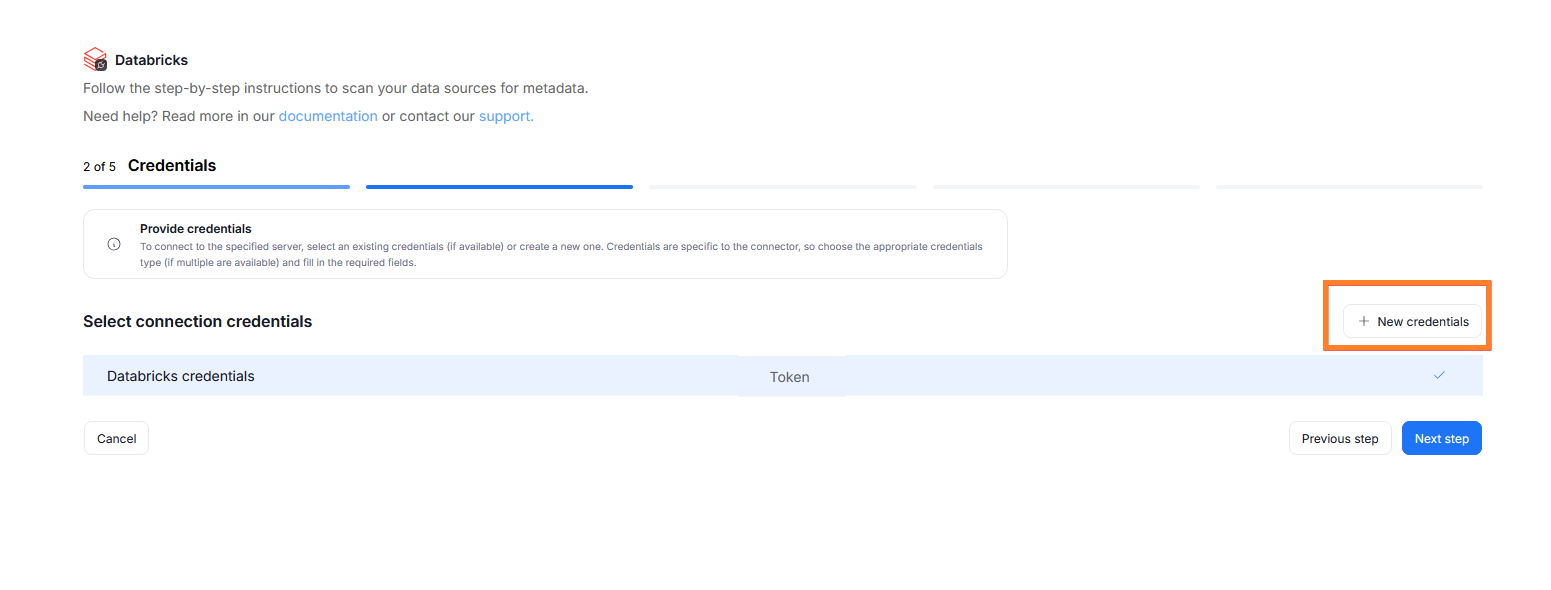
The accepted credential types for Databricks are a Personal Access Token or an OAuth Service Principal. See Credential details for what to prepare for each.
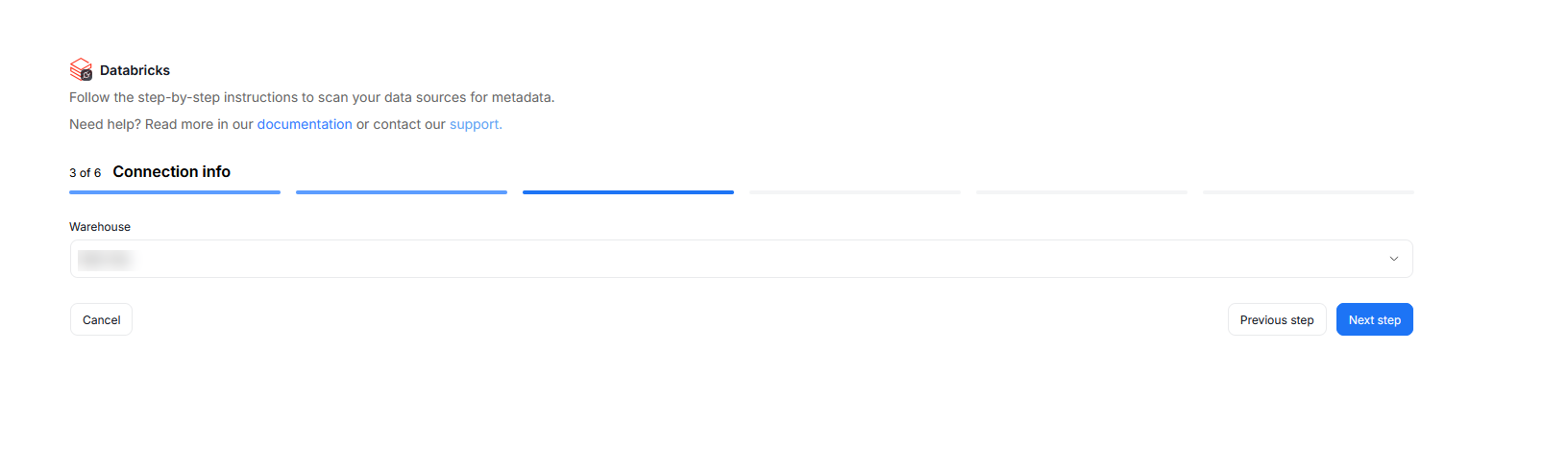
Step 3. Connection information
Provide the name of the SQL warehouse which will be used to execute queries using the Databricks API. You can type it manually or select it from a list.
Step 4. Data sources
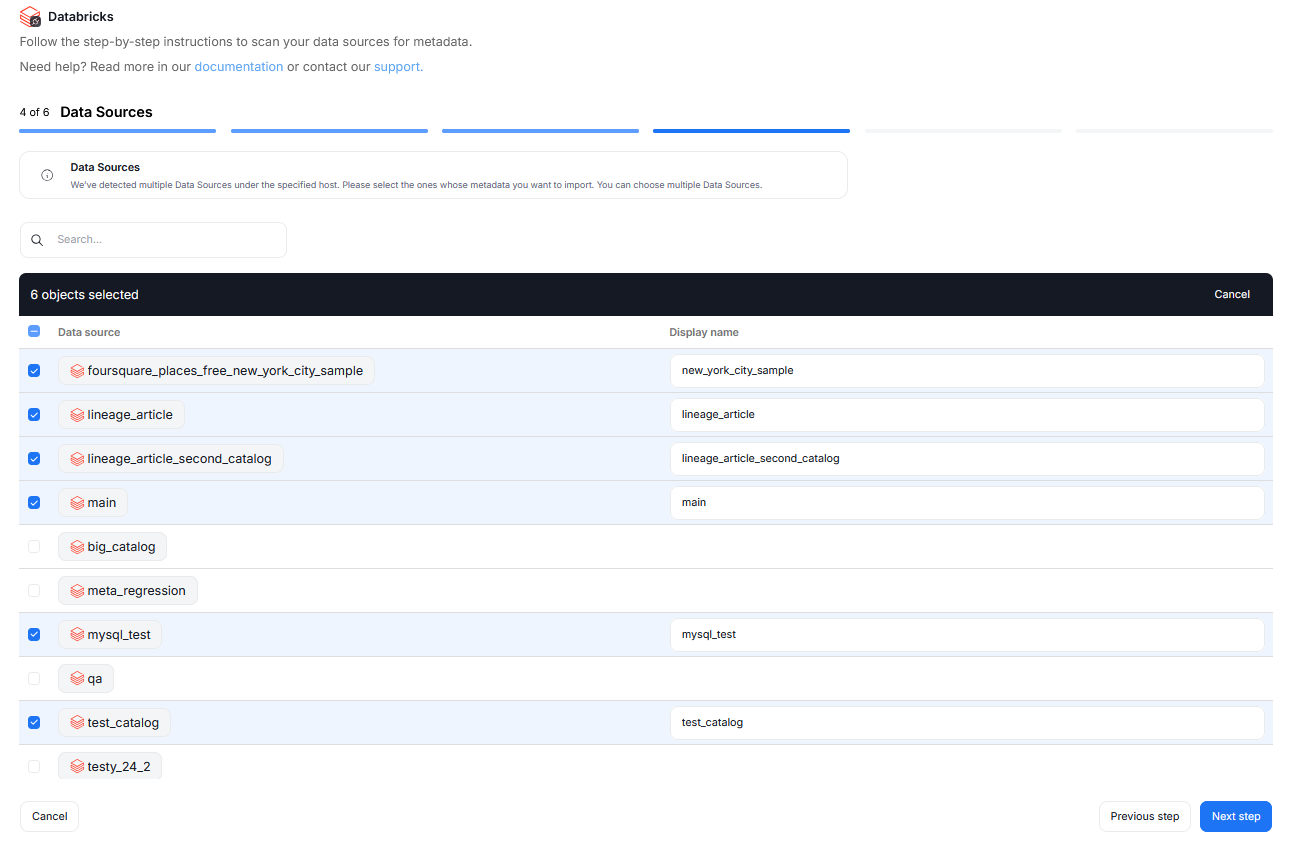
During one import you can read the metadata of up to 20 data sources. You can reuse the same connection to import more sources later.
You will see a list of all databases available using the provided credentials. You can select multiple databases at once, it is also possible to narrow down your search using the search box above the list. You will be asked to give a Title to each selected database — this is the database's name that will be shown in Dataedo.
Step 5. Objects to Import
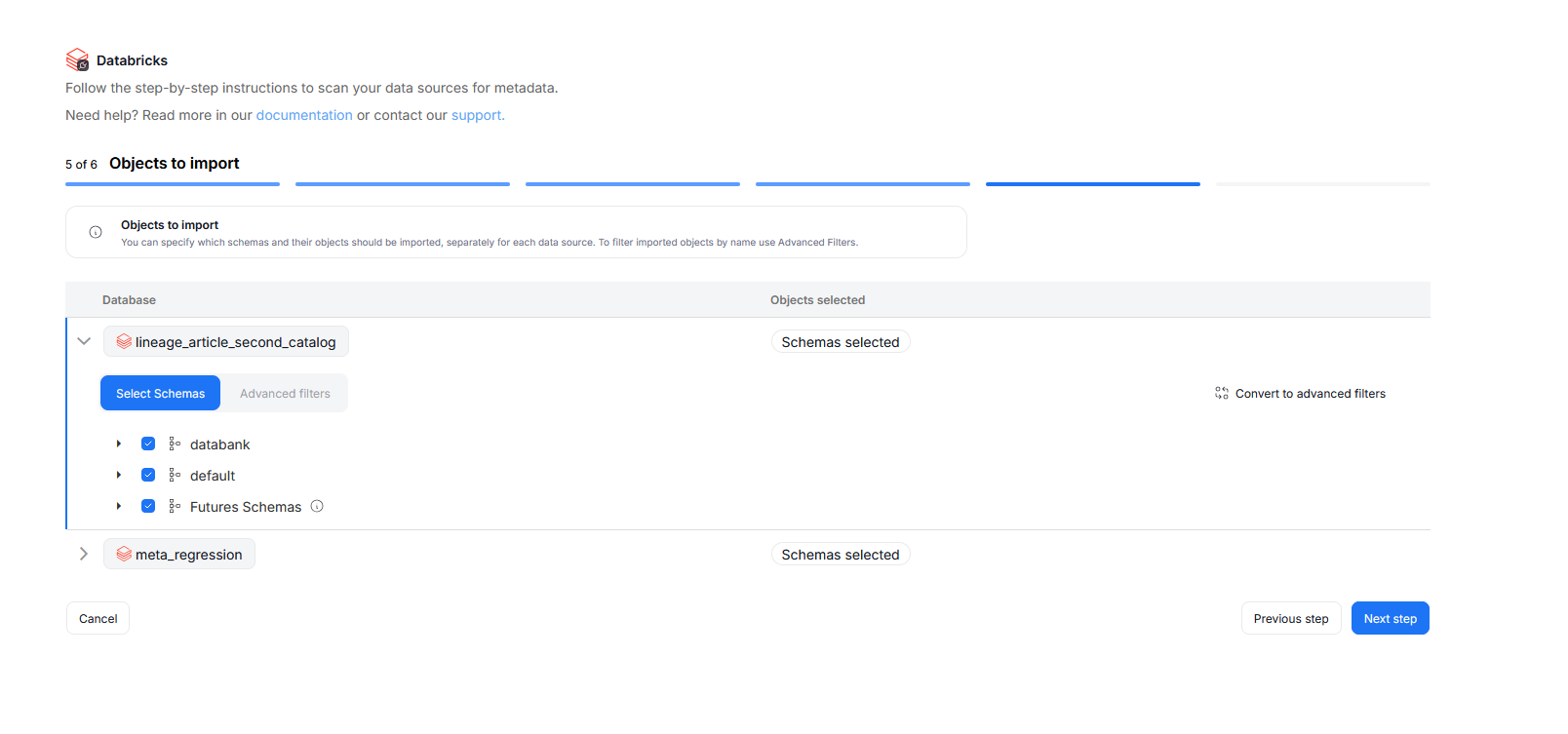
You can select which objects to import for each selected database. You have two ways to do that.
Select Schemas lets you choose schemas and object types (tables, views, procedures etc.) you want to import. You can also select Future Schemas to ensure that types added to your source database in the future will be imported during future scheduled Metadata Imports.
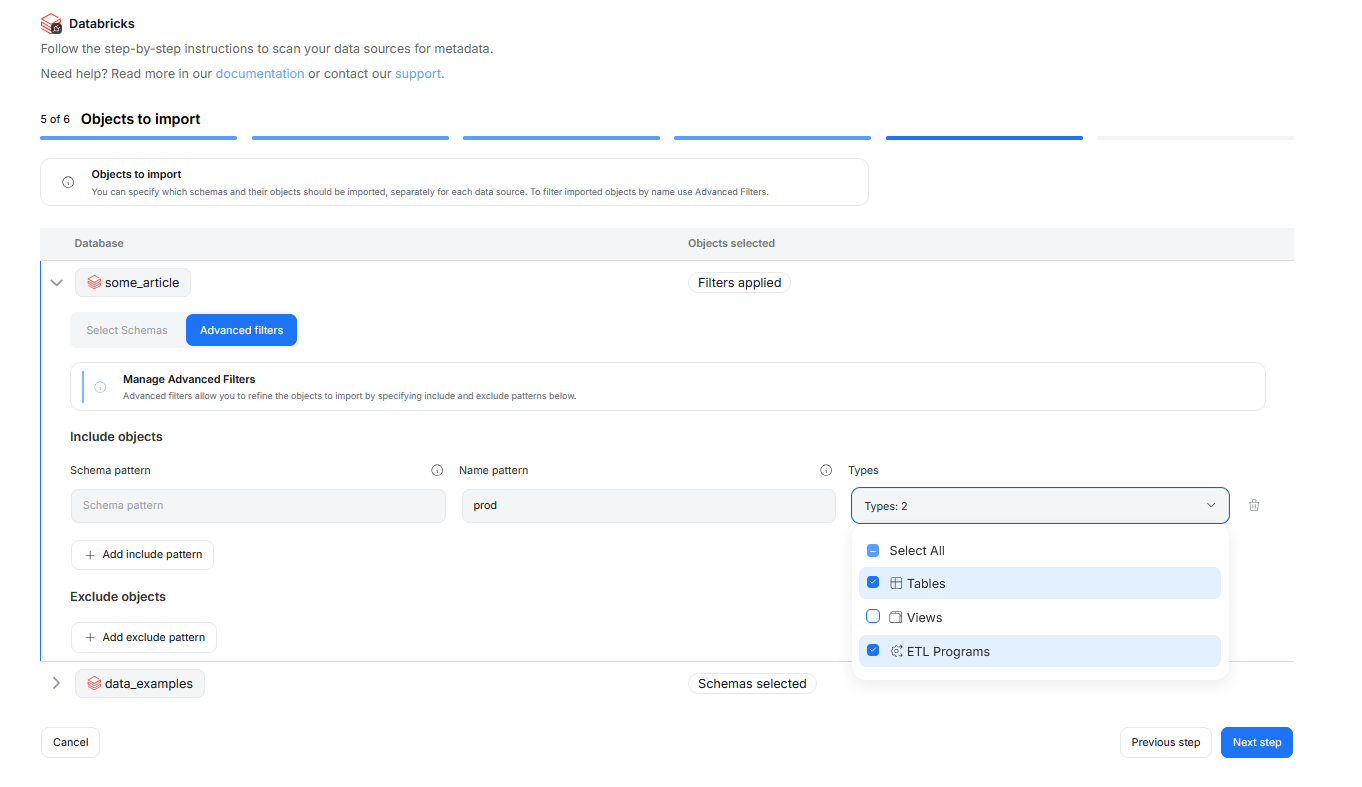
The Advanced Filters let you include or exclude objects based on schema and name patterns using SQL-style regular expressions. You can configure multiple patterns, and apply them to all or only selected object types.
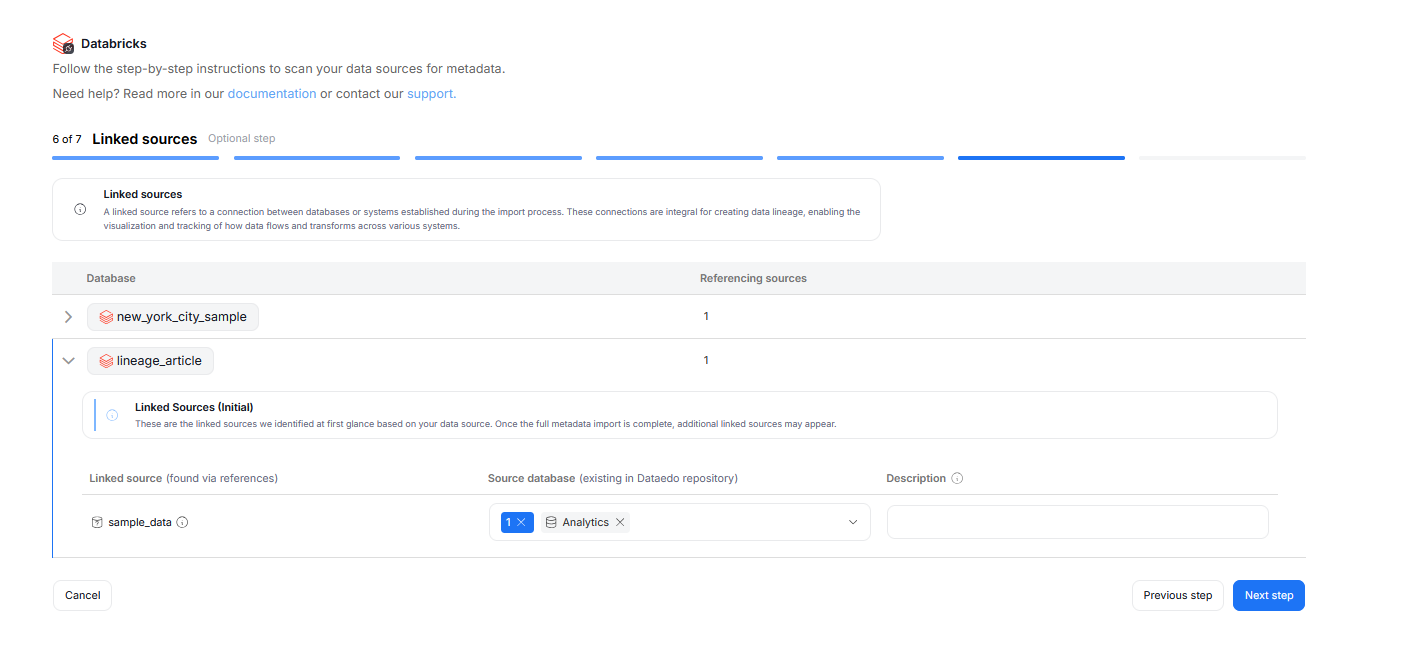
Step 6. Linked sources (optional)
A linked source refers to a connection between databases or systems established during the Metadata Import process.
They are essential for data lineage, enabling visualization and tracking of how data flows and transforms across systems.
In this step, you can map linked sources to existing Dataedo sources. This mapping can also be updated later in the Connection details.
Step 7. Schedule
You must configure at least one Metadata Import task in the schedule section.
If you skip this, an empty database will be created and no metadata will be imported.
Configure scheduling options for each source individually. You can schedule Metadata Imports, data quality runs, and refresh data profiling.
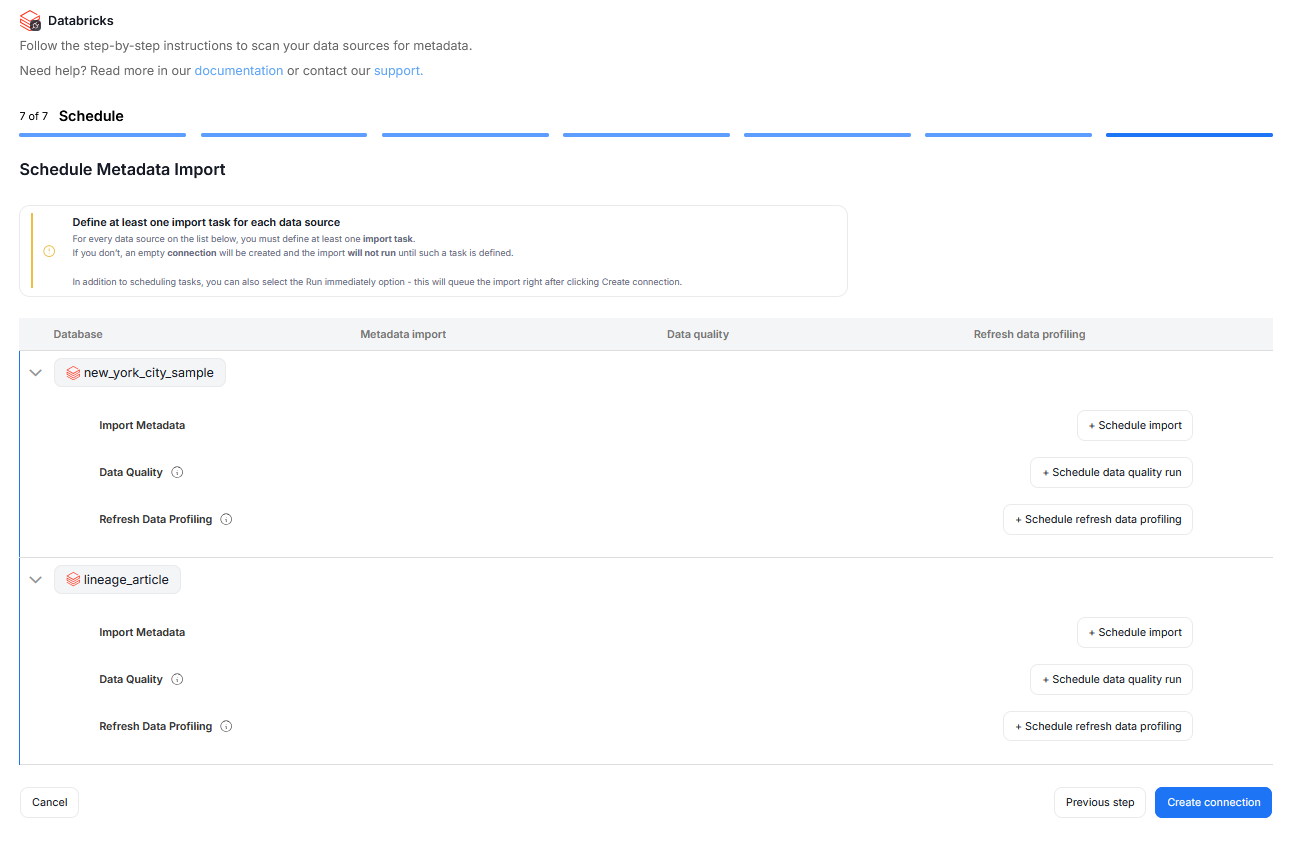
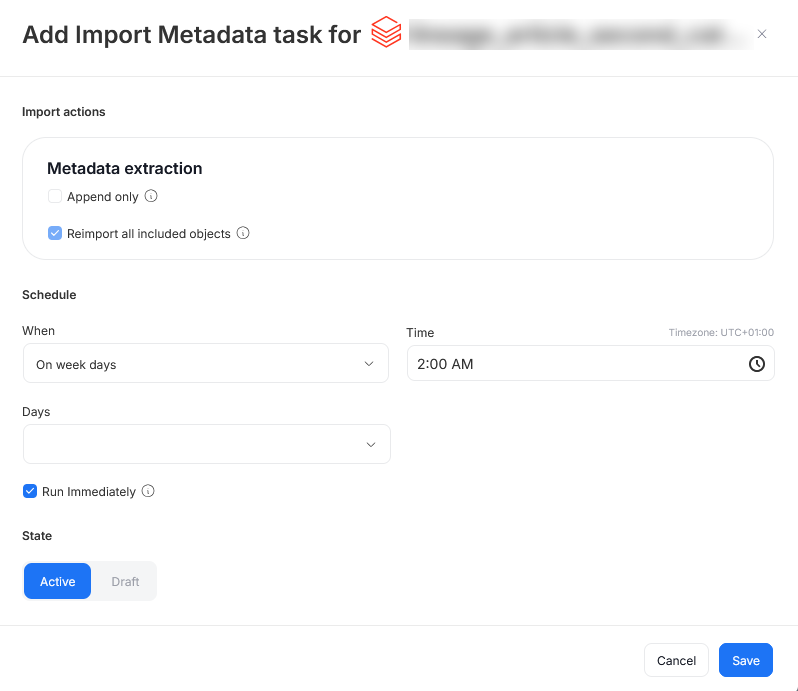
When you schedule a specific task, you can:
- Choose its frequency (daily, on selected weekdays, on selected days of the month)
- Choose a time of its execution
- Set its state (
Activetasks will run as scheduled,Draftones will be saved for future but will not run until changed toActive) - Schedule a task to run immediately — this will run the task immediately after you finish configuring imports and according to schedule after that.
Run immediately is available only for Import Metadata tasks.
Importing metadata in Dataedo Desktop
Establish connection
-
From the list of connections, select Databricks
-
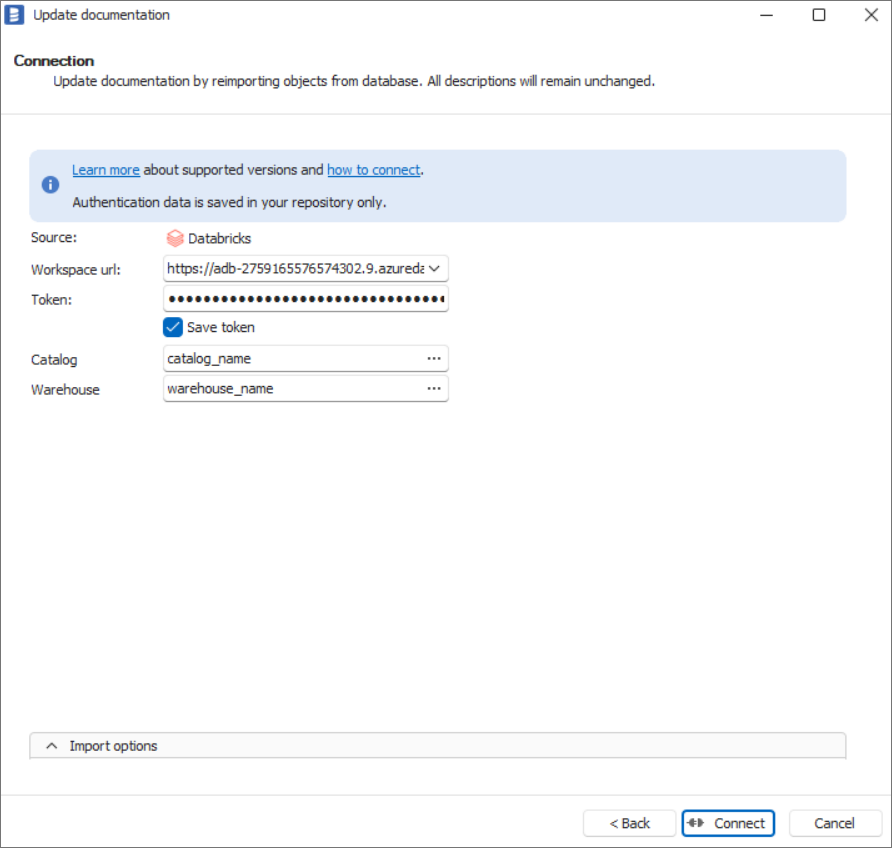
Enter connection details. If you don't remember the Catalog or Warehouse name, you can select them from the list using the [...] buttons. Just remember to provide the Workspace Url and your credentials (either a Token, or a Client ID and Client Secret for OAuth) beforehand — see Credential details.
Import metadata
-
When the connection is successful, Dataedo will read objects and then show a list of objects found. You can choose which objects to import.
-
You can also use advanced filter to narrow down the list of objects.
Outcome
- Metadata for your Unity Catalog has been imported to new documentation in the repository.
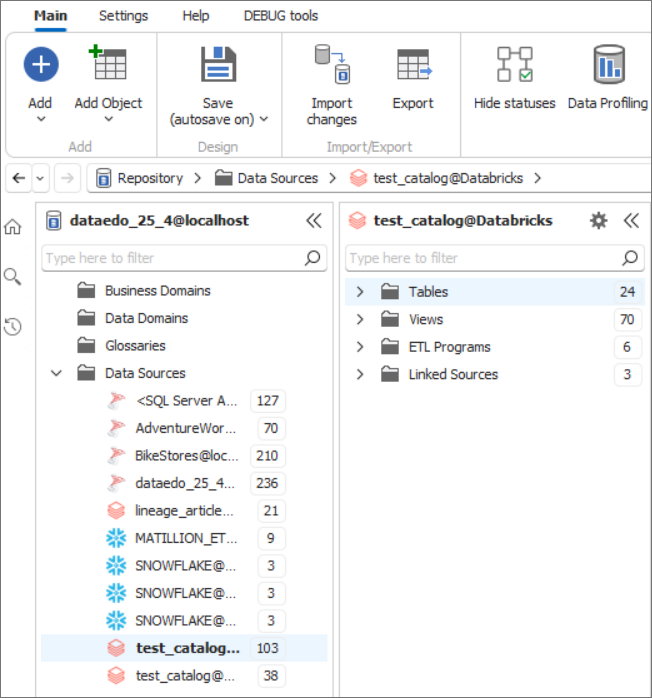
- Lineage for your objects within imported Unity Catalog objects was documented more details check here
-
For all the objects that you want to bring into Dataedo, the user needs to have at least
SELECTprivilege on tables/views,USE CATALOGon the object’s catalog, andUSE SCHEMAon the object’s schema. -
To import column level lineage, Dataedo uses table from system schema and user for which access token was generated need to have the following privileges:
USE SCHEMAonsystem.accessschema andSELECTonsystem.access.column_lineagetable. -
In order to scan all the objects in a Unity Catalog metastore, use a user with metastore admin role. Learn more from Manage privileges in Unity Catalog and Unity Catalog privileges and securable objects.
-
For classification, the user also needs to have
SELECTprivilege on the tables/views to retrieve sample data. -
For Metadata Sync write-back, Dataedo applies Unity Catalog tags with
ALTER TABLE … ALTER COLUMN … SET TAGS/UNSET TAGS. This is the only part of the connector that writes to the source, and it needs theAPPLY TAGprivilege on every table and view whose columns are synchronized (or ownership of it), on top ofUSE CATALOGandUSE SCHEMA. If the mapped tag is a governed tag, the principal also needsASSIGNon that tag policy. -
If your Azure Databricks workspace doesn’t allow access from the public network, or if your Microsoft Purview account doesn’t enable access from all networks, you can use the Managed Virtual Network Integration Runtime for the scan. You can set up a managed private endpoint for Azure Databricks as needed to establish private connectivity.
How to generate the Personal Access Token?
- Use the latest manual from Databricks Databricks personal access token authentication
Depending on your implementation scenario, you would need to use:
-
We recommend using Service Principal to avoid losing connection if a personal account is removed or the token expires. To do it, follow this guide Databricks personal access tokens for service principals
-
For smaller non-production implementations like POC, you can use the Personal account. To set up, use the following steps Databricks personal access tokens for workspace users

