Amazon DocumentDB support
Not supported: Data Quality, Data Profiling, Foreign Key Testing, Reference Data, Extended Properties, Metadata Sync, Execution Flows
Amazon DocumentDB is a fully managed database service by Amazon Web Services (AWS) designed to support MongoDB-compatible workloads. By using Dataedo, you can create comprehensive and well-organized documentation for your Amazon DocumentDB database, making it easier to understand, manage, and maintain.
Catalog and Documentation
Information about the columns metadata about their fields (or attributes) including their names, data types, and descriptions is imported. After import, users can discover the schema of DocumentDB documents using ER diagrams as in the case of MongoDB.
Users will also be able to:
-
run Data Classification on the DocumentDB database in the repository to search for columns containing potentially sensitive data.
-
change all descriptions in Dataedo Desktop and Dataedo Portal
-
link a Business Glossary term to any documented DocumentDB object
-
build Lookups for columns and views and feed them with distinct values from a column
Required permissions
Because Dataedo only scans existing documents, only read permissions are required.
Prerequisites
If connecting with TLS enabled, appropriate certificates from Amazon PKCS7 certificate bundle from https://truststore.pki.rds.amazonaws.com/global/global-bundle.p7b must be previously installed.
Importing Metadata in Dataedo Portal
Entry point
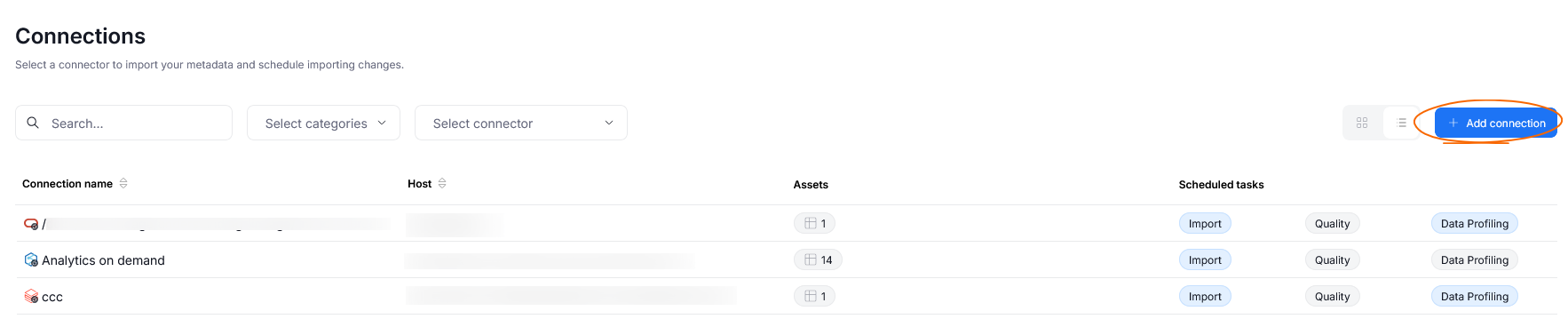
To start the Metadata Import flow, make sure you have the Connection Manager role. Go to Connections and click Add connection, then pick Amazon DocumentDB from the connector list to open the import wizard described in the following steps.
Step 1. Host details
Provide the name of the Connection, an optional description, and the details of the DocumentDB cluster:
- Connection type - choose
Valuesto enter the details field by field, orConnection stringto paste a full connection string. See Connection Options for the options you can set in it. - Host - the cluster endpoint with its port, for example
<cluster-name>.cluster-<id>.<region>.docdb.amazonaws.com:27017. - SRV - check this if the address is a DNS seed list rather than a single host.
- Replica set - the replica set name, if you connect through one.
- Use TLS - check this if the cluster has TLS enabled. In that case, make sure the certificates described in Prerequisites are installed.
A Connection in Dataedo represents a saved configuration for accessing a data source.
It can be reused for future imports and scheduling.
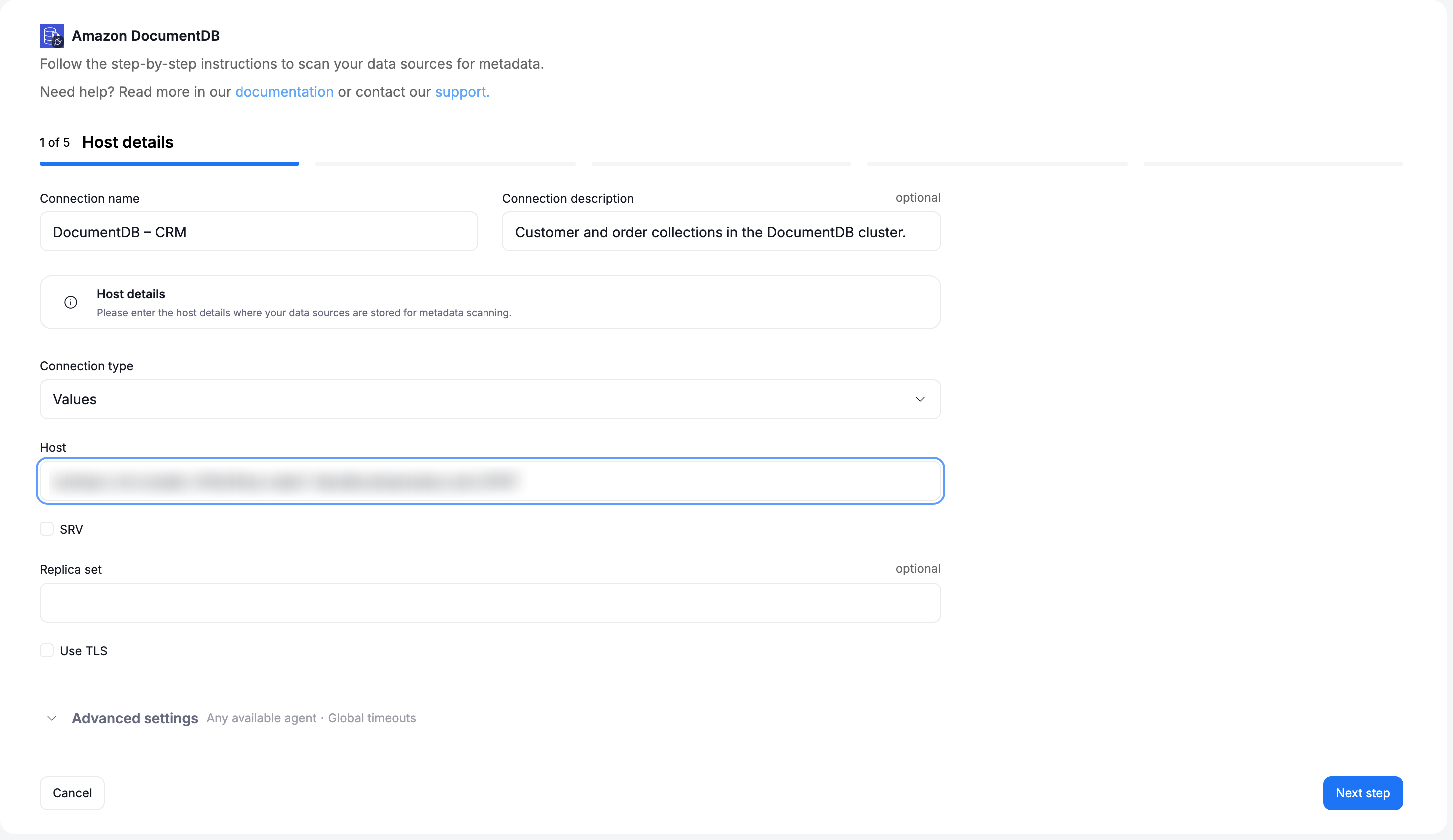
Advanced settings is optional — you can leave it collapsed and the connection will run on any available agent with the global timeouts. Expand it if you want to restrict the connection to a specific agent or override the task timeouts.
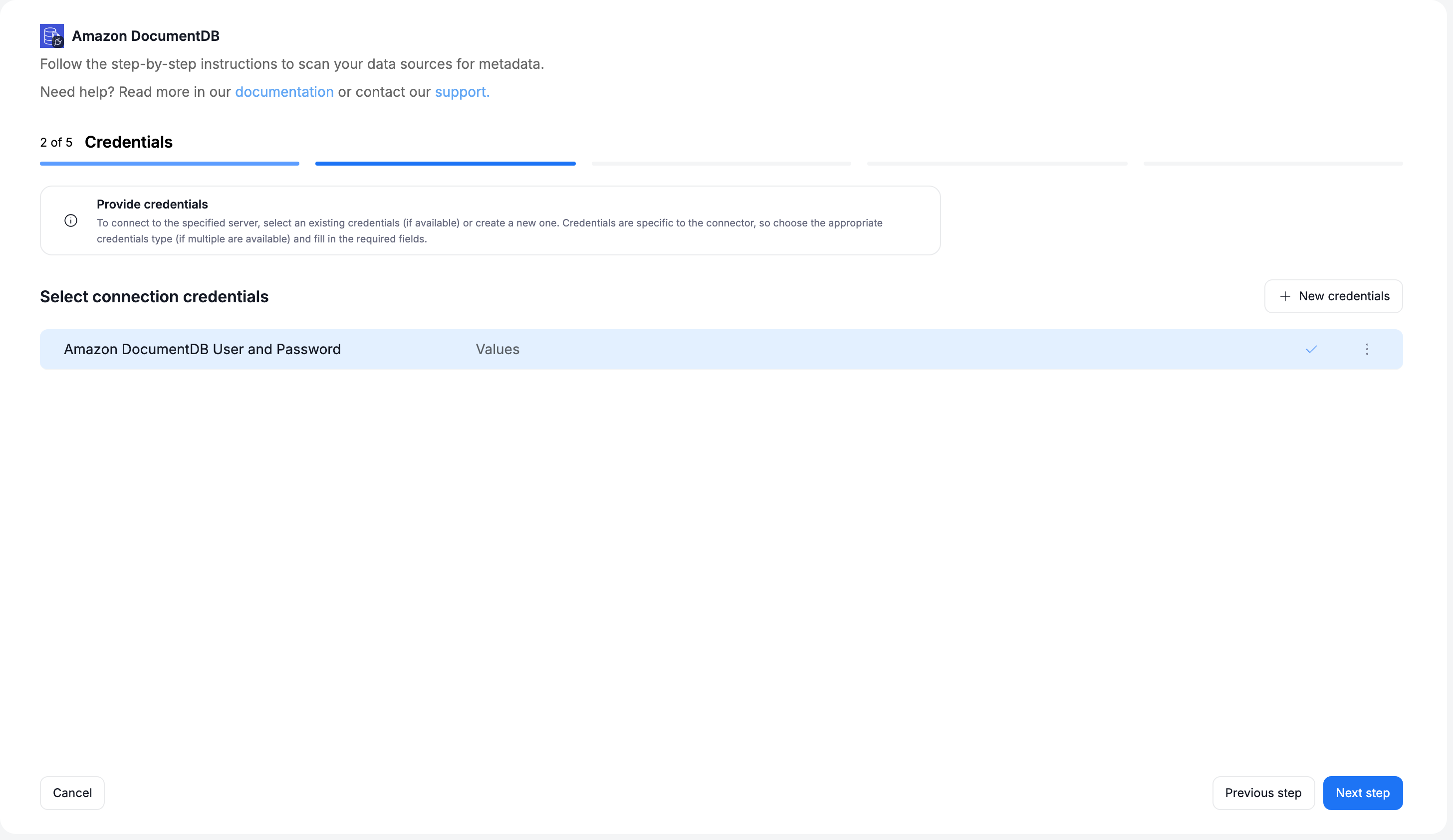
Step 2. Credentials
Choose credentials from the list of existing ones available for the selected connector, or add new credentials. Amazon DocumentDB uses a user and password pair. Only read permissions are required.
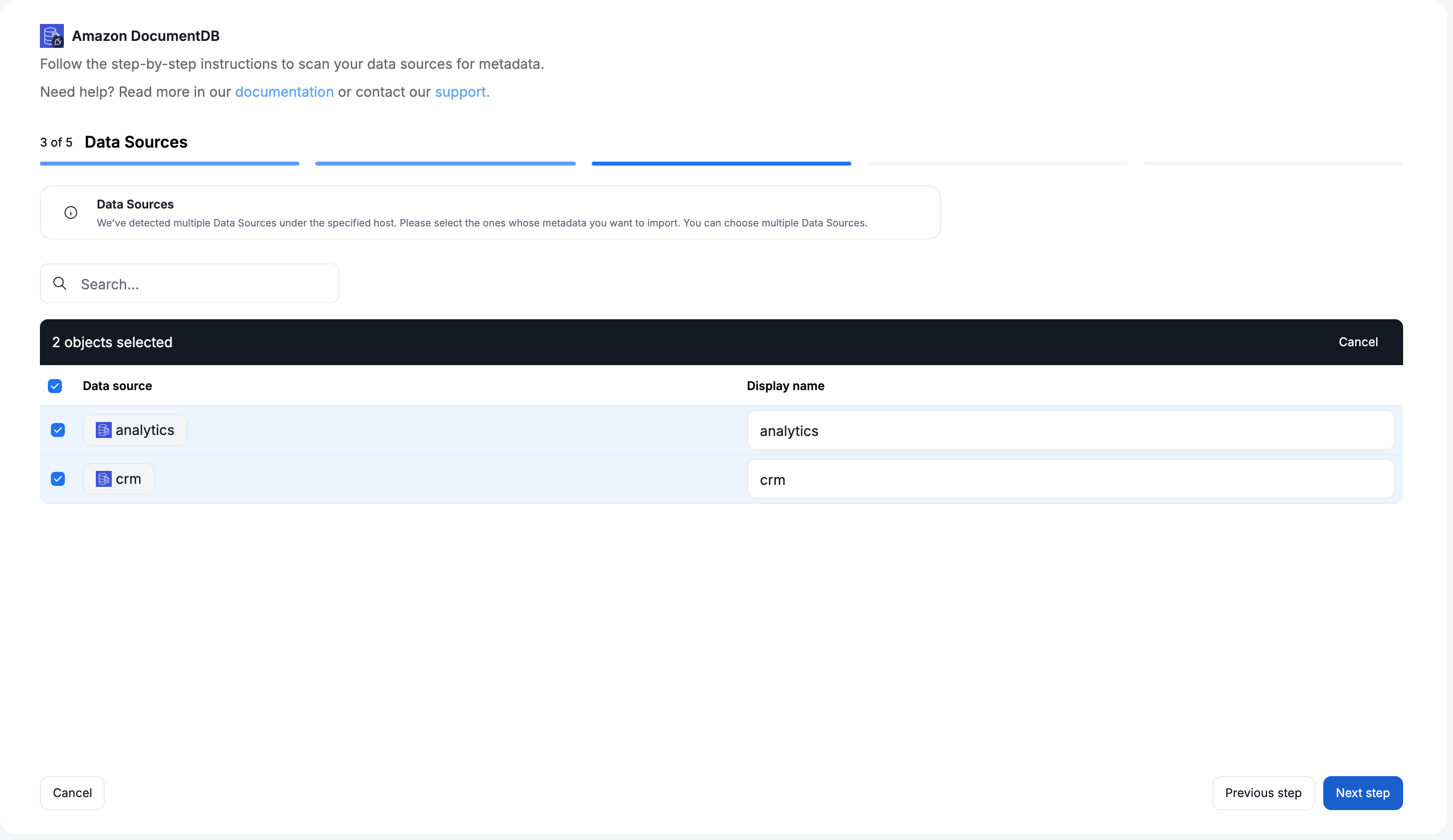
Step 3. Data Sources
During one import you can read the metadata of up to 20 data sources. You can reuse the same connection to import more sources later.
- Portal displays all databases accessible with the provided credentials
- you can select multiple databases at once and use the search box to narrow down results
- each selected database should be given a Display name, which will be visible in Dataedo
Step 4. Objects to import
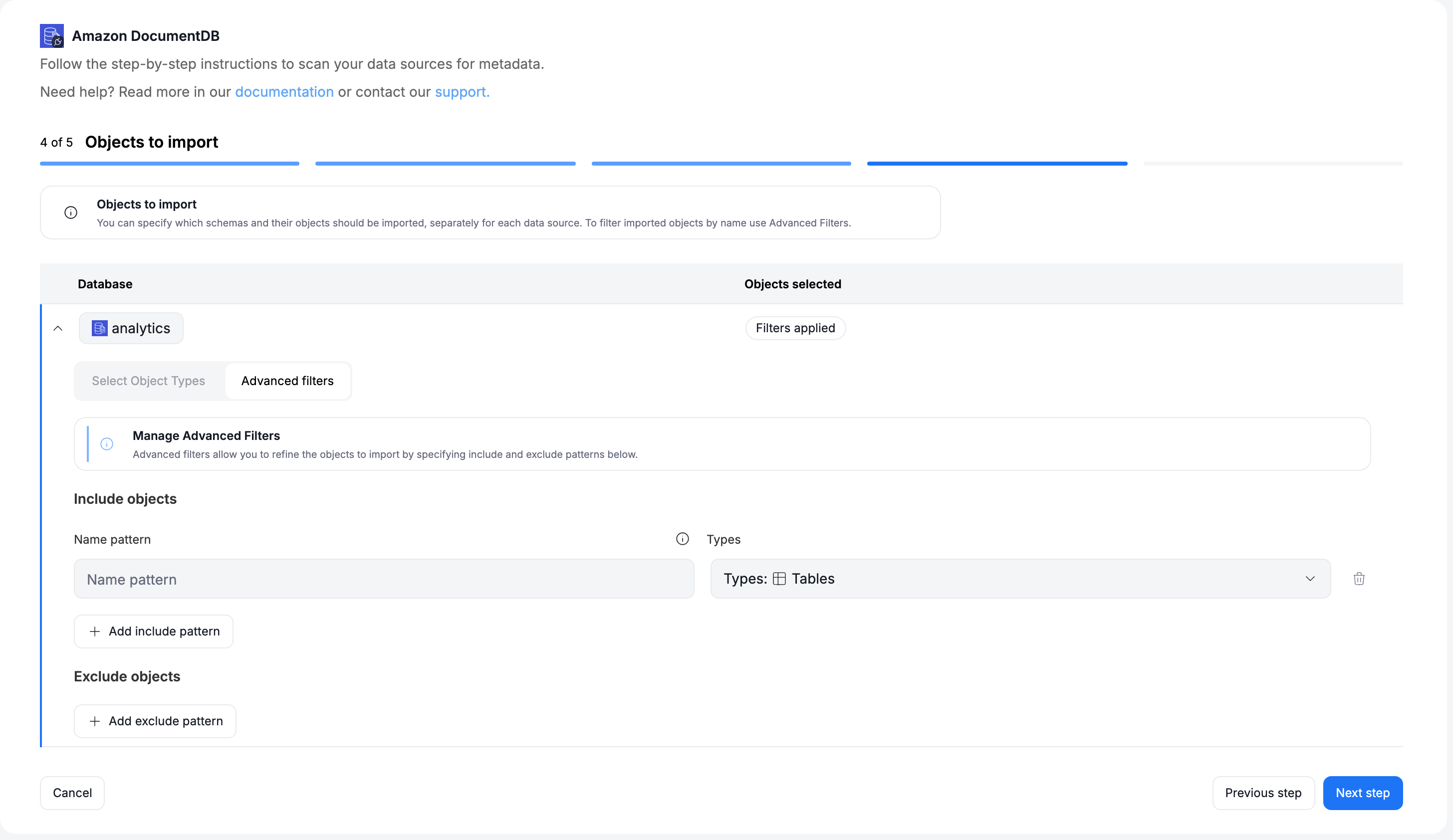
For each selected database, you can refine which objects to import. DocumentDB collections are imported as Tables.
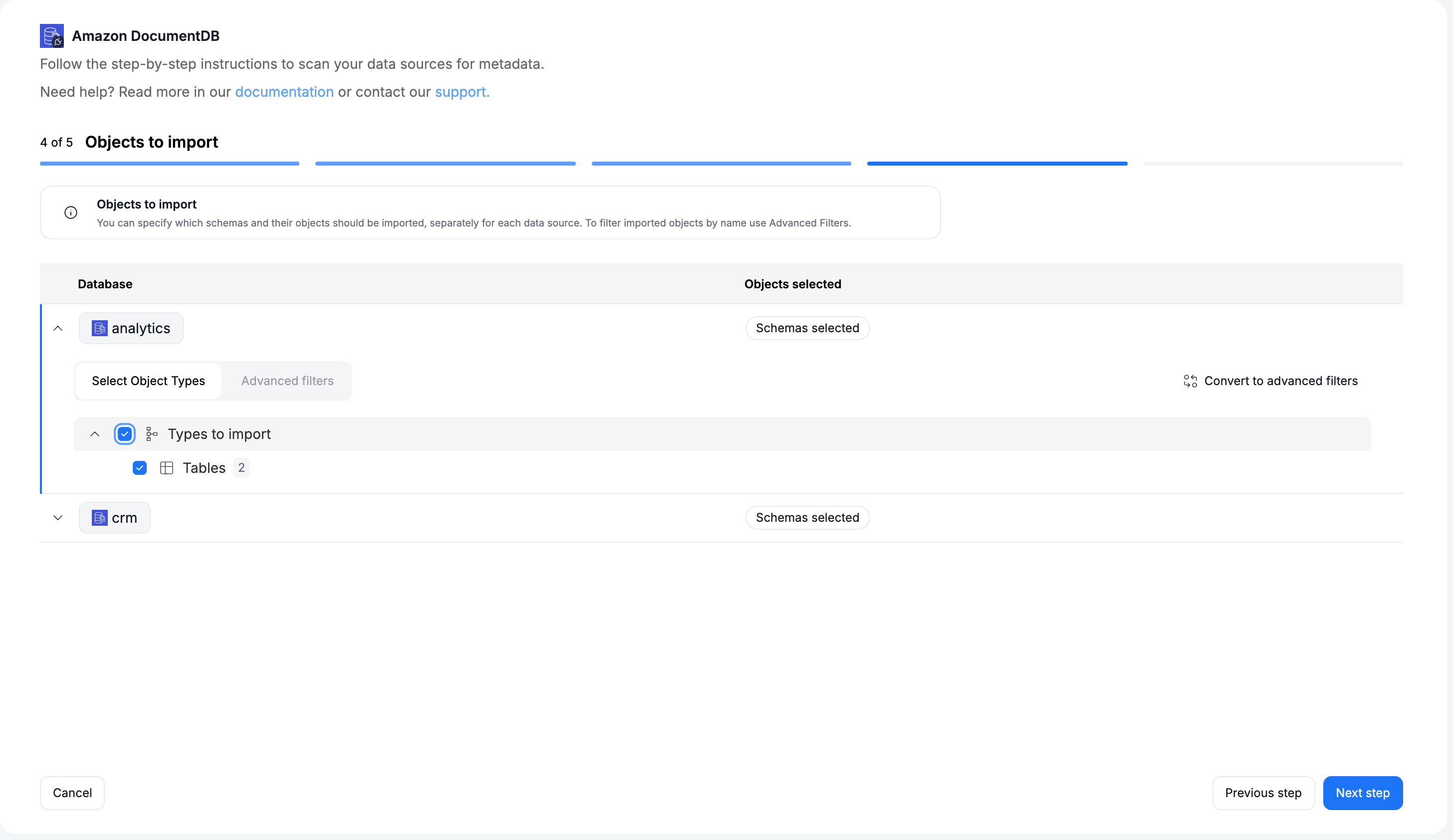
Use Advanced filters to include or exclude collections by name pattern.
Step 5. Schedule
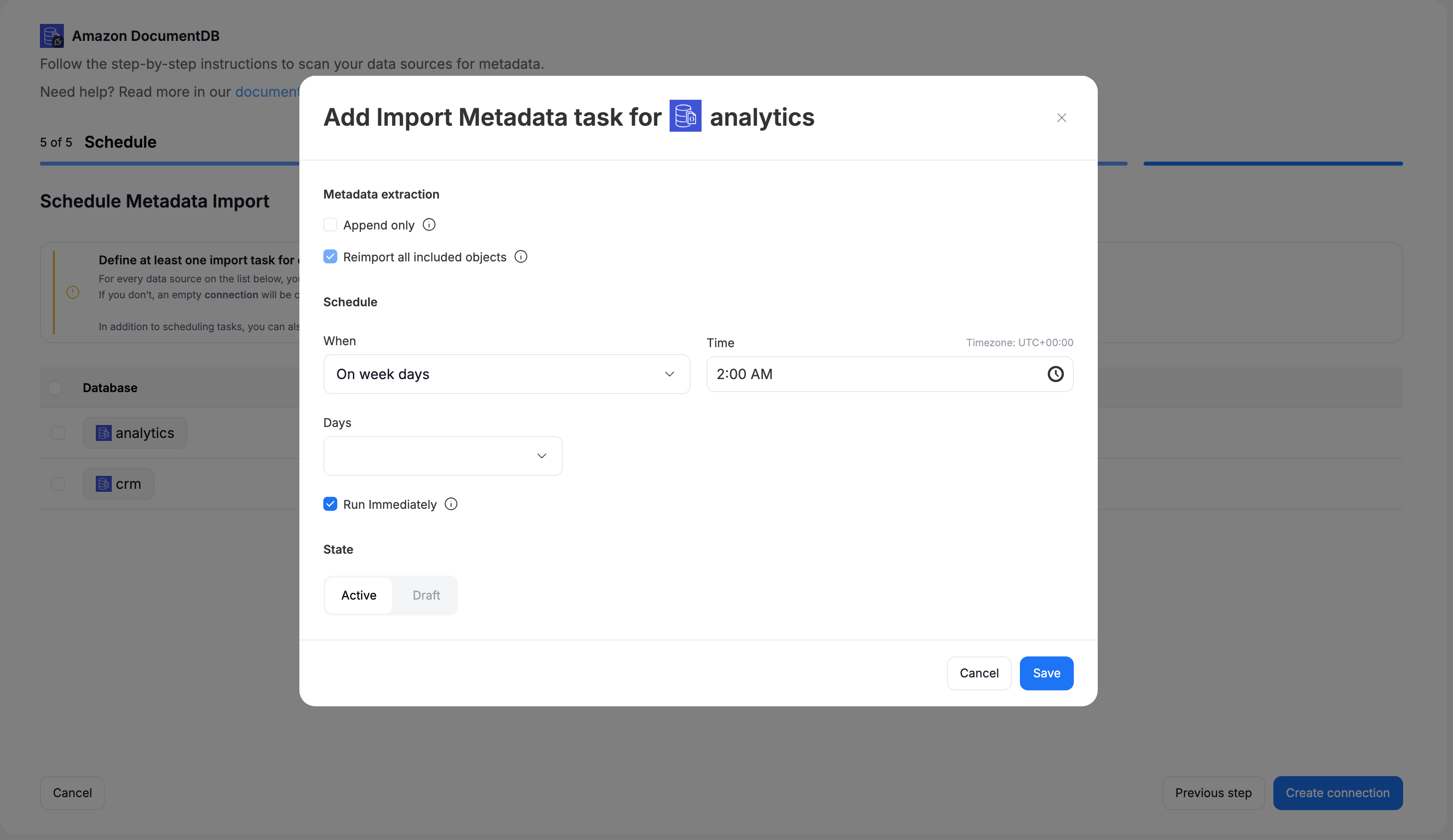
Configure the Metadata Import task for each database individually:
- choose the metadata extraction options (
Append only,Reimport all included objects) - run daily, on selected weekdays, or on specific days of the month
- choose an exact time of execution
- Task state:
Active- the task will run as scheduledDraft- the task is saved but not executed until you switch it to Active
- Run Immediately - when checked, the task will also be executed right after you click
Create connection
Only one source in a metadata import can have Run Immediately selected.
Once saved, the task appears next to its database in the schedule list.
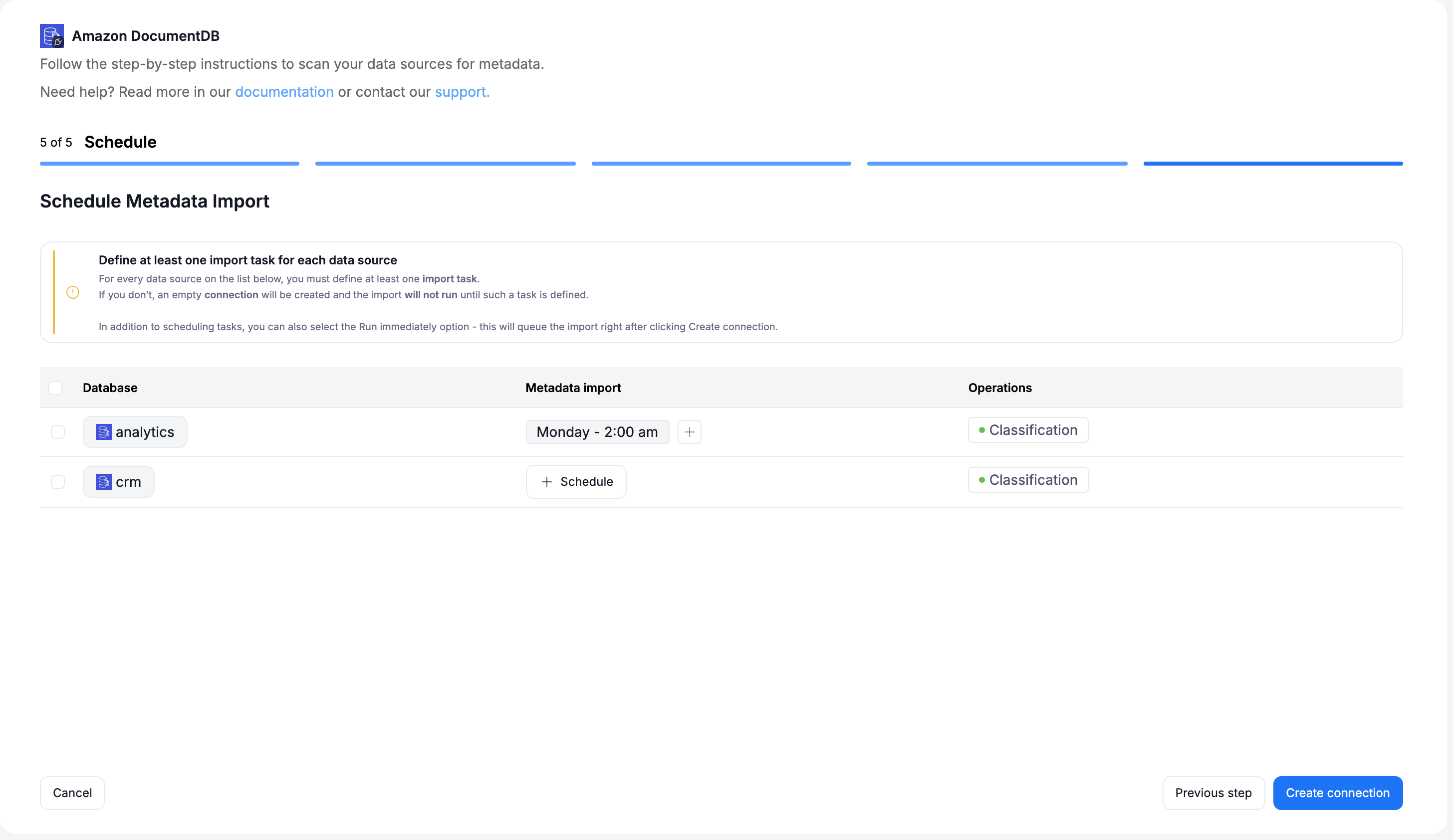
You must configure at least one import task for every data source.
If you skip this, an empty database will be created and no metadata will be imported.
Importing Metadata in Dataedo Desktop
To connect to DocumentDB, you need to first click the Add button on the left upper corner and choose New connection.
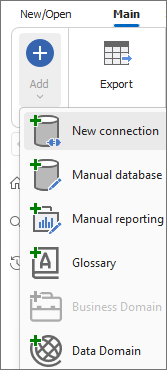
From the sources choose Amazon DocumentDB.

Now data necessary to establish a connection between Dataedo and the DocumentDB database must be provided. Two connection types are available: Values (visible on screen below) and Connection string.
When connecting to the database using Values option specified must be:
-
Host - hostname of the server where DocumentDB instance is located, for example, documentdb-3-6-sch.cluster-abcdefghijkl.us-west-1.docdb.amazonaws.com
-
Username - name of the user
-
Password - user password
-
Timeout (s) - number of seconds after which the connection attempt will be interrupted
Optionally, the user can specify the following options:
-
Auth database - the authentication database to use, if unspecified, the client will attempt to authenticate the specified user to the admin database
-
Replica set - name of the replica set
-
Use TLS - enables TLS
-
SRV - enables SRV
In the case of Connection string connection type, the user needs to specify the:
- Connection string - URI that defines the connection between applications
To learn more about possible connection options that can be set in the connection string visit: Connection Options
Independently of choosing the connection type specified must be:
- Database - name of the database to be documented

After clicking Connect, Dataedo will start retrieving database objects, and when it finishes, it will display a window that allows choosing object types to import. Checking the Advanced filters checkbox enables defining more complex filters.

Confirm which objects are to be imported by clicking Next. You will see a window that allows changing the default name of the documentation under which it will be visible in the Dataedo repository. This name can be changed later.

Click Import to start the import process. Wait until the import process is completed.

Close the import window using the Finish button. Your DocumentDB database has been imported to new documentation in the repository.

Connector specification
Supported versions: 3.6, 4.0, 5.0
Imported metadata
| Imported | Editable | |
|---|---|---|
| Collections | ||
| Fields | ||
| Data types | ||
| Fields descriptions | ||
| Required (as not nullable) | ||
| Collections descriptions | ||
| Primary keys |
Supported features
| Feature | Supported |
|---|---|
| Data profiling | |
| Data classification | |
| Data lineage | |
| Reference data (import lookups) | |
| Importing from DDL | |
| Generating DDL | |
| FK relationship tester |
Known issues and limitations
- When connecting outside AWS Virtual Private Cloud (VPC) using SSH using EC2 instance as bastion host (How can I use an SSH tunnel to connect to my Amazon DocumentDB cluster from outside an Amazon VPC?) there might be problems with certificate names mismatch. In this case, adding tlsInsecure=true option in the connection string may be required which changes requirements so that the server only needs to present an X.509 certificate. To learn more about this option visit: Enable TLS on a Connection.

