Processes in Data Lineage
A process is a part of the script, filling a purpose of data transformation or transit. Imagine a procedure that moves data from one table to another and logs the amount of moved rows. We can distinguish two processes here: one is moving the data, and the second one is logging it. You can, however, still decide to treat it as a single process that handles both actions at once.
In certain cases, especially with automatic processes concerned with multiple ways of representing the same data flow, one lineage connection can be represented by multiplied processes.
What is a Processor?
A processor is simply an object that can process data (perform a process). One processor can perform multiple processes, or just one. In Dataedo, you can designate any object as a processors, however some objects are better fit for the role then others. For example, since tables themselves only store data and don't process it, they usually should not be marked as processors.
Processor suggestions in Dataedo
The table below shows our suggestions regarding which objects to use as processors, and what are their uses:
| Object Type | Processes and Flows Limitations |
|---|---|
| View | Can be a processor, but with only one process. The view pulls the data itself, so it should have only one outflow, being the view itself. |
| Function | Functions can be processors, with an unlimited number of processes. |
| Procedure | Procedures can be processors, with an unlimited number of processes, each statement counting as one process. |
Processors and processes in Lineage
In Dataedo each object can be designated as a processor. Additionally, processes themselves are often integral to data flow and transformations. As such our Lineage interface allows you to quickly view processes related to a currently viewed object
Processes view
The object's processes view contains a list of processes that use the currently viewed object as a processor (so, processes where the object you are viewing helps to transform and transfer data between other objects.)
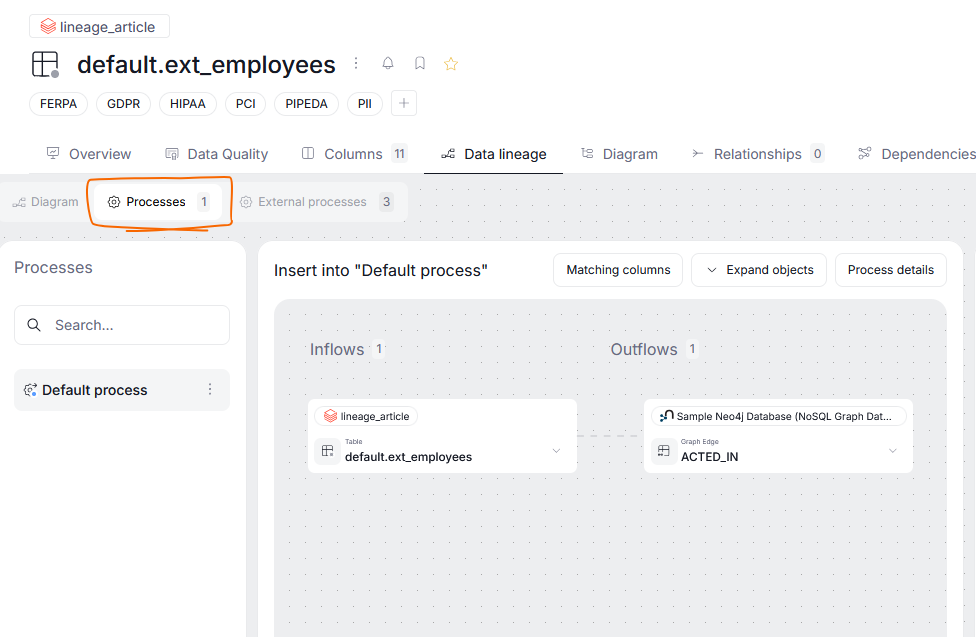
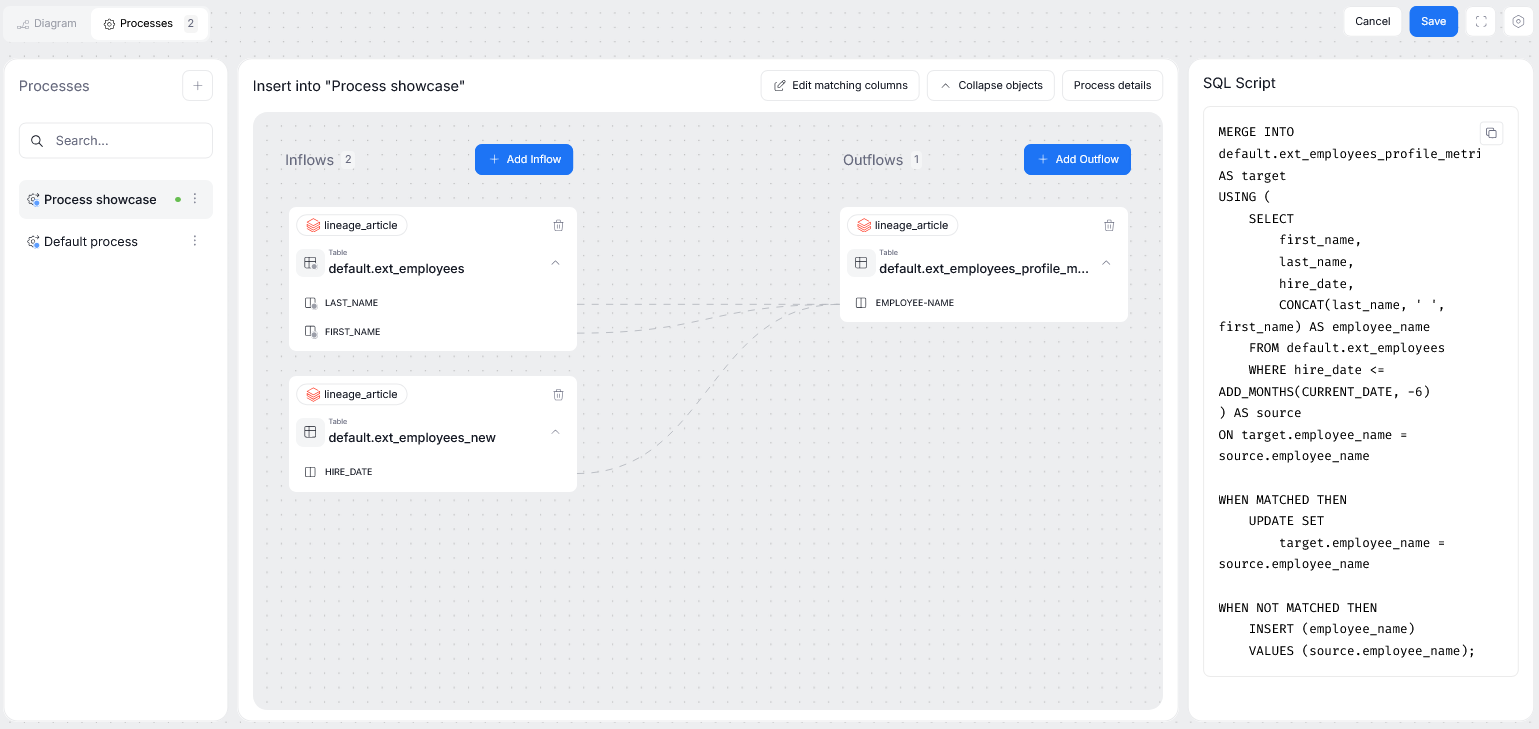
All of such processes are displayed as a list on the left side of the screen. Clicking a process opens up its view. The process view is divided between inflows (objects that push the data to a processor) and outflows (objects to which the processor pushes transformed data). If your processor has an SQL script defined, it will be displayed on the right.
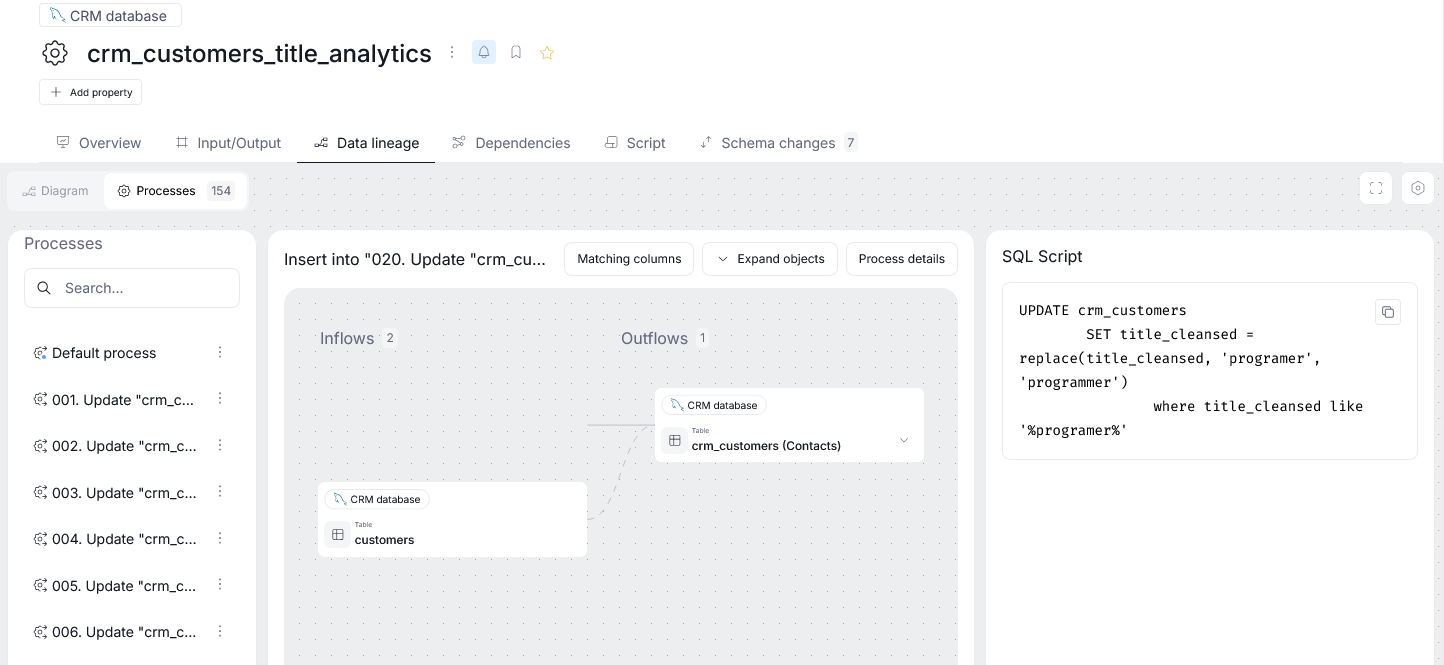
Manually added processes are marked with a blue dot to distinguish them from automatically extracted processes.
External processes view
If an object also serves as either an inflow or an outflow in other processes, you can view them too. This is possible using the External processes section.
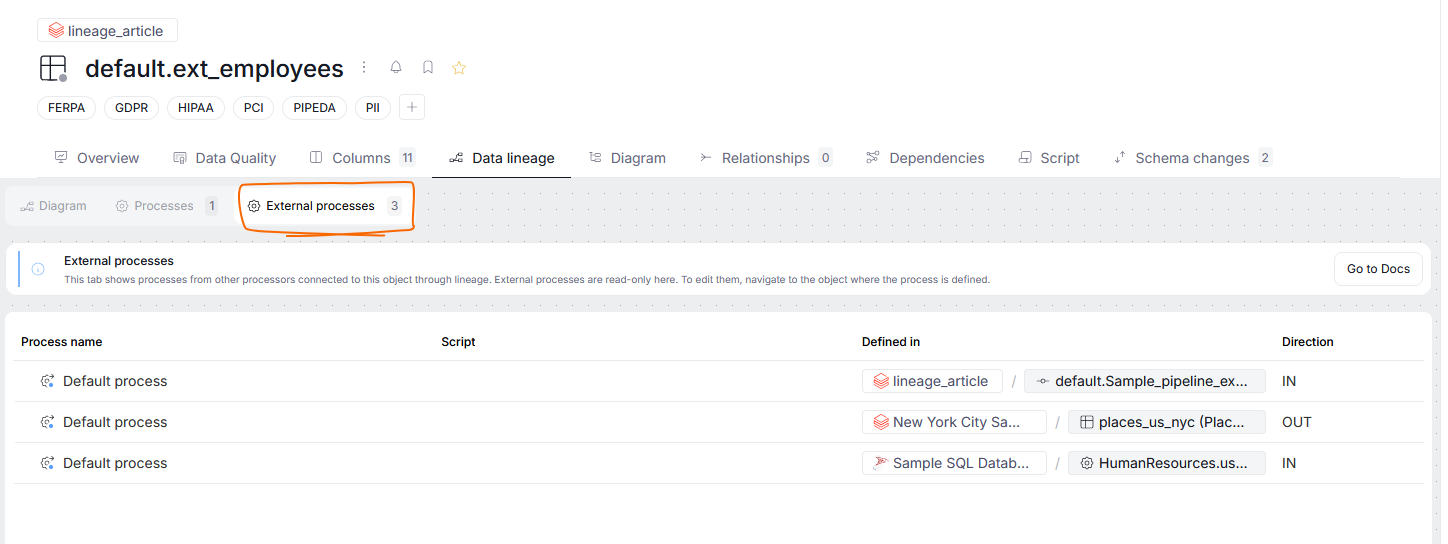
This section is purely exploratory — showing the processes your object is involved in, their origin, and whether the currently viewed object serves as an in or outflow of that process. Clicking on a process on a list will take you directly to that process's diagram.
Lineage of processors
Some processors can also be viewed as objects of their own.
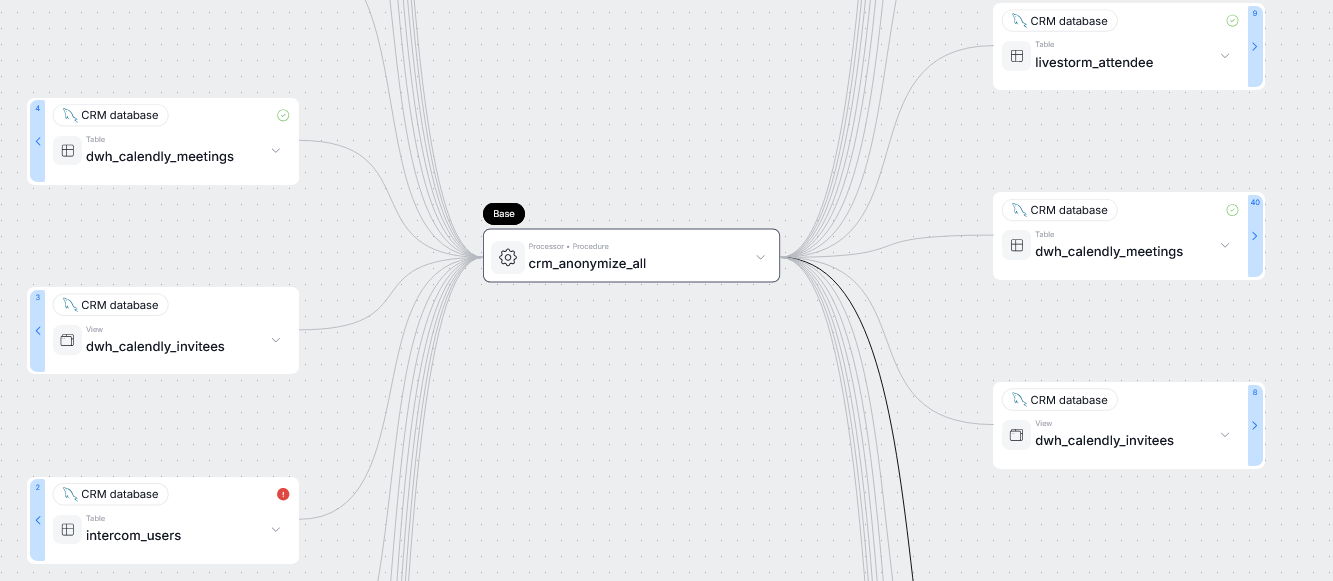
If you expand a processor's view, you will be able to see all of the processes contained within it, and the data that flows in and out of each process.
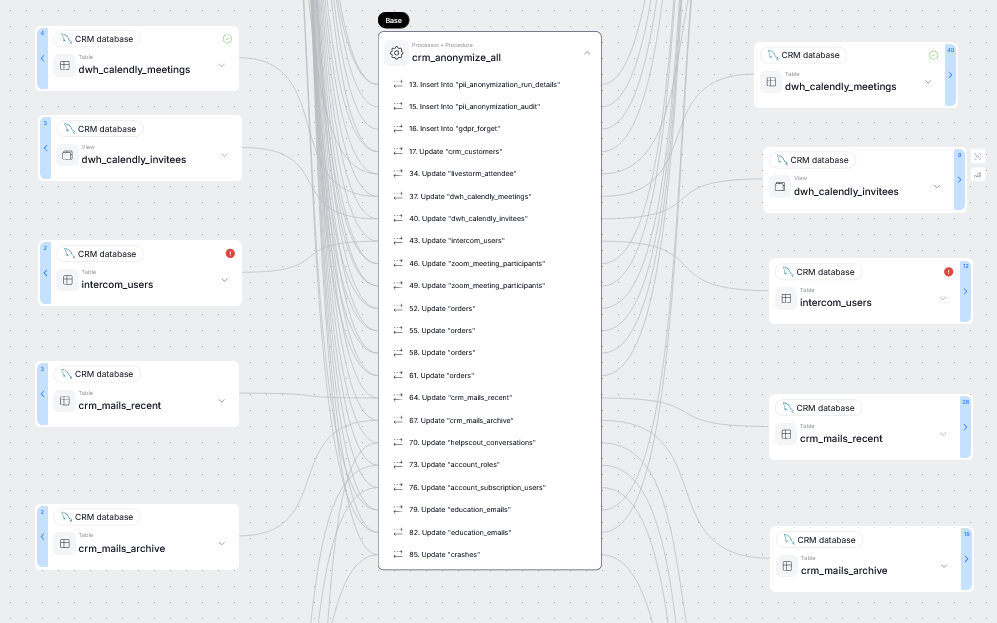
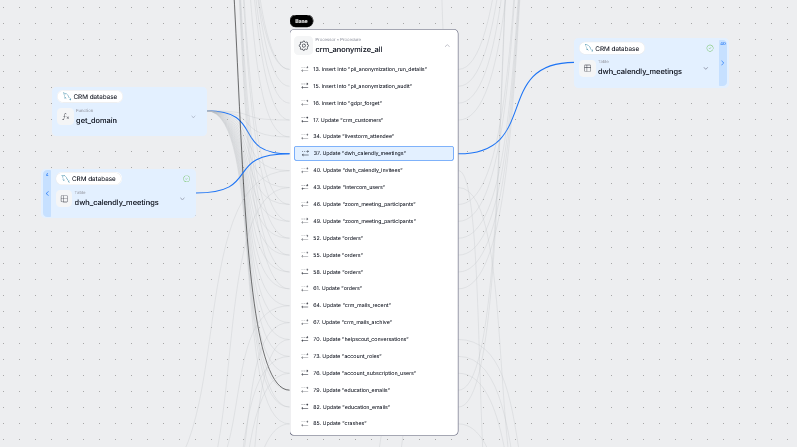
Clicking on a process highlights all the objects that it processes.
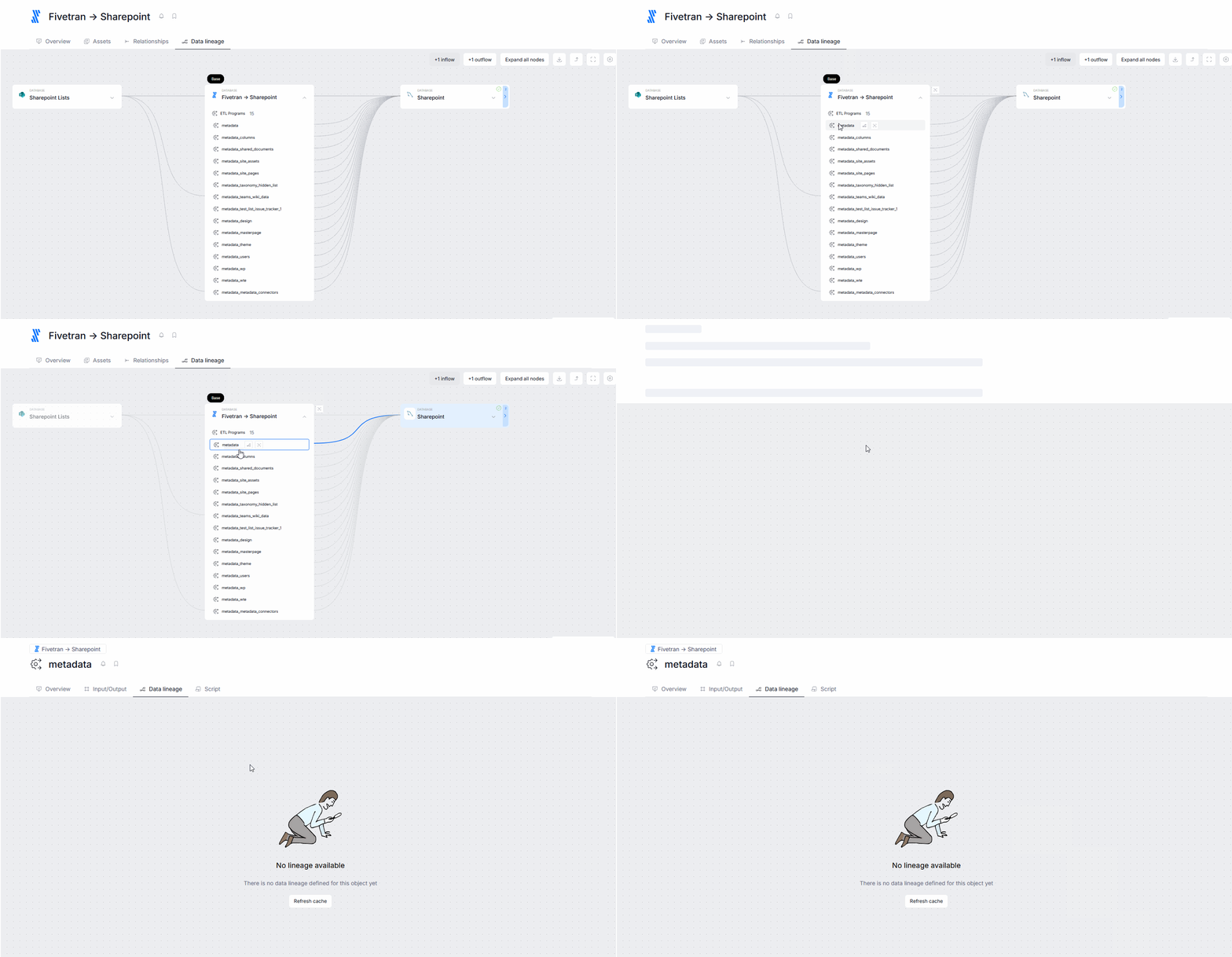
Processor's Lineage is generated only if both its data inflow and outflow objects exist in Dataedo. If one of them is missing, the processors will still be visible in the Database lineage however the processor lineage will not be generated.
Processors and Manual Lineage
You can add processes and processors when defining additional lineage links by hand.
In Portal, when mapping two objects in relation to each other, you can select one of objects in your repository to act as a processor. This can be done by using the Add processor button in the object-mapping popup.
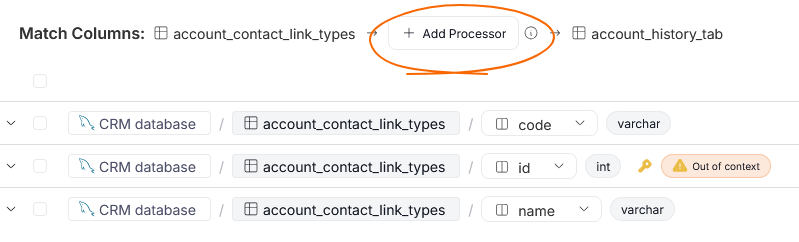
The processors you select in this view, will apply to all column pair in the column mapping popup. This means that the processors you select should be responsible for transforming all mapped columns.
If you add a processor this way, the processor's lineage will be adjusted to display the dataflows you established as manual lineage.

Additionally, existing processes can be edited manually. You can add new inflows and outflows, or match processed columns. More info here.