Steward Hub — Data Quality
The Data Quality module offers suggestions regarding Data Quality Rules that can be applied to columns in your database, helping you ensure the highest quality of the data you work with.
View
The Data Quality module will be displayed only if you have configured Data Quality, and objects where you can apply Data Quality exist in your repository
The Data Quality module offers only one functionality - assigning Data Quality rules.
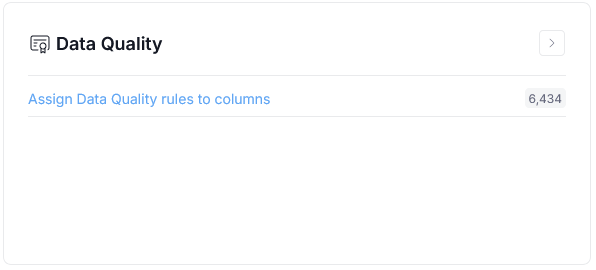
Reviewing Data Quality Suggestions
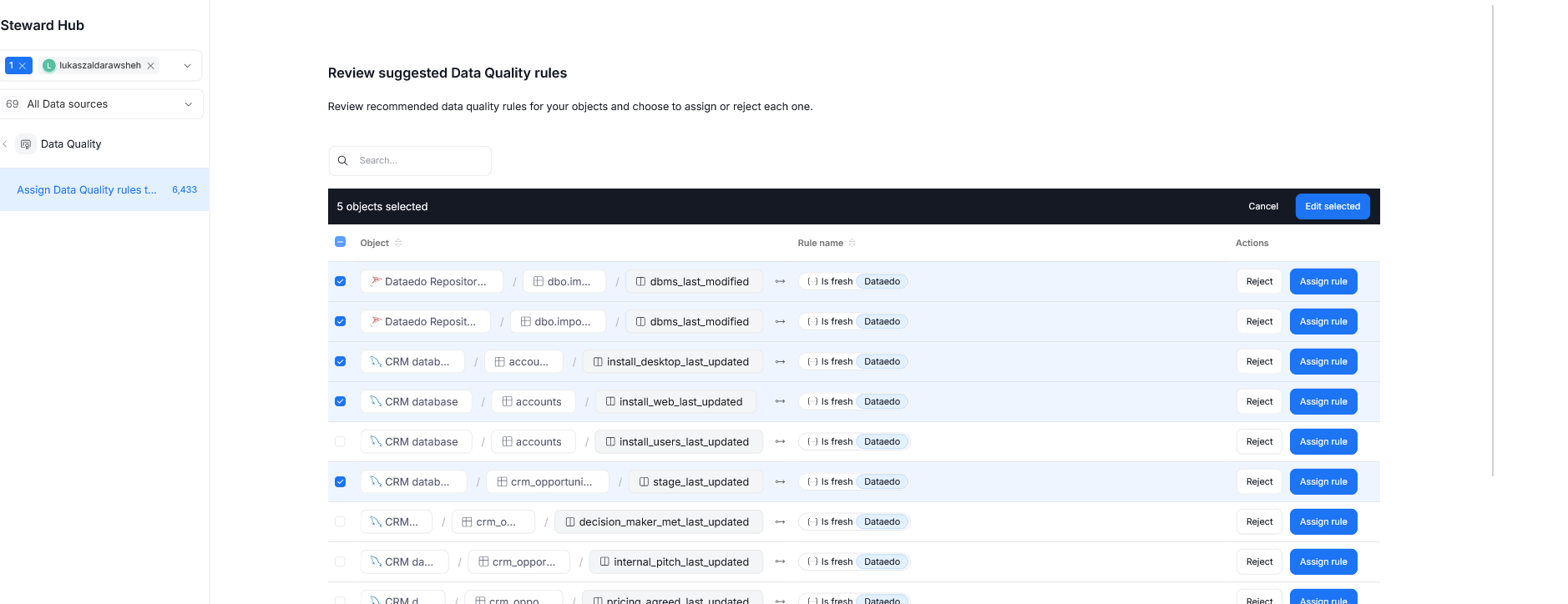
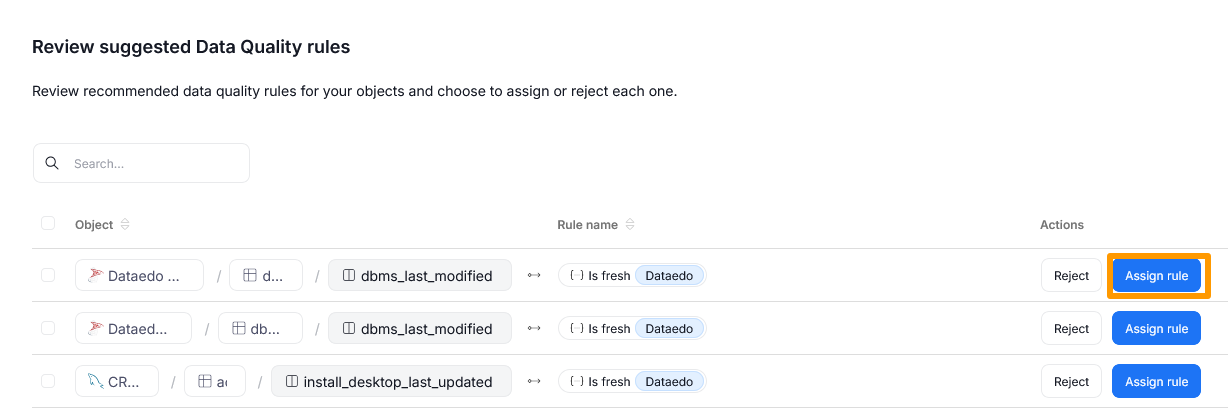
Upon clicking the Assign Data Quality Rules to columns text, you will see a table showing the columns and their suggested Data Quality rules. The suggestions are based on column names, and their match with Data Quality rules available in Dataedo.
Applying Rule Instances
Each row in the table corresponds to a single suggestion. You can either accept or reject it.
Rejecting a rule requires clicking the Reject button in the selected row. This will permanently remove this suggestion — it will not appear again, even after refreshing Steward Hub.
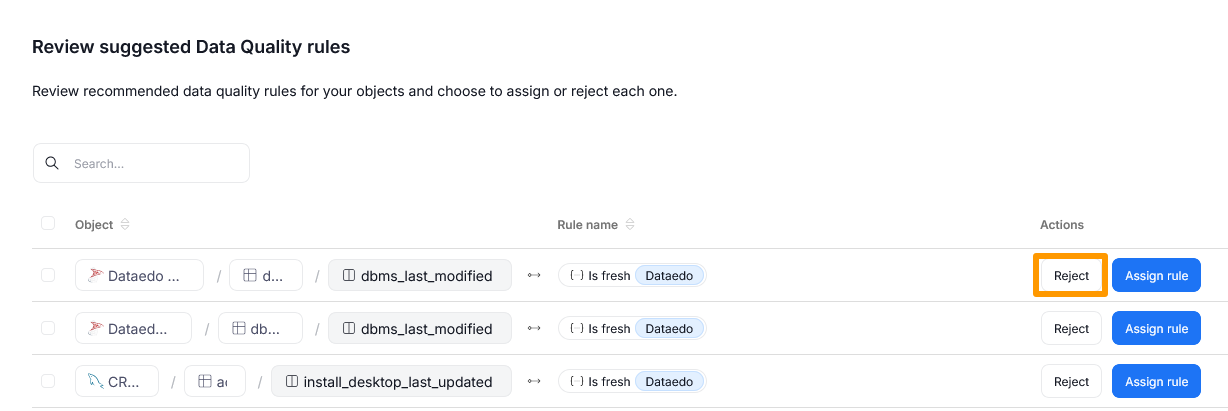
If you want to accept a suggestion, you need to click the Assign rule button. This will open a Rule Instance menu.
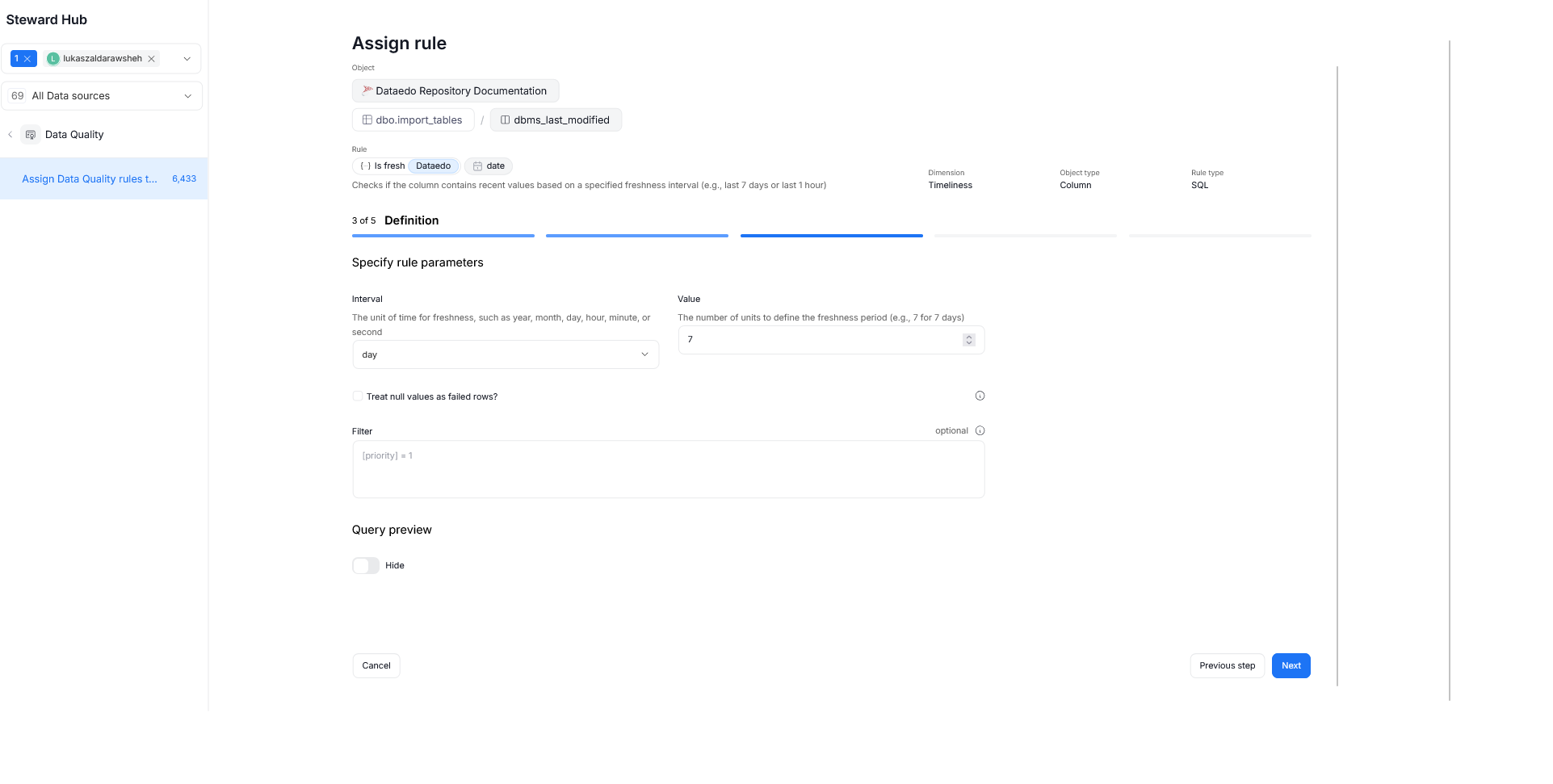
A full breakdown of Creating Rule Instances can be found in the dedicated article, and we advise reading through it to fully understand the process. In the example below, we chose a column for which the Is fresh rule was suggested. Since this rule requires additional parameters, we first need to provide those. For the Is fresh rule, those are Interval and Value, which determine how long a given record is determined to be recent.
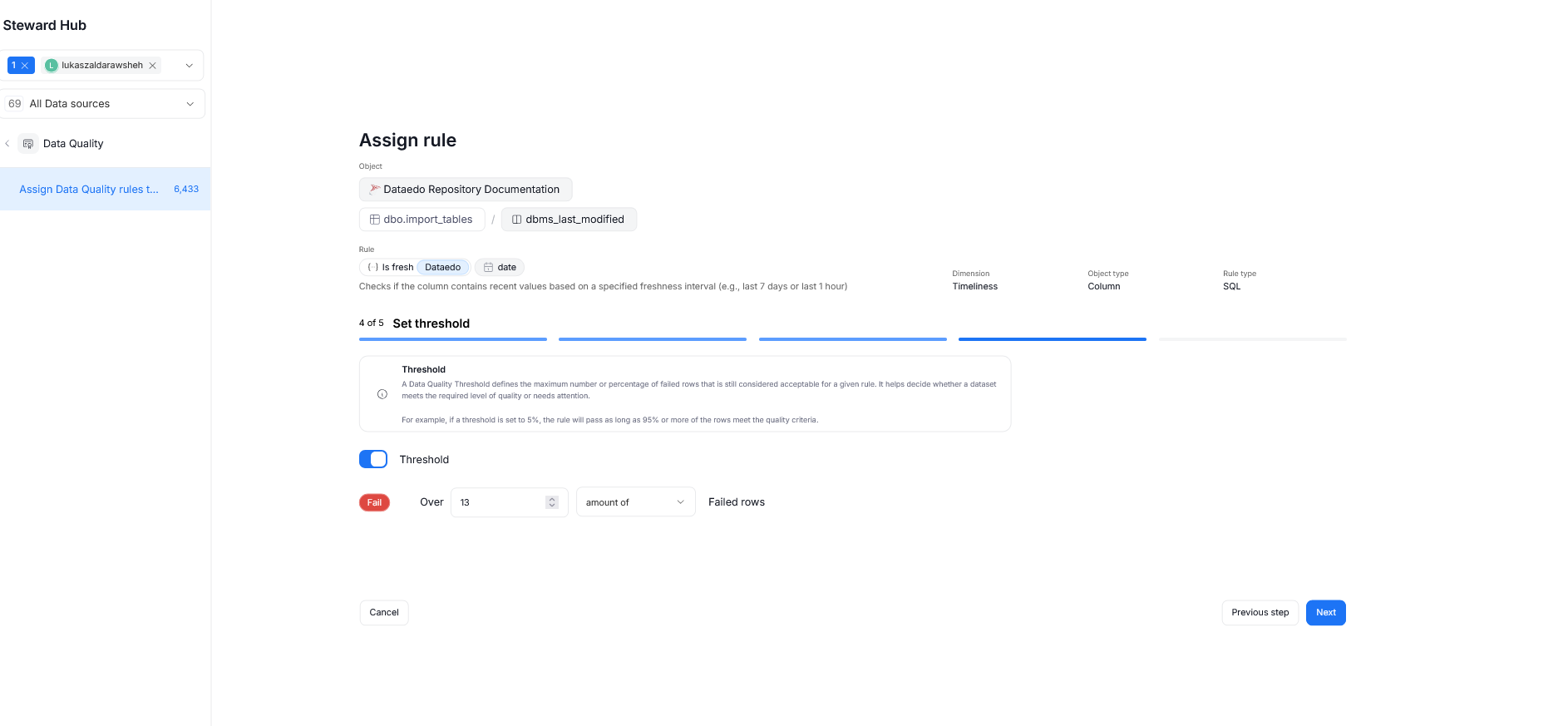
The next step is determining threshold - an optional parameter, determining how many rows (defined as an integer or percentage) can fail a Quality Check before failure is triggered.
The final stage requires defining the Rule Settings which will be used by the Scheduler and when viewing Data Quality results. Once everything is configured, click the Create rule instance button to save your configuration.
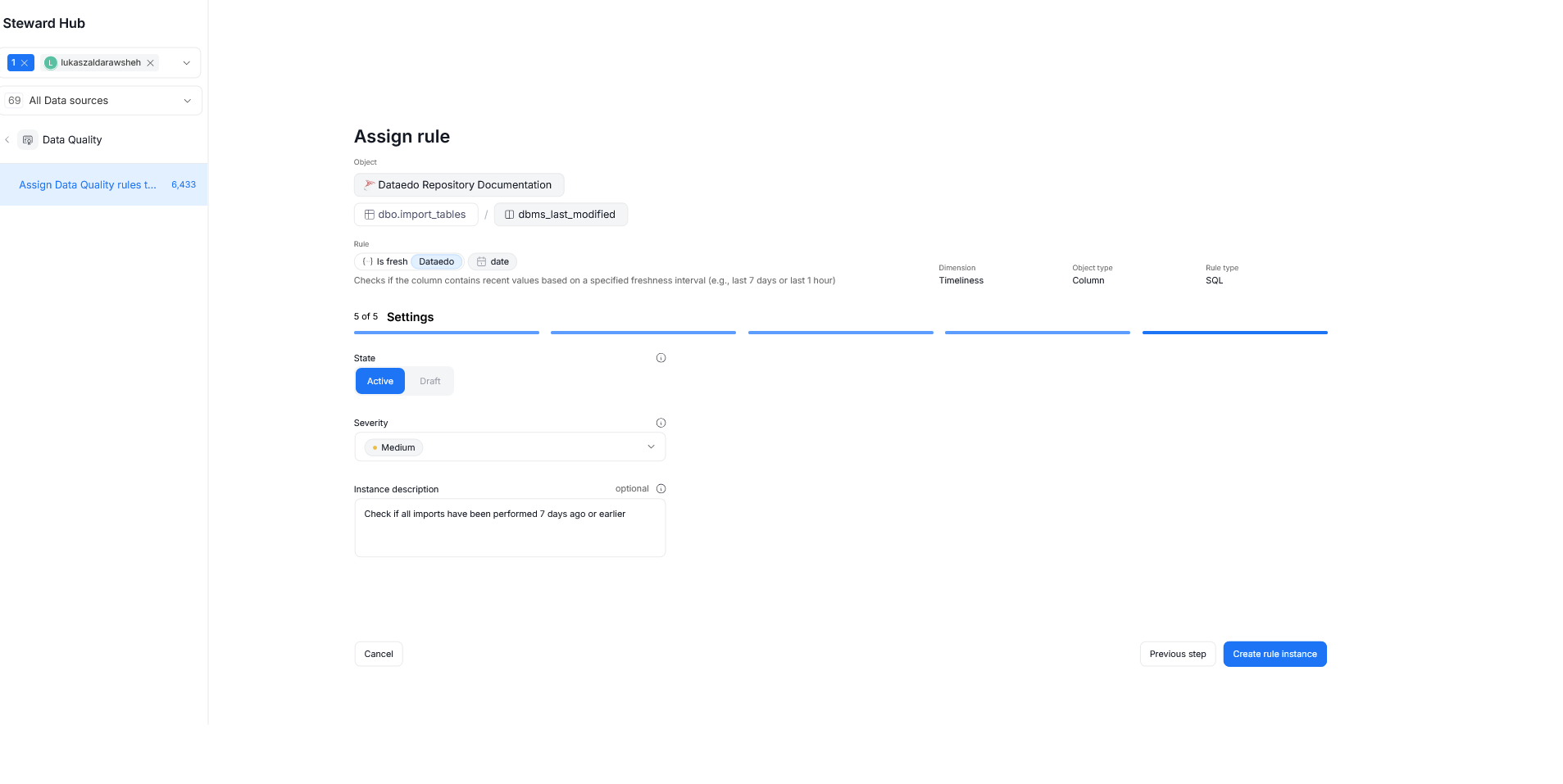
Remember that presented steps and their ordering might be different for different Rules.
Bulk rejections
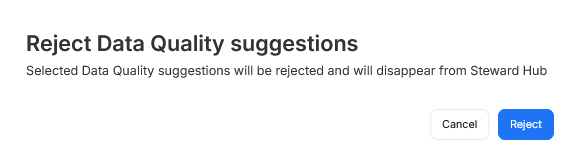
It is possible to reject multiple Data Quality rule suggestions at once. To do so, mark all of the suggestions you want to reject using Checkboxes and click Edit Selected. A pop-up will appear, asking you to confirm whether you want to reject the selected suggestions.