Steward Hub — Deleted Objects
When an object is deleted from a data source, Dataedo does not immediately erase it from your catalog. Instead, it keeps the object as soft-deleted, preserving its documentation, tags, and lineage until you decide what to do with it. The Deleted Objects module gives data stewards one place to review these objects and consciously decide which of them to remove from the catalog for good.
The point of the module is to give you enough context — where the object lived, who owned it — to judge the impact of a removal, without having to open each object individually.
Accessing the module
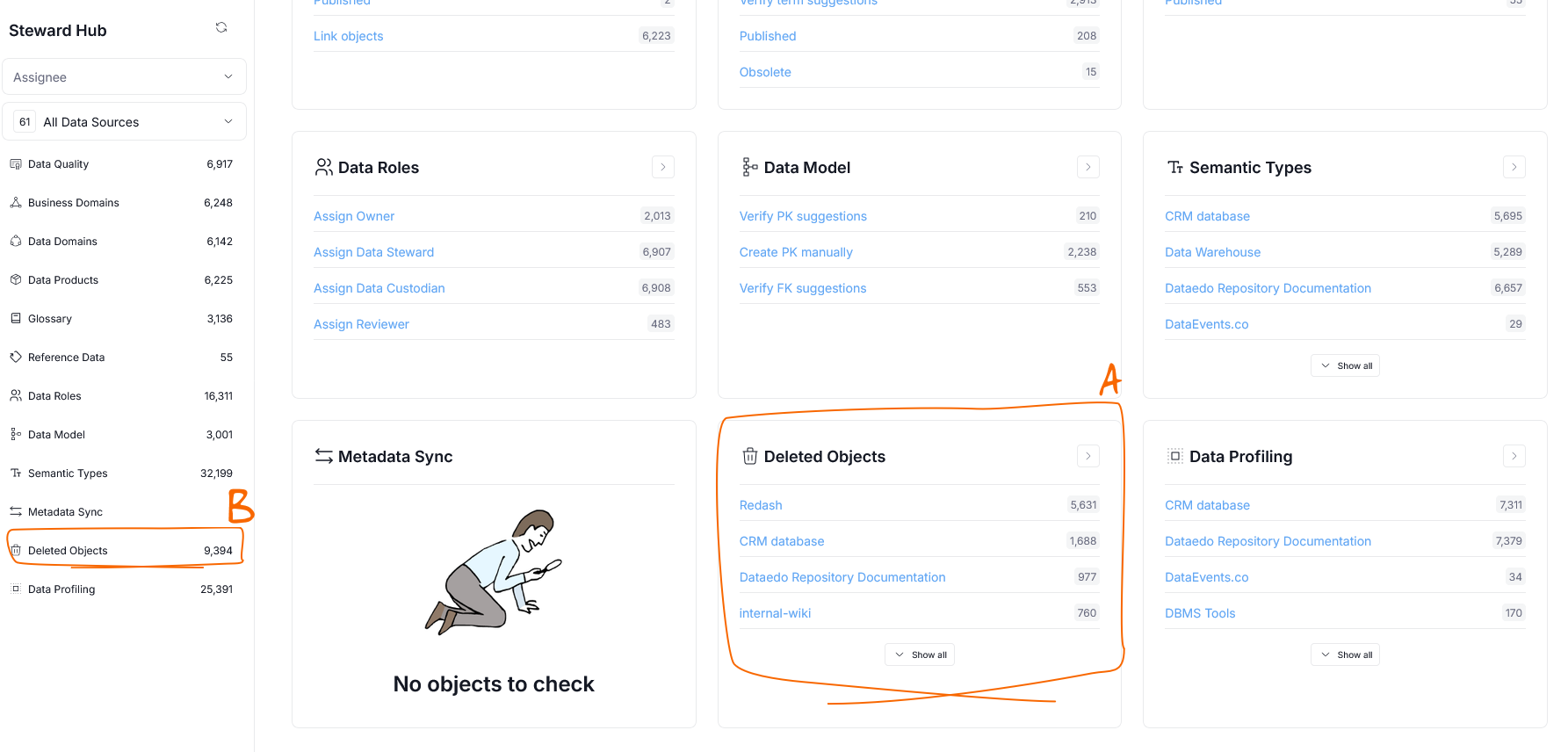
You can open the module by selecting a data source from the Deleted Objects tile on Steward Hub's main page [A], or opening it from the Steward Hub navigation tree [B].
Managing deleted objects
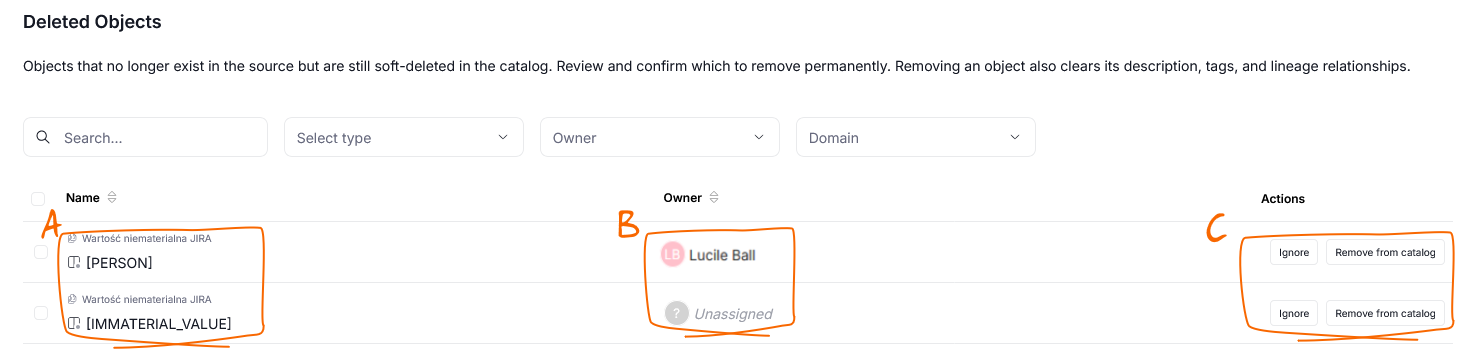
Once you open a data source, you will see a grid with the list of soft-deleted objects for that source, each row corresponding to one item. The details you can see are:
- Name [A] — the object's name, preceded by an icon indicating its type.
- Owner [B] — the user assigned as the object's owner. Objects without an owner are marked as Unassigned.
- Actions [C] — the Ignore and Remove from catalog buttons available for each row.
Finding objects
Above the grid, you can find a set of tools that help you narrow down the reviewed objects:
- Search Bar [A] — use it to look for objects by their name, path, or description. Matches are highlighted in the Name column.
- Type [B] — limit the list to selected object types.
- Owner [C] — show only objects owned by a specific user, or those left Unassigned.
- Domain [D] — show only objects belonging to a selected Domain.

Removing objects from the catalog
Removing an object from the catalog is permanent. It deletes not only the object itself, but also its lineage, nested objects, and documentation — description, tags, etc.
To remove a single object, click the Remove from catalog button in its row.

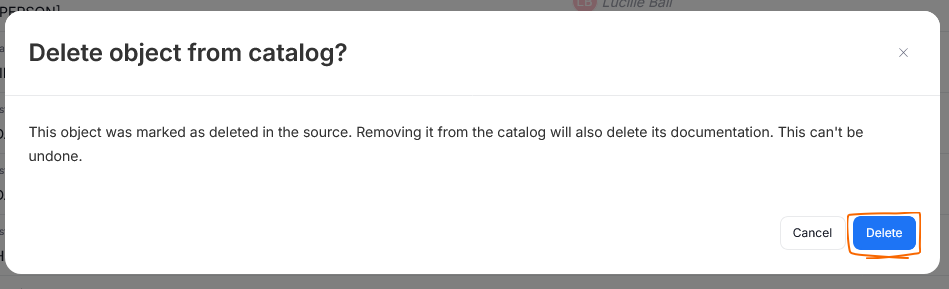
A popup will appear. Confirm with Delete to permanently remove the object.
Removing objects in bulk
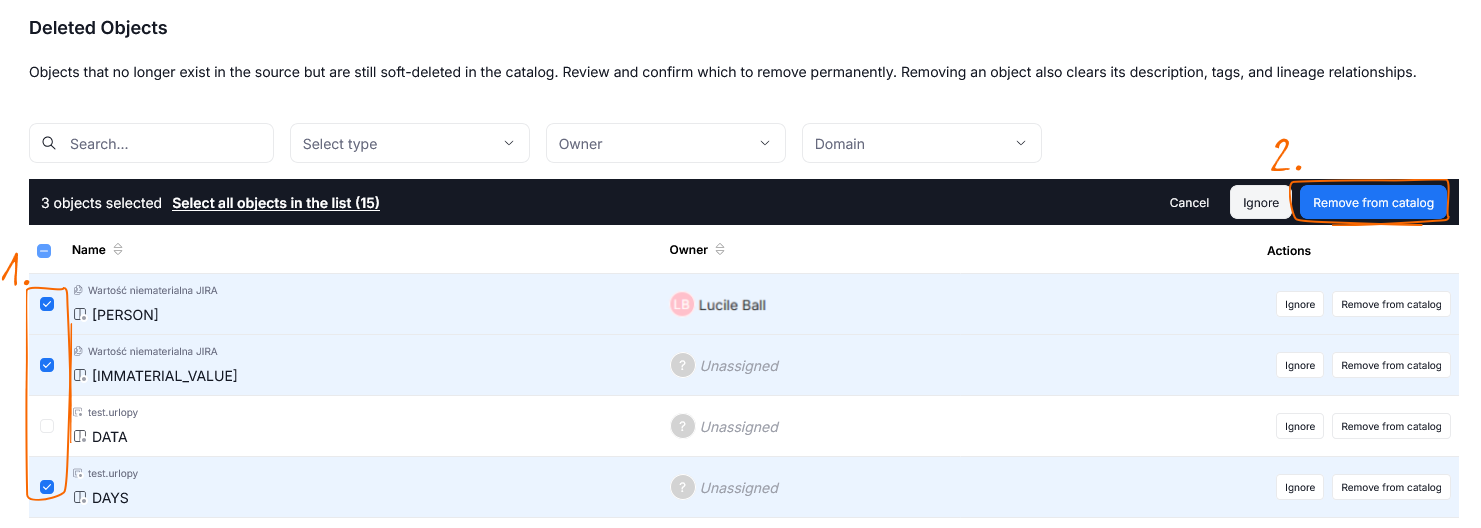
You can remove several objects at once. Select the objects using the checkboxes [1] next to their names, or use the checkbox in the header to select all objects. A toolbar with bulk actions will appear. Click Remove from catalog [2] there.
Removing a large number of objects (more than 20) runs in the background so you can keep working. You will be notified once the removal is complete.
Ignoring objects
Sometimes an object is soft-deleted but you are not ready to remove it — you just want it out of your review list. Use the Ignore action for that. Ignoring an object hides it from the Deleted Objects list, but keeps it in the catalog, still marked as deleted everywhere else.

Just like removing, you can ignore a single object with the Ignore button in its row, or select multiple objects and use the bulk Ignore button.

