Steward Hub — Data Products
The Data Product Module allows you to quickly and easily connect multiple objects with Data Products, and manage their Workflow stages.
View
The Data Product module shows an overview of suggestions for proper documentation and management of your Data Products, These are:
- Workflow actions [1]
- Linking objects [2]
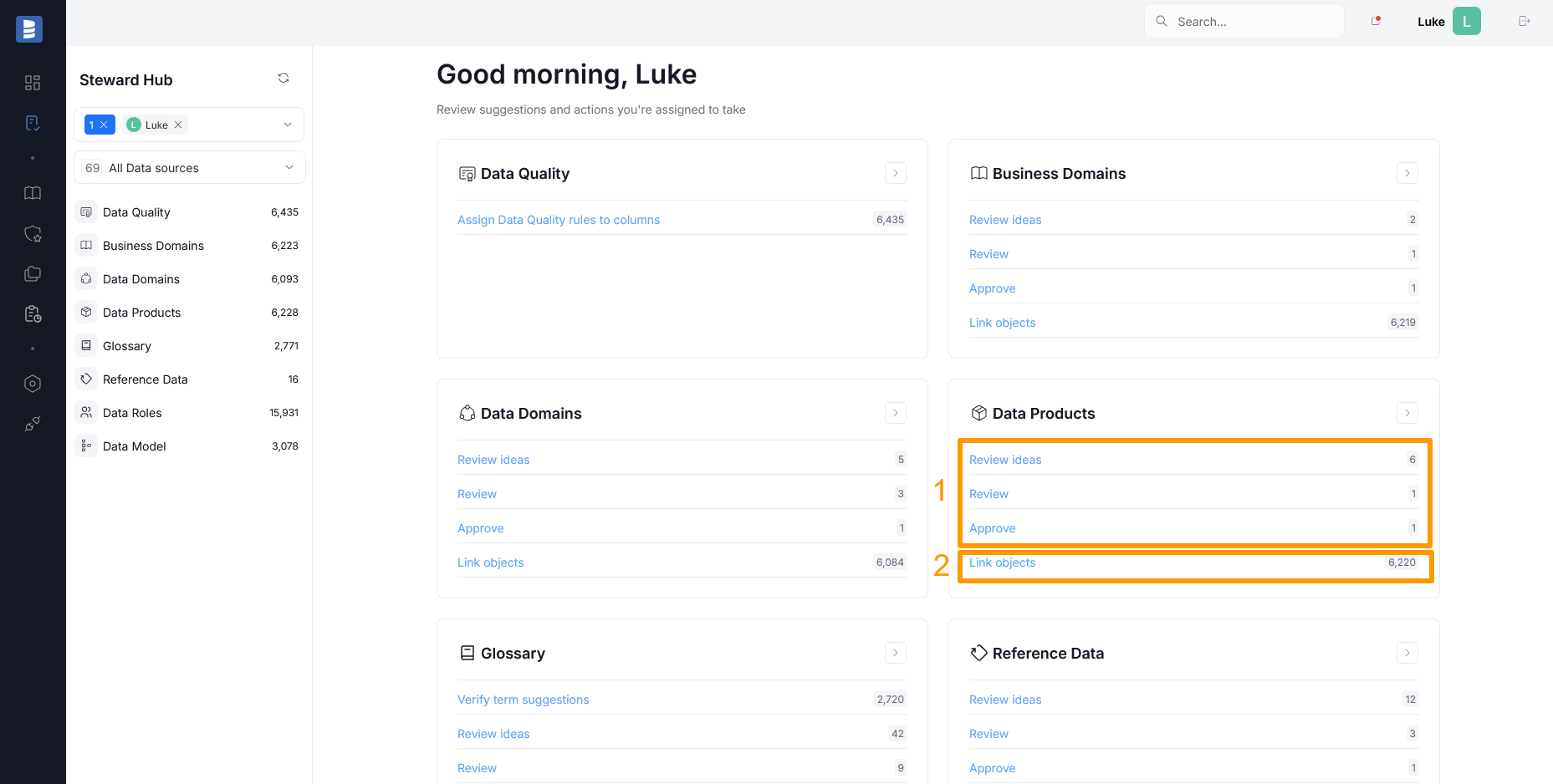
Workflow actions
The visibility of certain workflow actions depends on User Roles and User Assignment. Read more here
Workflow actions are displayed according to the CTA text configured for Workflows. In this article we are using CTA texts from the standard Dataedo Workflow.
Certain Workflow Stages require special actions from Users. The Steward Hub offers a quick way to view Data Products requiring your attention, and perform the necessary actions either in bulk or individually.
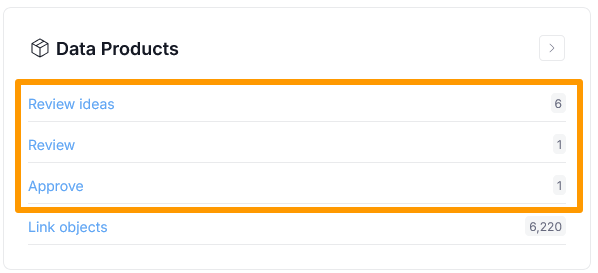
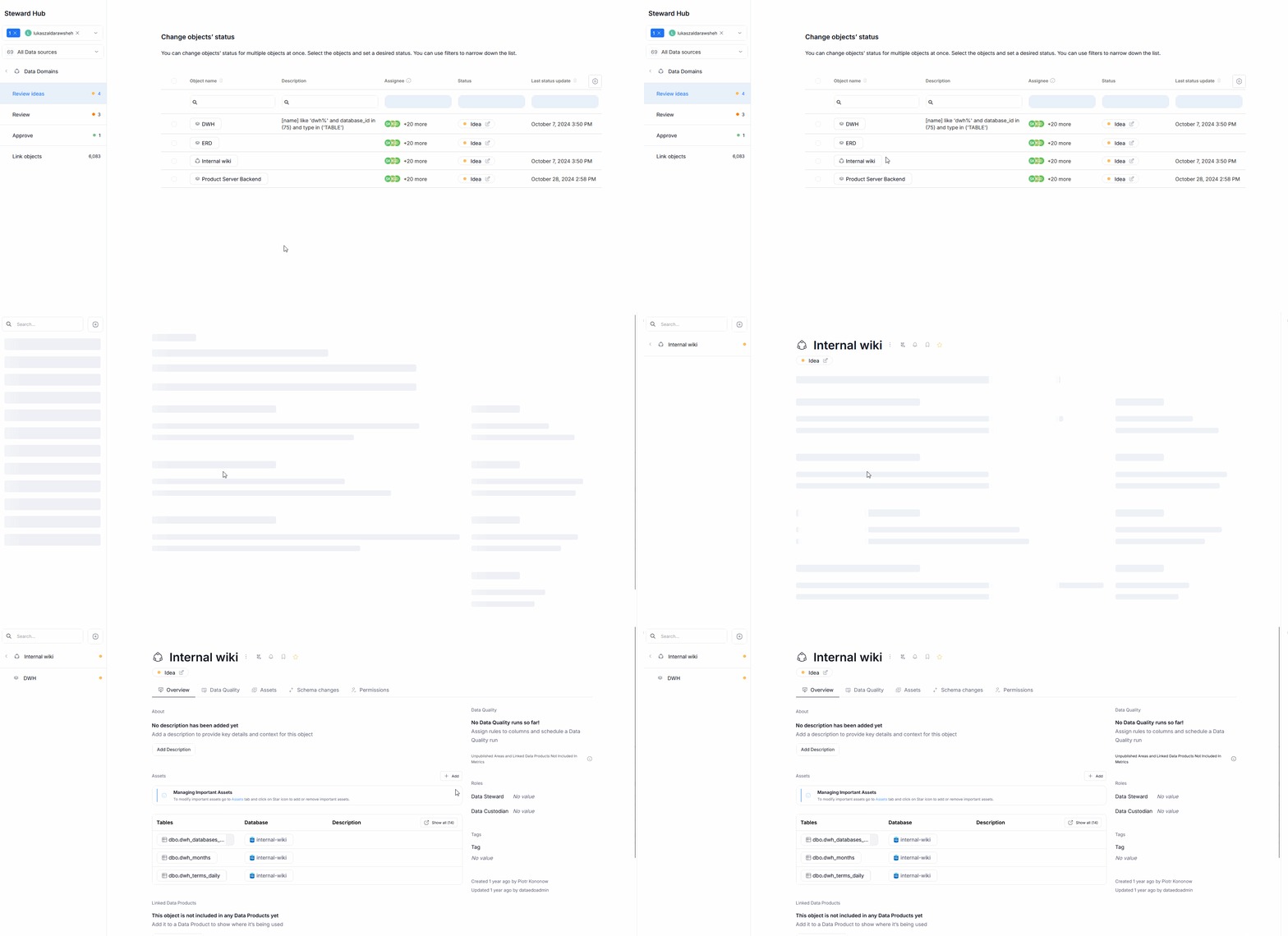
To review pending actions, first, click the CTA text matching the action you are interested in. For example, selecting Review ideas will show all objects in the Idea status, waiting for initial approval before they can be worked on.
If you need to take a look at a Data Product, clicking its name will open that object's page, where you can review all information in detail.
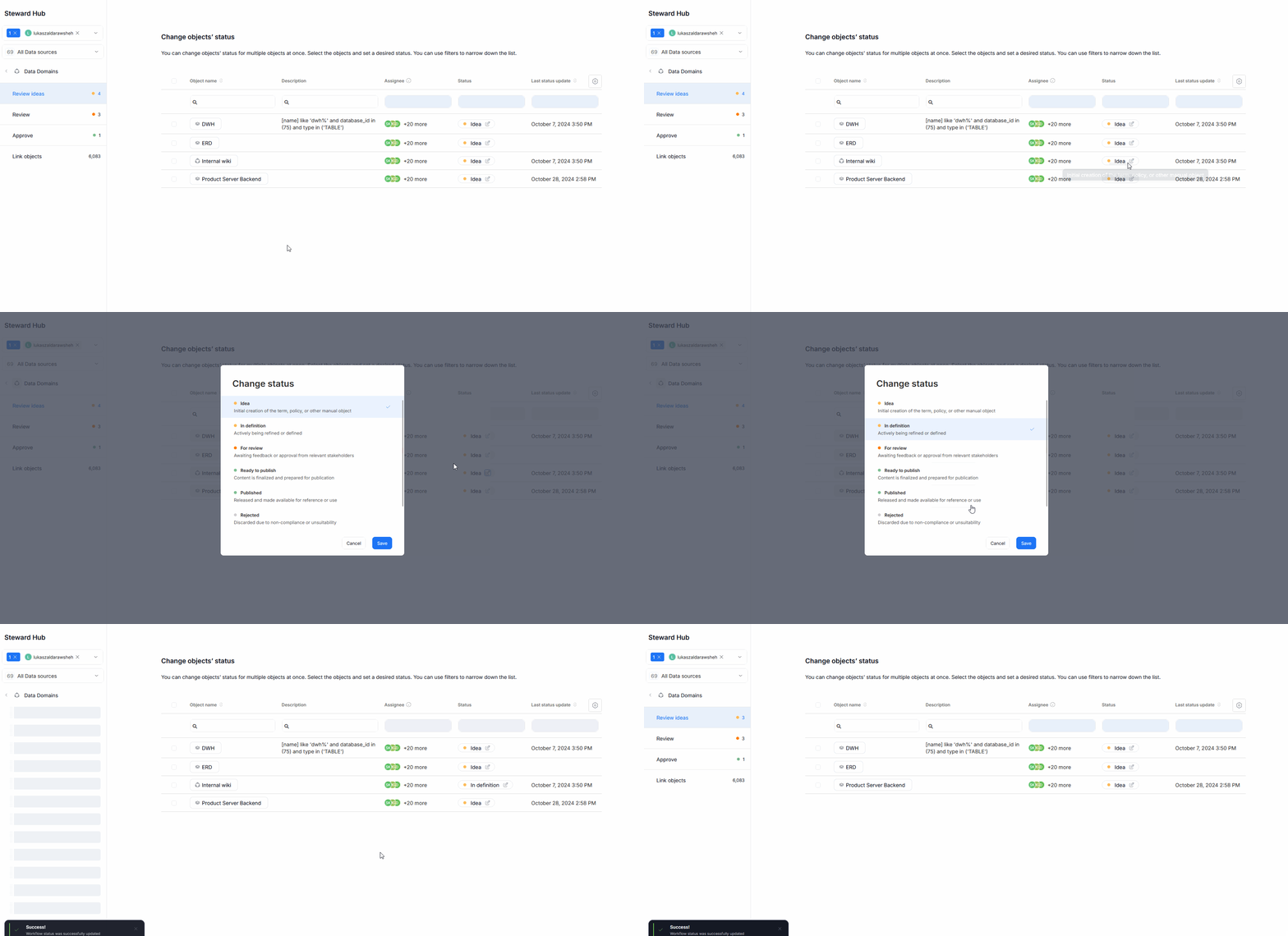
To change the Workflow status of a singular object, click its current status in the Status column. A pop-up will appear, asking you to assign a new status. Once you select it, click Save to save your changes.
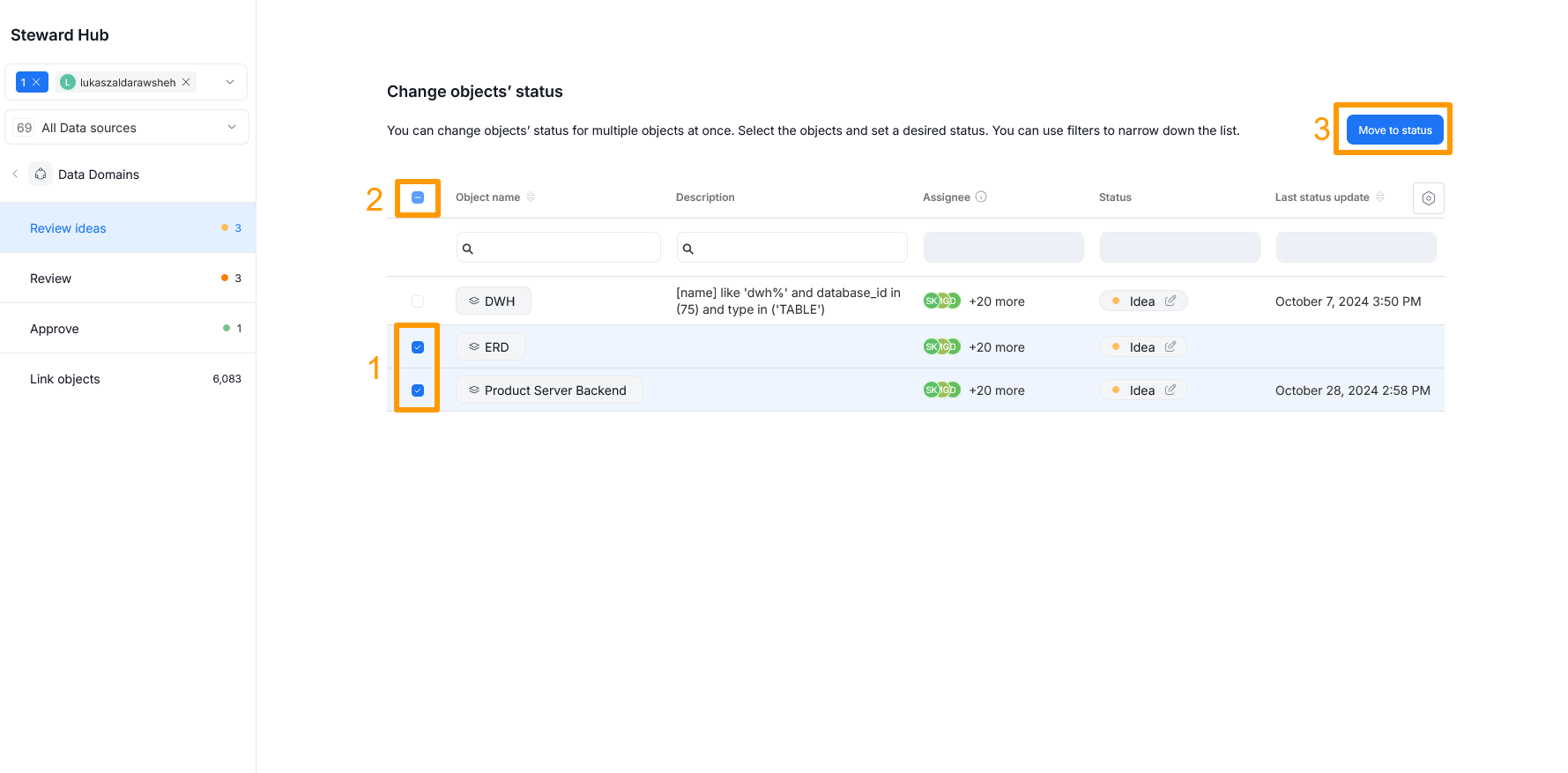
It is also possible to change the status of multiple objects at once. To do so, select all relevant objects using a checkbox [1] next to their name (or use the checkbox next to the Object name column header [2], to select all objects displayed on the current page instead). After that, click the Move to status button [3]. A pop-up prompting you to select the new workflow status for all selected objects will appear. Once you select it, click on Save to confirm your changes.
Linking objects
Data Products are flat and logical groupings of assets representing technical functionalities or services of your organization. To keep this representation clear and accurate, it is important all relevant resources are linked properly.
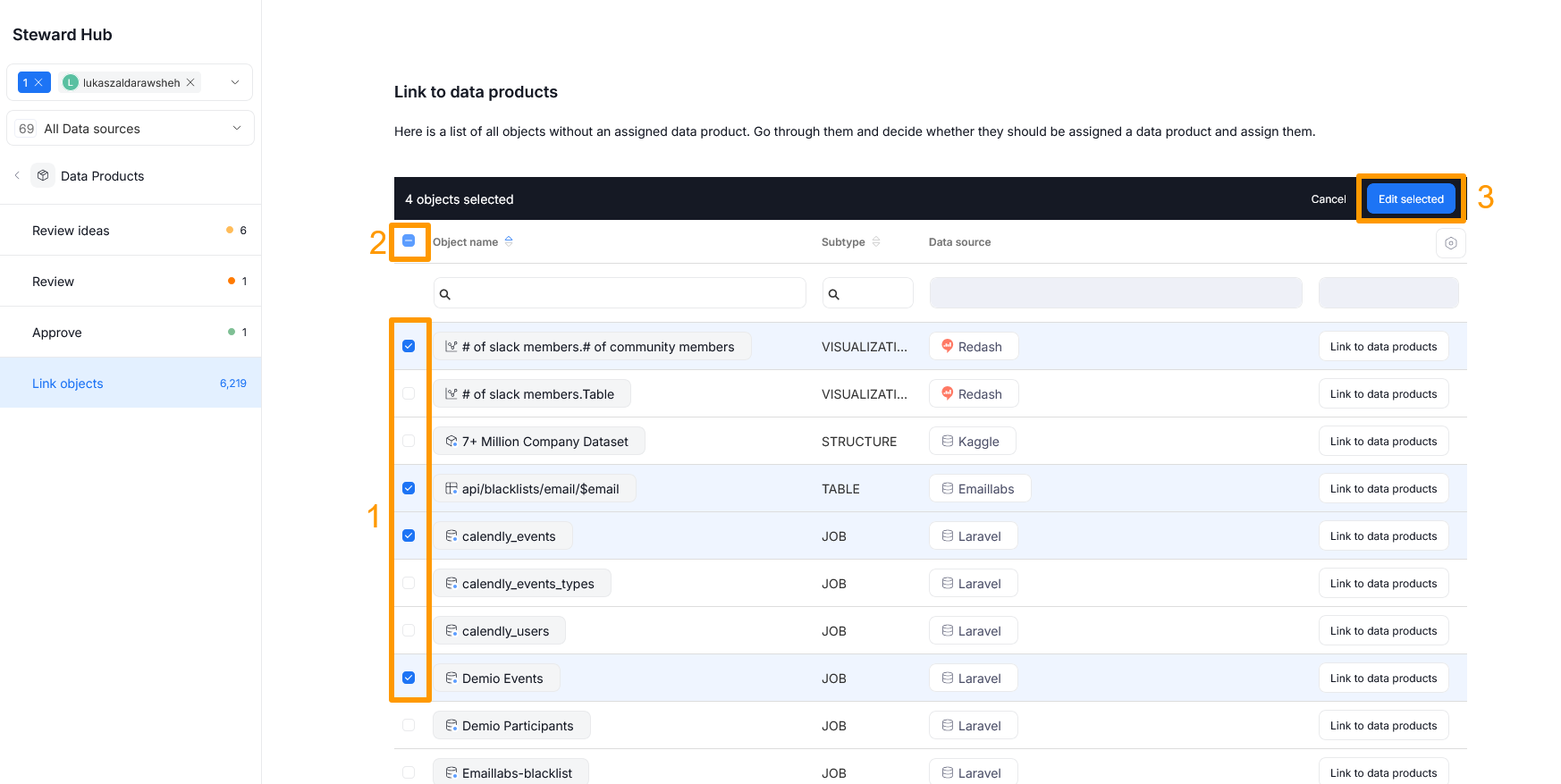
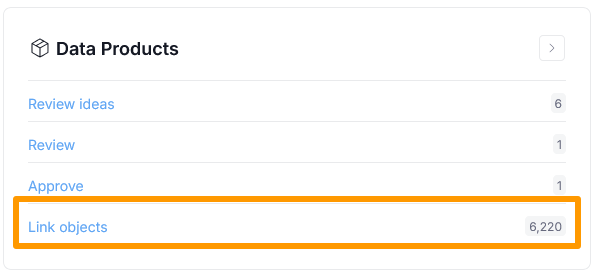
To start the linking process, click the "Link objects" text in the Data Products module. This will open a table with all objects in your repository that are not yet assigned to any Data Product.
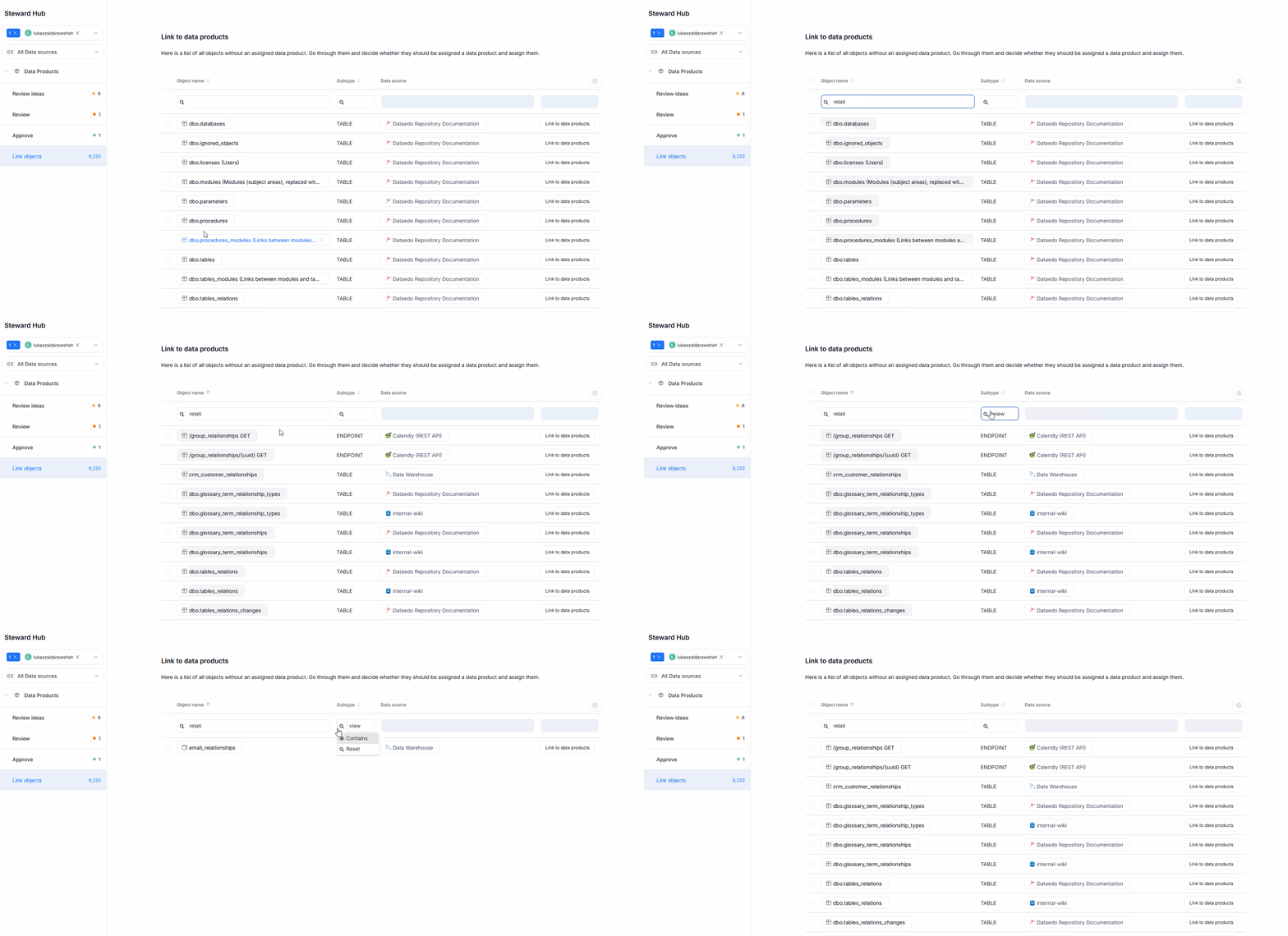
The Object name column shows object names, while the Subtype shows the object's type (like Table, Term, Glossary, etc.). Both of these fields allow filtering using string queries.
To assign a singular object to a Data Product, click the Link to products button next to the object. This will open a list of Data Products in your repository. Select one or more destinations where you wish to link it, and click Save.
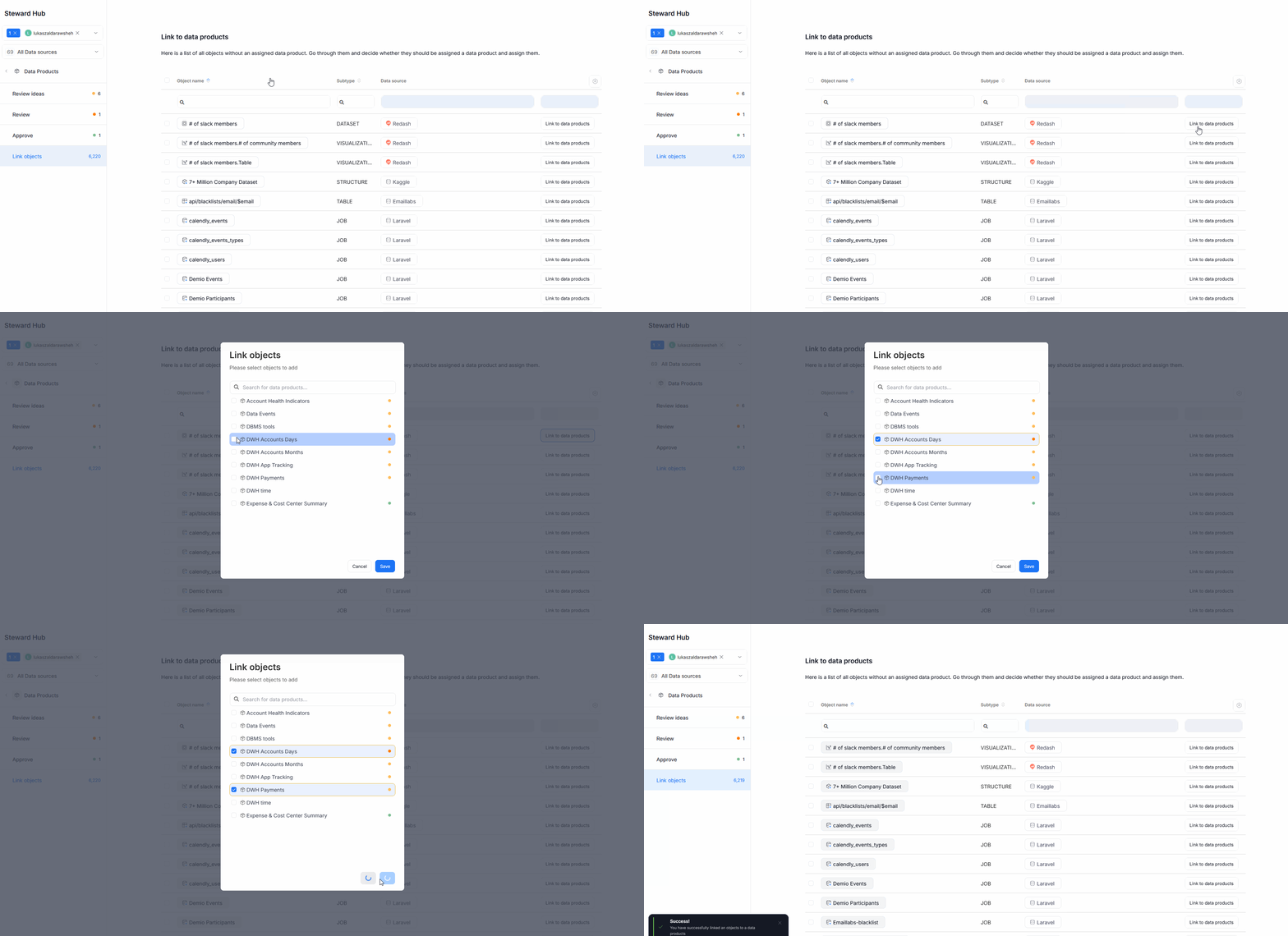
It is also possible to assign objects in bulk. To do so, select the objects you want to link using checkboxes [1] next to their names (or use the checkbox next to the Object name column header [2] to select all objects displayed on the current page). When you select object(s) this way, an Edit selected button [3] will appear. Click on it, and a pop-up with all of the Data Products in your repository will appear. Select one or more destinations, and click Save. This will link all objects you selected to the specified Data Products.