Adding and Managing Domains
You can create as many Domains and Areas as necessary to reflect your organization's needs and functional divisions. To create a Domain, navigate to:
- Knowledge Base for Business Domains
- Data Governance>Domains for Data Domains
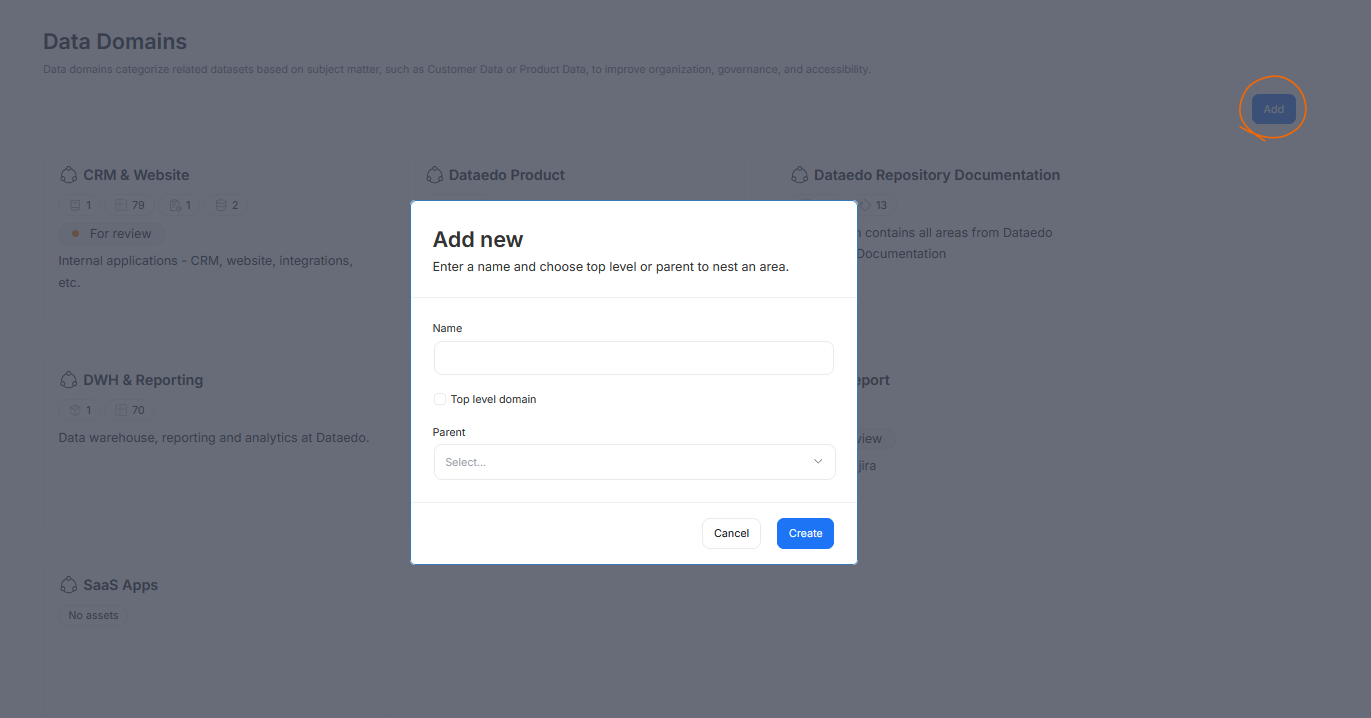
Once in the correct place, simply click the button. This will open a Domain creation wizard.
In the wizard, you will be asked to provide a name for your newly created Domain or Area, and select whether it is supposed to be a Top level domain. If the option is not selected, you will be creating a sub-domain — an Area — within an already existing Domain or Area. When creating an Area, you have to specify its Parent.
It is also possible to start the Domain creation process using the Add button in the Domain navigation sidebar. If you use this option, the Parent parameter will be automatically pre-filled with the currently opened Domain or Area. You can overwrite this by editing the creation wizard field manually.
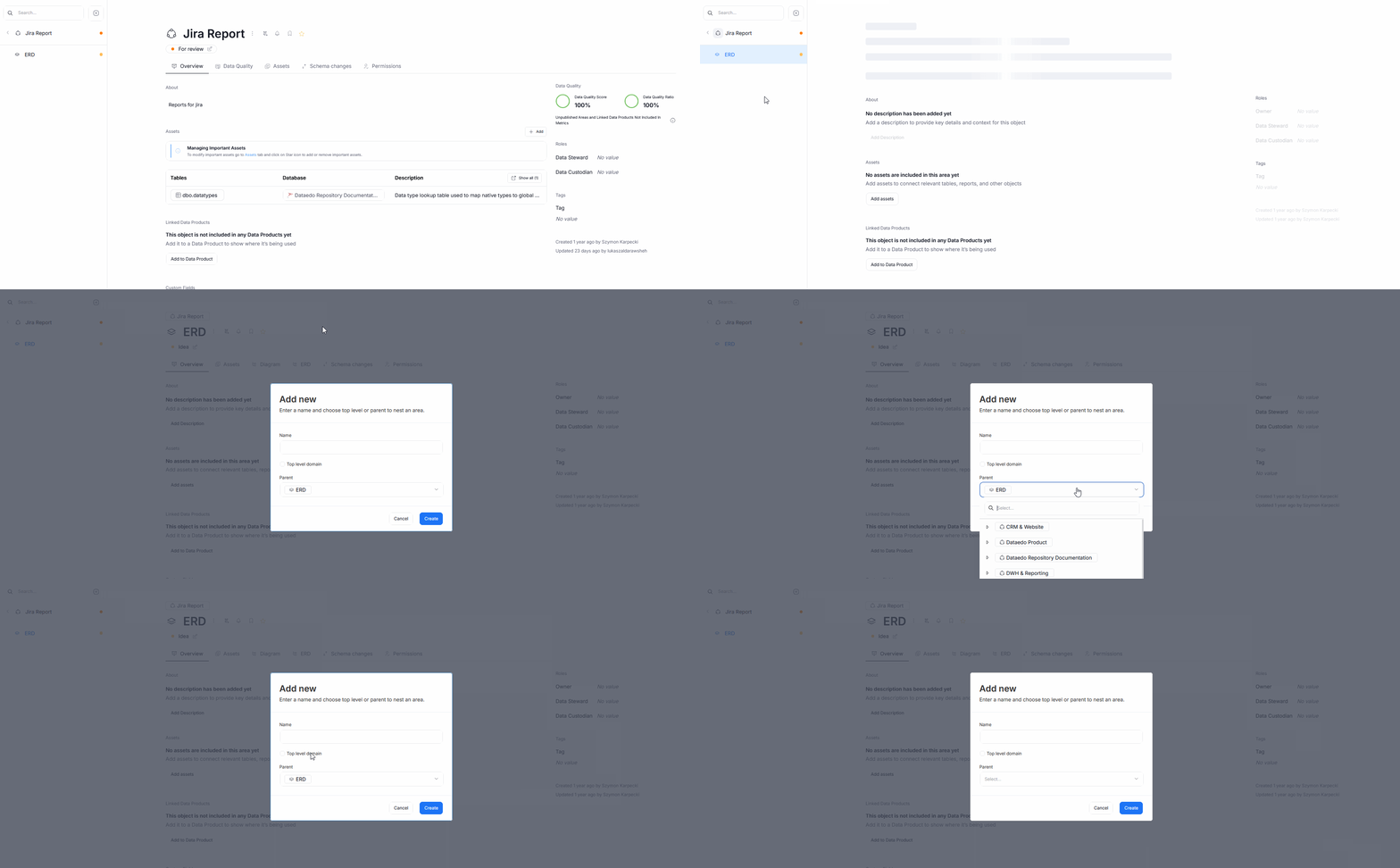
Each Domain or Area can have multiple children, but Domains can be nested up to four levels deep. The maximum structure is Domain → Area → Area → Area.
Documenting your Domain
After you create a Domain or an Area, you can edit its description in the about section of the page. We advise doing this, as it ensures that other users fully understand the purpose of the given Domain.
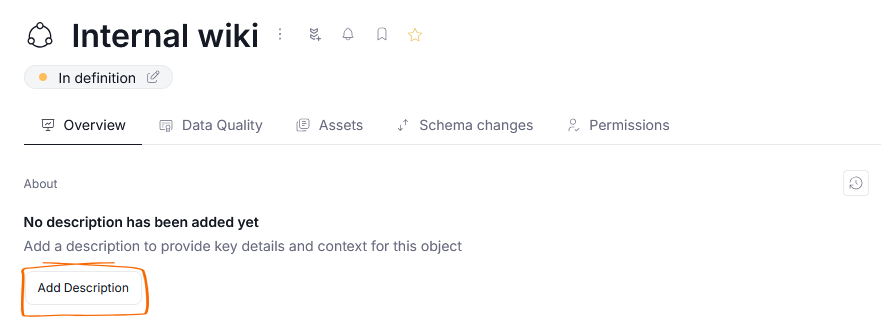
As with most objects in Dataedo, it is also possible to attach user-defined metadata using Custom Fields.
Deleting a Domain
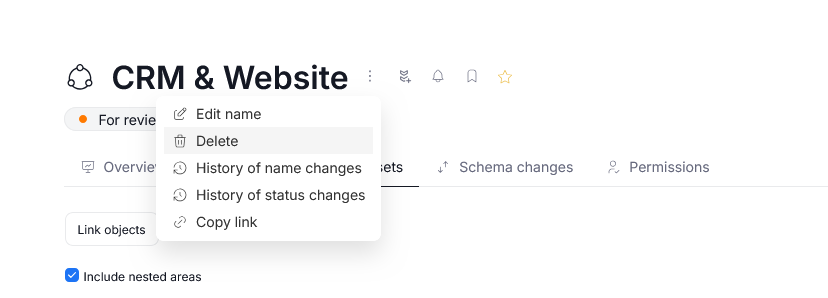
To delete a Domain or Area, click the three dots icon next to its name, and select the Delete option. A pop-up will appear asking you to confirm your decision.
Linking assets
The most important feature of Domains is their ability to gather Data Assets related to a specific topic area. You can view a preview of assets linked to a Domain or an Area in its Overview tab, or access the full list through the Assets tab.
Adding assets
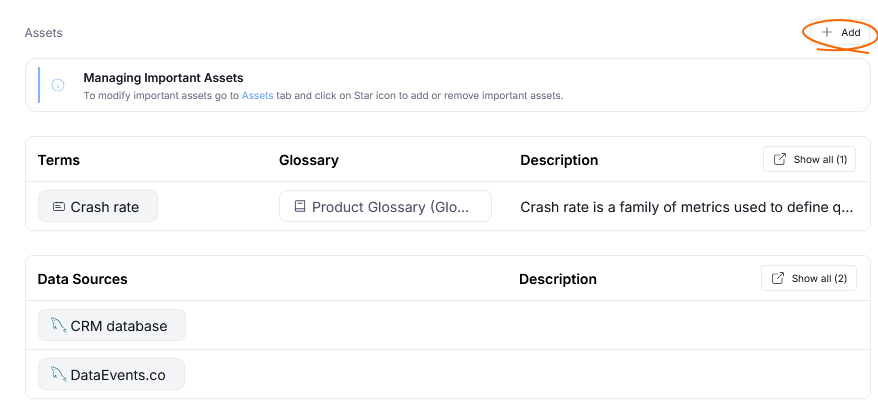
There are two ways to start the linking process from the Domain view. You can either click the Add button next to the Assets section in the Overview or navigate to Assets and click the Link objects button.
Linking assets
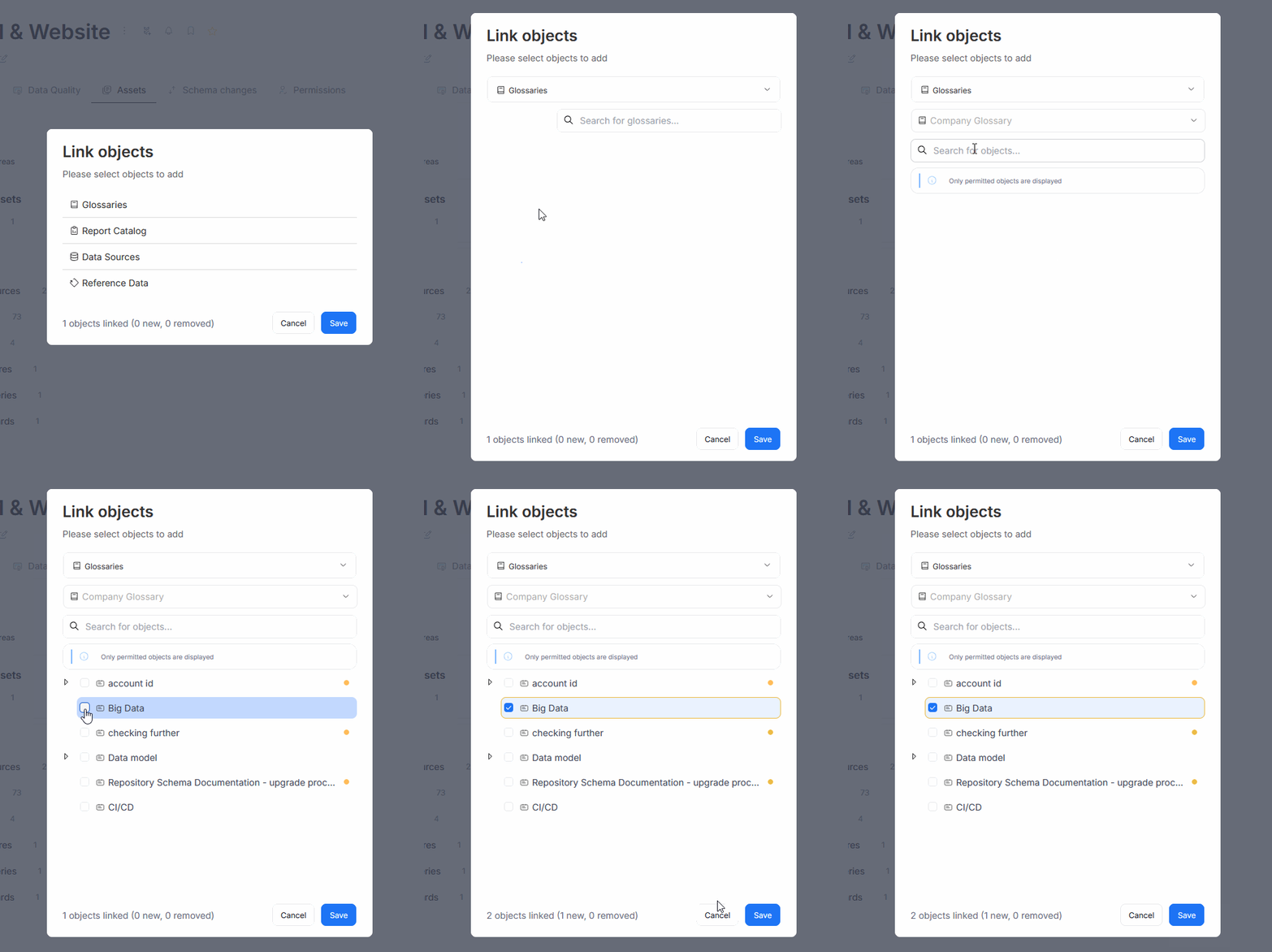
This opens a pop-up, where you can select the exact assets you want to link. There are two tabs: Link new and Linked assets.
In Link new you can link any asset from your repository. You can also filter based on the object type, and use the Search bar to narrow down your search using the asset name. You can choose assets to add or remove using checkboxes.
In Linked assets you will see all assets that are currently linked. You can deselect any of them to remove them from the linked assets section.
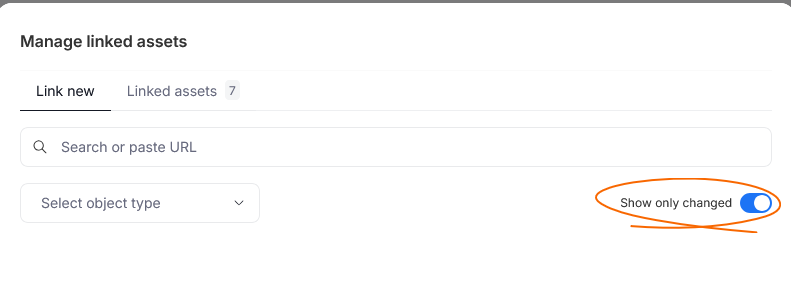
If you want to review the changes you will make to the linked assets before committing your changes, you can use the show only changed filter. Once enabled, only assets changed in this session will be shown.
It is also possible to link to a Domain directly from an asset's view. Scroll down to the Included in Business Domains/Areas or Included in Data Domains/Areas, and click the Add button.
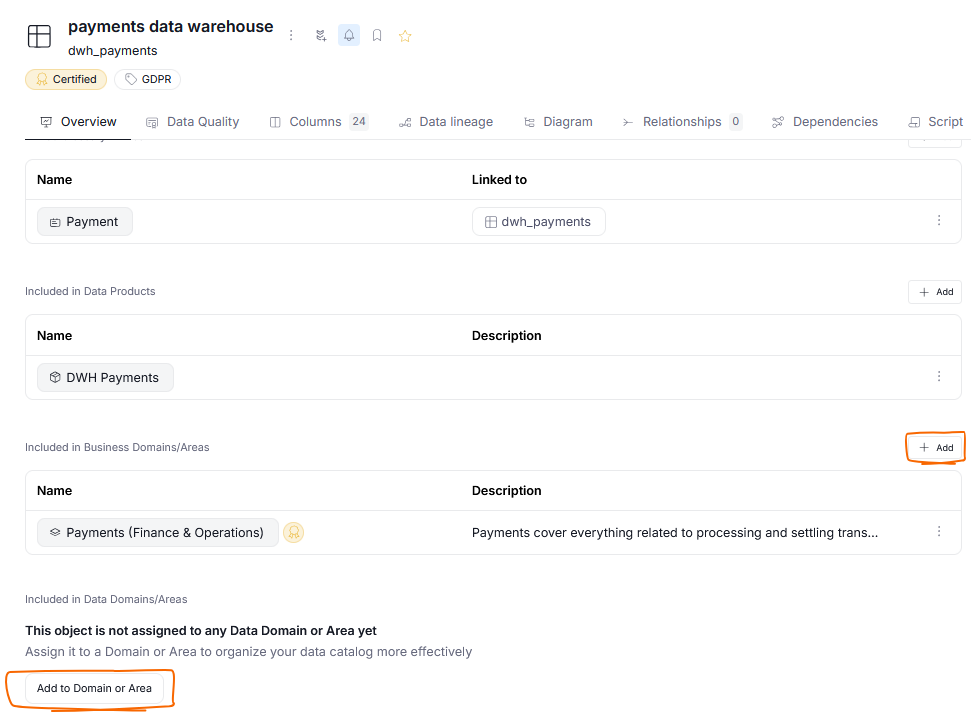
After that, a pop-up where you can choose Domains/Areas you want to link your asset to will appear. You can select multiple options. Confirm your choices by pressing Save.
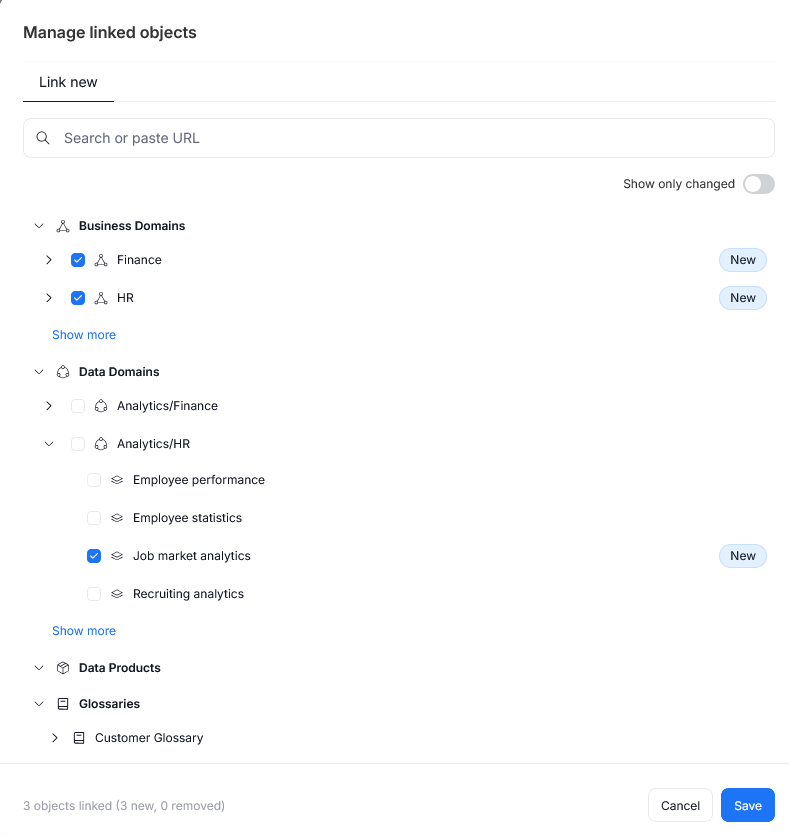
Remember that when you link an asset to a Domain you are not changing its position in the repository, but simply making a connection between that asset and a Domain. This means that even if you delete a Domain, all assets linked to it will still remain in your catalog.
Data Products
It is also possible to link Data Products to your Domains. To do so, scroll down to the Linked Data Products and click the Add to Data Product button. You can select the Data Product you want your Domain to be connected to.
This creates a two-way connection. Your Domain will be added to a Data Product, and visible in its overview. Additionally, all of that product's assets that have not yet been linked to your Domain will now become linked.
Viewing linked objects
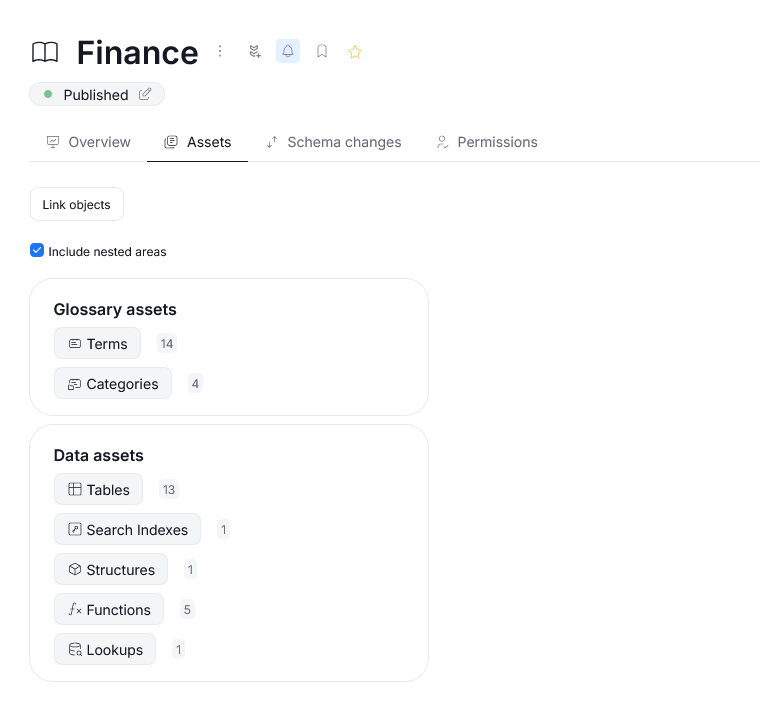
You can view all linked assets from the Domain's Assets tab. They will be divided between Glossary assets and Data assets. You can click any of the categories to see all the linked assets of that type.
Permissions and users
The ability to access and edit Domains and their assets is determined by User Roles. You can view all Users, together with their Roles in the scope of a currently opened Domain in the Permissions tab. If you want to add a new permission, you can click the Add Role button at the bottom of the page. This will give you an option to search for a User, and choose a Role they should be assigned in the currently opened Domain. The full extent of interactions between Domains and User Roles can be found in the dedicated article.

