Running and Viewing Data Classification
Data Classification is important, raising general awareness of sensitive data within your organization. As such, it is crucial that you understand how to run the process, and read its results.
Setting up Data Classification
Not all connectors support Data Classification. Even then, you can manually assign Semantic Types and Classify Data
Data Classification and Semantic types can be run after Metadata Import if you configure your connection properly.
When establishing a new connection in the Connections tab, during the Schedule step, you will see the Classification enabled toggle. Turn it on, to allow for Semantic Type detection and Data Classification on the selected database.
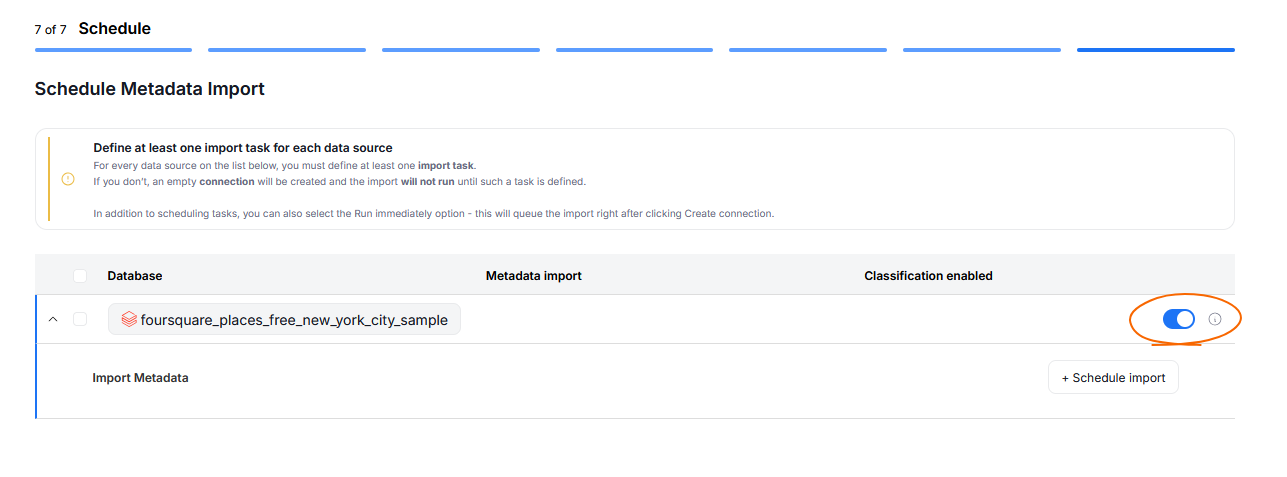
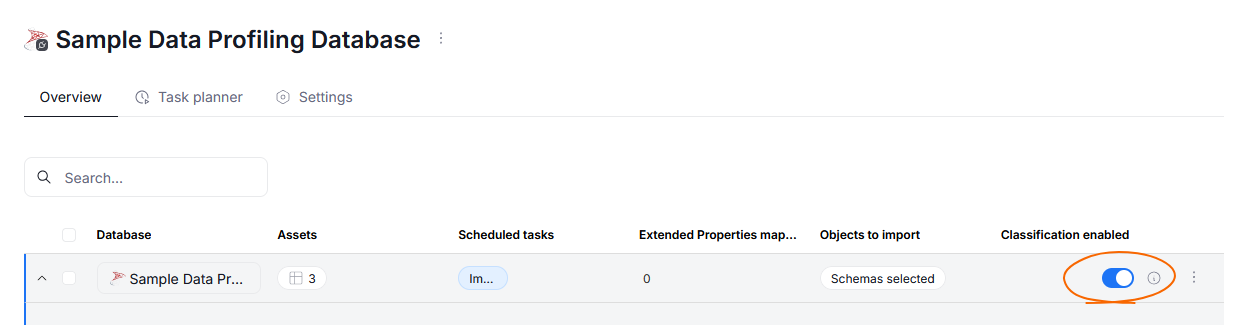
For already imported metadata, you can edit this parameter when managing sources. The toggle will appear next to the scheduled import task in the overview tab.
When does Classification take place?
Classification is run automatically after import if:
- it is the first time importing metadata for that data source
- you have enabled Data Access for the first time (even if you classified your data in the past using column names)
- a new column which has not been profiled yet has been added to the schema
- a previously detected Semantic Type has been manually removed
- over 20% of your source database has been changed, or a column's row count increased by over 20% (Data Profiling is required for this condition to be detected)
- the rules used for Semantic Type assignment have been changed
Editing Semantic Types and Classifications
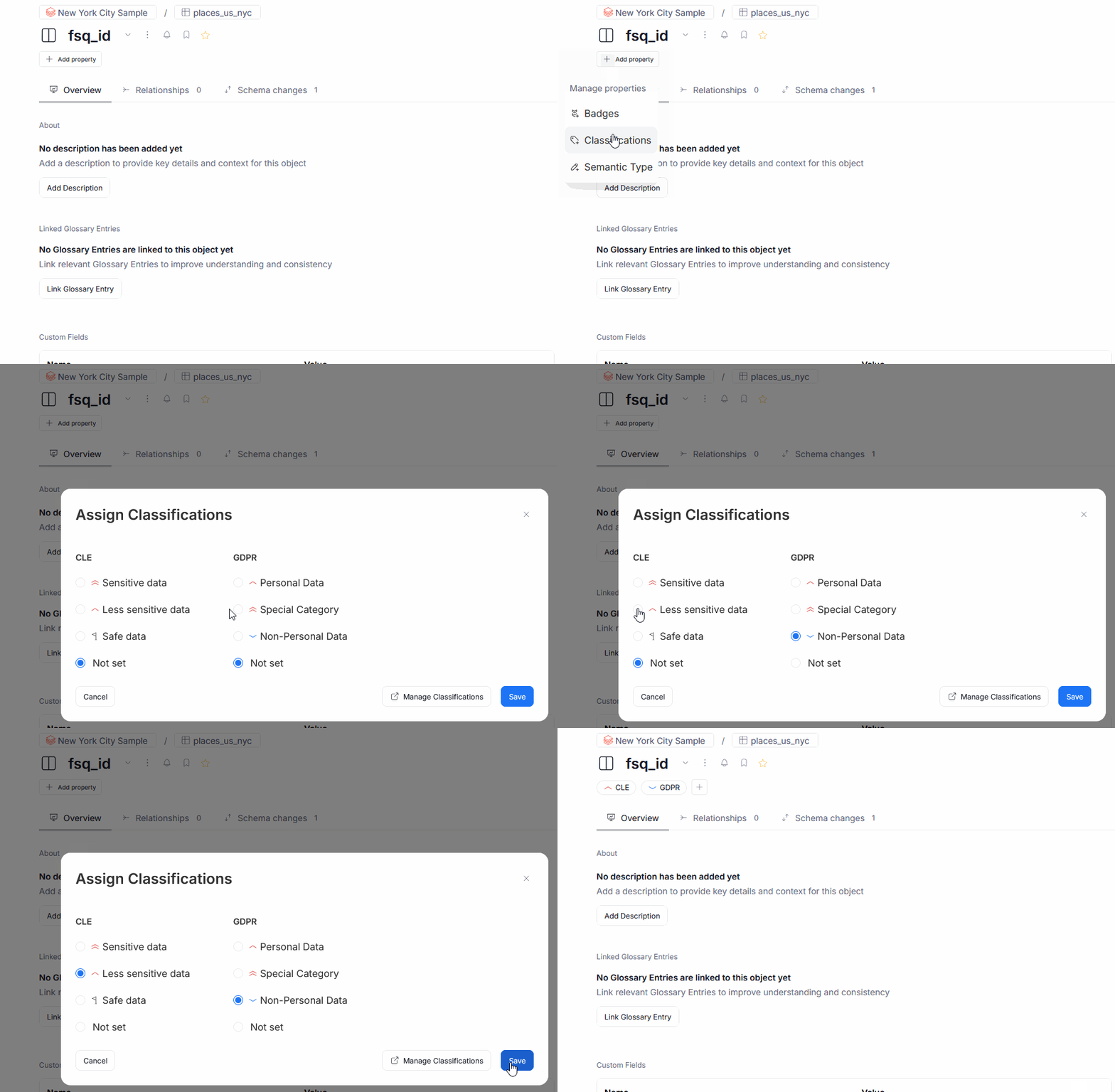
You might not agree with the automatically detected Type of a column, or work with sources for which automatic Data Classification is not supported. Whatever the reason might be, Dataedo allows you to manually edit and assign them directly from the object's overview, using the Add property button.
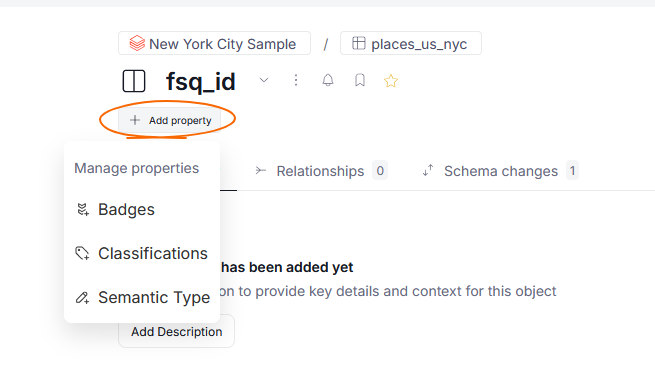
Choosing the Classifications option brings up a popup, with all of the active Classifications and their sensitivity levels. Select the desired option using radio buttons, and save your choice to upgrade the object's properties.
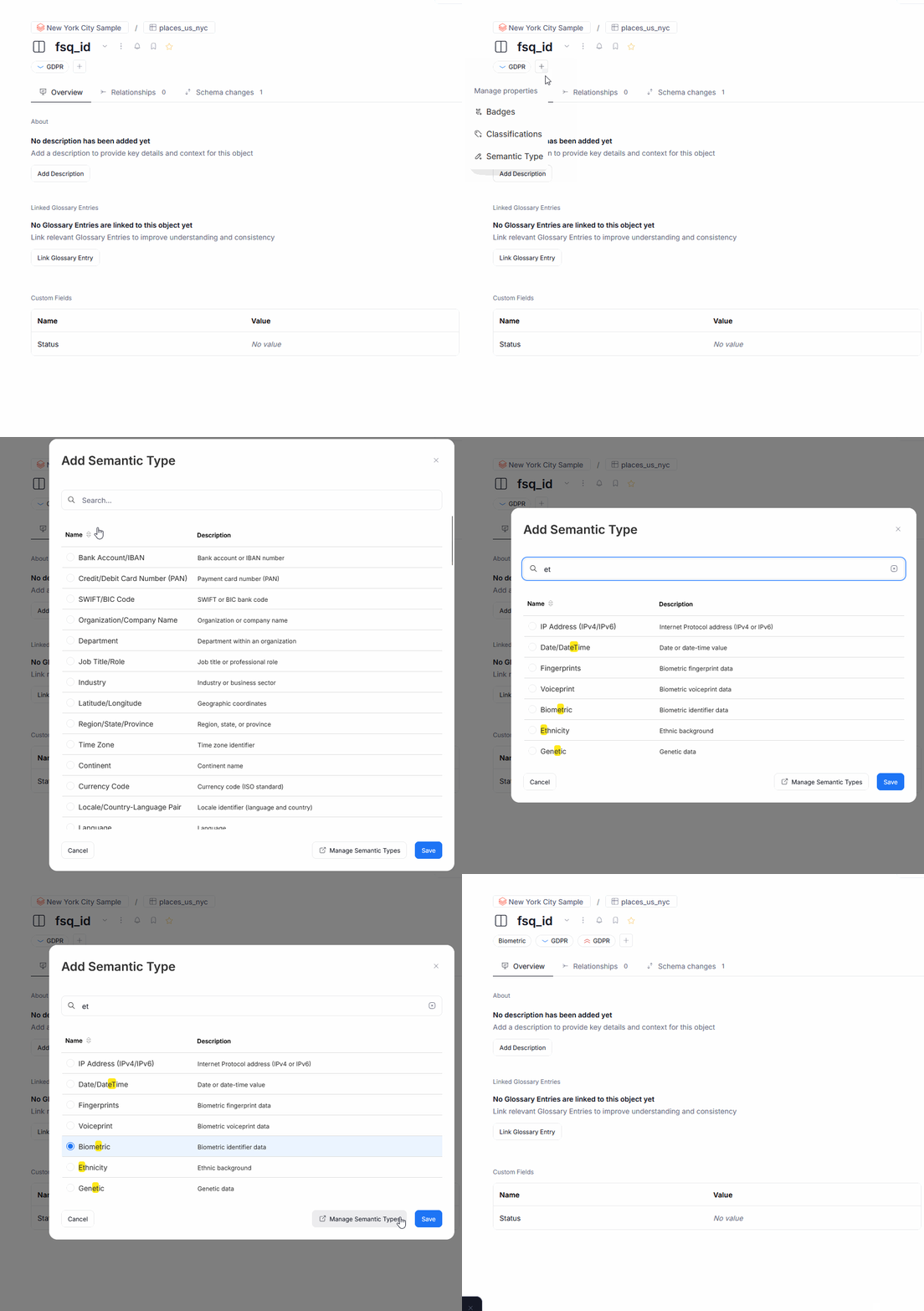
The Semantic Type option lets you manually assign a Semantic Type. Clicking this option opens up a pop-up where you can search for, and assign Semantic Types. Only one Type can be chosen per object.
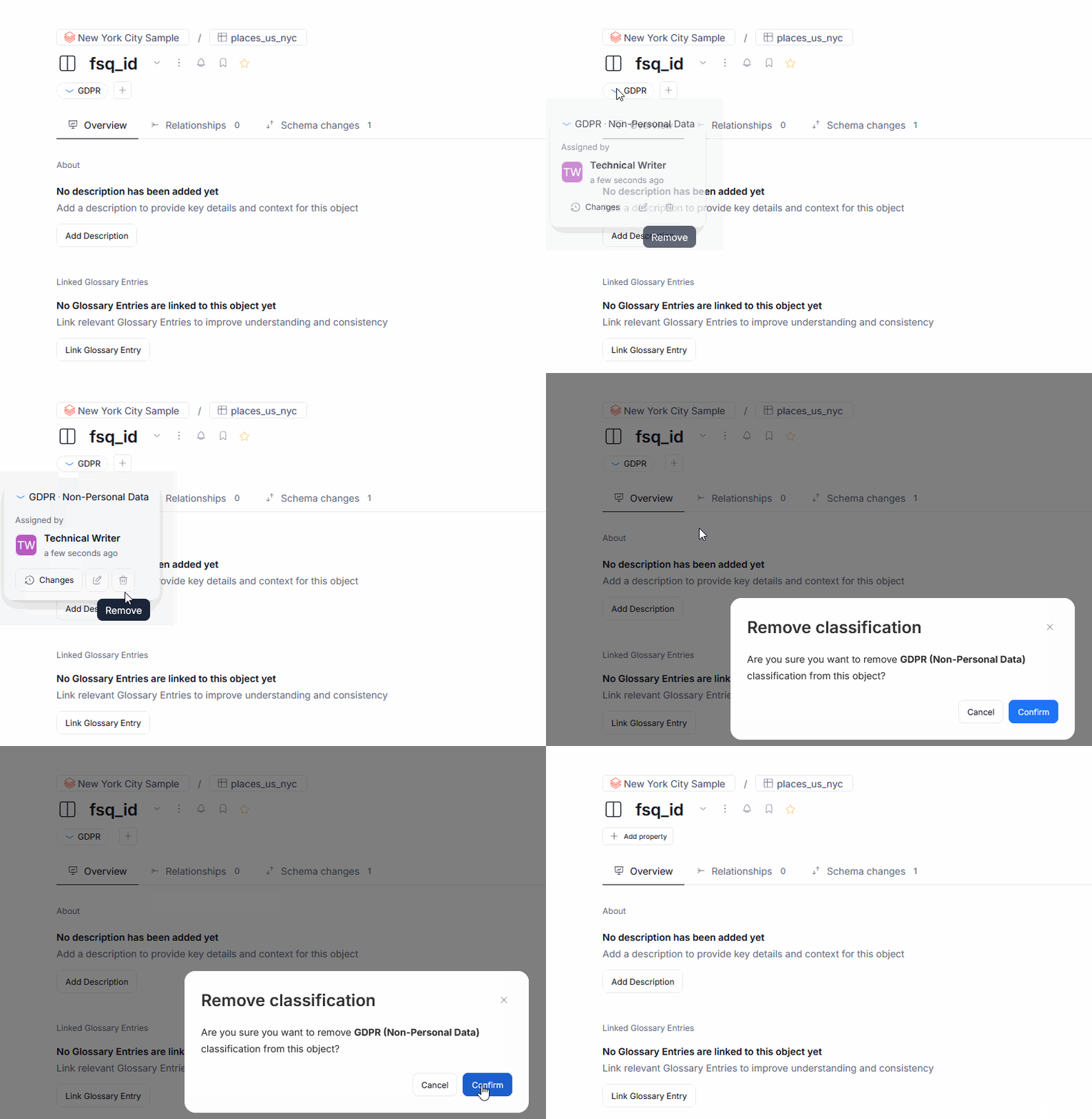
Deleting Semantic Types and Classifications
When you hover over a Semantic Type/Data Classification badge, you will see the option to delete it using a trash can icon.
Notifications
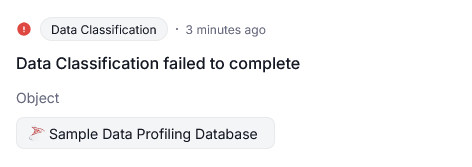
You can receive notifications regarding failed Data Classification tasks, via e-mail or in-app. In order to be notified, make sure that you are following the classified object. You can follow objects using a bell icon, more on that here..

The notification contains information about Classification's failure, and a reference to the Data Source that failed it. Clicking the notification will take you directly to the failed task, so you can inspect the error logs.
Notifications
You can receive notifications regarding failed Data Classification tasks, via e-mail or in-app. In order to be notified, make sure that you are following the classified object. You can follow objects using a bell icon, more on that here..
The notification contains information about Classification's failure, and a reference to the Data Source that failed it. Clicking the notification will take you directly to the failed task, so you can inspect the error logs.
Viewing results
Data Classification is shown as a badge in various places of your repository - under object names, in Data Lineage, in search bars, and object aggregation grids.
Classification Badges
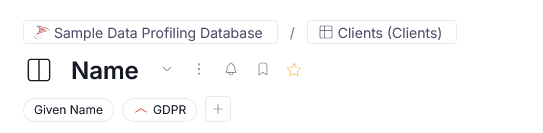
When opening an object's overview, a Semantic Type badge is also displayed.
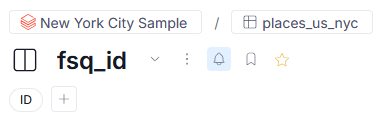
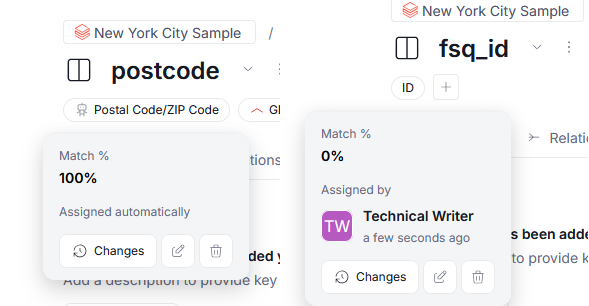
Automatically assigned badges are additionally marked with a robot icon.
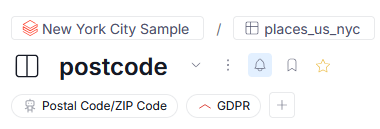
Hovering over a Semantic Type badge, shows the match percent — how much of the tested data sample matched the Semantic Type assignment rules.
If you assign a Semantic Type to an object which has not been automatically classified yet, its score will always be 0%, as no rule checking took place.