Automated Data Classification and Semantic Types
Data Classification and Semantic Types enable easy categorization of your data, and help you to assure compliance with various information protection acts. If Classification is added to an object, the relevant badge is displayed on all its representations within your repository, and can be seen by all Users.
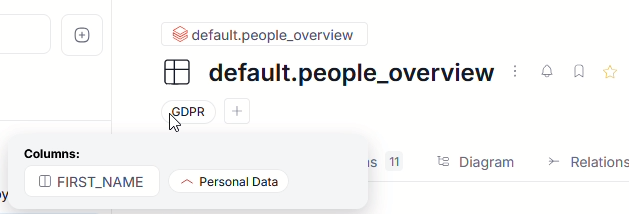
Dataedo comes with a wide range of tools to help you with automatic Classification, and fine-tuning the Semantic Types and Classification protocols to your organization's needs.
Predefined Data Classification
Dataedo is shipped with built-in predefined Data Classifications, matching various information privacy protection acts. These are:
Please note that the above built-in Dataedo classifications should be treated as a starting point and help with fulfilling the above policies. We do not track the most recent changes in them and we can't guarantee that it's up to date with the current regulation status.
Semantic Types
Semantic Types are used to identify major classes of your data. Using data samples or column data (depending on your configuration), Dataedo can detect major categories the data in your column falls into (like names, postal addresses, identity card numbers, and many more).
Dataedo Ships with over 80 ready-to-use Semantic Types, Users can edit them, and add new ones in Catalog Settings.
Semantic Type classification is the basis of our Data Classification process.
How it works
- Dataedo checks if the connector used for your Metadata Import supports Data-based Classification and if Data Access is enabled
- For supported connectors — Dataedo extracts a data sample of first 1000 values from each column
- For supported connectors — The extracted data samples are tested against all existing Semantic Types and their rules. A match percentage is calculated for each Semantic Type
- If Data Access is disabled or a connector is not supported — column names are compared against Semantic Types with column-name rules. Match information is retained
- If a unique match with a percentage value over 70 exists, a Semantic Type is assigned to a column. If multiple matches exist, the one with the highest percentage is selected. That Semantic Type is then used to determine Data Classification. If there are multiple matches with the same, highest percentage, none will be selected
- You can review columns where a Semantic Type could not be manually assigned in Steward Hub
Data Access
By default, Data Classification and Semantic Type detection use a sample of the data stored in your databases. If you want to restrict Dataedo's access and assure that no actual data is read, you can disable Data access in settings.
Navigate to Settings>System settings and click the General tab. In there disable the Enable Data-Based Classification toggle. Then use Save to remember your choice.
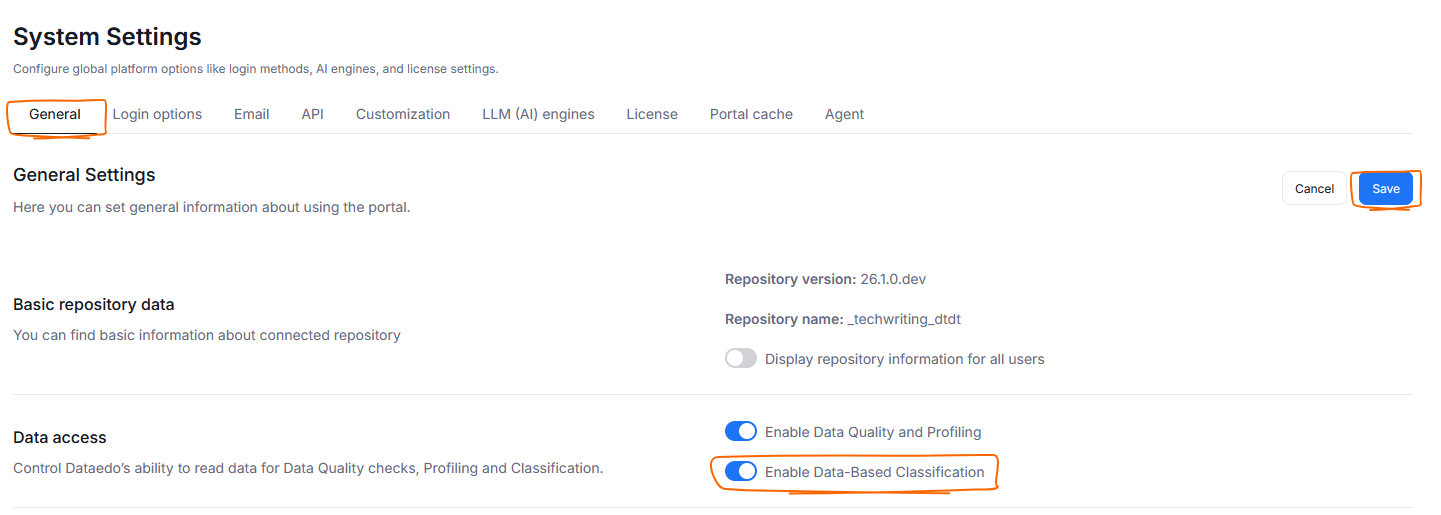
This will make it so that Metadata (schema information) is used for your classification exclusively — only column name-based rules will be used to detect Semantic Types. All other Semantic Type features (like type-based Classification, manual Semantic Type assignment or dashboards) will still be usable.
We recommend leaving Data Access on, without it Data Classification is less accurate and might lead to increase in false positives.
If you have run classification with Data Access on in the past, and then Disable it, column-based matching will not be possible on already classified columns. Only past Classification data will be taken into account.
Quick Start
This section shows a simple, no-additional-configuration-needed process to run your first Data Classification.
Step 1 — activate Data Classification
Before any Data Classification is possible, you first have to choose which Classifications should be used in your repository. Head to Settings>Catalog settings and click the Classifications tab. Choose the Classification you wish to use, and click its Active toggle. It can now be used for Data Classification. You can have multiple Data Classifications active at once.
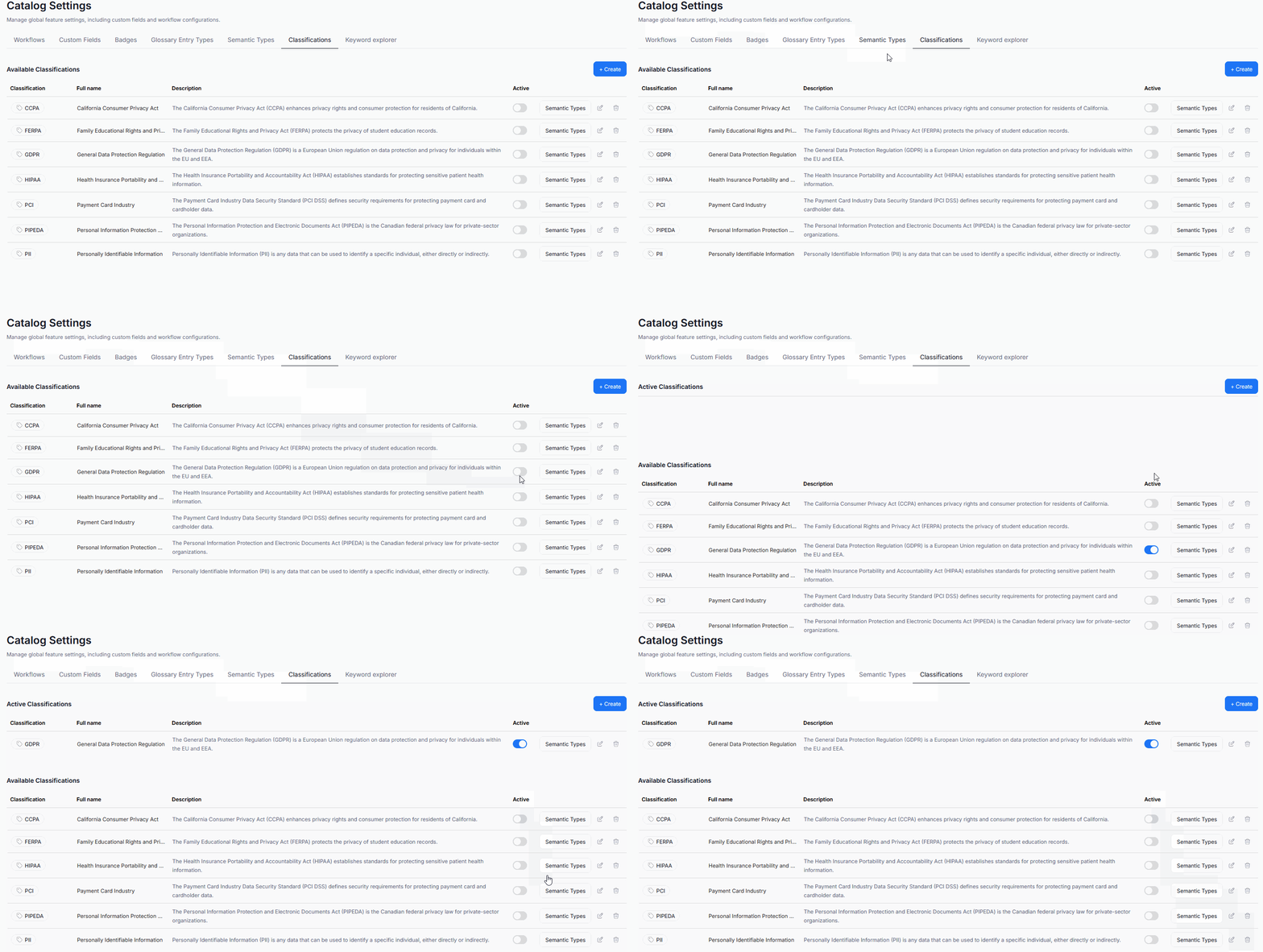
If none of the available Classifications match your needs, you can define your own.
Step 2 — run Metadata Import and Data Classification
Active Data Classifications run automatically after a Metadata Import unless disabled. Wait for your next scheduled import, or trigger it directly from the Schedule tab.

Running a Metadata Import, automatically schedules a Data Classification task immediately after it if conditions are met.
Step 3 — explore results
After Data Classification is finished, badges with the summary of assigned Semantic Types and Data Classification will appear directly on objects. Hovering over the badge, shows a full breakdown of objects that have been classified.
You can also check a full overview of your Classification in Data Governance>Classifications.
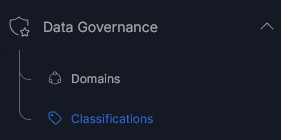
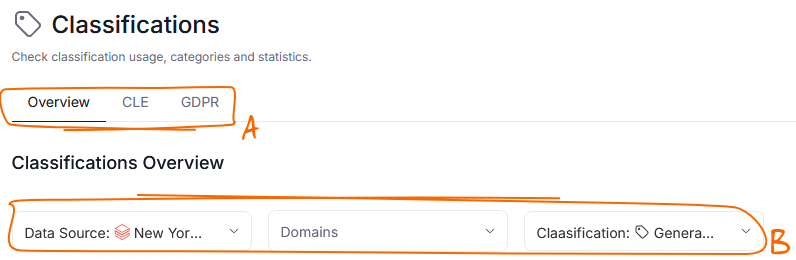
In that dashboard you can switch between global, repository-wide classification widgets, or target only certain Classifications (a). You can also filter based on Data Sources and Domains (b).
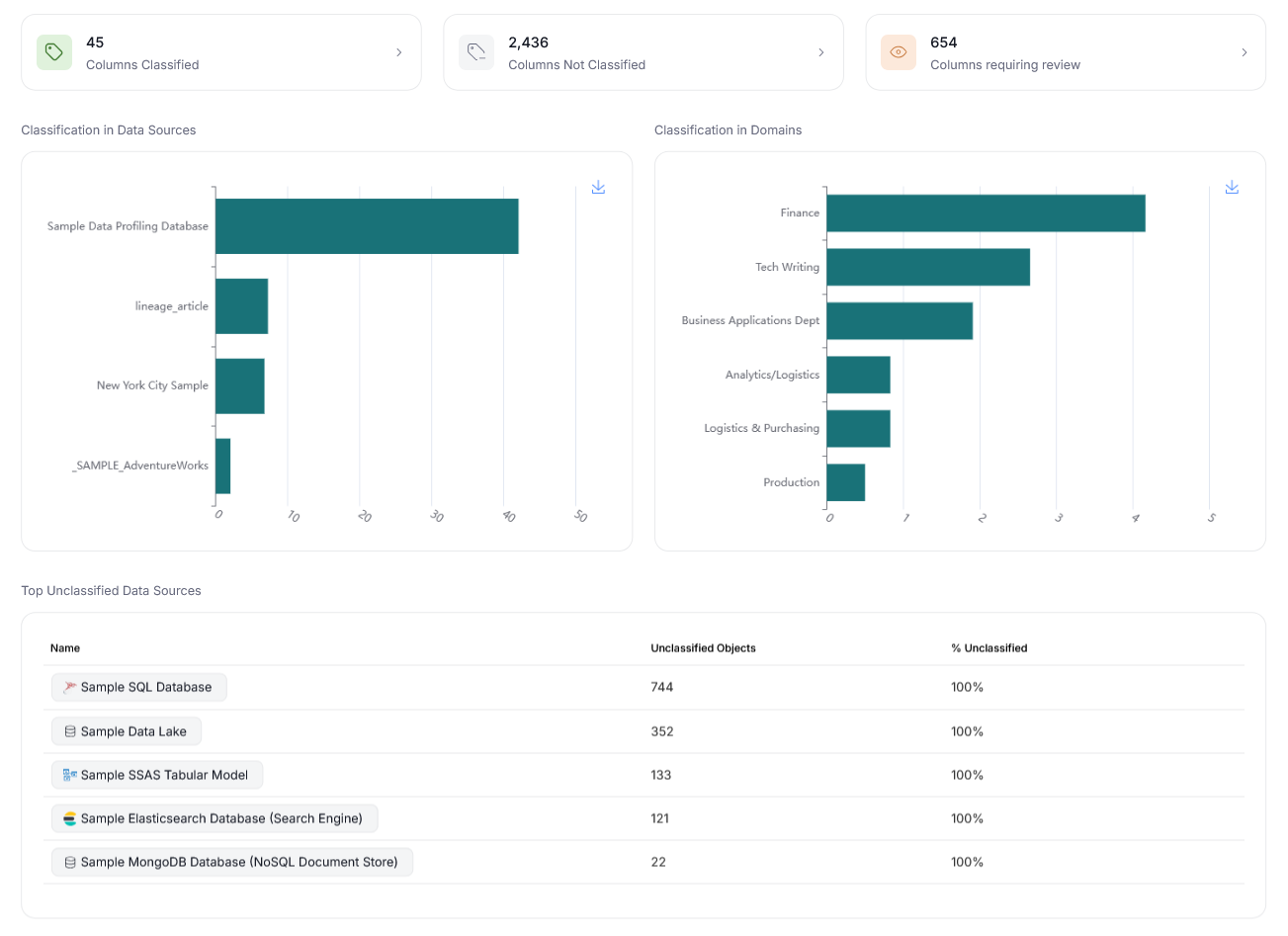
The view offers statistics regarding Classification per data source and Domain, as well as sources where many columns are still not Classified.
Steward Hub
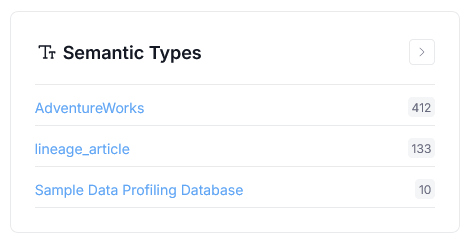
When it is not possible to assign a semantic type with enough confidence, the type and classification suggestions have to be manually confirmed by Users. Steward Hub will show the objects requiring extra attention in the Semantic Types section. Learn more here.
Supported Sources
The connectors listed below support Data-based Classification. Other connectors can still benefit from classification, but based exclusively on schema information.
 Amazon Athena
 Amazon Aurora MySQLAmazon Aurora PostgreSQL
 Amazon Redshift
 Azure SQLAzure SQL Edge
 Azure Synapse Analytics
 Databricks
 IBM Db2IBM Db2 Big SQL
 MariaDB
 Microsoft Fabric
 Microsoft Fabric - Data Lakehouse
 Microsoft Fabric - Data Warehouse
 MySQL
MySQL OracleOracle E-Business suite
 Percona
 PostgreSQL
 Snowflake
 SQL Server
