Generate Descriptions Powered By AI for tables and views
caution
LLMs can hallucinate. Always verify the output before saving it
You can generate descriptions for tables, views, and their columns from two locations in Dataedo Portal:
- The Overview tab of a table or view
- The Columns tab of a table or view
info
A single operation creates descriptions for both the table or view and its columns.
From the overview tab
To generate descriptions for a table or view from the Overview tab:\
- Open the object you want to generate descriptions for
- Click its description to start editing it
- (optional) if you have multiple AI providers configured, click the caret next to the AI description icon to select the AI engine
- Click the AI description icon to start generating. Once a description is ready, it will appear in the description field
- Click Save if you are satisfied with the description and want to keep it, or cancel to undo the changes

From the columns tab
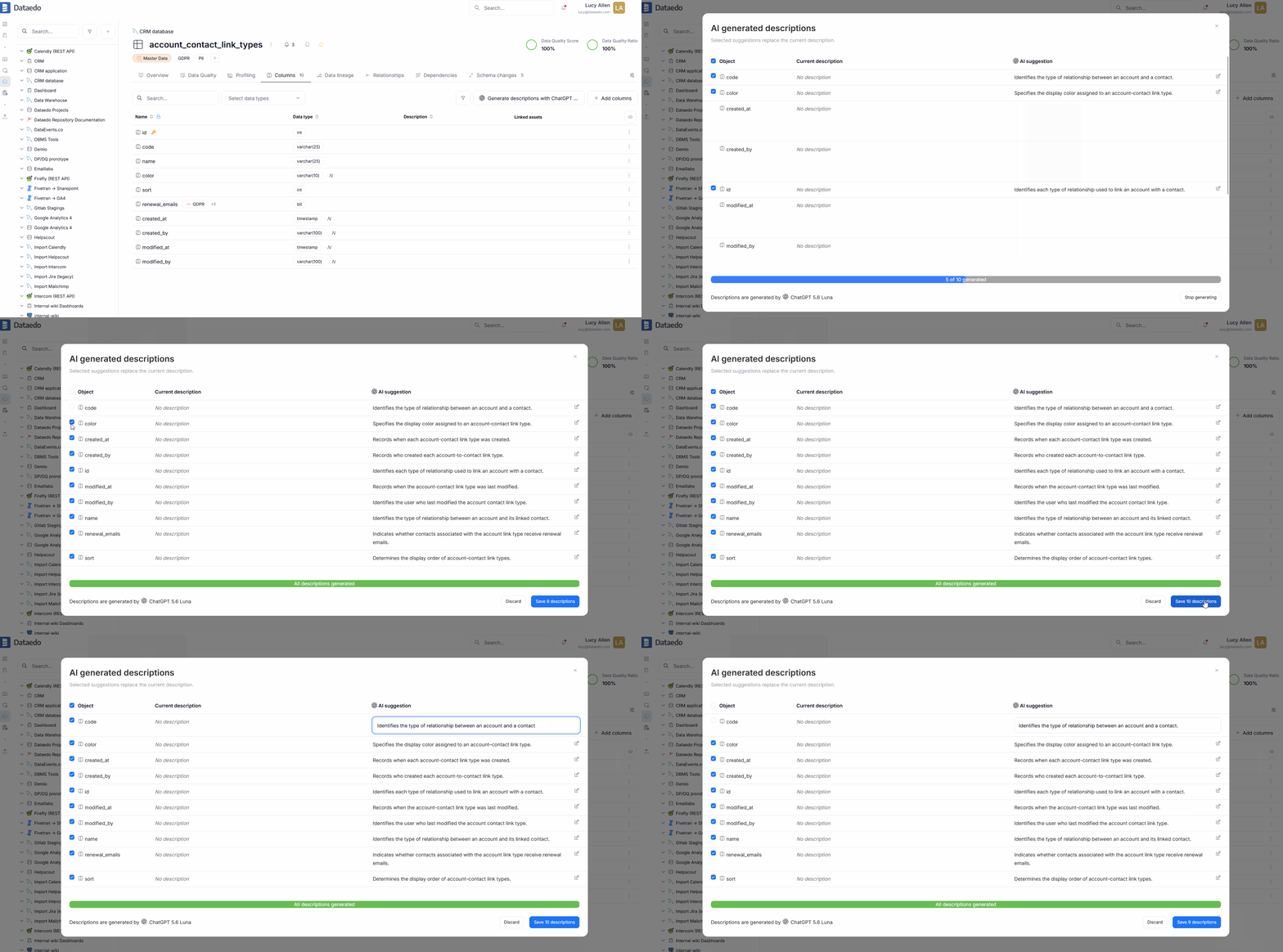
- Open the table's Columns tab for the specific table or view.
- (optional) Click the small arrow in the generate AI descriptions button at the top of the columns grid. Select your preferred AI engine
- Click the generate AI descriptions button and wait for the descriptions to generate.
- Once everything is generated, you can choose which column's descriptions you want to save using checkboxes, edit the generated descriptions, or discard the changes if you are unhappy with them.
Useful tips
useful tip
If the generated text is unrelated to the term or KPI, link it to other related terms. For example, link Rental to Movie to generate descriptions related to movie rentals.
Useful resources
Watch the video tutorial on AI autodocumentation to learn more.

