Anthropic models
Follow the steps below to configure the AI Autodocumentation feature in Dataedo with Anthropic Claude models.
Prerequisites
caution
To use the AI Autodocumentation feature with Anthropic, you must generate an API key in the Claude Console. It is required to access the Anthropic API and use the Claude models for autodocumentation.
You will also need the Admin role in Dataedo Portal to add the engine, and (Power) Data Steward permissions to the Dataedo Repository to create AI-generated descriptions.
Claude Console
Generate an API key from Anthropic
- Go to the Claude Console.
- Sign up for an account or log in if you already have one.
- Open the API keys page.
- Create a new API key.
- Copy the API key to your clipboard.
Configure AI autodocumentation in Dataedo
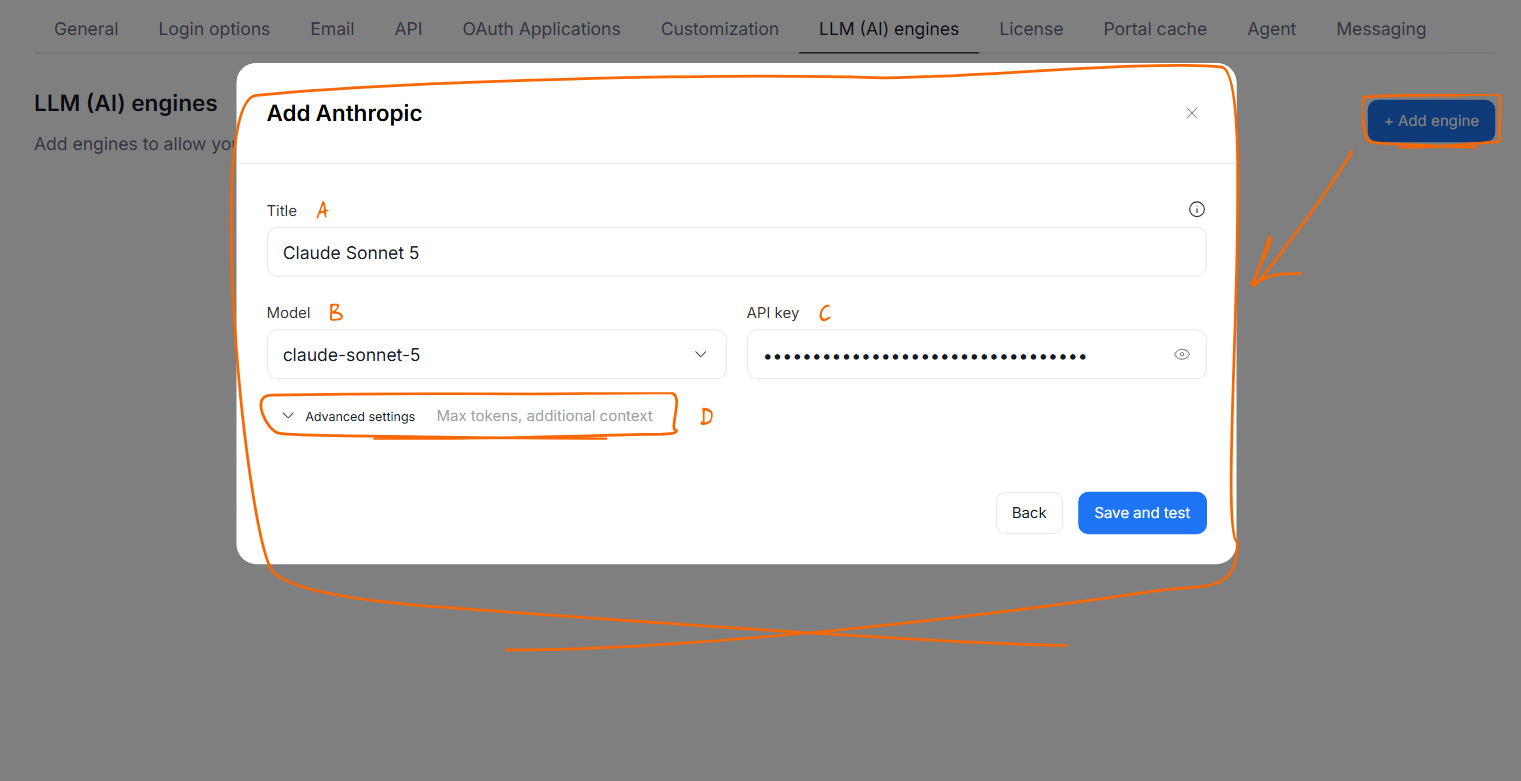
- In Dataedo navigate to Settings > System Settings > LLM (AI) engines.
- Click + Add engine.
- In the New engine window, select Anthropic.
- Fill in the engine details:
- Title [A]: a user-friendly name shown to users when they choose an engine, for example
Claude Sonnet 5. - Model [B]: select Claude Fable 5.1, Claude Opus 5, Claude Sonnet 5, or Claude Haiku 4.5. To use another Claude model, select Enter custom model... and type its model ID.
- API key [C]: paste the API key from the Claude Console.
- Title [A]: a user-friendly name shown to users when they choose an engine, for example
- (Optional) Expand Advanced settings [D] to change Max tokens (default
4096) or to add Additional context for the prompts. See Add an AI engine for details. - Click Save and test.
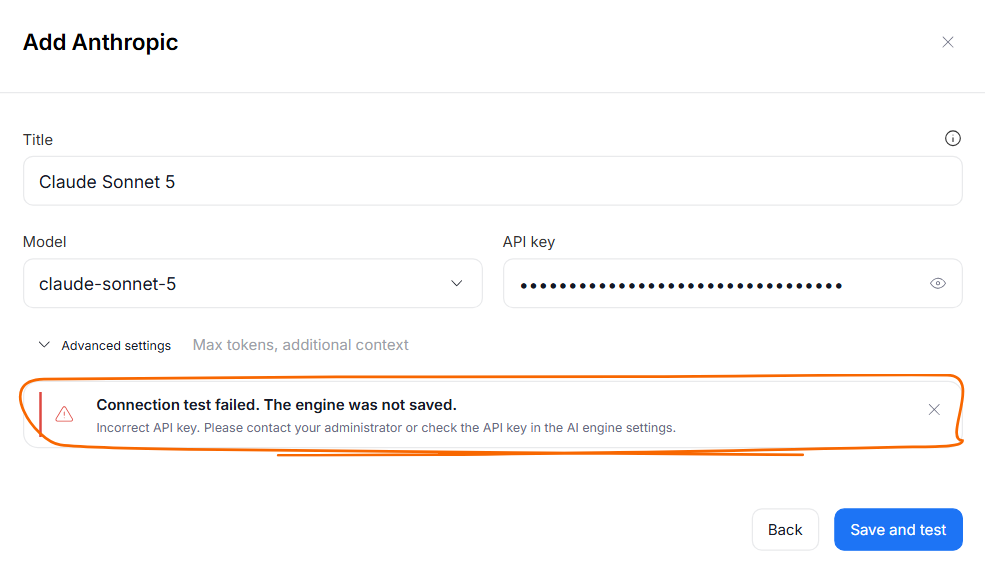
Dataedo Portal sends a short test prompt to Anthropic and saves the engine only if it responds. If the test fails, check the error message, correct the settings, and click Save and test again.