Build Glossary
Creating a Glossary
Creating a Glossary requires global (repository-wide) Edit Documentation permissions
You can create as many Glossaries as needed to reflect your company's knowledge organization. To create a Glossary, navigate to Data Catalog>Glossaries and click the Add button.
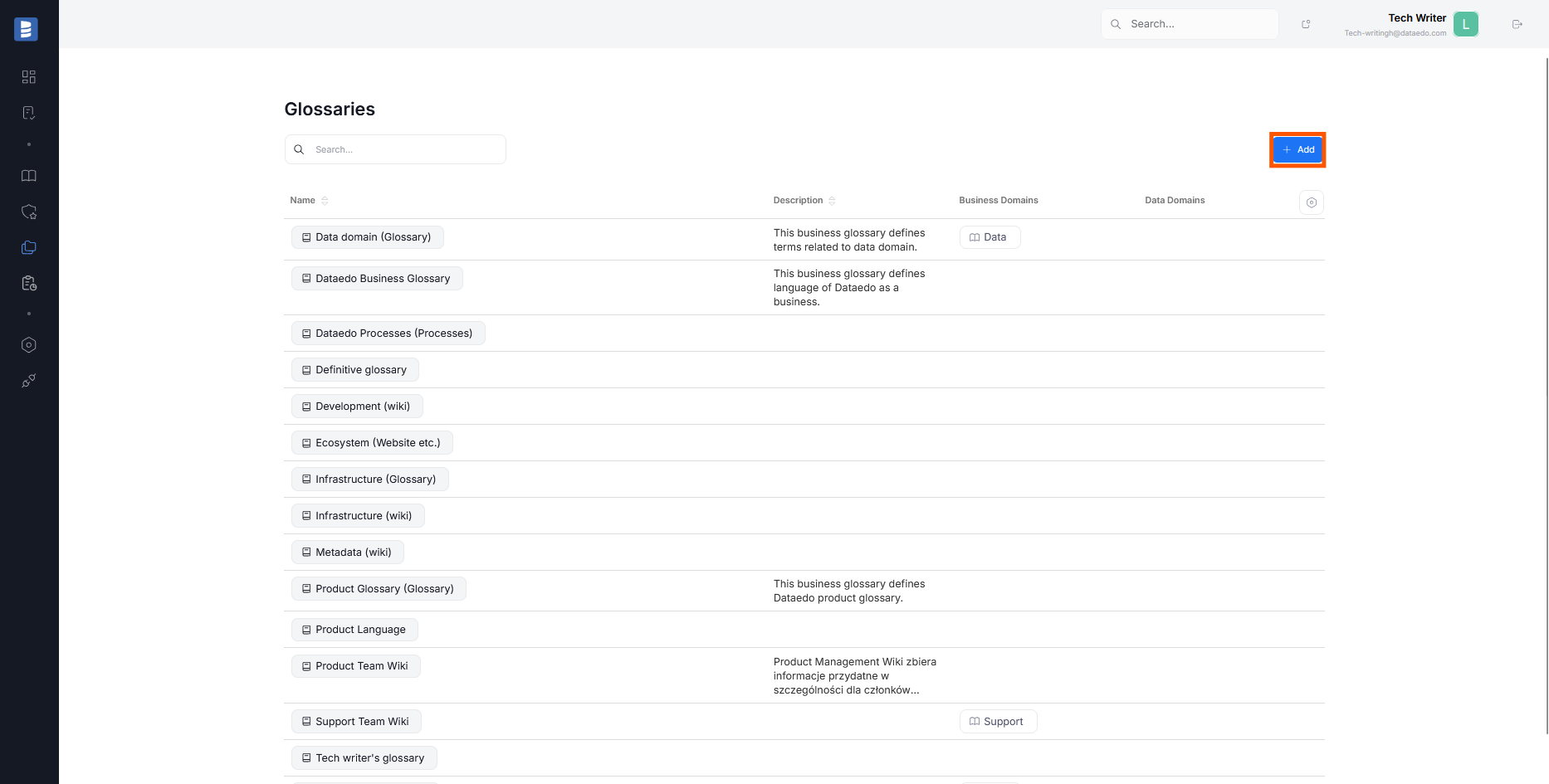
A pop-up will appear. Type your Glossary's name, and click on Add Glossary. This will create an empty Glossary.
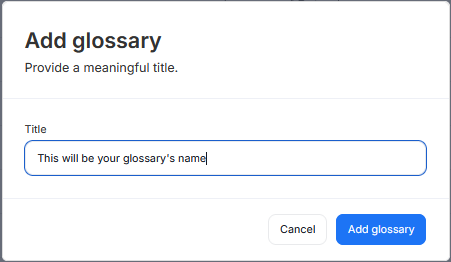
Deleting a Glossary.
Deleting a Glossary requires global Edit Documentation permissions. Learn more.
To delete a Glossary, open it and click the three dots icon next to its name. Select the Delete option.
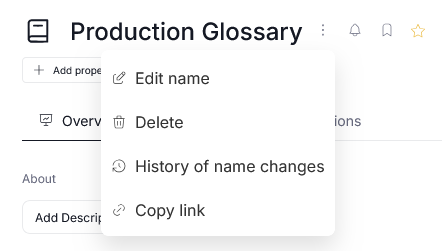
This action is permanent, and will remove:
- the Glossary and all of its Terms
- Glossary's change logs
- All links between the removed Glossary and other assets
Since this is a potentially destructive action, you have to additionally confirm your choice in a popup that appears after selecting Delete.
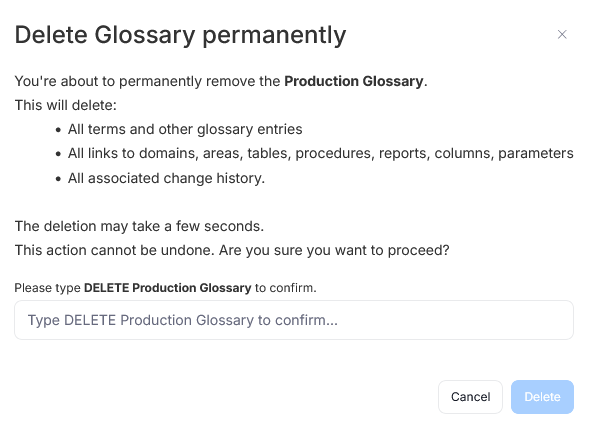
Create new Term in the Glossary
A Term can be contained in only one Glossary.
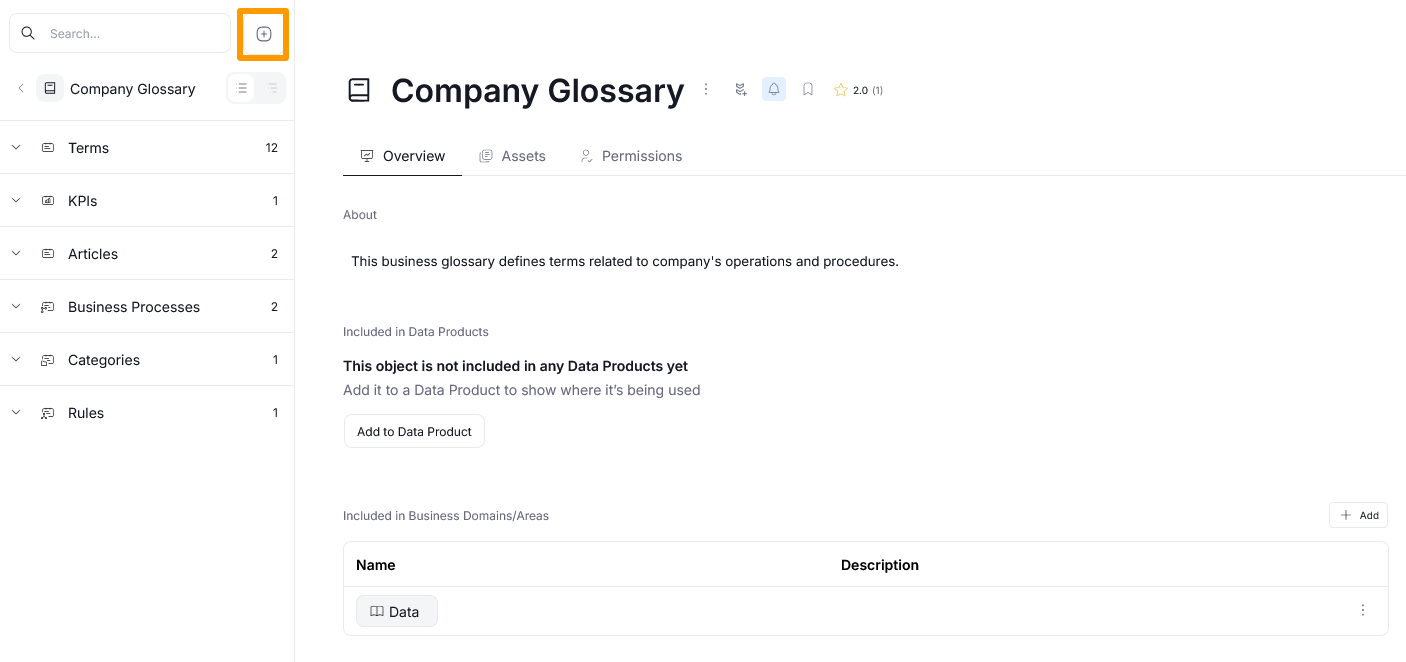
You can create Terms after opening your target Glossary. To do so, click the plus button displayed next to the Glossary search bar.
You will see a pop-up prompting you to provide the Term's details:
- Title - the name that will identify your term
- Type - entry type, representing this item's classification
- Parent - the object within which the term is contained. It can either be the Glossary itself or another term. This parameter determines Glossary's hierarchy tree.
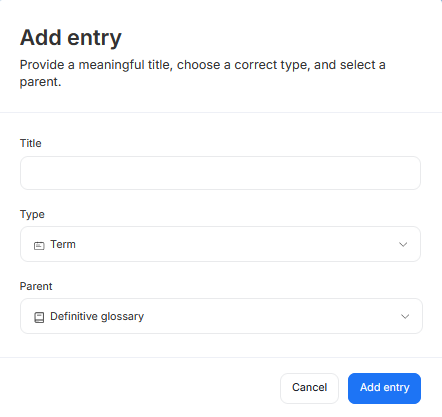
When you provide all the necessary details, click the Add Entry button to finalize its creation.
Managing Terms
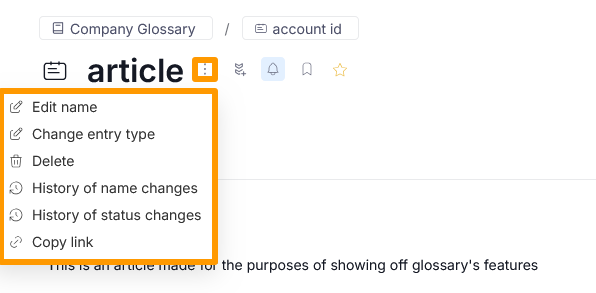
You can manage your Term by clicking the three dots button next to its name in the Term overview.
Editing
Selecting the Edit name option will let you modify the name of your Term. The Change entry type option will permanently modify the type of your Term.
Deletion
Term deletion is permanent, and removed terms can't be recovered
Selecting the Delete option will open a pop-up that prompts you to confirm the deletion of the selected Term.
History
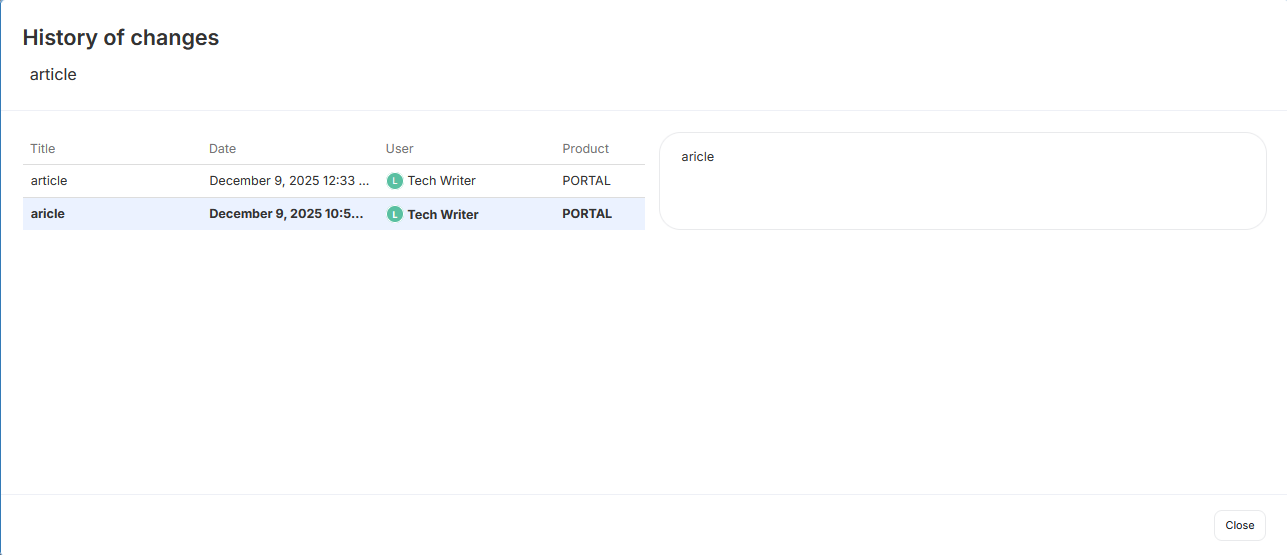
Selecting History of name changes opens up a summary of name changes for a given entry. History of status changes will open the community tab instead, showing all workflow changes that entry has gone through.
History views
Copy link
Selecting the copy link option, copies the URL of a Term to your clipboard. This is useful if you want to quickly share a Term with another person in your organization. If the recipient lacks the permissions necessary to access the Glossary, they still won't be able to view the Term.
Terms and Workflow Statuses
Terms, like every manual object, have a representation of their status and can be placed in different stages of work. Those are workflow statuses.
When you create a Term, it will be set in the initial stage of your workflow by default (Idea if using Dataedo's default workflow). As the Term is developed, you can move it through different workflow stages until it's ready for publication.
Publishing Terms
After creation, terms are not visible to Viewers in your organization. To make a Term visible for them, you have to set its Workflow Status to published.

