Glossary
Dataedo has a built-in Glossary module — a collection of Terms, their definitions, relationships between each other, and their mapping to various objects in your repository. Glossaries not only serve as a great help during employee onboarding, but also help you organize and manage your organization's terminology and maintain its consistent understanding across teams.
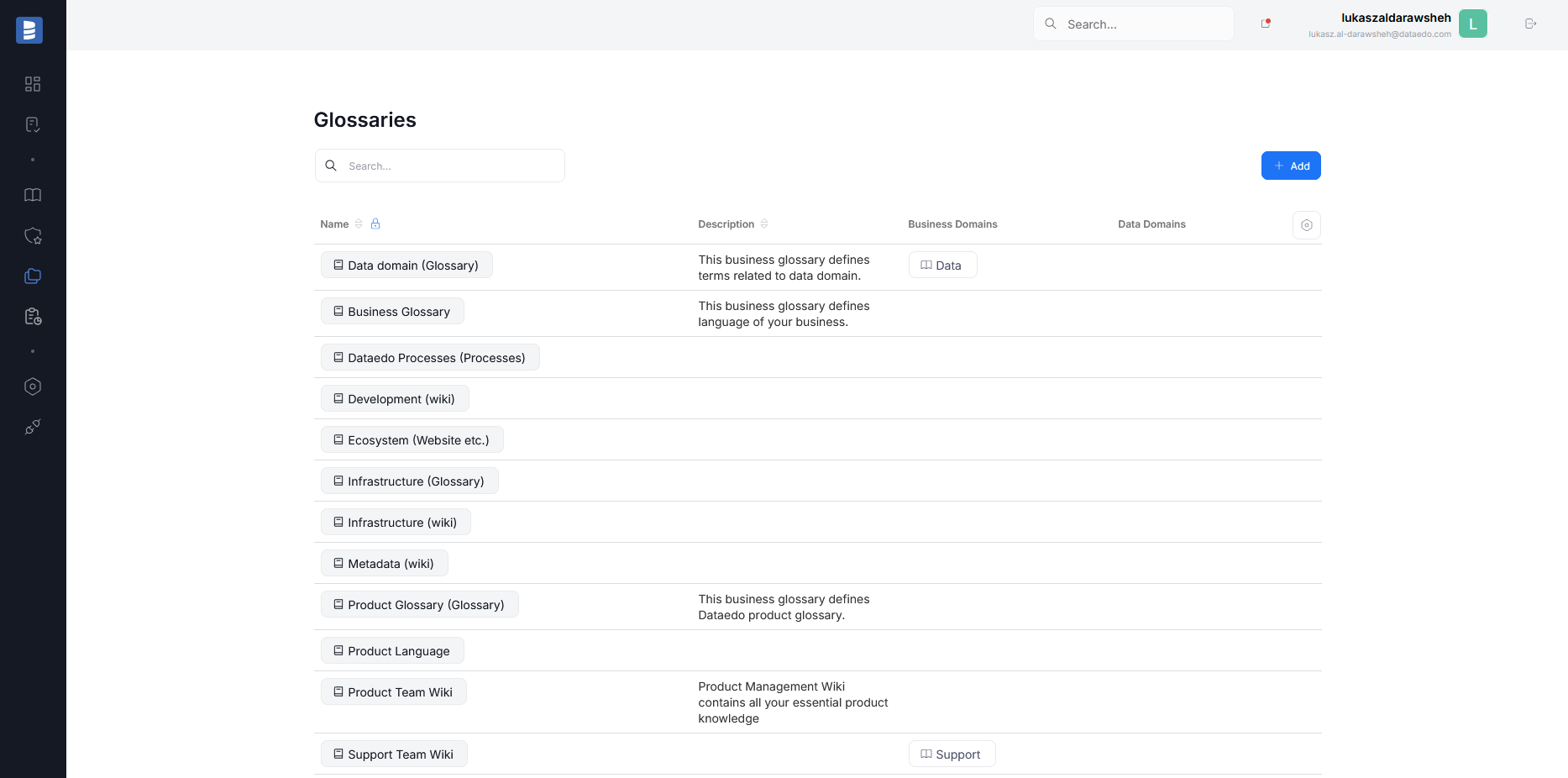
You can access Glossaries by navigating to Data Catalog>Glossaries.
Glossary View
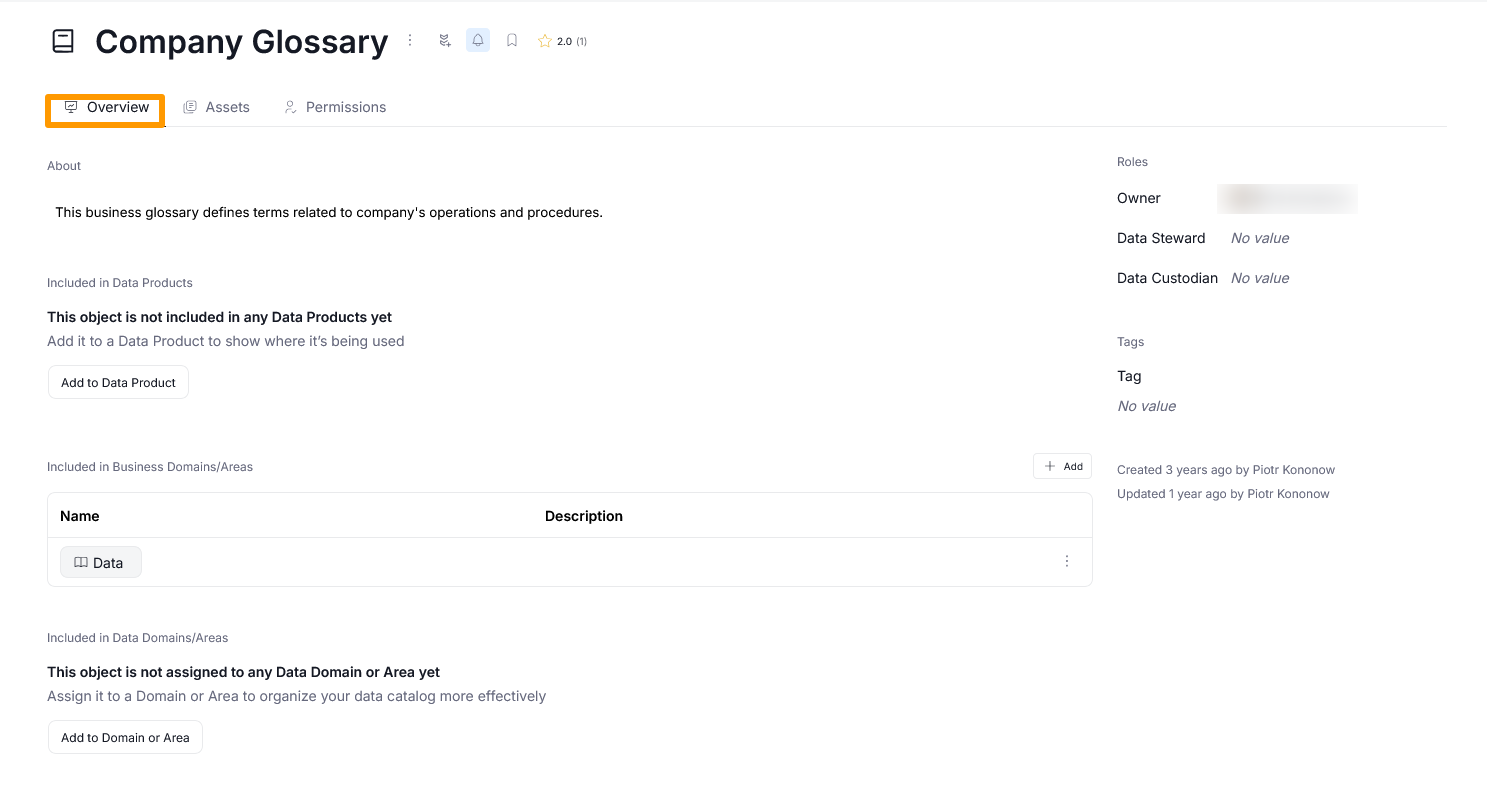
When you open a Glossary, you will see its overview with a few key tabs:
- Overview contains the summary of your Glossary: its description, linked Data Products and Business and Data Domains, as well as its Custom fields.
- Assets contains a quick numeric summary of all Terms stored in a given dictionary grouped by type. You can click on each type to see a full list of entries matching it.
- Permissions contains an overview of all users and their permissions for viewing the selected Glossary. It is accessible only to Admin users.
Glossary view tabs
Sidebar
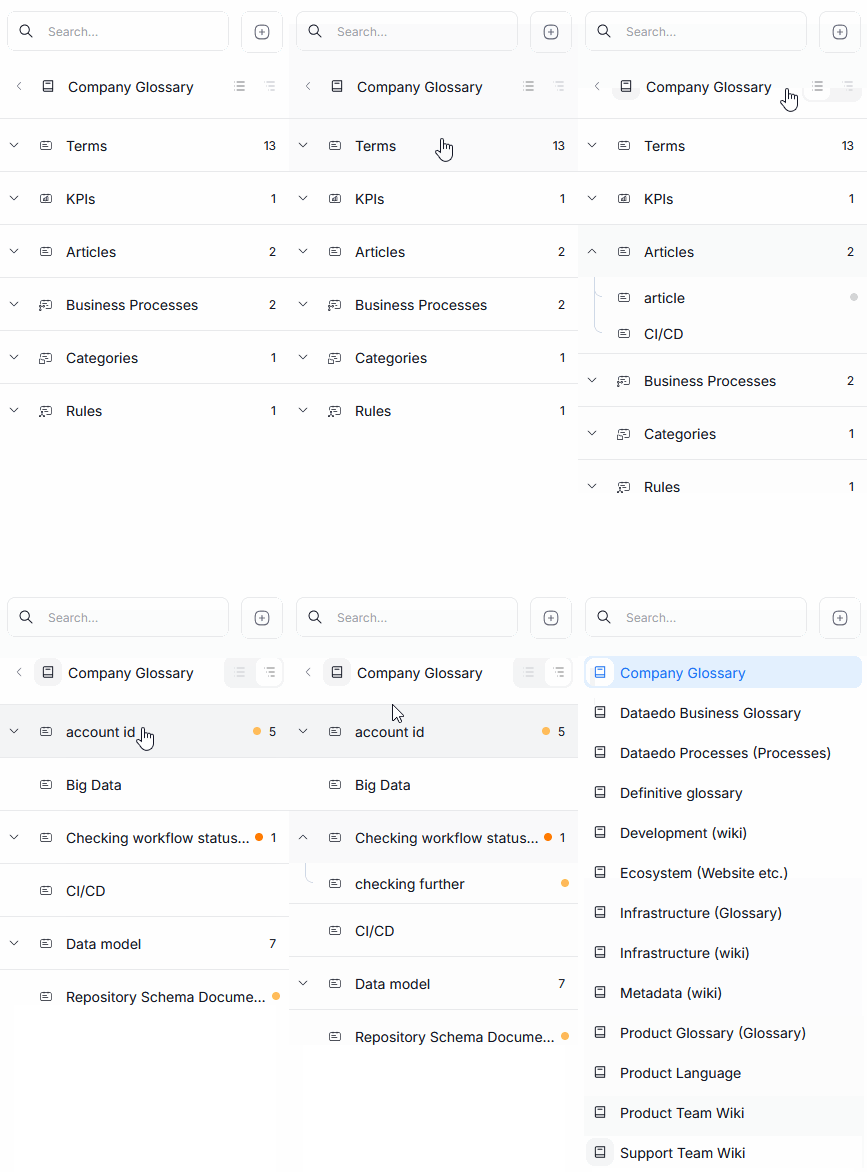
On the left part of the screen, you can see the Glossary sidebar. It contains a search bar and an Add button at the top, and an overview of terms below.
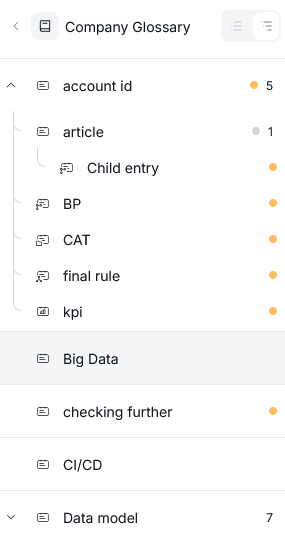
You can use the view button next to Glossary's name to switch between a view of the entries — either as a hierarchy tree or grouped by type. Clicking a Term will open up its full view.
The sidebar's back arrow, takes you to a view of all Glossaries stored in your repository, and allows for a quick navigation between them.
Terms
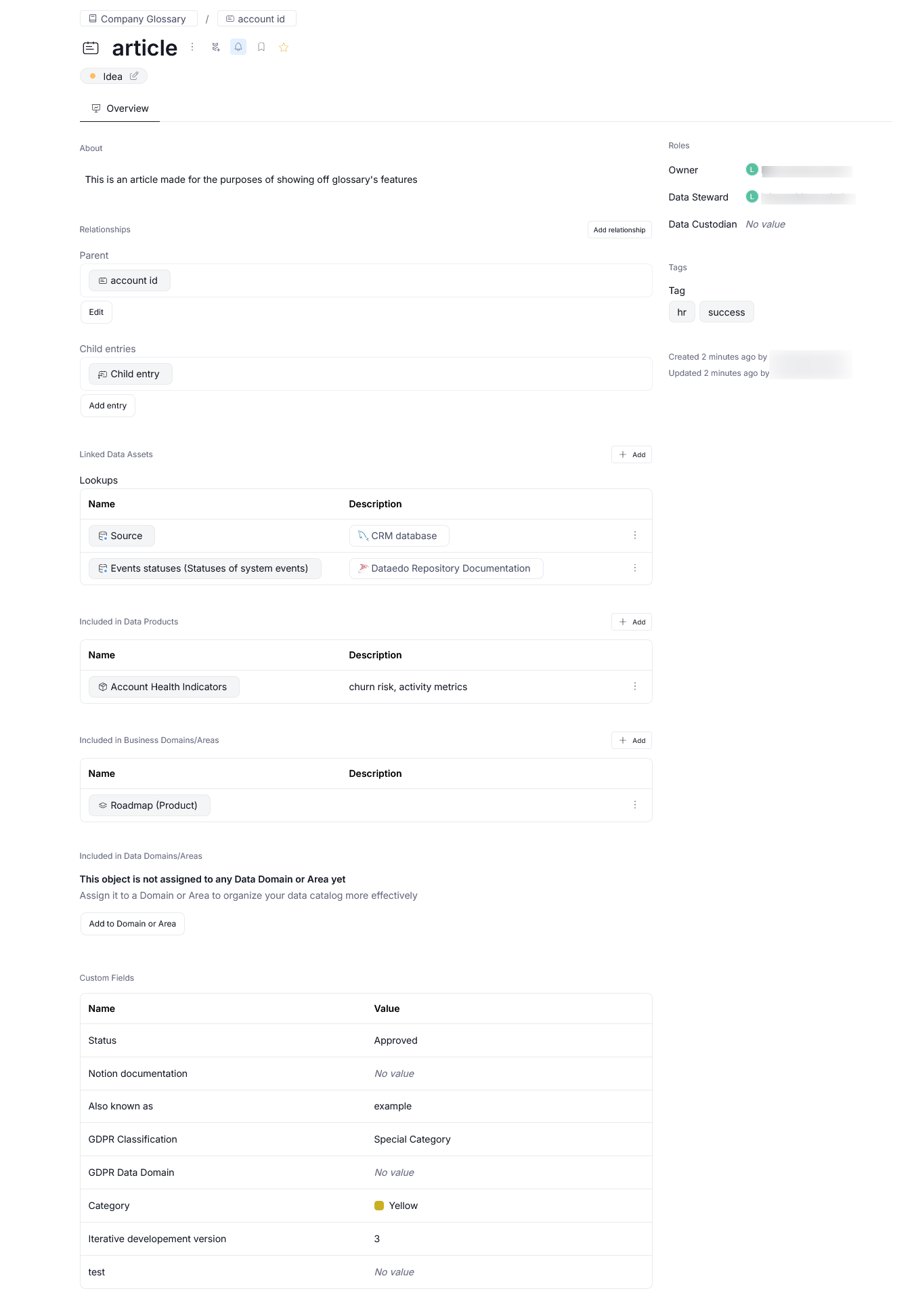
Glossaries are made out of Terms. Each Term has the following structure:
- Title - the name of a Term
- About - the description of a Term
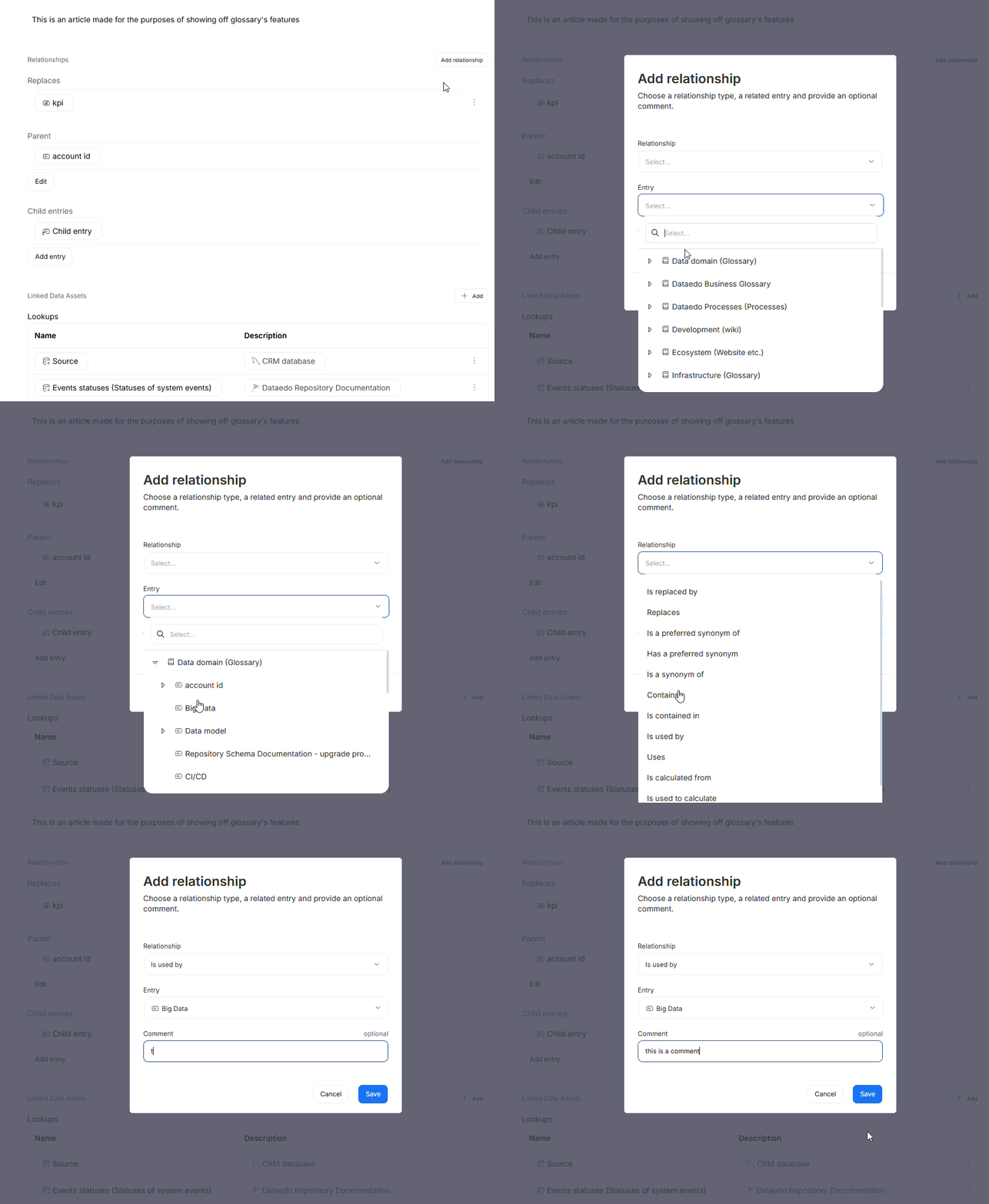
- Relationships - an overview of the Term's position within the Glossary hierarchy, as well as how it relates to other entries.
- Linked data assets - a list of assets that are relevant to a given Term
- Included in Data Products - a list of Data Products where a given Term is contained
- Included in Business Domains - a list of Business Domains where a given Term is contained
- Custom fields - optional fields that can be used to contain all other necessary information regarding your Term. Most of them are displayed at the bottom of the Term View, but Tags and Users are displayed on the side.
Entry Types
To help you better classify Terms in your Glossary and assist in quick, visual differentiation between different categories, each Term can be assigned an Entry Type.
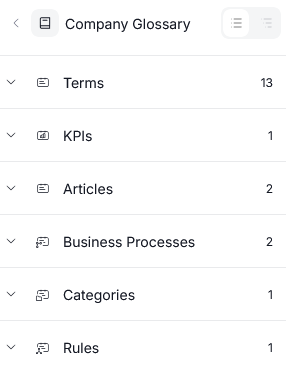
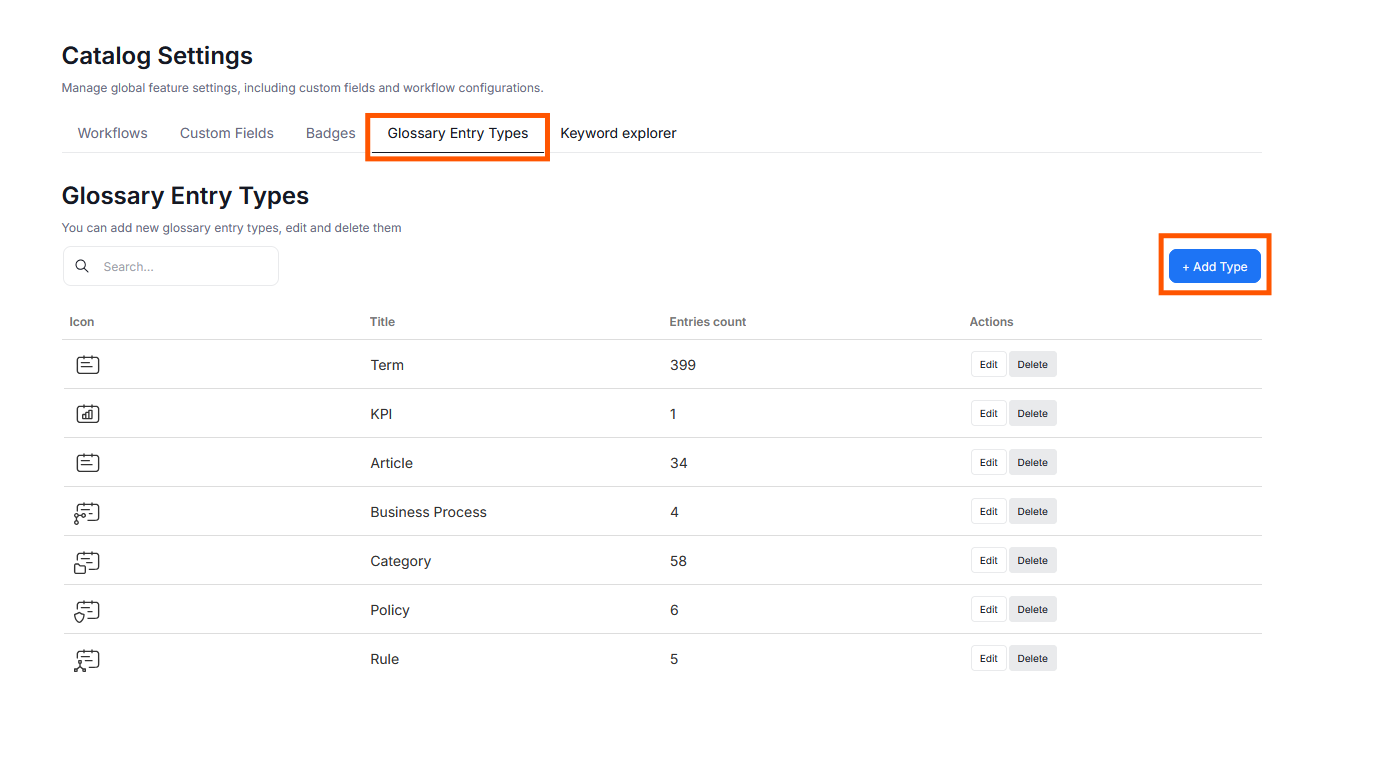
Entry Types differ in icon and label but have the same structure — the differentiation between them is purely conceptual to best match your company's organization of knowledge. There are four pre-defined types (Term, Category, Policy, Rule). Admin users can add, modify and delete Entry Types in Catalog Settings (Settings>Catalog Settings>Glossary Entry types).
Entry Types can also be modified using the glossary_term_types table in the Dataedo repository database.
Linking to objects
Dataedo Glossary lets you connect Terms to different objects in your repository — Data and Business Domains, Data Assets, and Data Products. This helps you organize knowledge, and make specific entries accessible directly from the linked objects.
Hierarchy of entries
Terms in the Glossary can form a hierarchy, allowing for nesting of entries. The hierarchy is built based on the parent-child relationships between terms.
Term relationships
Entries often exist in relation to each other. These are represented by a set of pre-defined relationships, which can capture complex dependencies, like kinship, substitution, causation, synonymy and many more. Relationships are directional (always include two entries in a specific relation), and can include additional user comments. Read more about defining relationships here.