Execution flows are visible only in Dataedo Portal
Execution Flows in Dataedo Portal
After you import a data source with the Build execution flows option enabled, interactive diagrams become available in Dataedo Portal.
Viewing diagrams
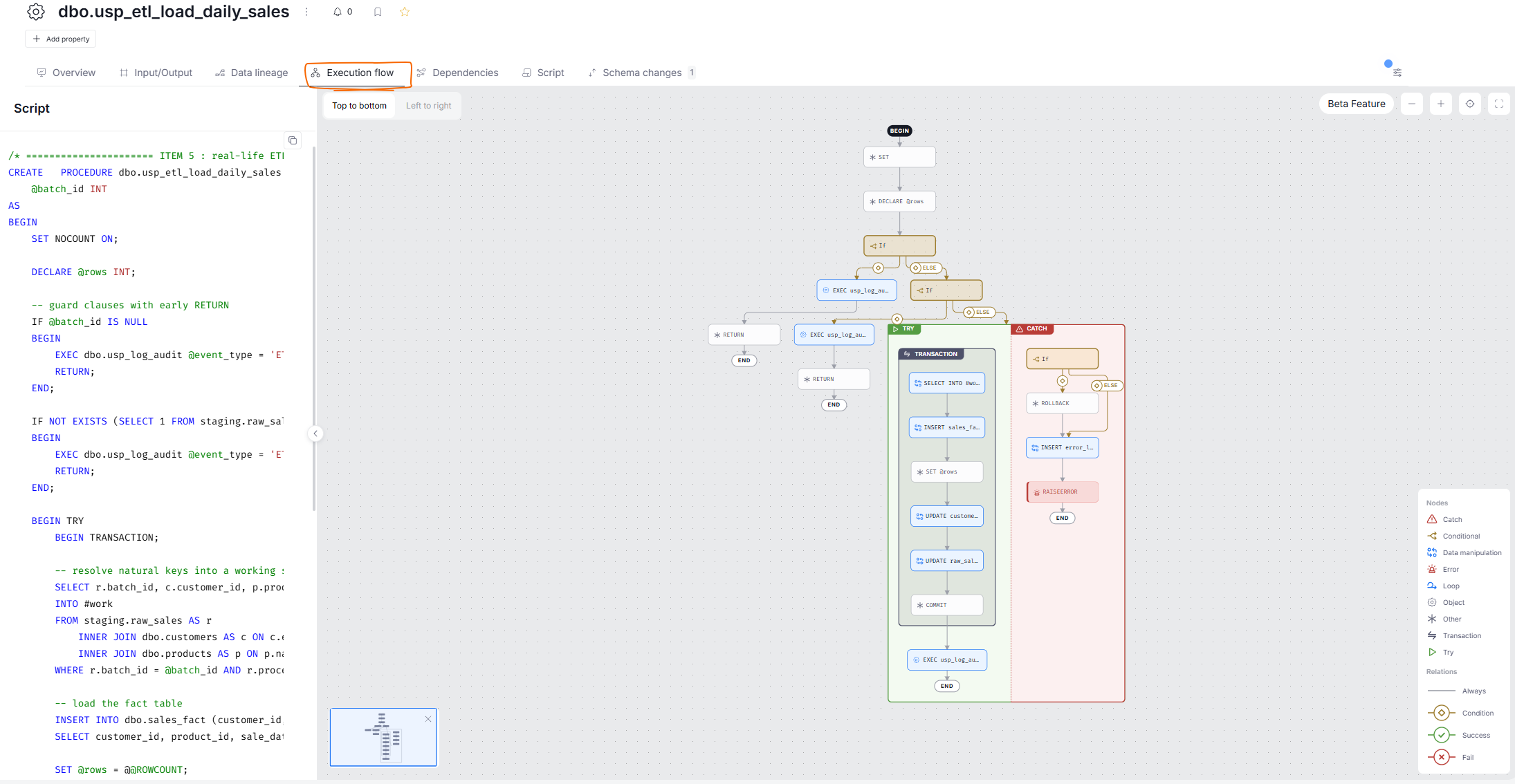
Execution Flow diagrams are available on the pages of code objects — stored procedures and user-defined functions for database connectors, and pipelines for ETL connectors. To view them, open the object's page and switch to the Execution flow tab.
Navigating the diagram
The diagram shows the full control flow of the selected object, from the BEGIN marker to the END markers. A few tips for working with it:
- drag the canvas to move around and use your mouse or the zoom buttons to zoom in and out; Fit to screen brings the whole flow back into view
- switch the layout between Top to bottom and Left to right with the toggle in the top-left corner
- the minimap in the bottom corner shows which part of a large flow you are looking at
- the legend in the bottom-right corner explains all node and arrow types — see Diagram notation for the full reference
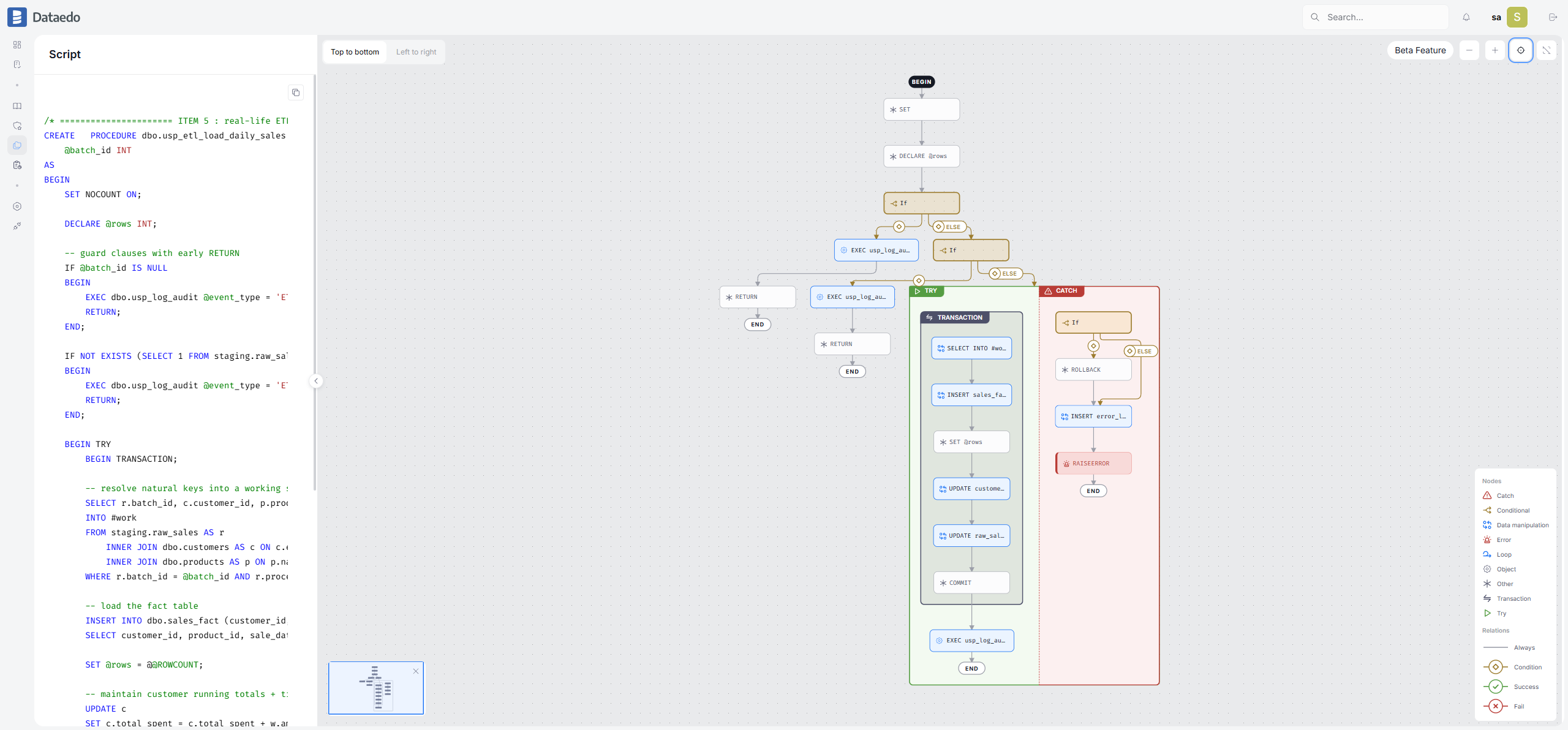
- use the fullscreen button to expand the diagram to the whole browser window
Script panel
For flows built from SQL, the panel on the left shows the object's script. Click a statement node to highlight the exact fragment of the script it represents, so you can move between the visual flow and the underlying code.
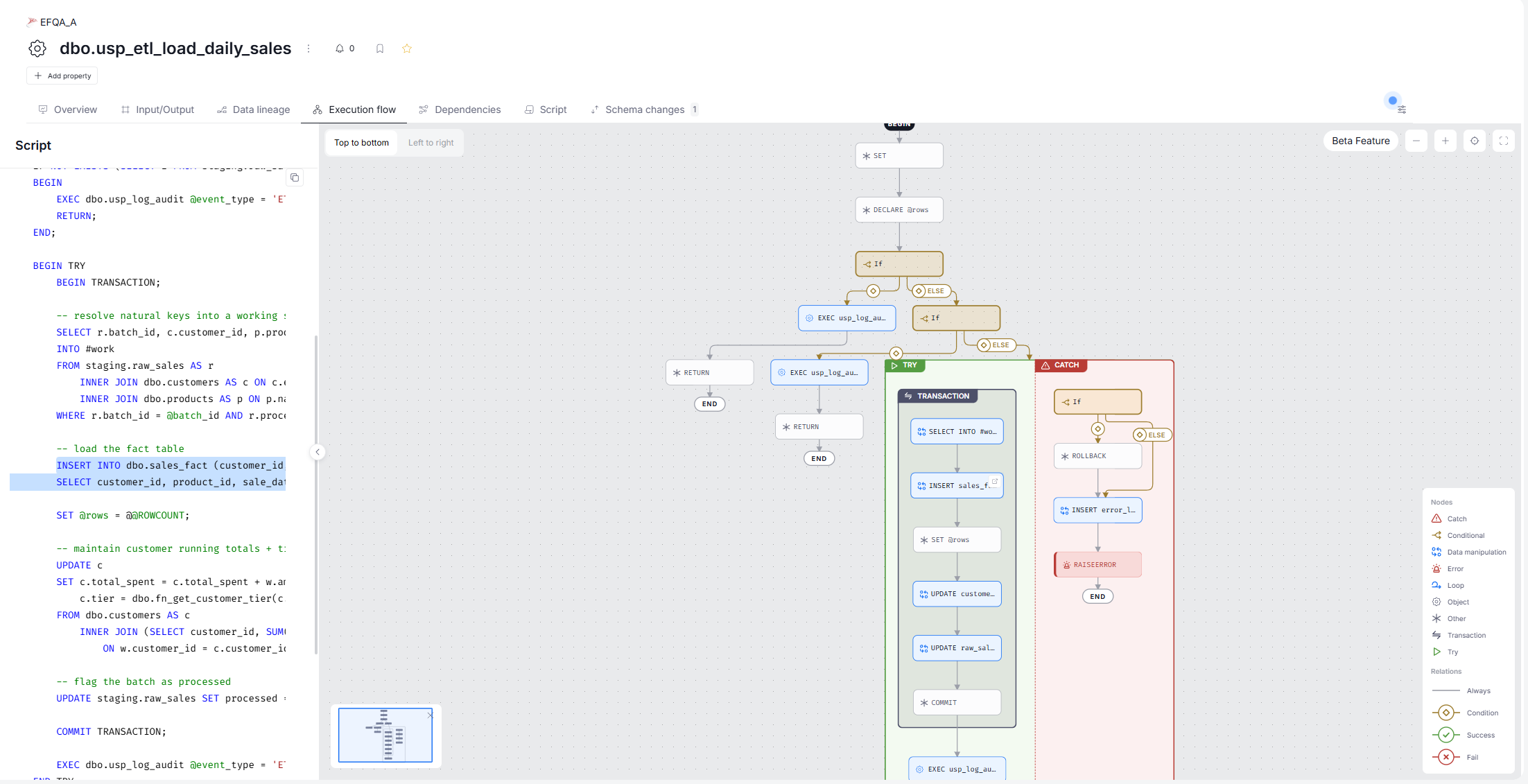
The script panel requires the permission to view scripts. Users without it can still browse the diagram — only the script stays hidden. Flows built from pipeline structure (e.g., Azure Data Factory) have no SQL script, so the panel does not appear for them.
Navigating to referenced objects
Nodes that reference other parts of the catalog are clickable:
- a procedure or function call links to the called routine's page, where you can open its own Execution Flow
- a data manipulation statement links to the Data Lineage process generated from the same statement, so you can jump from a step in the logic to the flow of the data it produces
Fullscreen mode
For large flows, the fullscreen button expands the diagram (and the script panel) to the entire browser window.
Permissions
The Execution flow tab is visible only on objects the viewer has access to. If the flow references objects the viewer cannot see, those nodes are displayed without a link — the diagram never exposes metadata the viewer is not entitled to.

