Organizing Sources in Folders
As you add more sources, a long, flat list quickly becomes hard to navigate. With default sorting approached, related sources can end up scattered apart from each other. Dataedo's solution to that problem are Folders that let you group sources in a way that makes sense for your organization. You can use them, for example, to group your sources by environment (keeping production and development sources separate0), layer (separate source systems from integration layer, data warehouse, etc), or by topic.
Thanks to folders, you don't have to add prefixes to source names just to keep related sources next to each other in alphabetical order.
A folder can hold any kind of source, but one source can be in only one folder at a time.
Folders serve an organizational purpose only. They do not change access or permissions. Users still see only the sources they have permission to view, whether a source is in a folder or not.
Create a folder
You need Edit permissions to create folders.
You can create a folder from two places:
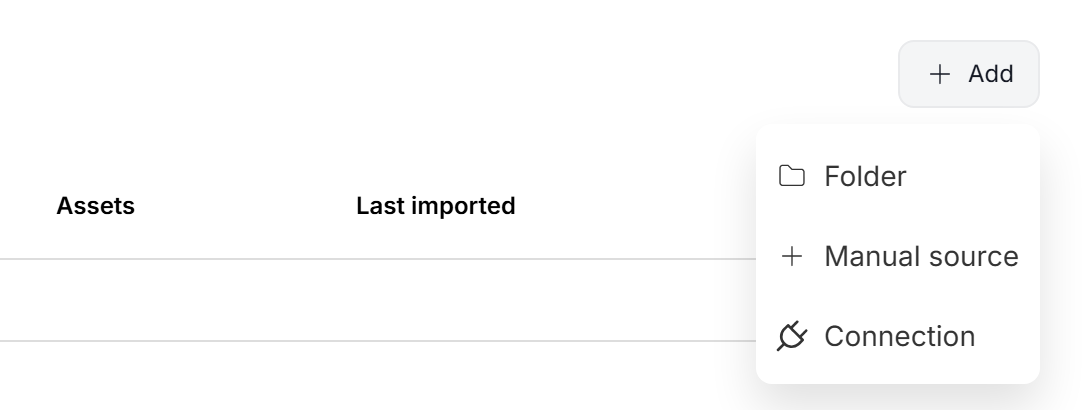
- on the Catalog Assets page, click Add and select Folder.
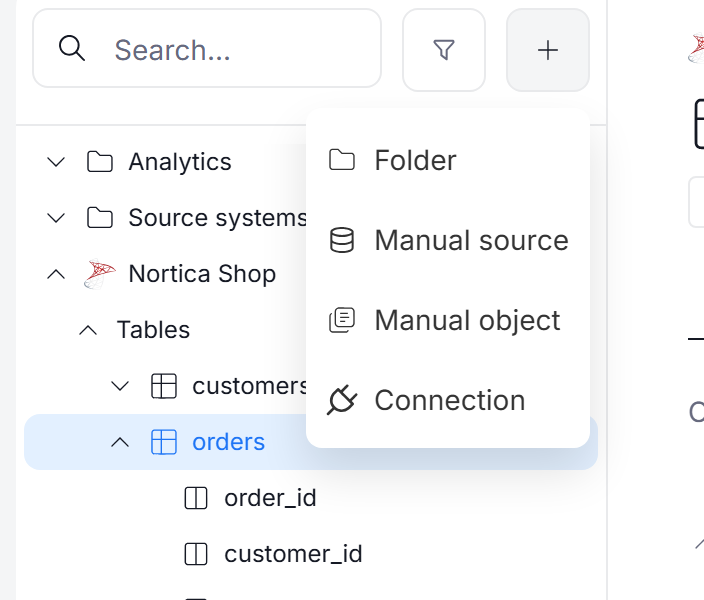
- in the catalog sidebar, click the plus icon and select Folder.
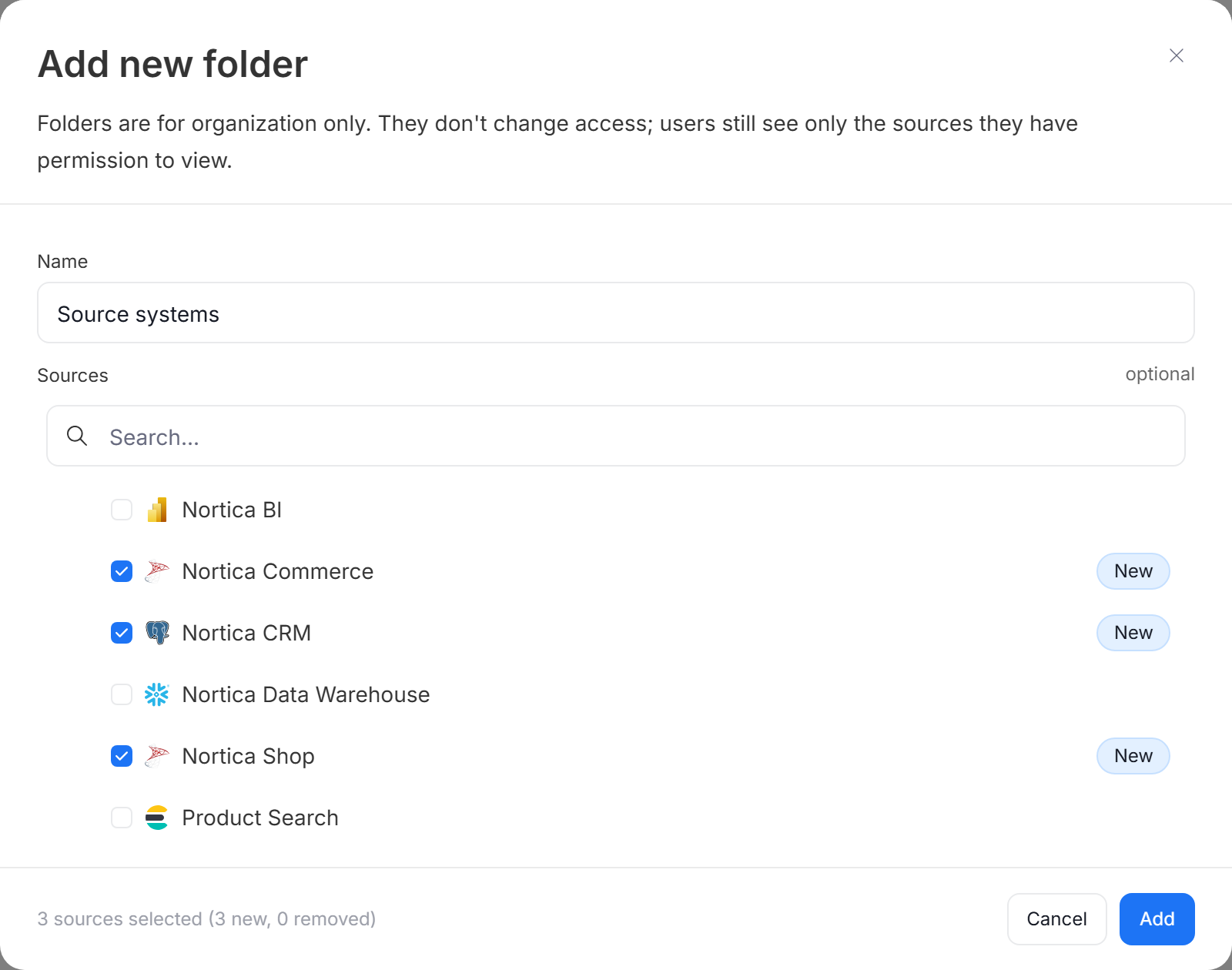
Whichever option you choose, a popup appears:
- Enter the folder Name.
- Optionally, select the Sources you want to put in the folder. The counter at the bottom shows how many sources you have selected. You can also create an empty folder and fill it later.
- Click Add.
Browse sources in folders
On the Catalog Assets page, sources are grouped under their folders. Click the arrow next to a folder to expand or collapse it. Sources that are not in any folder are listed below the folders.
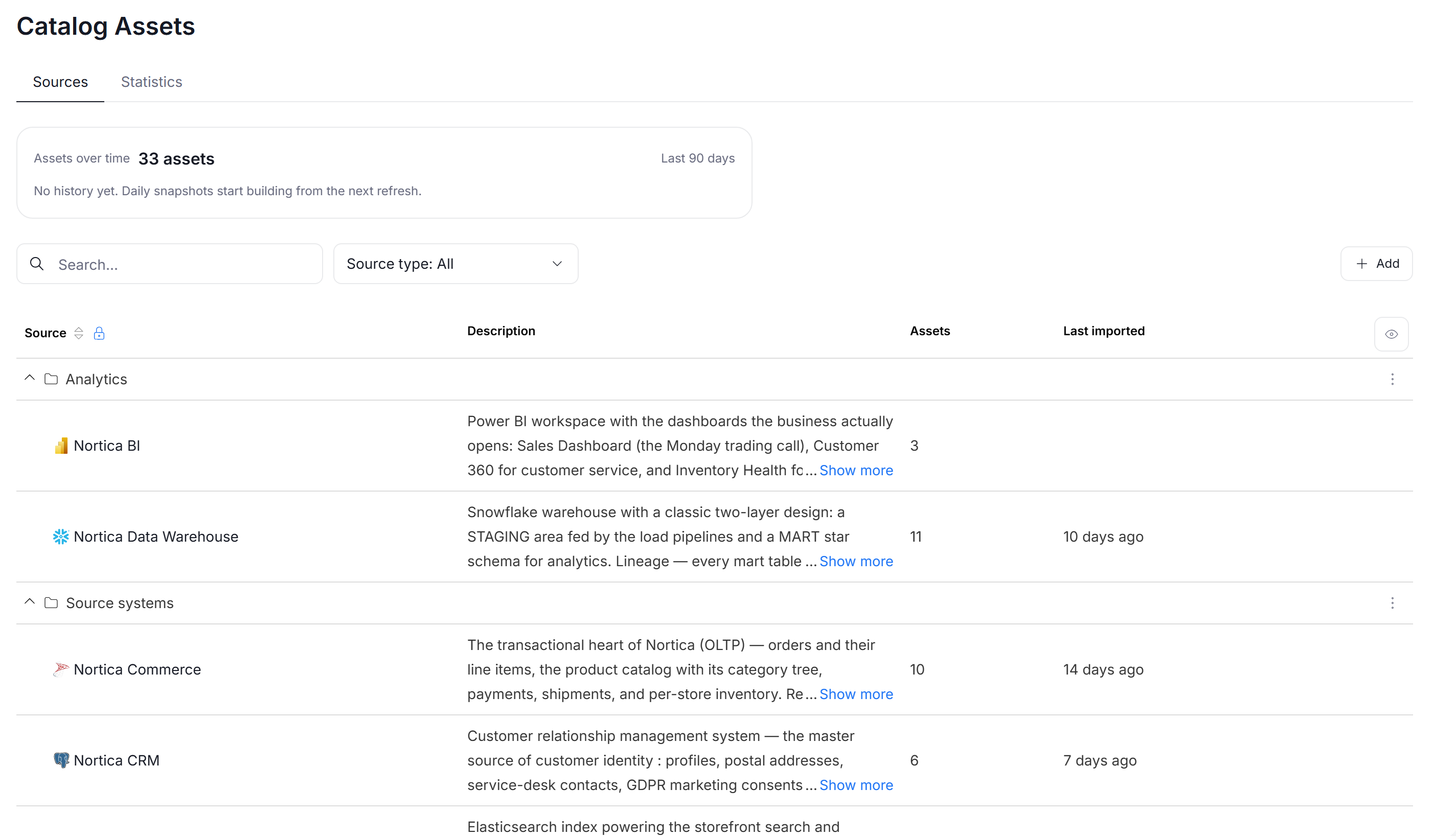
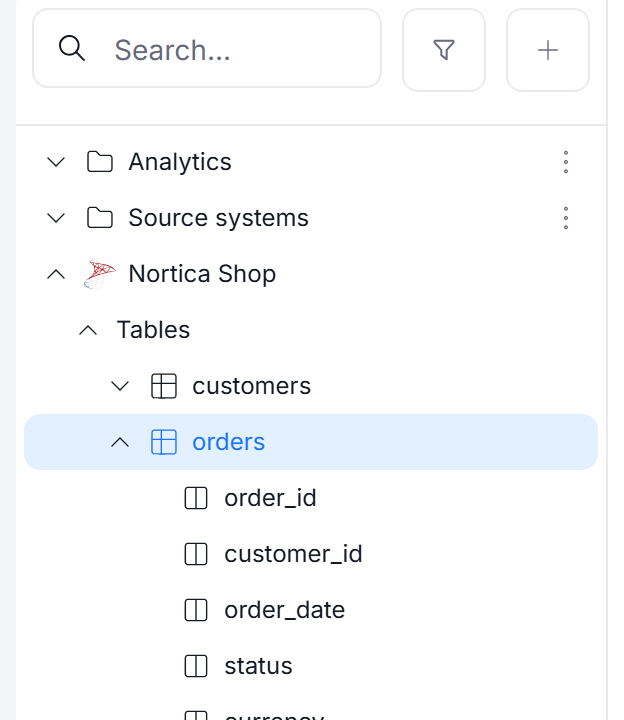
The catalog sidebar shows the same folders at the top of the tree.
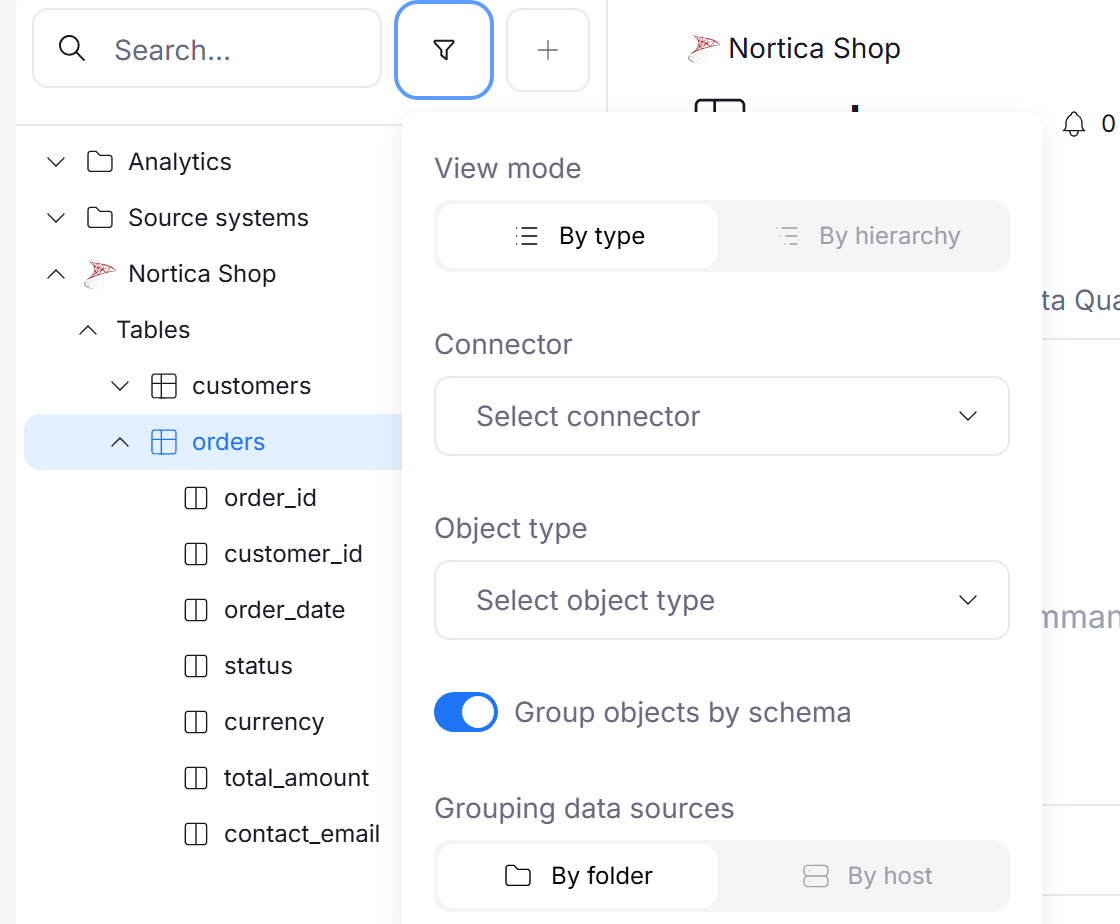
If you prefer to see sources grouped by their server, click the filter icon in the sidebar and switch Grouping data sources to By host.
Add or remove sources
To change which sources are in a folder:
-
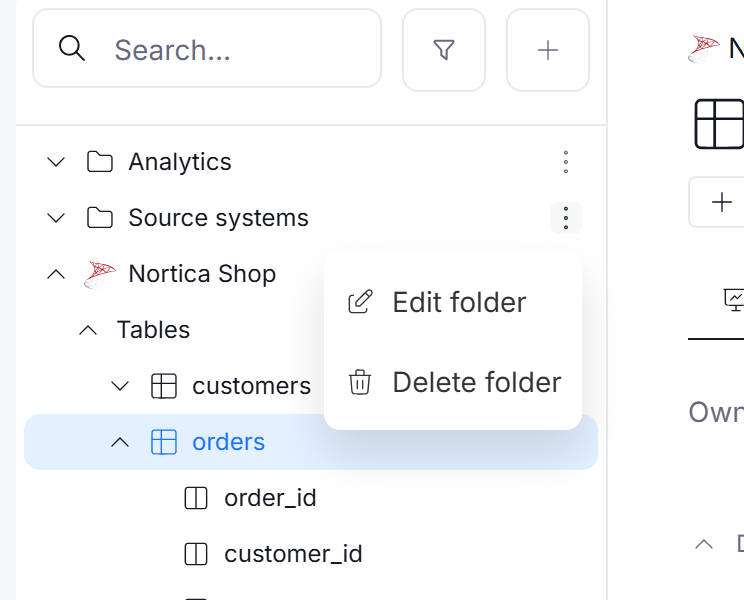
Click the three dots next to the folder, either in the catalog sidebar or on the Catalog Assets page, and select Edit folder.
-
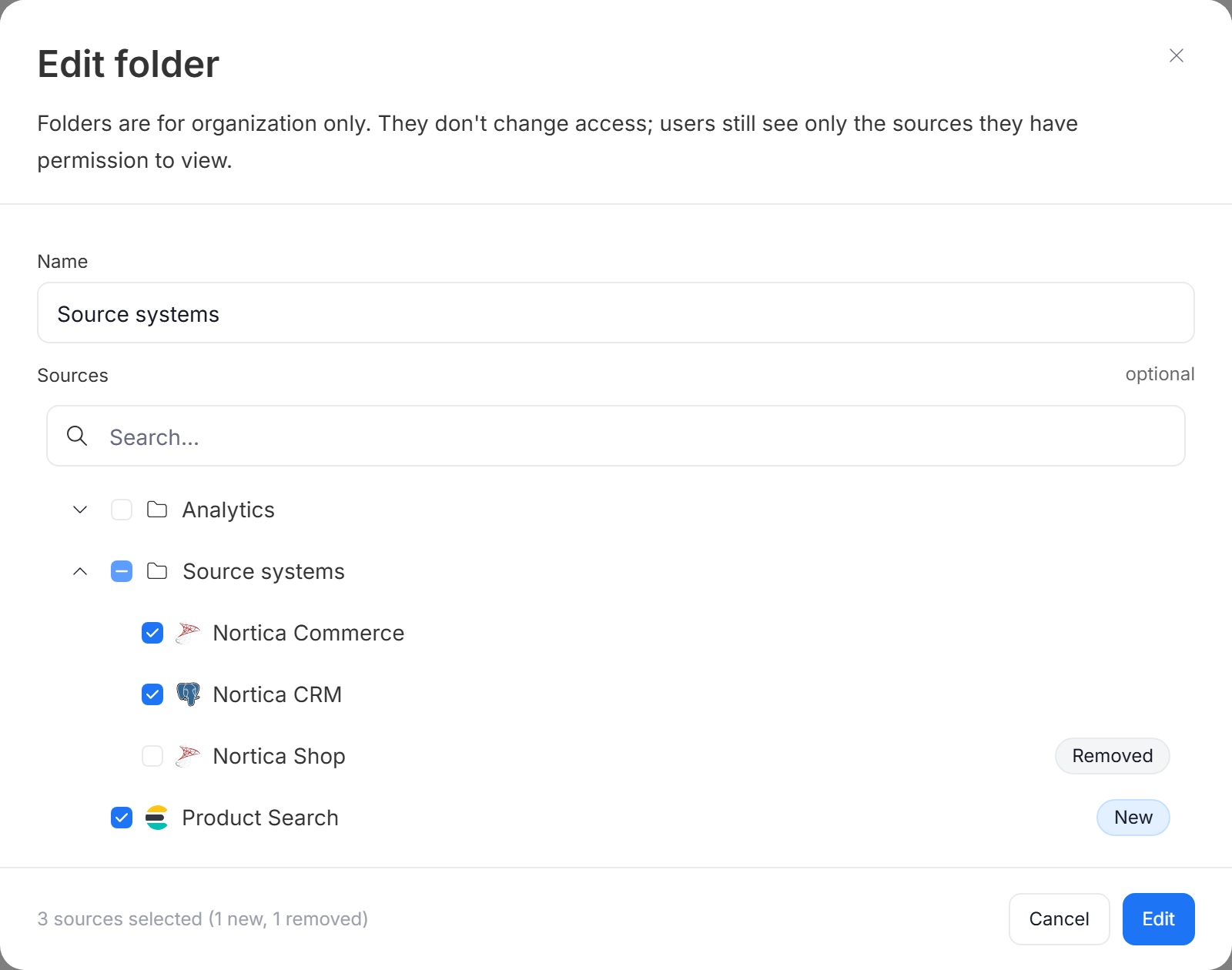
In the Edit folder popup:
- select a source to add it to the folder. It is marked as New.
- clear a source to remove it from the folder. It is marked as Removed.
Sources that are already in other folders are listed under those folders. Selecting one of them moves it to the folder you are editing, because a source can be in only one folder.
-
Click Edit to save the changes.
Removing a source from a folder does not remove it from your repository.
You can also rename a folder in the same popup by changing its Name.
Delete a folder
- Click the three dots next to the folder and select Delete folder.
- Confirm by clicking Delete.
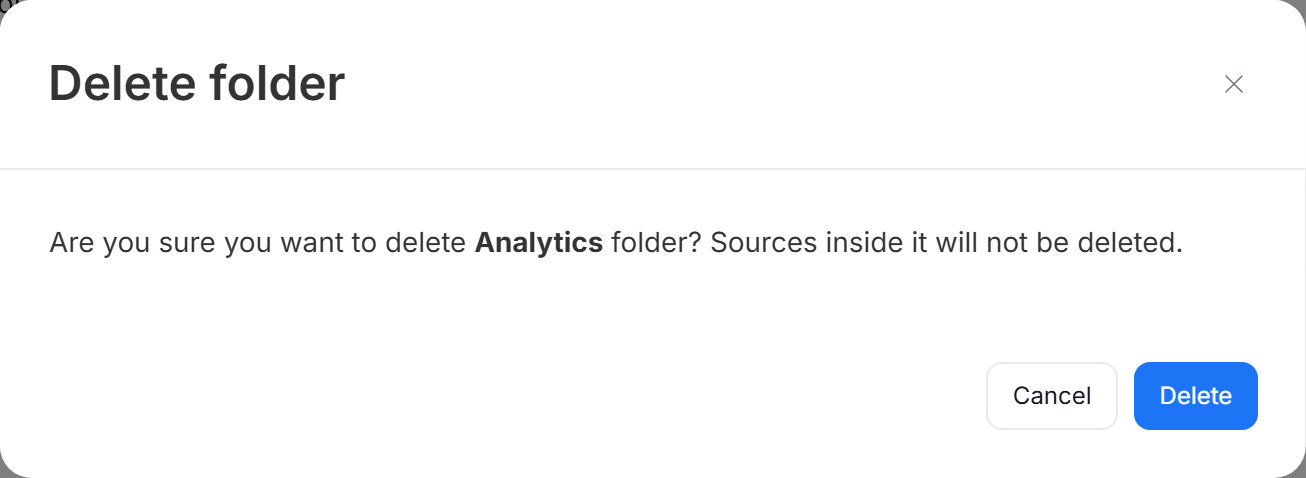
Deleting a folder does not delete the sources inside it or their documentation.

