Connecting to Data Sources in Portal
Adding a new connection, and removing an imported source, requires the Connection Manager permissions in a global (repository) scope. Manual Databases and Reportings require global Edit permissionsinstead. Learn more in Creating and deleting objects.
The Data Sources section in the catalog shows a list of all Databases you have established a connection to. Similarly, the Report Catalog section shows data from BI and Analytics tools, where the metadata has been imported to your repository.
These section have a similar layout, and help you quickly inspect your sources. Upon opening one of them, you will see a list of sources with some extra information. Below you can see an example view of a Data Sources list.
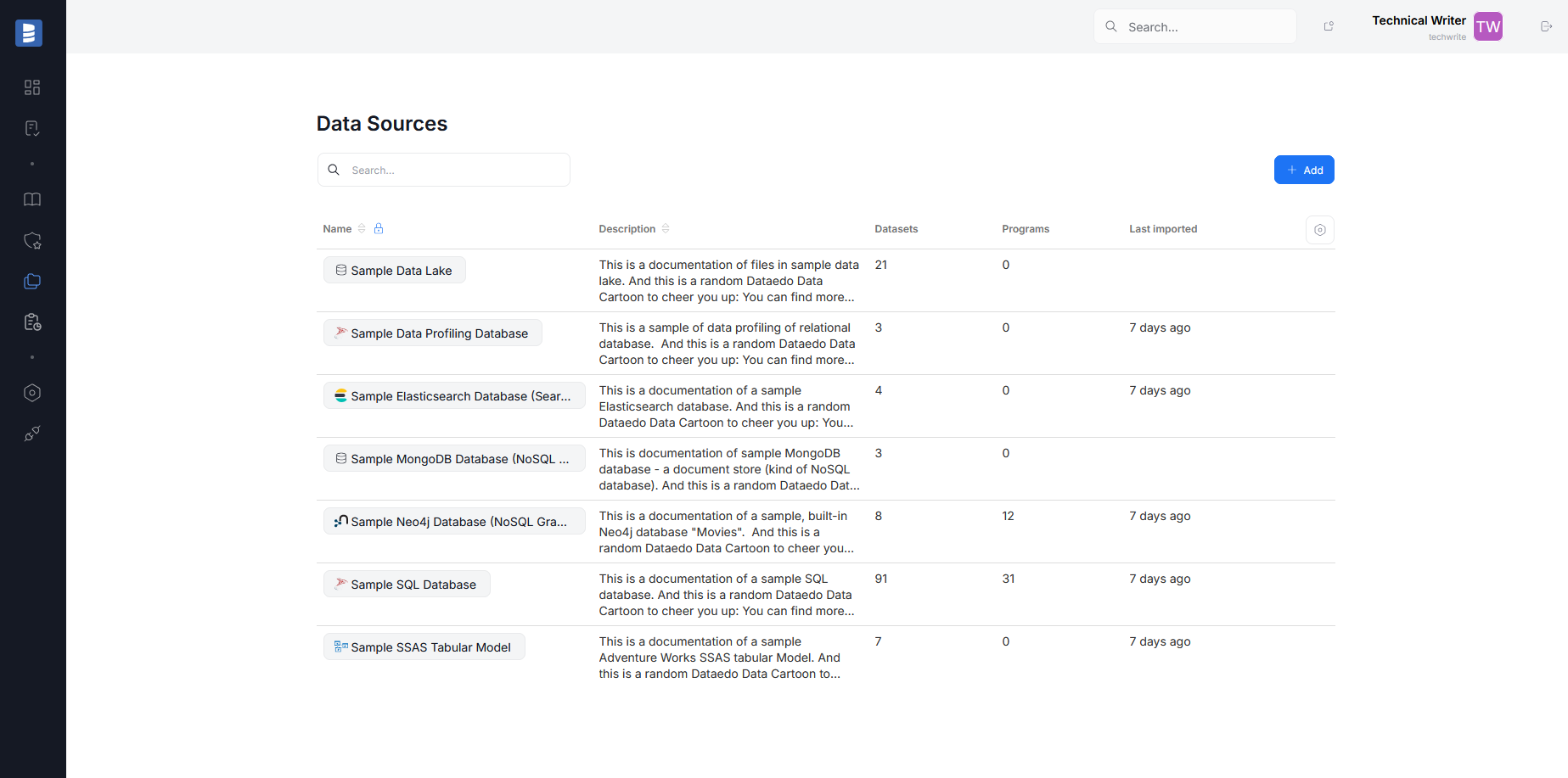
If you want to quickly add a new source, use the button, accessible in both Data Sources and Report Catalog. It will take you to the Connections section, where you can choose one of our many connectors to import Metadata from your selected data source straight into your Dataedo repository.
The steps necessary to establish a connection differ between connectors (you can find an exact description reading the connector's documentation), however you should almost always prepare host details and connection credentials to your source database.
Using Portal, you can browse and document all imported sources, however not all connectors are currently available in Portal — meaning that sometimes you might have to still carry out imports using Desktop. We are continuously working on expanding the range of connectors available in Portal to provide a seamless experience. As of version 25.4, these are the connectors available in our Portal:
No connectors available for this feature.
If you want to see all available connectors (including those currently exclusive to Dataedo Desktop), you can read this article.
Remember that even if a particular connector is not available in Portal, only the first import will have to be carrier out through Desktop. Subsequent import of all imported metadata can be carried out using the Portal's scheduler.

