Bulk add and update assets
The bulk addition and editing of assets is possible only within a scope of an existing database or reporting instance
Instead of adding or editing assets one by one, you can use a spreadsheet to create the changes in Bulk and update them to your Dataedo repository. This lets you:
- add new assets to a data source — Bulk add assets creates new manual assets together with their columns and parameters (if specified).
- update existing assets in bulk — Bulk update assets changes the descriptions and custom fields of assets, columns, and parameters that already exist, for example after you edit an Excel export.
You can also bulk update Glossary Terms, read more here.
Starting the import
We suggest using adding assets in bulk only in manual databases. If you bulk-add objects to an imported database, you will no longer be able to automatically check objects existence (eg: autodetecting deleted tables).
You can start the import in two ways:
- Open the data source or reporting, click the three dots button next to its name, and select Bulk add assets or Bulk update assets.
- Select the data source or reporting in the navigation tree, click the + button, go to Asset in XYZ, and select Bulk add assets or Bulk update assets.
Starting the import
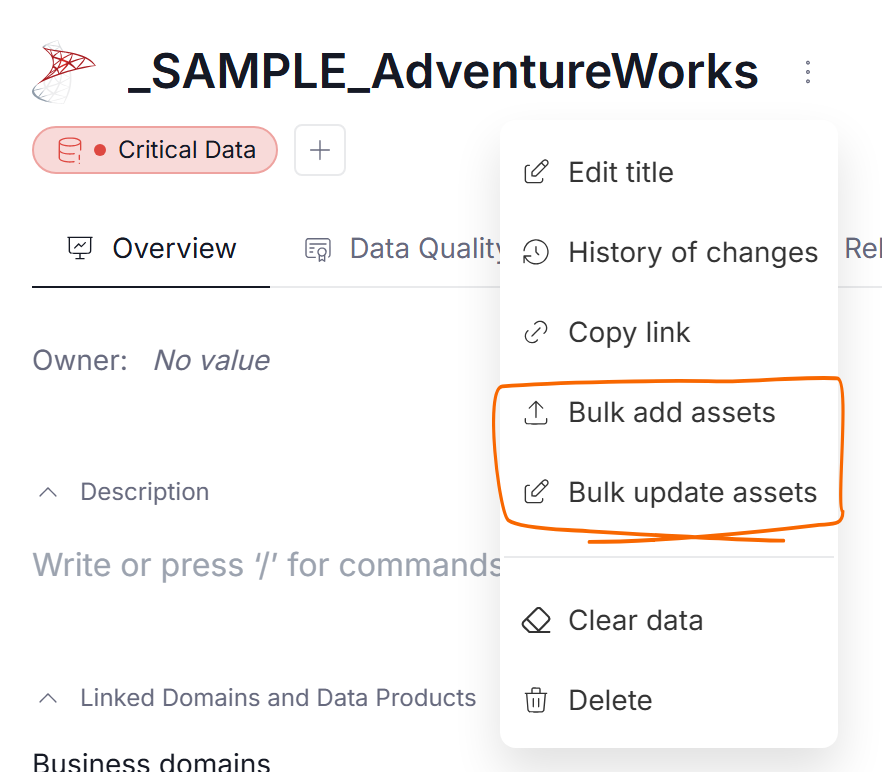
Both options open a wizard that takes you through three steps: uploading the file, mapping its sheets and columns, and previewing the result.
Step 1: Prepare and upload the file
CSV files and Excel 97-2003 files (.xls) are not supported, make sure to use the .xlsx format
You can prepare the file in two ways:
- From the template: click Download template in the upload window. The downloaded workbook has one sheet per kind of asset, each with a header row only. Fill in one asset, column, or parameter per row, and delete the sheets you do not need.
- From an Excel export (bulk update only): export the data source to Excel, edit the descriptions or custom fields, and upload the workbook back.
The templates of bulk add and bulk update are different. Download the template from the wizard you are going to use.
Drop the file into the upload window or click Choose file, then click Next step.
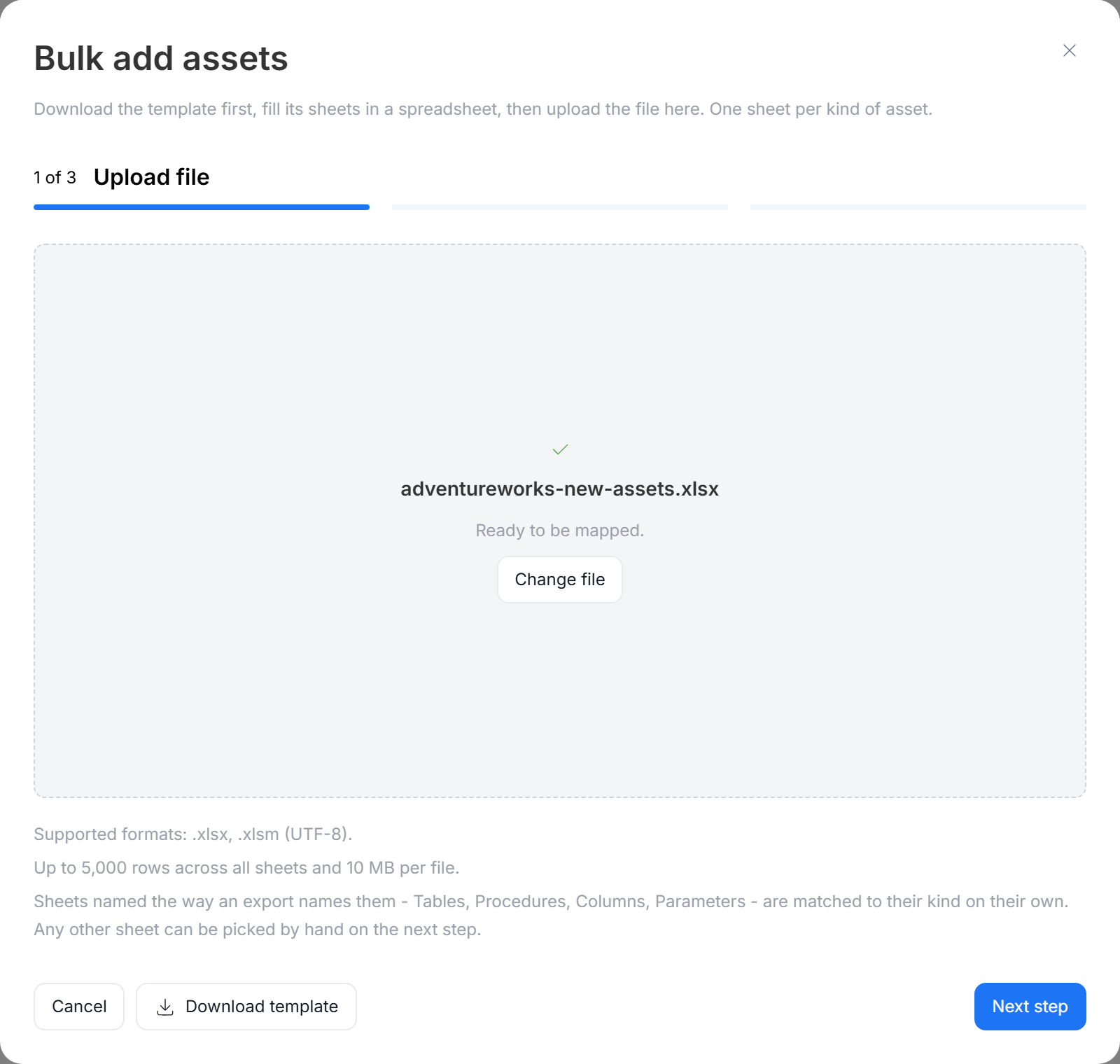
The file has to meet the following requirements:
| Requirement | Value |
|---|---|
| Supported formats | .xlsx, .xlsm |
| Maximum size | 10 MB |
| Maximum number of rows | 5,000 for bulk add, 50,000 for bulk update, counted across all sheets of the workbook |
| Maximum nesting depth of columns | 20 levels |
| Header | The first row of each sheet must name the columns, and column names must be unique within a sheet |
The row limit counts every sheet of the workbook, including the sheets you do not import, so remove the sheets you do not need from an export before you upload it.
Sheets
Each sheet of the workbook holds one kind of asset. A sheet named like in the table below, or like its wizard tab, is matched automatically. You can pick any other sheet by hand in Step 2.
| Wizard tab | Sheet name | Data source | Reporting | Holds |
|---|---|---|---|---|
| Data Sets | Tables | Yes | Yes | Tables, views, queries, data sets, and other data set types |
| Programs | Procedures | Yes | No | Procedures, functions, ETL programs, jobs, and other program types |
| Reports | Reports | No | Yes | Reports, dashboards, and visualizations |
| Columns | Columns | Yes | Yes | Columns of data sets and reports |
| Parameters | Parameters | Yes | Yes | Parameters of programs and reports |
Template columns for bulk add
Data Sets, Programs, and Reports sheets
| Column | Required | Description |
|---|---|---|
| Schema | No | The schema of the asset |
| Name | Yes | The name of the asset, up to 500 characters |
| Object Type | Yes | The type of the asset, written the way an export writes it, for example TABLE, VIEW, PROCEDURE, or REPORT. If the type is not allowed, the preview lists the types you can use. |
| Title | No | The title of the asset, up to 250 characters |
| Description | No | Plain text. Each line becomes a separate paragraph. |
| External ID | No | An identifier of the asset in another system |
| URL | No | A link to the asset |
| Custom fields | No | One column per custom field that is visible for the given kind of asset |
Columns sheet
| Column | Required | Description |
|---|---|---|
| Name | Yes | The name of the column, up to 500 characters |
| Path | No | For a nested column: the names of its ancestor columns, separated by dots, starting from the top level. See Nested columns. |
| Parent schema | No | The schema of the asset the column belongs to |
| Parent name | Yes | The name of the asset the column belongs to |
| Parent type | Yes | The Object Type of the asset the column belongs to |
| Title | No | The title of the column |
| Description | No | Plain text. Each line becomes a separate paragraph. |
| Data type | No | For example int or nvarchar(50). A length in brackets is moved to Data length, unless that column is filled. |
| Data length | No | For example 50 |
| Nullable | No | TRUE/FALSE, T/F, YES/NO, Y/N, 1/0 |
| Default value | No | The default value of the column |
| Item type | No | The type of the column, for example COLUMN |
| External ID | No | An identifier of the column in another system |
| Custom fields | No | One column per custom field that is visible for columns |
Parameters sheet
| Column | Required | Description |
|---|---|---|
| Name | Yes | The name of the parameter |
| Parent schema | No | The schema of the program or report the parameter belongs to |
| Parent name | Yes | The name of the program or report |
| Parent type | Yes | The Object Type of the program or report |
| Description | No | Plain text |
| Data type | No | For example int |
| Data length | No | For example 50 |
| Parameter mode | No | IN, OUT, or INOUT. Empty cells are saved as IN. |
| Custom fields | No | One column per custom field that is visible for parameters |
Template columns for bulk update
Bulk update writes only the Description and custom fields. The other columns tell Dataedo which asset a row relates to. You cannot use bulk update to edit Titles, data types, and other fields.
| Sheet | Columns that find the asset | Columns that are updated |
|---|---|---|
| Data Sets, Programs, Reports | Schema, Name, Object Type | Description, custom fields |
| Columns | Name, Path, Parent schema, Parent name, Parent type | Description, custom fields |
| Parameters | Name, Parent schema, Parent name, Parent type | Description, custom fields |
An Excel export also has ID columns, for example Table ID or Column ID. They are used to find the assets, so you do not have to fill in the other columns. See Updating assets.
Step 2: Check field mapping
You will see a list of tabs, one per each asset type (data sets, programs, columns, etc.). For each one:
- In Sheet, pick the sheet of your file that holds this kind of asset. Tabs without a sheet are skipped.
- Check how the columns of the sheet are matched to Dataedo fields, and change the mapping if needed. Required fields are marked with an asterisk.
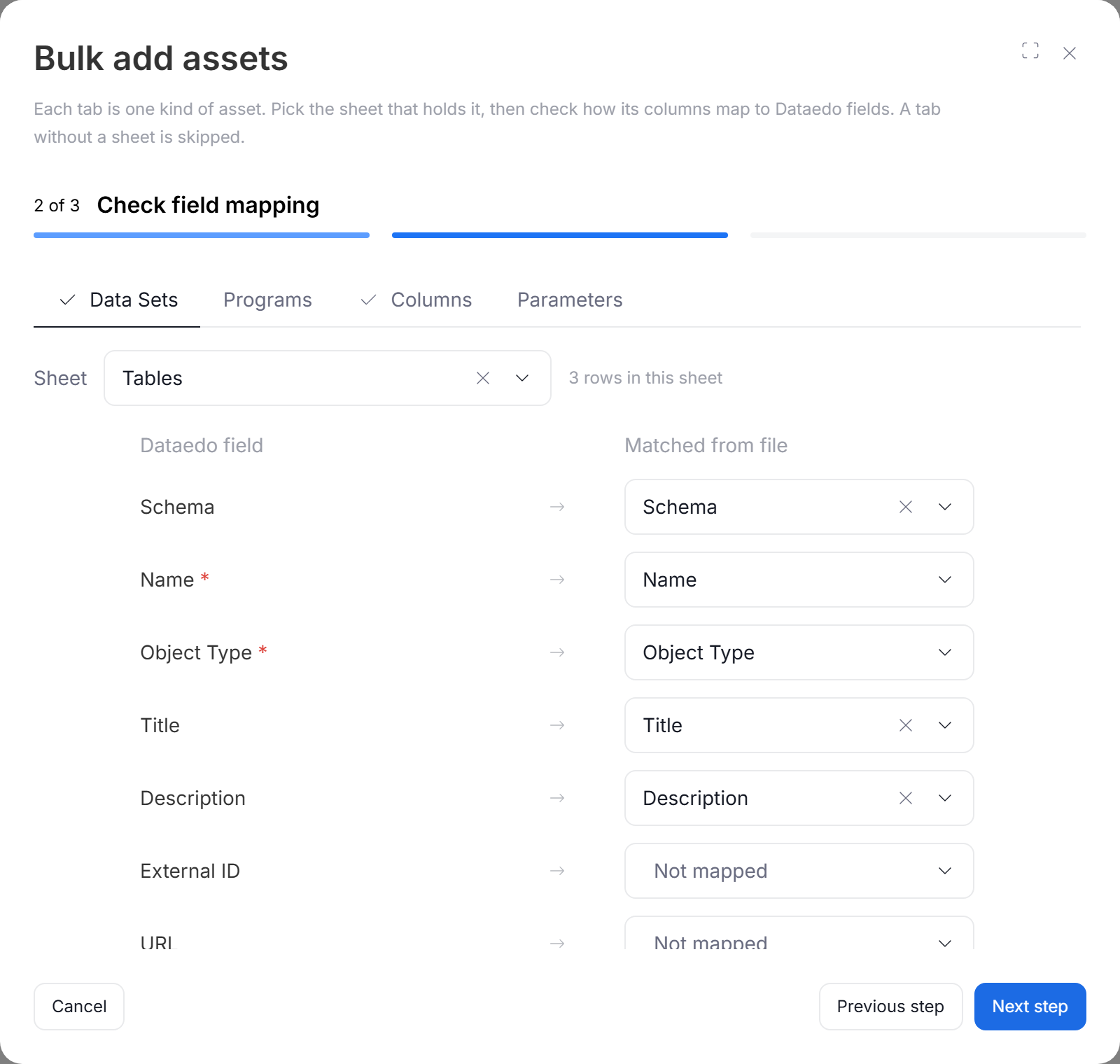
In bulk add, fields set to Not mapped stay empty. In bulk update, they stay unchanged. Bulk update also needs Description or at least one custom field mapped on every sheet you pick.
Description format
If trying bulk add, the Descriptions in the file are section lets you specify how the descriptions should be imported from your excel file into Dataedo.
- Plain text (default): each line becomes a paragraph, and nothing in the text is read as formatting. This is what an Excel export writes.
- Markdown: headings, lists, tables, links, and bold or italic text become formatting. Lines that follow each other without an empty line between them are joined into one paragraph.
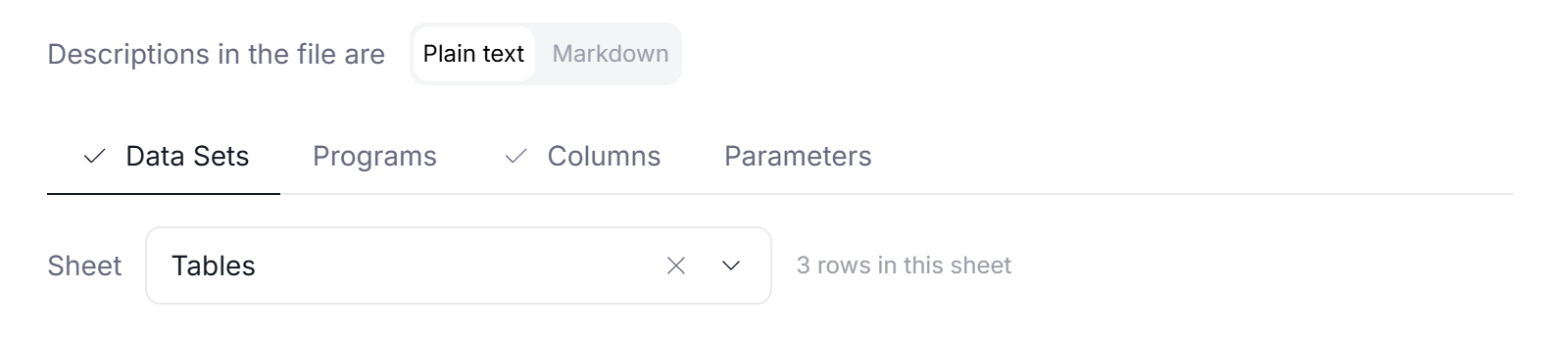
If using bulk add, descriptions are always treated as plain text.
Step 3: Preview and save
The preview stage once again will show few tabs, each corresponding to one type of assets. The summary at the top of each tab shows what the import will do on that sheet. In case of errors or issues with the .xlsx file, the rows that require your attention are listed first. Hover over a highlighted cell or row to see the details.
Data preview
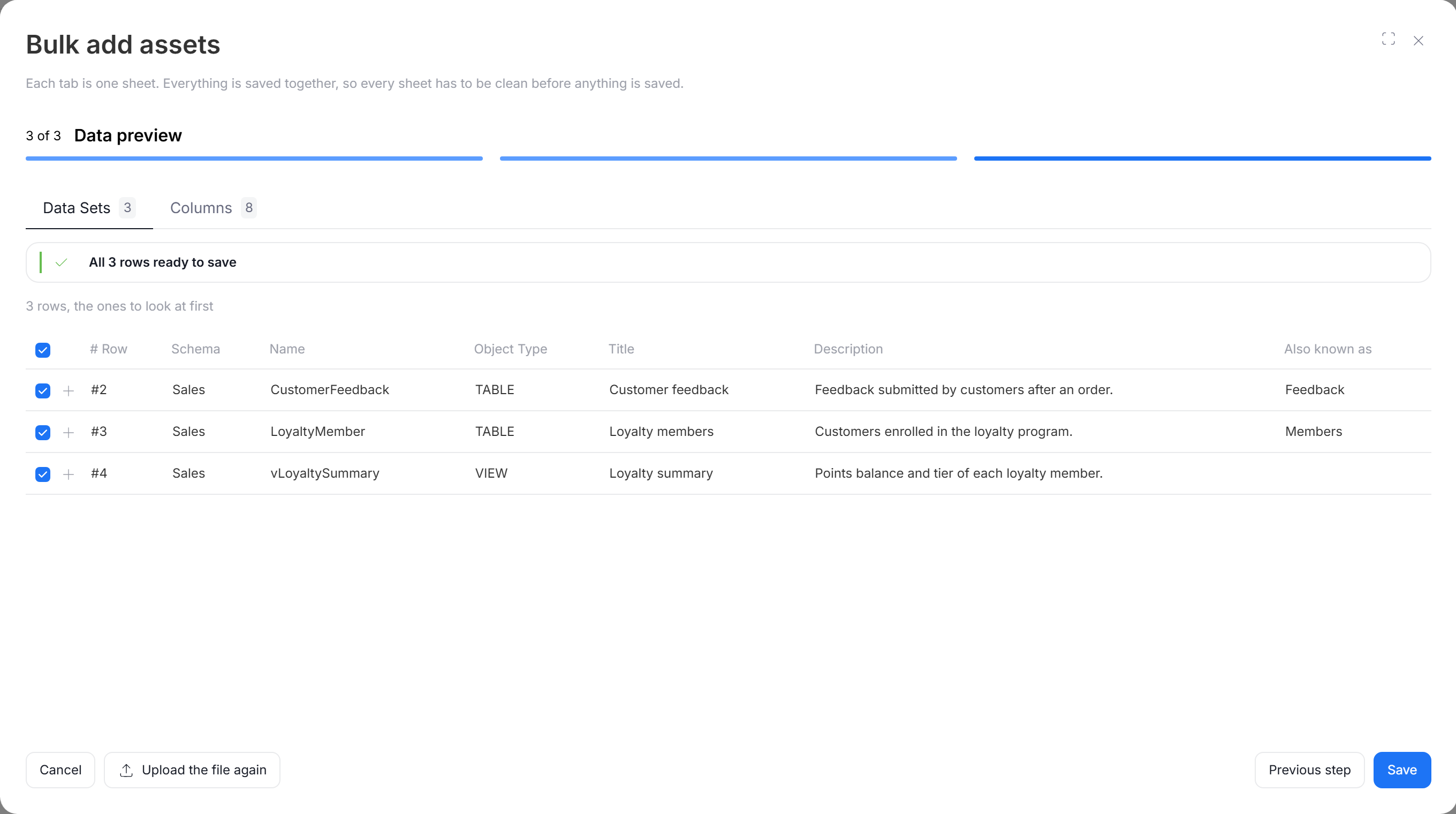
- If the file has errors, fix them in your spreadsheet and click Upload the file again. Your mapping is kept.
- If the file has no errors, click Save. Keep the page open until the save finishes.
When the import is finished, you will see how many assets, columns, and parameters were added or updated.
Clicking Cancel or leaving the page during the save stops the import, and nothing from the workbook is kept.
Leaving rows out
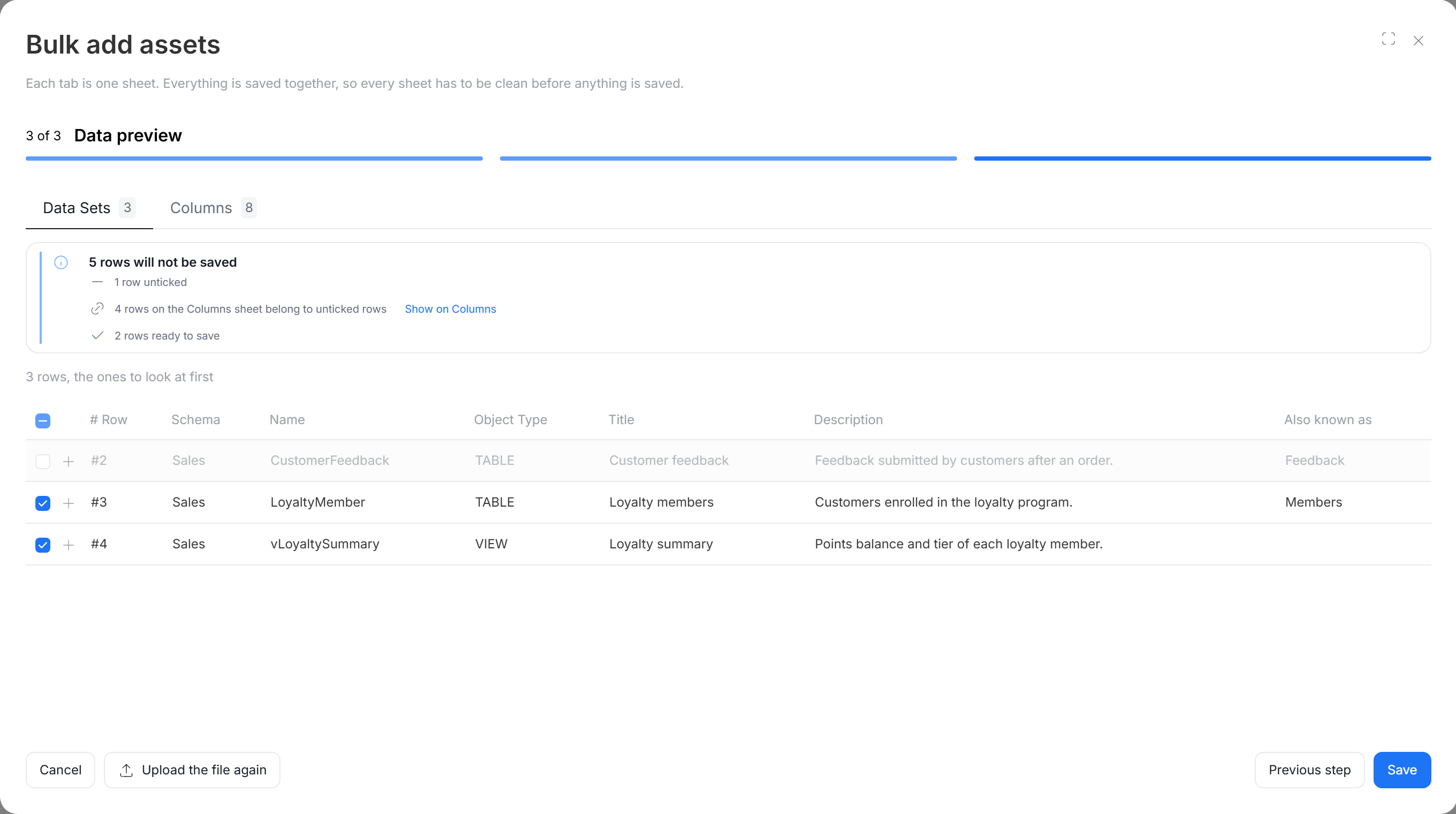
You can choose to exclude some of the changes from your bulk upload using checkboxes. If you clear a checkbox, its corresponding asset will not be saved or updated.
When you leave out an asset, its columns or parameters on the other sheets are left out too. When you select it again, they are selected back.
Extra rules for updating assets
Whether a row of bulk update finds its asset depends on the file you upload:
- Excel export: rows are matched by the ID columns the export wrote, for example Table ID, Column ID, or Parameter ID. The name and type in the row must match the asset with that ID. Rows of other data sources covered by the export, and rows of deleted assets, are skipped.
- Template or your own file: assets are matched by Schema, Name, and Object Type. Columns and parameters are matched by their parent and name. If an asset has two columns with the same name at different nesting levels, map Path to say which one the row is about.
A row that does not match any asset is an error. Bulk update cannot create new assets.
Empty cells
An empty cell in a mapped column clears the existing value. To leave a field unchanged, set its column to Not mapped in Step 2.
Values that are the same as the ones in Dataedo are left alone and are not recorded in the history of changes.
Formatted descriptions
An Excel export writes descriptions as plain text, without their formatting, such as tables, headings, lists, or links. If a row replaces a formatted description, the preview warns you that the formatting will be lost, and Save asks you to confirm. To keep these descriptions, leave the rows out of the save, or set Description to Not mapped.
Custom field values
| Custom field type | Accepted values |
|---|---|
| Checkbox | TRUE/FALSE, T/F, YES/NO, Y/N, 1/0 |
| Date | A date cell in Excel, or text in the YYYY-MM-DD format |
| Closed list | One of the field's values, in any letter case |
| Open list | One value, saved as typed |
| Multi-value closed list, tags | Values separated by commas |
| User | Logins of active users, separated by commas |
After the import
New assets, columns, and parameters are manual objects, marked with a blue dot, just like objects created by hand.
Changes made by bulk update are recorded in the history of changes, like manual edits.
Users who follow the data source or reporting get a single notification about the import, instead of one per asset.
Common errors
| Error | How to fix it |
|---|---|
| Asset already exists (bulk add) | Remove the row, or change its name, External ID, or URL. To update an existing asset, use bulk update. |
| Unknown Object Type | Use one of the types listed in the error message. |
| Parent that does not exist | Make sure the parent exists in the data source or on an asset sheet of the same workbook, with the same schema, name, and type. |
| Ambiguous parent | More than one asset has this name. Fill in Parent type and Parent schema. |
| Asset that does not exist (bulk update) | Check the schema, name, and type, or remove the row. |
| ID that does not match the row | The name or type in the row is different from the asset with this ID. Fix the row, or clear the ID cell to find the asset by its name. |
| Two columns with the same name | Map Path to say which column the row is about. |
| Same asset described twice | Remove the duplicated row from the file. |
| Too many rows | Remove the sheets you do not need, or split the file into smaller ones. |
| Unknown user | Use the login of an active user. |
| Excel error in a cell | A formula in the cell returned an error, for example #N/A. Fix the formula, or clear the cell. |

