Manual Databases, Reportings, and Objects
Dataedo Portal supports adding manual databases and objects. These are user-defined, empty databases that exist only in Dataedo and do not have to be imported from an external source. These can be used for:
- creating representations of your organization's data that is not stored in an external relational database (eg: Excel)
- modeling data
- documenting a data point, or planning out a database that is yet to be actually implemented
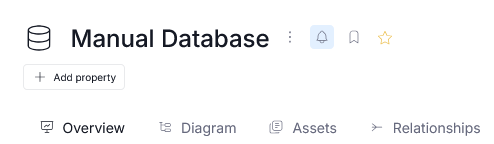
Manual databases have a generic database symbol as their icon, while other manual objects (like columns or tables) are marked with a blue dot.
Manual objects
Adding a Manual Database
Manual databases and reportings can be created only by users with (global) edit documentation permissions
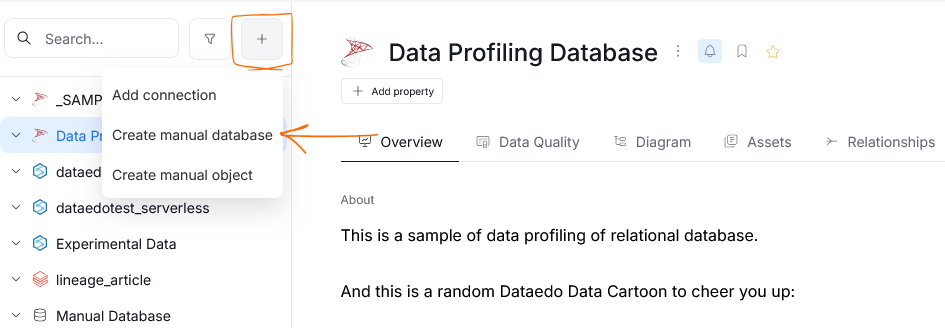
Manual Databases and Reportings can be added in the Data Sources and Report Catalog views respectively. You can do that by clicking the + icon and selecting Create manual database or Create manual reporting (depending on your current view).

Manual Databases can also be added using the + icon from the navigation bar in Data Sources and Report Catalog.
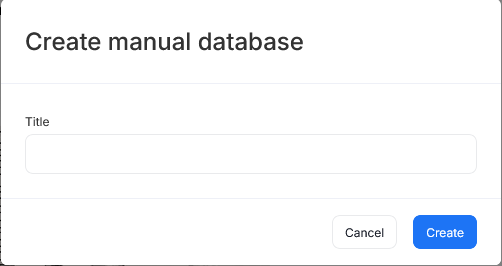
This option opens a popup, asking you to name the new database. Once you provide it and click create, a new manual database will be created in your repository. You can then edit and document it just like any other object in Dataedo.
Adding a Manual Object
Manual objects are governed by the permission to their parent source. The Edit Documentation action assigned within a single Database or Reporting is enough to create and delete manual objects inside it — only the source itself requires a global action.
Manual objects like tables, columns, views, and procedures can be added in any data source or reporting instance in your repository.
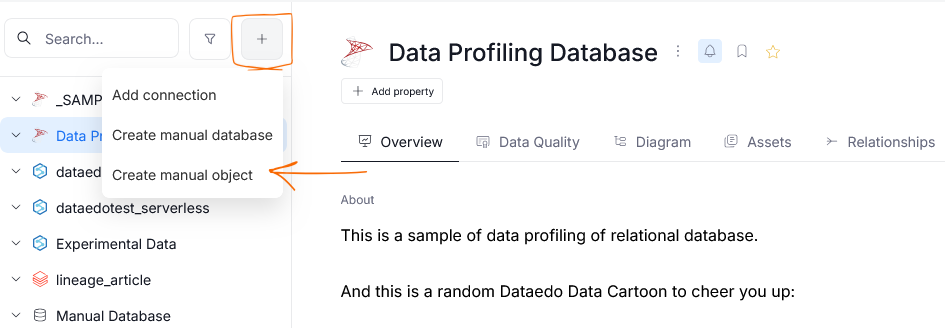
Manual objects can be added from the navigation sidebar. Make sure to first navigate to the database, where you want to create the object. Then, when you press the + icon, and select the Create manual object a popup will appear.
In the popup you can choose the type of the object you want to create and give it a name. You can also populate this new, manually created object with children — [columns] for data set objects, and [parameters] for program objects.
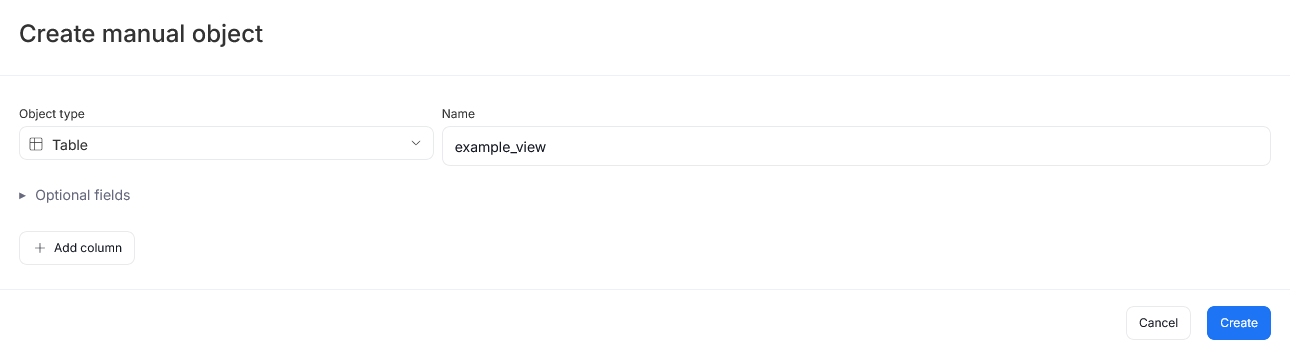
If you click optional fields, you will see a collection of fields that let you complete the documentation of your manual object even before it is created. You can add information like Schema, Titles/Aliases, Descriptions.
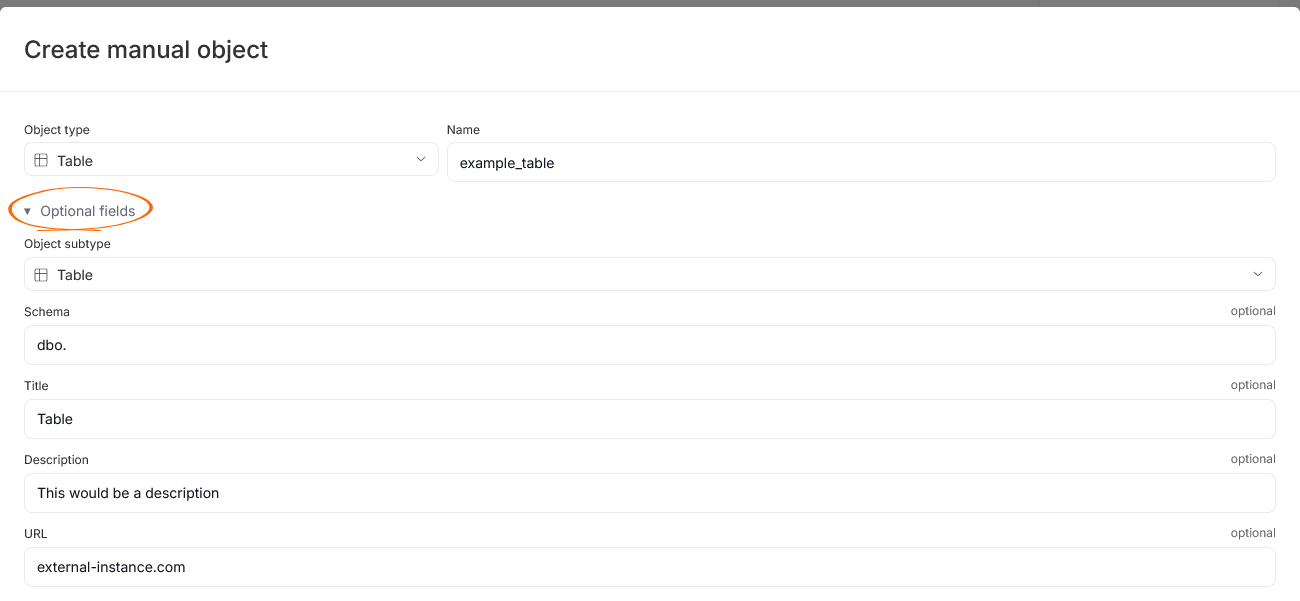
To create the object with the information you provided, click create.
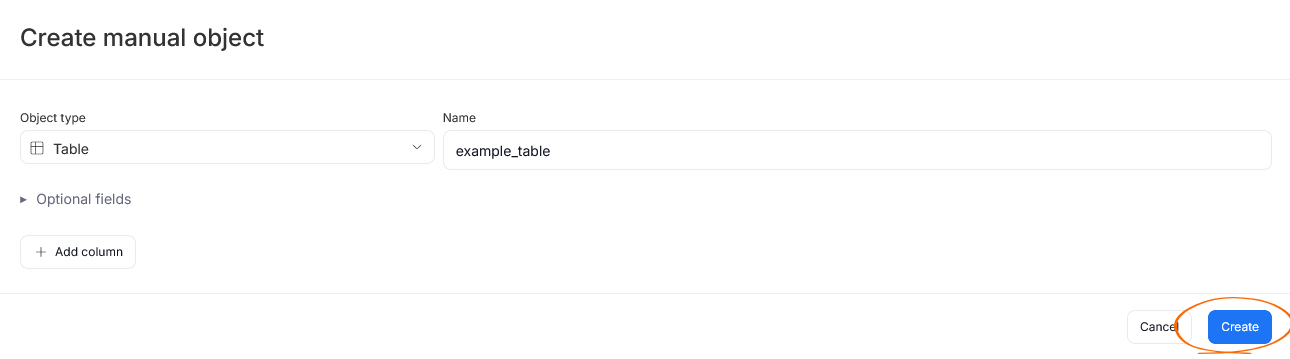
Adding Manual Columns
Columns can be added either when creating a data set manual object using the Add Column button, or directly from the Columns tab of an asset using the Add Columns button.
Creating columns
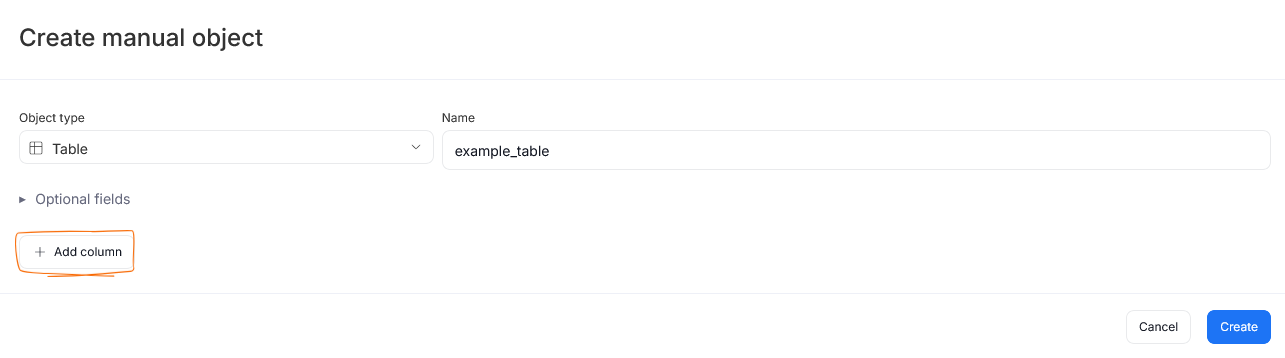
This opens a popup, where you can add manual columns. By default, only a single column will be created, but you can add more using the Add column button.
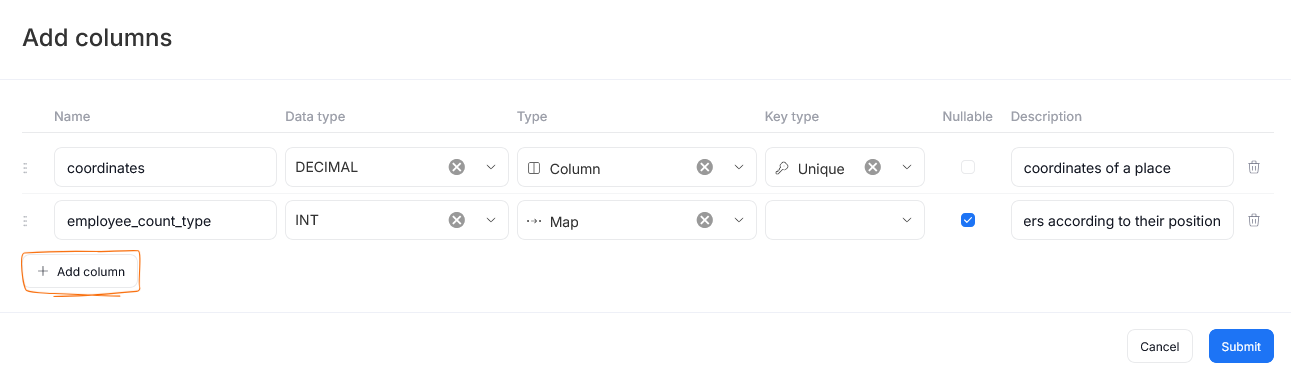
You must define a name for every column. All additional information — like the column's type, data type, key information — is optional.
Adding Manual Parameters
Parameters can be added either when creating a procedure manual object, or directly from the relevant tab of an asset using the Add Parameters button.
Creating parameters
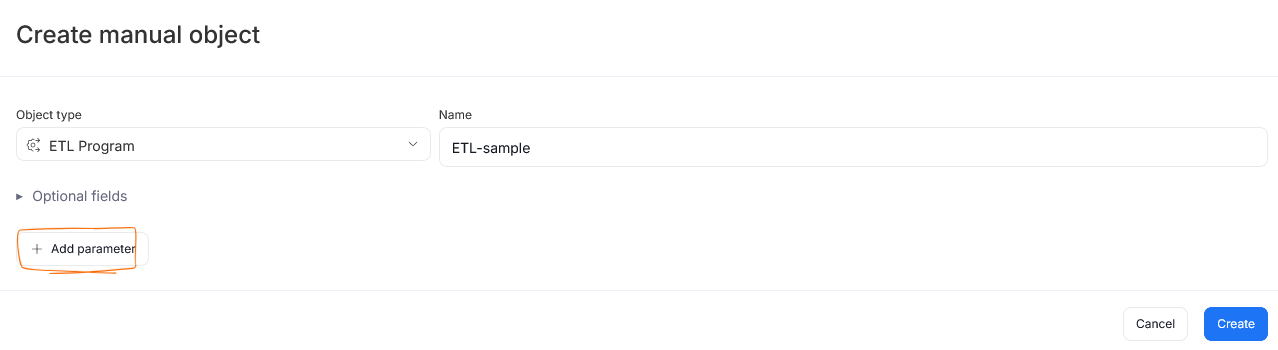
This opens a popup, where you can add manual parameters. By default, only a single parameter will be created, but you can add more using the Add parameter button.
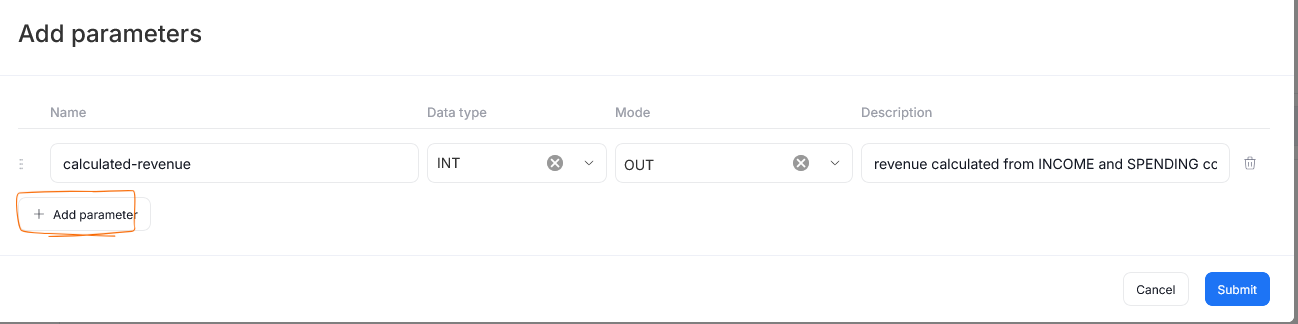
You must define a name for every parameter. All other information is optional.

