Exporting descriptions to database
Dataedo can write descriptions, and in some databases also custom fields, back to the documented data source. This way, tools that read comments from the database schema (for example, BI tools) show the same descriptions as Dataedo.
There are two ways to do this, depending on your data source:
| Data source | Method | What is written to the source |
|---|---|---|
| Databricks (Unity Catalog), Snowflake | Description sync in Portal | table and column descriptions |
| SQL Server, Azure SQL Database | Export from Desktop | descriptions and custom fields (as extended properties) |
| Oracle | Export from Desktop | descriptions |
Description sync in Portal
For Databricks (Unity Catalog) and Snowflake, descriptions are synchronized as part of Metadata Sync. Once you enable it for a connection, Dataedo compares table and column descriptions with your data source during each metadata import and writes the changes to the source. Depending on the sync rule you choose, changes are synchronized both ways, or always pushed from Dataedo to the source.
Descriptions are written to the source as Markdown, so some rich-text formatting cannot be preserved. Read more about lossy descriptions and how to configure Metadata Sync.
Metadata Sync for Azure SQL Database covers Data Classification only. To write descriptions to Azure SQL Database, export them from Desktop.
Exporting descriptions from Desktop
In SQL Server, Azure SQL Database and Oracle, you export descriptions from Desktop as a one-time operation, using the Export documentation wizard.
Before you start
- Rich text fields — descriptions in Dataedo can contain formatting, lists, tables, images, etc., and are saved in the repository as HTML. The export removes formatting and writes plain text only.
- String length — databases limit the maximum length of strings. Dataedo fields are longer, so exported descriptions may be truncated if they exceed the database's limit.
- Required permissions:
| Database | Required permissions |
|---|---|
| SQL Server, Azure SQL Database | ALTER permissions on the objects you want to add extended properties to (tables, views, functions, procedures, triggers) |
| Oracle | COMMENT ANY TABLE privilege |
Exporting descriptions
- Click Export documentation in the ribbon and choose Export descriptions to database (Export comments to database for Oracle). Click Next.

- Provide the connection details. By default, you will see the details you provided during import.

- Choose the modules whose objects you want to export.

- Choose the object types you want to export.

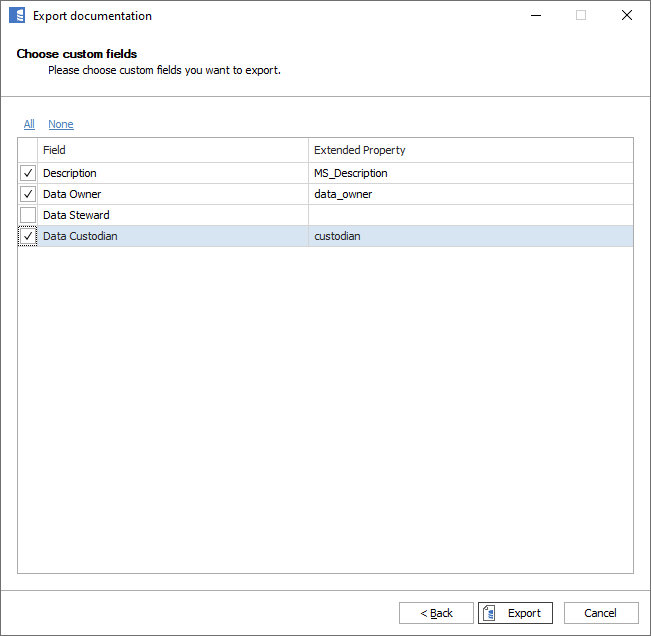
- In SQL Server and Azure SQL Database, if your repository has custom fields, choose which of them to export as extended properties. Read more in Exporting custom fields to extended properties.

- Click Export.

Exporting custom fields to extended properties
SQL Server and Azure SQL Database have a feature called extended properties — custom metadata fields that DBAs and architects can assign to schema elements, such as tables or columns. When you export descriptions to these databases, you can also write Dataedo custom fields to extended properties.
Mapping
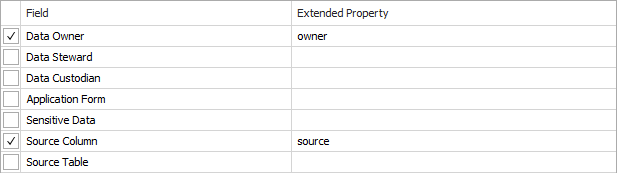
To export a custom field, you need to map it to an extended property. In the custom fields step of the export wizard, select the field and type in the name of the extended property. Only fields with an extended property name are exported. The export overwrites existing properties or creates new ones.
You can check which extended property names are already used in your database with this query:
select distinct name
  from sys.extended_properties
 order by name
Custom fields are defined for the whole repository, but the mapping to extended properties is saved per database, both for imports and exports. This means that each database can use different extended property names, and you can choose different properties for each database.
MS_Description
MS_Description is a special extended property that Microsoft tools use as the default description of schema elements. Dataedo maps it to the Description field, both during import and export.
The Description item is always on the list of custom fields and is selected by default. If you want to export custom fields without changing the MS_Description property, clear it.