Export to Excel in Portal
Excel export requires Dataedo Agent to be set up. This feature is accessible only to users with Edit permissions
It is possible to export your documentation from Dataedo Portal directly to .xlsx (Excel) format. Read the full instructions, and explore the exported file's structure below.
Starting the Export
There are two entrypoints for Excel export. First, you can access the export view by navigating directly to https://your-dataedo-address/export.

Alternatively, you can use the Export to excel button, visible in pages containing listings of your assets (Data Sources, Report Catalog, Glossaries, Domains, Data Products)
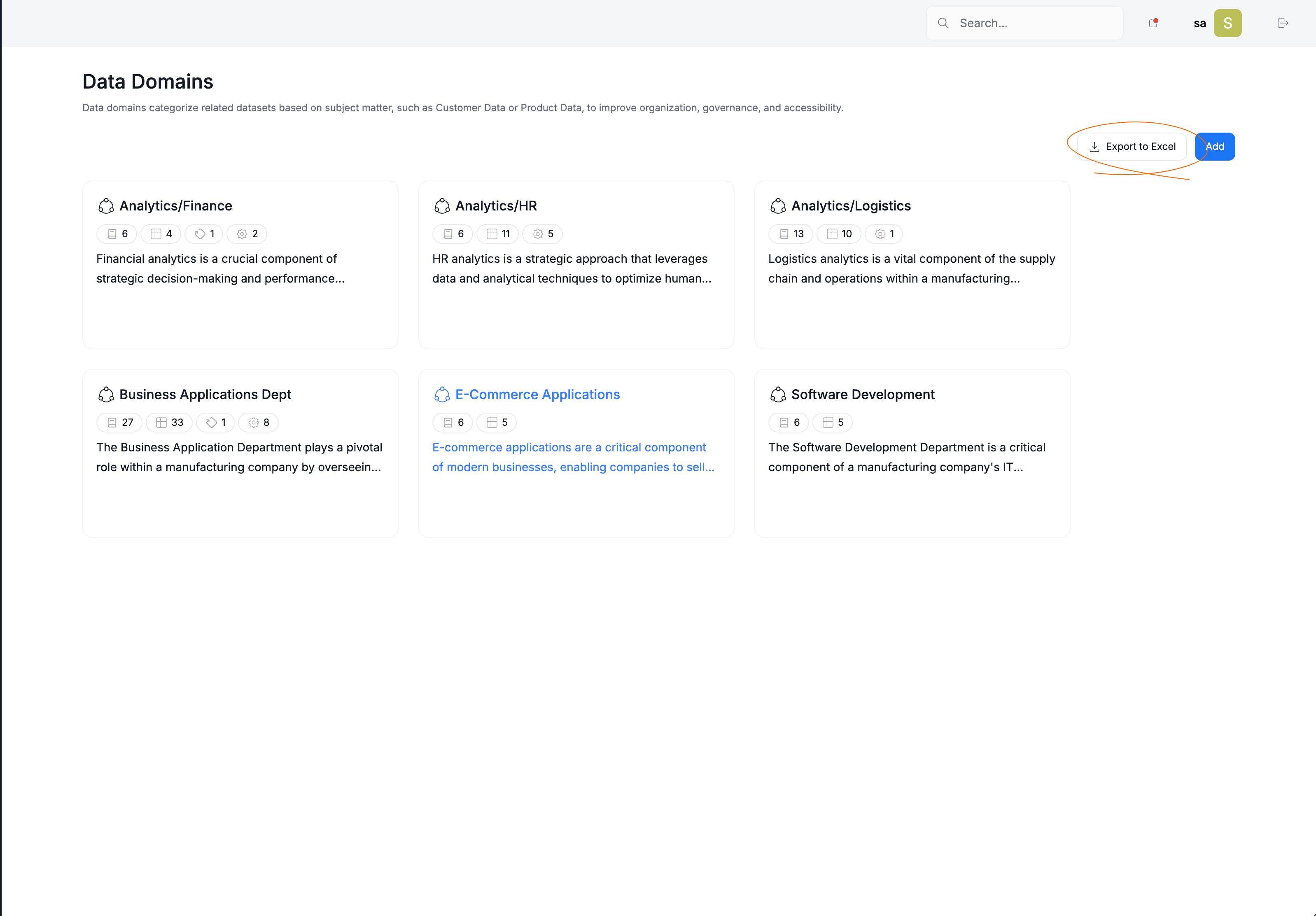
Export Scope
The export section is made up of three parts:
- Scope [a]
- Sheets [b]
- Configurations [c]
Each is responsible for configuring different export parameters
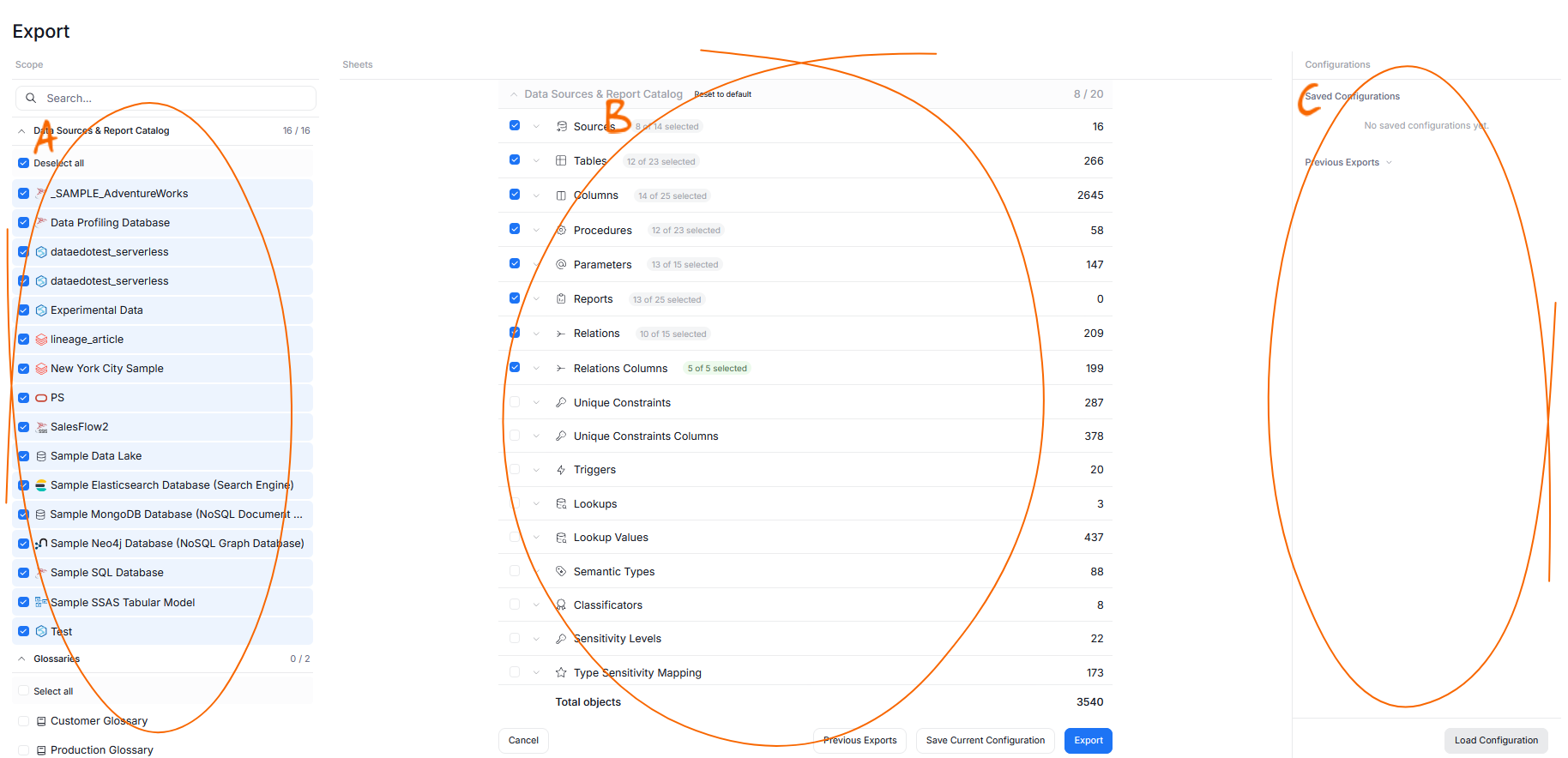
Scope
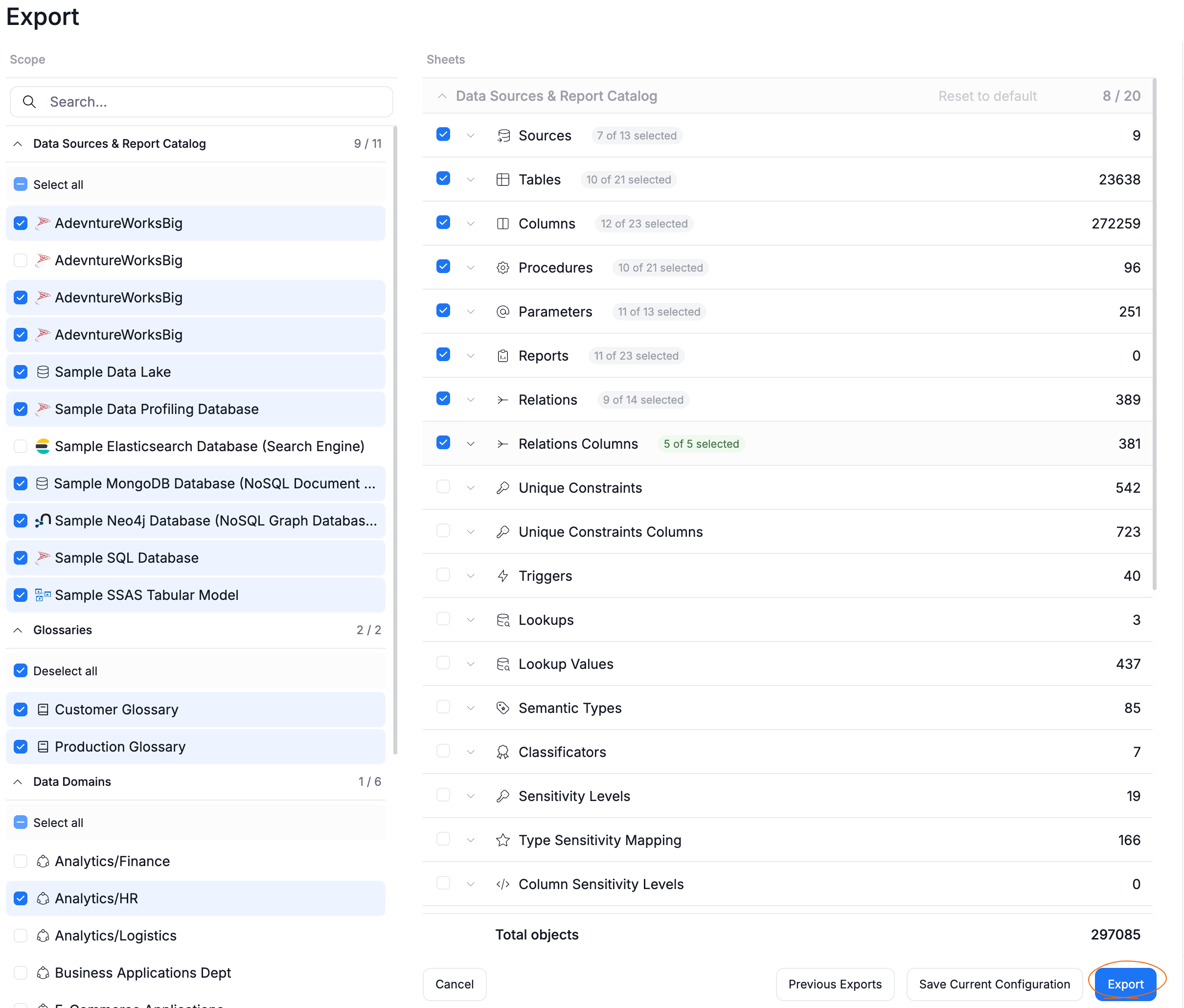
The Scope section is responsible for deciding which asset groupings will be included in the final export. By an asset grouping we mean an object that holds other objects within it. Asset groupings you can choose from are divided into categories: Data Sources & Report Catalog, Glossaries, Data Domains, Business Domains, and Data Products.
For each category you can choose whether you want to include all asset groupings of a given type (for example: all glossaries), or only selected ones.
Choosing an asset grouping at this time does not mean that all of its assets will be exported to your final file. The scope of exported objects is decided in the Sheets section
Sheets
The Sheets section allows you to choose the objects that will be exported, and control what information is preserved in the final file.
Objects are divided into categories based on object types: like Sources, Tables, Columns, Procedures, Badges etc. Each category can be included or excluded, the GUI will also show how many objects correspond to a given category.
Each category can be expanded using an arrow icon. This will show a list of individual properties of an object like Custom Fields, descriptions, last edit date etc. You can choose which ones you want to be exported.
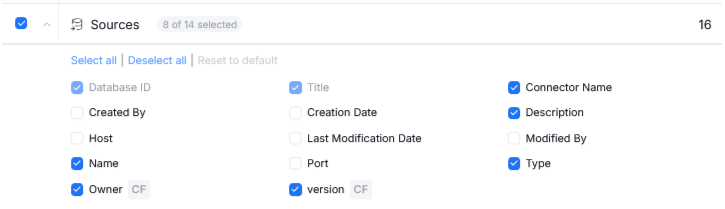
Finally, different categories can be chosen per different asset groupings selected in scope. So, for example, you can export Tables and Columns of Data Sources, while exporting only badges and lookups stored in Business Domains in one and the same export.
Configurations
This section contains past Configurations. By default, configurations which were previously explicitly saved by users will be shown first in the Saved Configurations category. These are meant to be custom-made export settings (for example: export all, or export just the Semantic Types and Data Classification) for easy and frequent reuse.
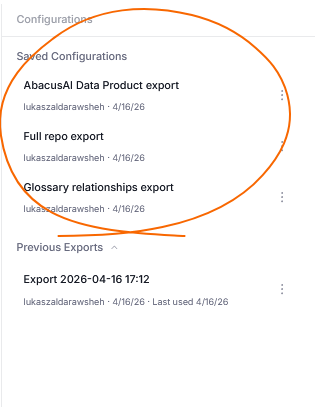
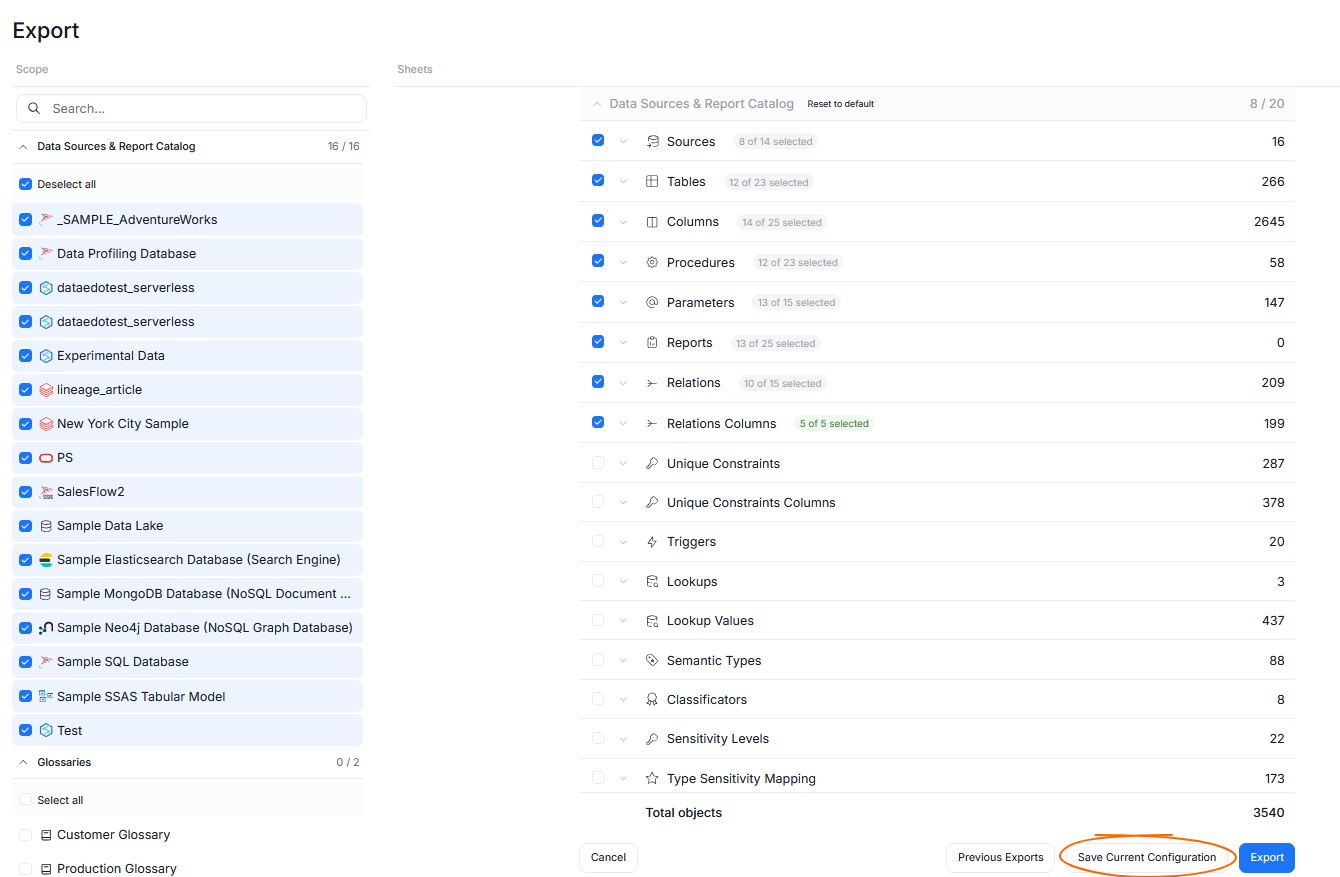
If you want a particular configuration to be saved and easily accessible in the Saved Configurations section, click Save Current Configuration before attempting to start the export.
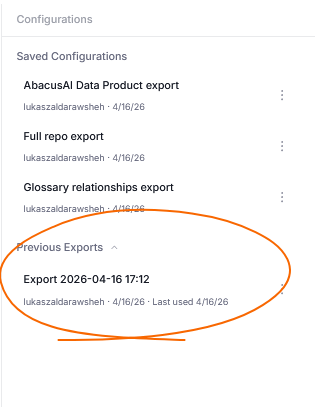
You can also expand the previous exports section to view a list of all past exports and copy their configuration.
Exporting data
Once you have set up the configuration, you can start the export process, using the Export button at the bottom of the page.
Once this is done, Dataedo Agent will start generating the file in the background. You can leave the page. Once the export is done, you will receive a notification via mail or in-app, depending on your notification configuration.
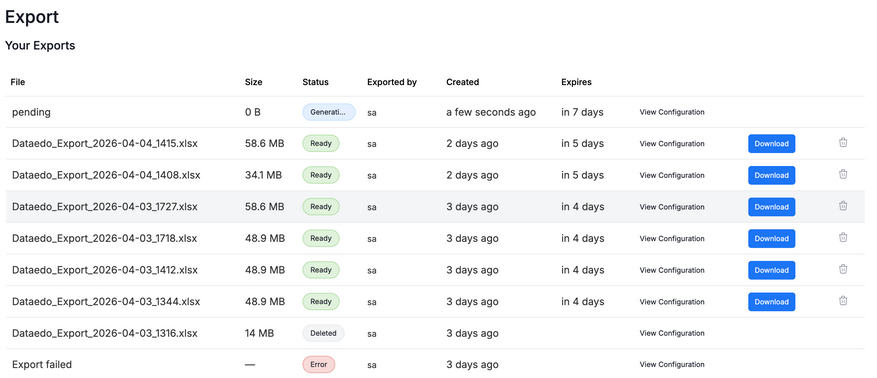
It is also possible to track the status of your export in real-time via the Export List accessible using the Previous Exports button. Each export — past and present — will have a badge denoting its current state:
-
Generating — the file is being generated
-
Ready — the file is ready for download
-
Error — the file could not be generated (you can also check the error message)
-
Expired — the file expired (it was generated more than 7 days ago)
-
Deleted — the file was manually deleted by a user
The exported file
After the export finishes, it will be automatically downloaded to your device. You can also choose to re-download it later from the Export List.
The resulting .xlsx file will contain:
- One summary spreadsheet
- Up to 36 spreadsheets, each with a different type of exported objects (depending on the configuration in sheets)
Additionally, the spreadsheets will contain cross-references (so, for example, clicking "source" in a "Tables" spreadsheet will take you to the "Sources" spreadsheet), and interactive filters, making it easier to inspect your data.

