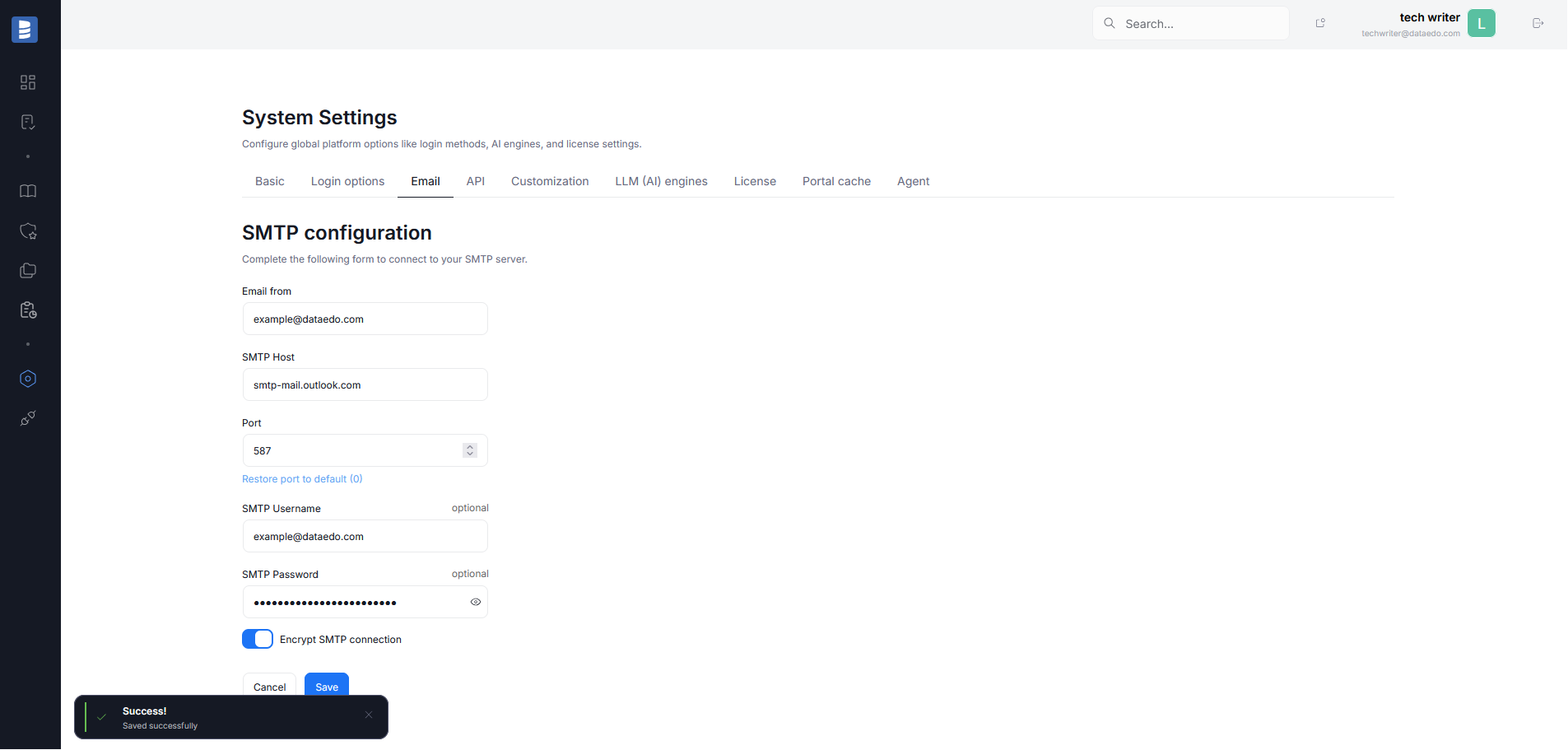
Configure Email
To be able to receive email notifications, you need to provide valid credentials to the SMTP server. This can be configured only by Admin users.
Finding your SMTP details
Before setting up your connection in settings, you have to gather the necessary details:
- Email from --> this is the e-mail handle from which e-mail notifications will be sent to your Users. Make sure it is compatible with the rest of your details
- SMTP host --> the address of an SMTP server handling the relay of emails
- Port --> the port identifying your SMTP service, in most cases its value should be 587
- SMTP username (optional) --> necessary if your mailing system requires authentication. It should match your e-mail username
- SMTP password (optional) --> necessary if your mailing system requires authentication. It should match your e-mail password
The manner of obtaining SMTP details might differ depending on your e-mail provider. Below we describe the process for two of the most popular services (Outlook and Gmail). If your organization uses the service by a different provider, you should be able to find relevant instructions on their support page.
SMTP server host in Outlook
You are probably using a workspace e-mail address. Most workspace e-mails cannot be connected to SMTP servers at all. Contact your organization's IT manager, to see which addresses can be used.
Most outlook accounts use a fixed SMTP server, as described on the official Microsoft help portal. The SMTP server for Microsoft Outlook is smtp-mail.outlook.com, and the port you should use is 587.
Your SMTP password and username are the same as your login details to Outlook.
If you are using a legacy, custom server available on Old Outlook you can find the SMTP details by clicking the File tab.
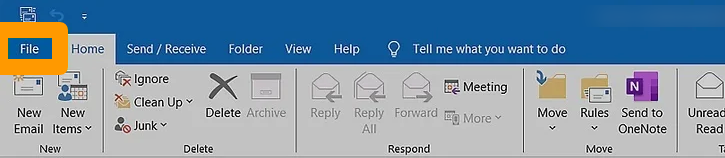
This will open a settings window. Choose Info and select Account Settings. Double click on your e-mail address. This action opens a new window where your SMTP host details are visible.
SMTP server host in G-mail
If your organization does not have a custom workspace SMTP server set up (as is the case for most organizations), the SMTP server host address is smtp.gmail.com and the port number depends on the Security Protocol you are using — 465 for SSL or 587 for TLS.
If you are working with a custom server, however, you will have to access and configure all the details yourself. This is explained in detail in this Google help article.
For SMTP username and password, your Username is simply the gmail account. SMTP password is a separate app password which can be generated by your Google Workspace administrator.
Connecting to SMTP in Dataedo
Once you have all the necessary details, head to Dataedo Portal and navigate to Settings>System Settings. Switch to the Email tab. Input all of the gathered SMTP details. If you provided SMTP Username and Password, make sure to toggle the Encrypt SMTP connection option. Once all is configured, click on Save. You will receive a notification letting you know whether the SMTP details have been saved successfully.