Managing Credentials
Credentials store sensitive information like passwords, API keys, or tokens.
Credentials are grouped by connector type, and can be used across multiple Connections of the same connector type. This allows for centralized credential management — if the password or token changes, you only need to update it once.
Managing Credentials
Go to Connectors > Credentials to:
- View a list of existing Credentials.
- Filter by credential name or connector type.
- Add new Credentials.
- Edit or delete existing Credentials.
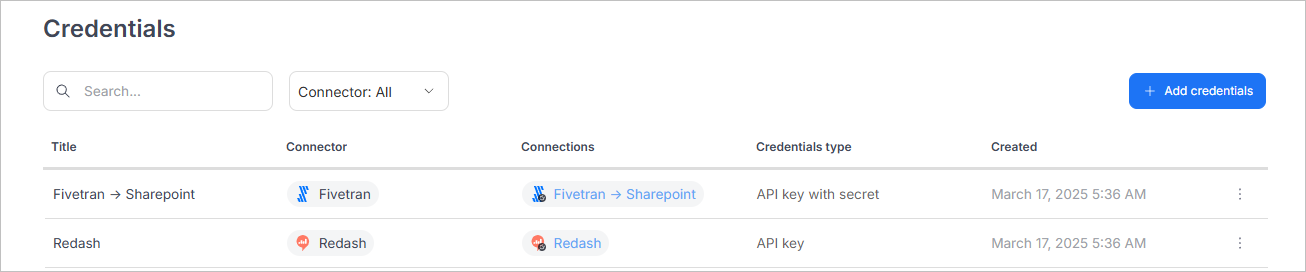
Adding Credentials
- Select Add credentials.
- Choose a connector from a dropdown.
- Enter credential's name and provide the token/password. If your selected connector can use either a token or a password, you will also have to specify which one you are using
- Set the credential permissions
- Click Create credentials to add a credential.
Adding a connection

Editing Credentials
- Use the three-dot menu in the Credentials list and select **Edit.
- Change the name and/or password (requires clicking a checkbox)
- Set the credential permissions
- Click Edit credentials to save your changes.
Editing a connection

Deleting Credentials
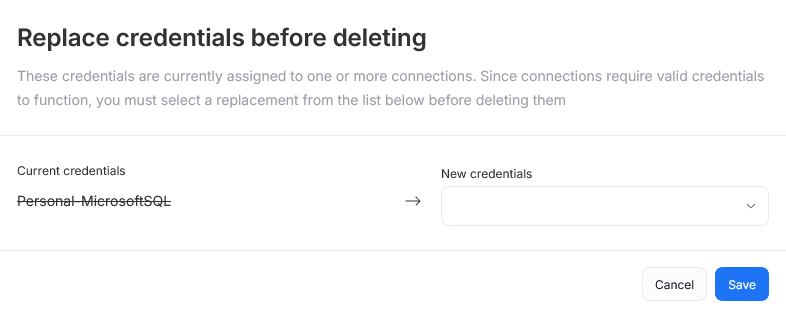
Use the three dots icon next to a credential's name and select delete. If that Credential is used by any Connection, you’ll be prompted to reassign another Credential before deletion.
Permissions
Credential can be used and edited only by permitted users. When you create a credential, you will be set as the only person with edit permissions by default.
There are situations where Credentials should be accessible to more people in your organization — when working as a data team over one source for example. As such, when creating or editing credentials, you have the option to grant permissions to more people.
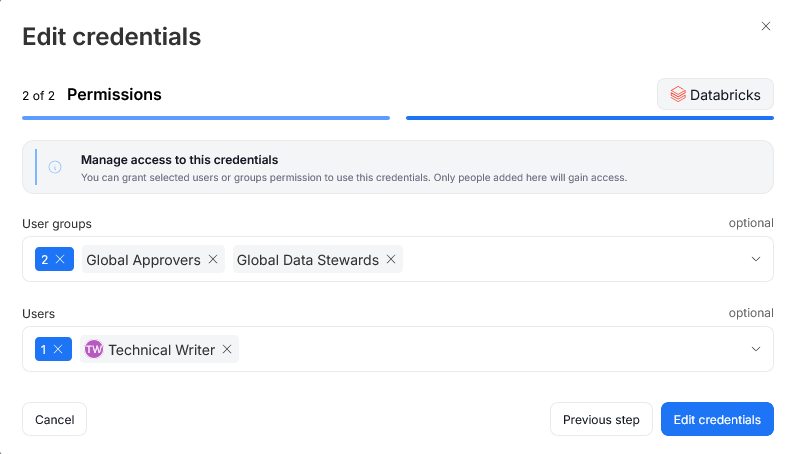
You can grant permissions either to an entire User Group or individual Users.
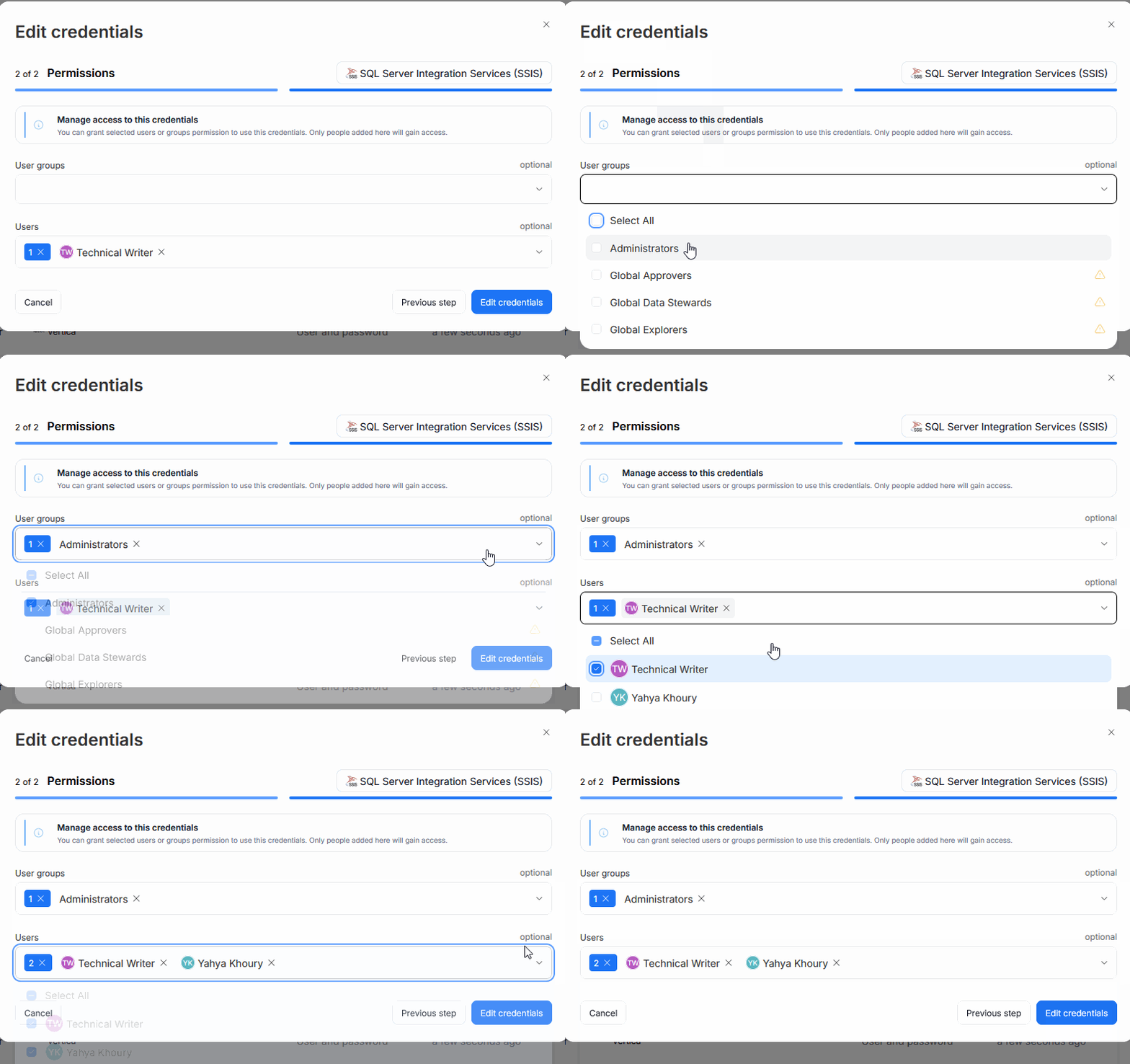
When editing a Credential you can remove your own permissions. This action prevents you from using that Credential in the future, therefore a system warning is displayed.
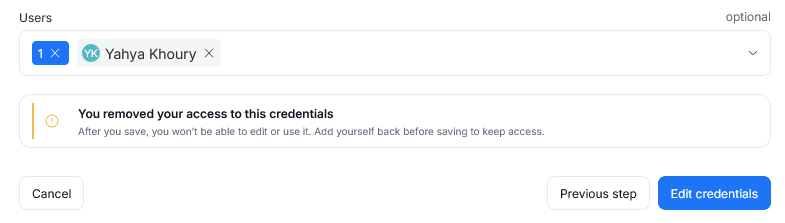
There are certain limitations to keep in mind. Most importantly, at least one person has to have an access to a credential. If you try to remove all users, a warning will appear and stop you from proceeding.

Other thing to keep in mind, is that you can grant permissions to all Users and User groups within your repository. However since Credentials can be viewed only by Users with a Connection Manager role, even users with access permissions might not be able to see the Credential, as long as they lack a necessary role. Dataedo displays a warning next to Users and Users groups that are not Connection Managers.
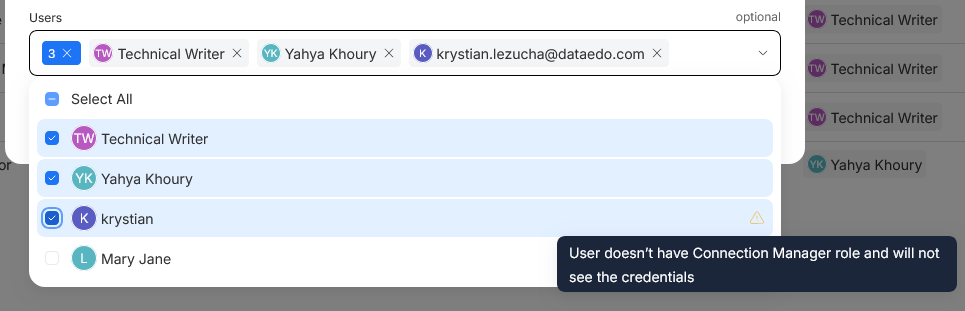
Users without permissions will still be able to see the credential's name in the list of credentials and in connections, however they will not be able to perform any actions related to it. The three dots icon responsible for edit/delete actions will be missing. It also won't be possible to use that credential to connect to a source when making a new Connection, or choose it as a replacement during credential deletion.


