Configuring Dataedo Agent
This article explains how to manage Dataedo Agent once it's installed. To install the Agent, see Installing Dataedo Agent on Windows.
Updating
Use the Installer's Update option to install a new version of Agent.
Modifying the configuration
To modify the Agent's configuration, run the Agent Installer and choose the Configure option.
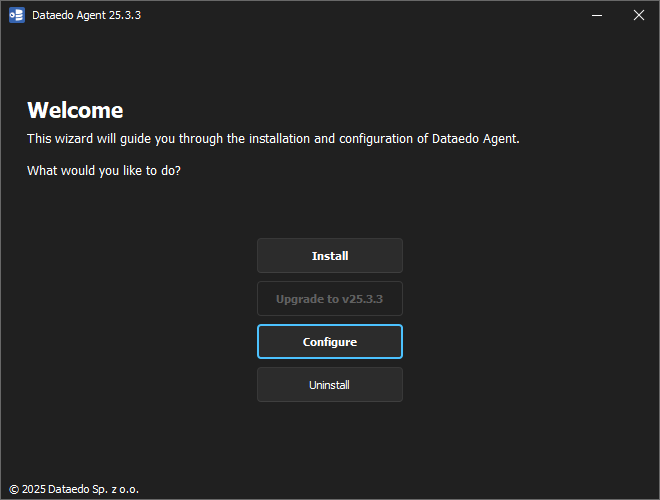
Select the instance you want to modify:
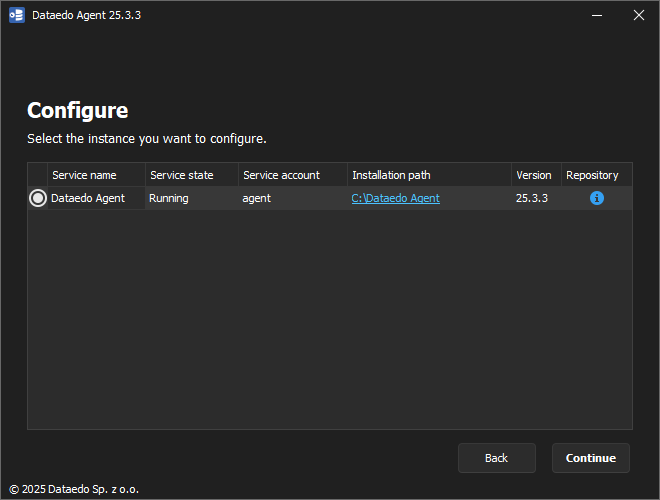
Choose the setting you want to modify:
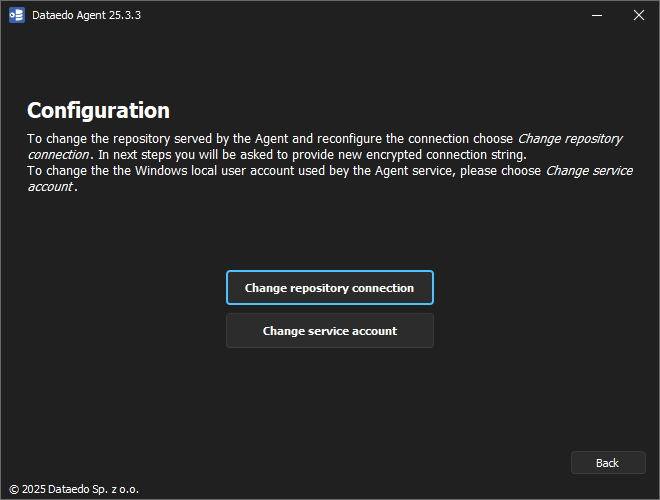
Then provide the new settings.
Agent parameters in Portal
You can modify Agent's behavior regarding task queueing in Settings>System Settings>Agent using toggle buttons.
The first parameter you can modify is Prevent multiple enqueues of the same task. Turning this option on, makes it so that a task can not be put in the task execution queue, if it is already queued. This essentially prevents double-executions in rapid succession, due to user error or wrongly planned execution schedule. This is also the default behavior of Agent — when you first run Dataedo, this parameter will be enabled.
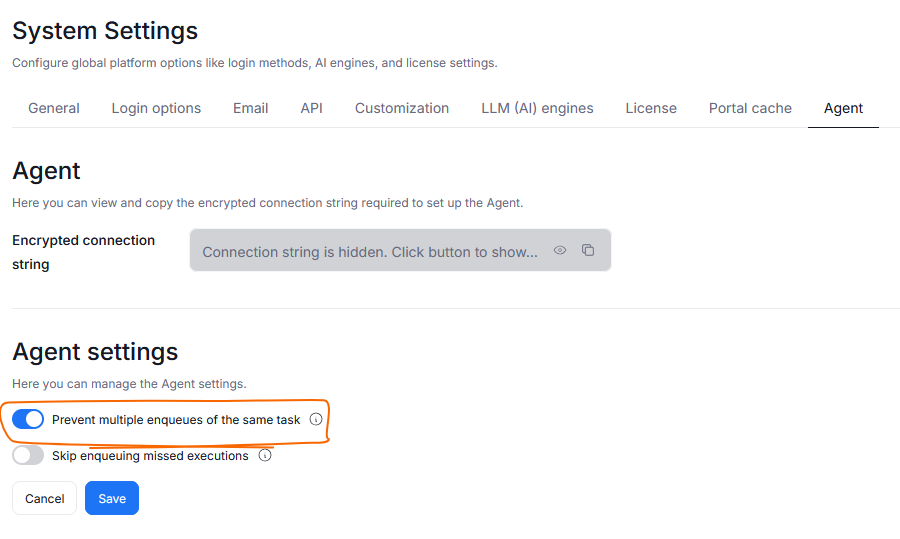
If this parameter is on, and you try manually running a task which is already in the queue, the request will not go through, and a notification will appear.

The second parameter is Skip enqueuing missed executions. It is disabled by default, when you enable this it, Agent will not run tasks that should have been run in the past but were not because the Agent was offline. In simple terms: Tasks will be queued and executed only if their scheduled time conflates with the time when the Agent is online and active.
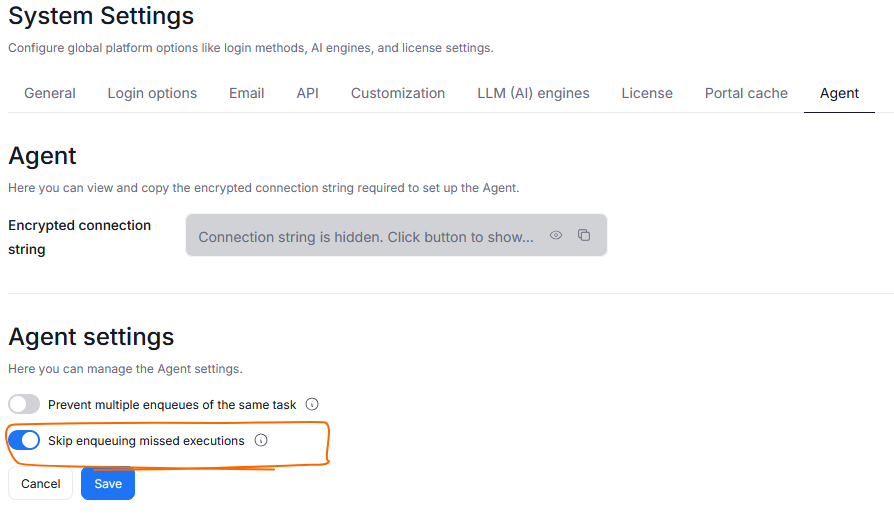
Turning this option off instead, results in queueing the missed tasks for execution once the Agent comes back online.
Restarting
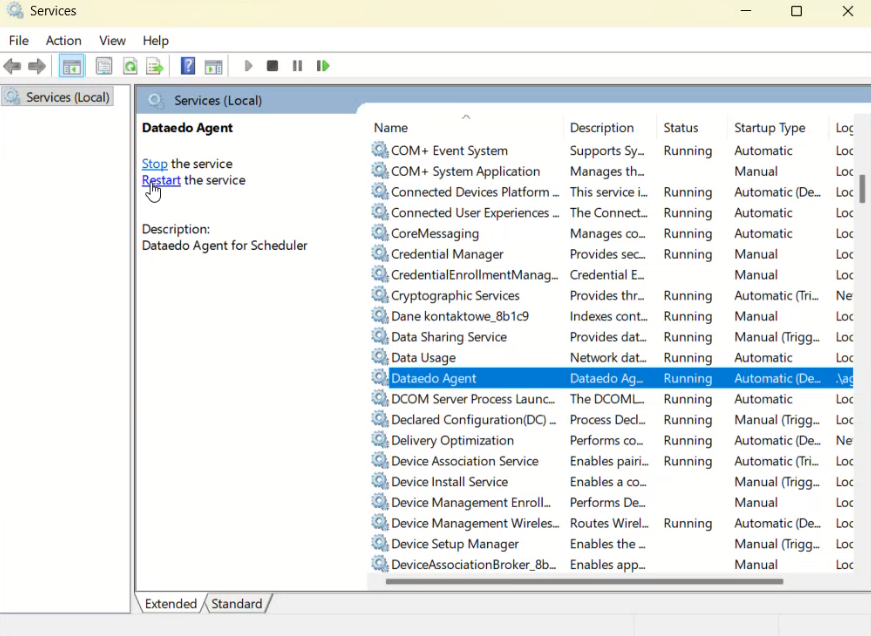
You can restart the Agent service by manually stopping and starting it.
Stopping
You can stop the Agent service in two ways:
- Run the Command Prompt with administrator privileges and type
SC STOP "Dataedo Agent". - Open Windows Services, find the service called Dataedo Agent, right-click it and select Stop from the context menu.
Starting
You can start the Agent service in two ways:
- Run the Command Prompt with administrator privileges and type
SC START "Dataedo Agent". - Open Windows Services, find the service called Dataedo Agent, right-click it and select Start from the context menu.
Uninstalling
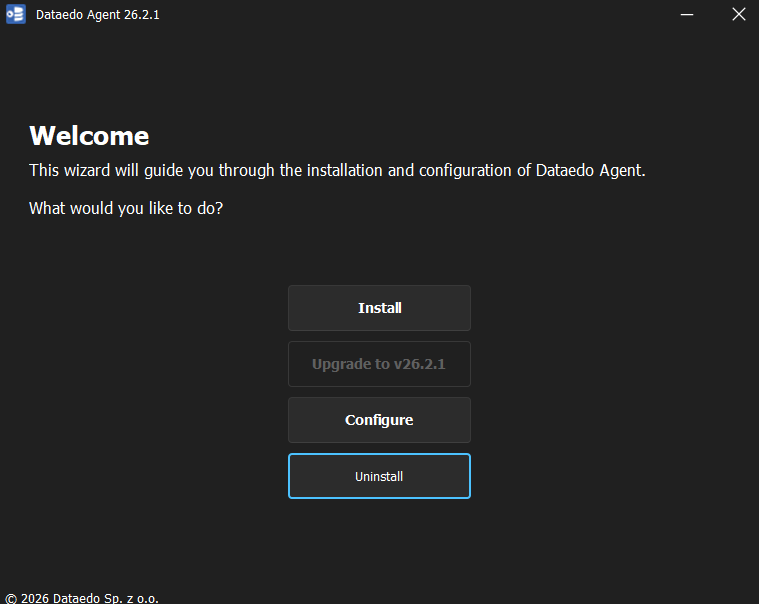
To uninstall Dataedo Agent, use the Uninstall option in the Dataedo Installer.
Troubleshooting
Agent is not working
You should first check whether the agent process is active. To do so, open Services on your windows machine and find the Dataedo Agent service. Its status should be running.
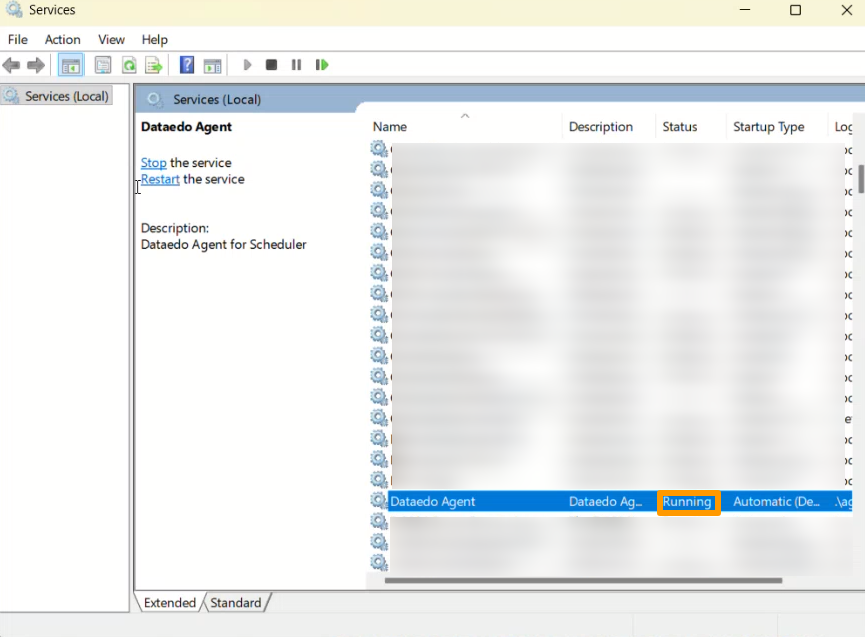
If the status is something else, first try stopping the service and then Restarting it.
If that does not fix the problem open the Agent installer, uninstall agent and then repeat the installation.
View Error Details in the Portal
To review error details:
- Open the Portal.
- Go to Connectors > Schedule.
- Locate the failed task in the Calendar.
- Expand the task and select the History tab.
- Click Check error details to view the message and stack trace.
Cancellation Pending Status
When you cancel a scheduled task in the Portal, it will show as "Cancellation pending" until it reaches a safe stopping point. This status improves visibility but does not mean the task has stopped immediately.

