Notification settings and following
Dataedo lets you manage your notifications as well as their delivery channels through your account settings. Click your profile icon in the top-right part of the screen to open your profile, and select the Notifications tab. The page is split into two sections: Notifications (what reaches you and how) and Following (what you follow).
Notification preferences saved in your account settings are global. This means that they affect all notifications you receive from your entire repository.
Notification types
Open the Notifications section and scroll down to Notification types.
This section shows a list of events that can trigger notifications, grouped by category — Requires my attention, Task and rule failures, Followed object activity, and My operations.
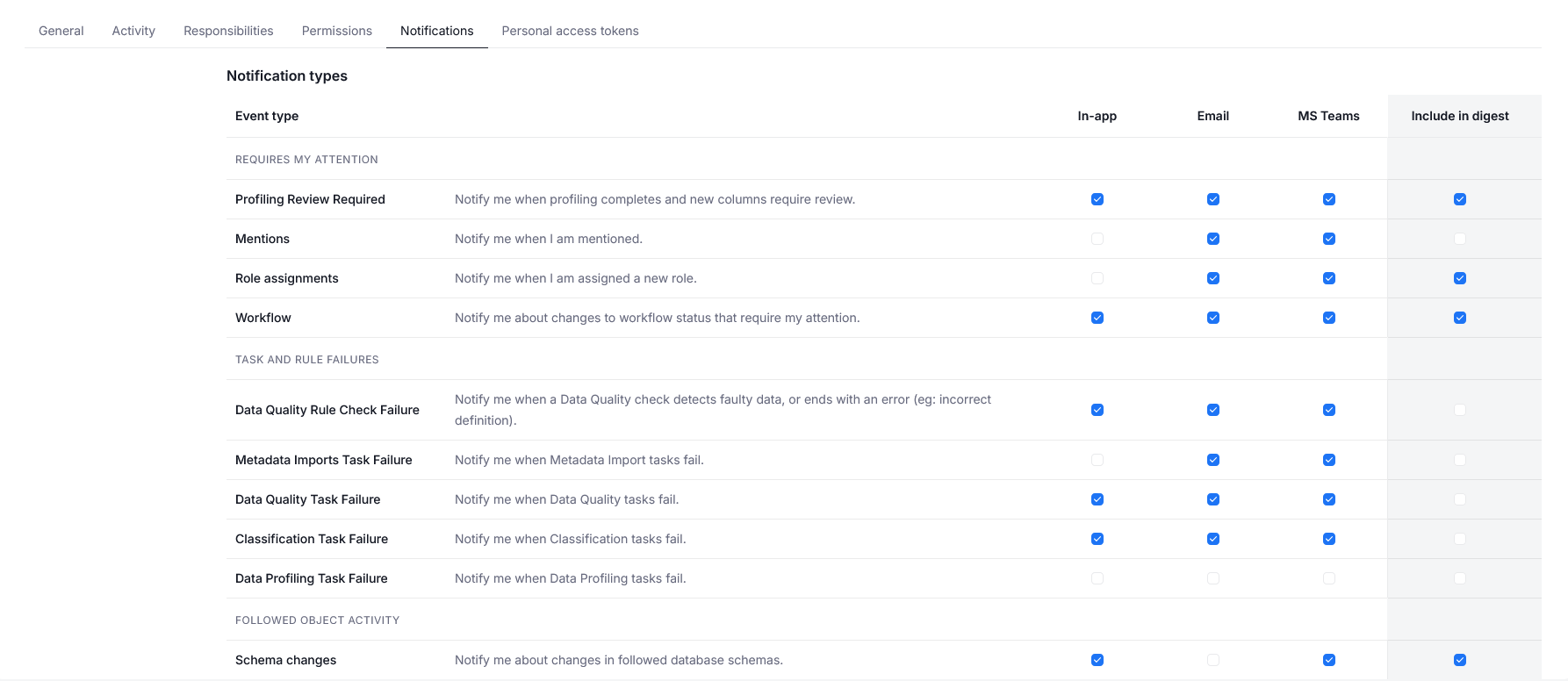
Using checkboxes, you can specify whether you want to receive notifications for each event type. Each delivery channel — in-app, email, and (if configured) Teams and Slack — has its own column. By default, task and rule failures, mentions, and your own operations are delivered through all channels, while the remaining event types are delivered in-app only and included in the digest. Slack is turned off by default for all event types and for the digest. This section also lets you determine what will appear in your digest.
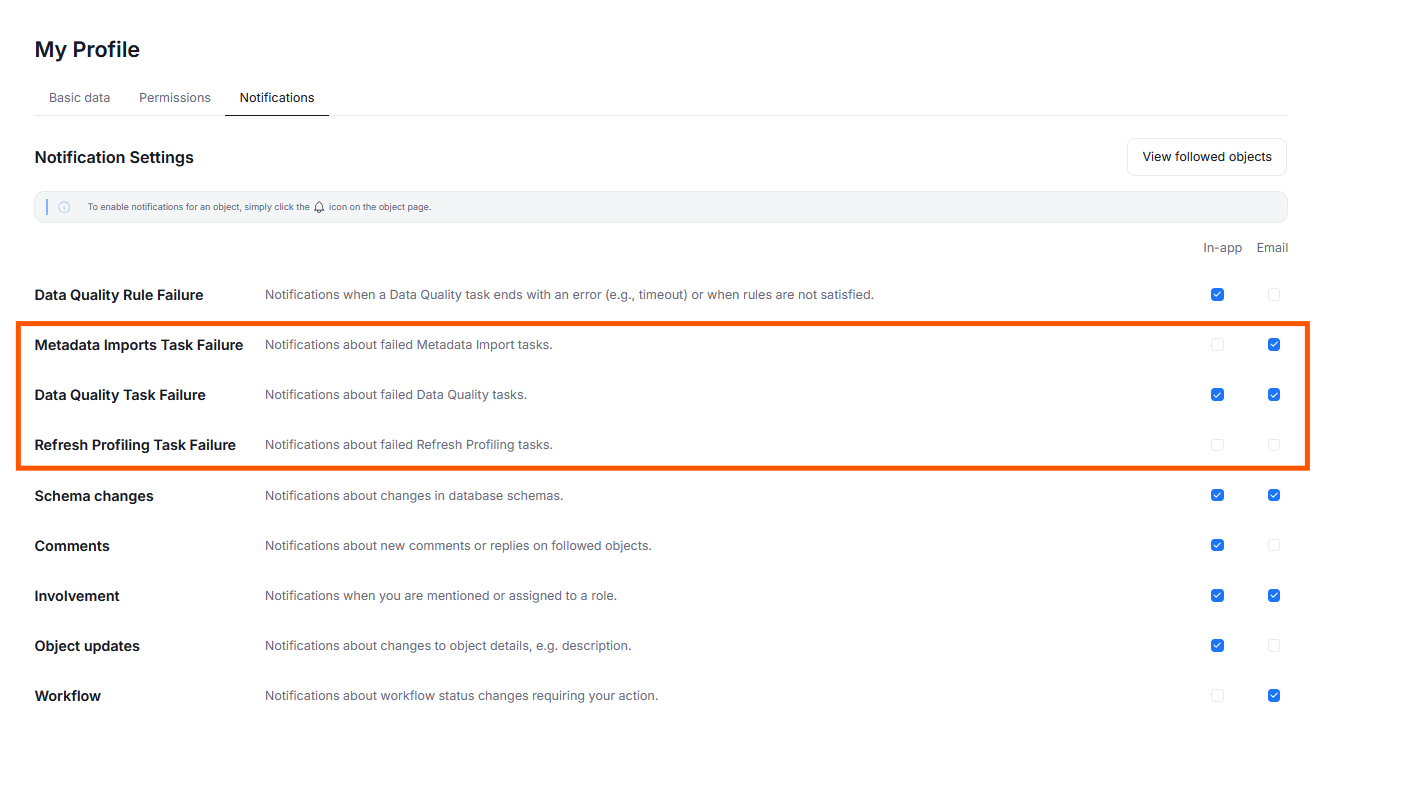
Keep in mind that notification settings related to scheduled tasks (marked below) are visible only to Connection Managers (as access to the Scheduler is necessary). Rows for events your license does not cover are hidden as well. Additionally, the MS Teams and Slack columns will appear only if the matching integration is configured and enabled in your Portal instance.
Digest
Digest lets you gather selected events into a single, long-form report delivered daily or weekly, instead of receiving each of them as a separate notification.
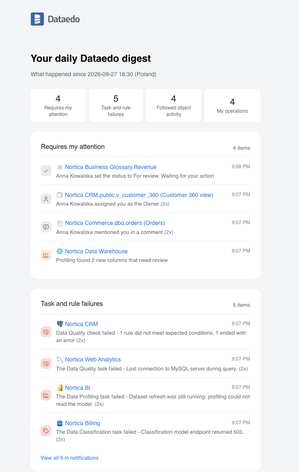
Digest settings are configured per user, so everyone can decide what their own report contains — a daily summary of repository changes, a weekly recap of schema changes or scheduled task results, or simply the event types that would otherwise arrive too frequently as individual notifications.
Digest covers the same event types as regular notifications, but it does not replace them. For every event type, you can decide independently whether it should arrive as a notification, as a digest entry, as both, or not at all.
Because of its long-form character, Digest is delivered through external channels such as email, Microsoft Teams, or Slack — it is not available as an in-app notification. Additionally, to save space, Digest shows up to four events in each section. If more changes have been made since the last digest, you will see a link taking you to the Notifications Center.
To configure it, click your profile icon in the top-right part of the screen and navigate to Notifications. Use the Digest section to pick the delivery channels and the schedule — once a day or once a week, on a chosen day and hour in your own time zone — and the Include in digest column in Notification types to choose which events are included.
Following
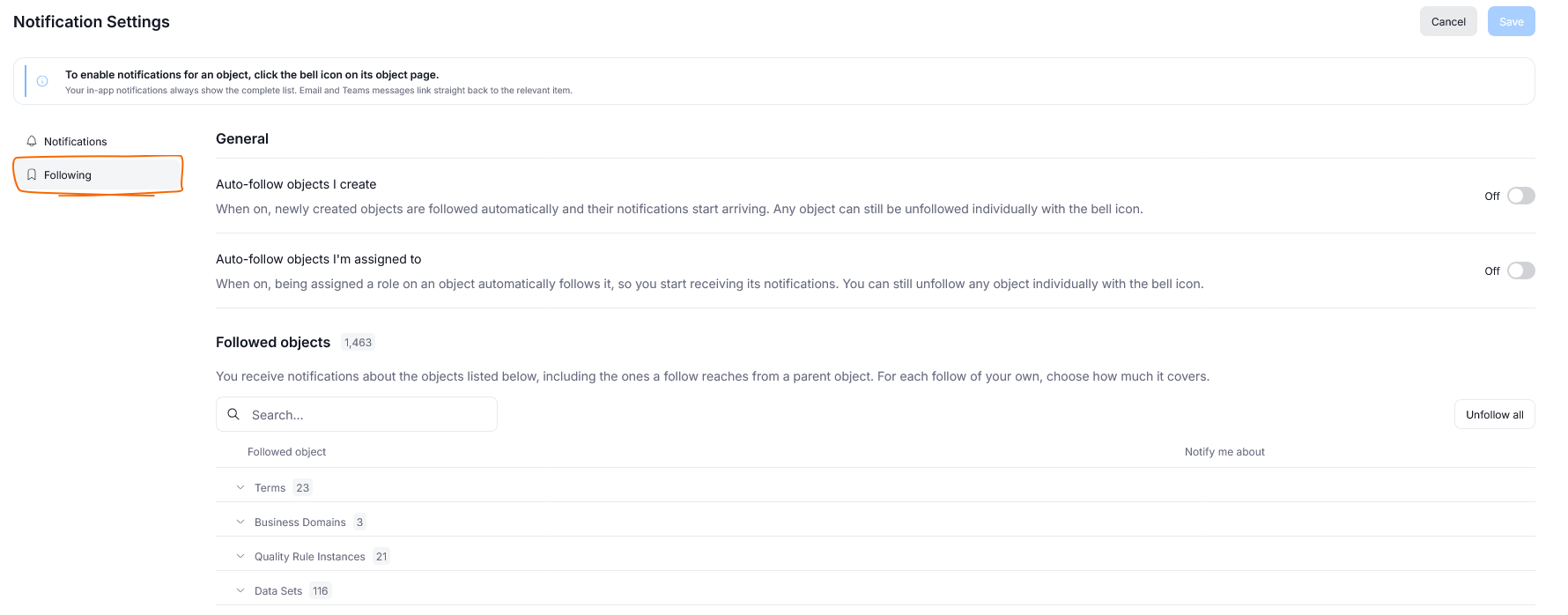
In principle, you receive notifications only for changes in objects you are following. The Following section of your notification settings lets you see and manage the individual objects you are following and set auto-following rules.
Manual following
You can follow or unfollow objects using Dataedo Portal. With the object open, click the bell icon next to its name. This opens a list of users who are following the object. You can click Start following to follow the object yourself. If the action is successful, the icon turns light blue.
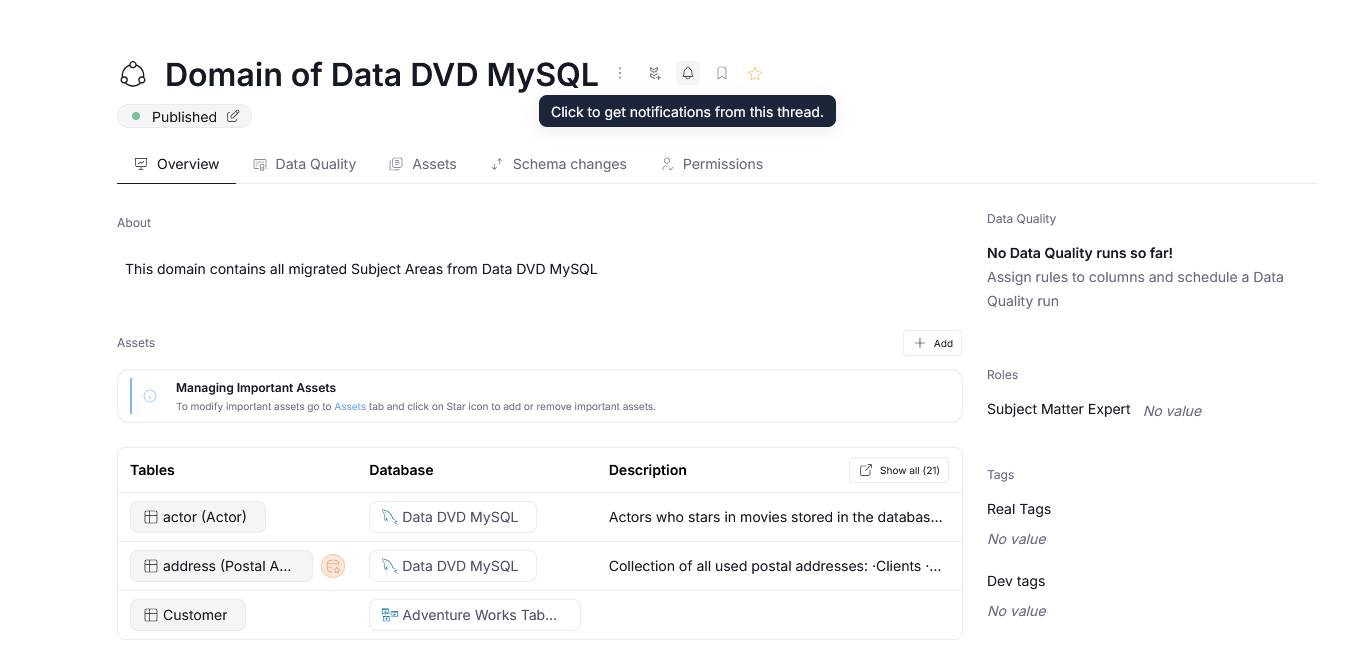
If the object can contain other objects, Dataedo asks how far the follow should reach:
- This object and its children — updates about the object and everything under it, including children added later
- Only this object — updates about the object itself, for example its description or owner
An object's children are all the objects nested within it. For a database, all the objects it contains are treated as children. For Domains, Areas, and Data Products, their assets are also treated as children. For a table, its columns are treated as children, etc.
Manual unfollowing
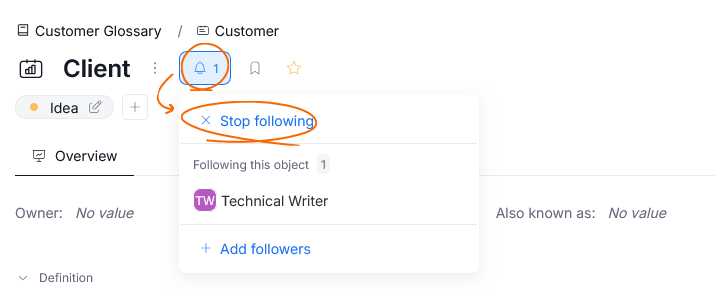
You can unfollow an object directly from its view by clicking the bell icon and choosing Stop following (provided notifications for it were previously activated). You are not asked anything — the follow is removed exactly as far as it reached, and the confirmation message tells you whether its children were included.
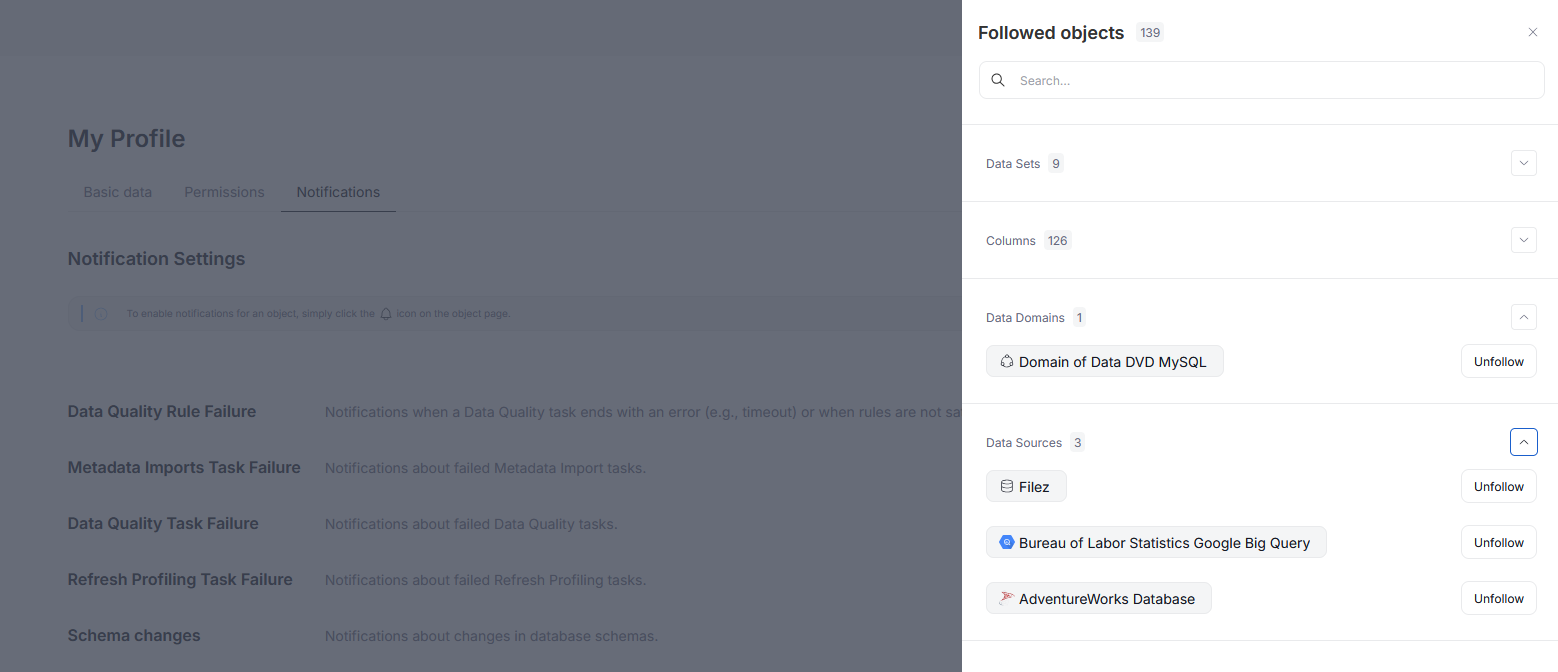
You can also head to your account settings and open the Following section. The Followed objects table lists everything you currently follow, grouped by object type and searchable by name. Each row has an Unfollow [A] button. You can also select several objects at once or use Unfollow all [B], and confirm in the pop-up that appears.
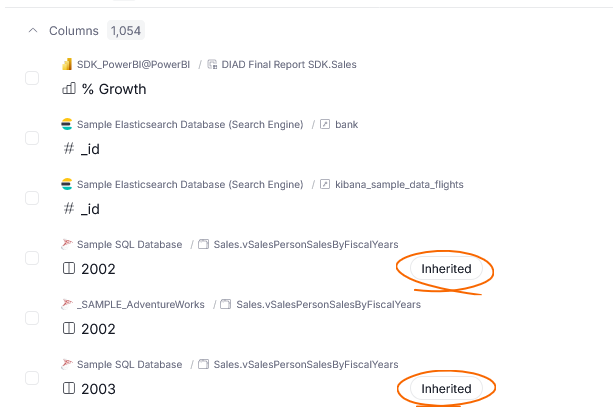
Objects you follow through a parent are marked as Inherited. Unfollowing such an object here takes that object, together with its own children, out of the parent's follow and leaves the rest of it untouched.
Followers list
Users with the Edit Documentation permission on an object can also manage its followers list. You can access this function by clicking the bell icon. From there, you can:
- remove a user from the followers list by hovering over their name and clicking the X icon [A]
- add a user as a follower using the Add followers [B] button

When you remove a user from the list of followers, you are not asked anything — their follow is removed exactly as far as it reached, the same way as when they unfollow the object themselves.

